
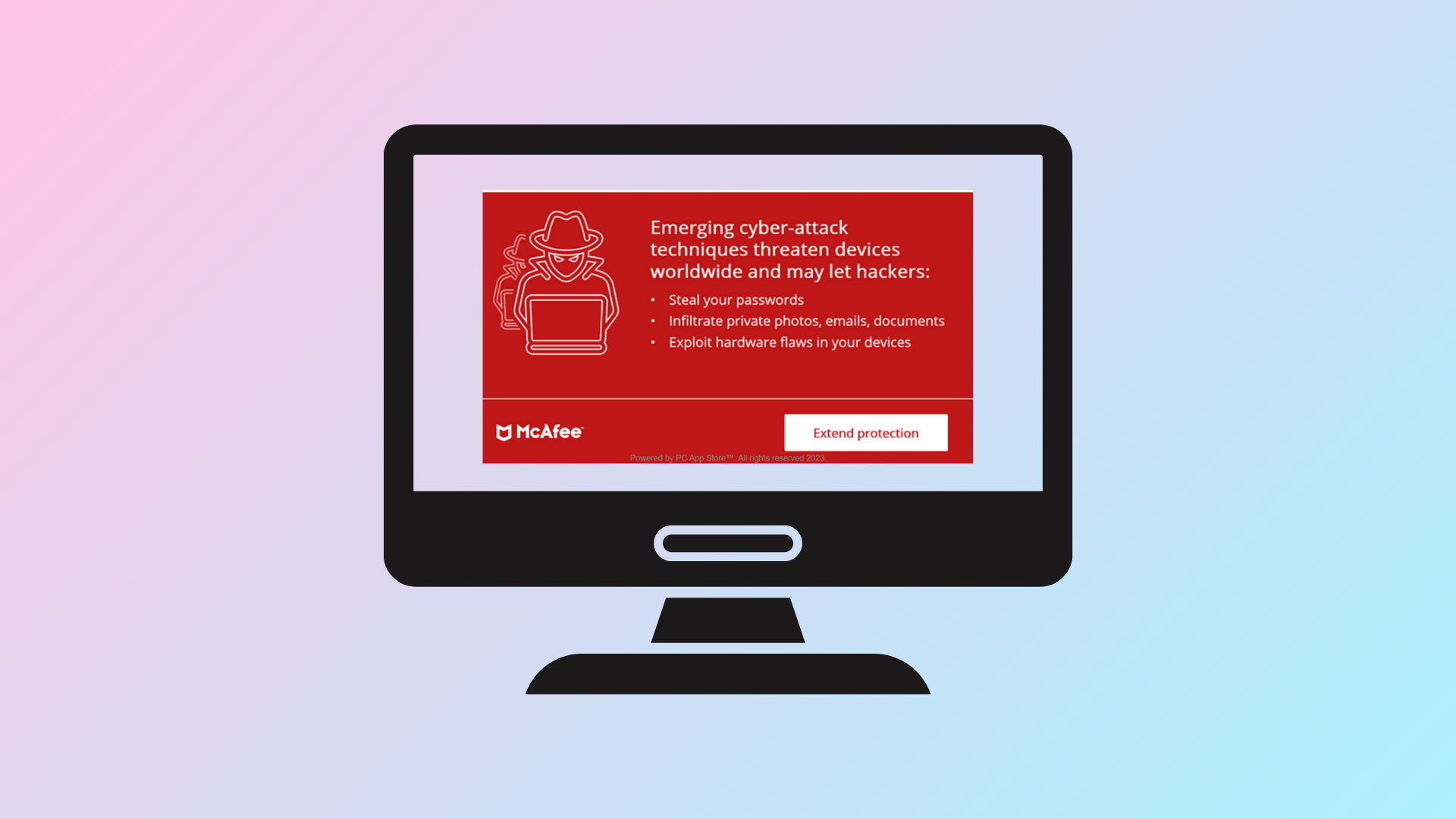
Constant McAfee pop-ups can interrupt work, slow down your system, and sometimes even trick you into thinking your computer is infected. These notifications might come from the official McAfee antivirus program, bundled trialware, browser-based malvertising, or even hidden adware like “PC App Store.” Addressing the source directly stops the annoyance and keeps your device secure.
Uninstall McAfee and Related Adware for a Permanent Fix
Removing McAfee software and any related adware is the most reliable way to stop persistent pop-ups on Windows 11. Many users report that even after uninstalling McAfee, pop-ups can continue if adware or remnants are left behind. Here’s how to fully remove them:
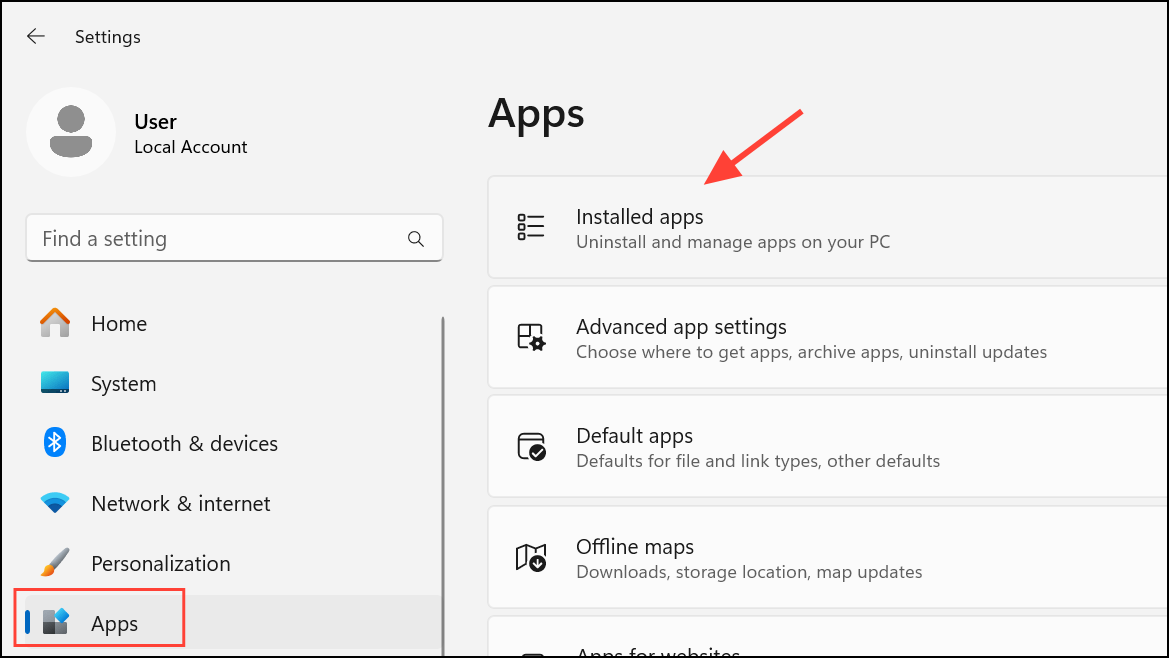
Uninstall. If prompted, follow the on-screen instructions to complete the removal. For stubborn programs, try third-party uninstallers such as Revo Uninstaller or Geek Uninstaller, which can remove leftover files and registry entries.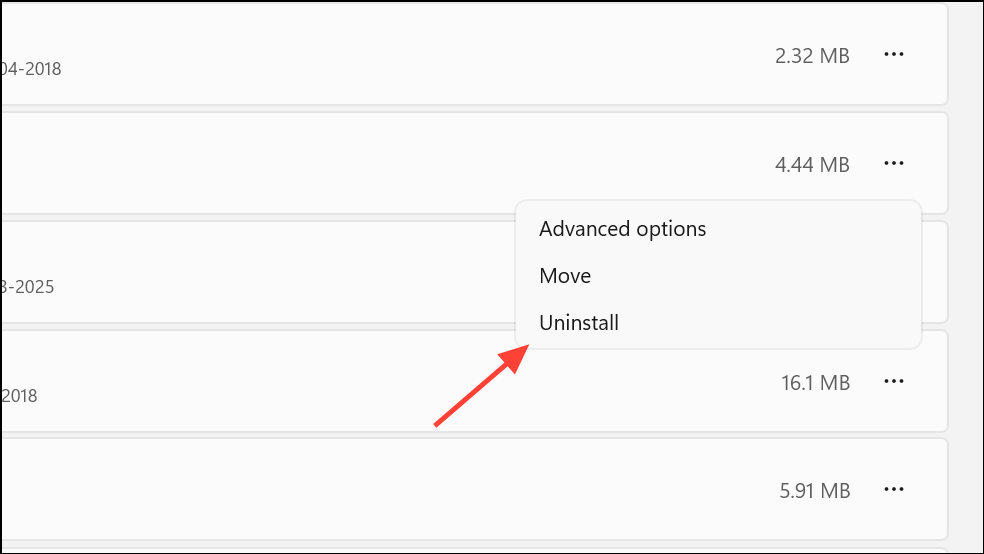
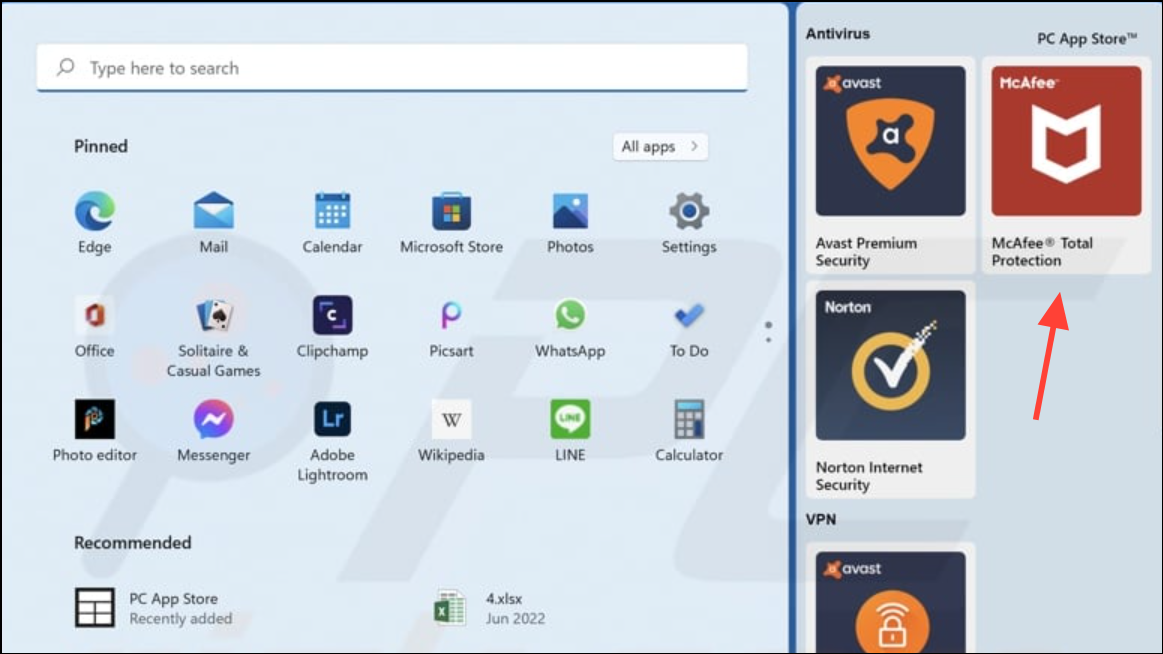
Ctrl + Shift + Esc to open Task Manager. Go to the Startup tab and disable any entries related to McAfee or PC App Store. This prevents them from running automatically when you start your computer.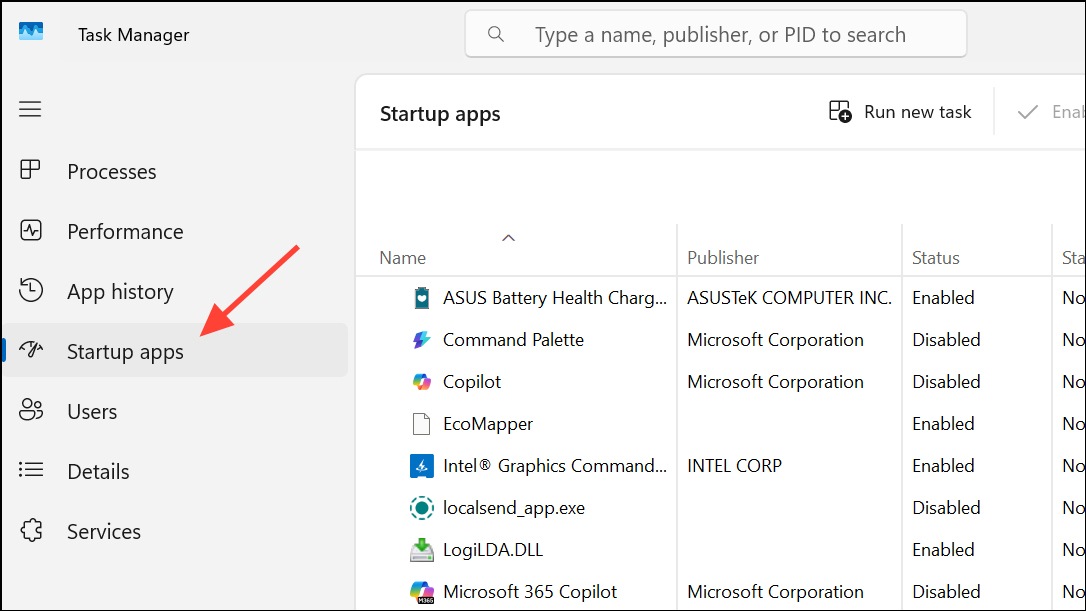
Turn Off McAfee Notifications in Windows 11 Settings
If you want to keep McAfee but just stop its pop-ups, Windows 11 allows you to disable notifications for specific apps:
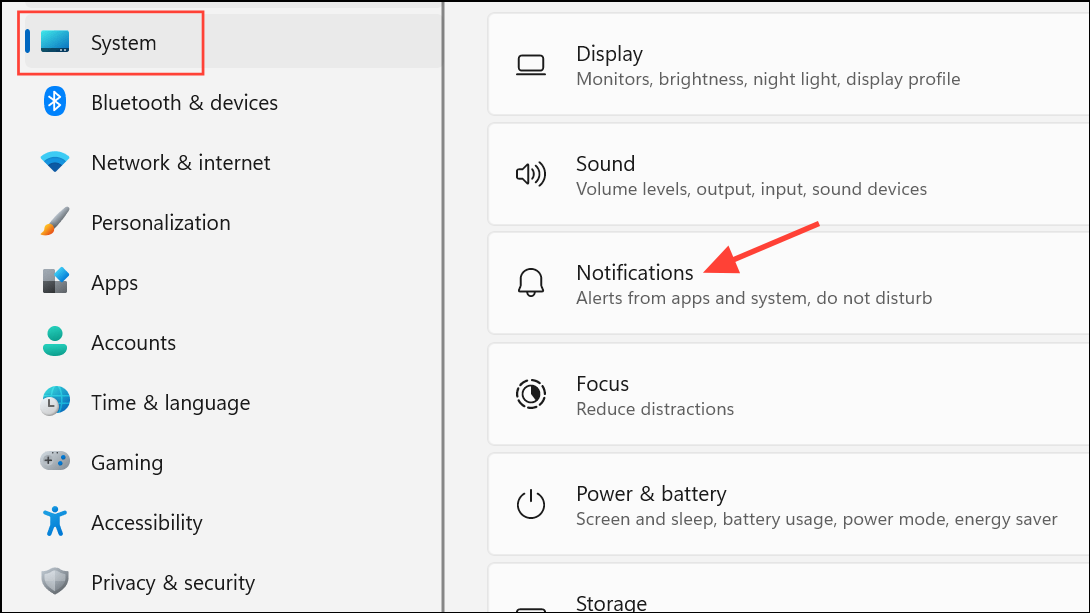
Off. This blocks McAfee from sending notifications through the Windows notification system.PC Security > Settings (gear icon), then find Notification or Alert settings. Disable options like “Security Alerts,” “Promotions,” or “Tips.”Block Fake McAfee Pop-Ups in Web Browsers
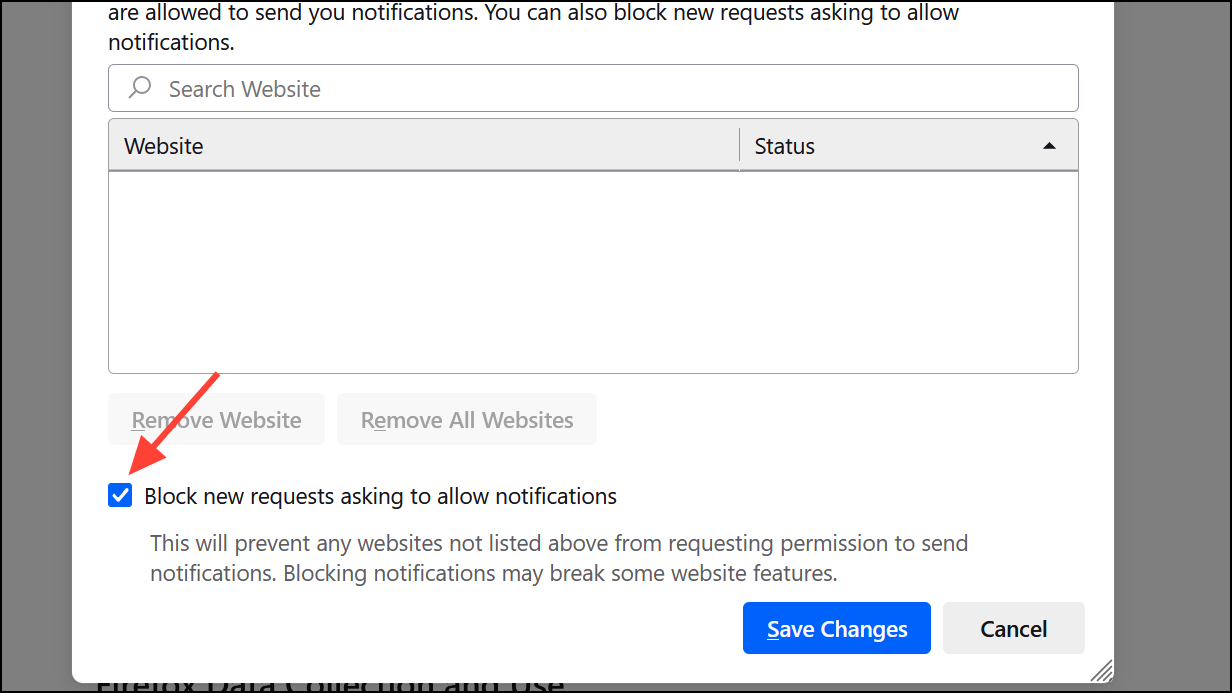
Sometimes, McAfee-branded pop-ups aren’t from the real software but are fake ads or scams delivered through your browser. These often appear when visiting questionable sites or after clicking on malicious links. To block them:
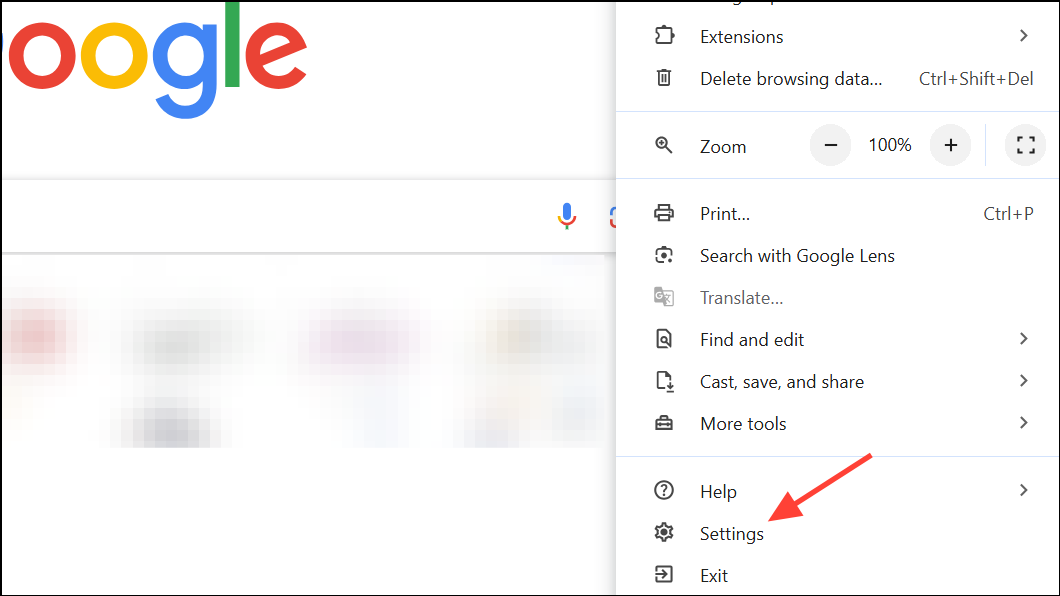
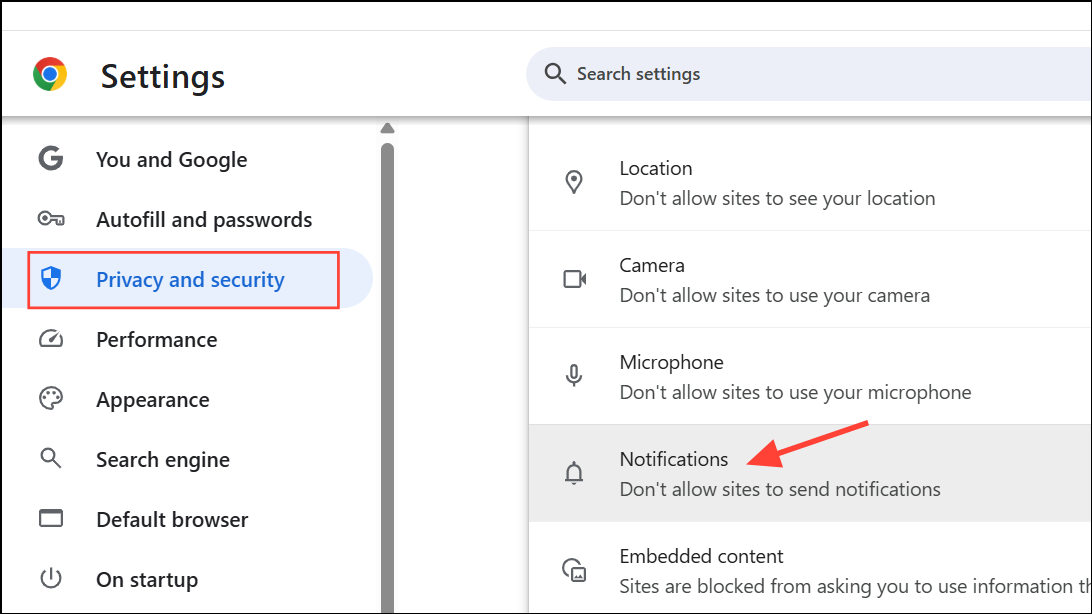
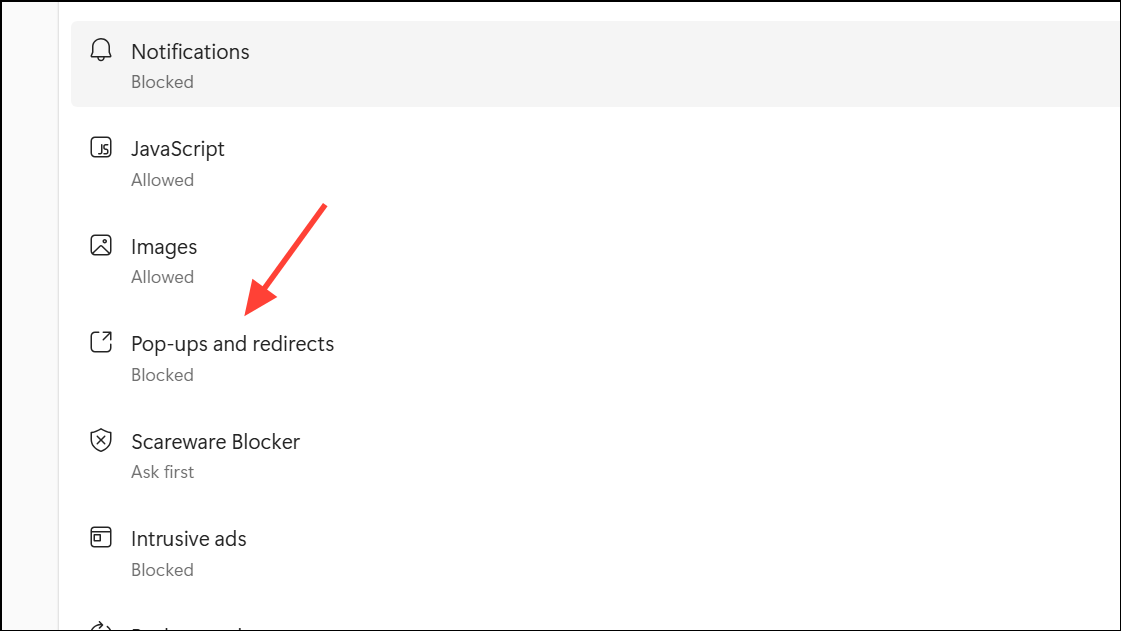
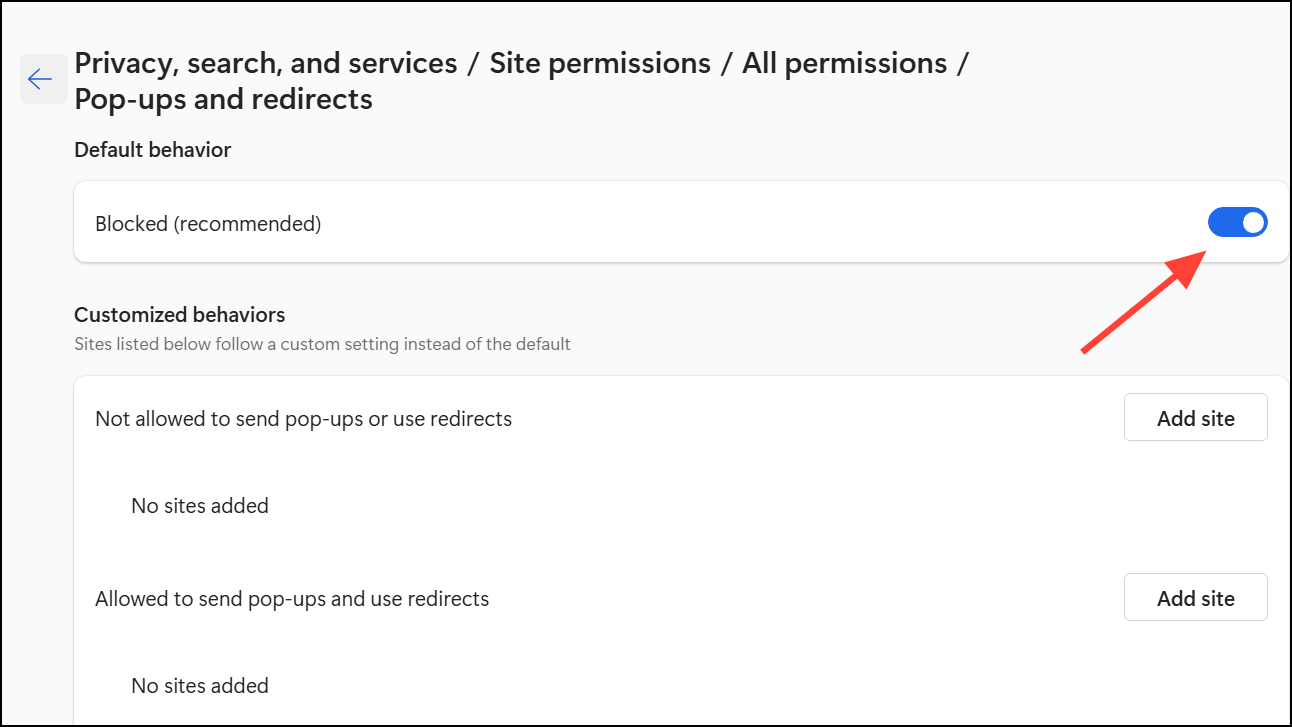
Pop-ups and redirects, set to “Don’t allow sites to send pop-ups or use redirects.”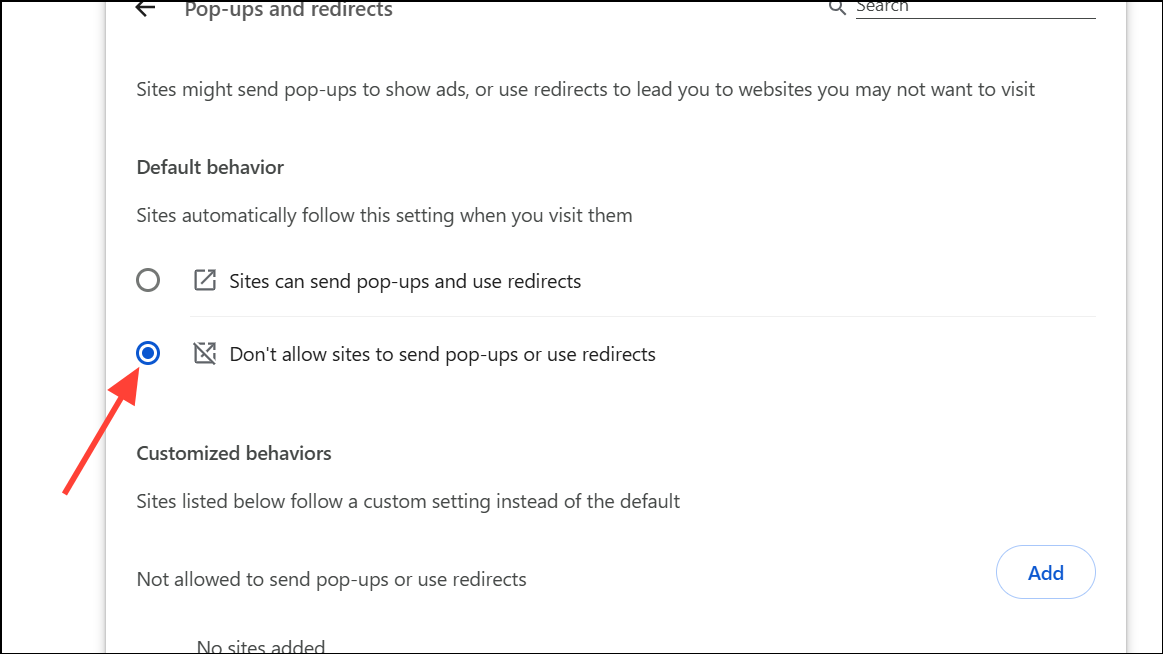
Settings > Privacy, Search and Services.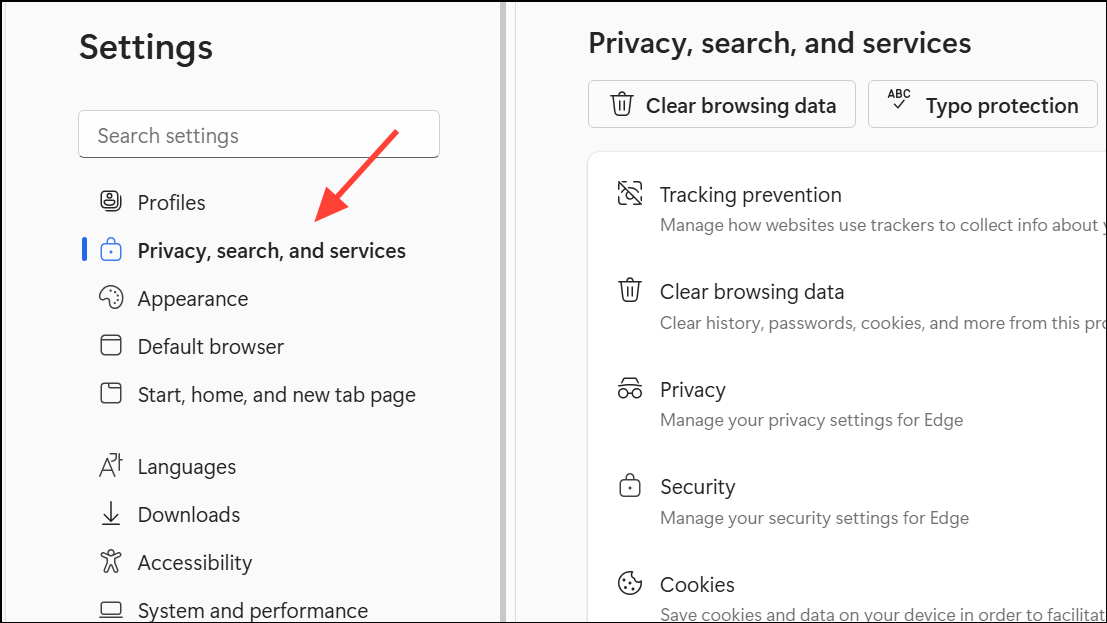
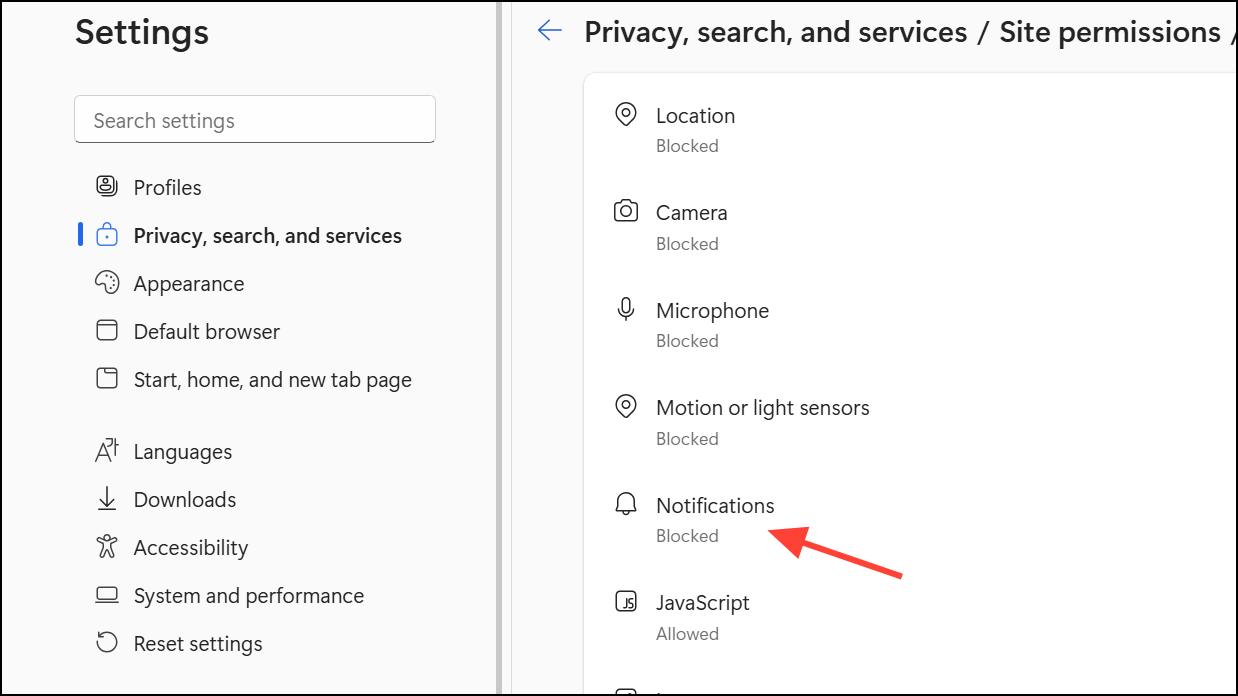
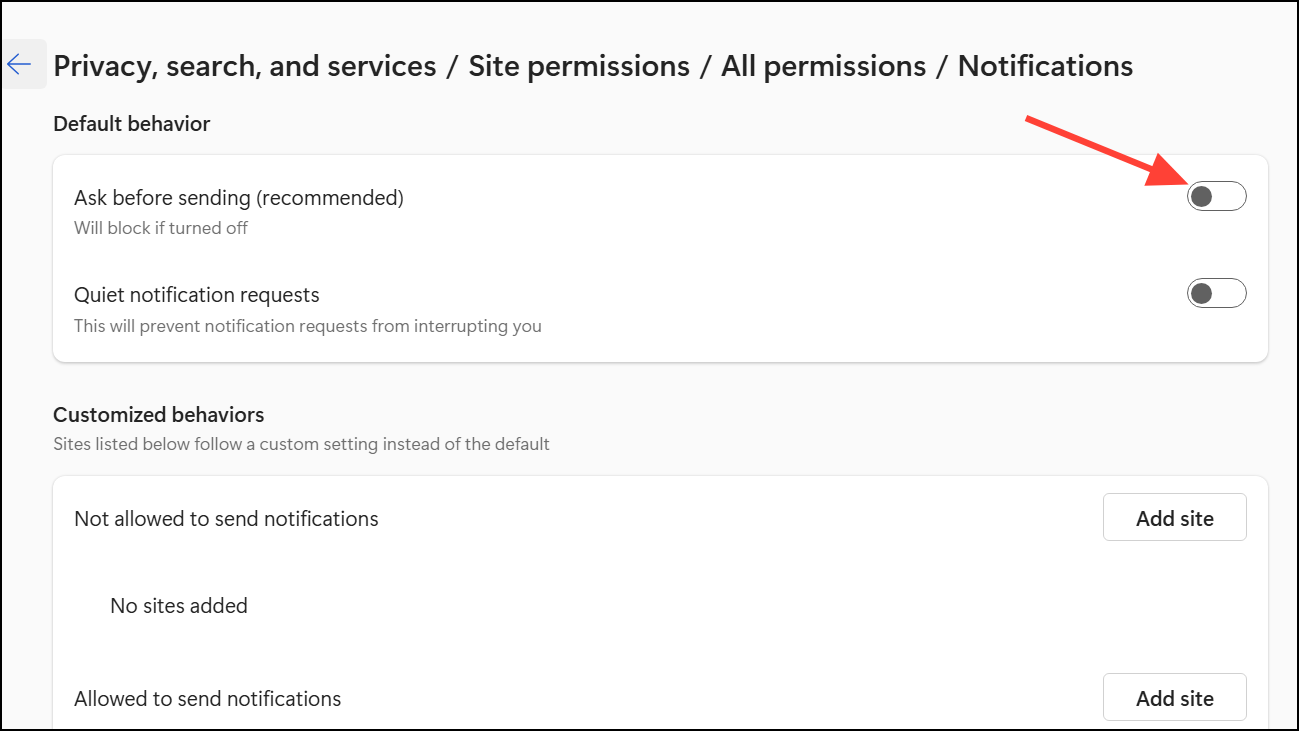
Use Task Manager to Close Persistent Pop-Ups
If a pop-up won’t close normally, avoid clicking anywhere on it, including the “close” button, as it could trigger malware. Instead, use Task Manager:
Ctrl + Shift + Esc to open Task Manager. Look for your web browser or any suspicious process related to McAfee or PC App Store.End task to forcibly close it. This shuts down the pop-up without interacting with it directly.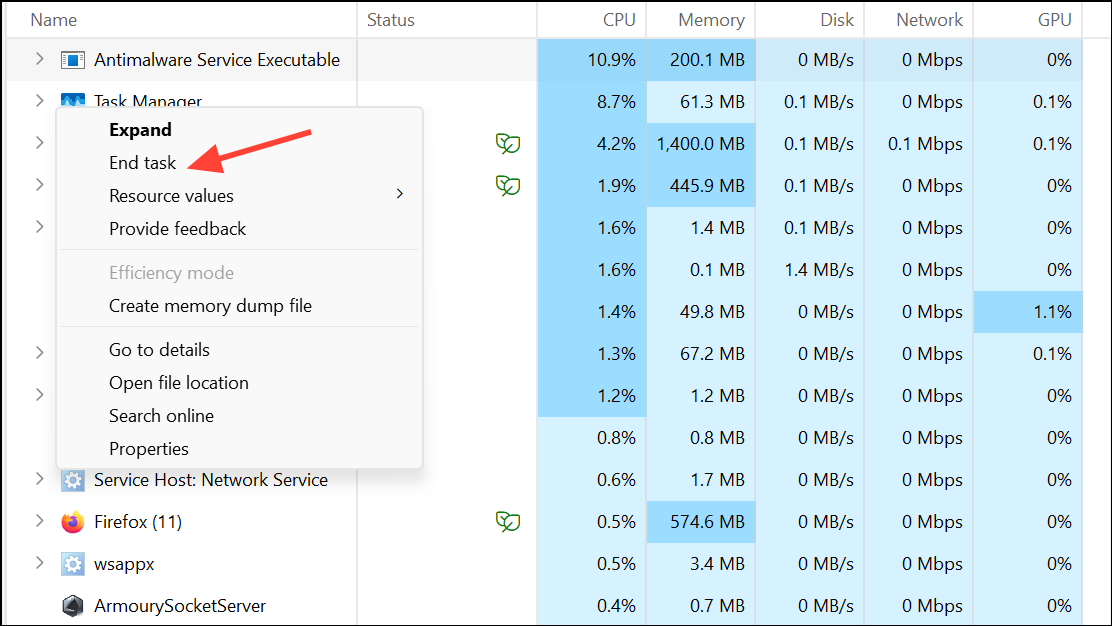
Run a Full Security Scan and Update Windows
After removing McAfee and related adware, it’s important to scan your system to catch any remaining threats:
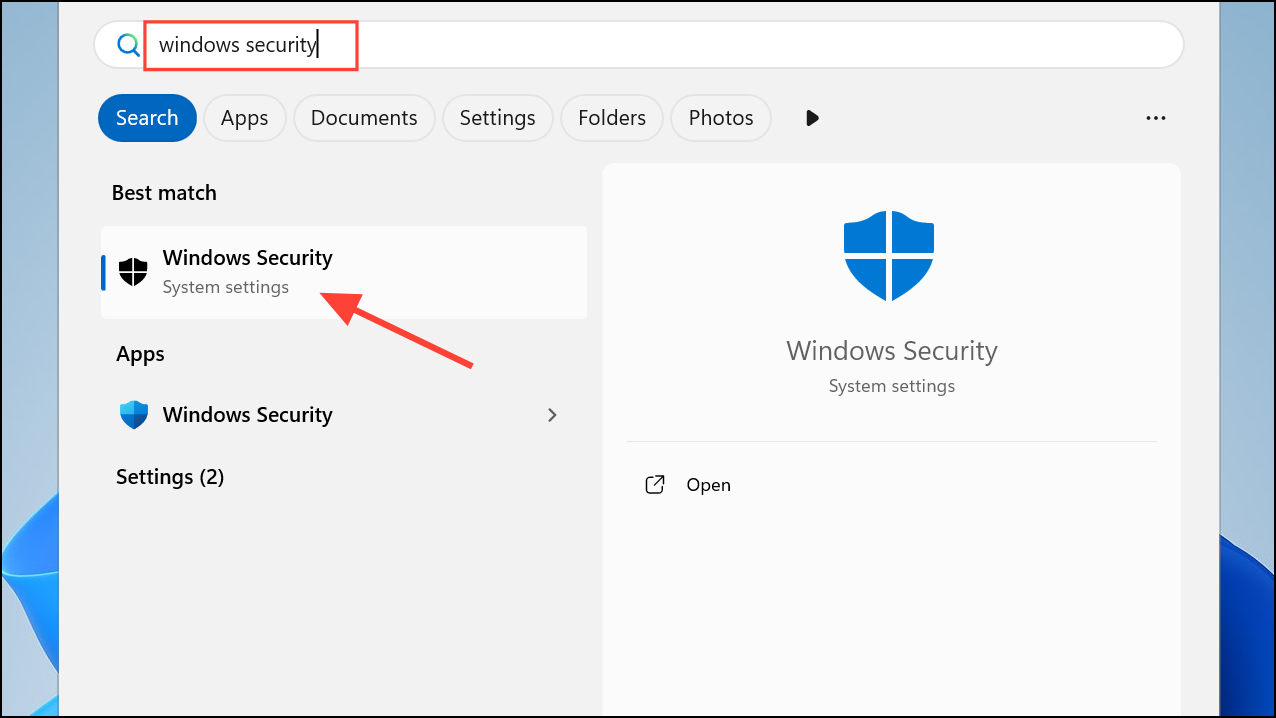
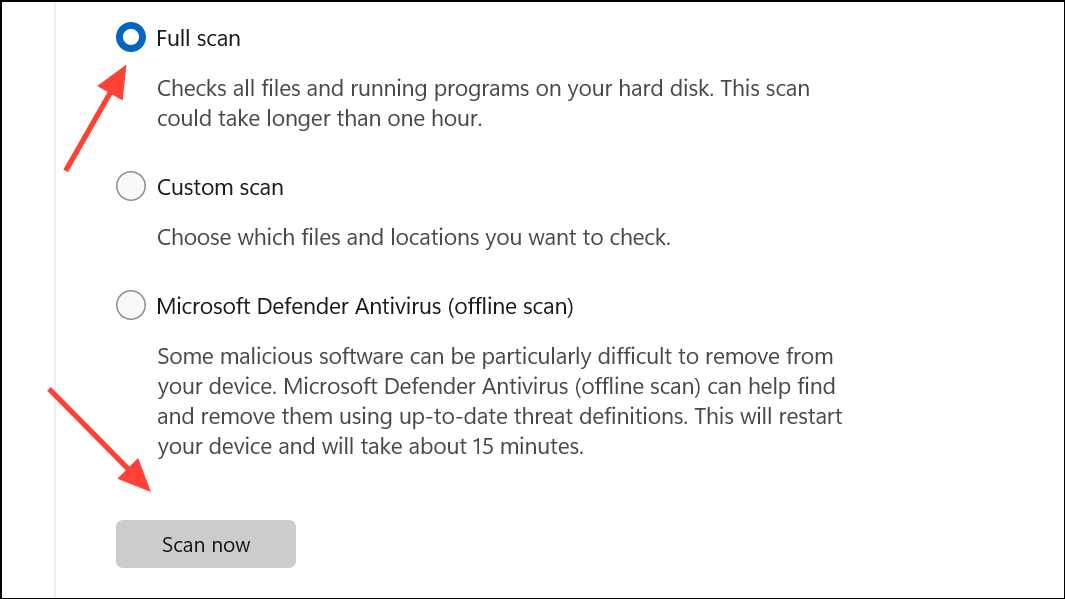
Settings > Windows Update and install any available updates. This reduces vulnerabilities that malware can exploit.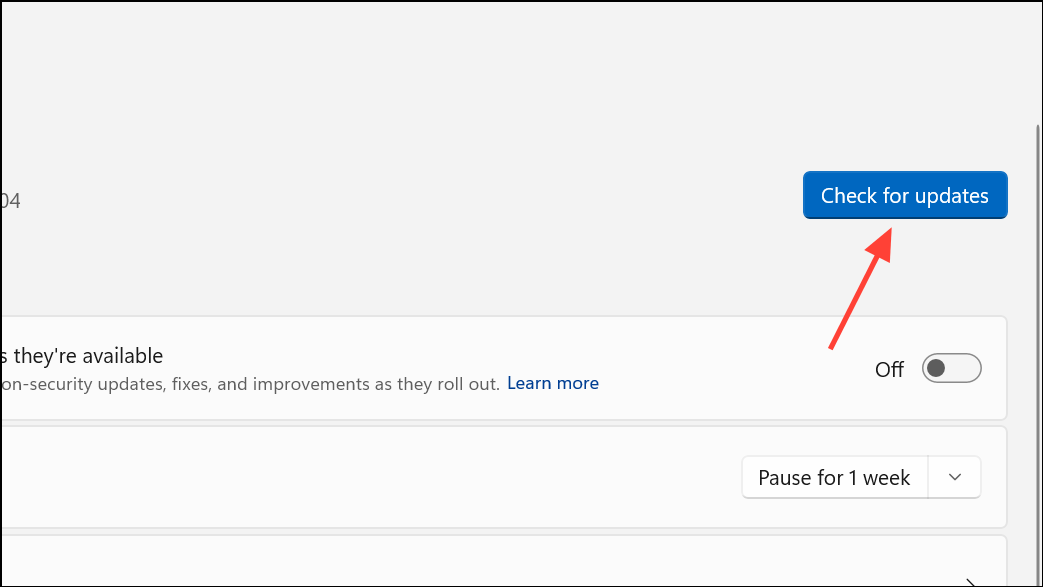
Troubleshooting Tips for Stubborn Pop-Ups
- If McAfee or adware keeps returning after uninstalling, reboot into Safe Mode and repeat the removal steps.
- Check your browser extensions and remove any suspicious add-ons.
- Search for hidden programs with names like “WebAdvisor,” “Safe Browsing,” or “PC App Store.”
- Use the official McAfee removal tool, available on the McAfee support site, for a more thorough cleanup.
- If you’re still stuck, seek help from a trusted tech support provider or community forum.
Taking these steps will stop McAfee pop-ups on Windows 11 and prevent them from coming back, giving you a smoother and safer computing experience.



