
Clicking a link and having it open in Microsoft Edge instead of Google Chrome—even after setting Chrome as the default browser—disrupts workflow and wastes time. This persistent issue on Windows 11 often stems from file association errors, stubborn system defaults, or application-specific settings that override user preferences.
Set Chrome as Default Browser Using Windows Settings
Apps, then select Default Apps. This section lets you assign default programs for specific file types and protocols.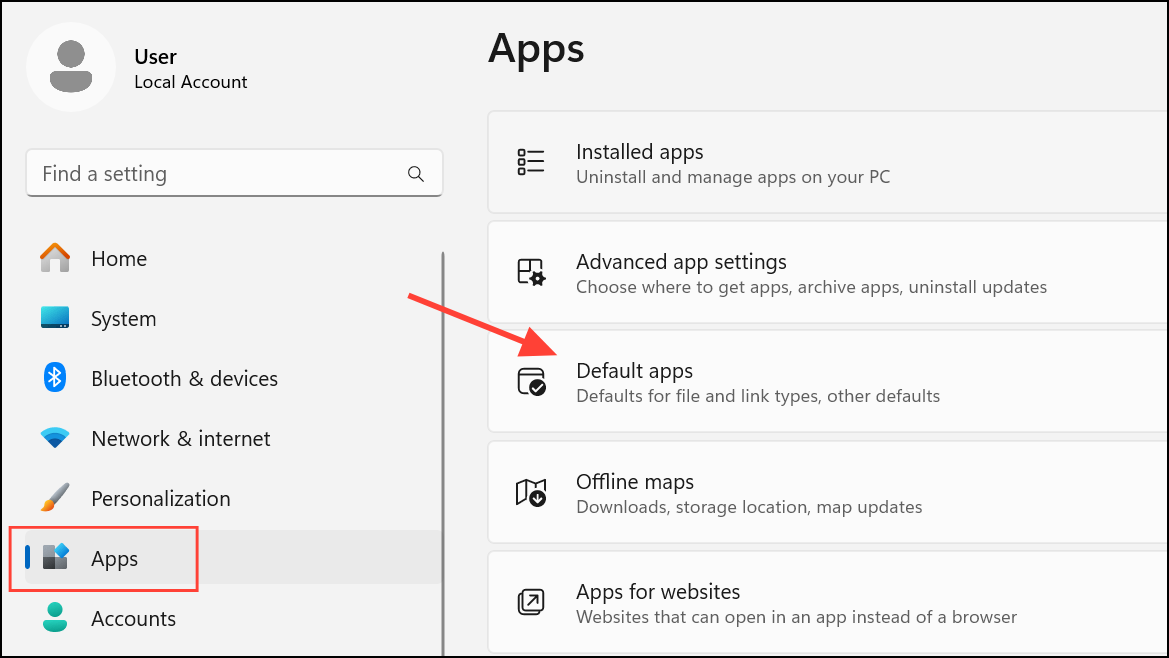
Chrome and select Google Chrome from the results.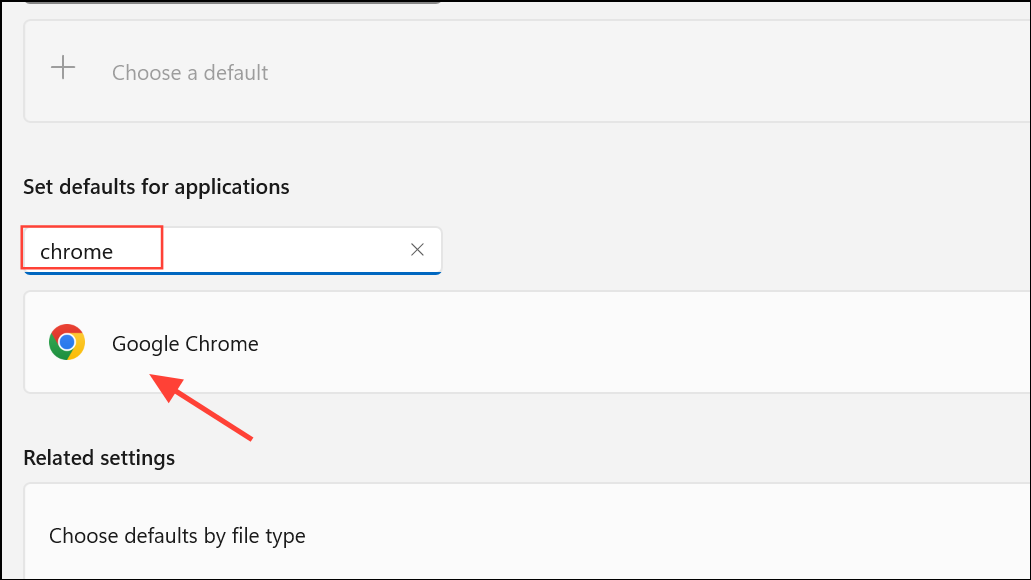
Set default. This action attempts to assign Chrome as the default handler for web links and common web file types.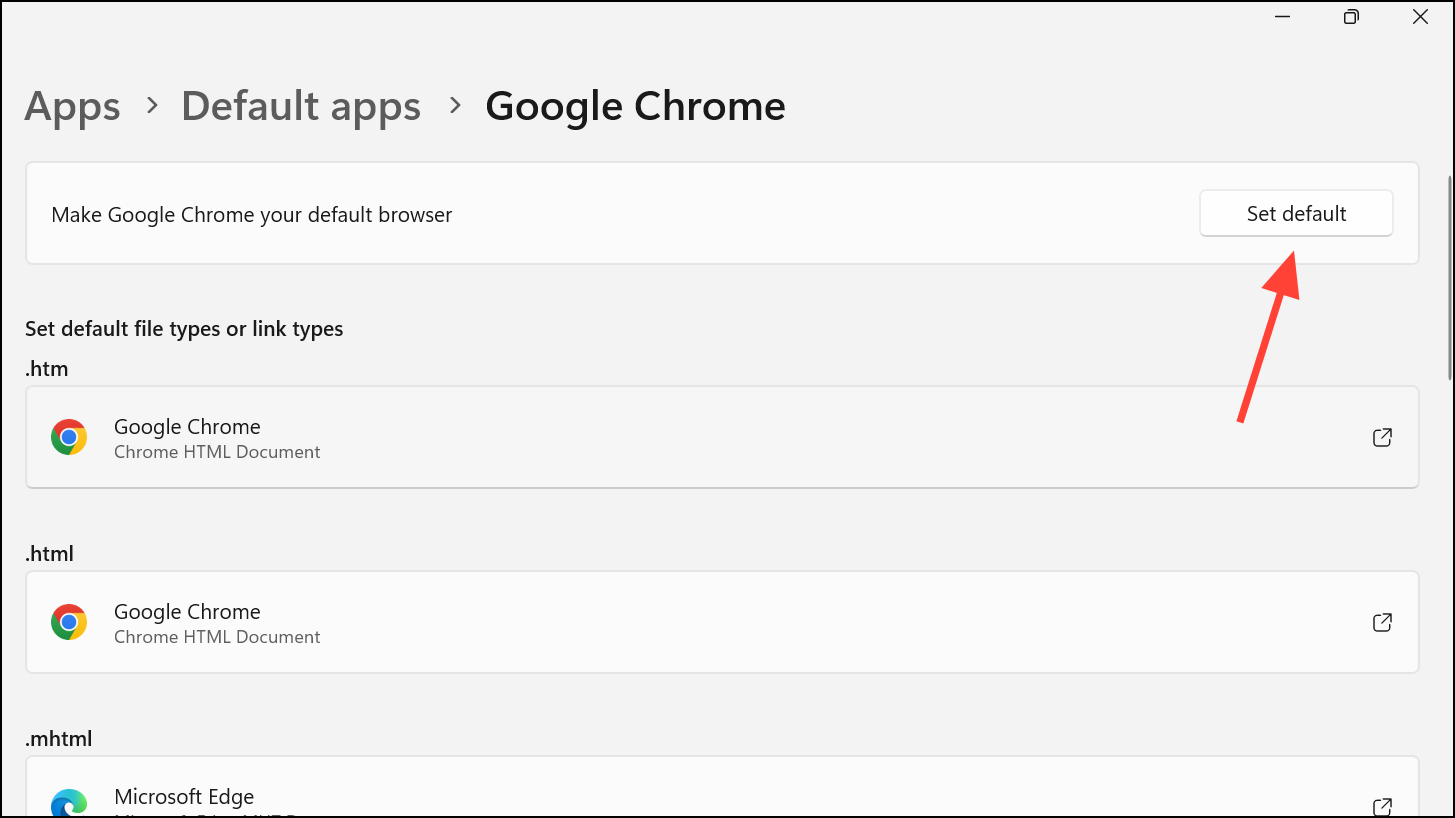
.htm, .html, HTTP, and HTTPS) below the “Set default” button. If any still show Microsoft Edge or another browser, click each and select Google Chrome from the list. This step ensures Chrome handles all relevant web protocols and file types.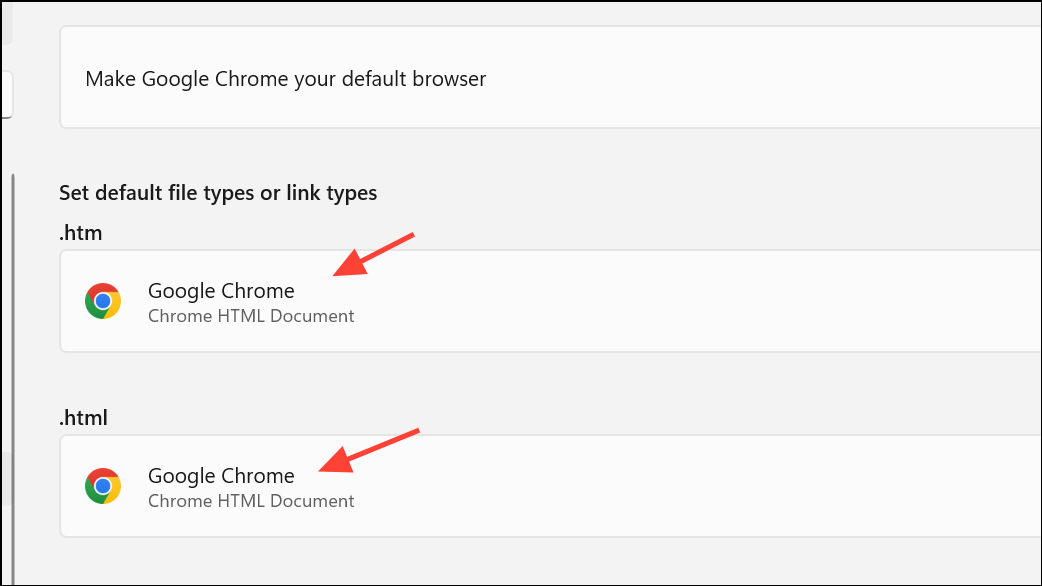
Closing the Settings window finalizes your changes. Test by clicking a hyperlink in another application to confirm Chrome now opens web links by default.
Fix Application-Specific Link Handling (Outlook and Other Apps)
Some applications, such as Outlook for Windows, use their own settings to determine which browser opens links. Even if Chrome is set as the system default, Outlook may continue to use Edge unless configured otherwise.
Advanced from the left sidebar. Scroll down to the Link handling section.Open hyperlinks from Outlook in and choose Default Browser from the dropdown menu. Click OK to save your changes.This adjustment directs Outlook to use your system’s default browser—such as Chrome—for all web links, instead of overriding your preference with Edge.
Reset Default App Associations and Repair System Files
If default browser settings keep reverting or refuse to apply, Windows file associations may be corrupted or restricted by system policies.
Windows PowerShell, right-click it, and select Run as administrator.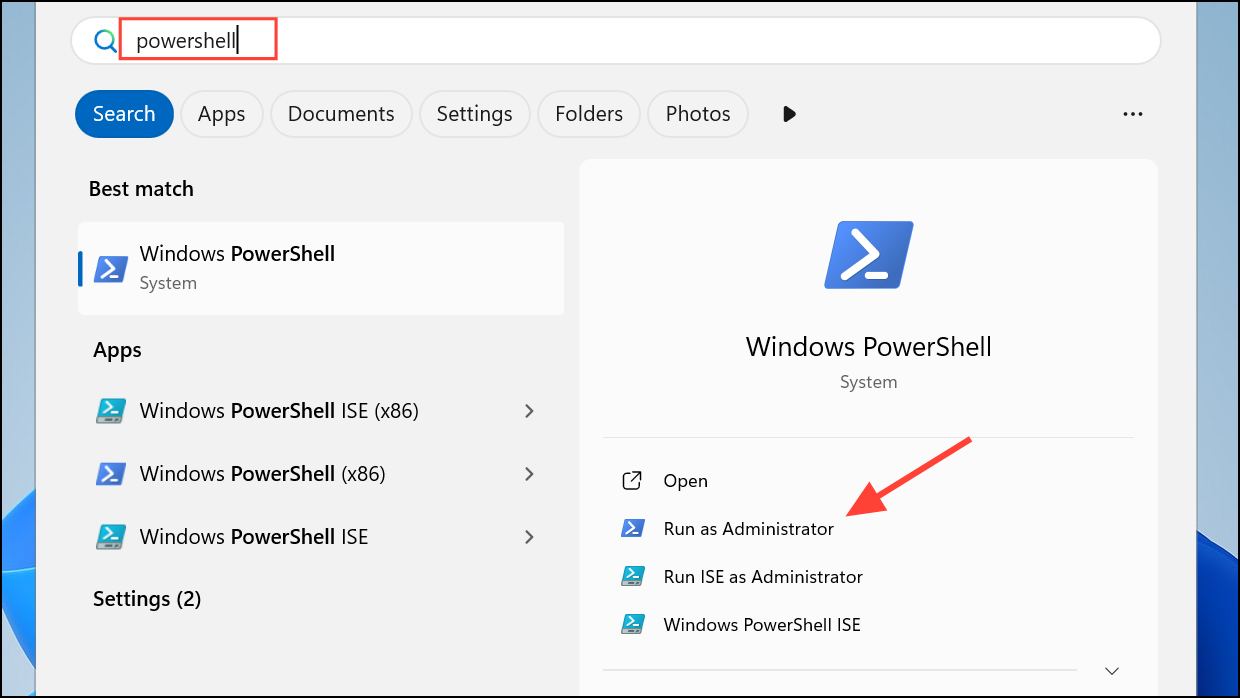
SFC /Scannow and press Enter. This command scans and repairs corrupted system files that could interfere with default app settings.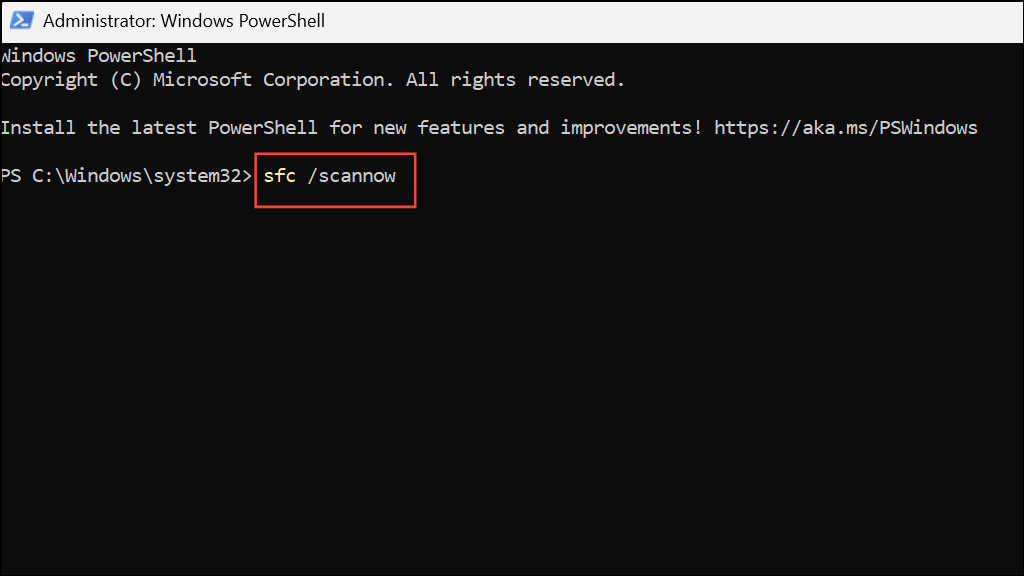
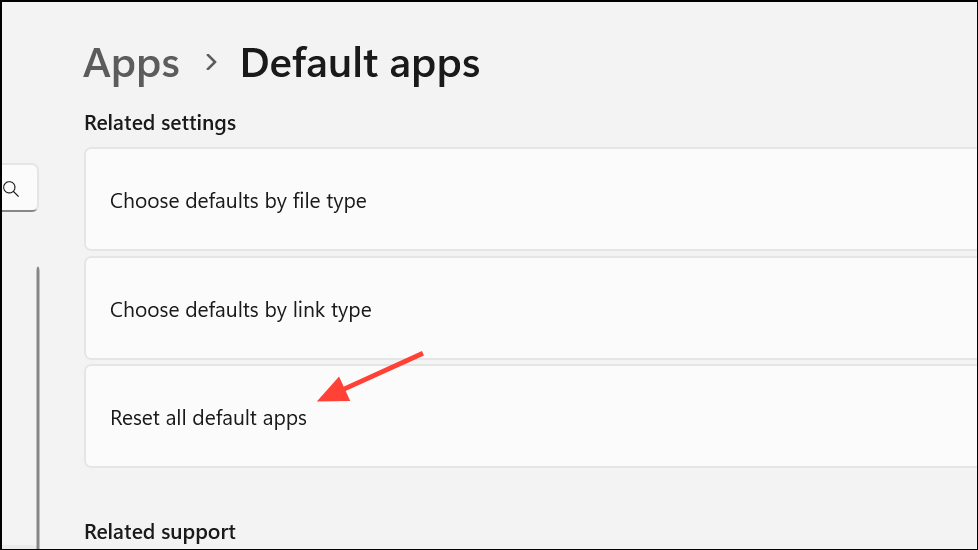
If the problem persists, return to Settings > Apps > Default Apps and scroll down to Reset all default apps. Confirm the reset, then manually assign Chrome as the default browser again.
Remove Problematic Registry Entries for Browser Associations
Stubborn file associations may be locked by registry entries. Removing these can free up the system to accept new default browser settings.
Windows + R to open the Run dialog. Type regedit and press Enter to launch the Registry Editor.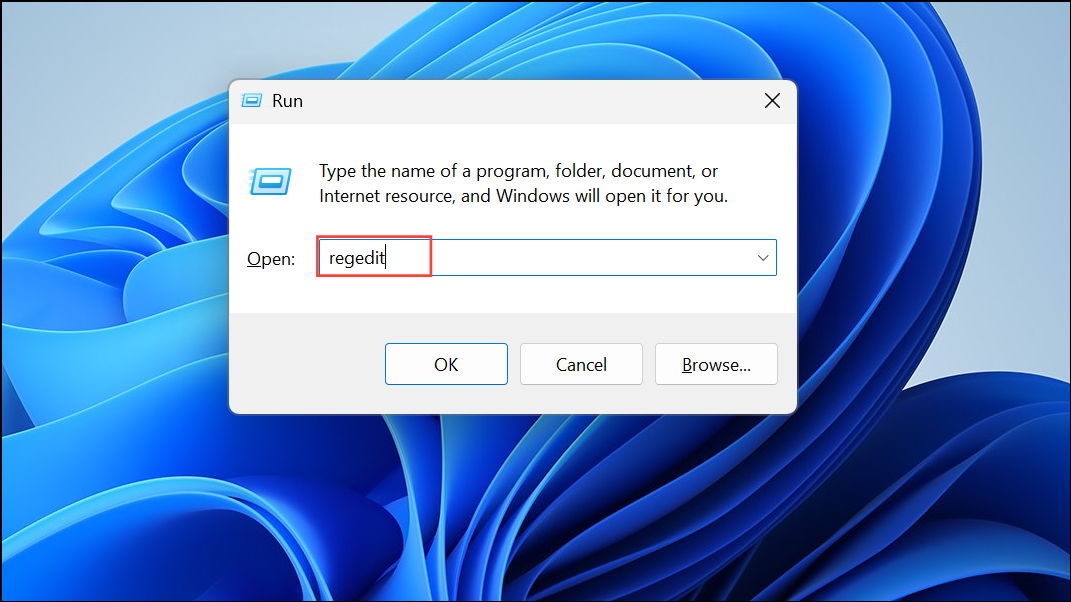
HKEY_CURRENT_USER\Software\Microsoft\Windows\Shell\Associations\UrlAssociations\http\UserChoiceHKEY_CURRENT_USER\Software\Microsoft\Windows\Shell\Associations\UrlAssociations\https\UserChoice
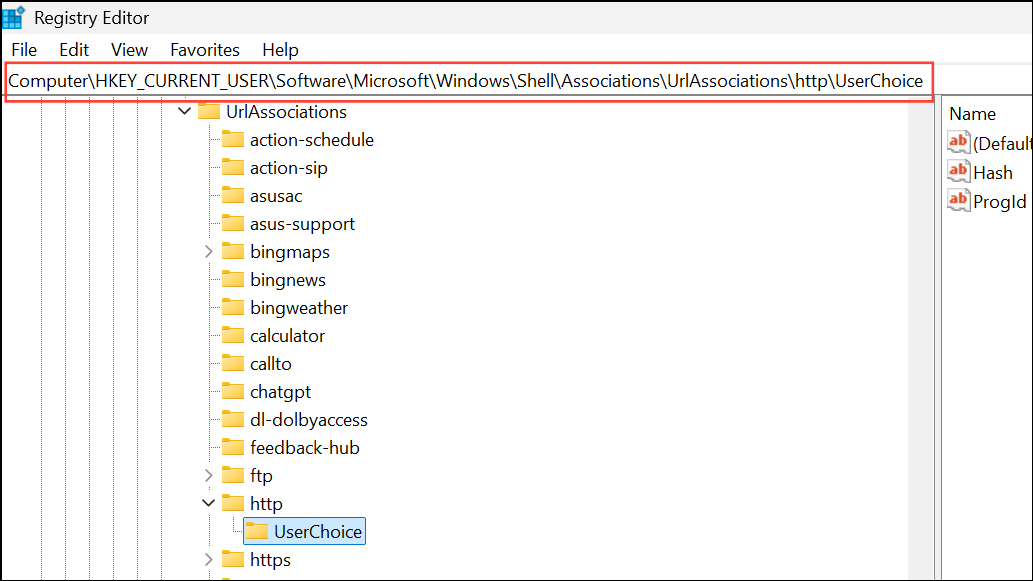
UserChoice subkey in each location and select Delete. This removes the forced association and allows Windows to accept your new default browser choice.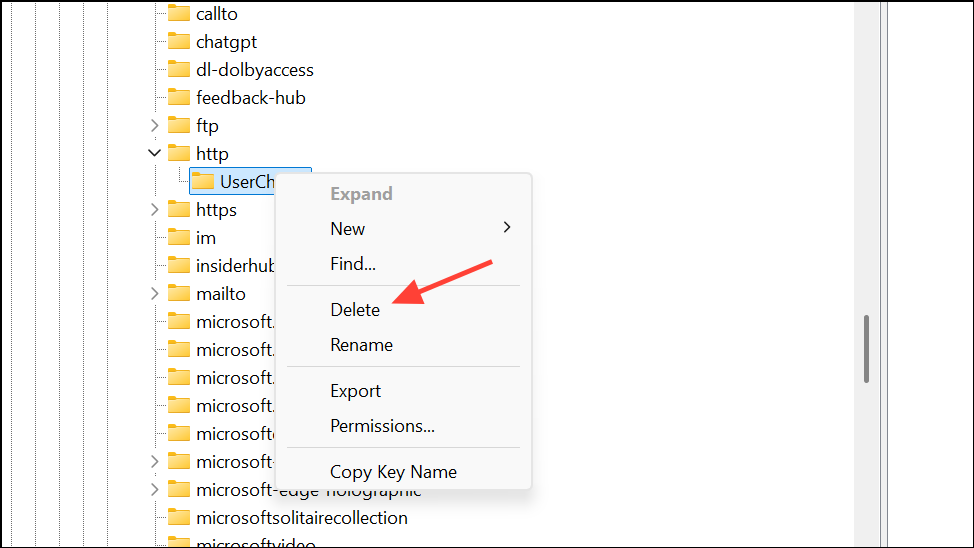
Additional Tips and Troubleshooting
Some Windows 11 builds or updates may introduce bugs that interfere with default browser settings. If none of the above methods work, consider the following:
- Uninstall and reinstall Chrome, then retry the default browser assignment.
- Disable “Startup Boost” in Microsoft Edge, which can sometimes prevent Chrome from being set as the default browser.
- Check for third-party security software or system management tools that may block changes to file associations.
- Perform a system clean boot to rule out background application conflicts.
If links from specific applications still open in Edge, verify those apps’ internal settings for browser preferences. For company-managed devices, group policies may enforce default browser settings; consult your IT administrator if this is the case.
Following these steps will resolve most cases where Windows 11 refuses to let you set Chrome as the default browser, letting you open links in your preferred browser without extra hassle.



