Dark mode in Google Chat reduces screen brightness and makes it easier to read messages in low-light conditions. This feature is now available on both desktop and mobile versions of Google Chat, helping users minimize eye fatigue during long periods of use. The following instructions cover how to activate dark mode on different platforms, along with alternative workarounds for situations where native options are limited.
Enable Dark Mode in Google Chat on Desktop
chat.google.com in your preferred web browser. Make sure you’re signed in with your Google account to access your conversations.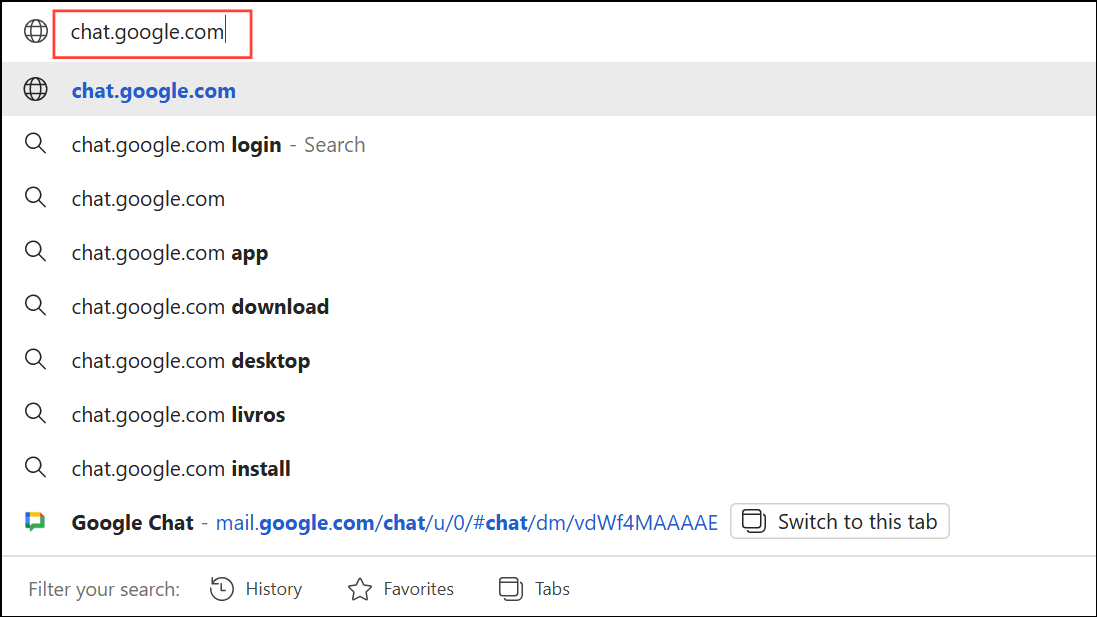
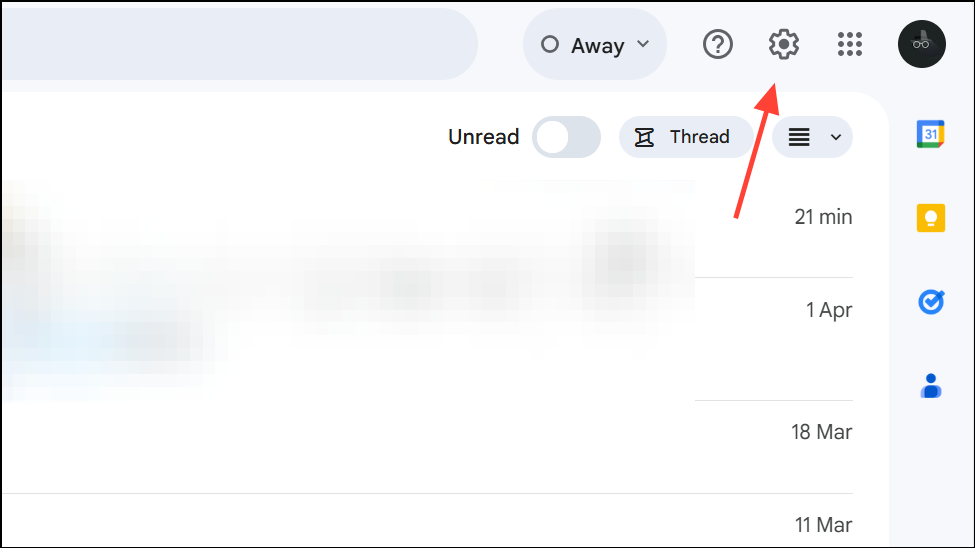
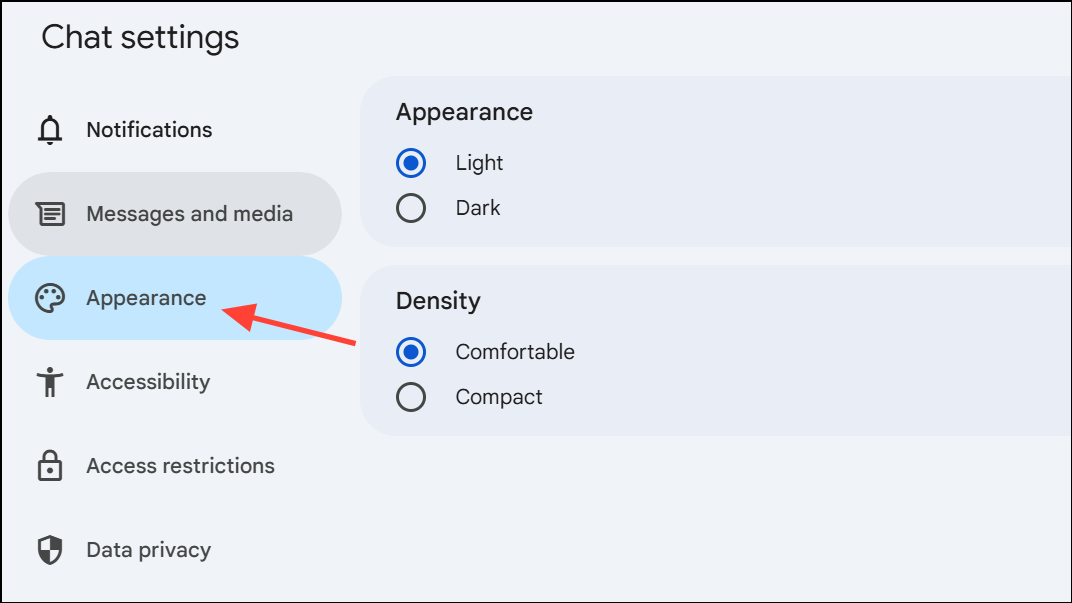
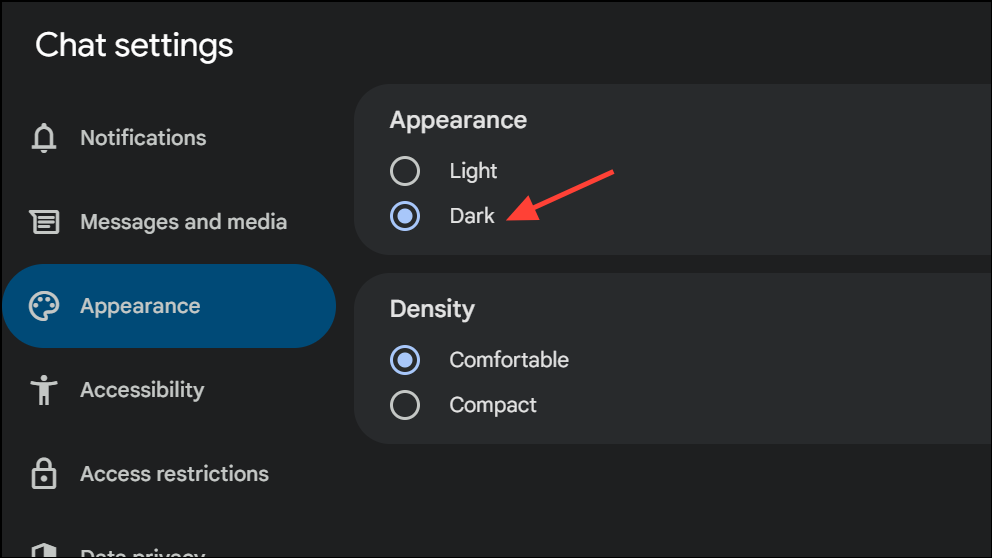
Enable Dark Mode in Google Chat on Android Devices
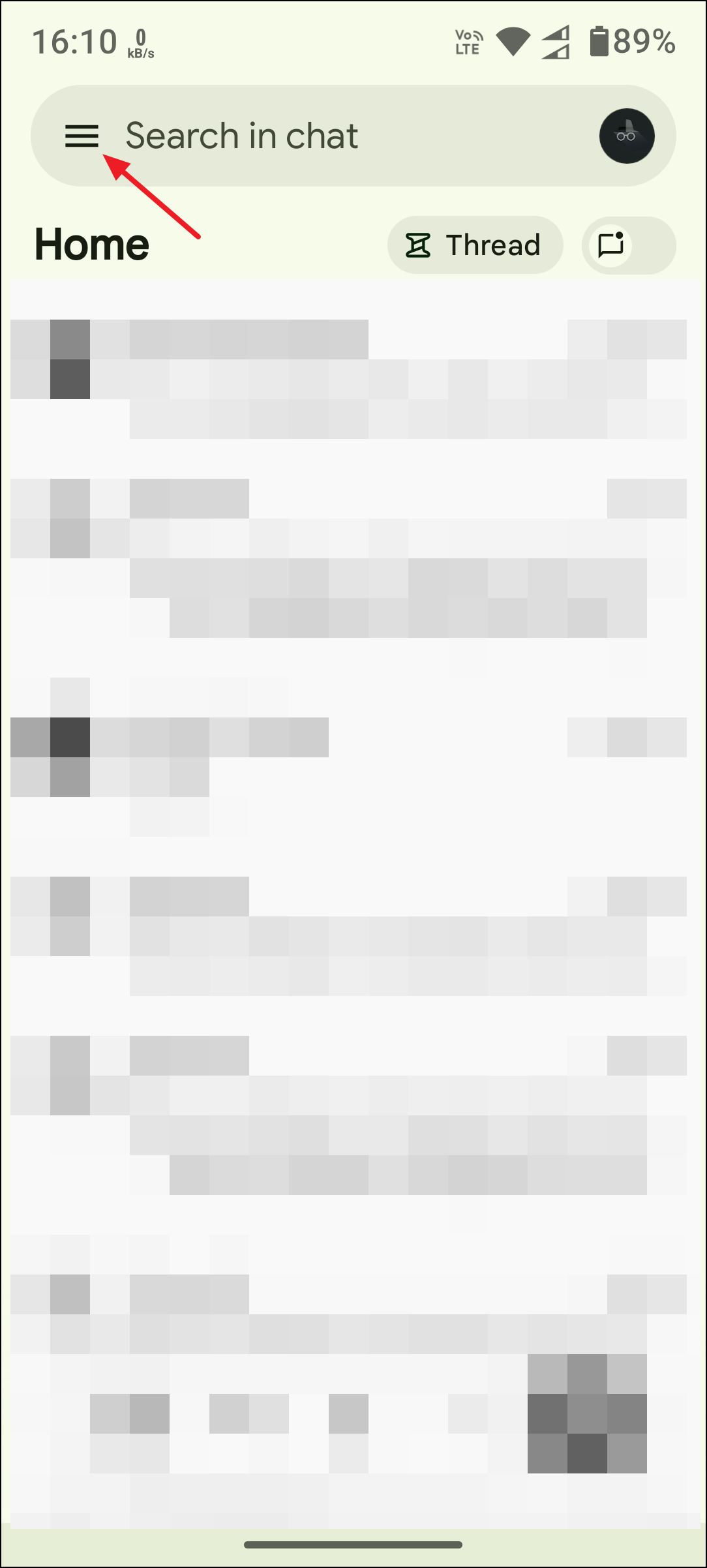
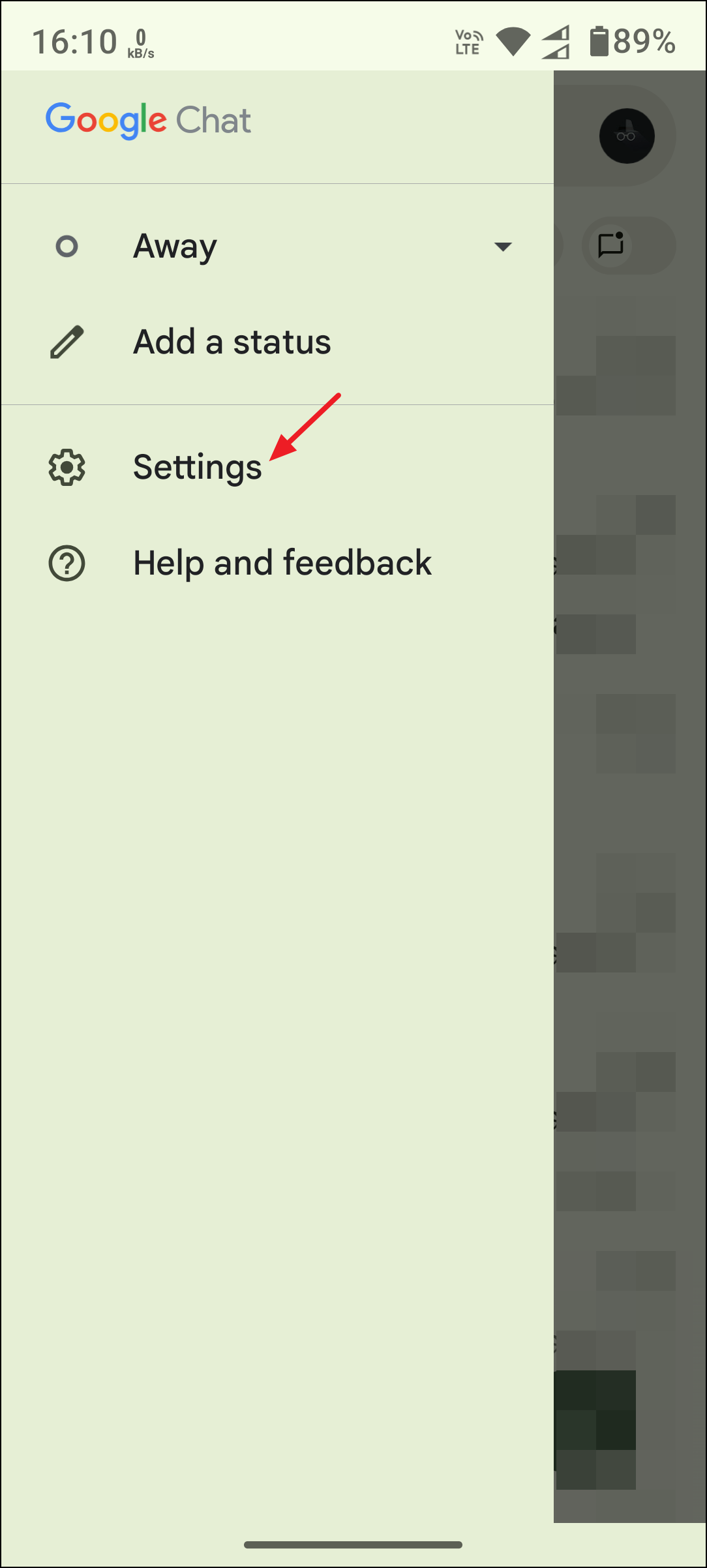
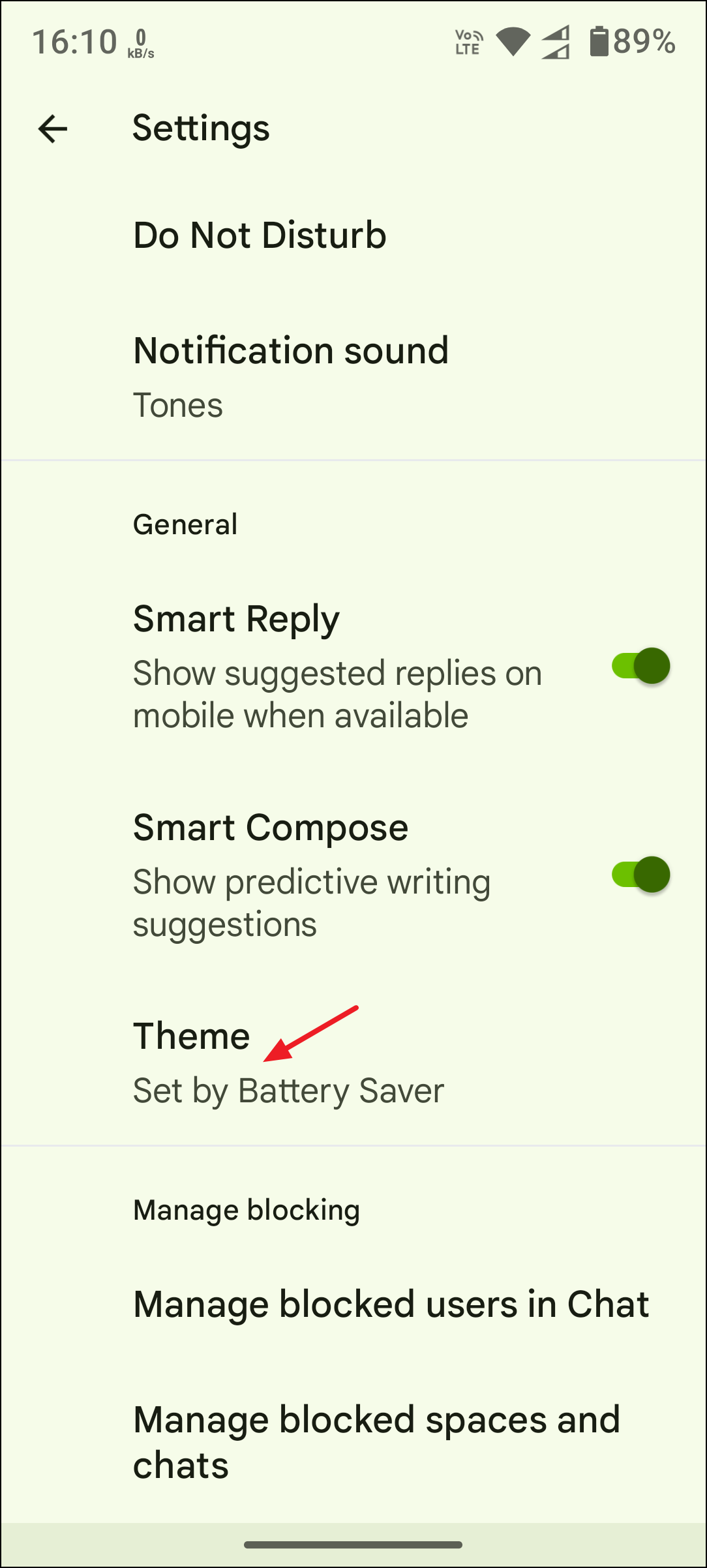
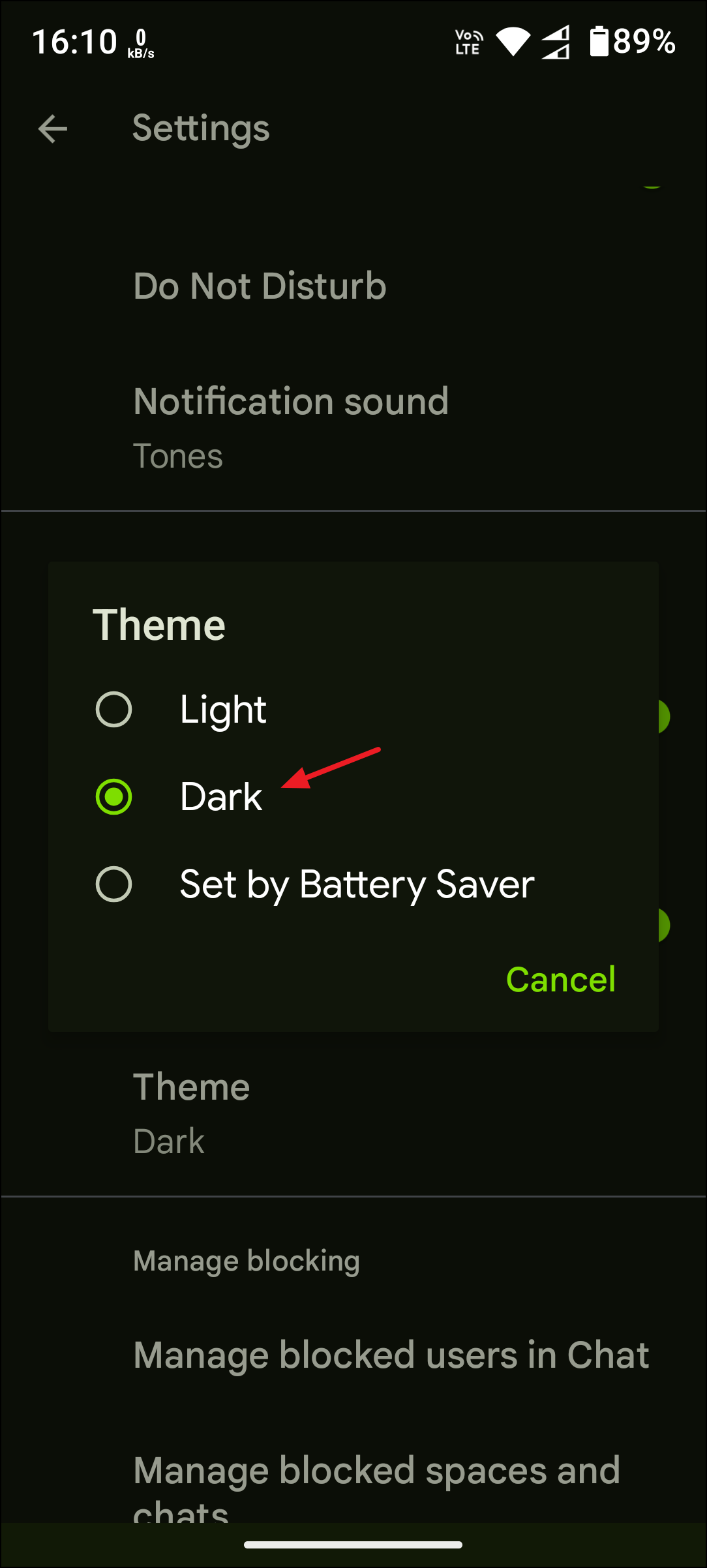
If you want Google Chat to follow your system-wide theme, you can select “System default” instead. This will automatically match the app’s appearance to your device’s current theme setting.
Enable Dark Mode in Google Chat on iPhone and iPad
On iOS devices, Google Chat uses the system-wide appearance settings. If your iPhone or iPad is set to dark mode, Google Chat will automatically match the system’s theme.
There is no in-app toggle for dark mode in Google Chat on iOS; the theme follows your device’s overall appearance settings.
Alternative Methods for Forcing Dark Mode
If you’re using a browser or device where native dark mode is not available, you can try alternative approaches:
- On Chrome desktop, open Developer Tools (
F12), go to More Tools > Rendering, and check “Enable automatic dark mode.” - Type
chrome://flags/#enable-force-darkin the Chrome address bar, enable “Auto Dark Mode for Web Contents,” and restart the browser. This forces dark mode on most websites, including Google Chat. - Use browser extensions like Dark Reader for Firefox or Chrome to apply a dark theme to web pages that don’t offer native support. Keep in mind that third-party extensions may sometimes affect how content displays or interacts with other extensions.
These workarounds can help if you want a consistent dark mode experience across all Google services, but they may not be as reliable as the official dark mode options.
Switching Google Chat to dark mode improves comfort during extended chat sessions and can reduce eye strain. If you use multiple devices, remember to set dark mode individually on each platform for a consistent experience.