
Windows 11 updates can sometimes fail with the error code 0x800f0900, which signals the system is unable to complete the update due to corrupted files or configuration issues. This error can block both feature and cumulative updates, leaving your system out of date and potentially vulnerable. Addressing this error involves a series of targeted repair steps that reset update components, repair system integrity, and, if necessary, restore Windows using installation media.
Repair System Files and Image with Built-in Tools
Windows Terminal (Admin) or Command Prompt (Admin). This ensures you have the necessary permissions to run system-level repair commands.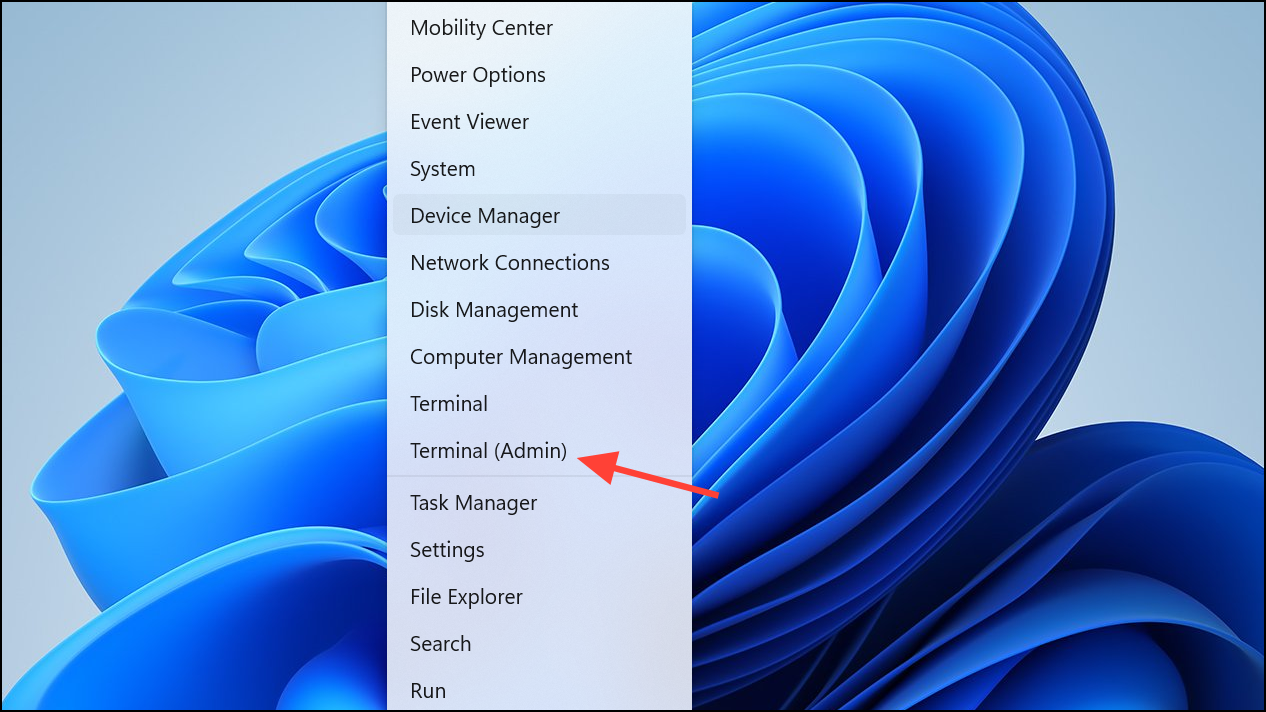
sfc /scannow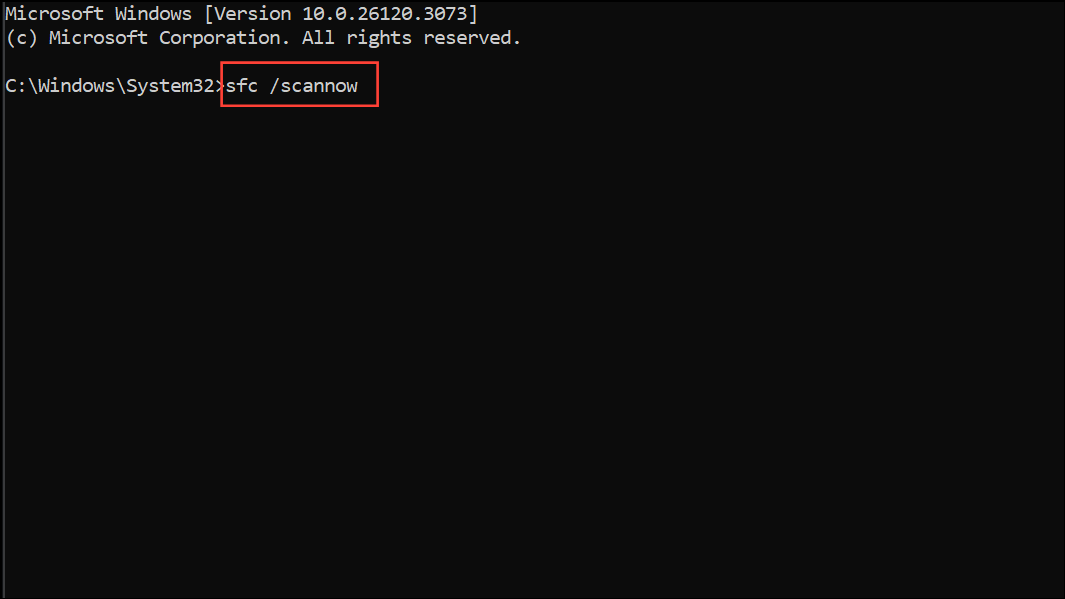
This process checks all protected system files and replaces incorrect versions with correct Microsoft versions. Wait for the scan to finish and follow any on-screen instructions.
Dism /Online /Cleanup-Image /ScanHealth
Dism /Online /Cleanup-Image /CheckHealth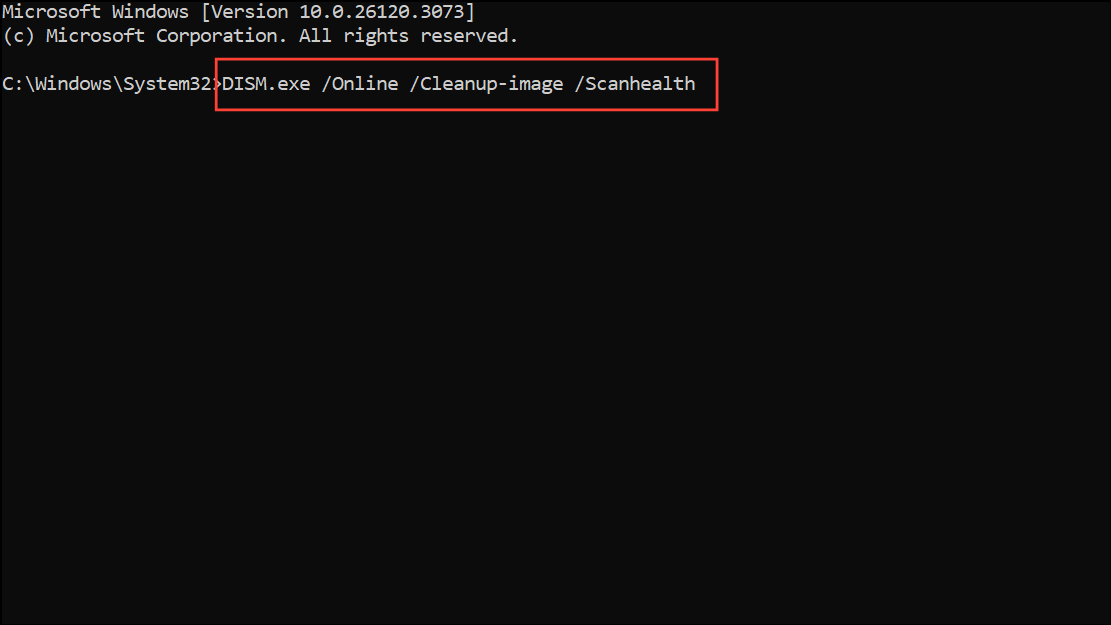
If the tool reports the image is repairable, proceed with:
Dism /Online /Cleanup-Image /RestoreHealth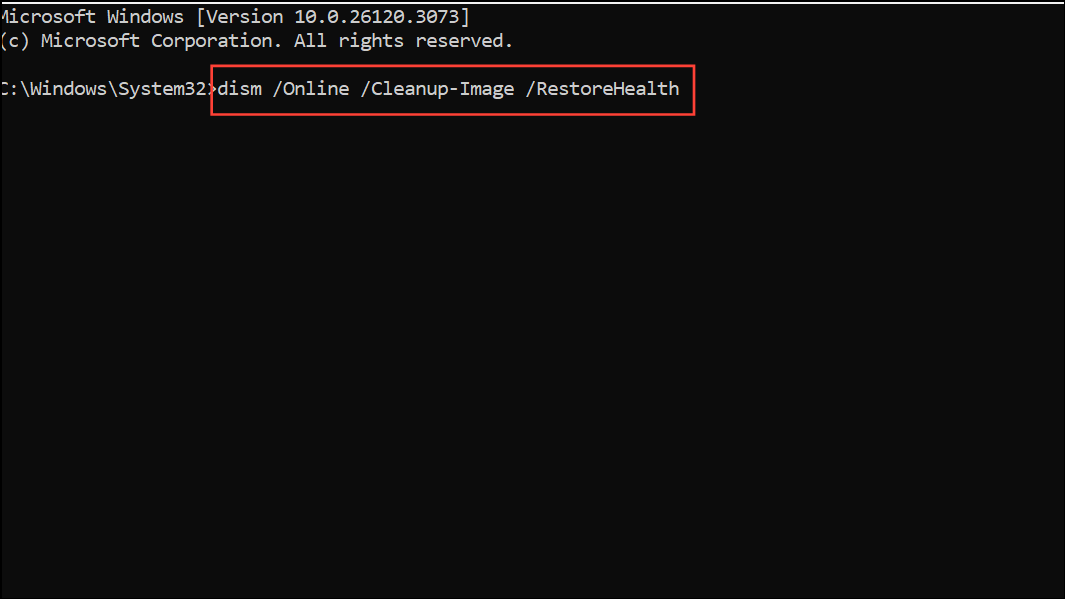
If you receive an error stating that the source files could not be found, you may need to specify a source using the /Source option, or use a Windows 11 ISO as a repair source.
Reset Windows Update Components
net stop wuauserv
net stop cryptSvc
net stop bits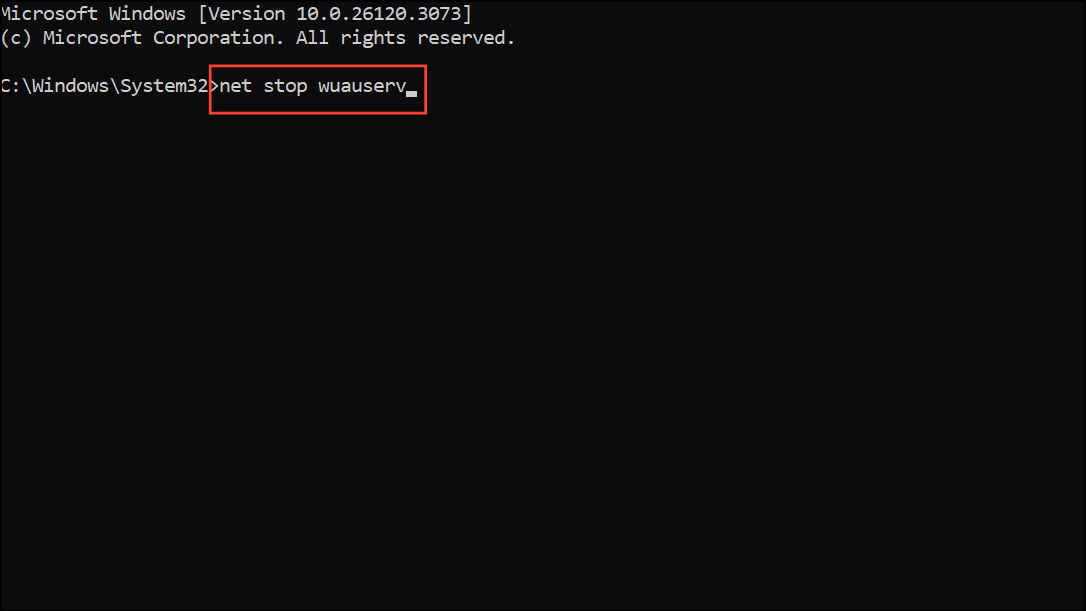
ren C:\Windows\SoftwareDistribution SoftwareDistribution.old
ren C:\Windows\System32\catroot2 Catroot2.oldnet start wuauserv
net start cryptSvc
net start bits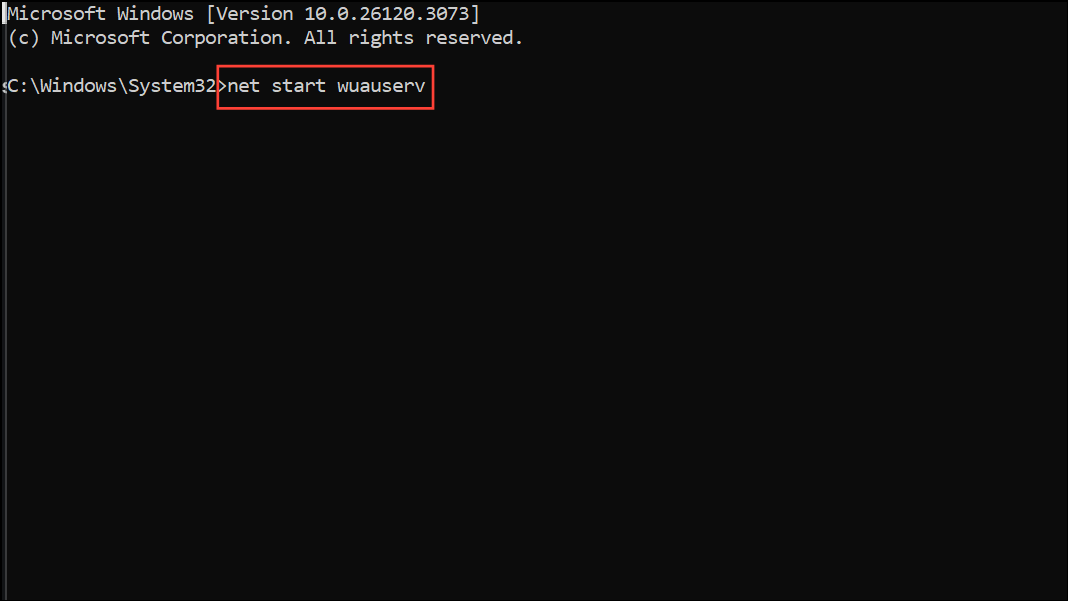
netsh winsock reset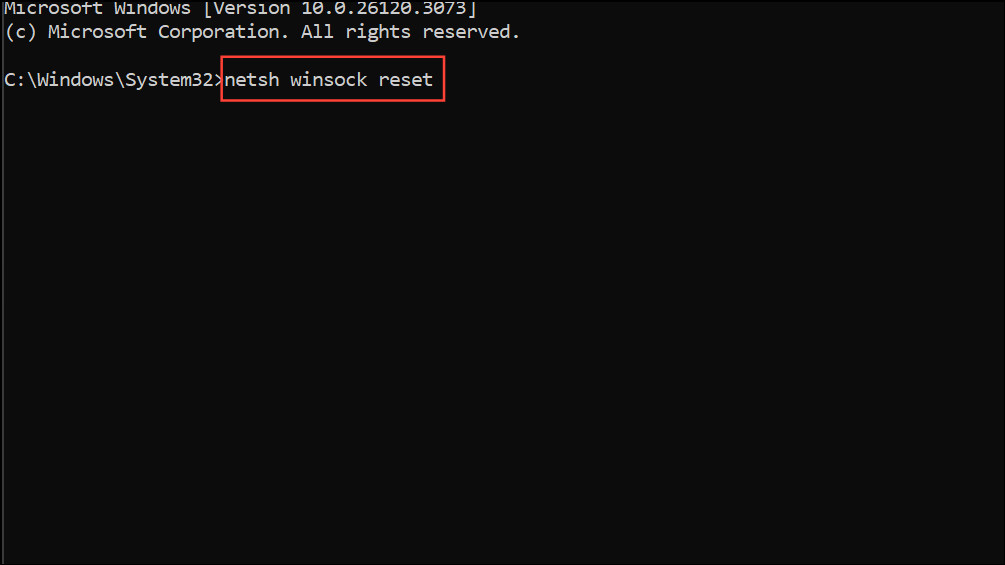
Settings > Windows Update and check for updates again.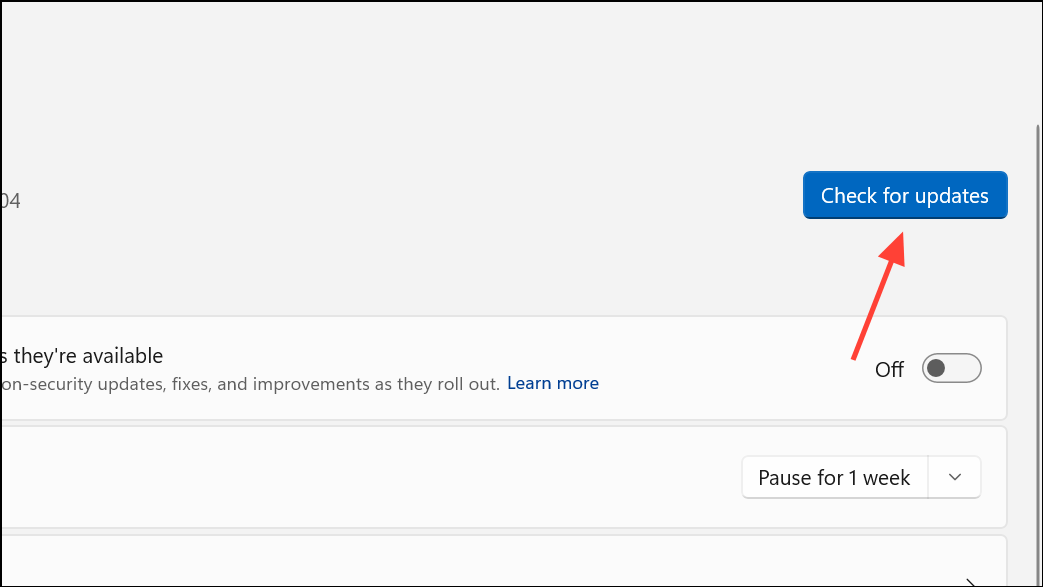
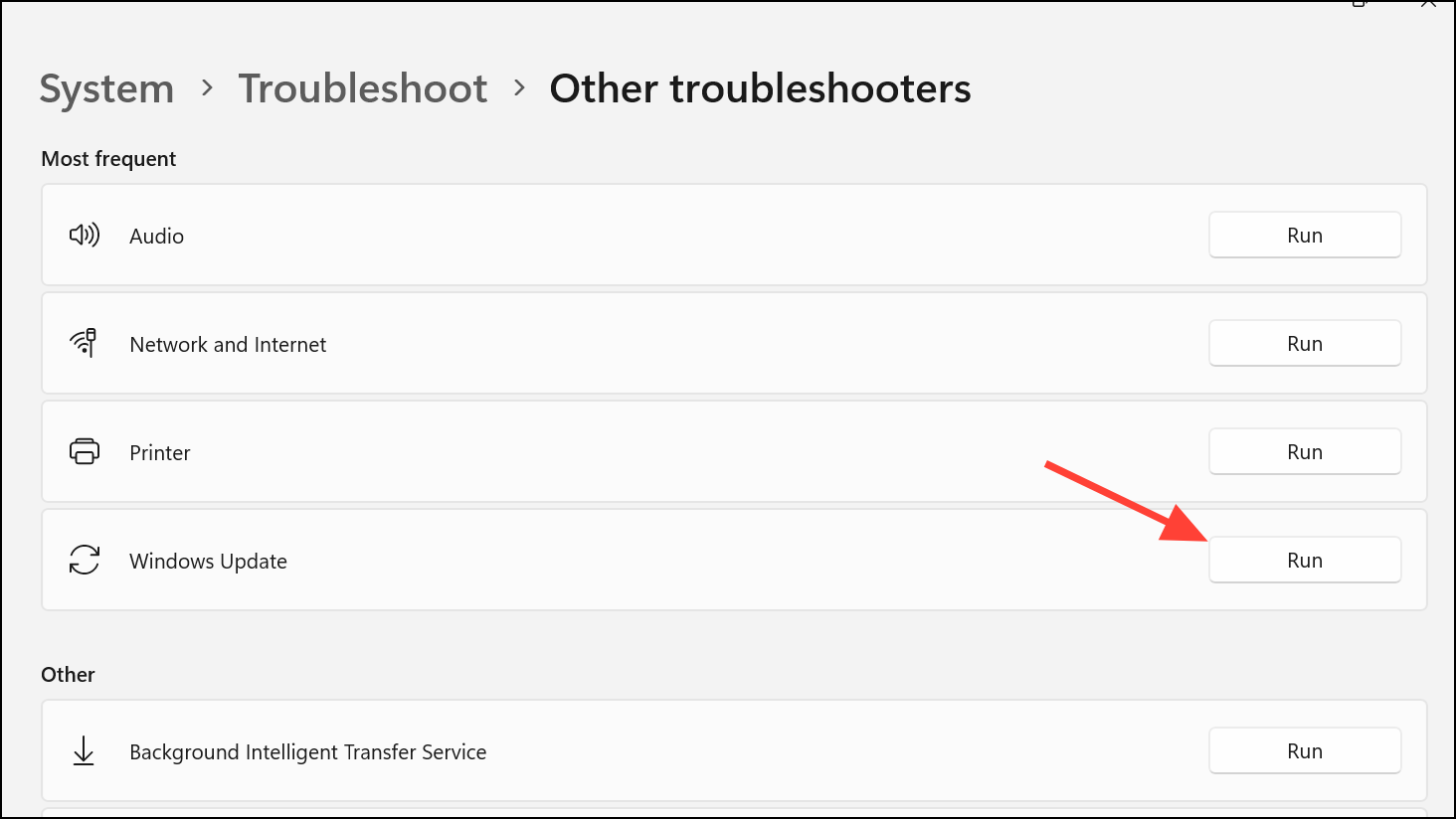
Run the Windows Update Troubleshooter
Settings > System > Troubleshoot > Other troubleshooters.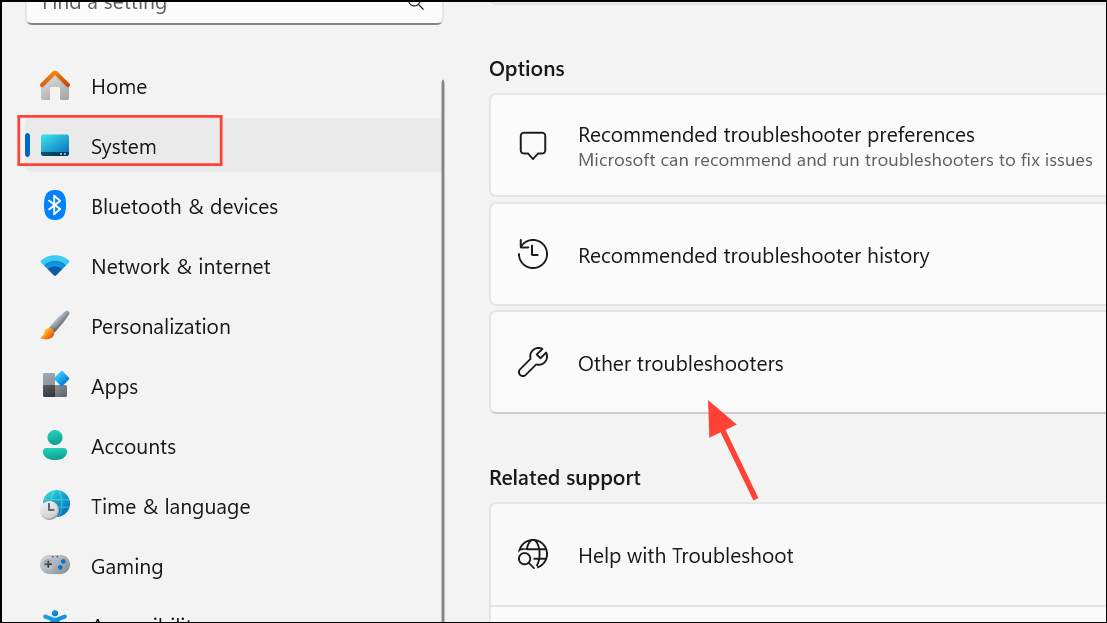
Repair Windows Using Installation Media (Repair Upgrade)
If the above methods do not resolve the error, a repair upgrade reinstalls Windows 11 while keeping your personal files and most apps intact. This process replaces all system files and registry settings with fresh copies from the installation media.
Other Tips and Preventative Measures
- Maintain regular backups of important data before making significant system changes.
- Keep all device drivers updated to avoid compatibility issues with Windows updates.
- Temporarily disable third-party antivirus or firewall software during updates, as these can interfere with the update process.
- Ensure a stable internet connection to prevent incomplete downloads or corrupted update files.
- Consider creating a system restore point before attempting manual repairs for easier recovery if problems arise.
Addressing error 0x800f0900 in Windows 11 requires a systematic approach, but following these steps restores update functionality and keeps your system secure and current.



