

Windows Update error 0x80070437 can interrupt critical system updates, often displaying the message: There were some problems installing updates, but we'll try again later. If you keep seeing this and want to search the web or contact support for information, this may help: (0x80070437). This error typically indicates a problem with service permissions or misconfigured system services, especially the Windows Defender Firewall. Addressing this issue restores your ability to install updates and keeps your system secure.
Enable and Configure Windows Defender Firewall Service
The most common cause of error 0x80070437 is a disabled or misconfigured Windows Defender Firewall service. Ensuring this service is running under the correct account and set to start automatically is crucial for Windows Update to function properly.
Windows + R to open the Run dialog. Type services.msc and press Enter to launch the Services window.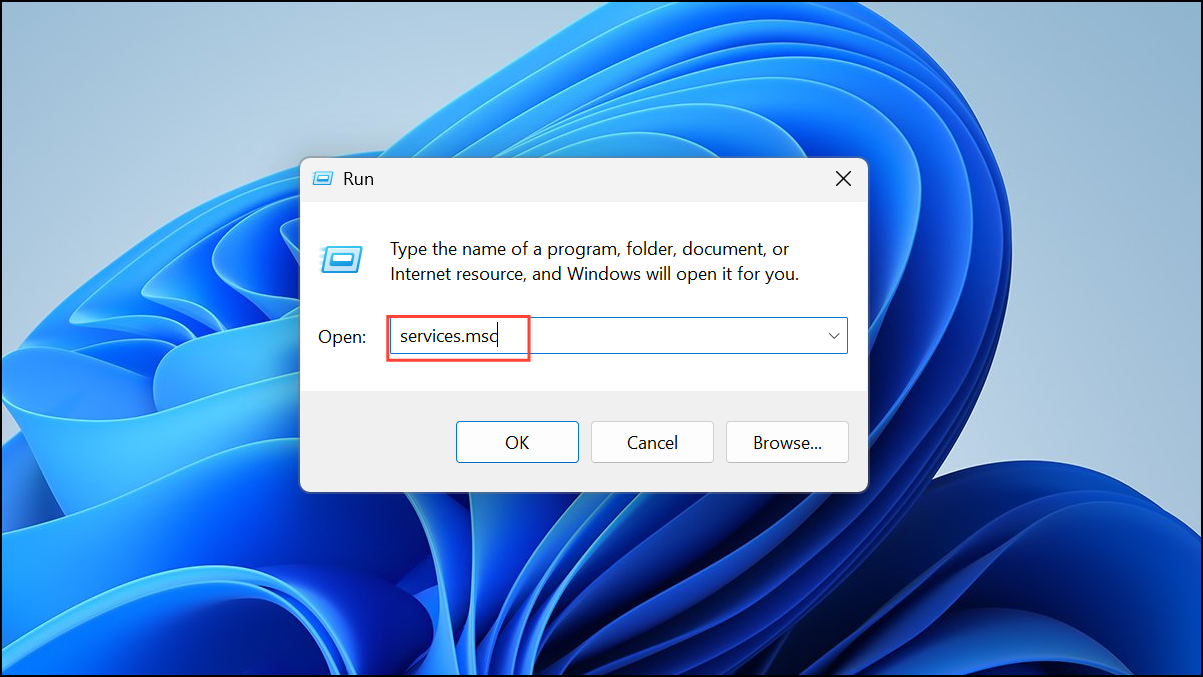
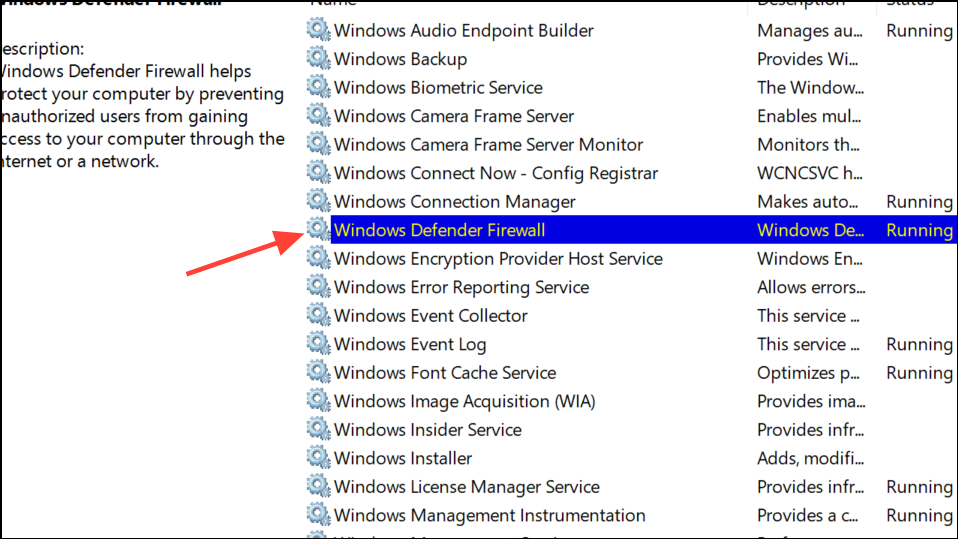
Local Service as the account name. If your system is password-protected, enter your password twice. Click Apply.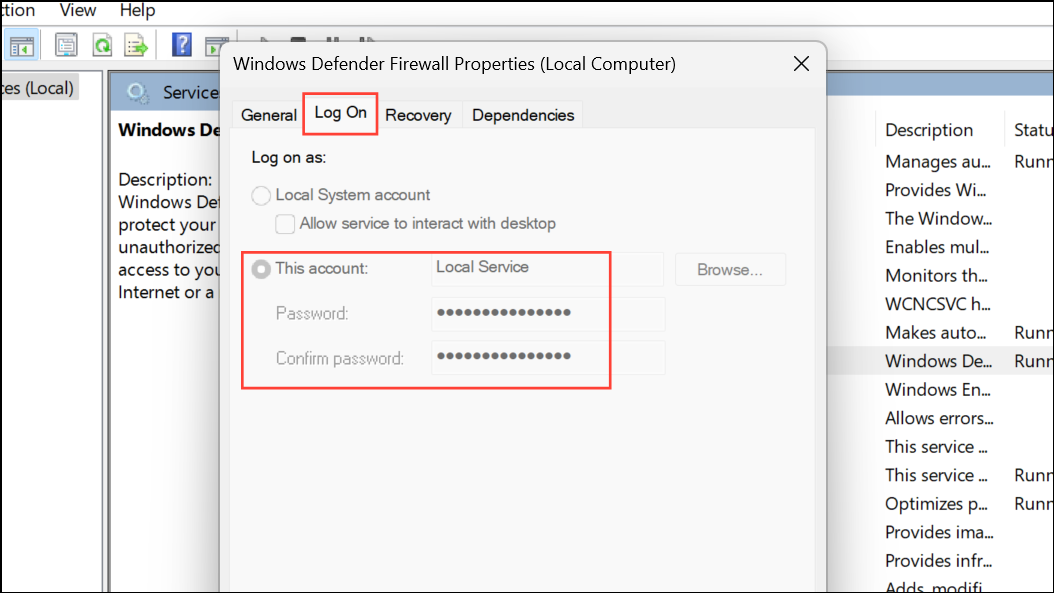
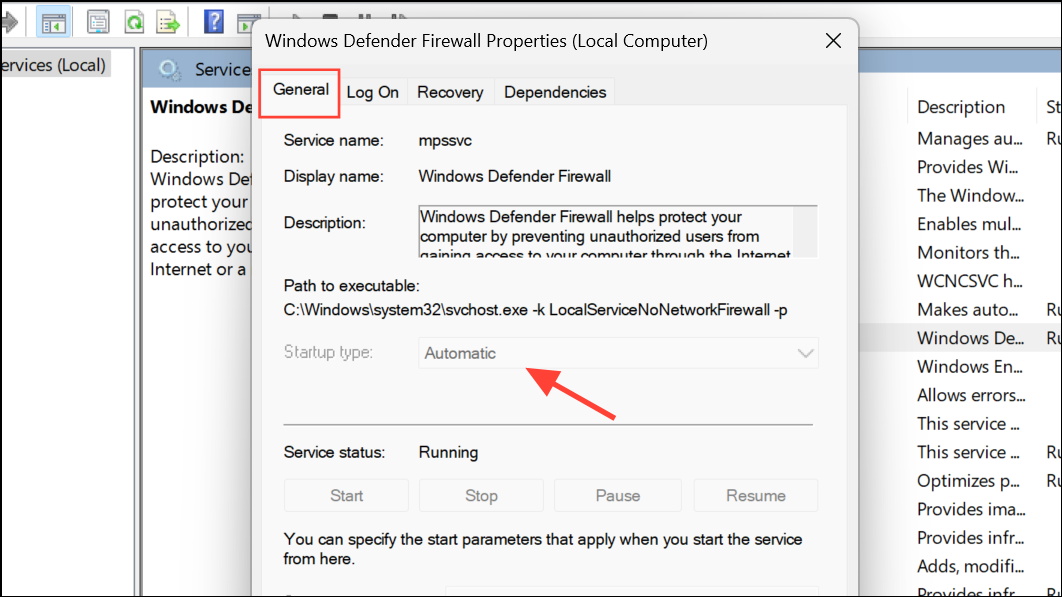
Correcting these settings ensures the Firewall service uses the right permissions and is available for Windows Update operations.
Run the Windows Update Troubleshooter
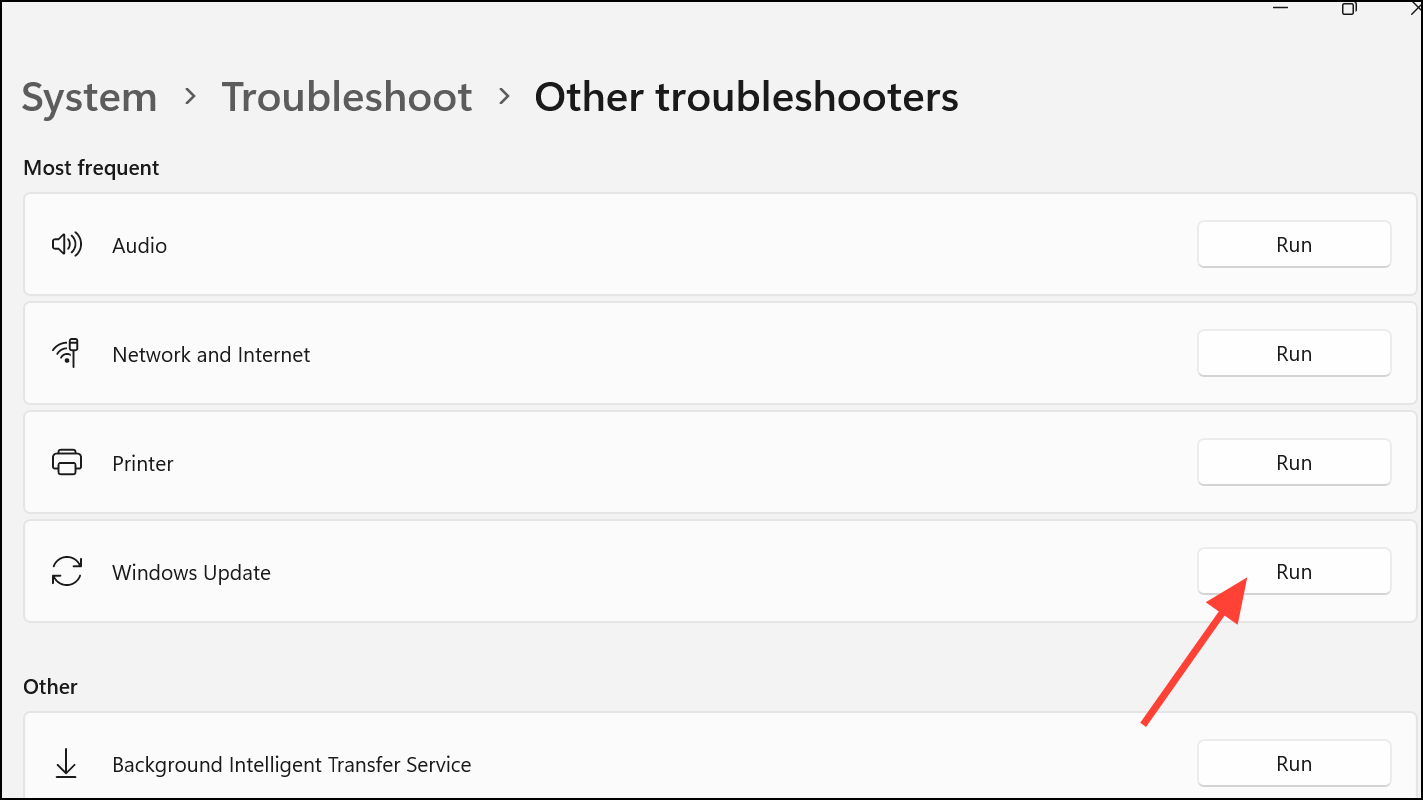
Windows includes a built-in troubleshooter that detects and addresses common update issues. Running this tool can resolve configuration problems or provide guidance on further steps.
Windows + I. Navigate to Update & Security > Troubleshoot > Additional troubleshooters.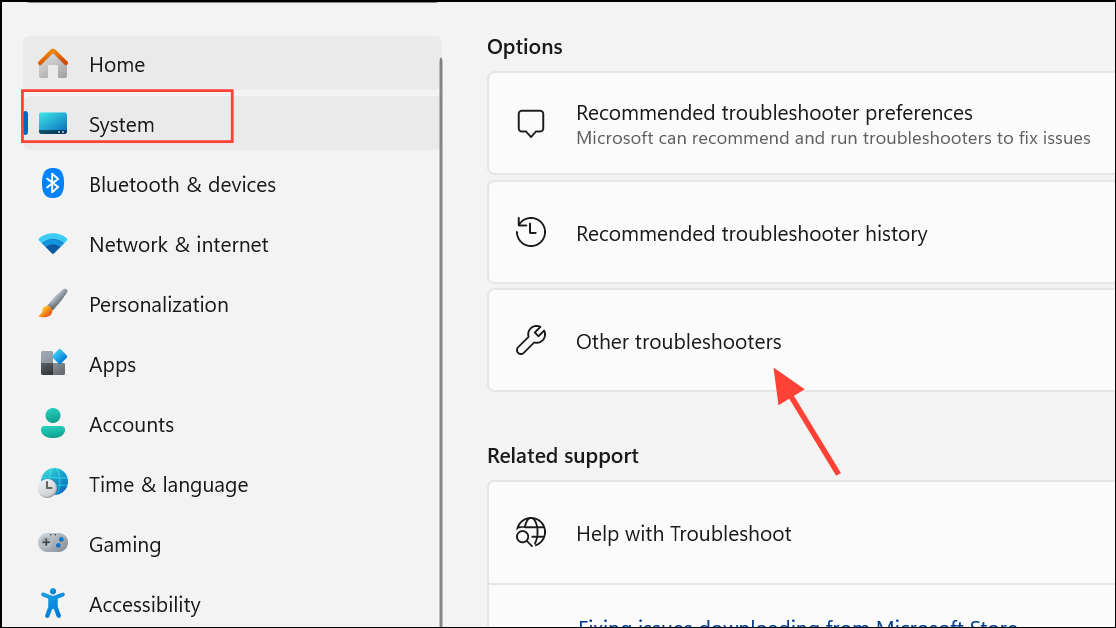
Reset Windows Update Components
Corrupted update components can block updates and trigger error 0x80070437. Resetting these components removes problematic files and restarts essential services, allowing updates to proceed.
Windows + R, type cmd, then press Ctrl + Shift + Enter to run Command Prompt as administrator.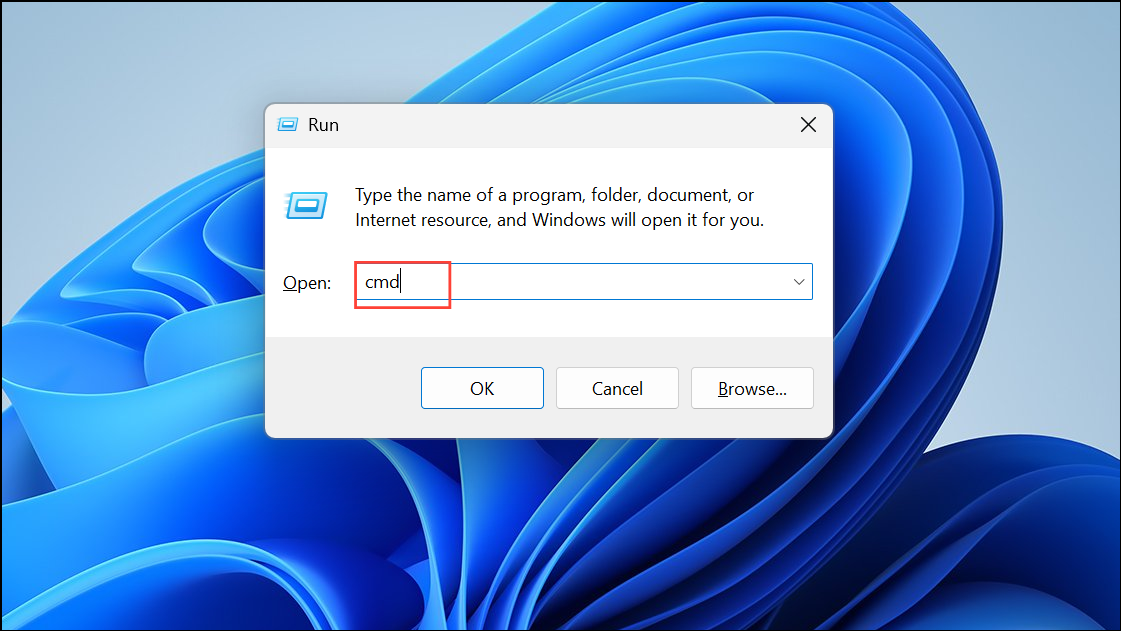
net stop wuauserv
net stop cryptSvc
net stop bits
net stop msiserver
ren C:\Windows\SoftwareDistribution SoftwareDistribution.old
ren C:\Windows\System32\catroot2 Catroot2.old
net start wuauserv
net start cryptSvc
net start bits
net start msiserver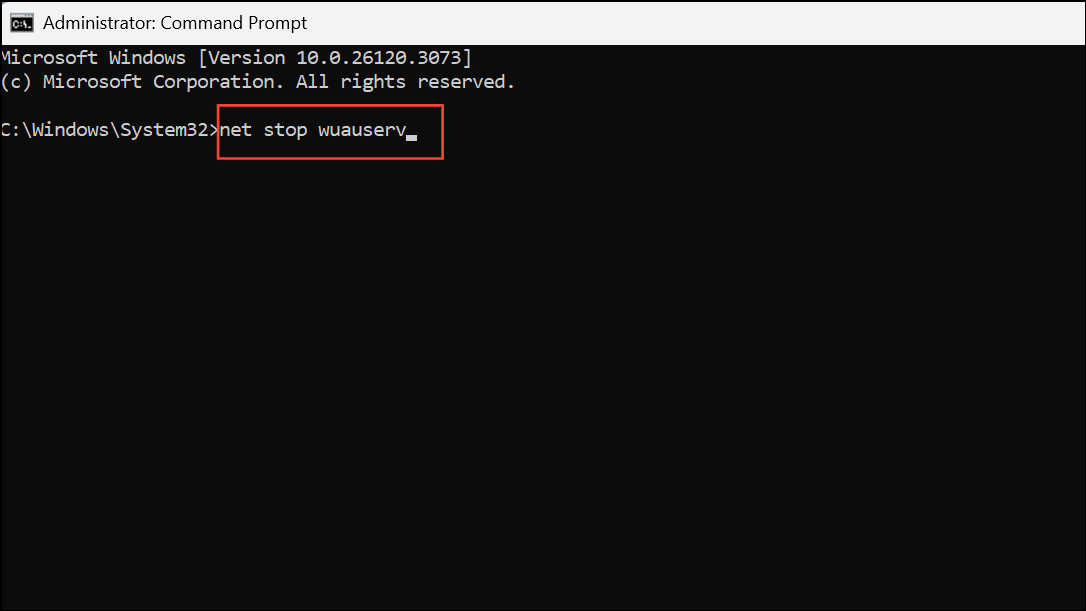
Check and Repair System Files
System file corruption may prevent services from running correctly, causing update failures. Using built-in tools like System File Checker (SFC) and Deployment Imaging Service and Management Tool (DISM) can identify and repair these issues.
sfc /scannow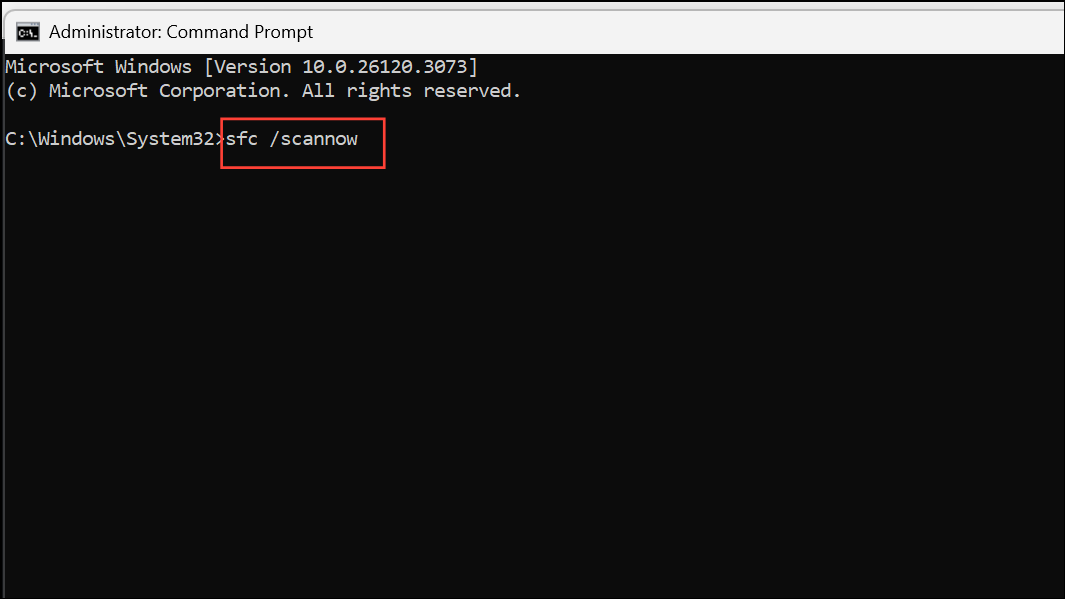
DISM /Online /Cleanup-Image /RestoreHealth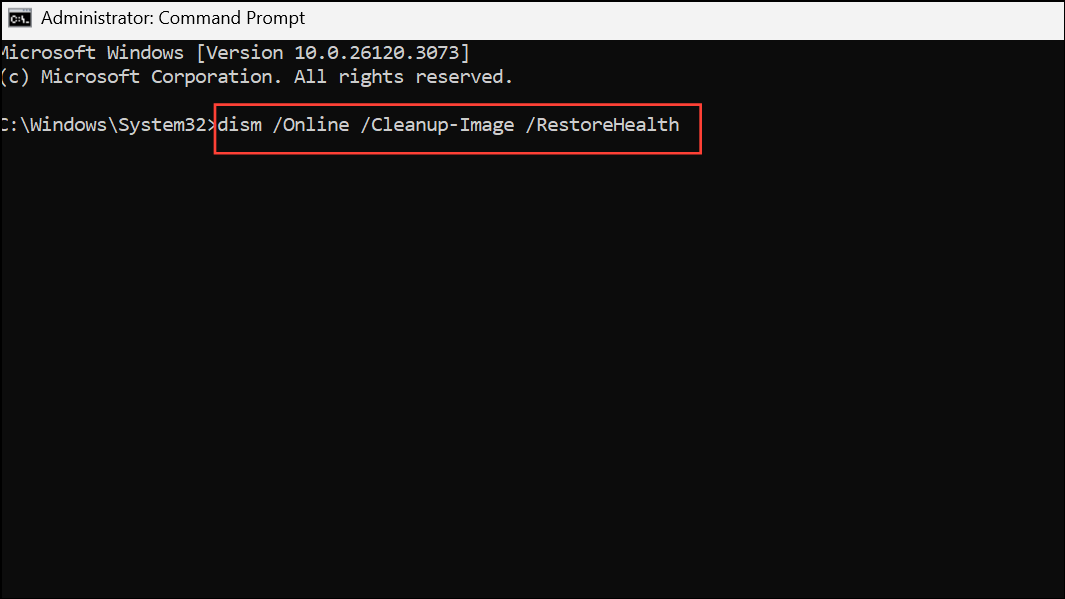
Free Up Disk Space
Insufficient storage can prevent Windows from downloading or installing updates. Verifying available disk space and clearing unnecessary files can remove this obstacle.
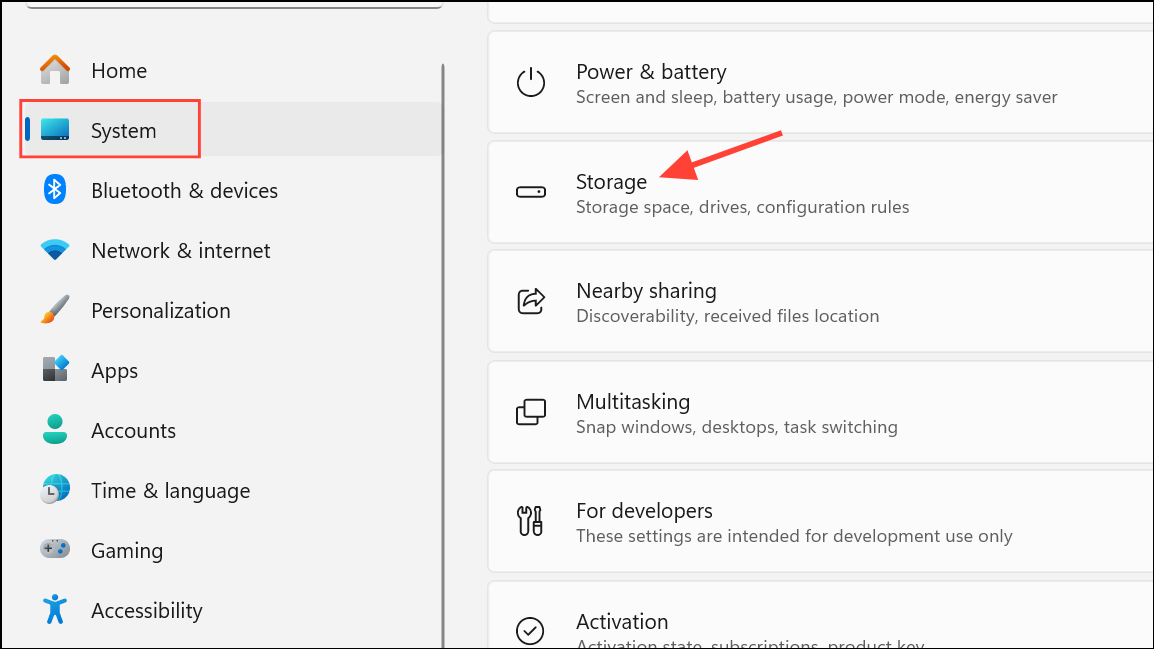
Disk Cleanup in the Start menu. Select your system drive and follow prompts to remove temporary files, system cache, and other unneeded items.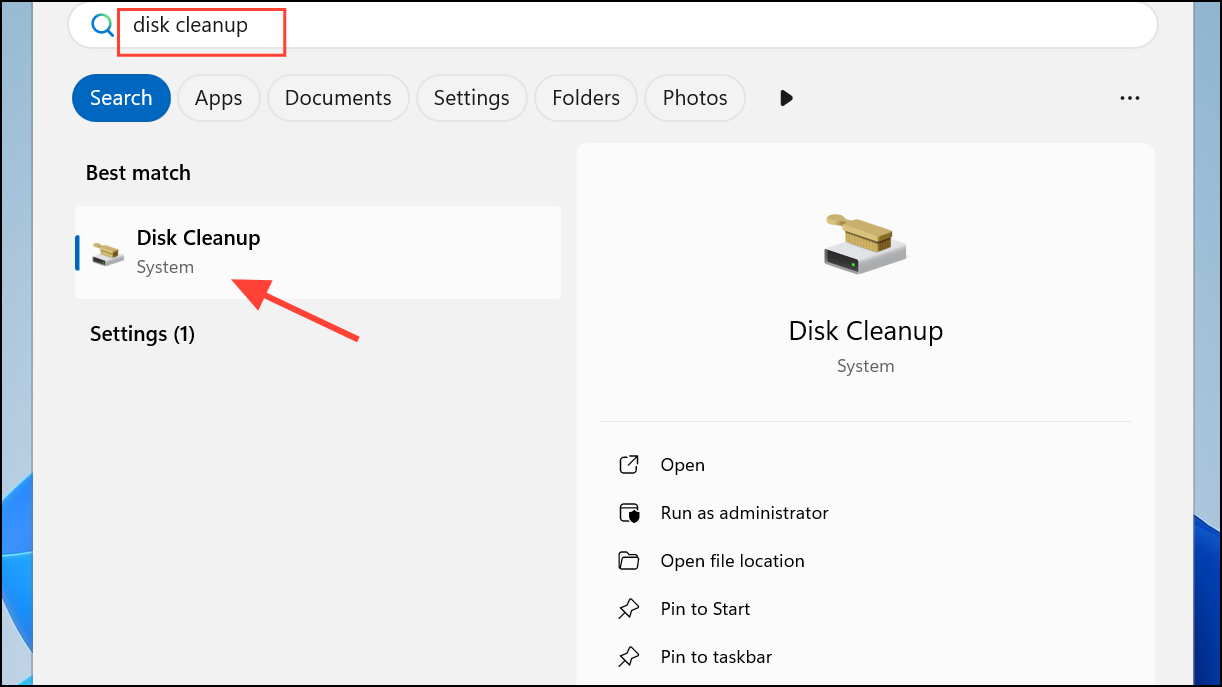
Making sure you have enough free space allows Windows Update to download and apply updates successfully.
Manually Download and Install Updates
If typical update methods fail, manually installing updates can bypass certain service-related issues.
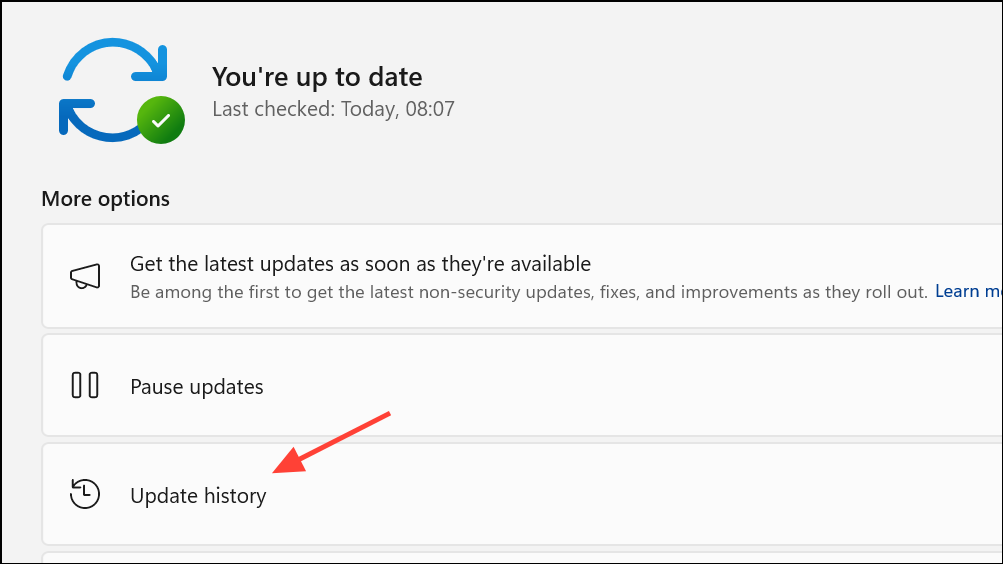
Addressing error 0x80070437 in Windows 11 restores update functionality and keeps your system protected. Regularly checking service configurations and system health helps avoid future update interruptions.



