
Frequent WiFi disconnections after updating to Windows 11 24H2 disrupt everything from streaming and gaming to remote work. Users report issues like the WiFi adapter disappearing, random disconnects especially during high network activity, and the need to restart the PC multiple times a day just to restore connectivity. These problems often persist even after trying standard solutions like basic troubleshooting or resetting the router. Addressing this issue requires a combination of driver updates, power management adjustments, network settings changes, and, in some cases, hardware checks.
Update WiFi Drivers for Compatibility
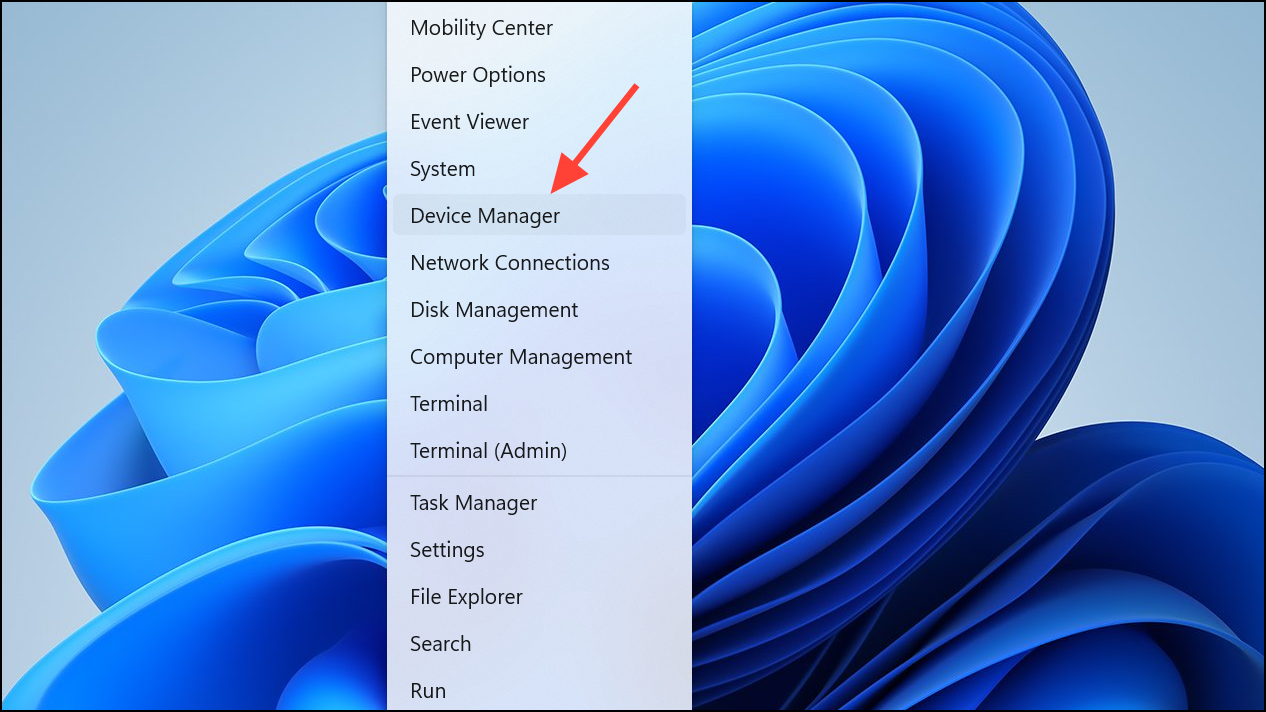
Network adapters section, right-click your WiFi device, and choose Update driver. Select Browse my computer for drivers if you downloaded the driver manually, or Search automatically for drivers for a quick check.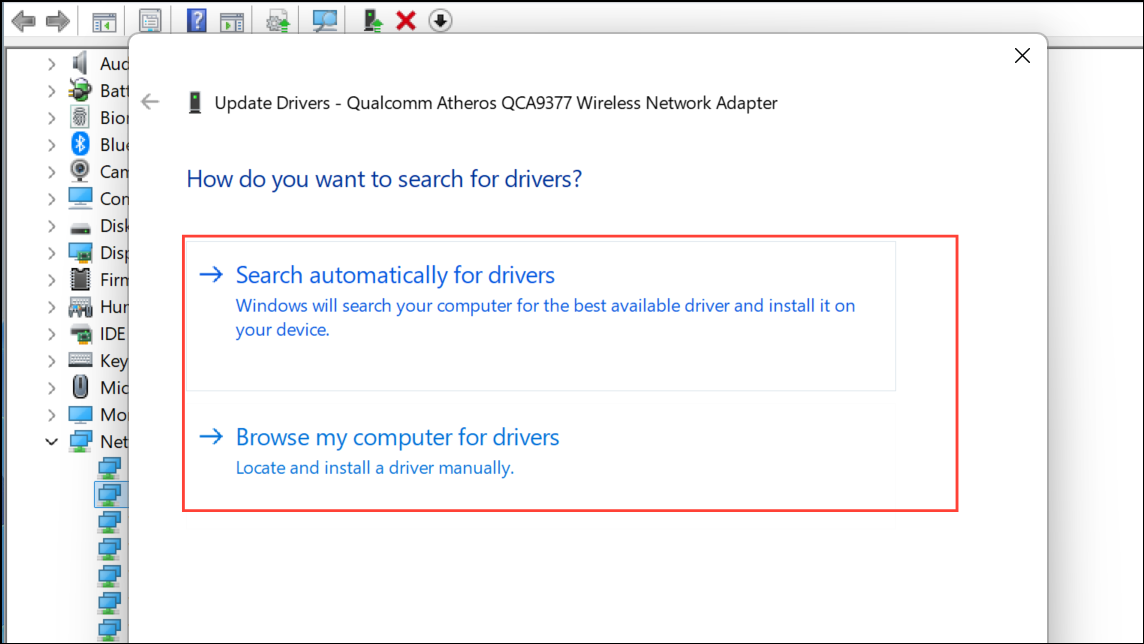
Adjust Power Management Settings
Power Management tab. Uncheck Allow the computer to turn off this device to save power. This setting can cause Windows to disable the WiFi adapter during periods of inactivity or high resource use, resulting in unexpected disconnects—especially on laptops.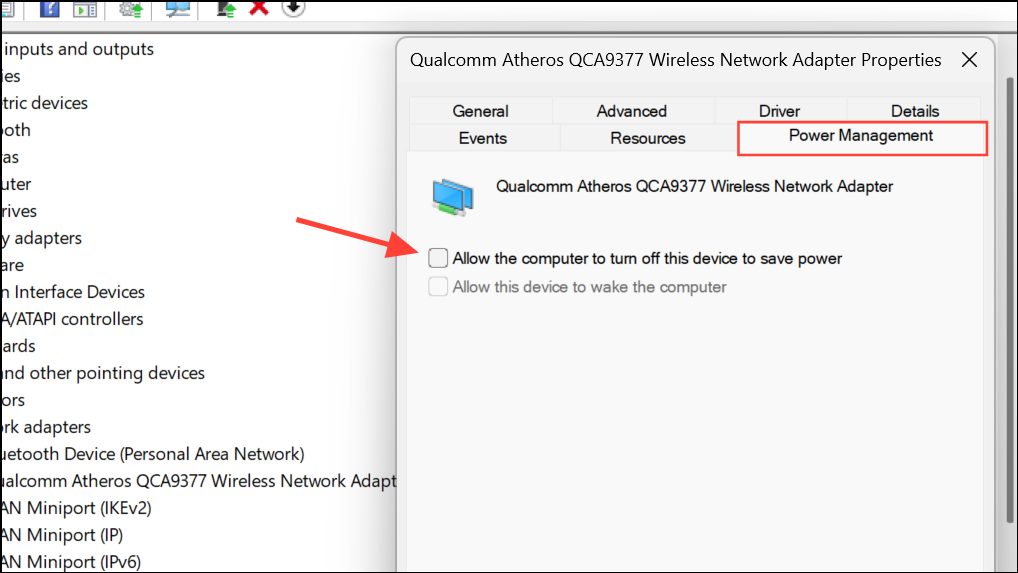
OK and restart your computer. This adjustment keeps your WiFi adapter active, reducing sudden drops caused by aggressive power saving features.Reset Network Settings and Flush DNS
Settings > Network & Internet > Advanced network settings and select Network reset. This will remove and reinstall all network adapters, clearing out conflicts or corrupted settings introduced by updates.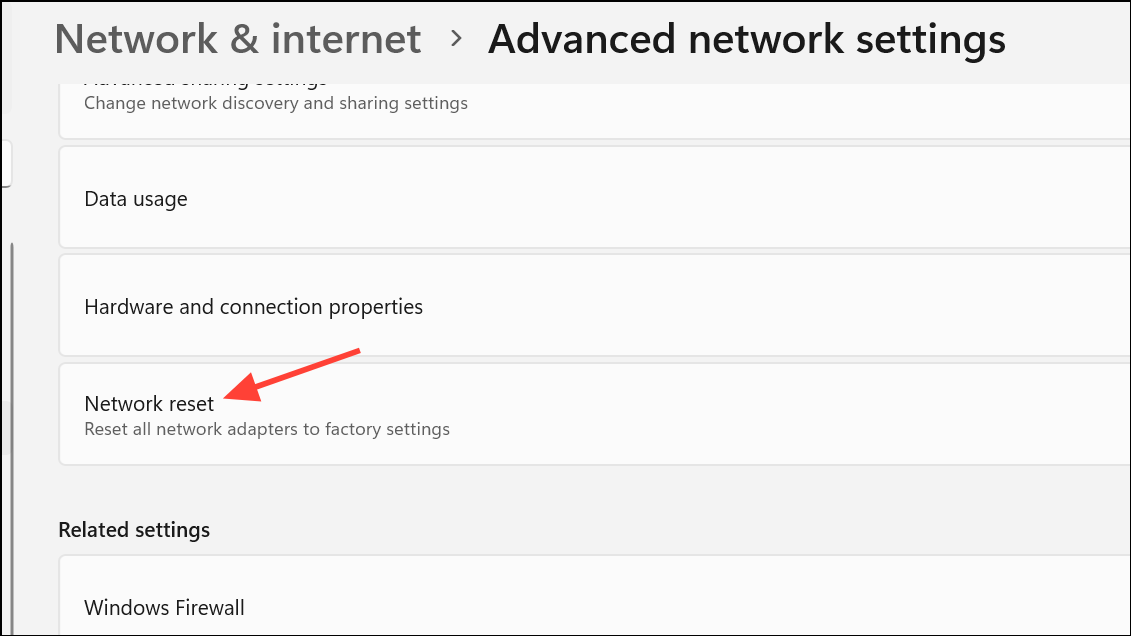
Command Prompt as administrator and run these commands one at a time to reset network stacks and clear DNS cache:netsh winsock reset
netsh int ip reset
ipconfig /release
ipconfig /renew
ipconfig /flushdns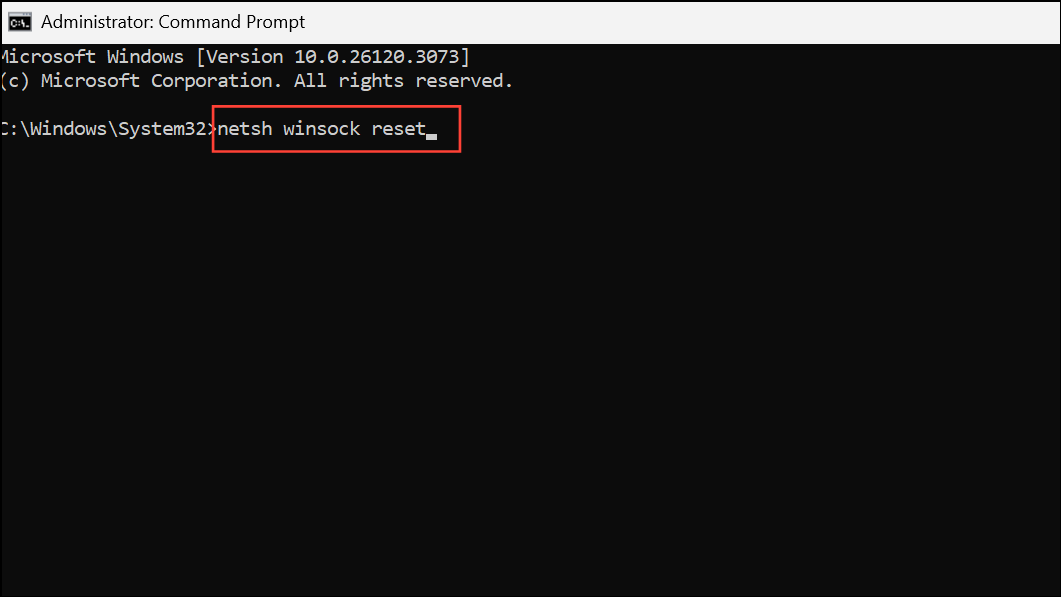
This step resolves lingering network configuration issues that can cause intermittent disconnections.
Fine-Tune WiFi Adapter Advanced Settings
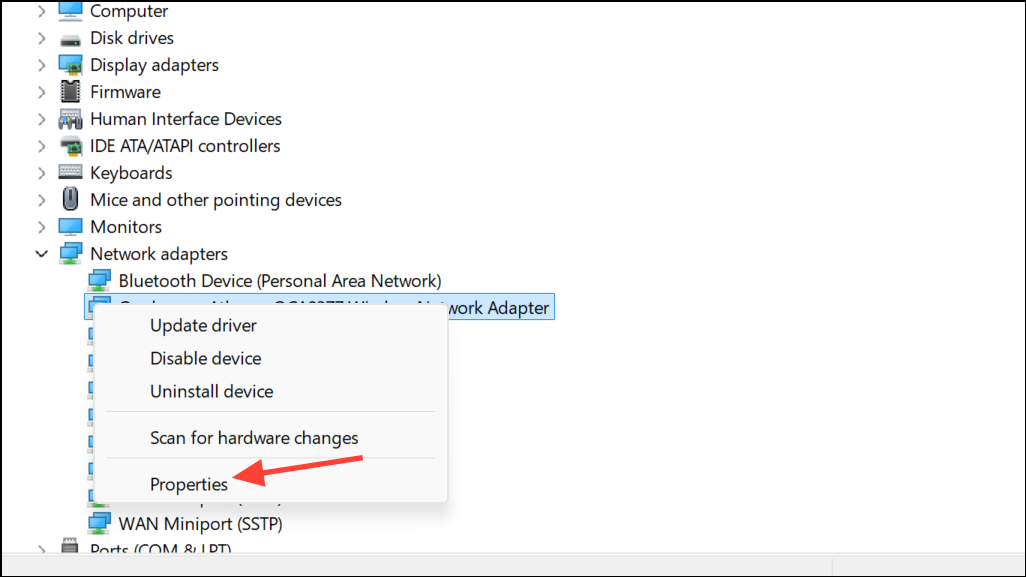
Device Manager, right-click your WiFi adapter, and select Properties. Navigate to the Advanced tab.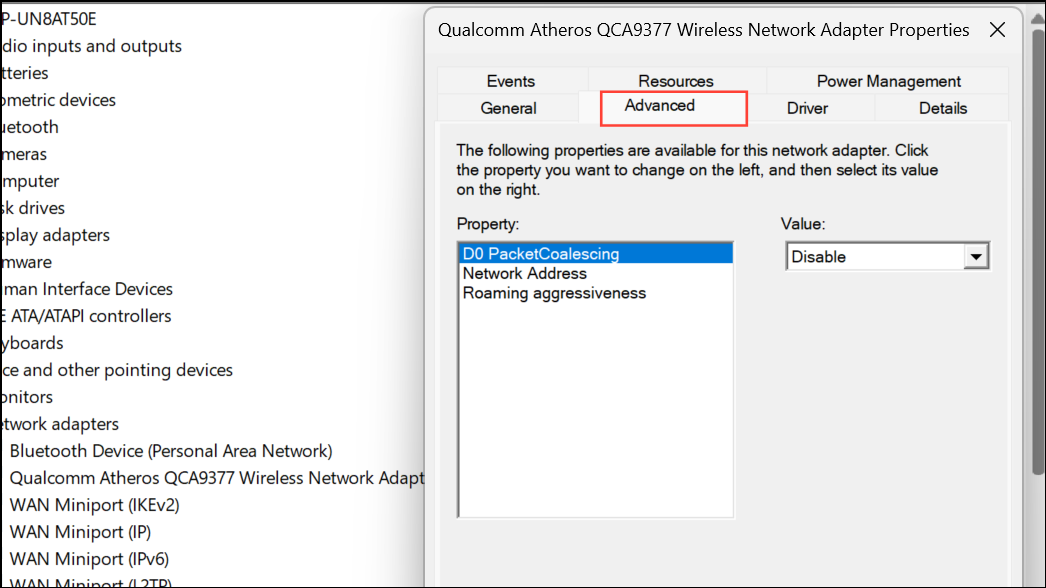
Roaming Aggressiveness (set to Medium or Lowest to reduce unnecessary switching between networks) and Wireless Mode (match it to your router’s capabilities, e.g., 802.11ac or 802.11ax). These adjustments can stabilize your connection by preventing the adapter from searching for new networks or using incompatible wireless standards.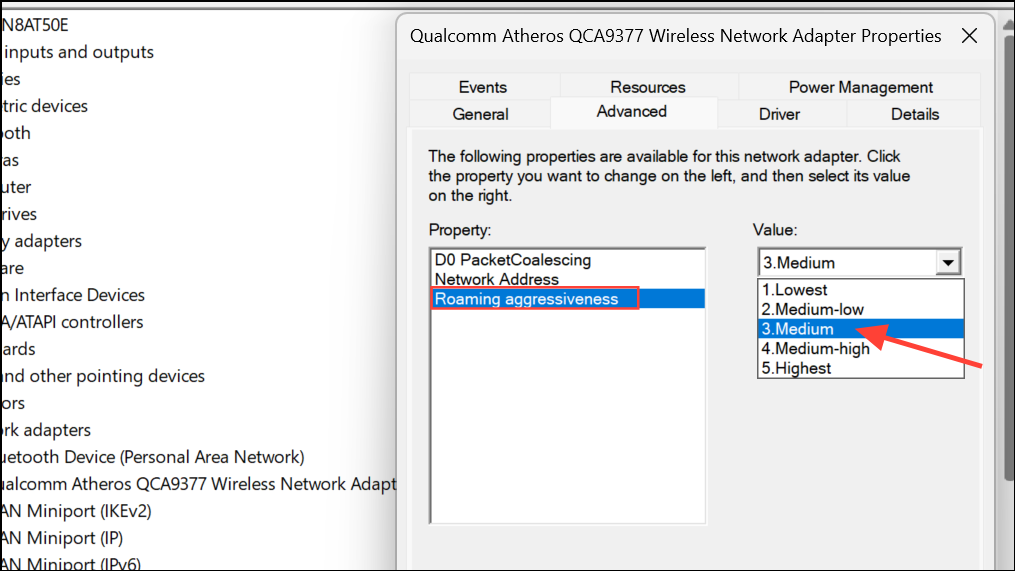
OK and test your connection during regular use or high-demand activities like gaming or video streaming.Check for Windows Updates and Optional Fixes
Settings > Windows Update > Advanced Options > Optional Updates > Other Updates. Look for recent cumulative updates (such as KB5050094) that specifically address network stability or known WiFi bugs in 24H2.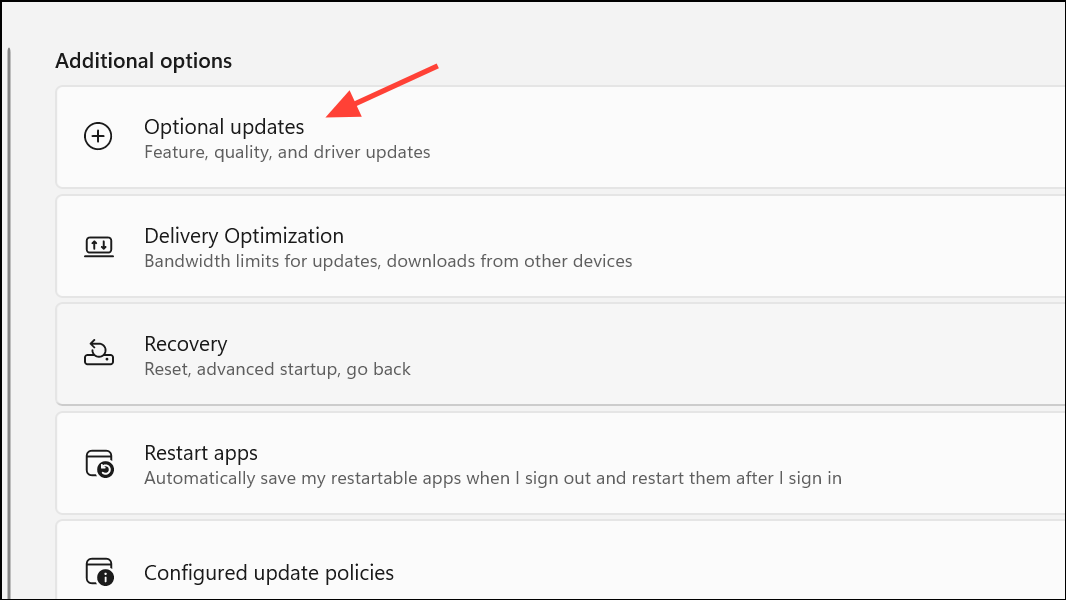
Windows + F) to help Microsoft identify and resolve widespread compatibility issues.Hardware and Environmental Considerations
Additional Tips for Stable WiFi on Windows 11 24H2
- Disable VPNs or proxies temporarily to see if they are interfering with your connection.
- Remove saved networks you no longer use by going to
Settings > Network & Internet > WiFi > Manage known networks. - Turn off features like
Connect to suggested open hotspotsandPaid WiFi servicesfor more predictable network selection. - Regularly reboot your router and modem to prevent firmware-related glitches.
- Keep your router’s firmware updated for optimal compatibility with Windows 11 24H2 devices.
By following these targeted steps, you can significantly reduce or eliminate WiFi disconnects on Windows 11 24H2 and restore a stable, reliable connection for all your online activities.



