
The error message We couldn't create a new partition or locate an existing one. For more information, see the Setup log files appears during Windows 11 installation when the setup cannot properly access or configure the target disk partition. This issue interrupts the installation process and can result from bootable media problems, conflicting drives, incorrect partition settings, or disk format mismatches.
Disconnect All Unnecessary Drives and Devices
Multiple connected storage devices often confuse the Windows installer, causing it to select the wrong disk for boot files or partitions. Removing unnecessary drives ensures the installer targets only the intended disk.
Create or Prepare the Partition Using Diskpart
When Windows Setup cannot create or locate a partition, using the Diskpart command-line utility allows you to manually clean, create, and set up the target partition. This approach resolves issues caused by leftover partition tables or incompatible formats.
Shift + F10 to open a Command Prompt window.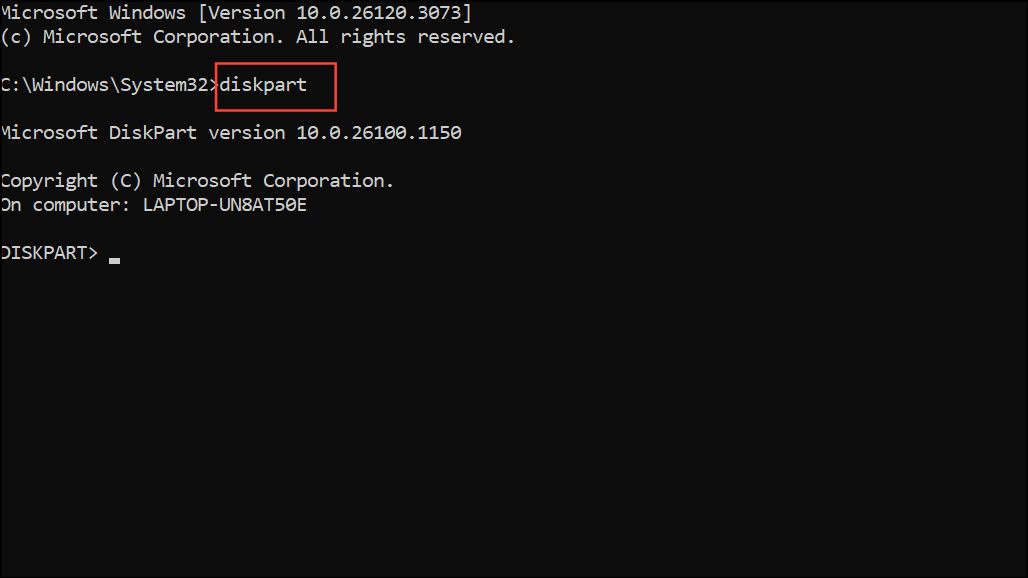
list disk and press Enter to display all connected disks. Identify the disk number for your target drive.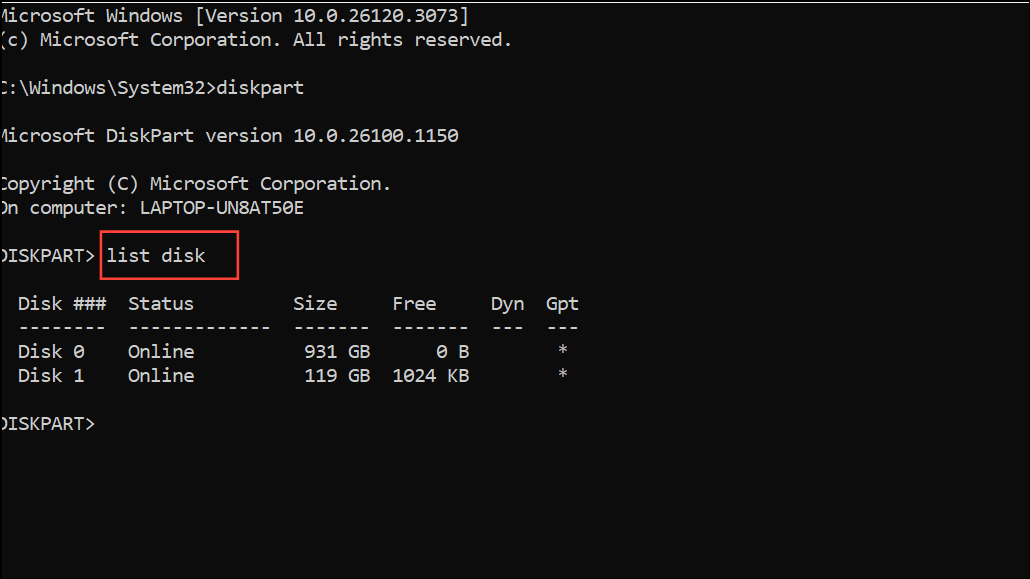
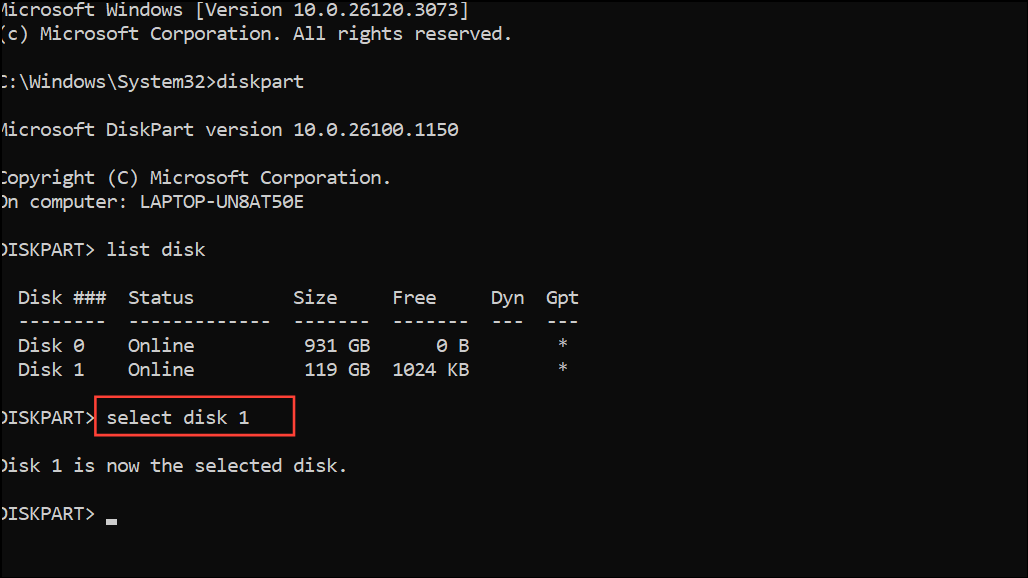
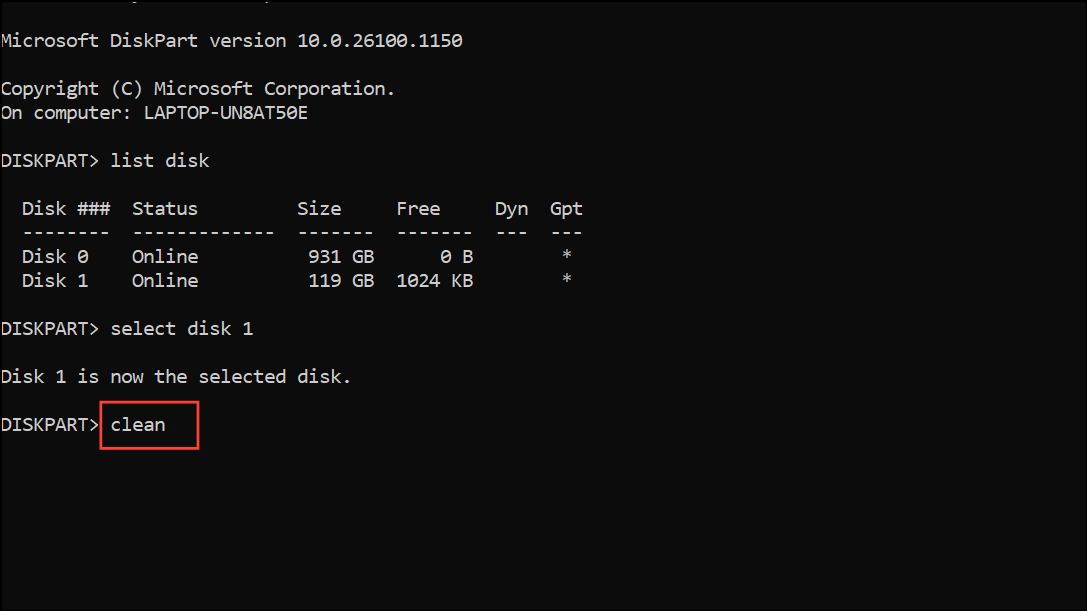
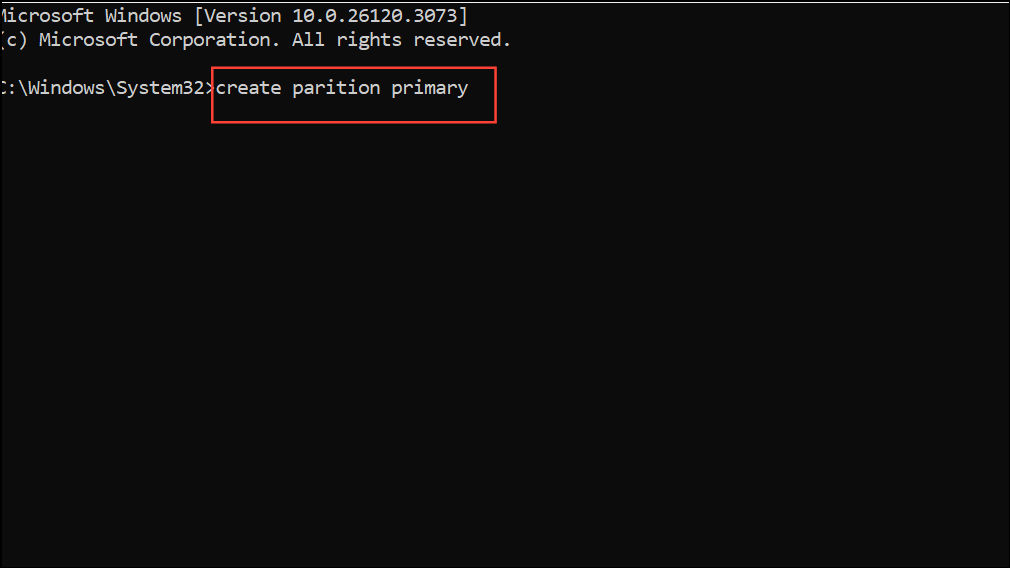
format fs=ntfs quick and assign a drive letter by typing assign letter=C (or another available letter).active. For UEFI/GPT installations, this step is not required.exit twice to close Diskpart and the Command Prompt. Continue with Windows Setup and select the newly created partition for installation.Switch to a USB 2.0 Drive for Installation Media
Some systems, especially older motherboards or those with limited USB 3.0 driver support during setup, may not recognize USB 3.0 installation media correctly. This can prevent Windows from accessing the target disk properly.
Set the Partition as Primary or Active
Windows requires the installation partition to be set as primary and, in some legacy BIOS/MBR setups, as active. If the partition is not correctly flagged, the installer may display the partition error.
list partition to display partitions, then select partition Y (replace Y with the partition number you want to install Windows on).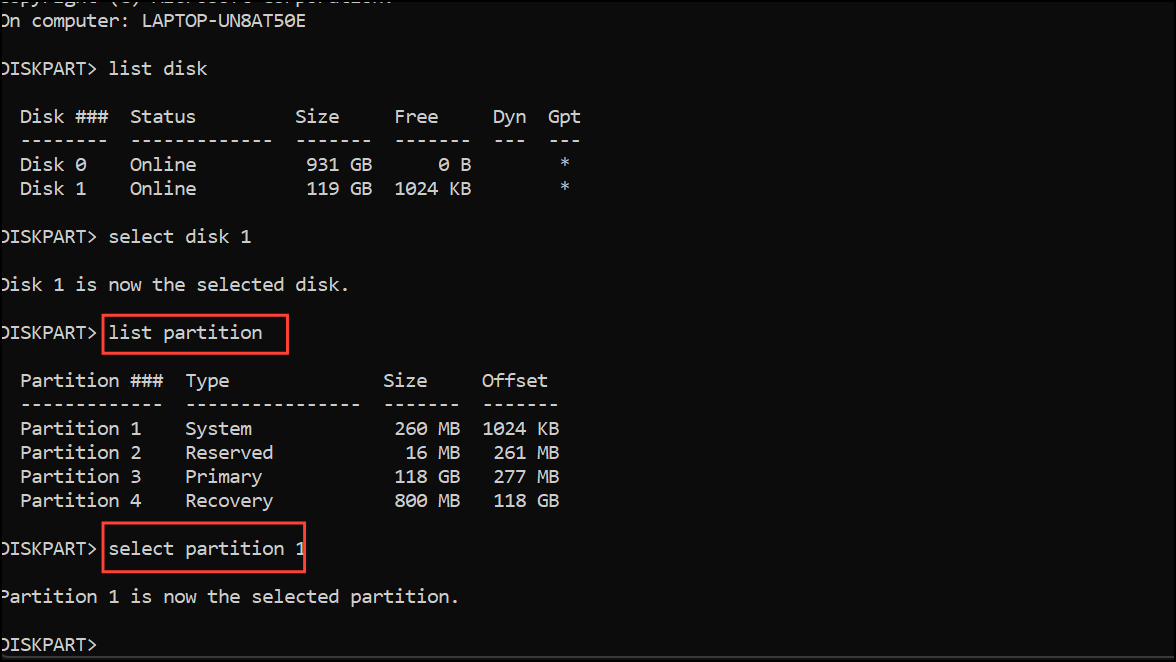
active and press Enter. This marks the partition as active for BIOS/MBR systems. For GPT/UEFI installations, ensure the partition type is set to primary, which Diskpart does by default when creating a new partition.Convert Disk to GPT Format for UEFI Systems
Windows 11 requires UEFI boot mode and GPT partitioning for most modern systems. If your disk is set to MBR, the installer may fail to create the necessary EFI System Partition.
Check and Adjust Boot Order in BIOS/UEFI
Incorrect boot order can cause the installer to misidentify the target disk or fail to access the installation media properly.
F2, Del, or Esc during startup).Following these targeted steps addresses the root causes behind the “We couldn’t create a new partition” error 0x9cfc7550 in Windows 11. After installation, reconnect any additional drives and restore your data as needed.



