
Windows 11 systems sometimes fail to detect a second monitor, disrupting workflows and limiting available screen space. This issue can occur even when both monitors and cables work on other devices, or when the setup previously functioned as expected. Addressing this problem requires a systematic approach, starting with the most reliable fixes and moving to more advanced troubleshooting if necessary.
Update or Reinstall Graphics and Chipset Drivers
Driver compatibility problems are a leading cause of monitor detection failures, especially after Windows 11 upgrades or major updates. Manufacturers may release new drivers that Windows Update does not automatically install, resulting in missing or malfunctioning display outputs.
Settings > System > Display. If not, proceed to the next method.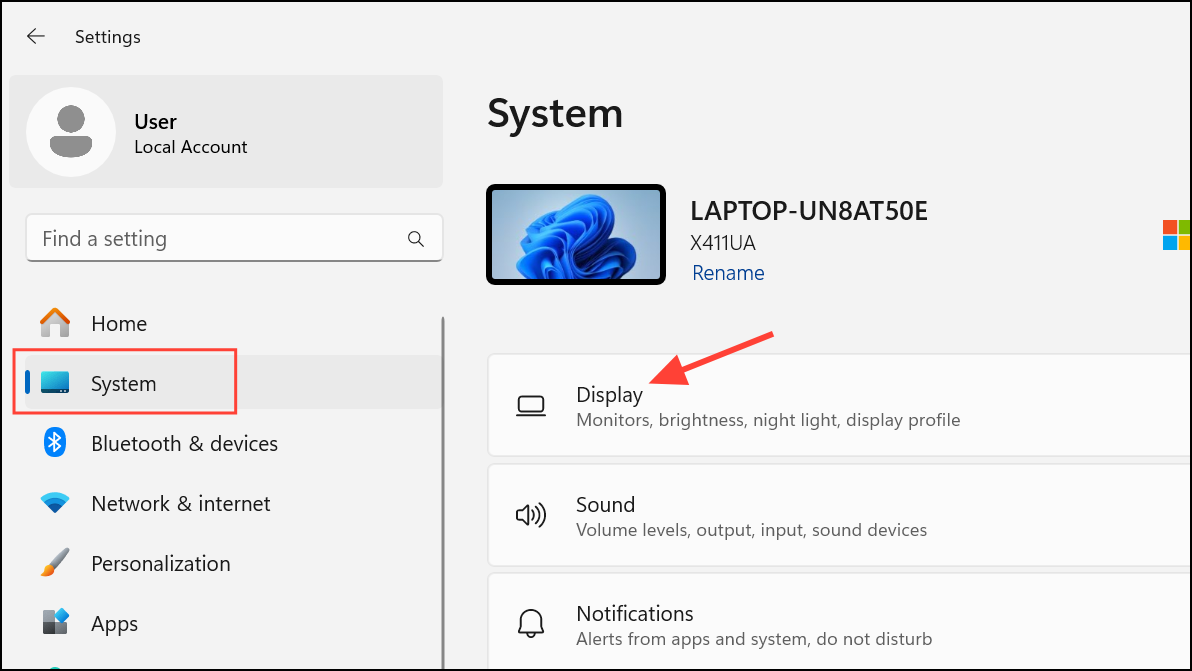
Check Physical Connections and Hardware
Loose, damaged, or incompatible cables and ports can prevent Windows 11 from recognizing your second monitor. Even new equipment can have undetected faults, so it’s important to verify every connection.
Adjust Display Settings in Windows 11
Incorrect display configurations can cause Windows 11 to ignore your second monitor or mirror the primary display instead of extending it.
Display settings. Scroll down to the “Multiple displays” section.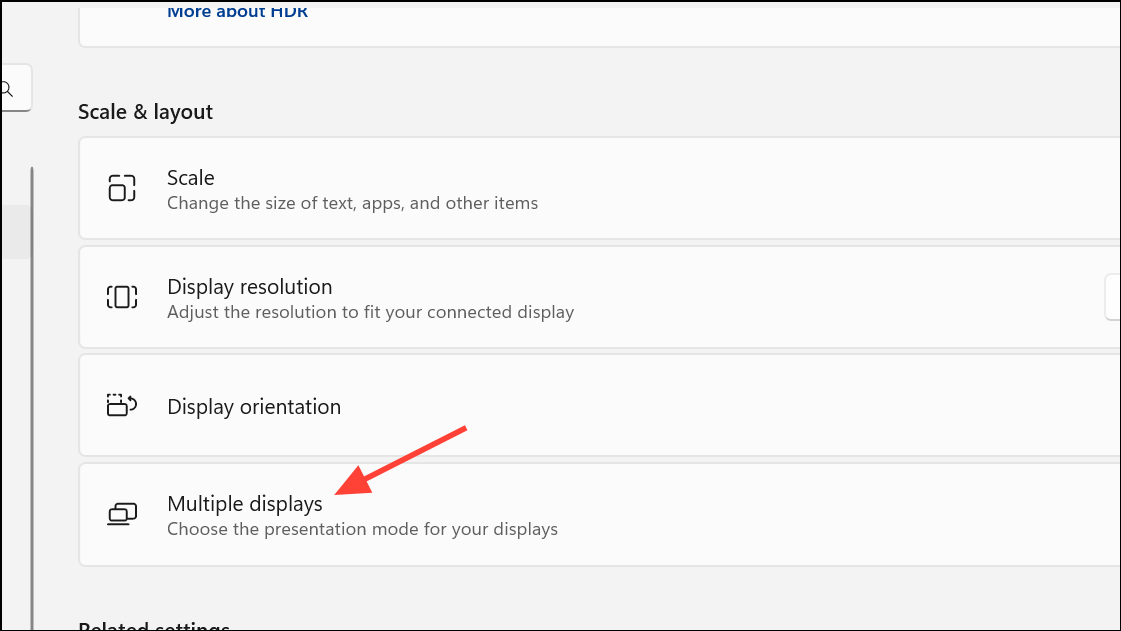
Detect to prompt Windows to search for additional monitors. If the monitor appears, select it and choose Extend these displays from the display mode dropdown.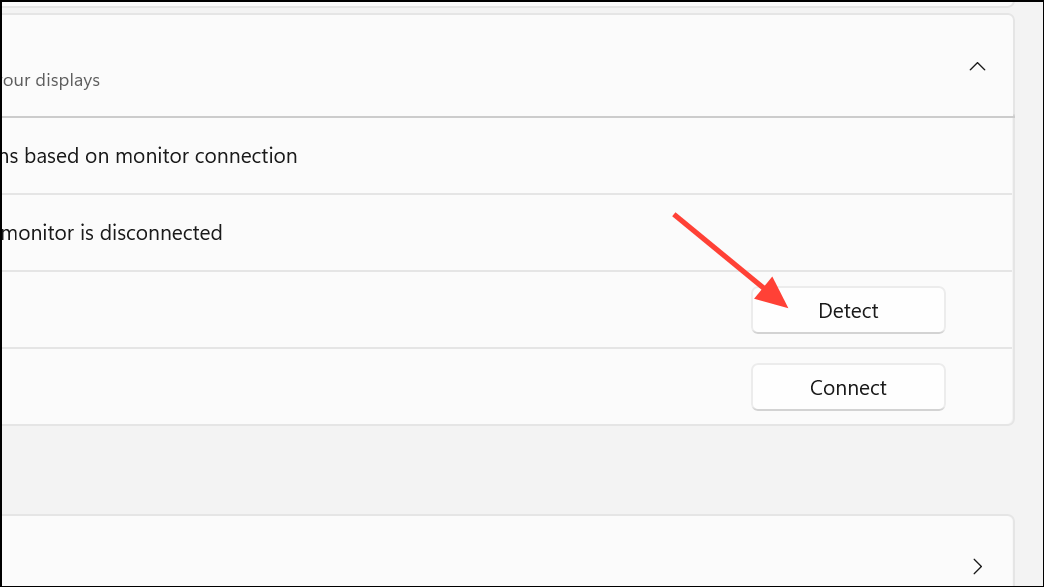
Windows key + P. Press the down arrow and hit Enter to cycle through projection modes (Duplicate, Extend, Second screen only). This can force Windows to activate the display output.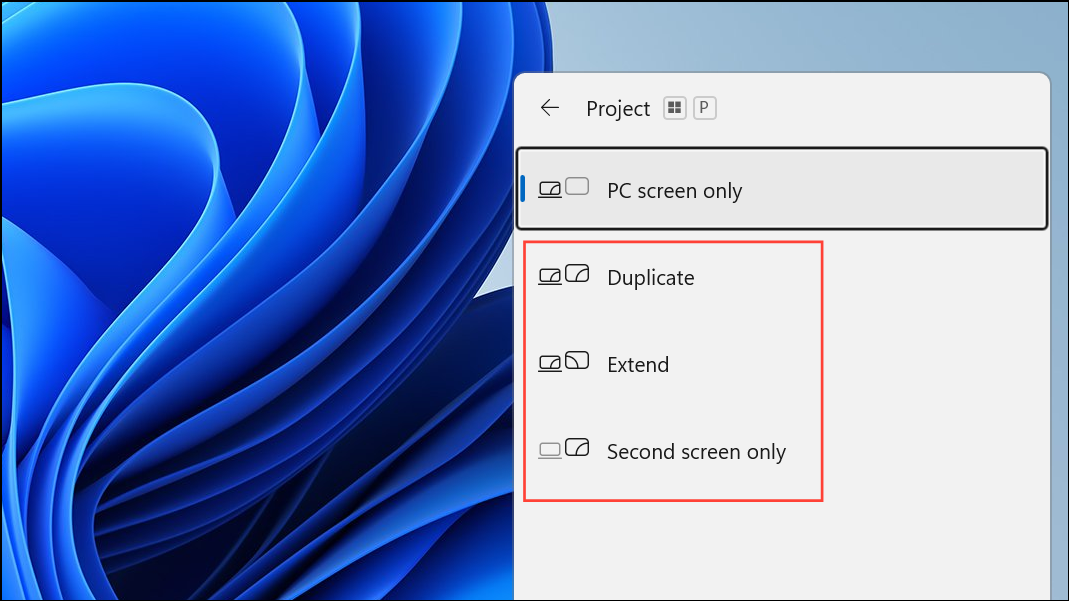
Advanced display settings and changing the rate to match the monitor’s specifications. Incompatible refresh rates can cause blank screens or failed detection.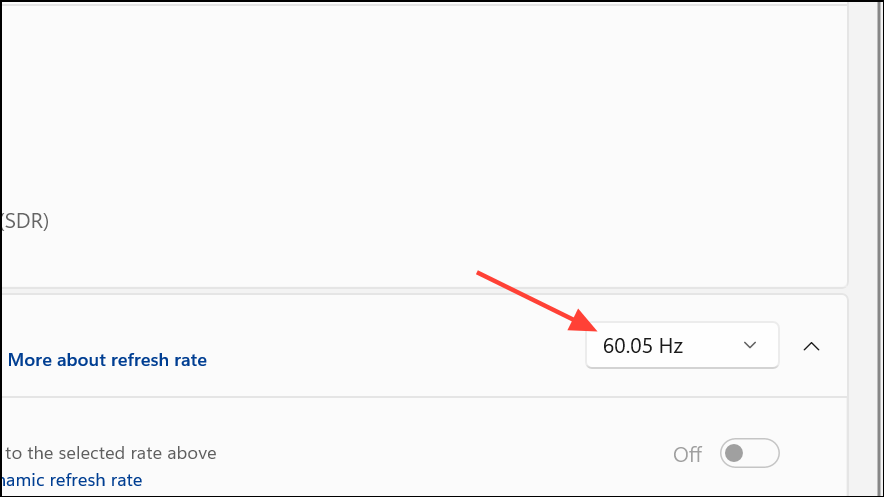
Refresh or Reset Graphics Driver
Occasionally, the graphics driver may freeze or fail to initialize new connections. Windows 11 provides a shortcut to reset the display adapter without rebooting.
Windows key + Ctrl + Shift + B. The screen will briefly go black and you’ll hear a beep, indicating the graphics driver has reset.Remove Ghost Devices in Device Manager
Windows can accumulate “ghost” or hidden monitor entries, which may interfere with detecting new displays.
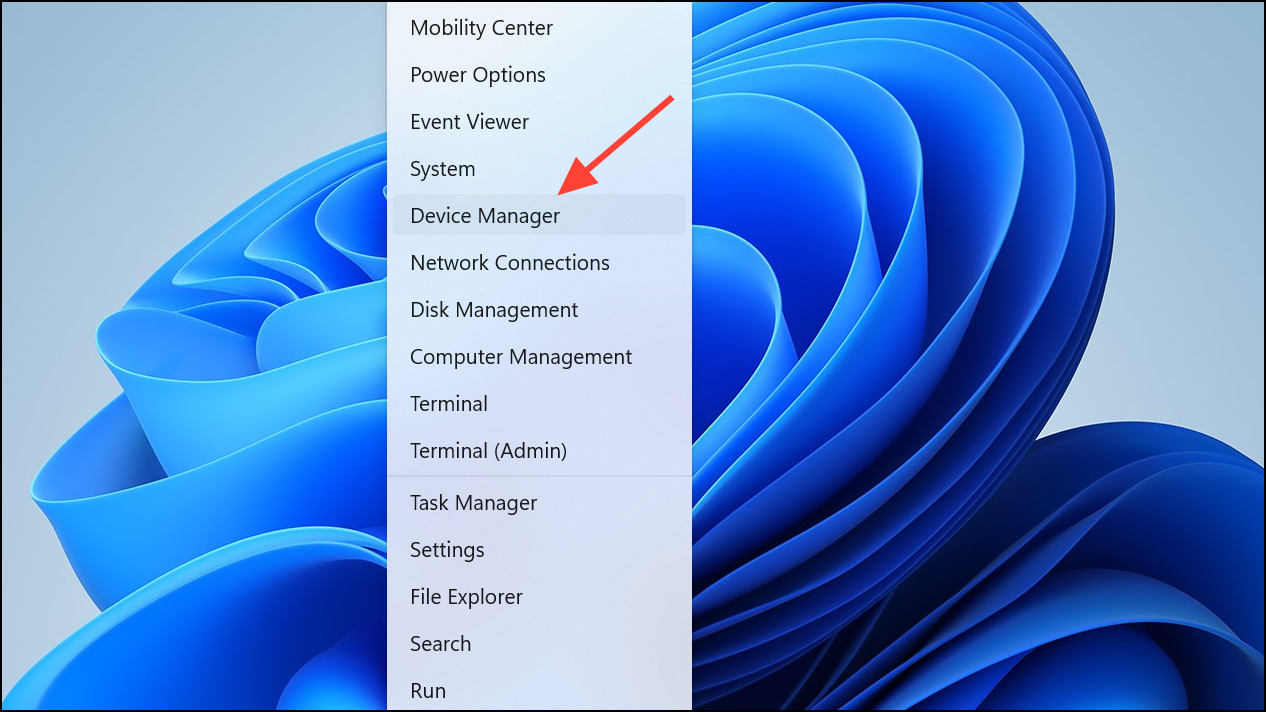
View > Show hidden devices. Expand the “Monitors” section and right-click to uninstall any greyed-out or duplicate monitors.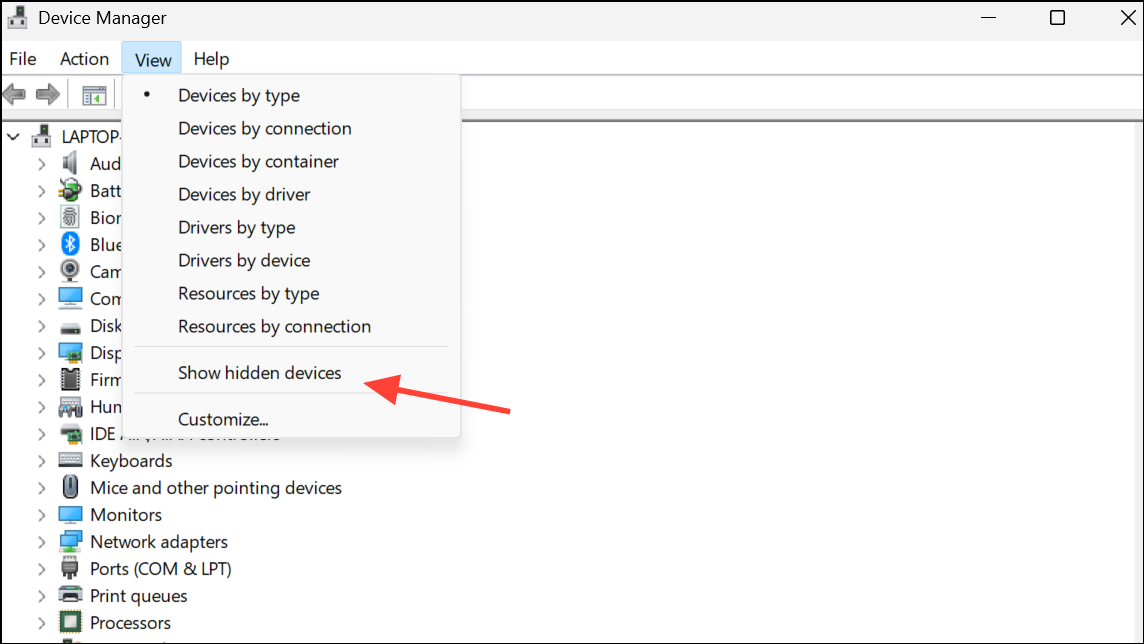
Run Windows Troubleshooter and Check for System Updates
Built-in troubleshooters can identify and fix common hardware and device problems, while regular updates address known bugs in Windows 11’s display handling.
Settings > System > Troubleshoot > Other troubleshooters. Find “Hardware and Devices” and click Run. Follow the prompts to apply any suggested fixes.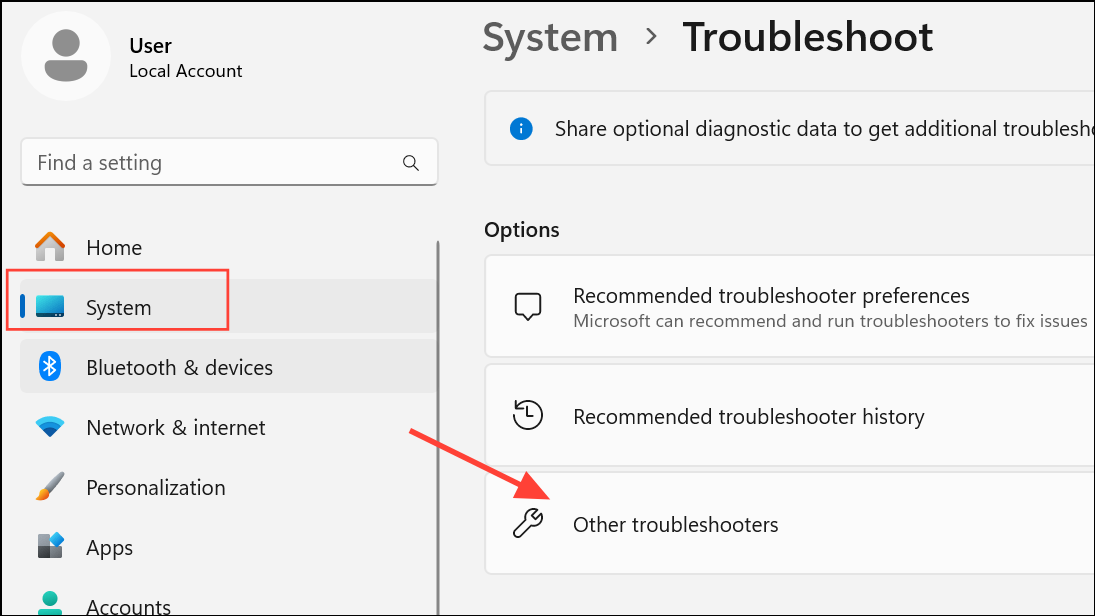
Settings > Windows Update and clicking Check for updates. Install any available patches, as updates can resolve compatibility issues with new hardware or monitors.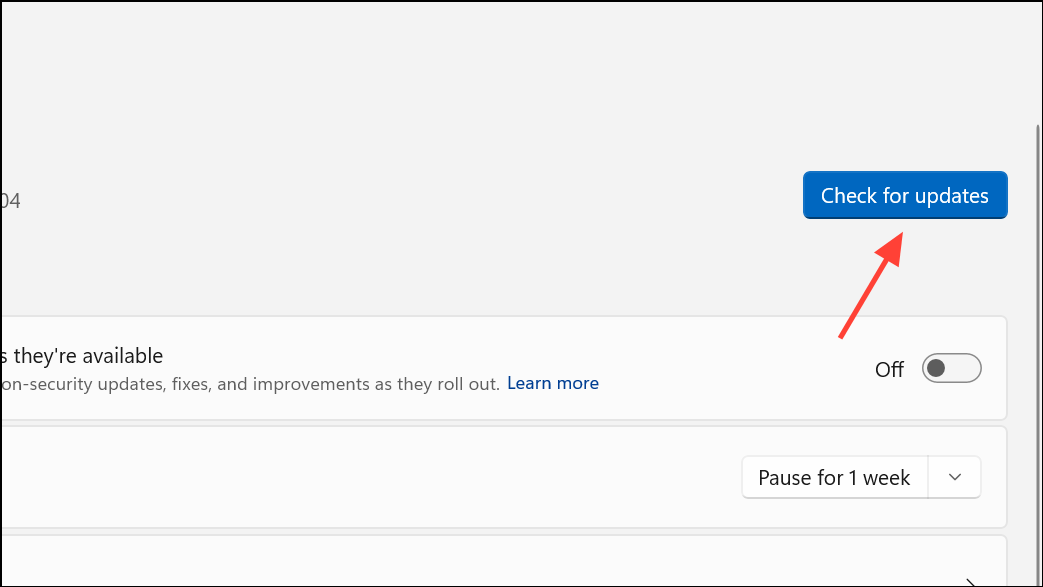
Advanced Troubleshooting: Registry and Display Settings Reset
For persistent cases, advanced users can reset display settings or tweak registry values to address detection issues. Proceed with caution and always back up the registry before making changes.
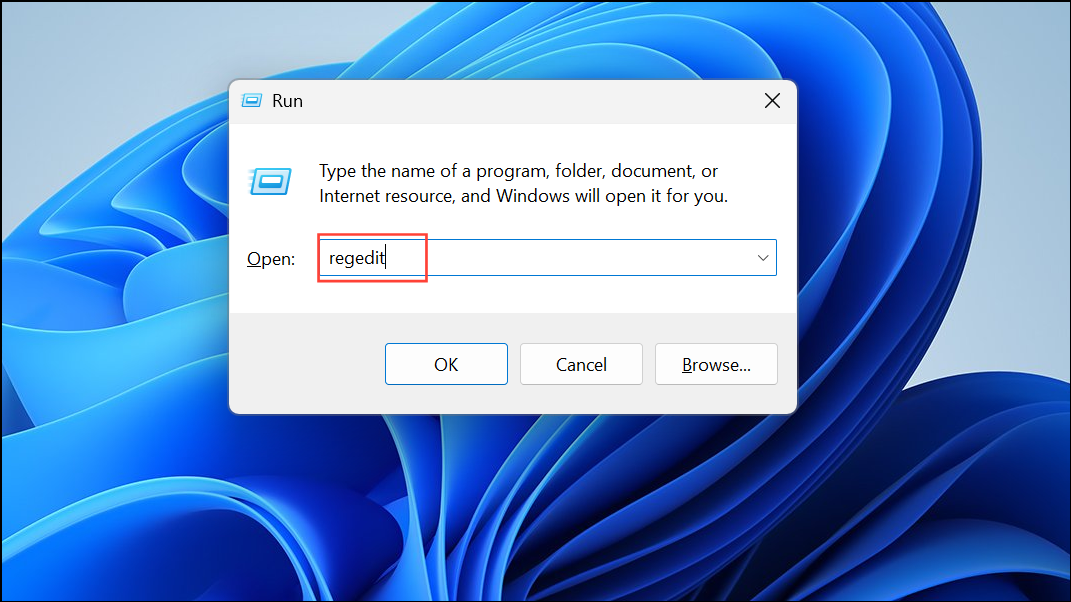
HKEY_LOCAL_MACHINE\SYSTEM\CurrentControlSet\Control\GraphicsDrivers. Right-click, create a new DWORD (32-bit) value named TdrDelay, and set its value to 8. This increases GPU processing time for display detection.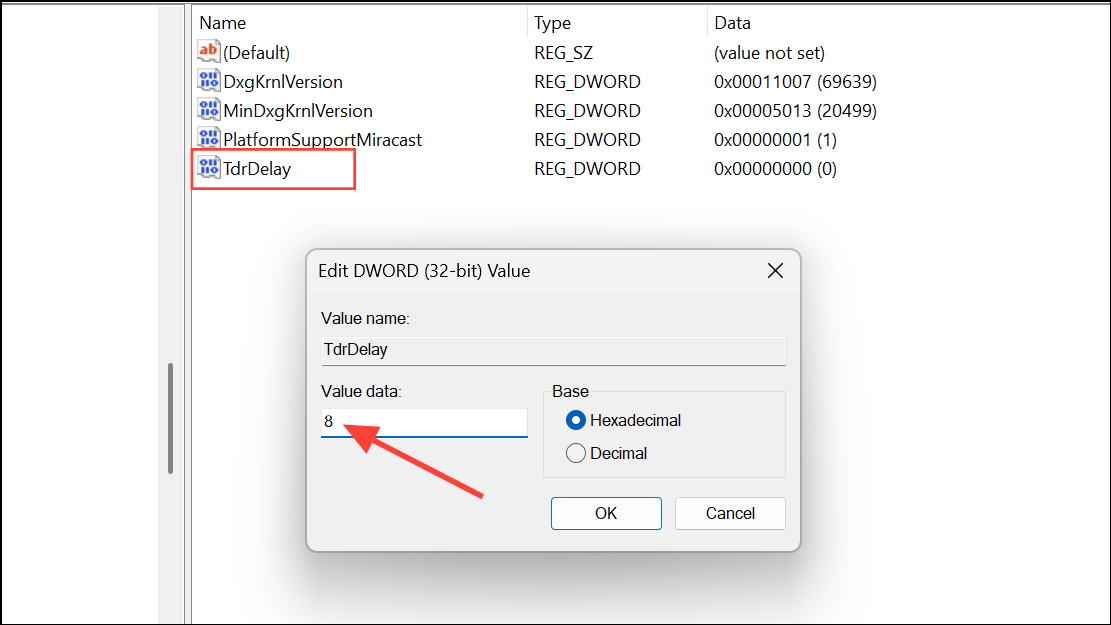
Settings > System > Display and manually revert all settings to their defaults, or use the reset option if available.Check for Hardware Compatibility and Monitor Firmware
Some monitors or cables may not fully support Windows 11 or your graphics card’s output standards. Compatibility issues can cause detection failures, especially with older or budget models.
Settings > System > Display > Graphics and turn off both features for all monitors.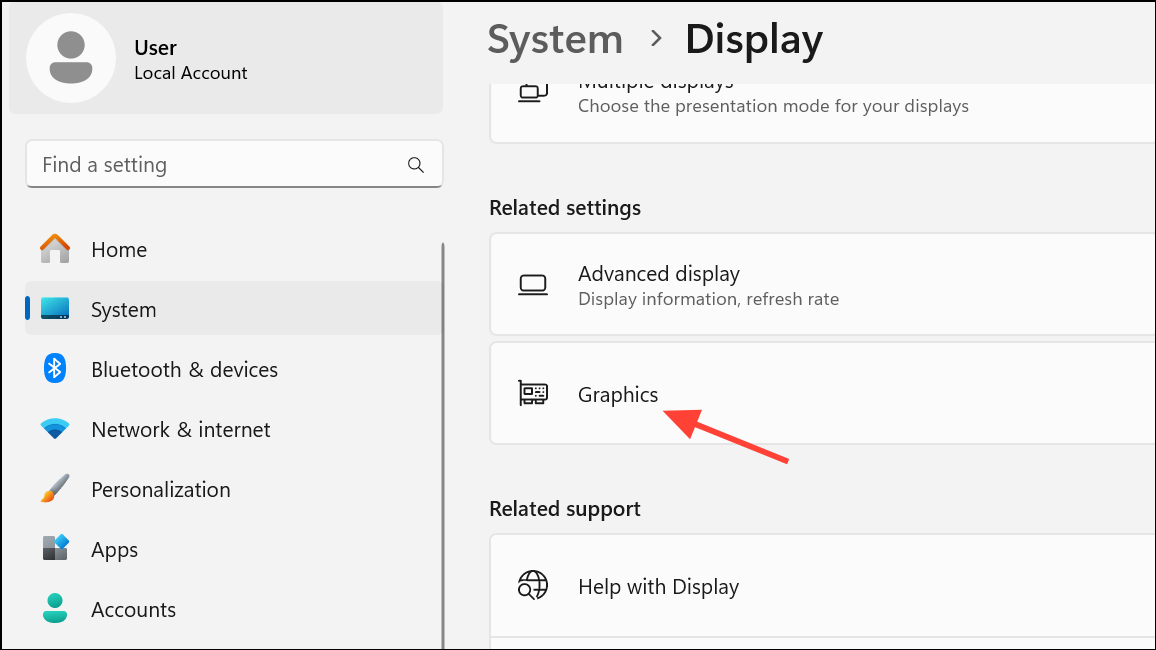
Resolving Windows 11’s second monitor detection problems often requires a combination of driver updates, hardware checks, and display setting adjustments. By methodically following these steps, you can restore a reliable dual-monitor setup and optimize your workspace for productivity.



