
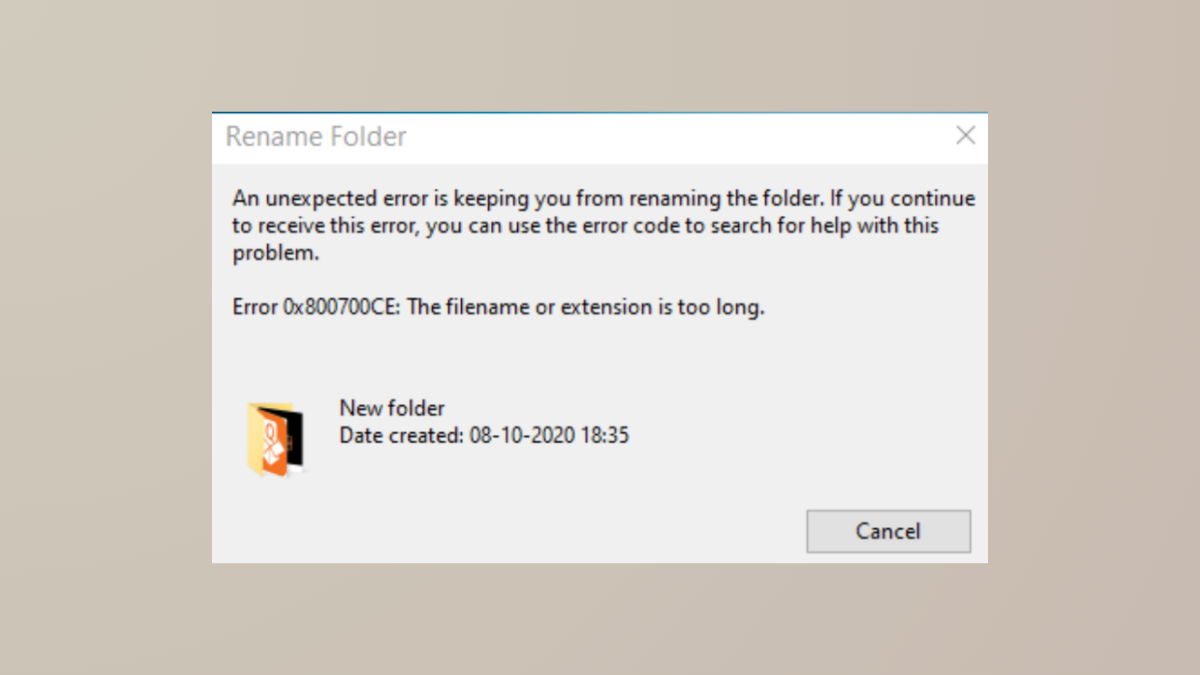
Receiving the error message Error 0x800700CE: The filename or extension is too long when creating, renaming, or restoring folders in Windows 11 can block routine file management and disrupt workflow. This issue typically stems from Windows’ path length restrictions, software conflicts, or system misconfigurations, and can occur even with short folder names if the underlying path is deeply nested or if certain system settings are misapplied.
Use 7-Zip File Manager to Rename or Move Files with Long Paths
Third-party file managers like 7-Zip are designed to handle files and folders that exceed Windows’ default path length restrictions. This approach is especially effective when standard Windows tools fail to rename, move, or restore problematic files or folders.
Run as administrator to ensure you have the necessary permissions.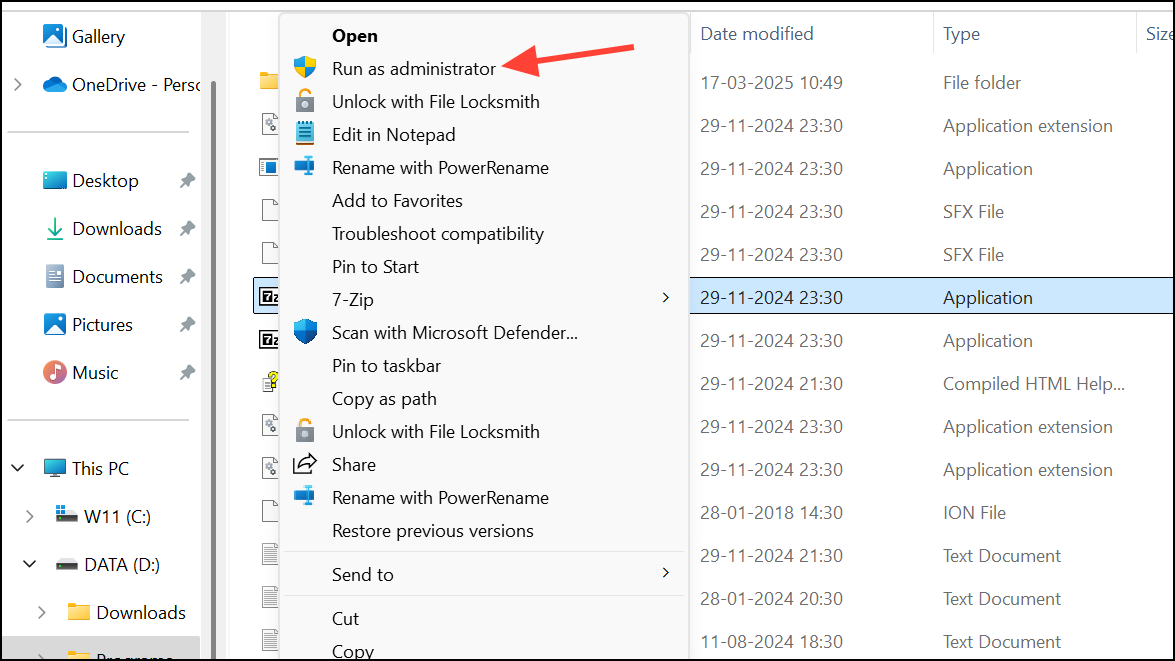
D:\$Recycle.Bin and locate your user-specific folder (usually ending in four digits).Move To..., then select a destination closer to the root of your drive (such as D:\). This reduces the overall path length and bypasses the limitation.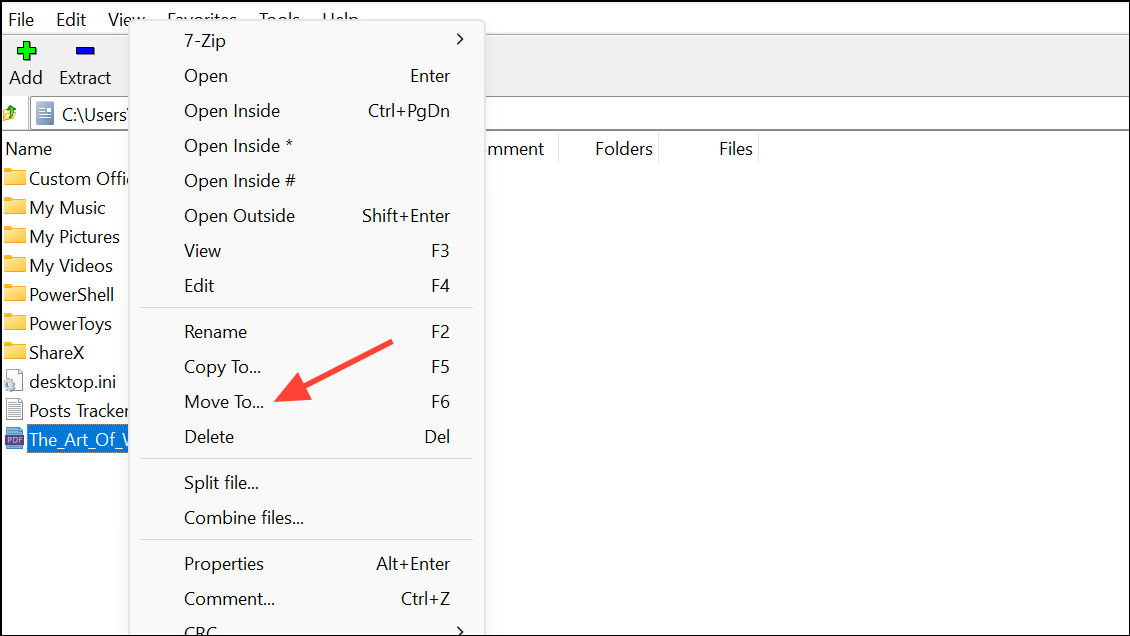
Enable Win32 Long Paths via Group Policy Editor
Windows 11 restricts file and folder paths to 260 characters by default. Enabling long path support allows applications to access files and folders with paths up to 32,767 characters, which resolves many issues related to deep folder structures.
Windows + R to open the Run dialog, type gpedit.msc, and press Enter to launch the Local Group Policy Editor.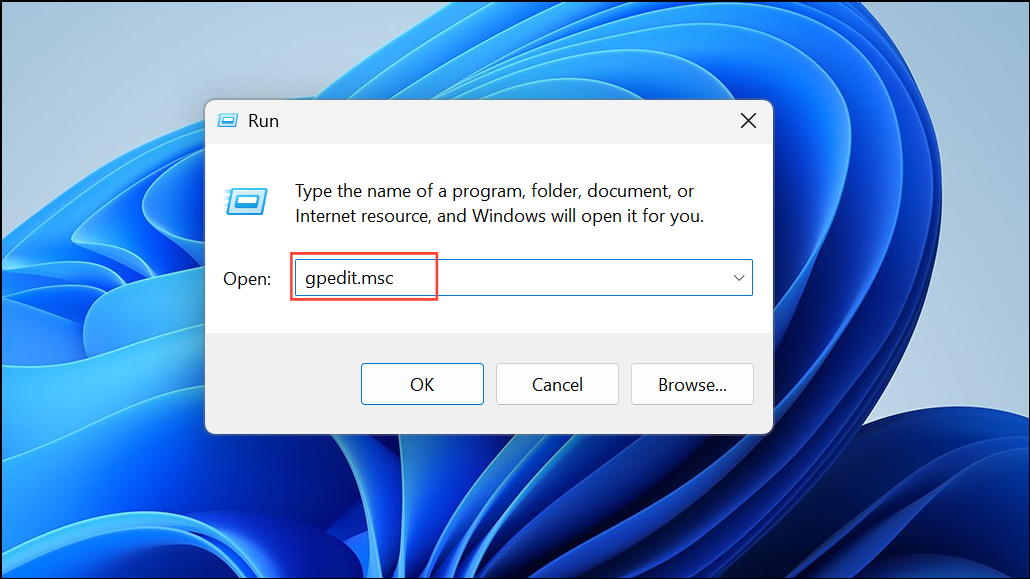
Local Computer Policy > Computer Configuration > Administrative Templates > System > Filesystem.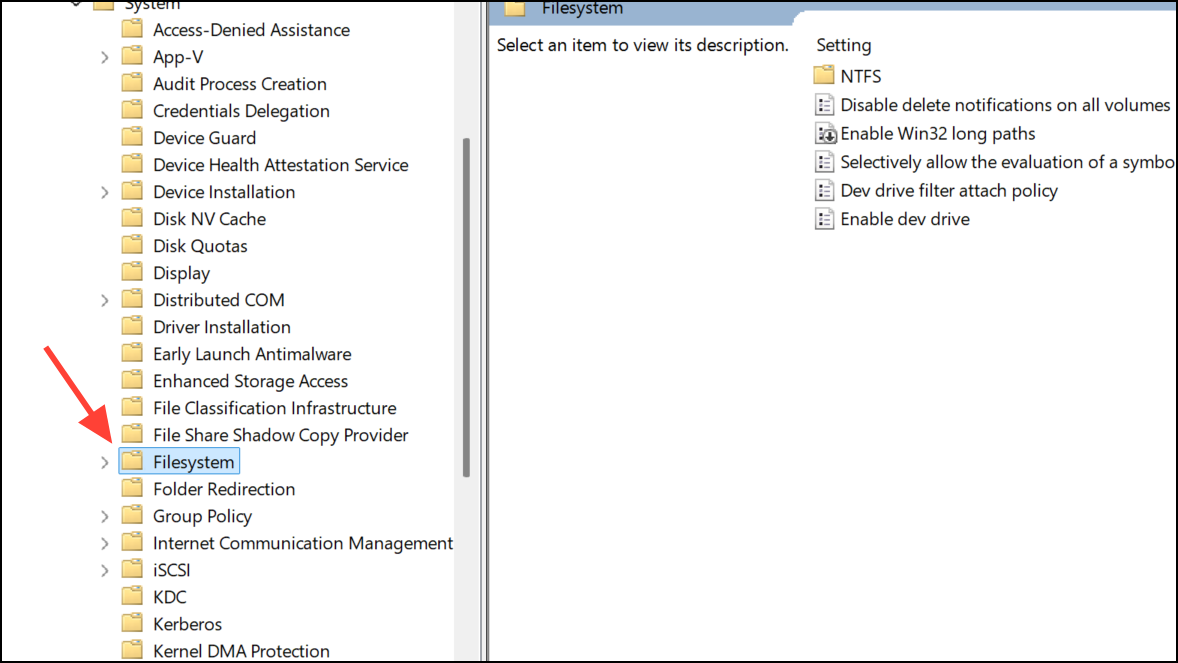
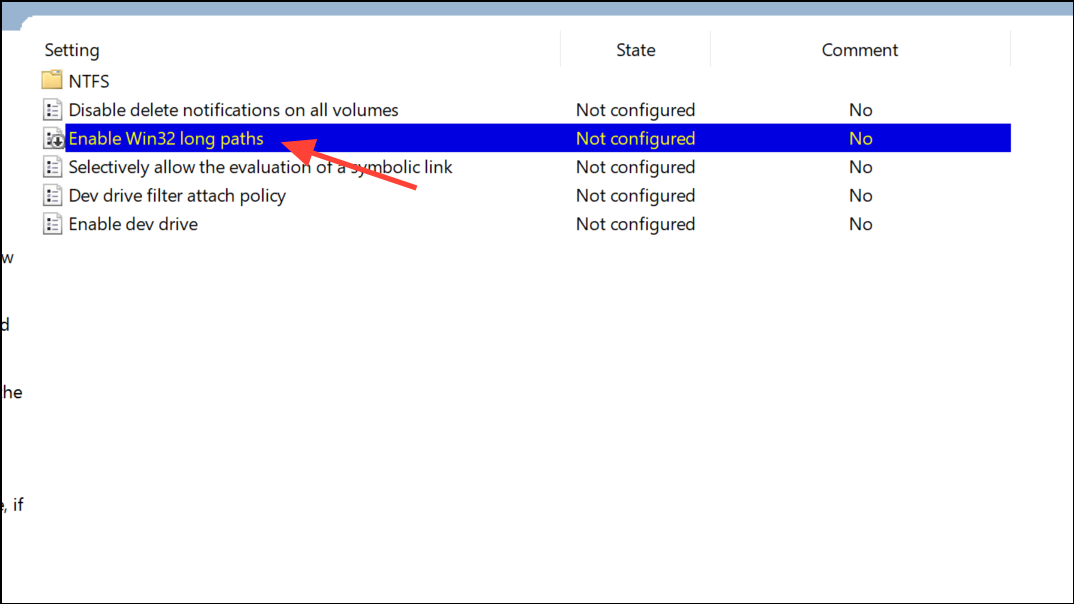
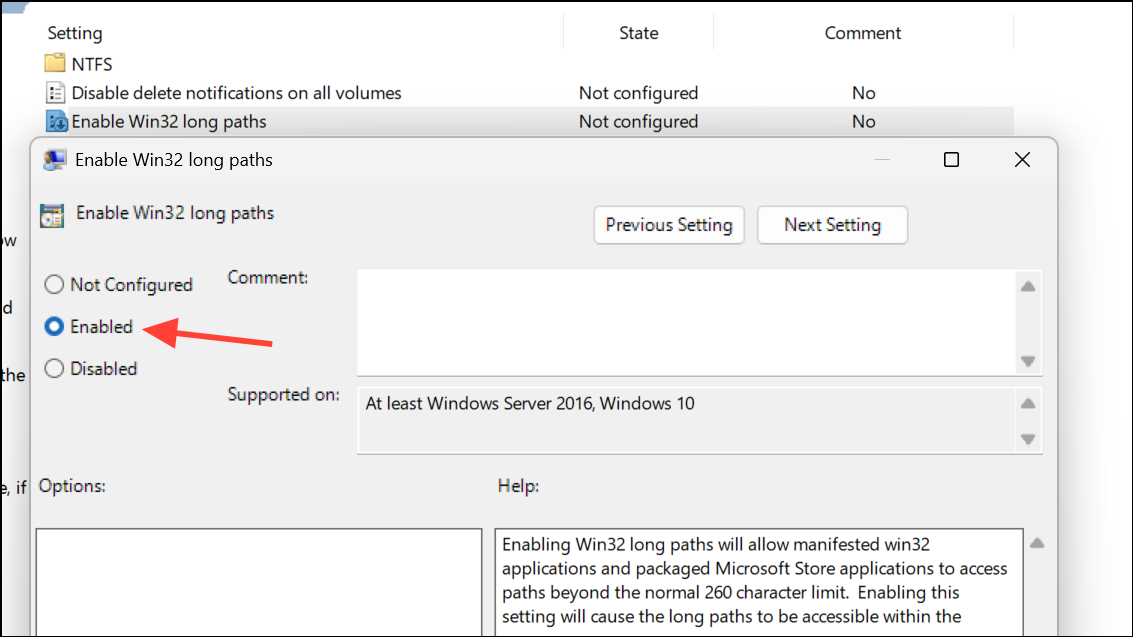
Shorten File or Folder Paths
Excessive folder nesting increases the total path length, which can easily exceed Windows’ limits even if individual folder names are short. Moving files or folders to a higher-level directory can immediately resolve the error.
C:\ or D:\. This reduces the total path length and can restore normal file operations.For files that cannot be moved via File Explorer, use 7-Zip File Manager as described above.
Rename Files and Folders Using Command Prompt
Windows Command Prompt can sometimes bypass Explorer limitations, allowing you to rename files or folders that produce errors in the graphical interface.
cmd, and press Enter to open Command Prompt in that directory.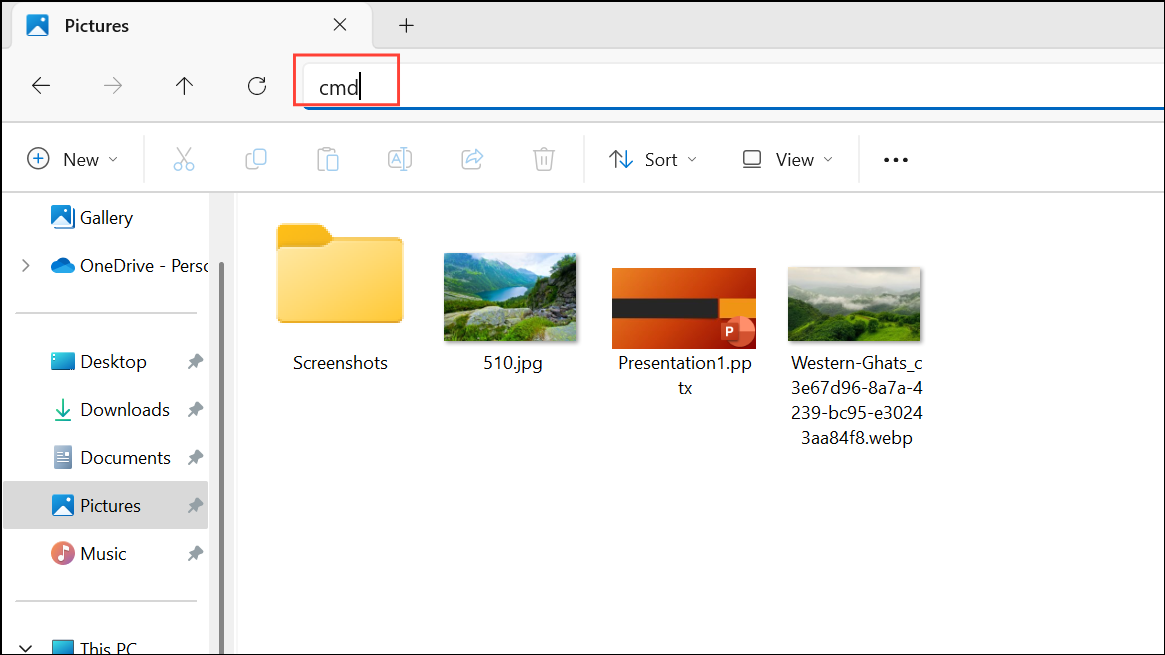
ren "old_name" "new_name"For example, to rename New Folder to Archive:
ren "New Folder" "Archive"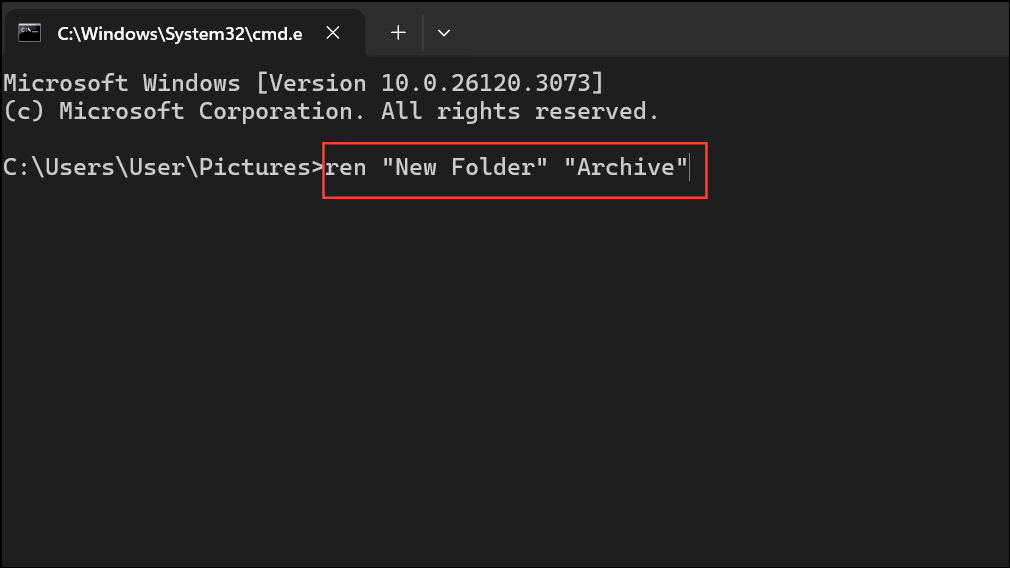
If you encounter errors here as well, the path length may still be too long—try moving the folder higher up in the directory tree first.
Run the File and Folder Troubleshooter
Windows provides a dedicated troubleshooter to automatically detect and fix issues related to file and folder operations, including problems with renaming, deleting, or moving items.
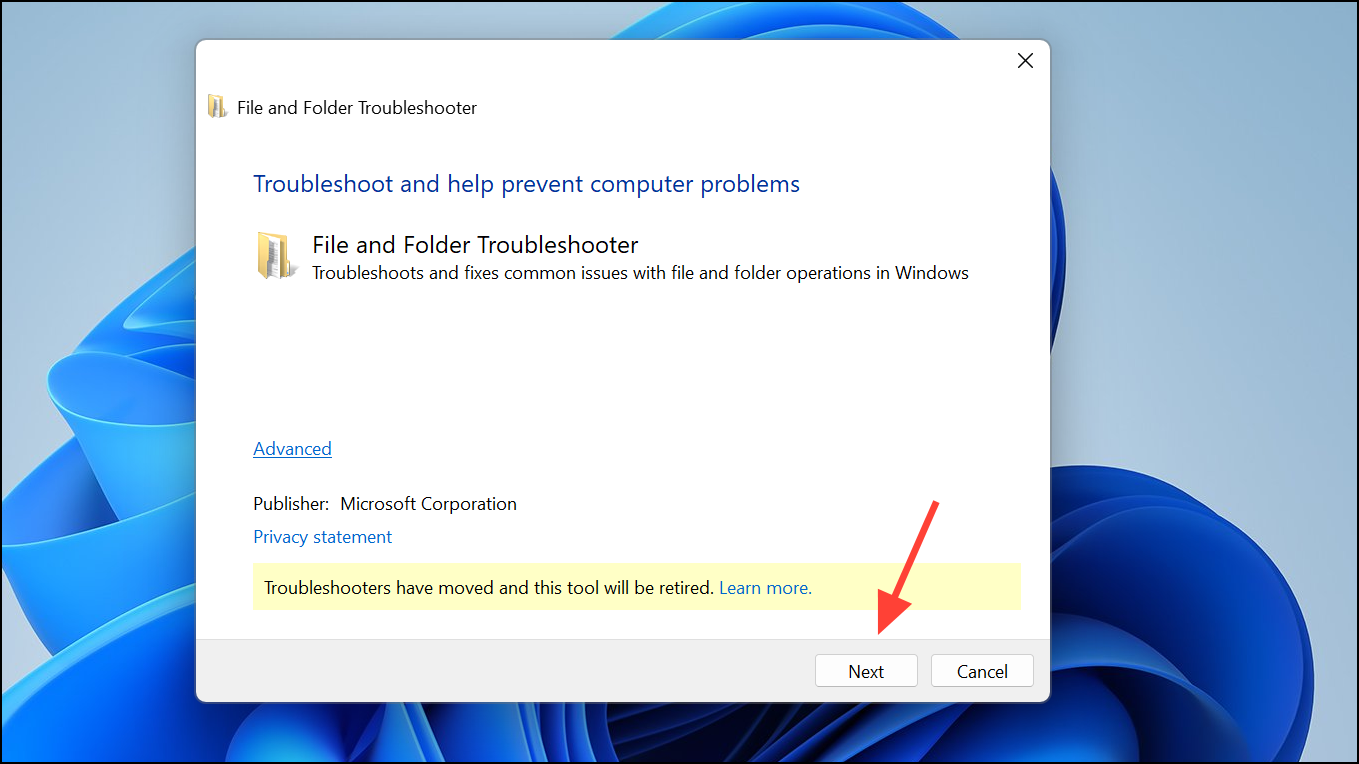
Problems with deleting files or folders and Renaming or moving files and folders, then continue.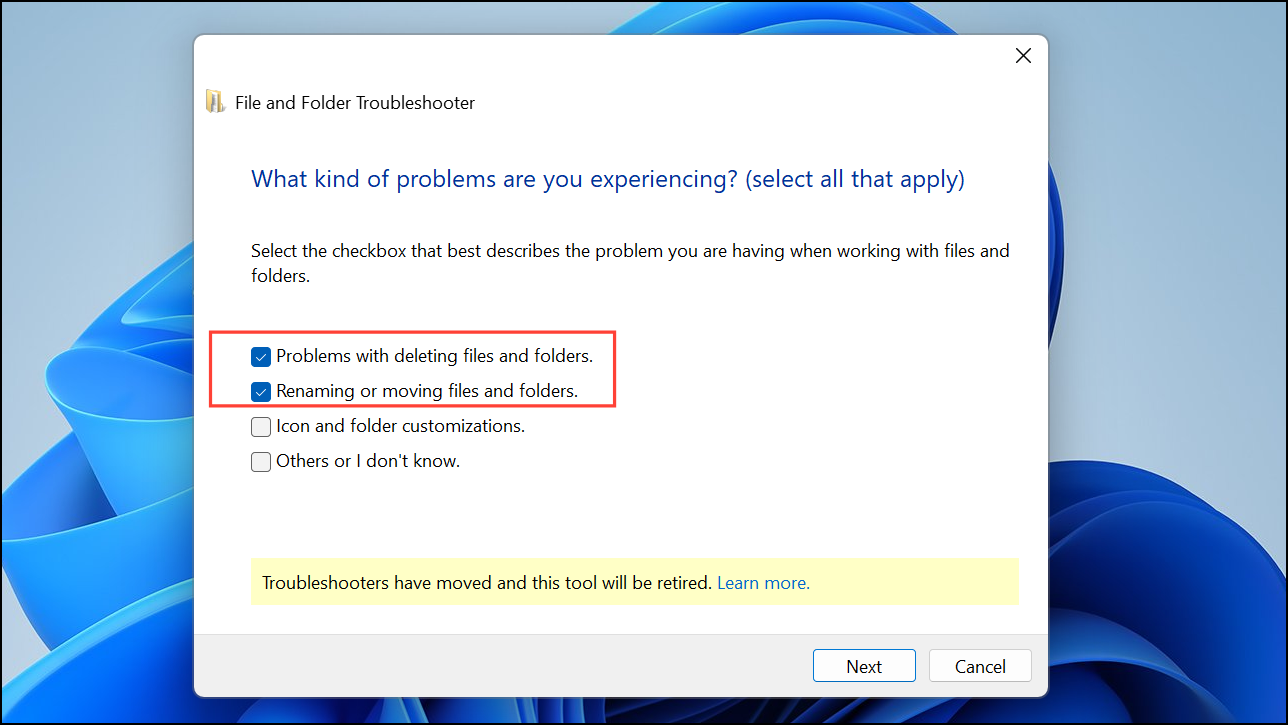
Check for Third-Party Software Conflicts
Security software or third-party drivers may interfere with file operations, causing the 0x800700CE error system-wide. Even after disabling such software, their drivers may still load at startup.
Create a Network Drive to Access Long Paths
Mapping a network drive to a deep folder path can provide a virtual shortcut, effectively reducing the path length Windows sees and allowing file operations that would otherwise fail.
Give access to, then choose Specific people and follow prompts to share with your user account.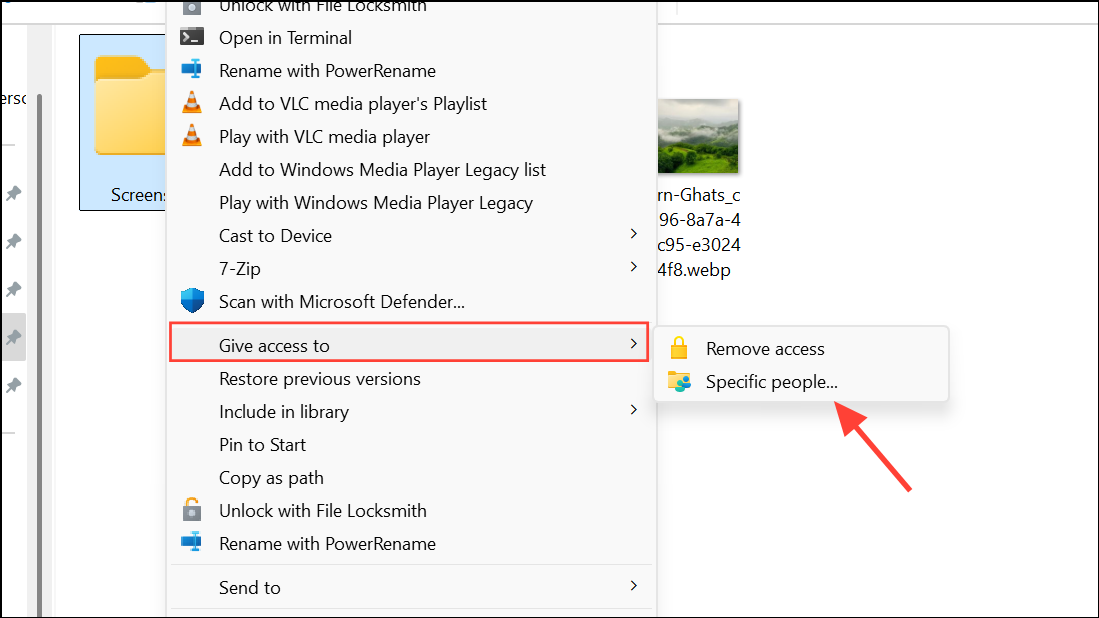
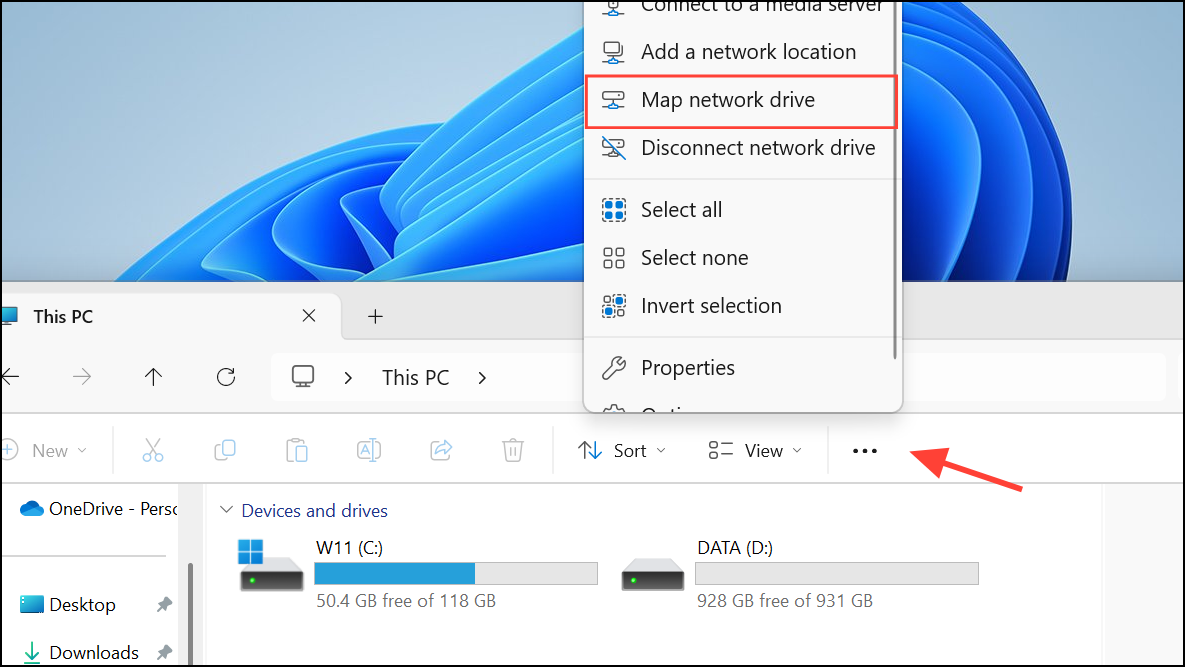
Reconnect at sign-in if you only need temporary access, then click Finish.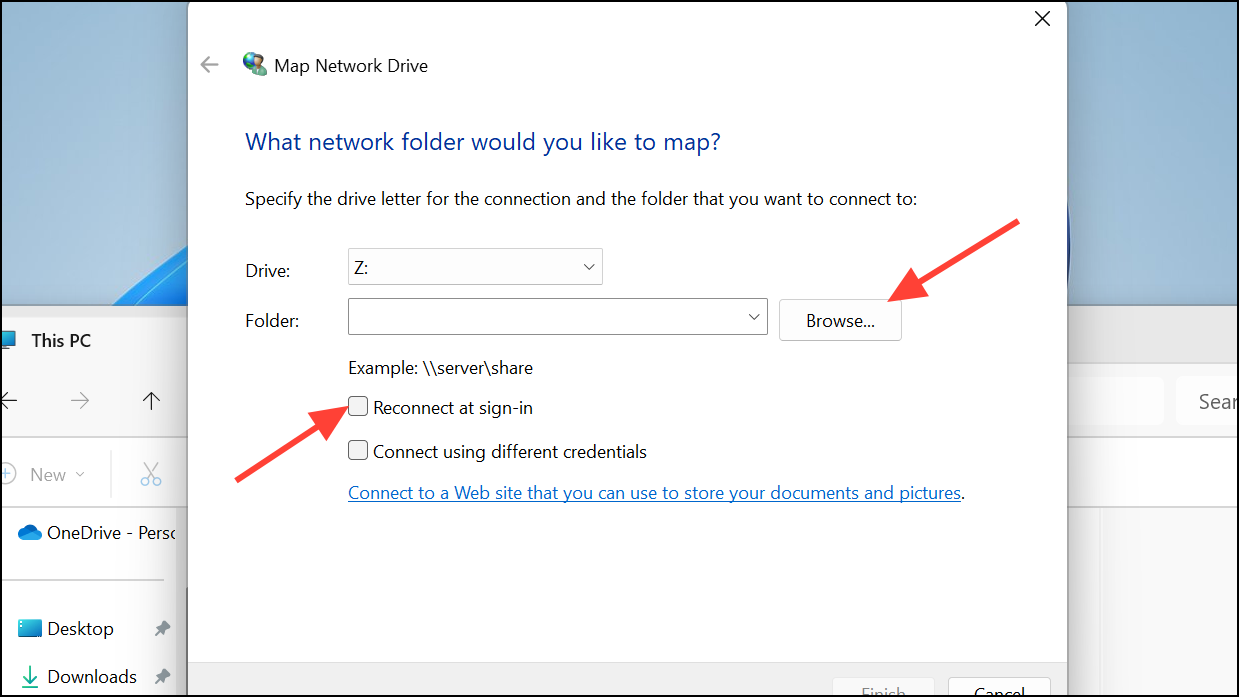
This mapped drive will present a shorter path to Windows, making it possible to rename, move, or delete files as needed.
Resolving error 0x800700CE in Windows 11 usually comes down to managing path lengths, using specialized tools, and addressing software conflicts. Applying these methods restores normal file management and helps prevent future interruptions.



