
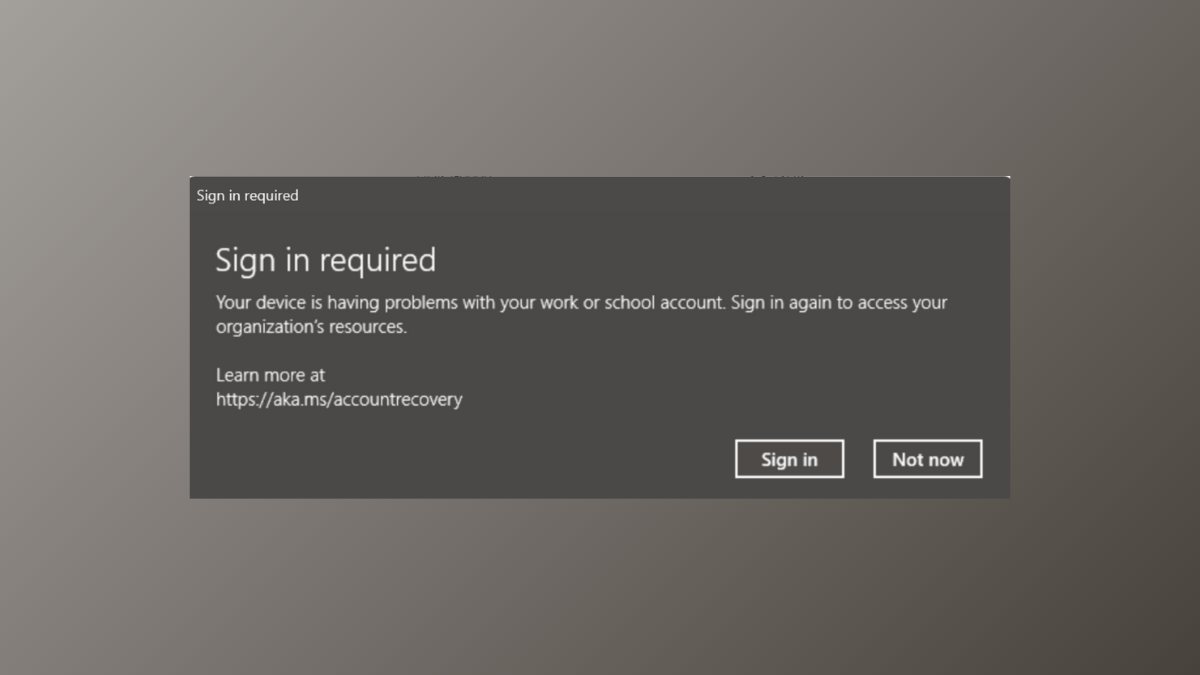
The notification “Sign in required – Your device is having problems with your work or school account” frequently interrupts access to Microsoft 365 apps and organizational resources on Windows 11 devices. This error can block Outlook, Teams, OneDrive, and other services tied to your work or school account, and often results from account sync issues, hardware changes, or credential conflicts. Addressing the error requires a focused approach based on the underlying cause, such as updating device registration, resetting credentials, or rejoining organizational accounts.
Method 1: Force Device Recovery and Re-Register with Azure AD
Replacing hardware components like the motherboard or TPM often disrupts device registration with Azure AD, leading to persistent sign-in errors. Resetting the device’s organizational trust and re-registering with Azure AD can resolve the issue without a complete system reset.
Command Prompt (Admin) or Windows Terminal (Admin).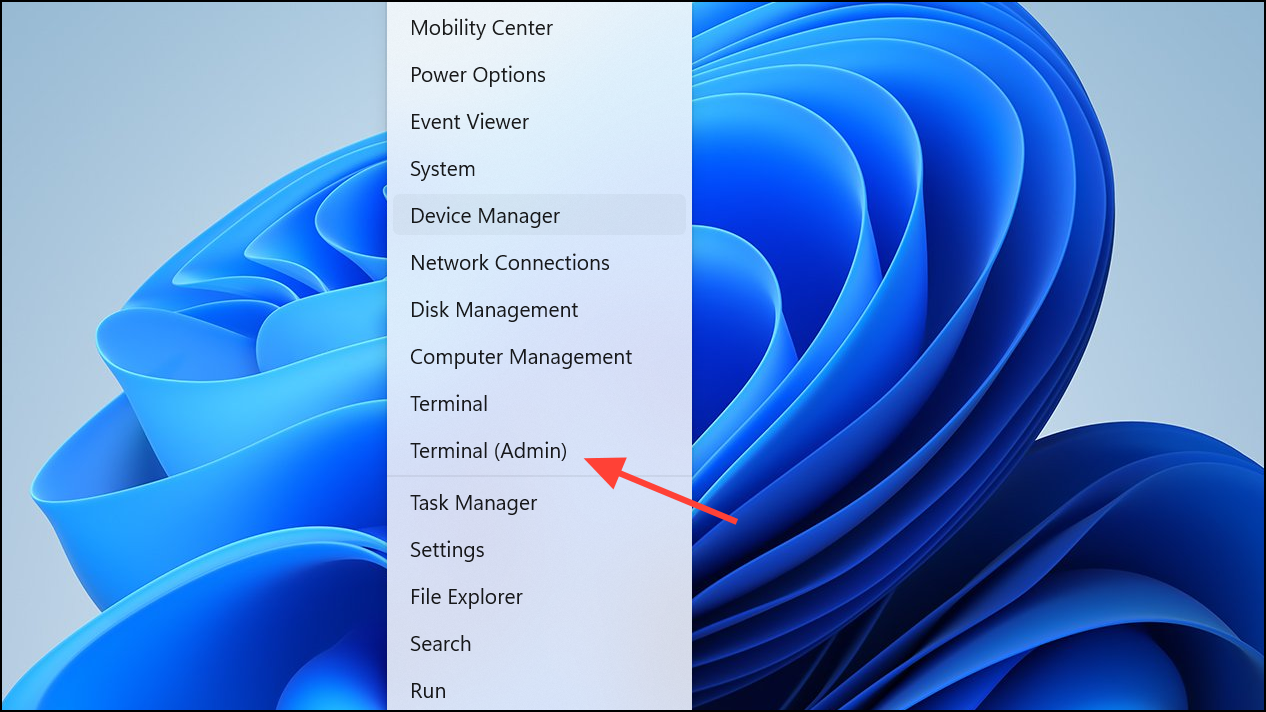
net user tempadmin YourPasswordHere /add
net localgroup administrators tempadmin /add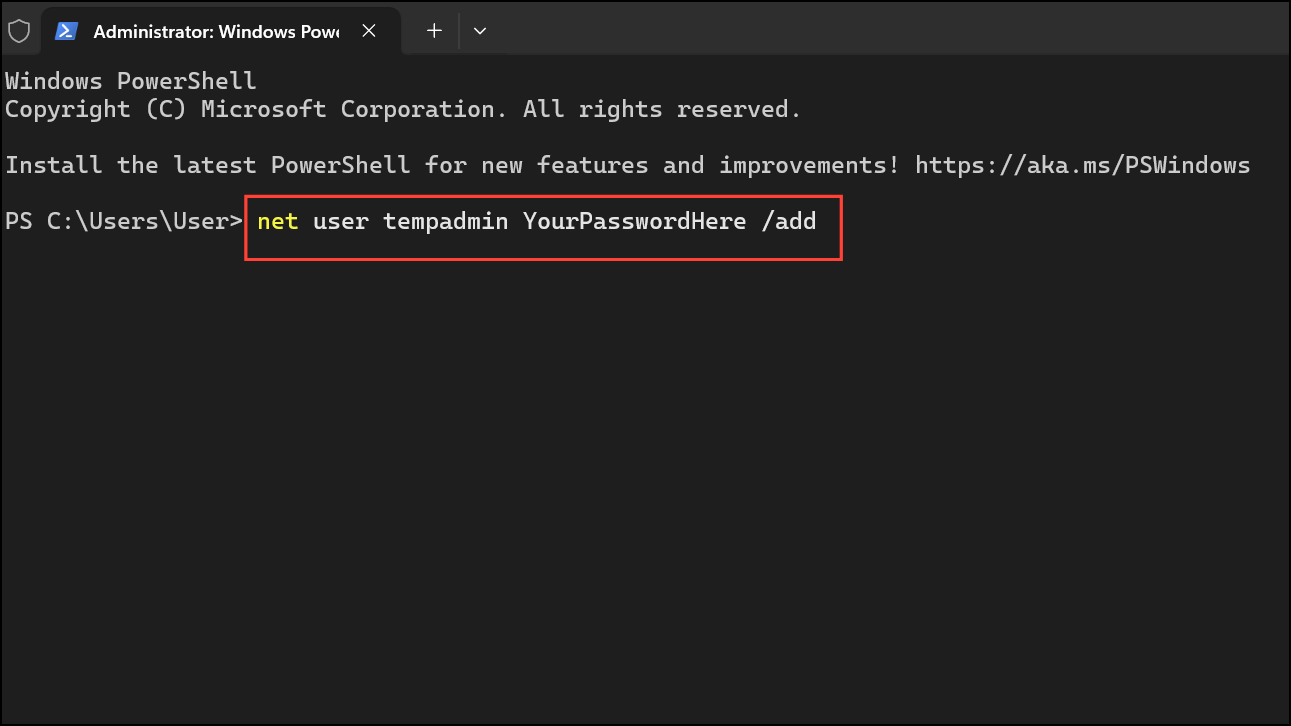
dsregcmd /leave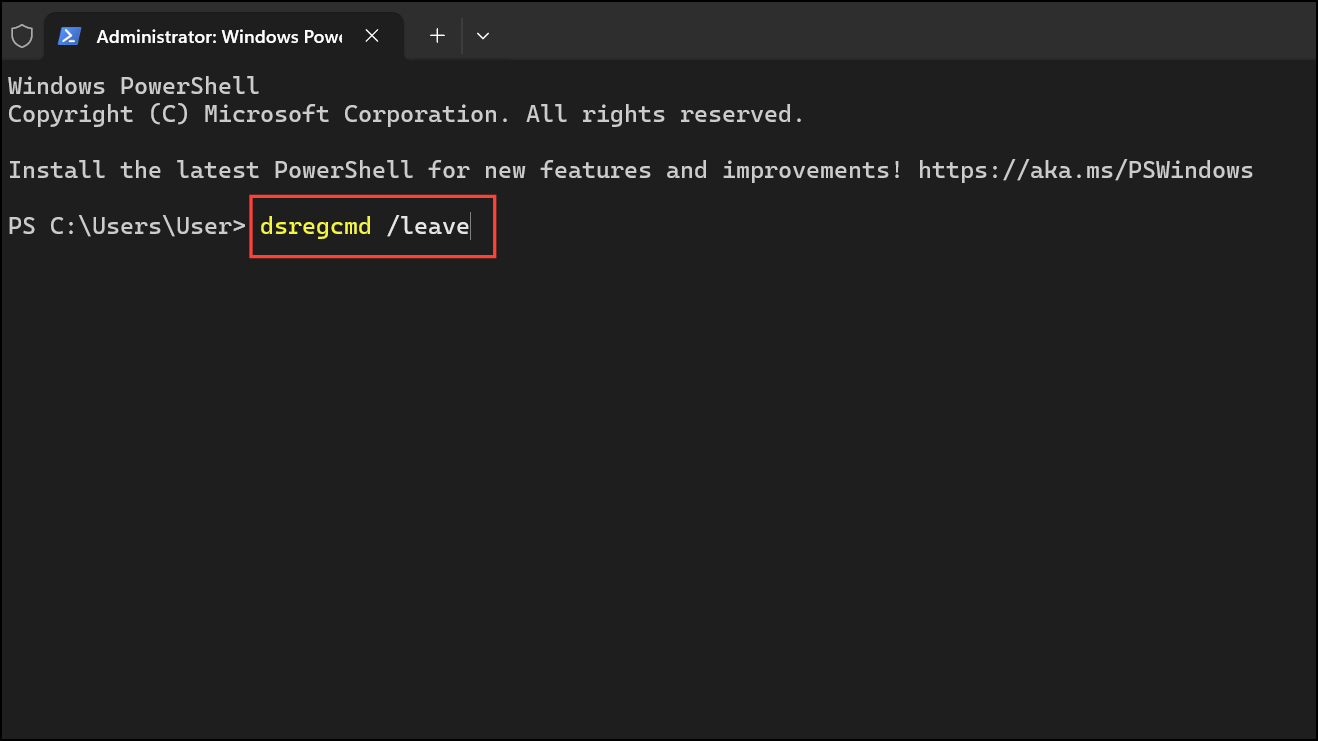
powershell and then run:if (-not (Get-AppxPackage Microsoft.AAD.BrokerPlugin)) { Add-AppxPackage -Register "$env:windir\SystemApps\Microsoft.AAD.BrokerPlugin_cw5n1h2txyewy\Appxmanifest.xml" -DisableDevelopmentMode -ForceApplicationShutdown } Get-AppxPackage Microsoft.AAD.BrokerPlugin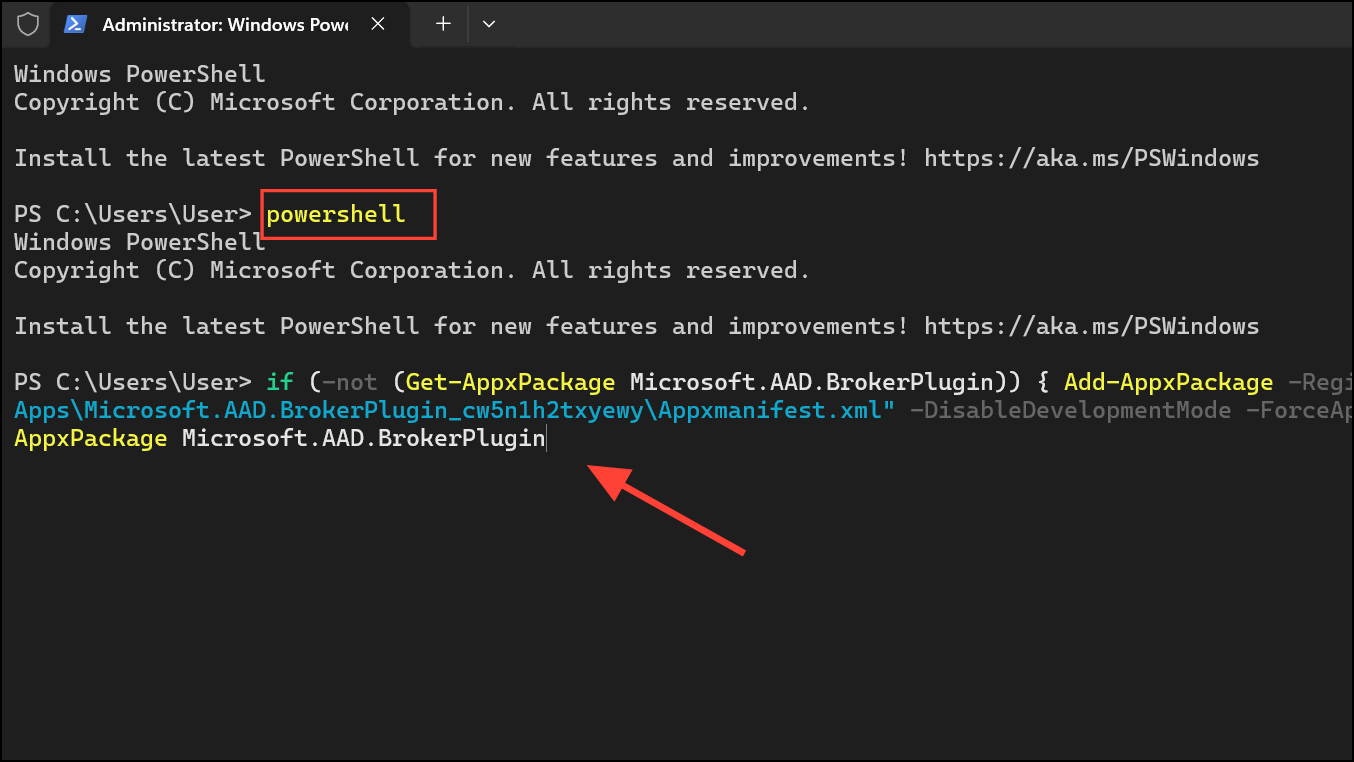
dsregcmd /forcerecovery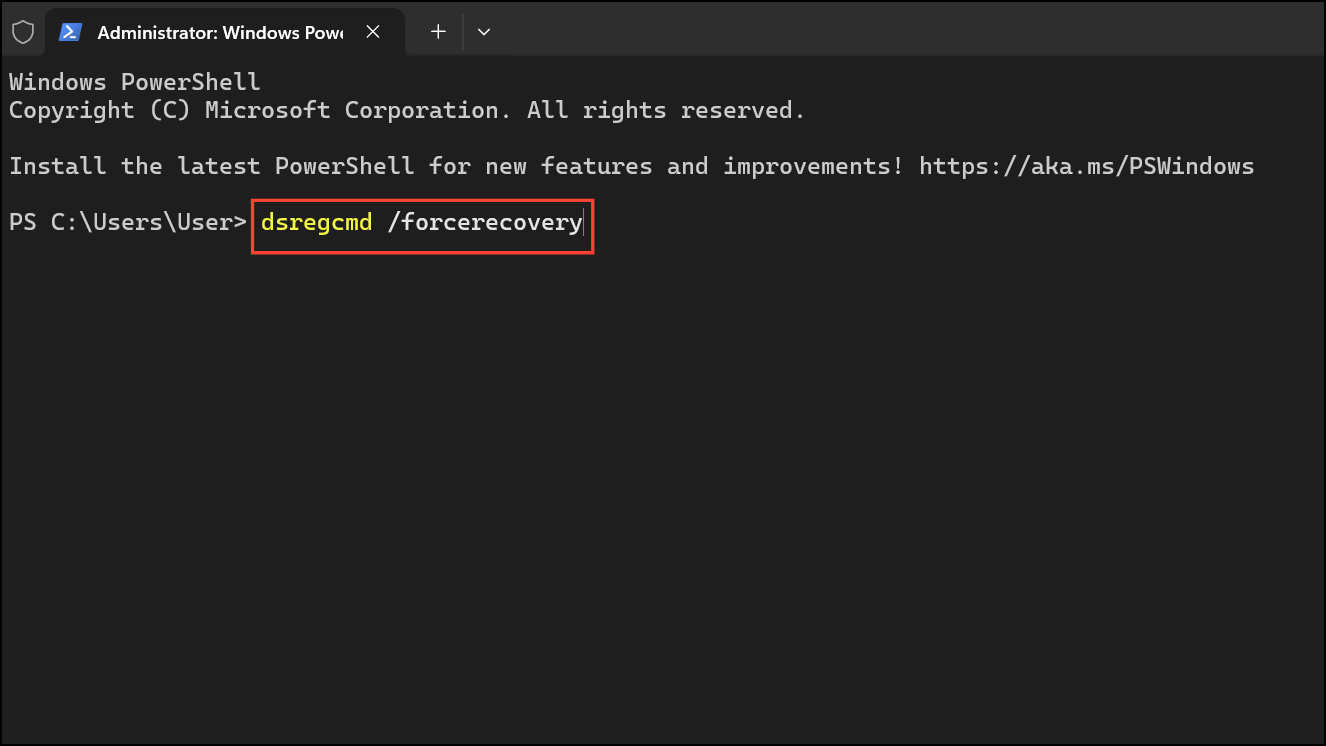
This command forces the device to re-establish trust with Azure AD. Sign in with your work or school credentials when prompted.
net user tempadmin /delete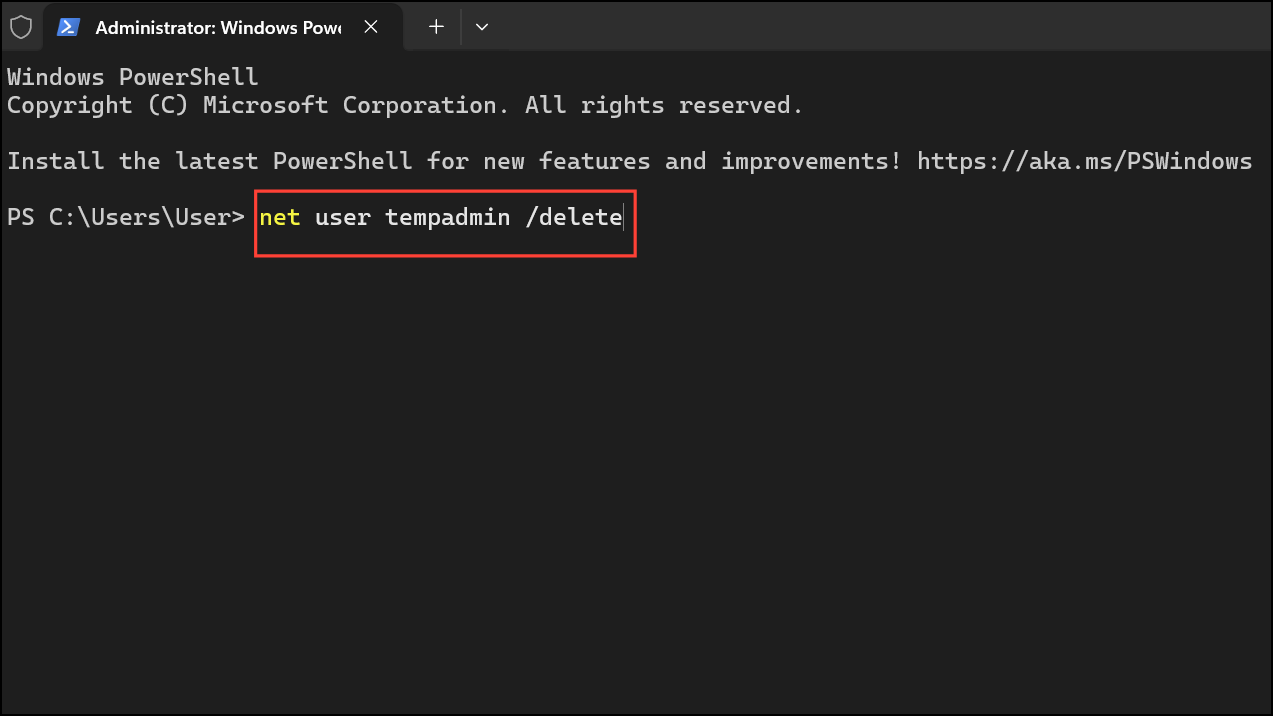
Method 2: Remove and Re-Add Your Work or School Account
Account configuration mismatches or incomplete registration can cause persistent sign-in errors. Removing and re-adding your account can refresh tokens and update device registration.
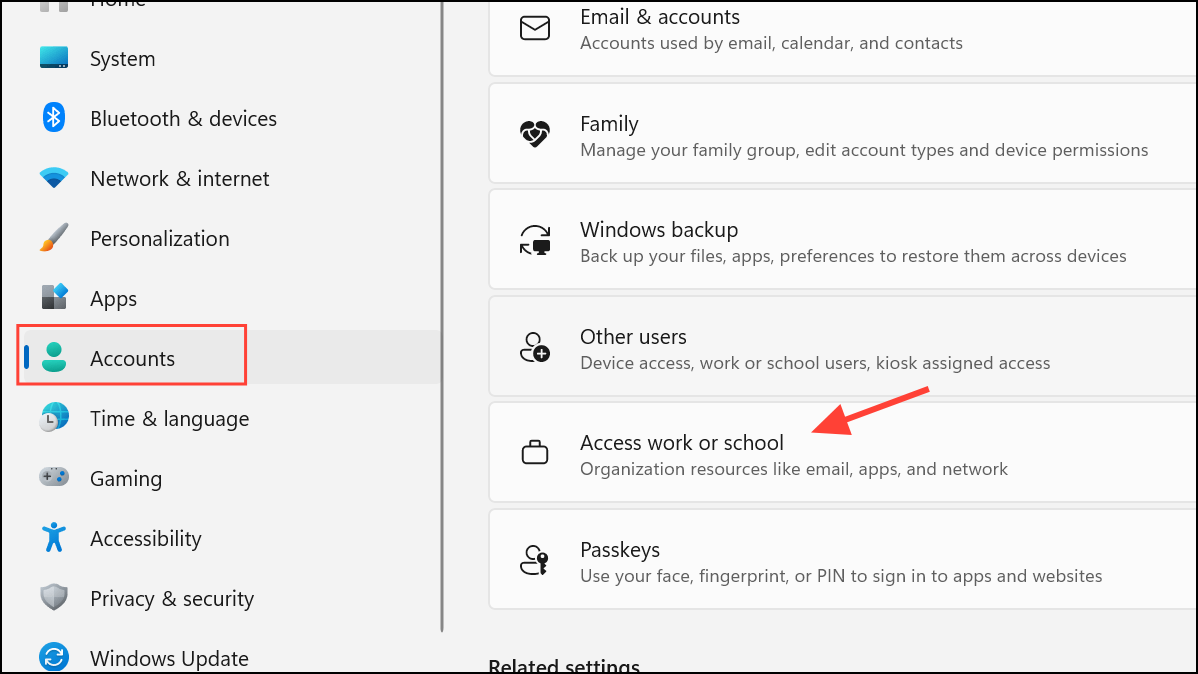
Settings > Accounts > Access work or school and click + Connect. Enter your work or school credentials to re-establish the connection.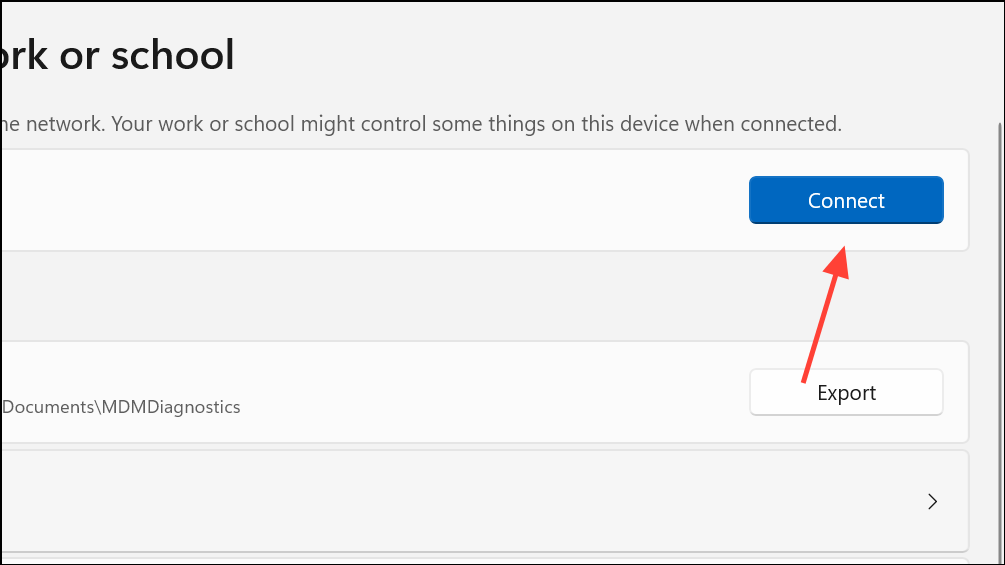
This process updates authentication tokens and resolves most account sync issues.
Method 3: Reset Windows Credential Manager Entries
Corrupted or outdated credentials stored in Windows Credential Manager can prevent proper sign-in and cause repeated authentication prompts.
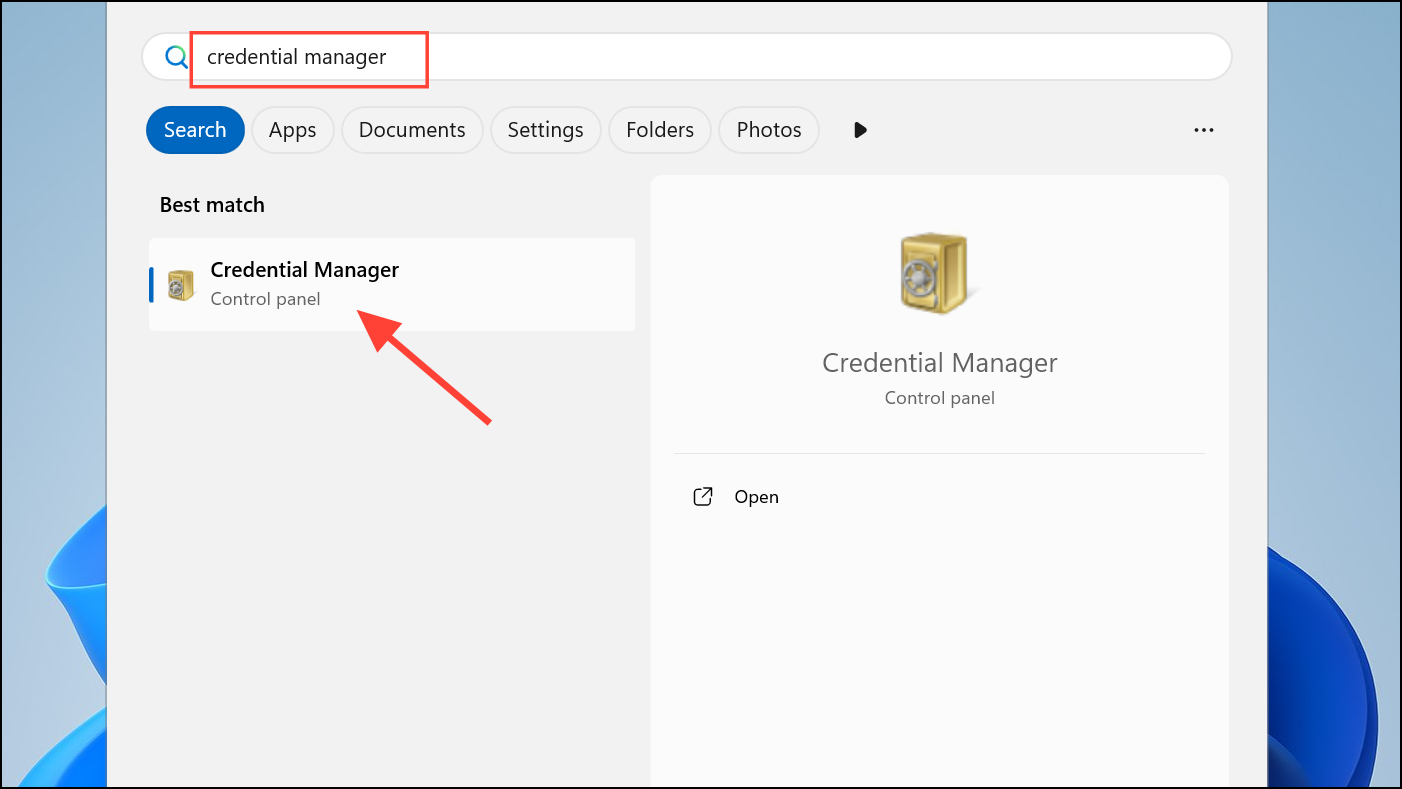
Windows Credentials. Review the list for any entries related to your work or school account, Microsoft Office, or your organization’s domain.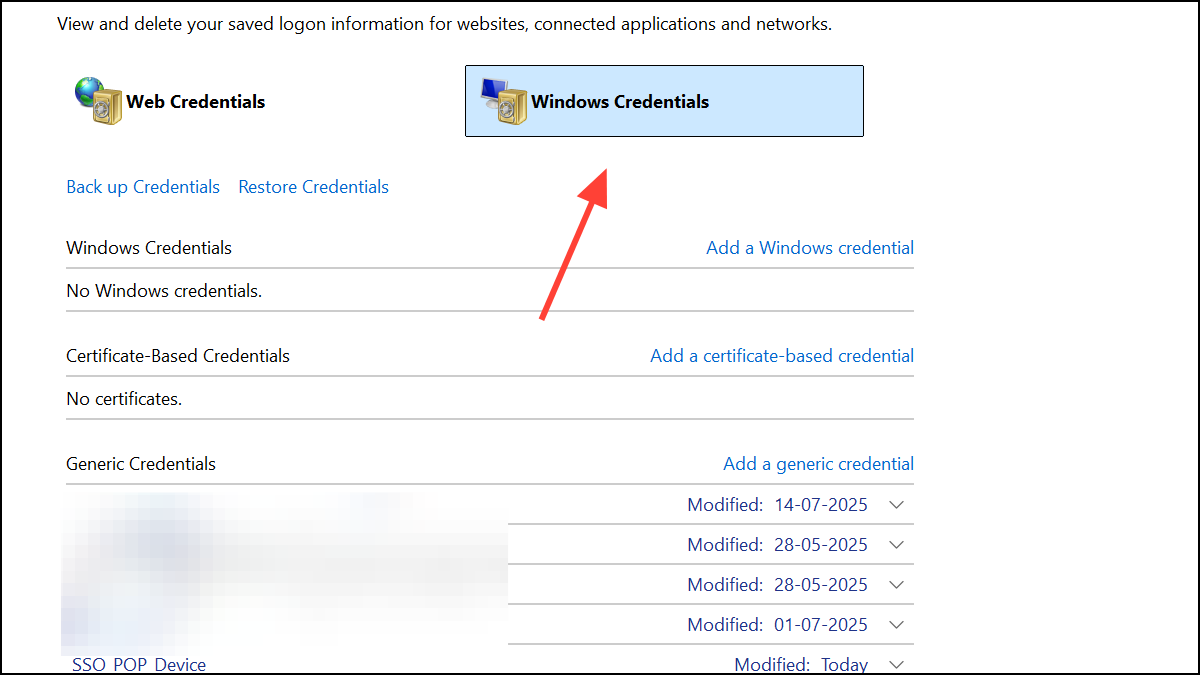
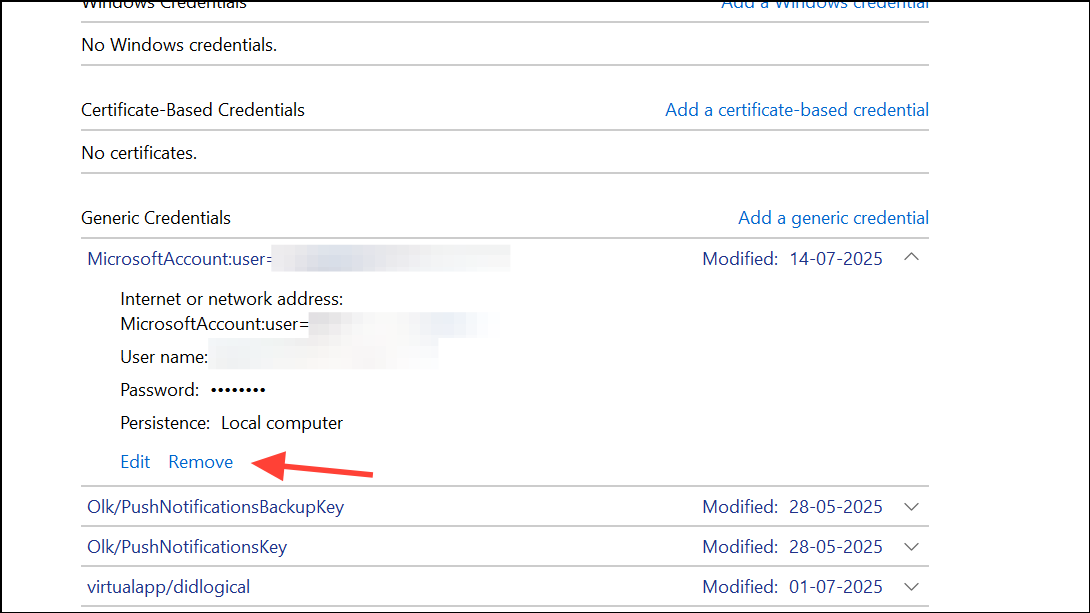
This clears out problematic tokens and allows apps to request new authentication details.
Method 4: Address Hardware and Activation Issues
Sign-in errors may persist after hardware changes, such as replacing the motherboard. Windows activation and device registration can become misaligned with your organization’s records.
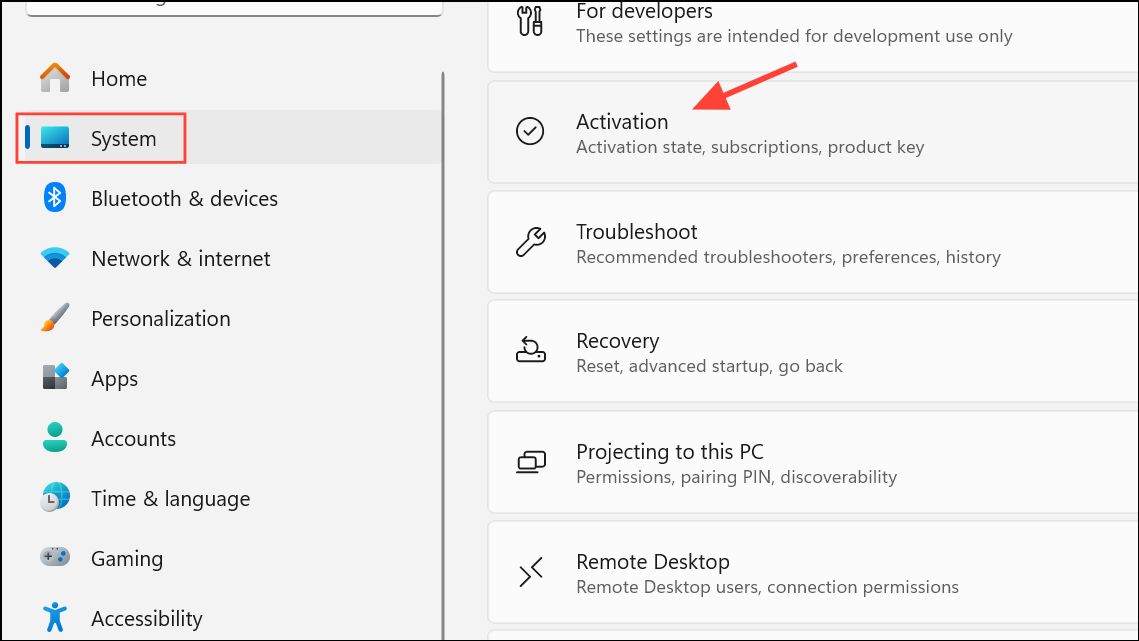
Accounts > Access work or school to confirm your organizational account is properly connected.Proper activation ensures the device can be recognized and trusted by your organization’s systems.
Method 5: Sign Out and Back Into Microsoft 365 Apps
Stale or corrupted login sessions in Microsoft 365 apps like Outlook or Word can trigger sign-in required errors.
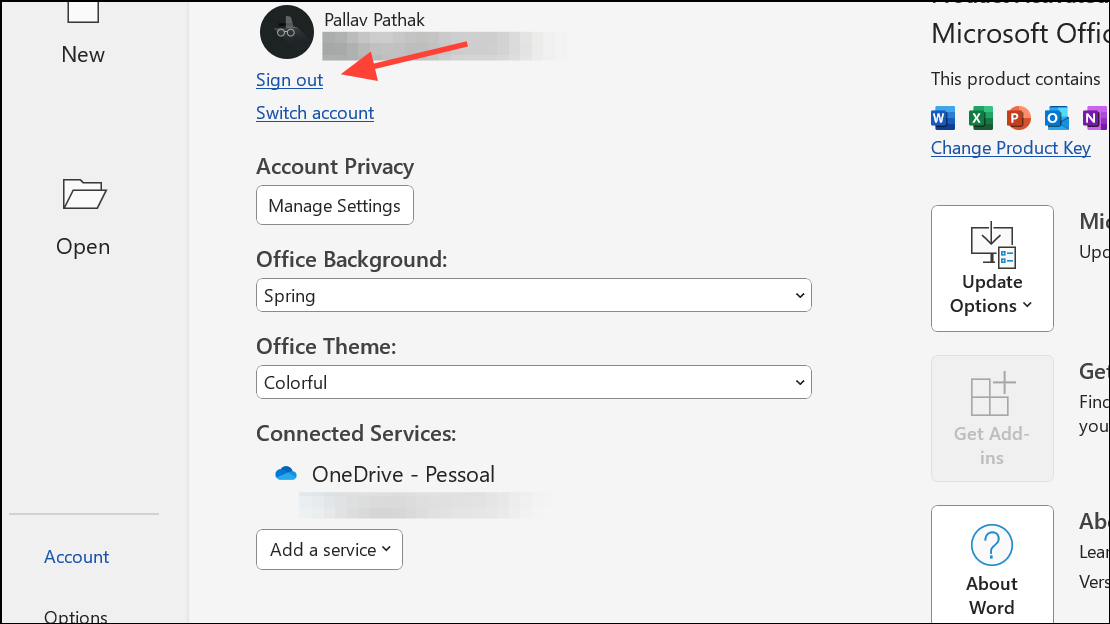
This refreshes the app’s authentication tokens and resolves most app-specific sign-in issues.
Additional Tips and Considerations
- Ensure your device is connected to Wi-Fi or a reliable network before attempting account changes.
- If your device is managed by your organization (Intune or other MDM), contact your IT support for guidance before making significant changes.
- Persistent errors after following these steps may indicate server-side issues or policy restrictions—consult your IT department for further troubleshooting.
- For hybrid-joined or Intune-enrolled devices, verify device compliance and registration status in Microsoft Entra (formerly Azure AD) and Intune portals.
Applying these methods resolves most “Sign in required – Your device is having problems with your work or school account” errors on Windows 11. Staying up to date with device registration and credentials keeps access to organizational resources smooth and dependable.



