

The error message “The system image restore failed. Error details: Windows did not find any disk which it can use for recreating volumes present in backup (0x80042414)” appears when Windows 11 cannot detect a suitable disk for restoring your system image. This problem often arises during disaster recovery or hardware replacement, and typically points to missing storage controller drivers, incompatible disk partition styles, or existing partitions on the target drive. Addressing these issues restores your system image and gets your PC running again.
Install Storage Controller Drivers During System Image Recovery
Missing or outdated storage controller drivers prevent Windows from recognizing the disk during recovery, especially on systems with NVMe SSDs or RAID configurations. Loading the correct drivers allows the recovery tool to detect the disk and proceed with restoration.
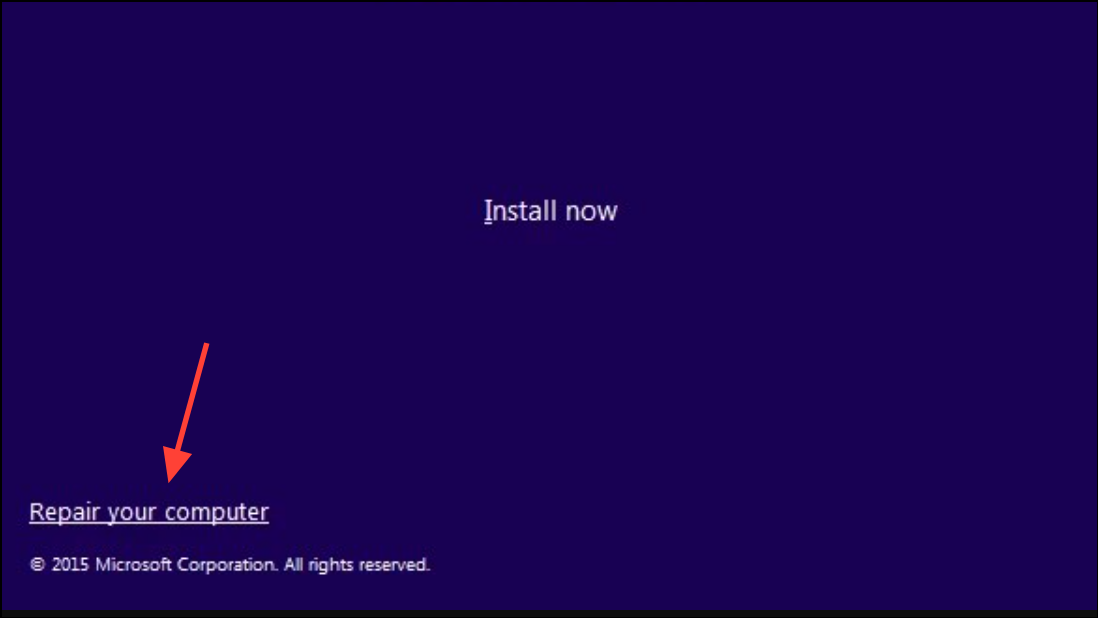
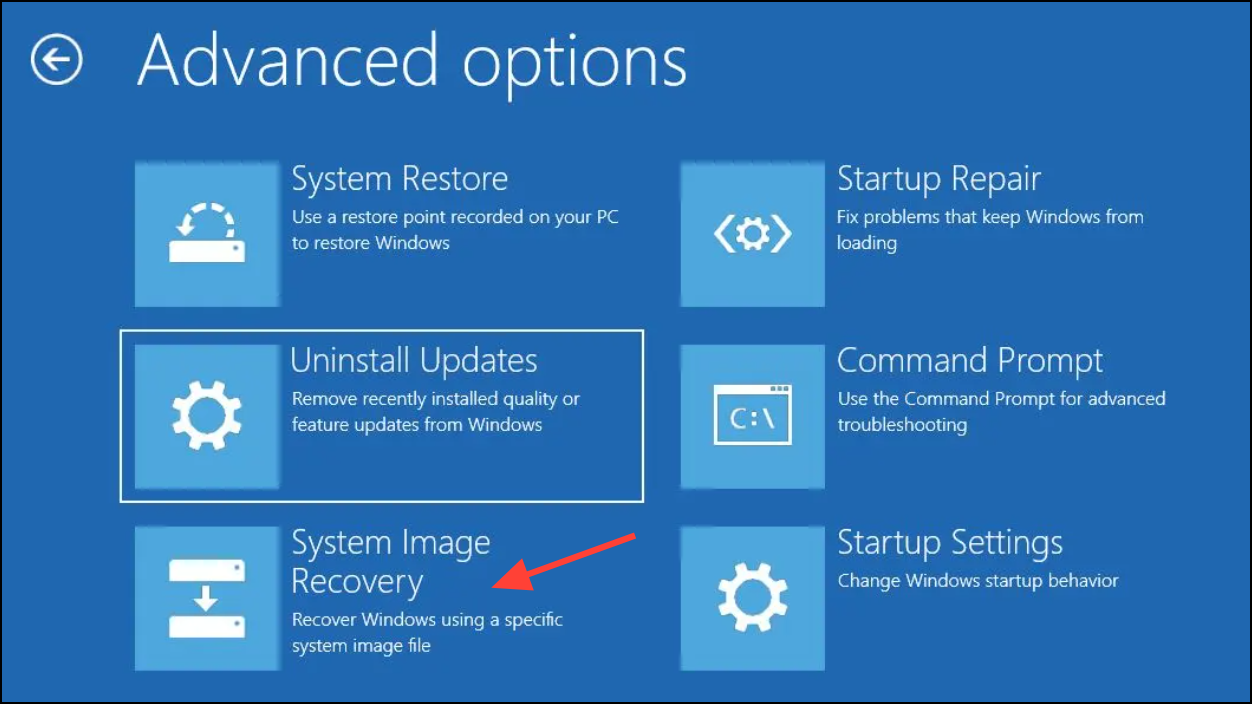
Install drivers or Load driver (the wording may vary). In the file explorer window, locate your USB flash drive and open the folder containing the extracted driver files..inf file for your storage controller and click Open or Add Drivers. Wait for Windows to load the drivers. Once loaded, continue with the restoration process.Clean the Target Drive Using Diskpart
Existing partitions or conflicting formatting on the target disk can stop the recovery tool from writing the system image. Cleaning the disk removes all partitions, preparing it for restoration.
Troubleshoot > Command Prompt.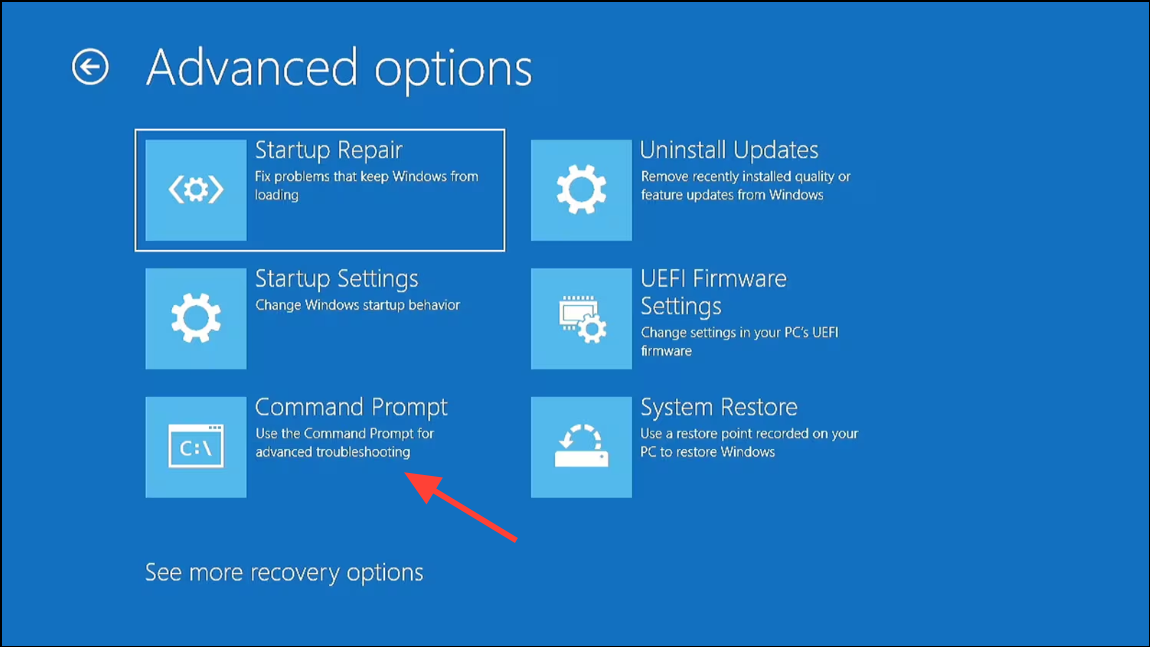
diskpart
list disk
select disk X   (replace X with the number of your target disk)
clean
exit
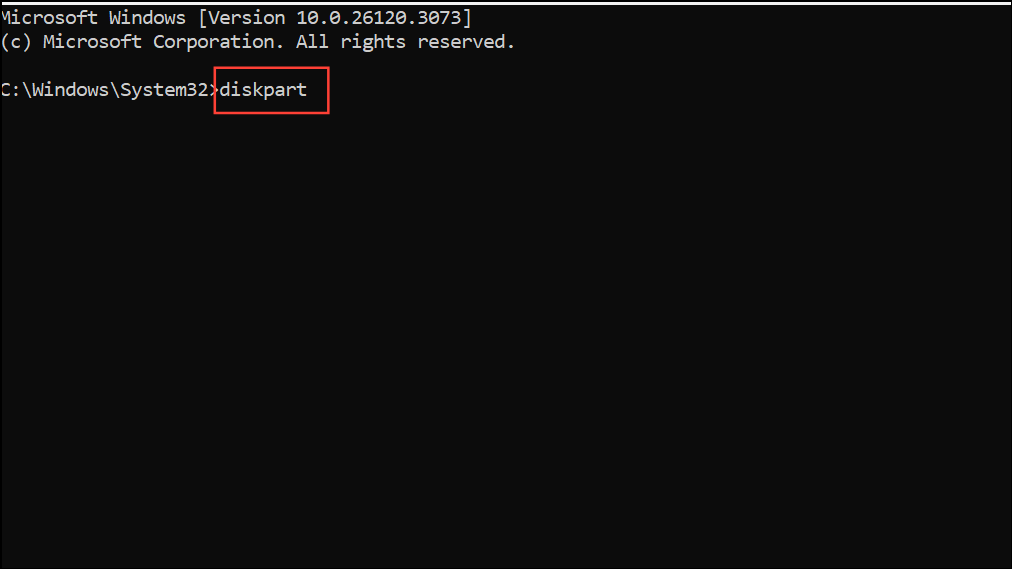
This process deletes all partitions and data from the target drive. Ensure you have backed up any important files before proceeding.
Match Partition Styles Between Source and Target Disks
System image recovery can fail if the source and target disks use different partition styles (MBR vs. GPT). Windows 11 requires GPT for UEFI systems, so matching the styles is crucial.
diskpart
list disk
Disks with an asterisk (*) under the GPT column are GPT; others are MBR.
select disk X   (replace X with your disk number)
clean
convert gpt
exit
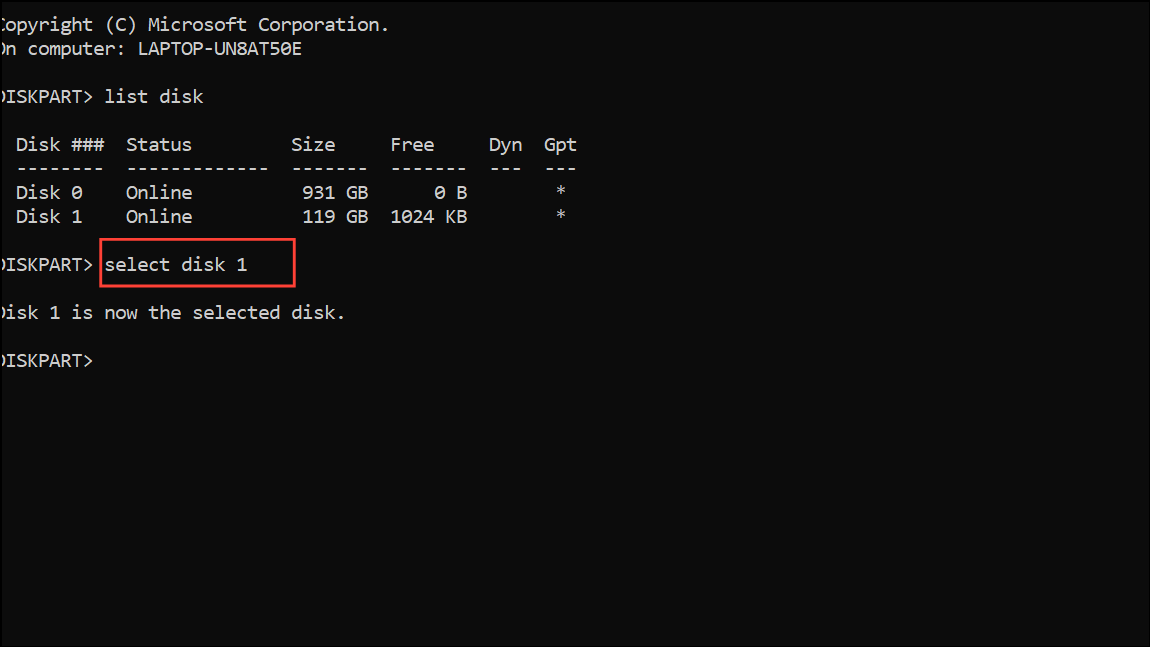
For MBR, use convert mbr instead. After conversion, retry the system image restore.
Run CHKDSK to Repair Disk Errors
Corruption or hardware errors on the target disk can prevent successful restoration. Running CHKDSK checks for and fixes file system errors and bad sectors.
chkdsk C: /f /r
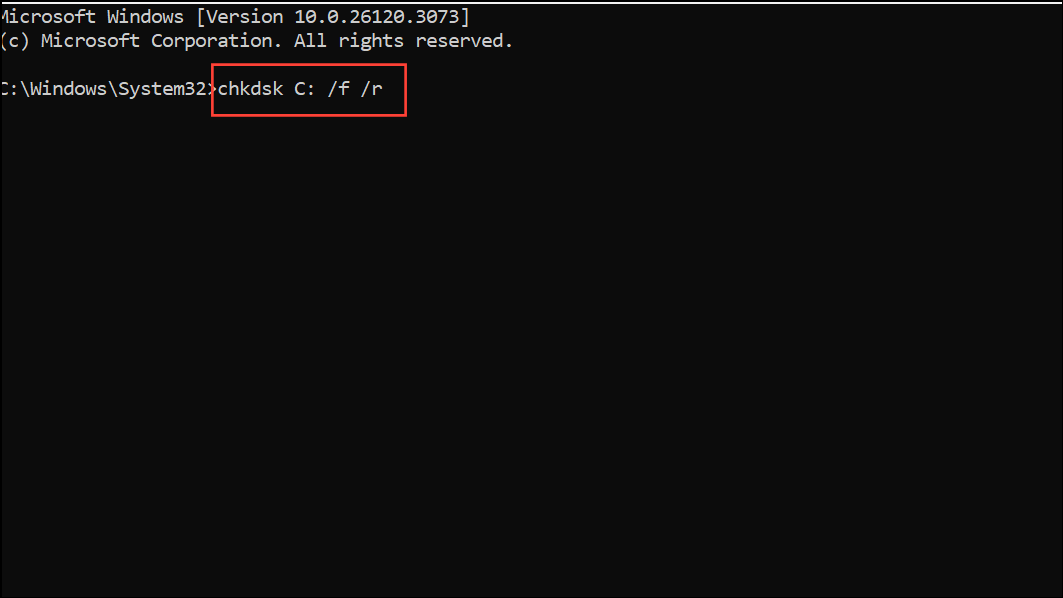
This process may take some time. Once completed, close Command Prompt and attempt the restore again.
Alternative: Use Third-Party Backup and Recovery Tools
When built-in Windows recovery tools repeatedly fail with error 0x80042414, third-party software such as AOMEI Backupper or Macrium Reflect can provide a more reliable backup and restore process. These tools often include broader hardware compatibility, support for different partition schemes, and advanced options for restoring images to new hardware. Download and create bootable recovery media with your chosen software, then follow its prompts to restore your system image.
Addressing error 0x80042414 in Windows 11 recovery involves loading the correct storage drivers, preparing the target disk, and ensuring partition compatibility. Taking these steps restores access to your system image and helps prevent future restore failures.



