
Network data usage statistics in Windows 11 help users monitor how much internet bandwidth their device consumes over a set period—typically the last 30 days. When these statistics become inaccurate, stuck, or you need to start tracking from zero (for example, when switching to a new data plan), resetting or clearing the usage data is essential. Windows 11 provides several built-in ways to reset these counters, and understanding each method allows you to choose the best fit for your situation.
Reset Data Usage via Windows 11 Settings
Win + I. This shortcut brings up the main Settings window instantly.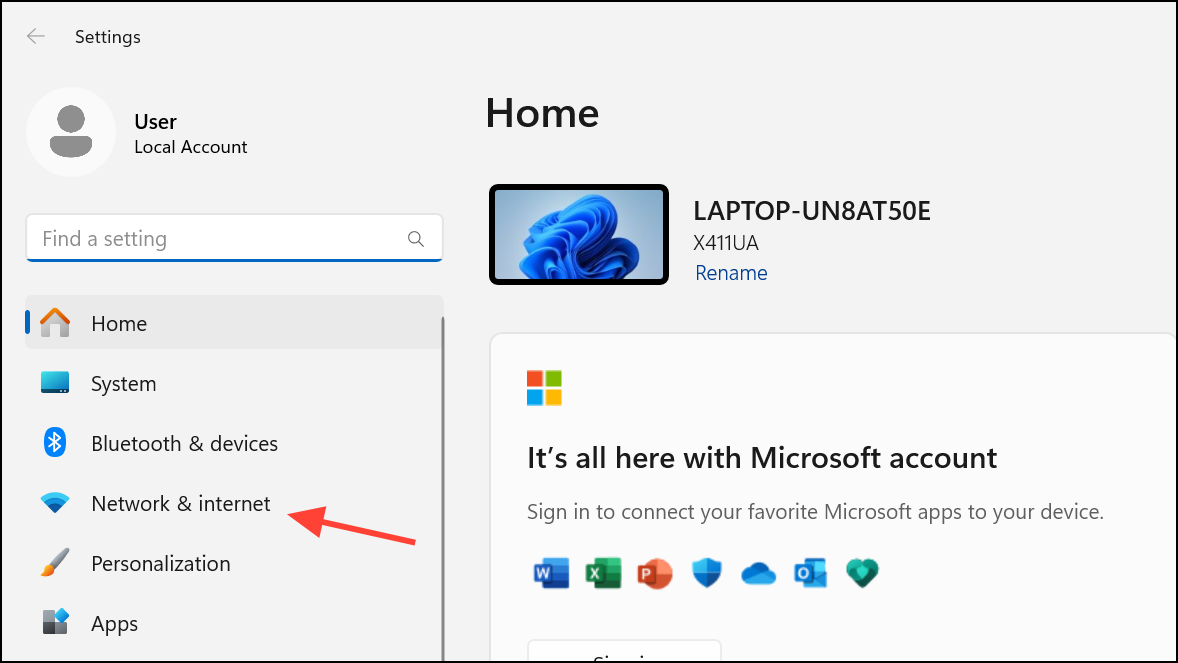
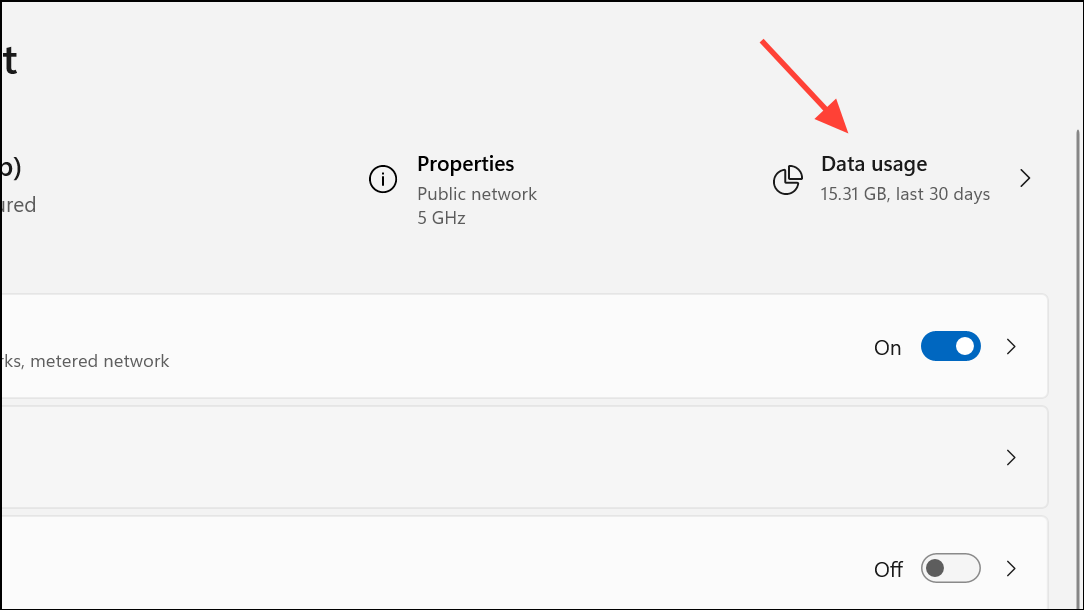
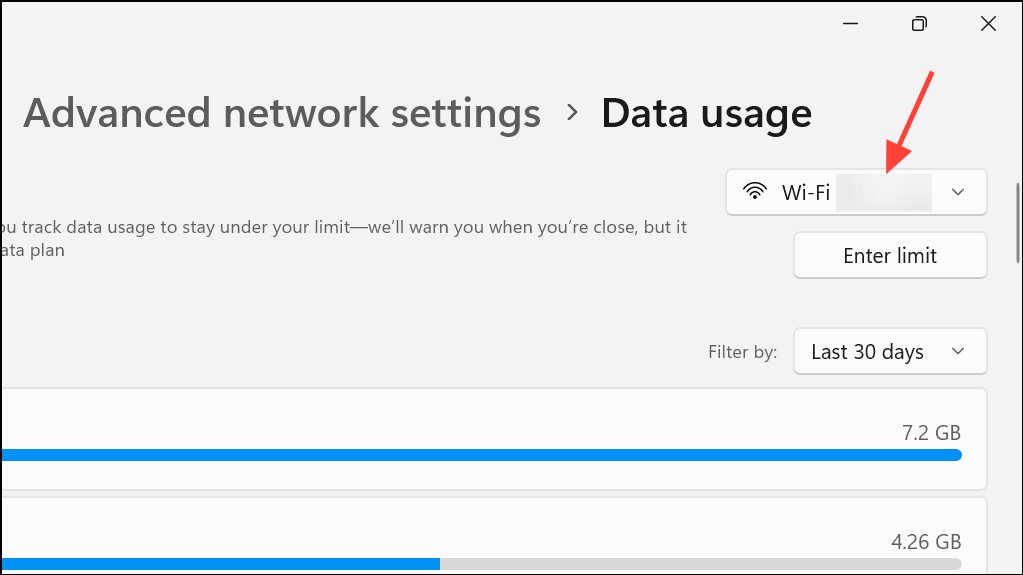
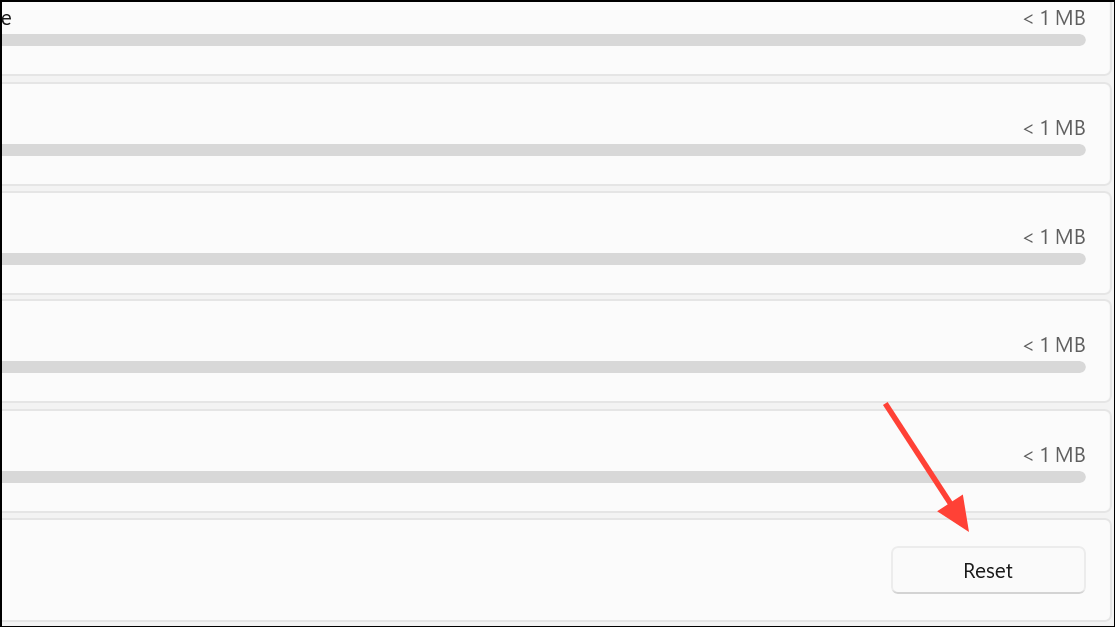
Reset Data Usage for All Networks Using Command Prompt
For users who want to clear data usage statistics for all network adapters at once, Windows 11 allows this via an elevated Command Prompt or Windows Terminal session. This approach is especially useful if you manage multiple network interfaces or need to automate the reset process.
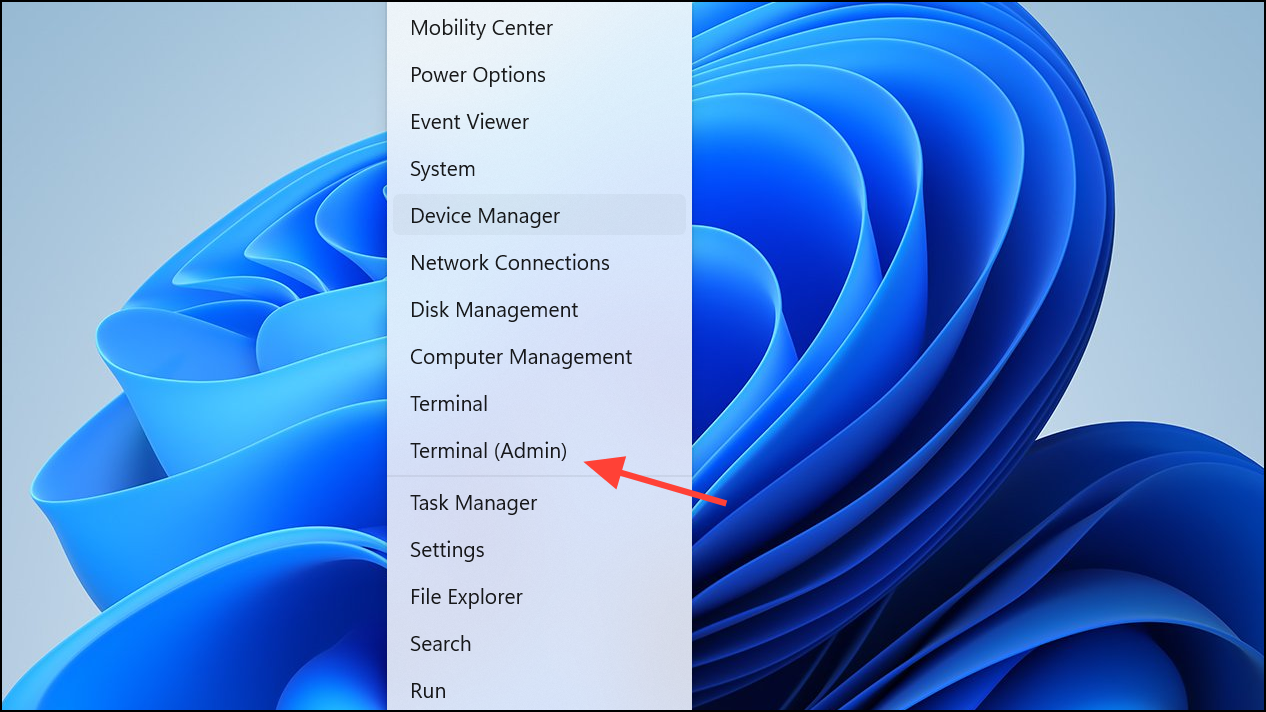
net stop DPS & DEL /F /S /Q /A "%windir%\System32\sru\*" & net start DPS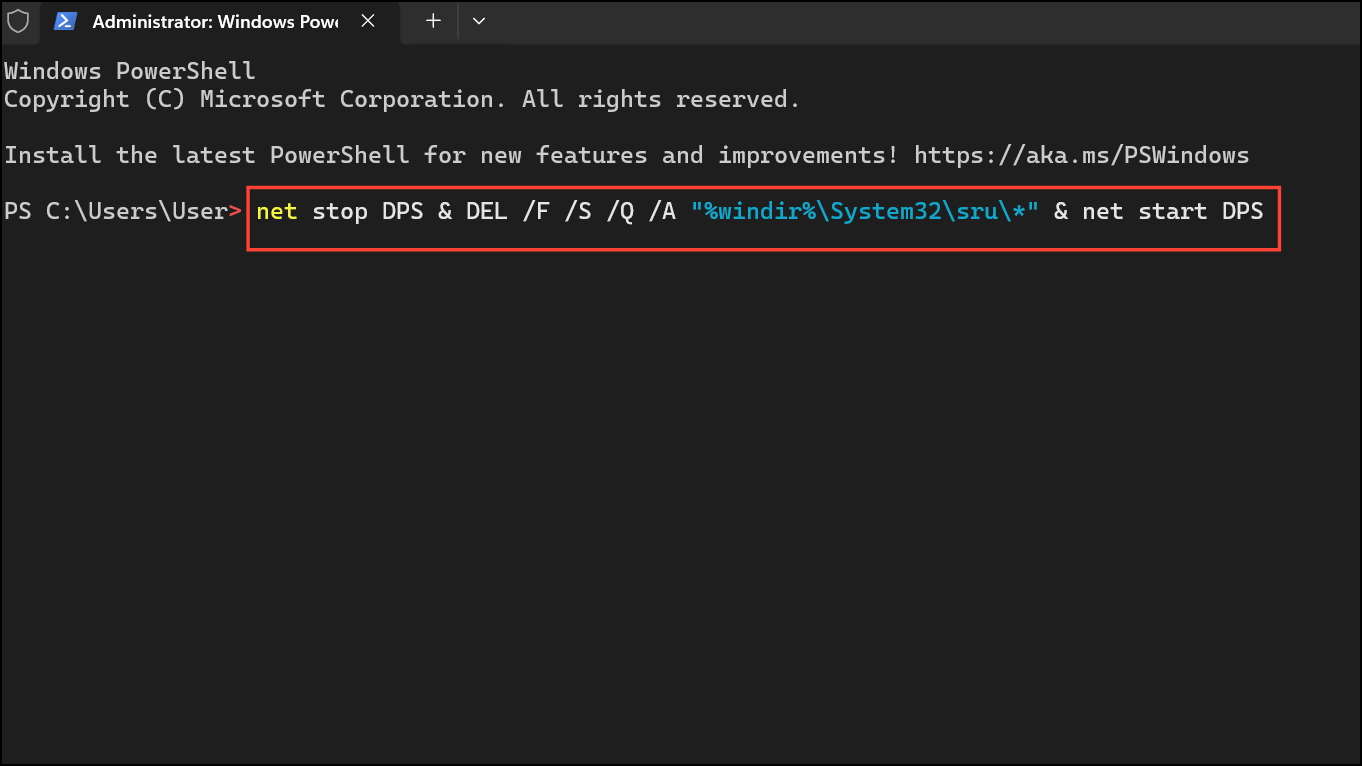
This command sequence ensures that all network data usage logs are cleared for every adapter. The Diagnostic Policy Service (DPS) is responsible for collecting diagnostic and usage data, so stopping it is required before deleting its files.
Reset Data Usage with a Batch File
If you prefer a one-click solution, you can use a batch (.bat) file to automate the command prompt method above. This is particularly useful for repeated use or for less technical users.
powershell -windowstyle hidden -command "Start-Process cmd -ArgumentList '/s,/c,net stop DPS > NUL 2>&1 & DEL /F /S /Q /A \"%windir%\System32\sru\*\" & net start DPS > NUL 2>&1' -Verb runAs"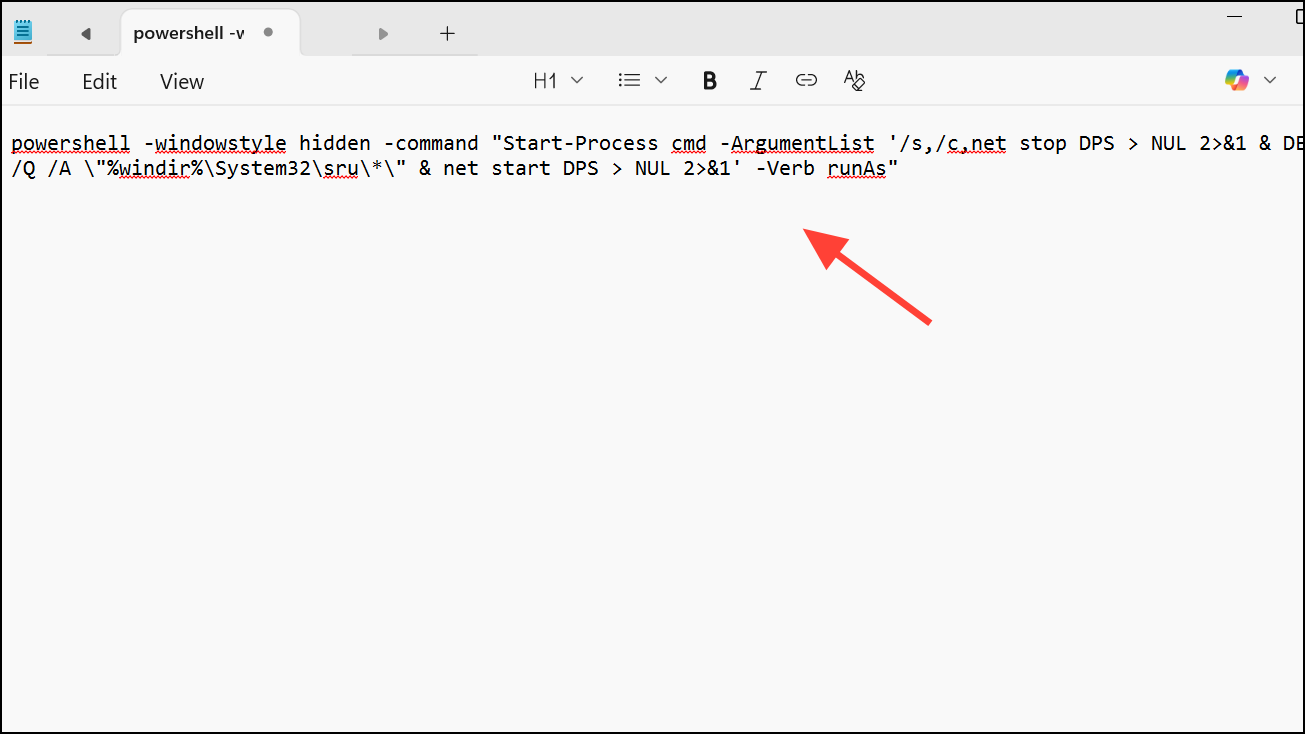
This script performs the same actions as the manual command, but runs silently and prompts for administrator permission if needed.
.bat extension, right-click it, and select Run as administrator. The process will execute quickly, resetting all network usage data in the background.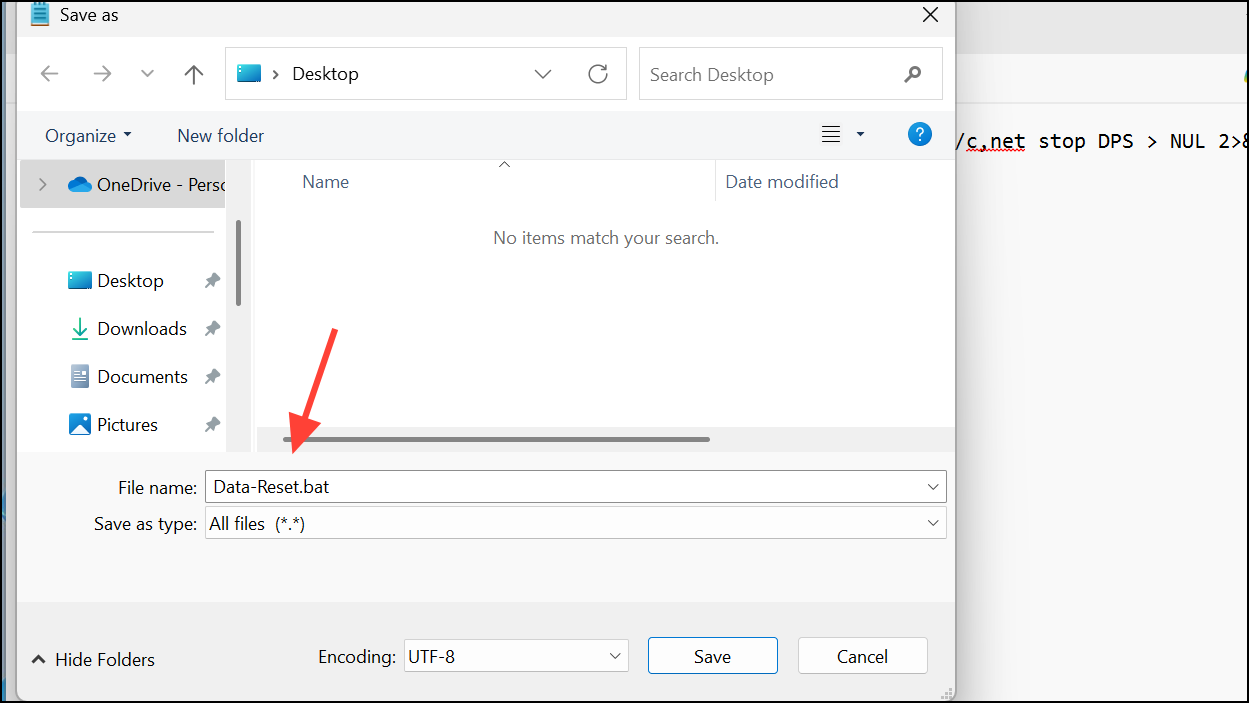
Troubleshooting Blank or Missing Data Usage Counters
Some users report that the Data Usage page in Windows 11 appears blank or does not display any statistics. This issue can result from disabled system services, corrupted system files, or malfunctioning UWP (Universal Windows Platform) components.
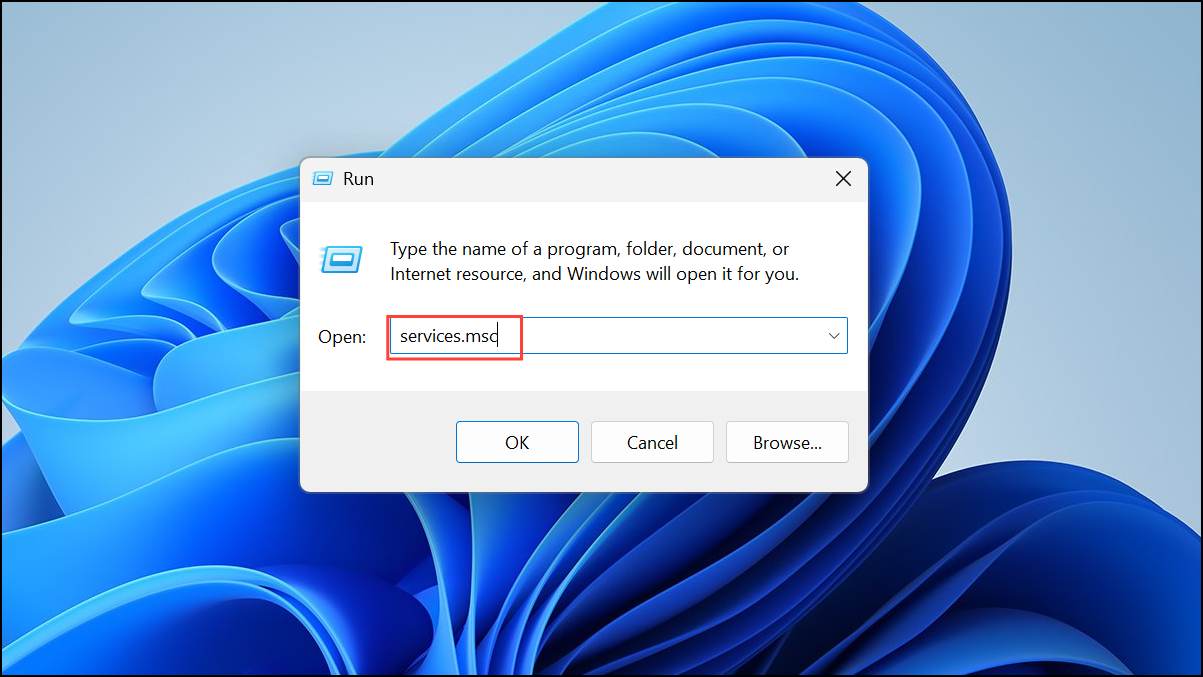
- Type
servicesin the Windows search bar or Run dialog open the Services app.
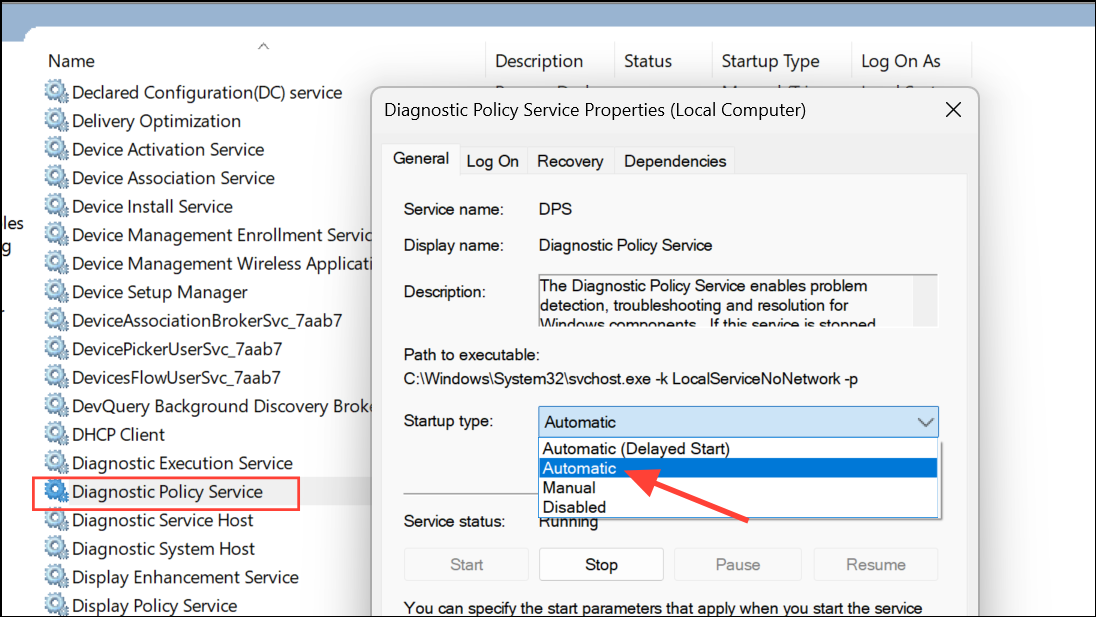
- Scroll down to Diagnostic Policy Service. Double-click it, set the Startup type to Manual or Automatic, click Apply, and then click Start if it’s not already running.
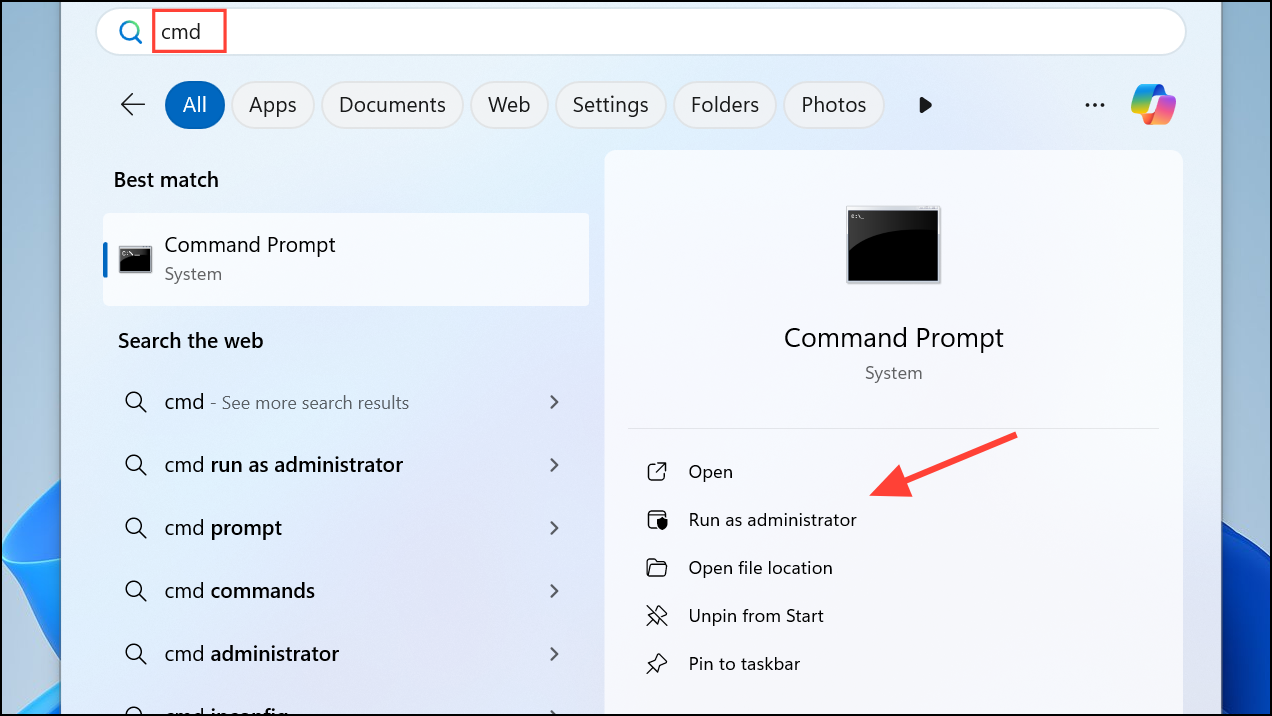
- Open Command Prompt as administrator.
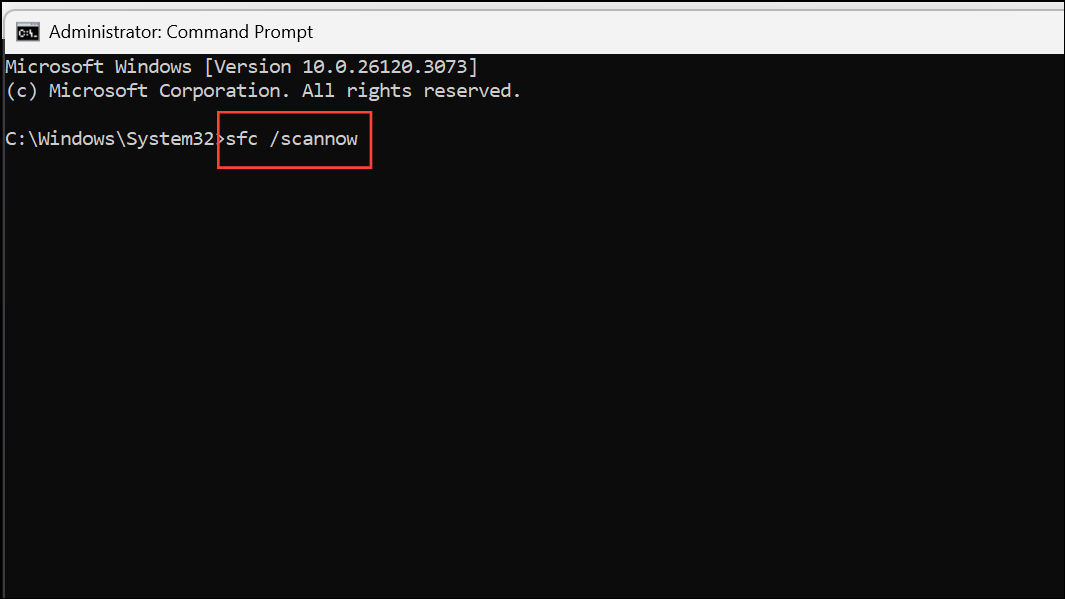
- Run
sfc /scannowand wait for it to complete.
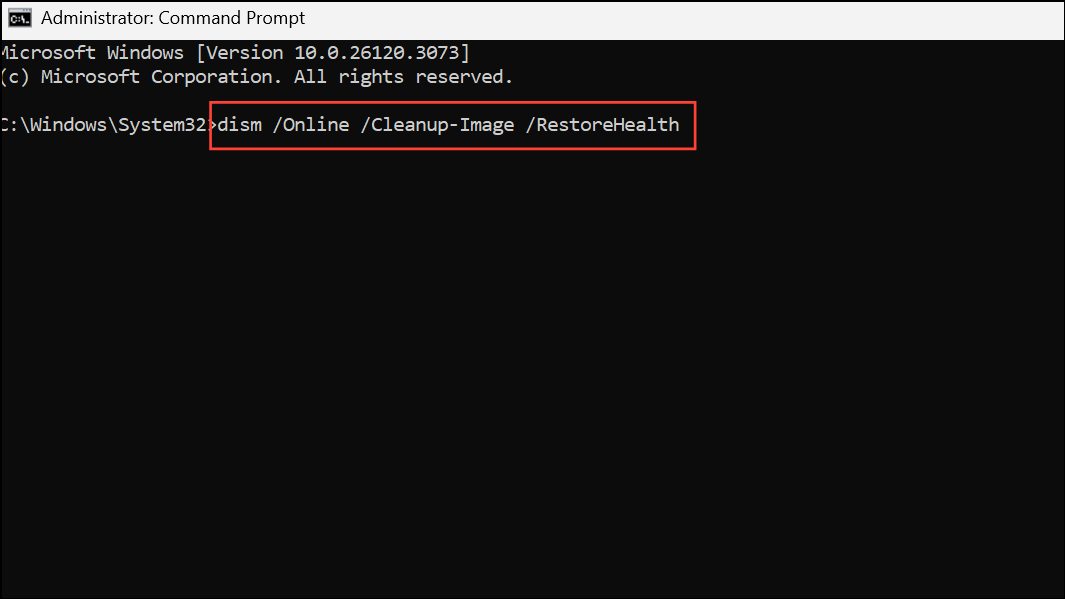
- Then run
DISM /Online /Cleanup-Image /RestoreHealth.
Get-AppXPackage -AllUsers Windows.immersivecontrolpanel | Foreach {Add-AppxPackage -DisableDevelopmentMode -Register "$($_.InstallLocation)\AppXManifest.xml"}Setting, Editing, or Removing Data Usage Limits
Windows 11 allows users to set data usage caps for individual network connections, which is especially helpful for those with limited data plans. These limits can be configured to reset daily, weekly, or monthly, matching your billing cycle.
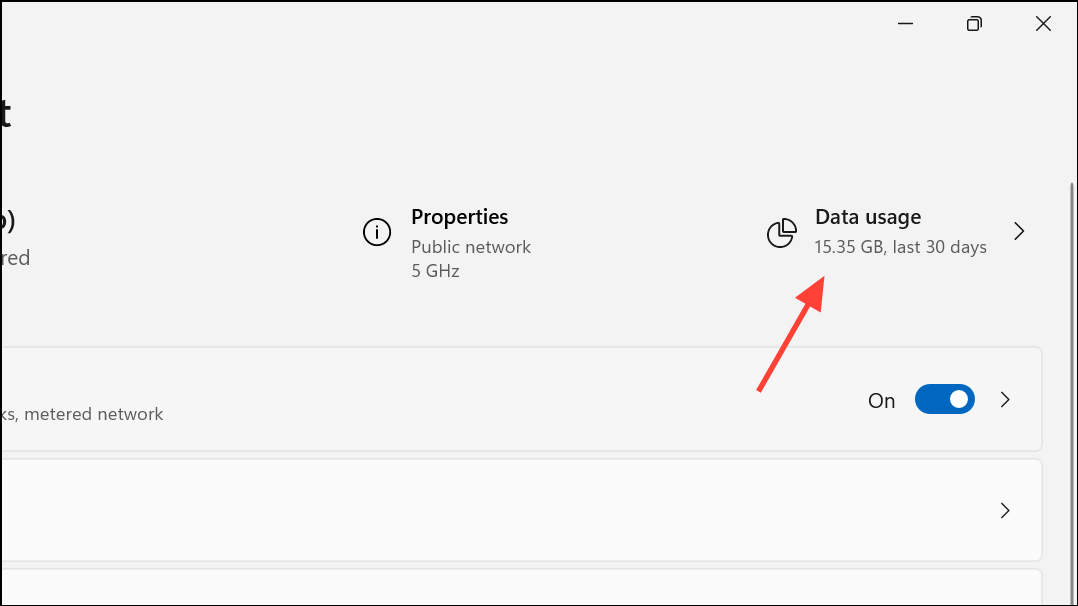
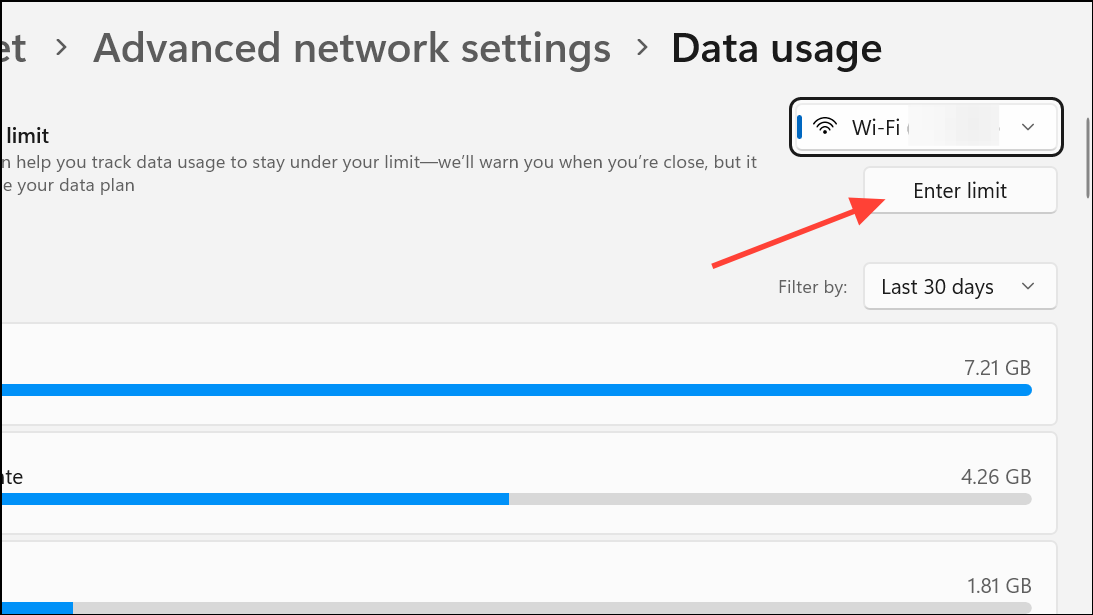
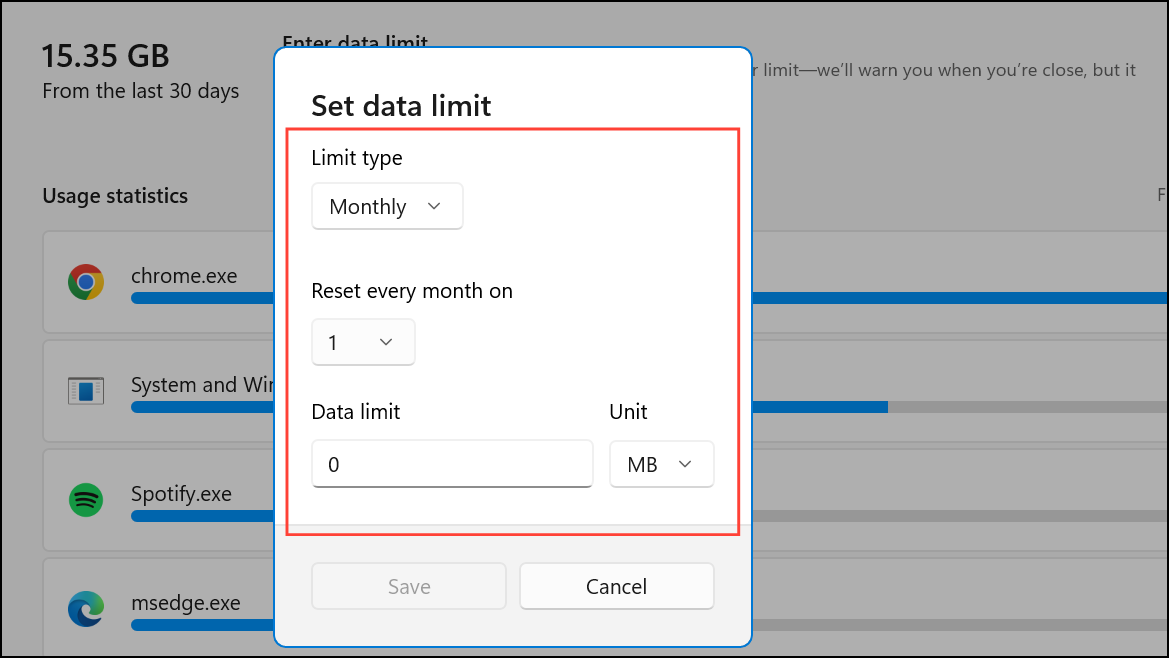
Setting a data limit lets Windows alert you as you approach your threshold, and can restrict background activity on metered connections to prevent overages.
Resetting or clearing data usage in Windows 11 is straightforward when you know which method fits your needs. Whether you use the Settings app for quick resets, Command Prompt for all adapters, or troubleshoot blank counters, these steps help you maintain accurate network usage records and avoid unexpected data charges.



