

Windows setup may display the message Windows was unable to locate required installation file [boot.wim]. Verify that the installation source is valid, and restart the installation. Error code: 0x80070002 when attempting to install or upgrade to Windows 11. This error halts the installation process and typically points to issues with installation media, missing or corrupted files, or system configuration problems.
Recreate the Bootable USB Drive Using Official Tools
Corrupted or incomplete installation media is a primary cause of the missing boot.wim file error. Creating a new bootable USB using the official Media Creation Tool or a reliable utility like Rufus improves the reliability of the installation process.
This approach resolves most problems caused by incomplete or corrupted installation files, especially if previous attempts were made using third-party or outdated tools.
Check for Antivirus or Security Software Interference
Active antivirus or security software can block the setup process or prevent access to required files, resulting in the boot.wim error.
This step is especially important if you are running setup from within Windows or upgrading an existing installation, as security applications may block file operations required by the installer.
Verify the Presence of boot.wim in the Sources Folder
The boot.wim file should be present in the \Sources directory on your installation media. Missing or renamed files cause setup to fail.
boot.wim exists. If it is missing, the media is incomplete or corrupted. Recreate the USB using the official ISO as described above.install.esd but not install.wim, this is normal for some media created by the Media Creation Tool. However, boot.wim must still be present for setup to proceed.Change Registry Settings to Allow OS Upgrade (If Upgrading from Windows)
For users upgrading from within Windows, a missing registry value can prevent the upgrade process from accessing required files.
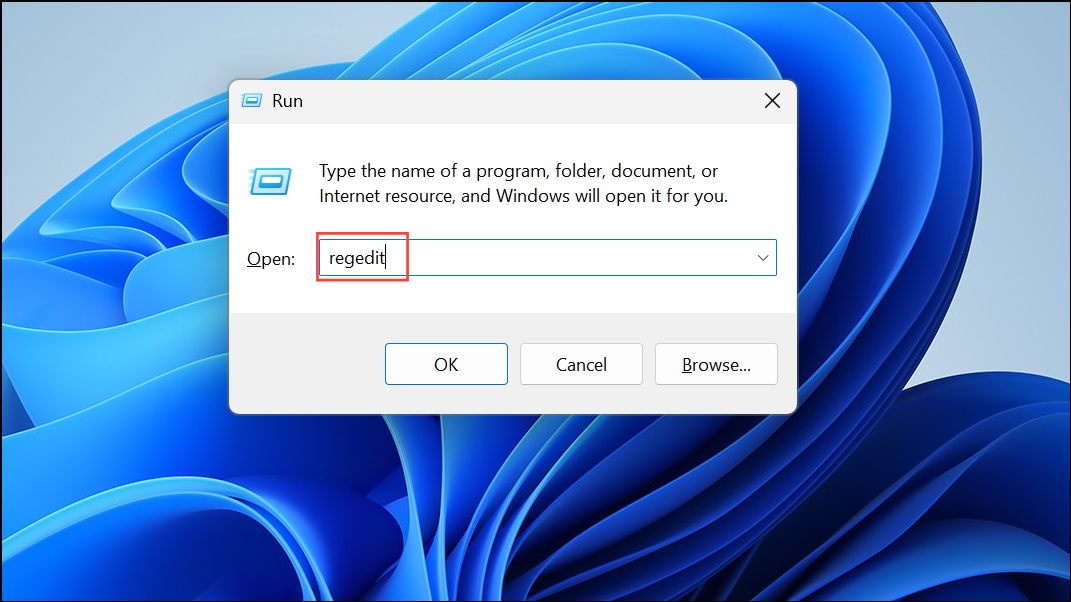
HKEY_LOCAL_MACHINE\SOFTWARE\Microsoft\Windows\CurrentVersion\WindowsUpdate\OSUpgrade. If OSUpgrade does not exist, create it by right-clicking on WindowsUpdate, selecting New > Key, and naming it OSUpgrade.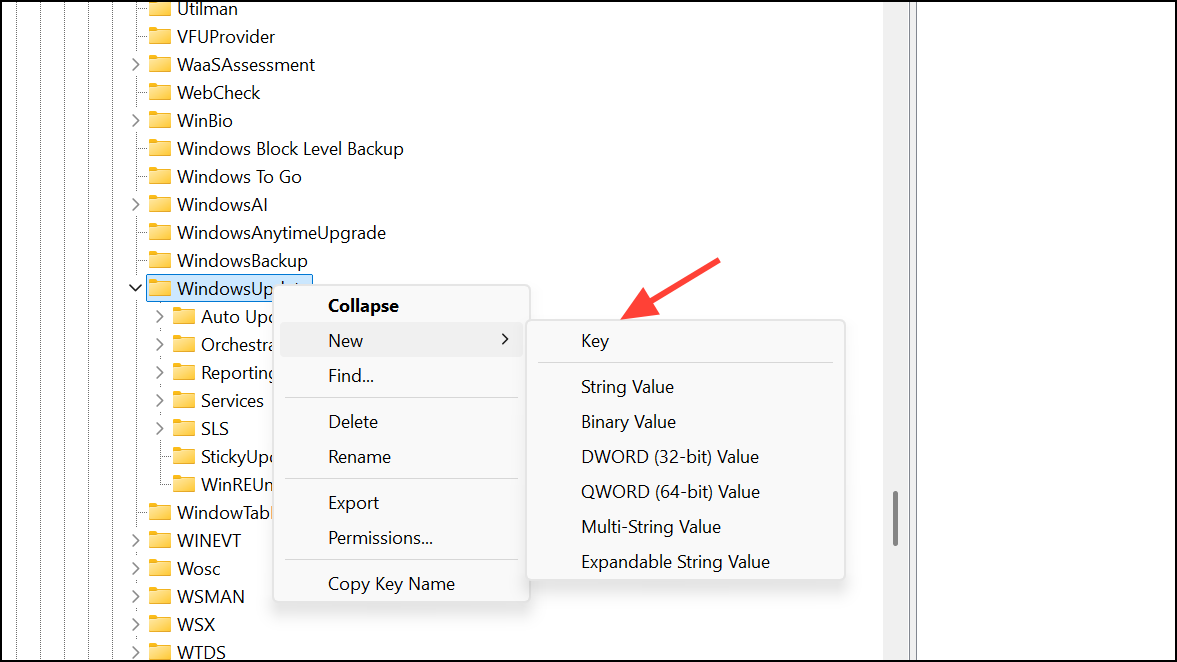
AllowOSUpgrade, and set its value to 1.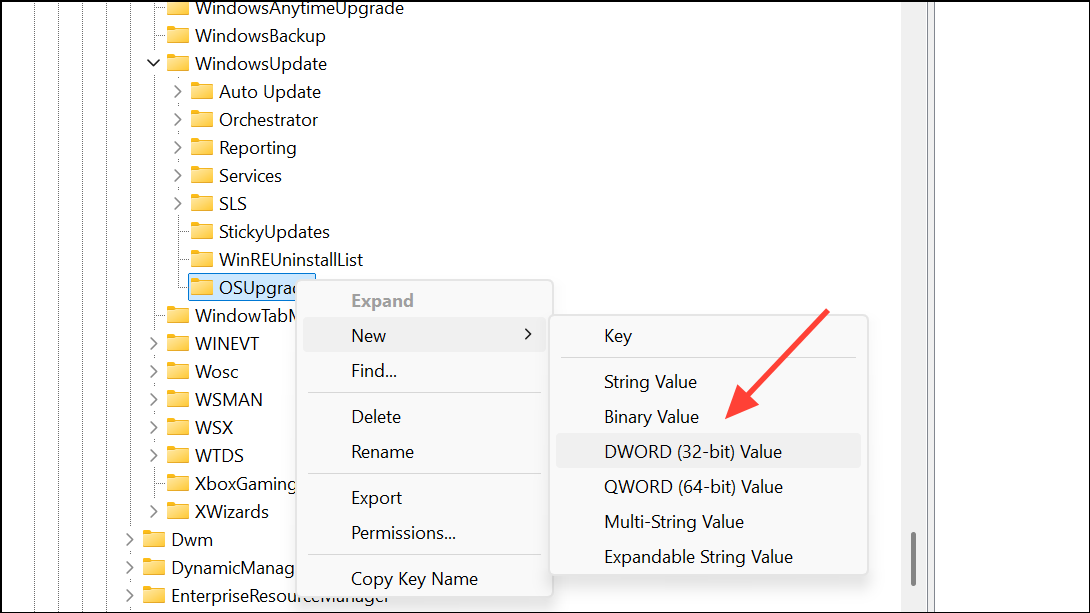
This registry change signals to Windows Update that upgrades are permitted, which can bypass certain restrictions that prevent setup from accessing the required files.
Check for Faulty USB Drives, RAM, or Hardware Conflicts
Hardware issues such as defective USB drives, faulty RAM, or conflicts with connected devices can interrupt the installation process and cause file read errors.
Convert install.esd to install.wim (Advanced, If Required)
Some custom installations or deployment tools may require install.wim instead of install.esd. If your process or tool demands install.wim, you can convert using the Deployment Image Servicing and Management (DISM) tool.
DISM /Export-Image /SourceImageFile:install.esd /SourceIndex:1 /DestinationImageFile:install.wim /Compress:maximum /CheckIntegrity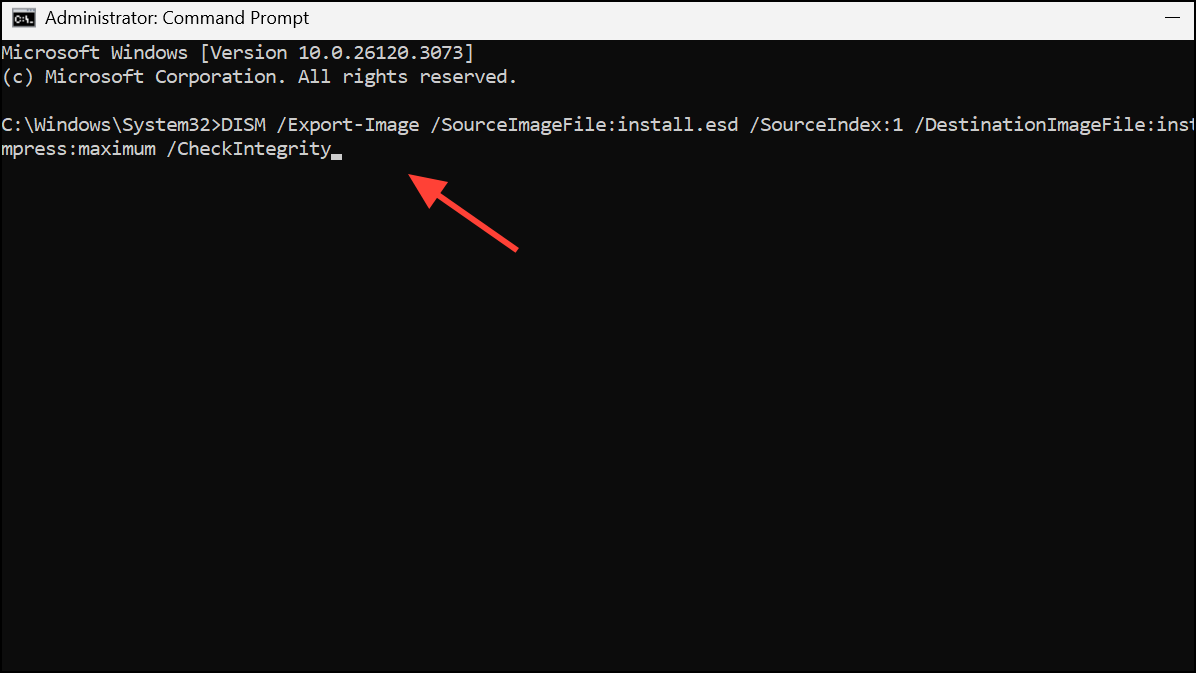
install.esd with the newly created install.wim in the \Sources folder, if needed for your deployment scenario.This step is optional and only necessary for advanced custom installations where install.wim is specifically required.
Resolving the “Windows was unable to locate required install file boot.wim” error typically involves recreating your installation media, checking for hardware issues, and ensuring system settings permit the upgrade or installation. Taking these steps streamlines the process and gets your Windows 11 setup running smoothly.



