
Device installations can fail in Windows 11 when system-level policies block driver or hardware updates, resulting in the error: “The installation of this device is forbidden by system policy. Contact your system administrator.” This issue can stop you from connecting essential hardware like Wi-Fi adapters, Bluetooth devices, or USB drives—even when you’re using a personal PC and have administrator rights. Resolving this error requires identifying and removing the policy restrictions that are blocking device installations.
Remove Device Installation Restrictions in Local Group Policy Editor
Win + R, typing gpedit.msc, and pressing Enter. This tool is available on Windows 11 Pro, Enterprise, and Education editions.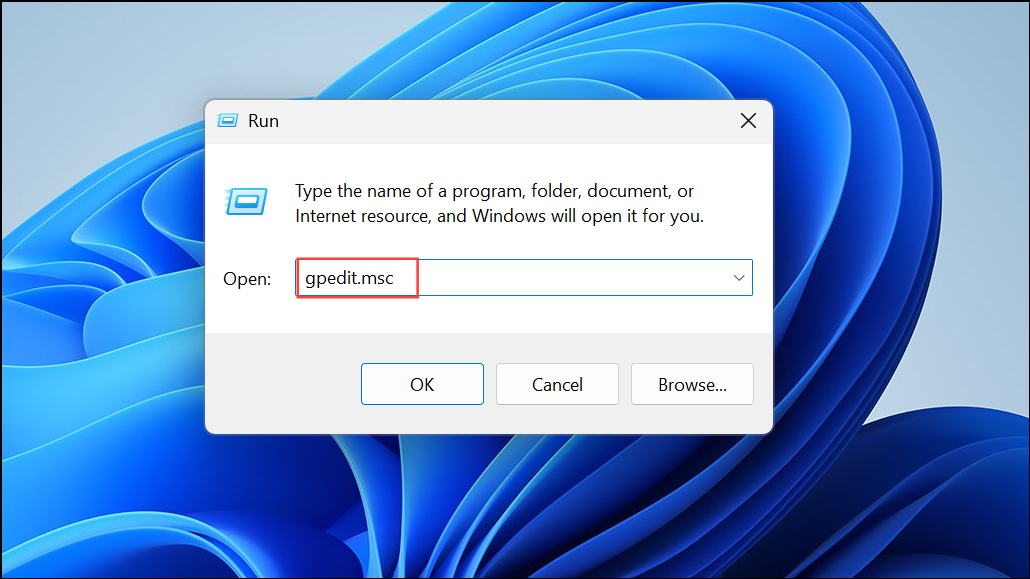
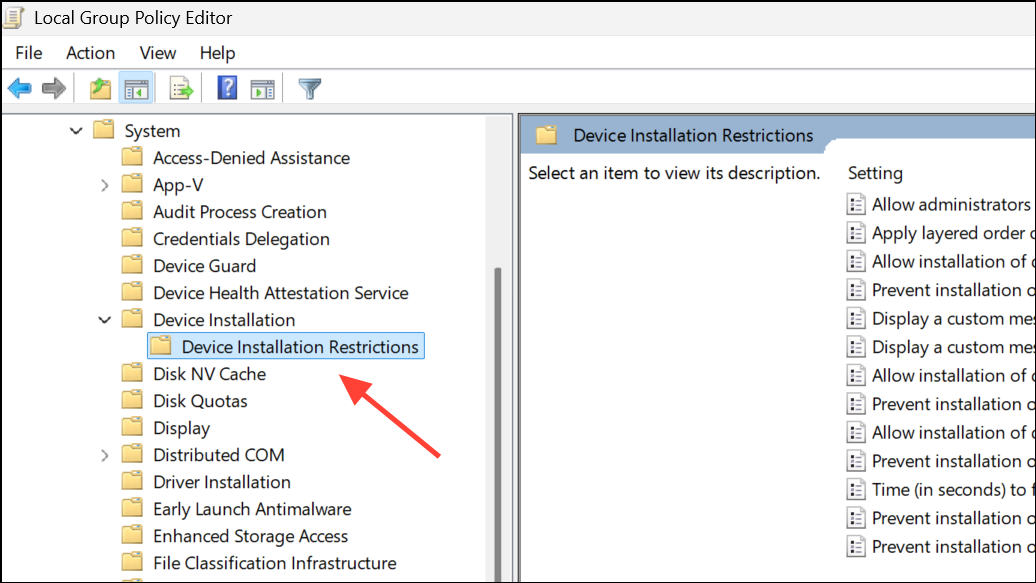
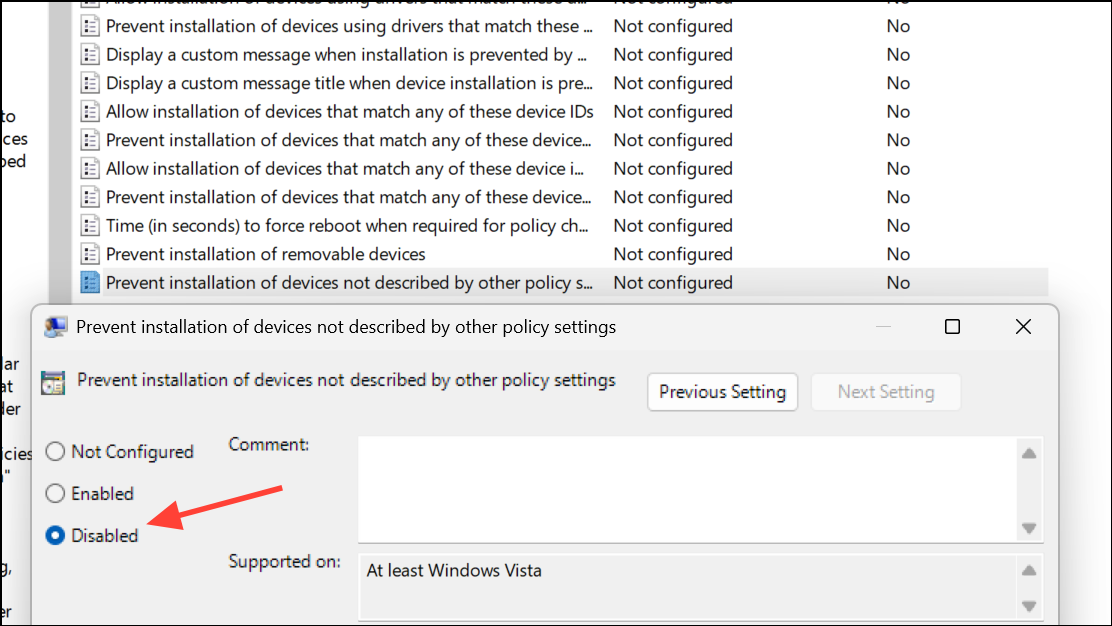
Clear Device Installation Restrictions via Registry Editor (For Windows 11 Home)
Windows 11 Home does not include the Group Policy Editor, but you can adjust the same settings through the Registry Editor. Caution: Editing the registry can cause system issues if done incorrectly. Back up your registry before making changes.
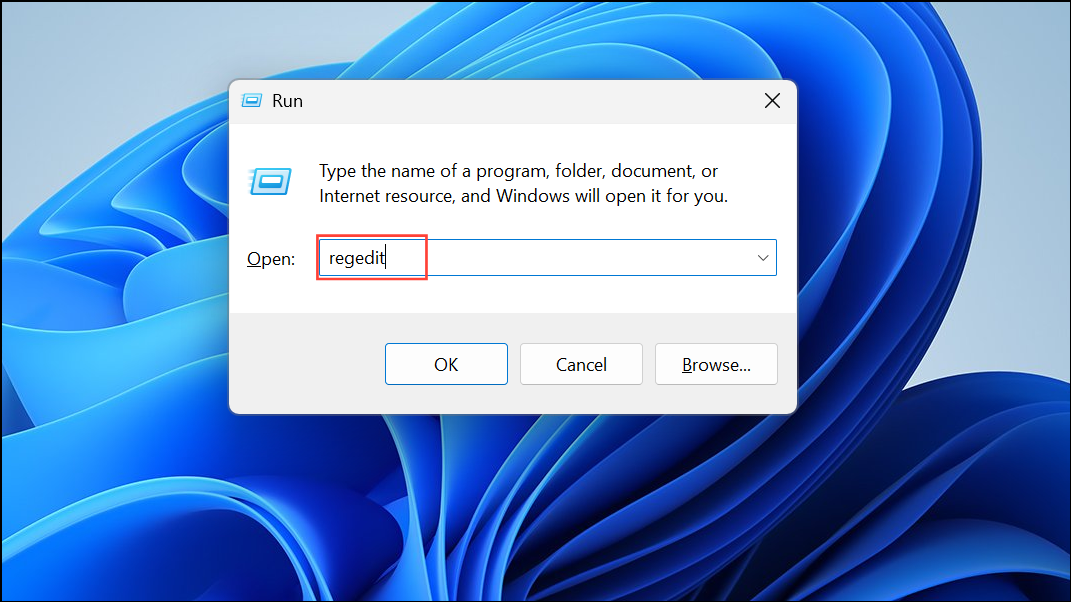
HKEY_LOCAL_MACHINE\SOFTWARE\Policies\Microsoft\Windows\DeviceInstall\RestrictionsDenyUnspecified, DenyRemovableDevices, or DenyDeviceIDs. Right-click and delete these values if present.Restrictions key exists but is empty after deleting these values, you can right-click the Restrictions folder and delete the entire key.Reset All Local Group Policy Settings to Default
Resetting all local group policy settings can resolve persistent policy errors, especially if your computer was previously managed by an organization or had policy changes applied by third-party tools.
Win + S, type cmd, right-click Command Prompt, and select Run as administrator.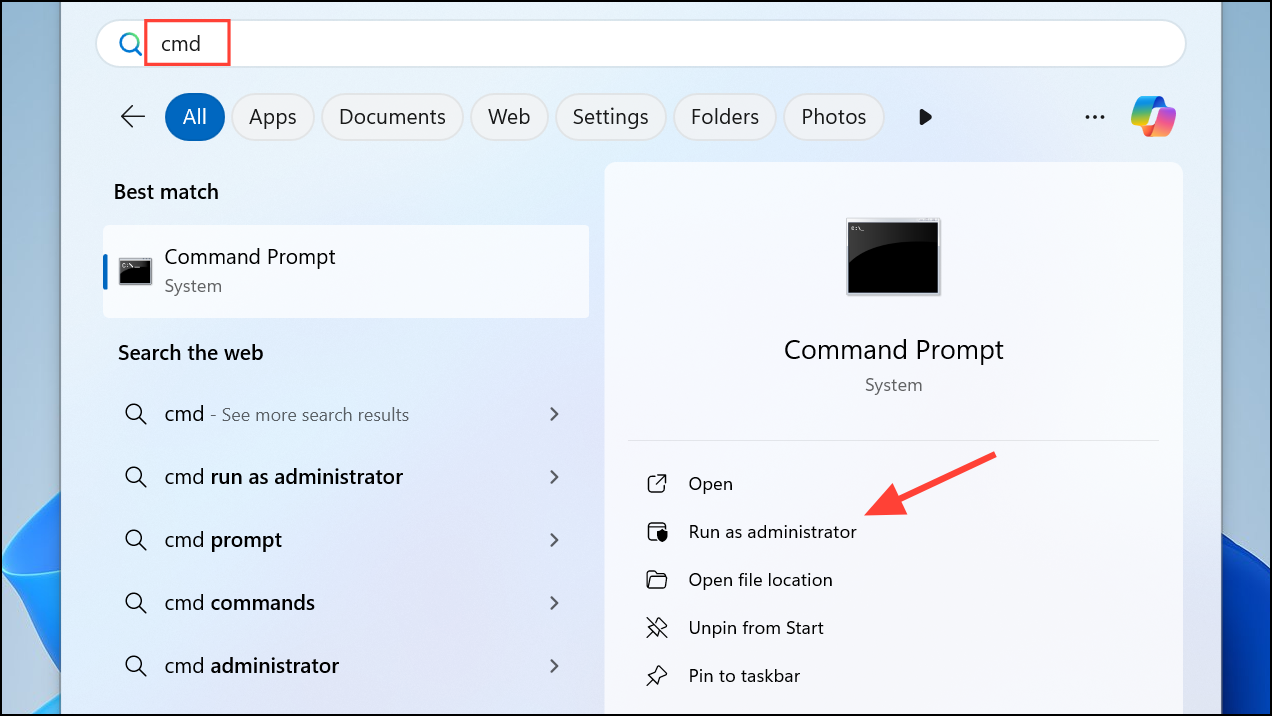
RD /S /Q "%WinDir%\System32\GroupPolicy"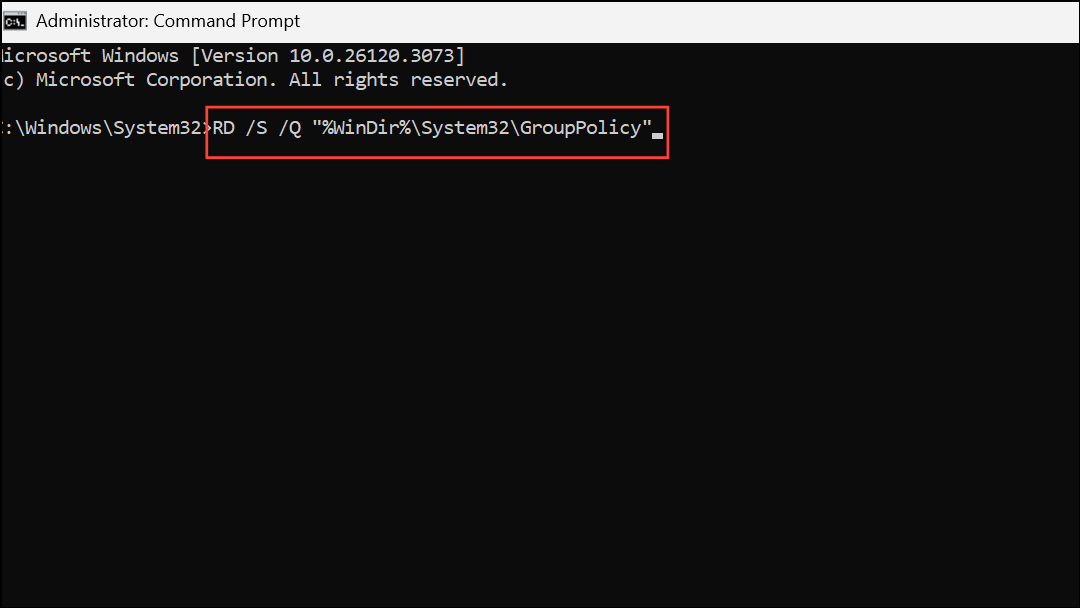
RD /S /Q "%WinDir%\System32\GroupPolicyUsers"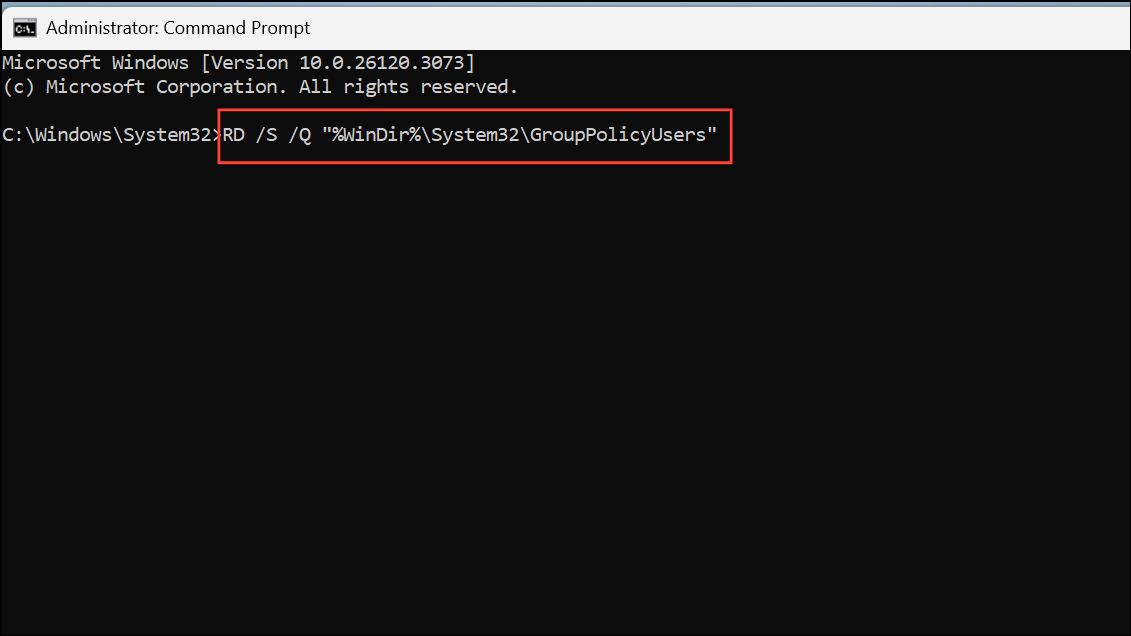
gpupdate /force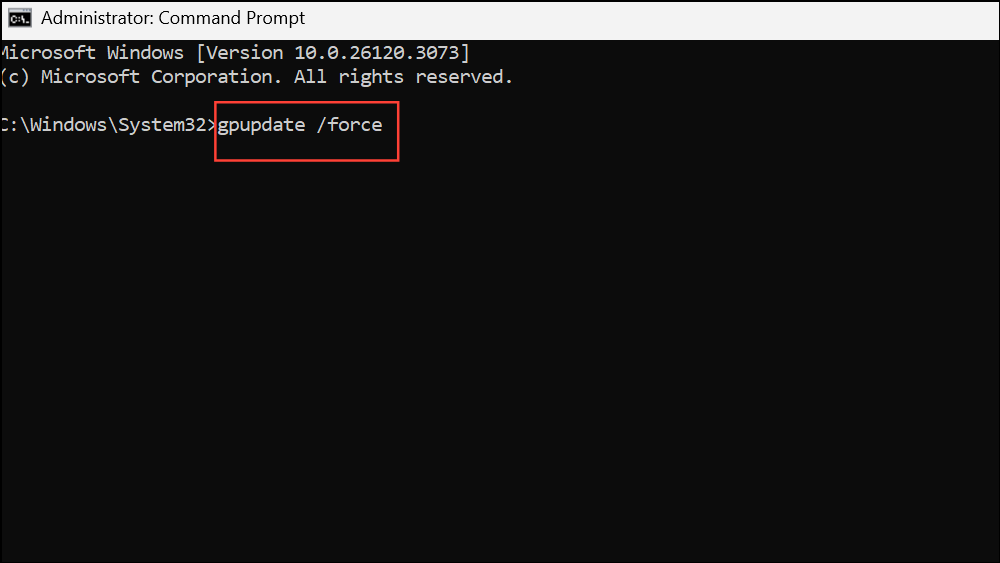
This command rebuilds group policy settings to their defaults. Try installing your device or driver again.
Enable and Start the Windows Installer Service
The Windows Installer service is required for many driver and software installations. If this service is disabled, installations may fail with policy errors.
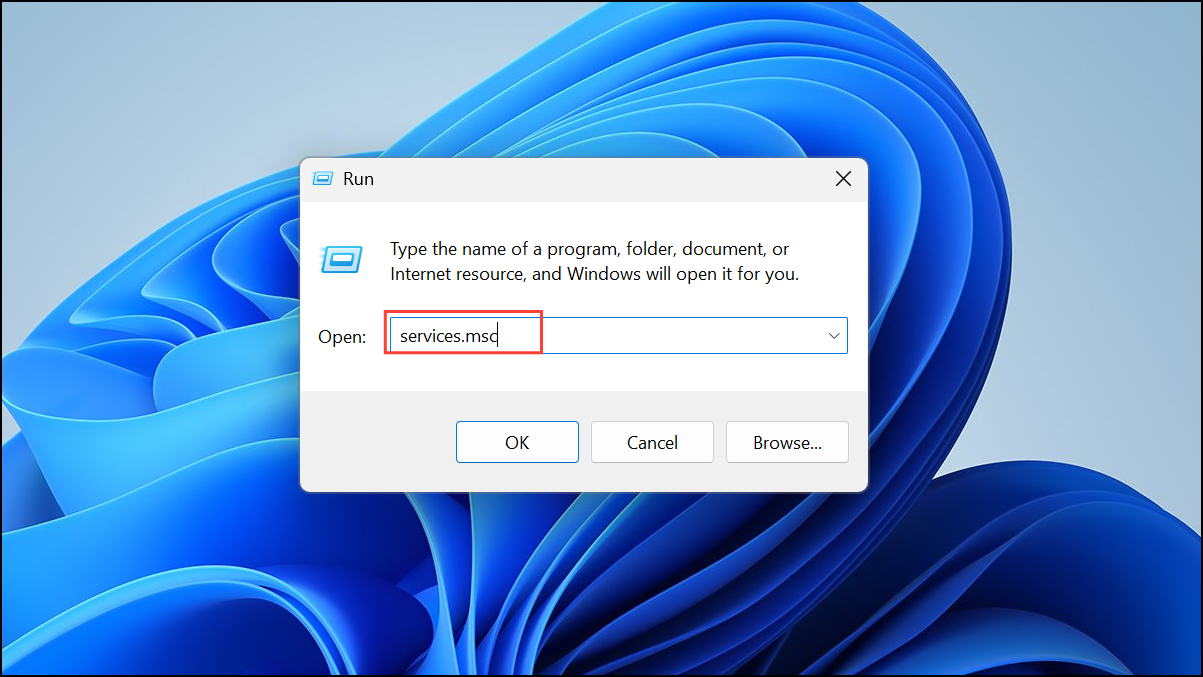
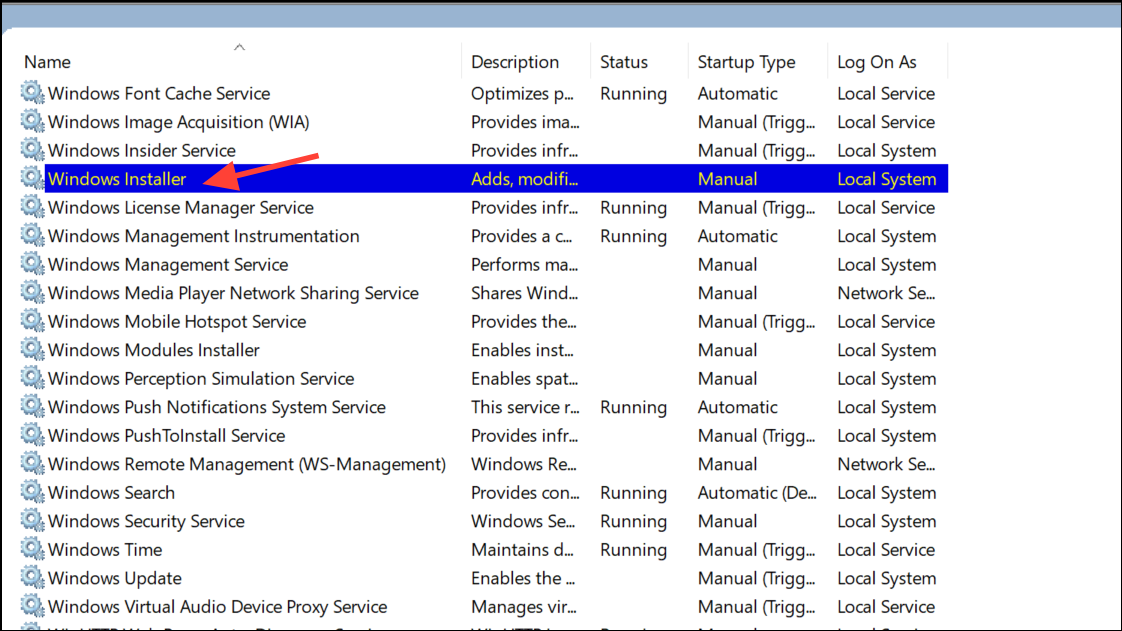
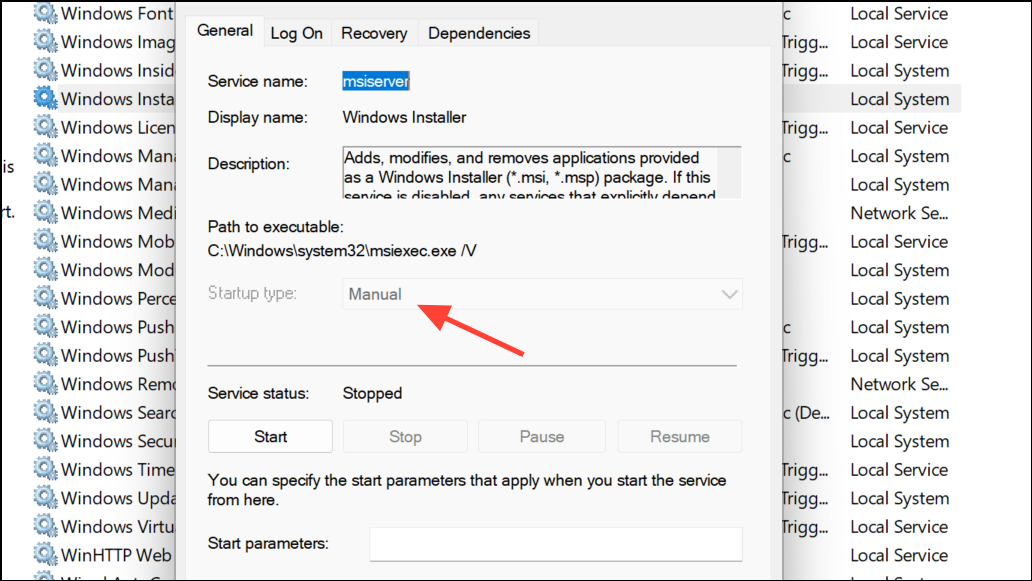
Check for Work or School Account Restrictions
System policy errors can occur if your PC is linked to a work or school account, or if it’s still enrolled in organization management from a previous owner.
- Open Settings > Accounts > Access work or school and disconnect any listed accounts that you do not use.
- Check Settings > Accounts > Family & other users to ensure your account has administrator privileges.
- If you bought your PC used, it may still have residual management policies. Removing these requires clearing group policies and registry restrictions as described above.
Manually Install Drivers Using Device Manager
When device installation is blocked by policy, you can sometimes work around the error by manually installing drivers through Device Manager.
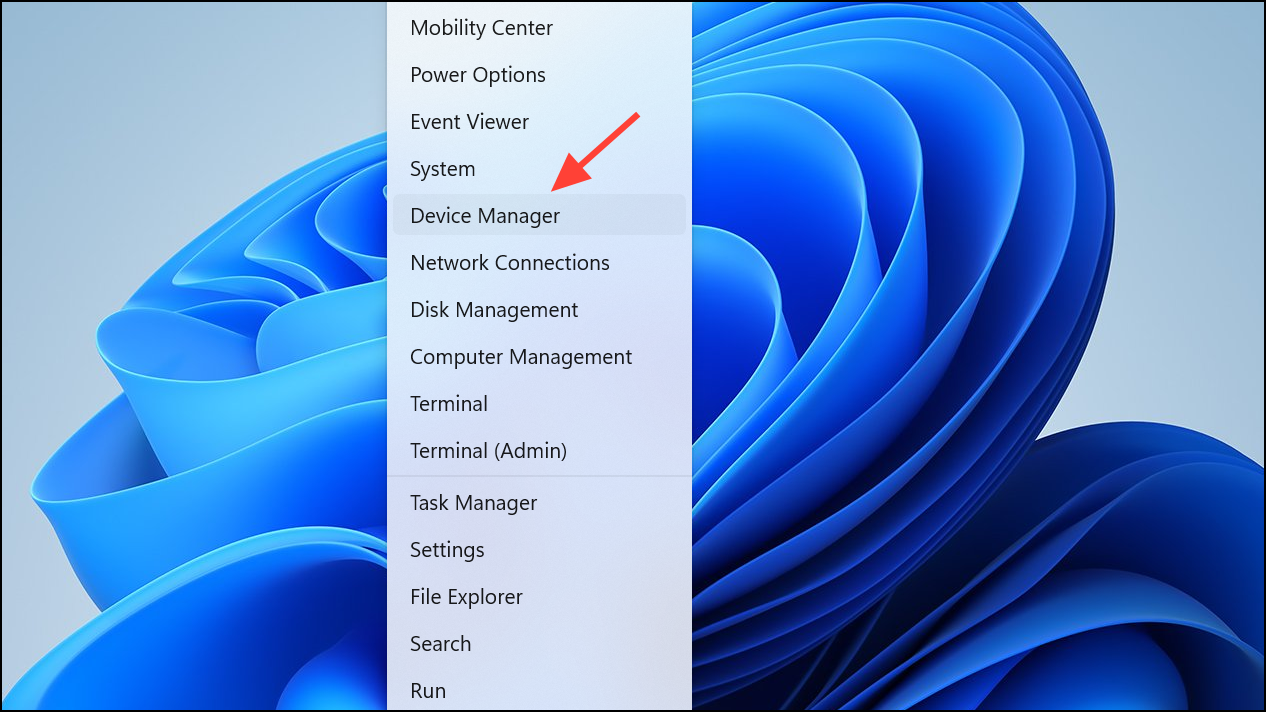
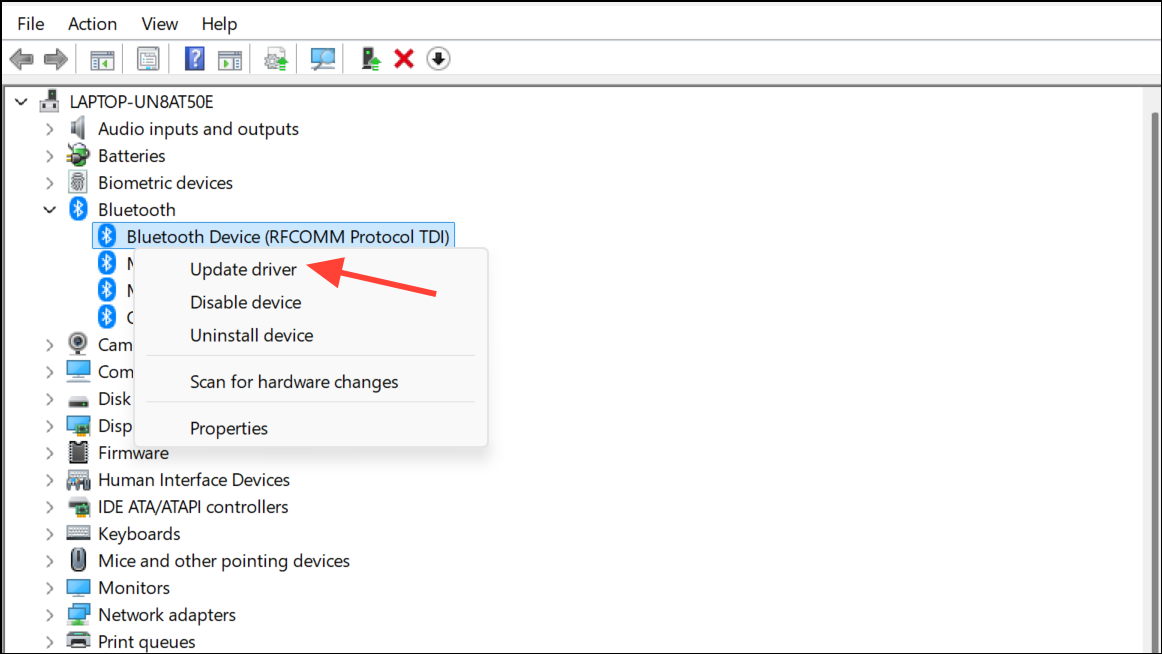
.inf file, select it, and proceed with installation.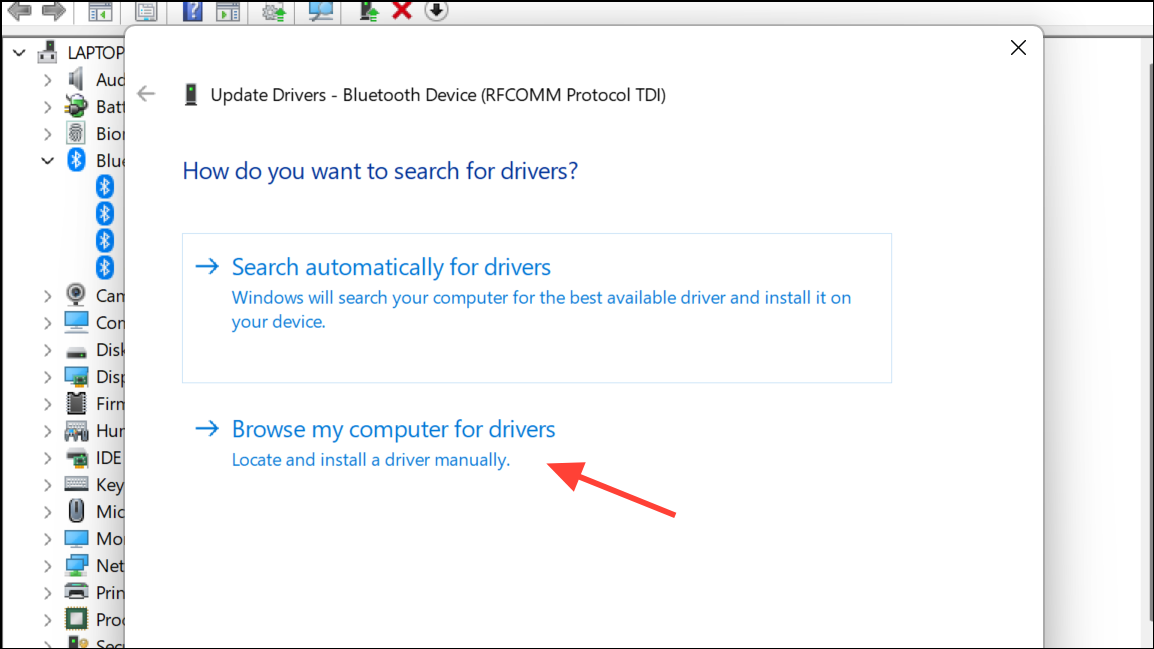
Additional Troubleshooting: Registry and Third-Party Tools
Some advanced users may encounter persistent registry entries or leftover policies that block installations. In rare cases, third-party registry optimizers can scan for and clean invalid entries, but use these tools with caution and always back up your data first.
- Check for unusual entries in
HKEY_LOCAL_MACHINE\SOFTWARE\Policies\Microsoft\Windows\Installerand delete anyDisableMSIvalue or set it to0. - If device installations are still blocked, consider creating a new local administrator account and attempting installation from that profile.
- As a last resort, a system reset or clean install of Windows 11 will remove all policy restrictions, but be sure to back up your data first.
Clearing device installation restrictions in Windows 11 removes unnecessary roadblocks and lets you install drivers and hardware as needed. Always verify your changes and restart your PC before retrying installations for the best results.



