
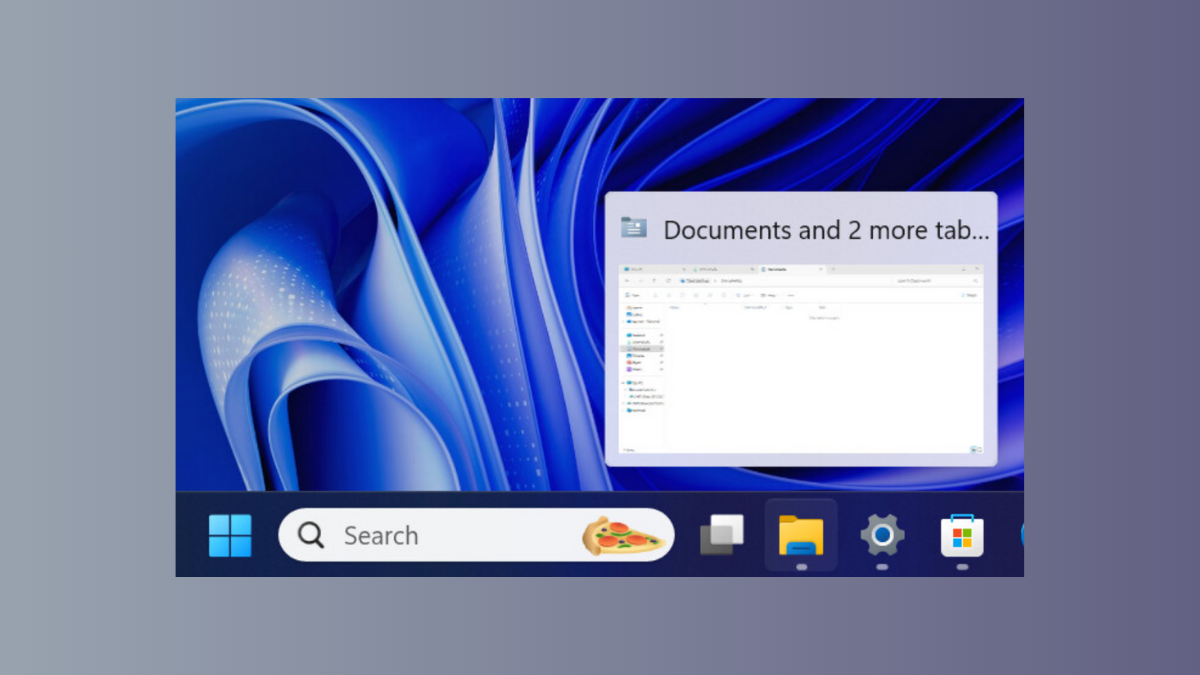
Taskbar thumbnail previews in Windows 11 provide a quick way to view open windows without switching between them. When these previews stop appearing, navigation slows down and multitasking becomes less efficient. Addressing this issue requires checking system settings, adjusting registry values, and sometimes applying workarounds for recent Windows updates.
Restart File Explorer to Restore Taskbar Thumbnails
Restarting File Explorer resets key user interface elements, including the taskbar and its thumbnail previews. This method resolves glitches that prevent thumbnails from showing up.
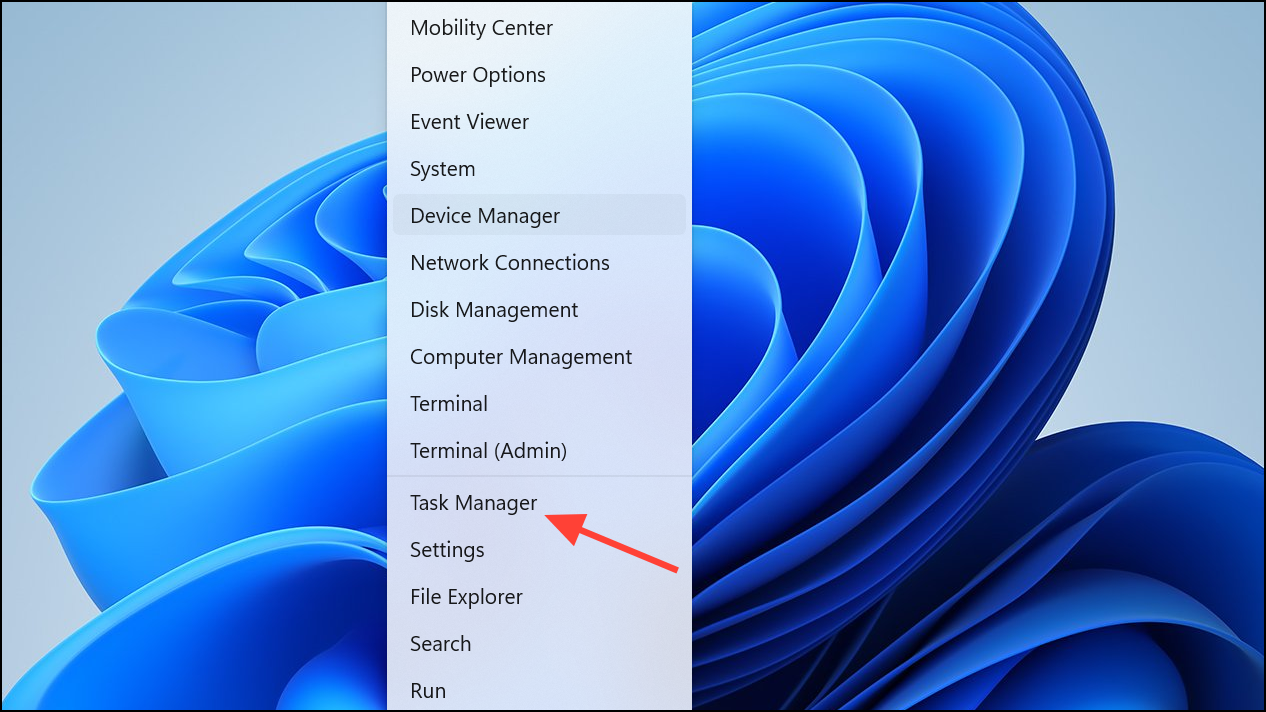
Windows Explorer and click the Restart button in the lower right corner. The taskbar and desktop will briefly disappear and reload, often restoring thumbnail previews.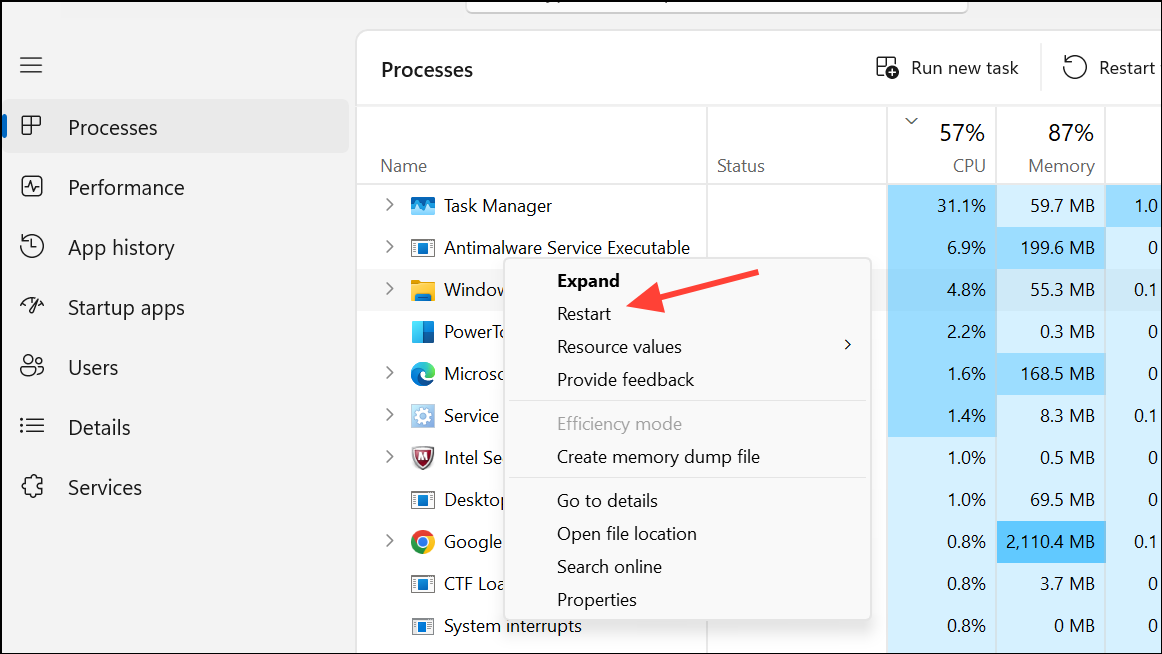
Check Visual Effects Settings for Thumbnail Preview Options
Windows 11 controls thumbnail previews through visual effects settings. If these options are disabled, taskbar thumbnails will not appear. Adjusting these settings ensures that previews are enabled for your account.
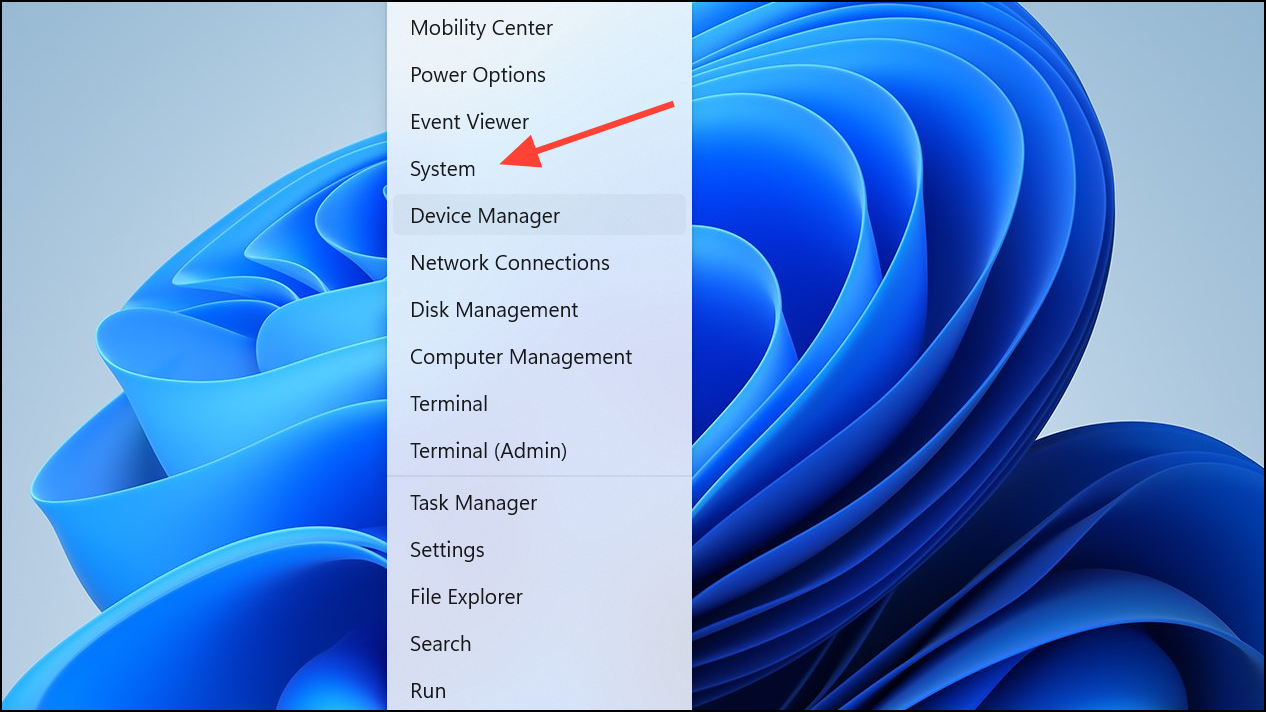
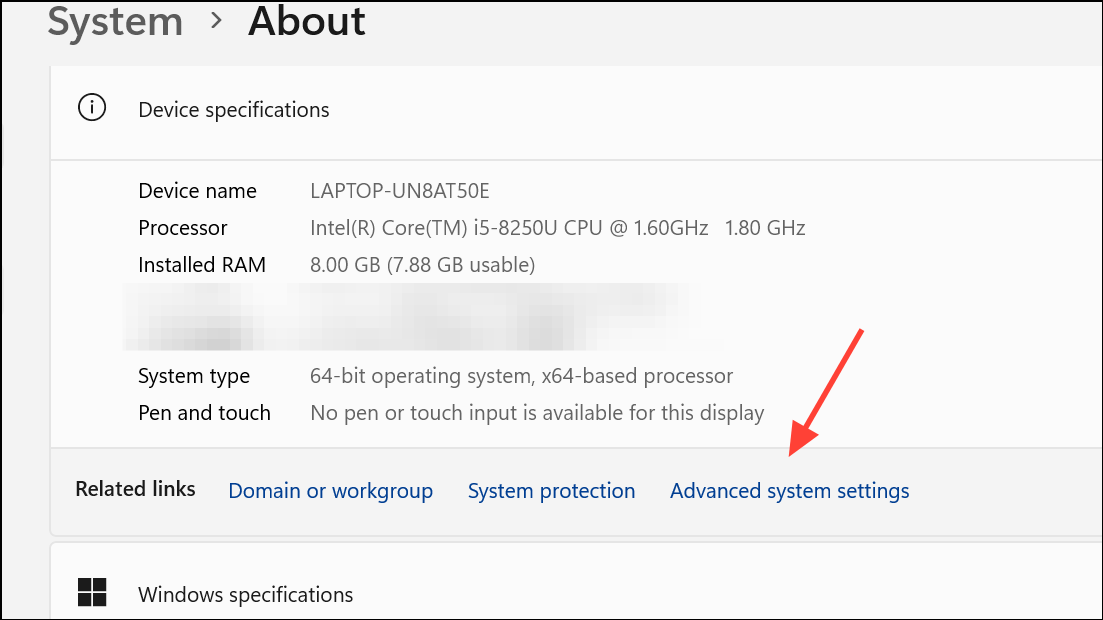
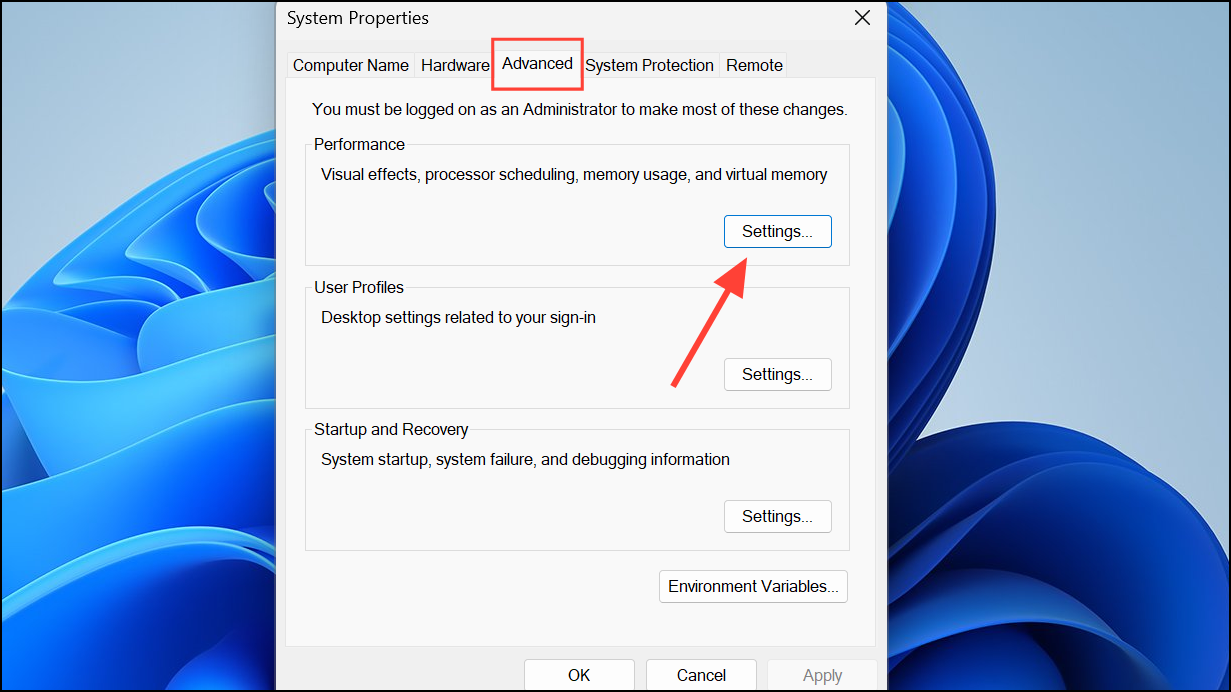
Visual Effects tab, make sure both Save taskbar thumbnail previews and Show thumbnails instead of icons are checked.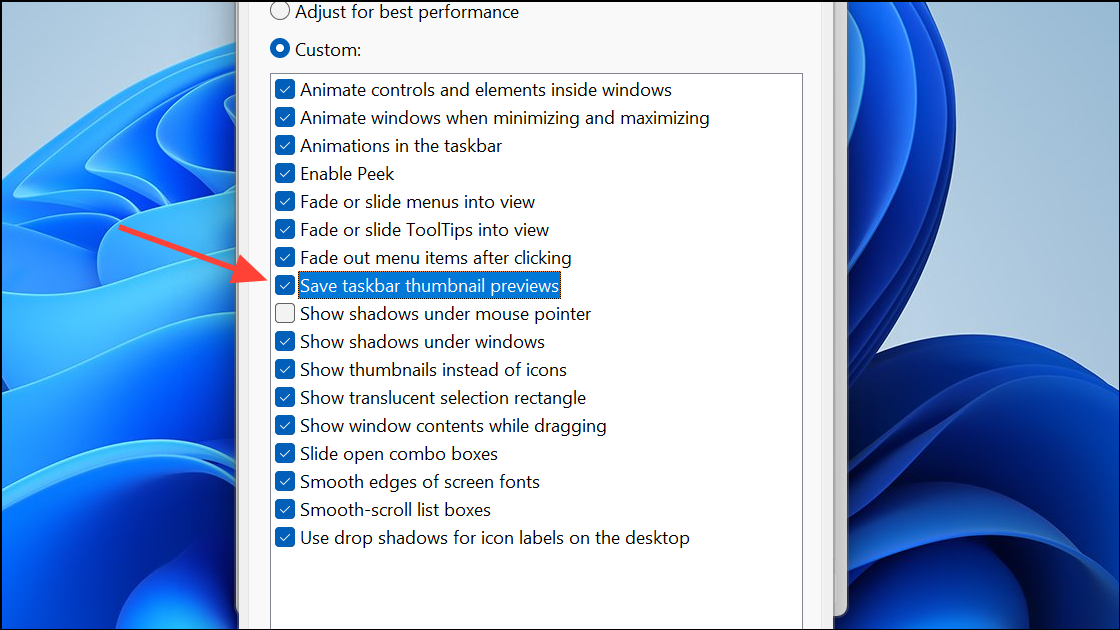
These settings must be enabled for thumbnail previews to work. If you’re using a local account and the previews work on other profiles but not yours, this step is especially important.
Modify Registry Settings to Enable Taskbar Thumbnails
Incorrect or missing registry values can block thumbnail previews. Editing the registry can restore these previews, but always back up your registry before making changes.
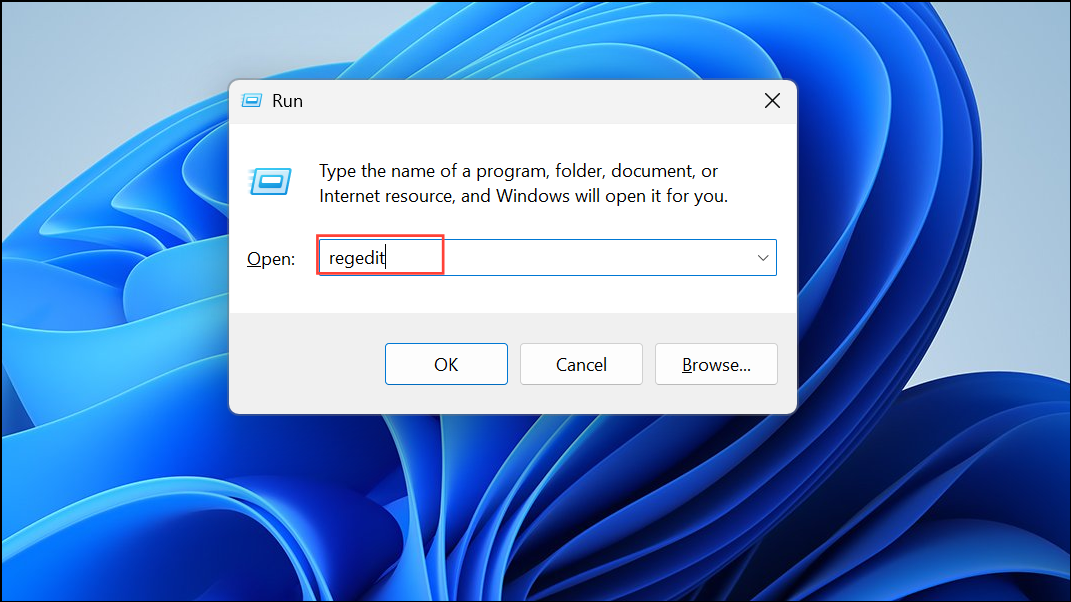
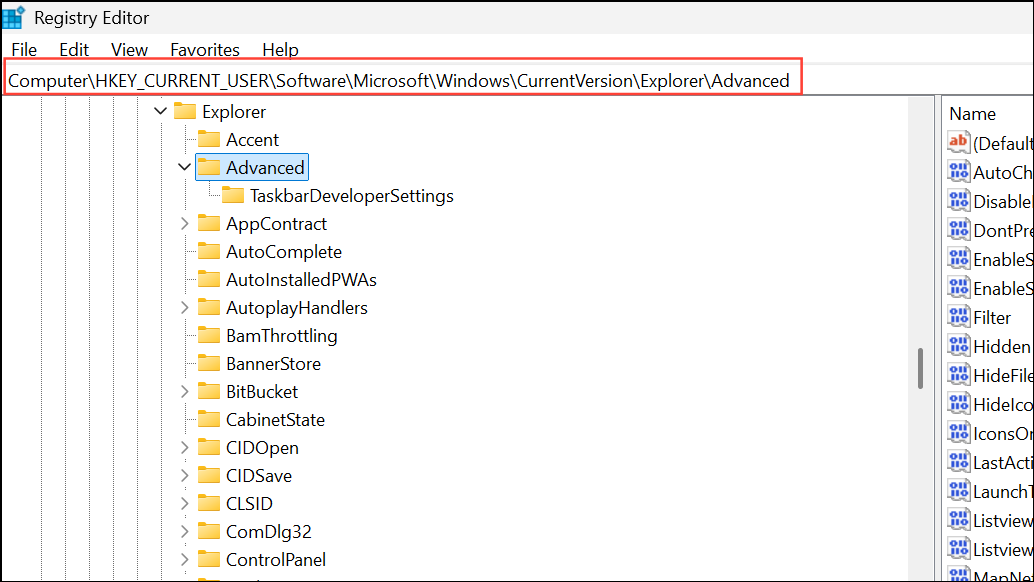
DisablePreviewWindow. If it exists, right-click and delete it to remove any block on previews.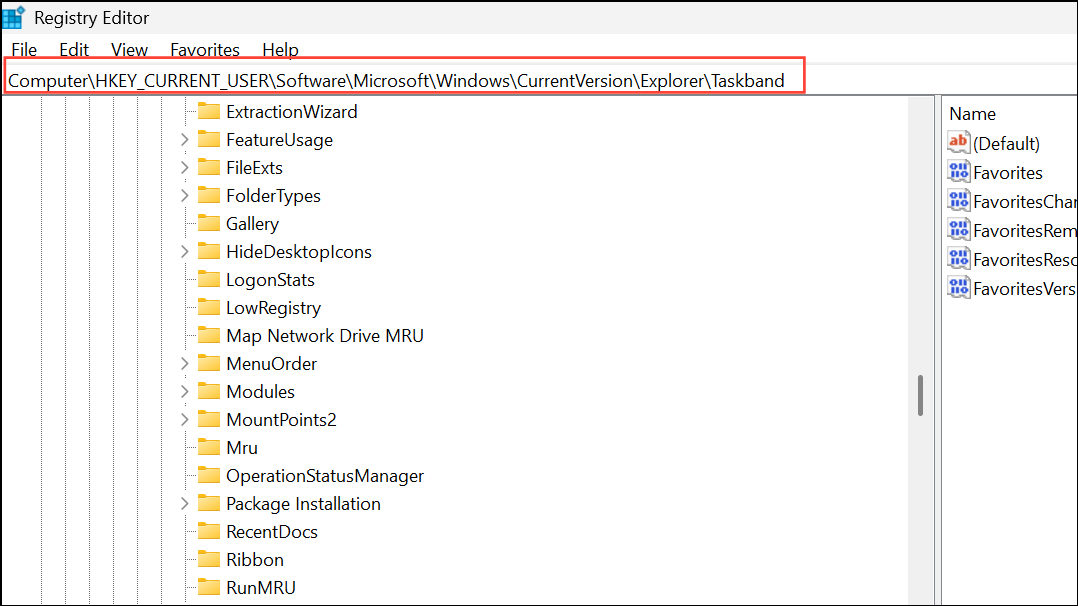
NumThumbnails value. Double-click it, select Hexadecimal, and set the value data to 10 (which equals 16 in decimal, allowing up to 16 thumbnails).Configure Group Policy to Allow Taskbar Thumbnail Previews
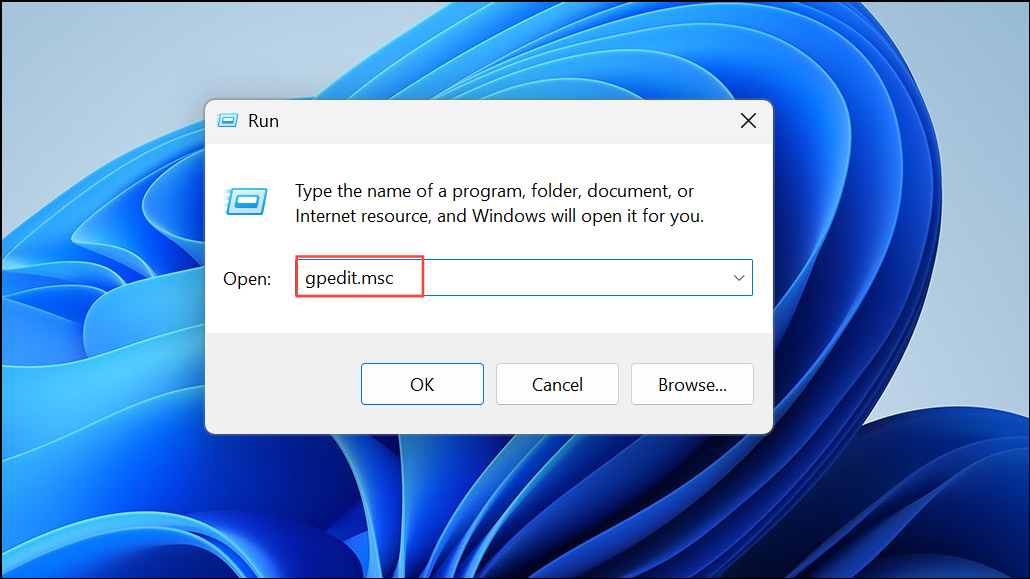
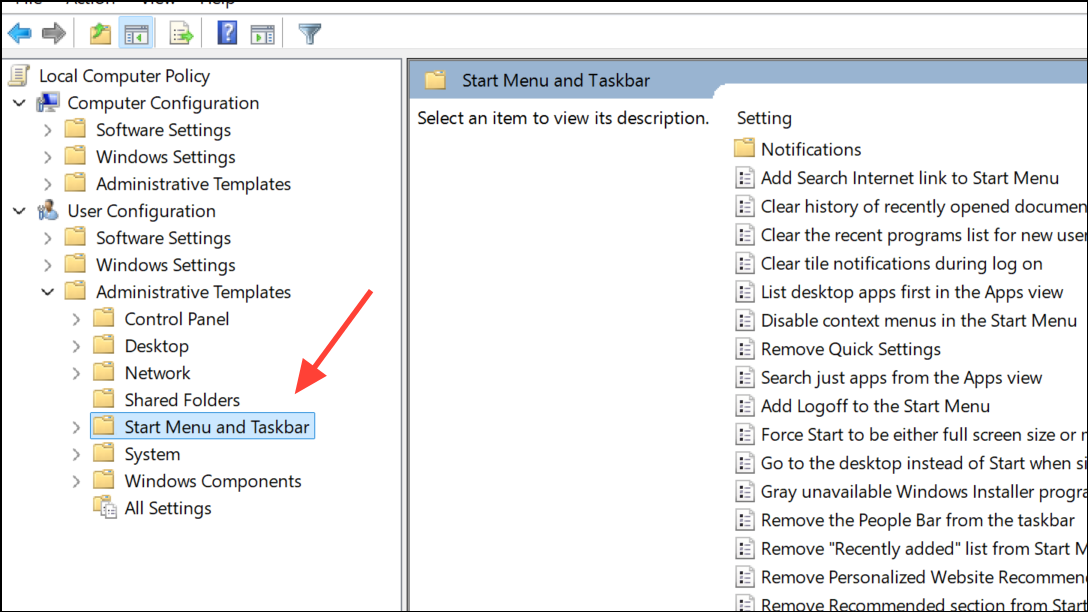
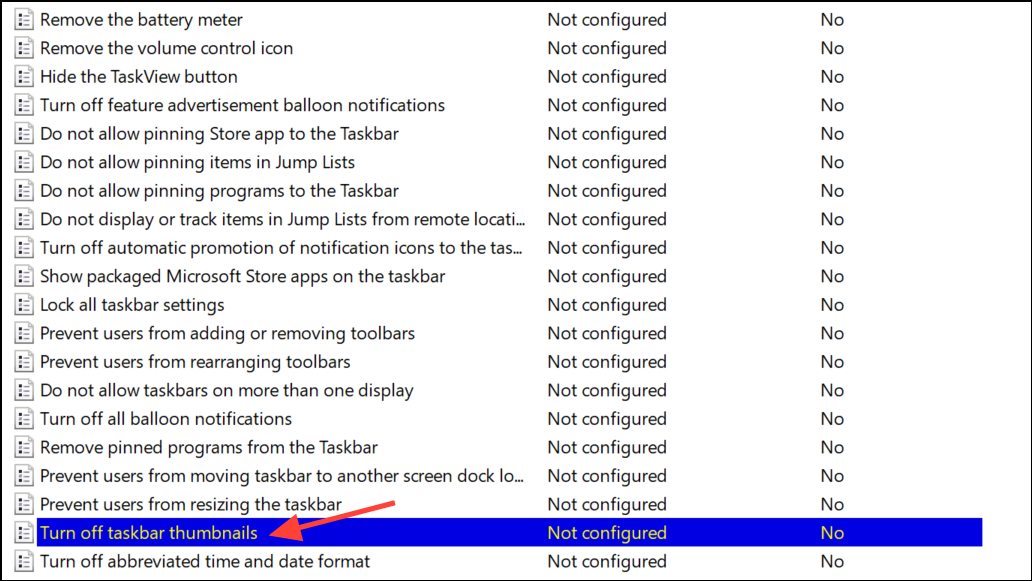
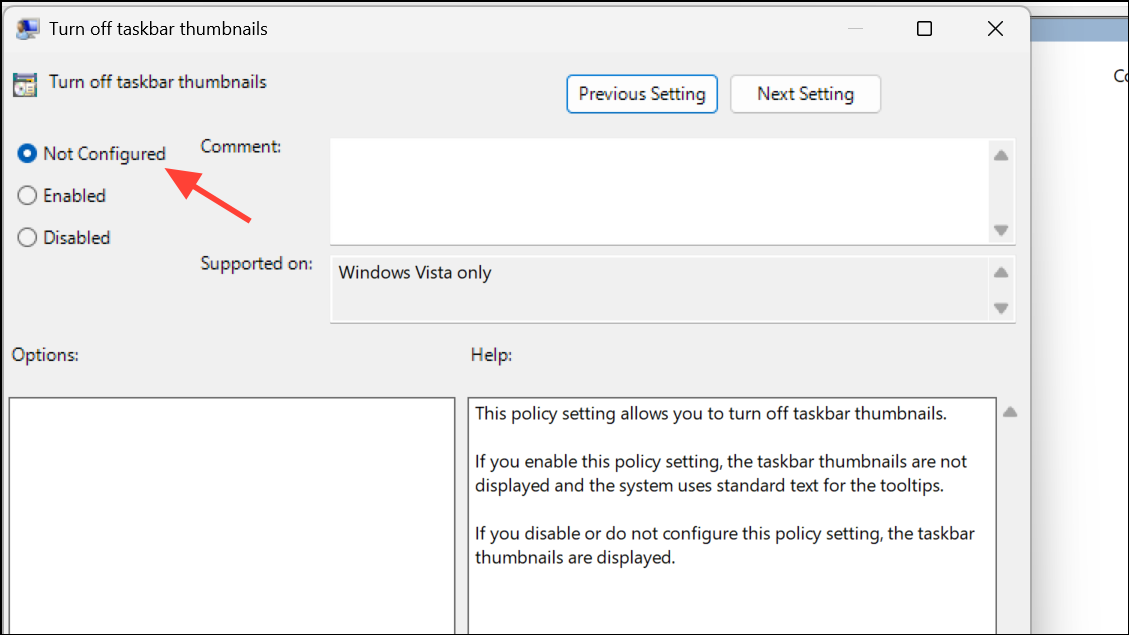
On Windows 11 Pro editions, Group Policy can override user settings and disable taskbar thumbnails. Ensuring the correct policy is set can restore previews if they are missing due to administrative restrictions.
Address Account-Specific or Update-Related Issues
Sometimes, taskbar thumbnail previews stop working only for a specific user account or after a recent Windows update. If previews work on other accounts but not your main one, the user profile may be corrupted. Creating a new local account and transferring your data can resolve profile-specific problems. For recent update-related bugs, check Windows Update for patches, and consider providing feedback to Microsoft via the Feedback Hub if the issue persists after updates.
If you use third-party customization tools (like ExplorerPatcher, Winaero Tweaker, or taskbar-moving utilities), disable them temporarily to see if they affect thumbnail behavior. Some users report that moving the taskbar to the top or using registry hacks can break previews, especially after major Windows 11 updates.
Run System File Checker and DISM for System Corruption
Corrupted system files can interfere with taskbar functionality. Running System File Checker (sfc /scannow) and the Deployment Imaging Service and Management Tool (DISM /online /cleanup-image /restorehealth) can repair these files.
cmd, right-clicking it, and choosing Run as administrator.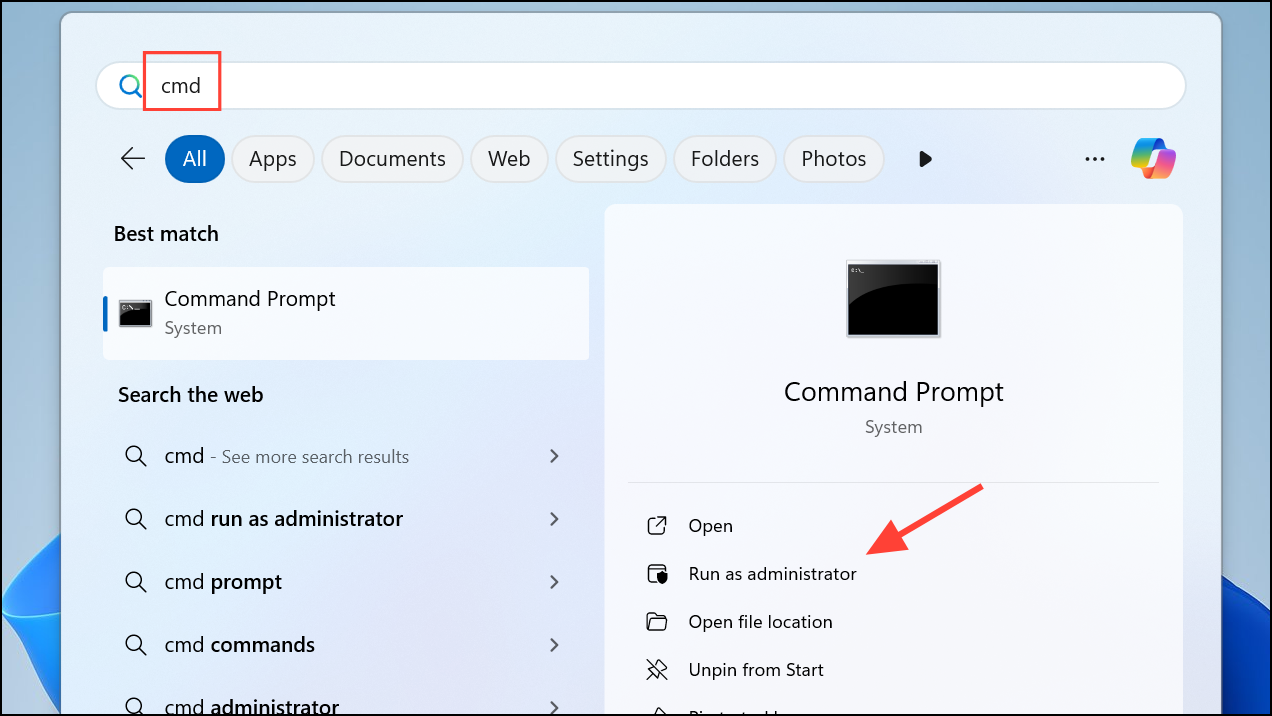
DISM /online /cleanup-image /restorehealth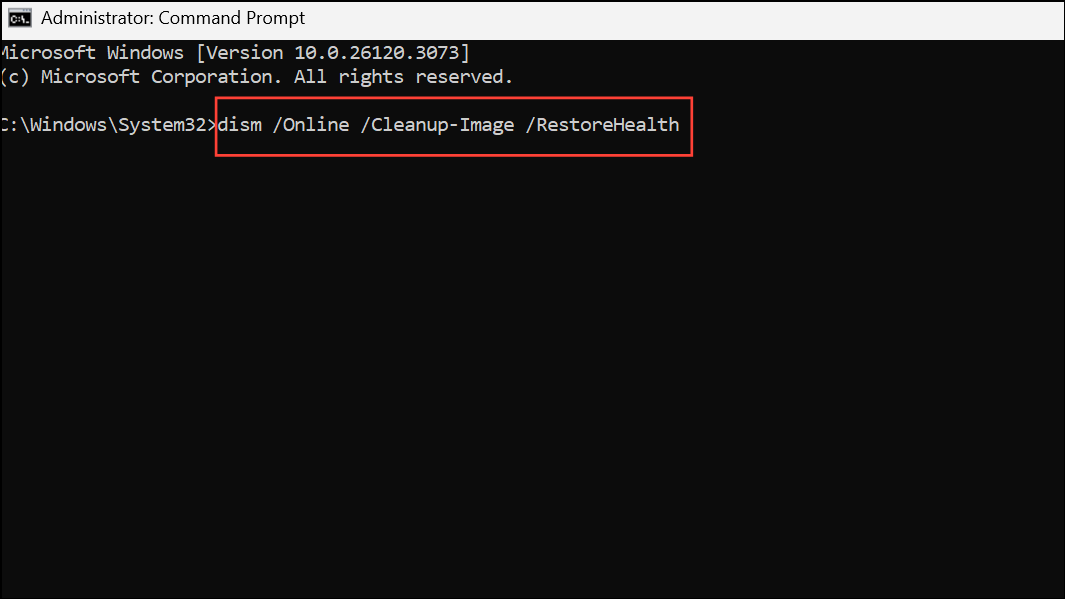
SFC /scannow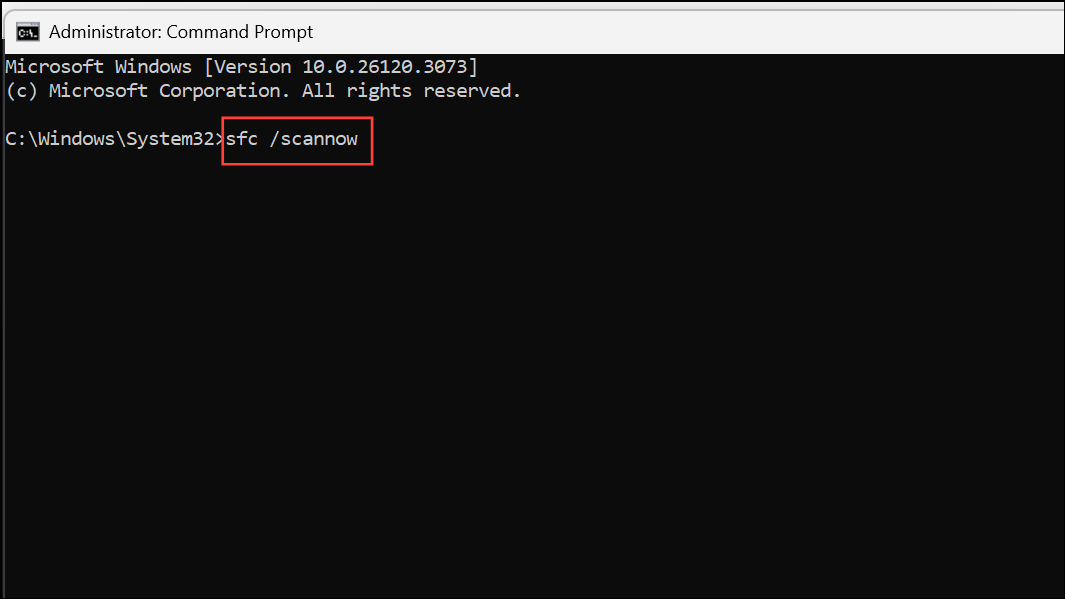
Try Workarounds for Known Windows 11 Bugs
Recent Windows 11 updates (such as 23H2 and 24H2 builds) have introduced bugs where taskbar thumbnails intermittently fail to appear or cannot be clicked. If standard fixes do not work, try these temporary workarounds:
- Click the taskbar icon again to prompt the preview to show.
- Switch to a different window, then return and hover again.
- Use a utility like RefreshTaskbarThumbnails to force-refresh previews if they become blank or disappear after minimizing windows.
- Check for updates regularly, as Microsoft is actively investigating and releasing hotfixes for these bugs.
Fixing missing taskbar thumbnail previews in Windows 11 usually requires reviewing system settings, registry values, and group policy. If the issue persists after these steps, keep your system updated and watch for new patches, as some problems are linked to recent Windows updates and may require official fixes.



