

Photos app and Microsoft Store failures in Windows 11 frequently trace back to file system error (-2147219195), which blocks access to images and prevents certain apps from launching. This error is often linked to corrupted system files, misconfigured services, or issues within the Photos app itself. Addressing the root causes not only restores app functionality but also stabilizes your system for regular use.
Repair Windows System Files and Image
Start button and selecting Windows PowerShell (Admin) or Command Prompt (Admin). This ensures you have the permissions required for system-level repairs.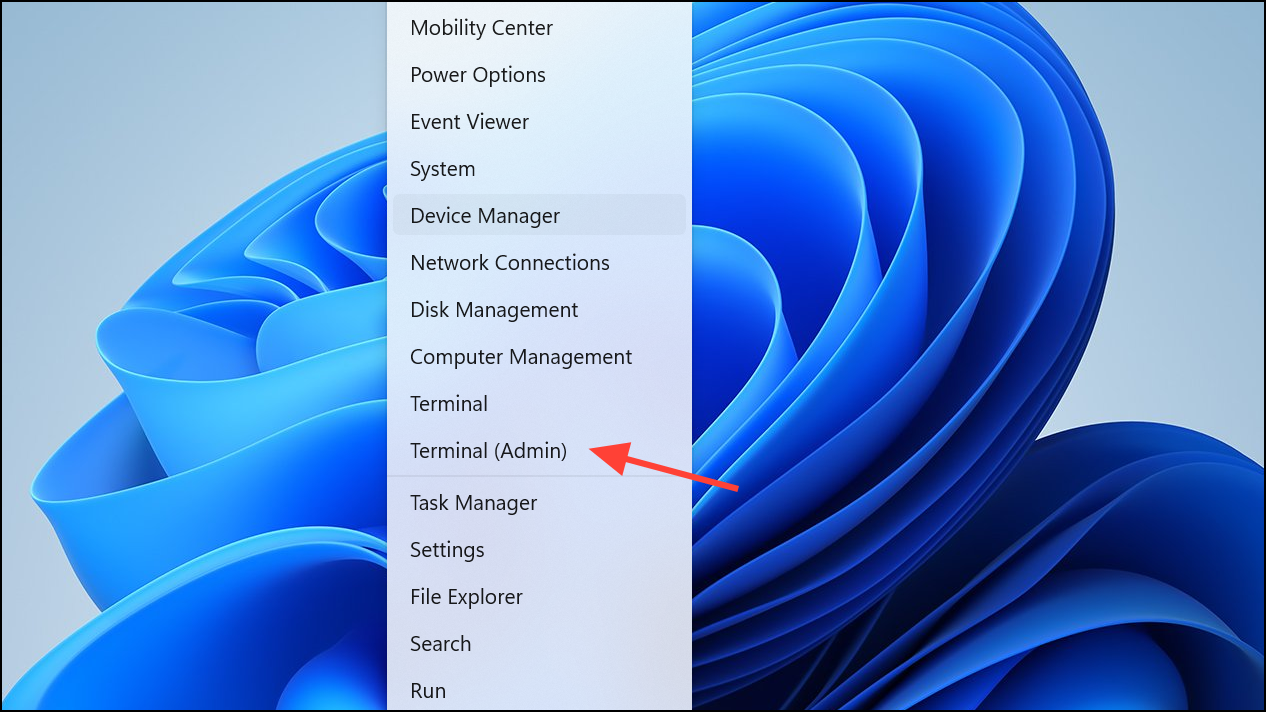
sfc /scannow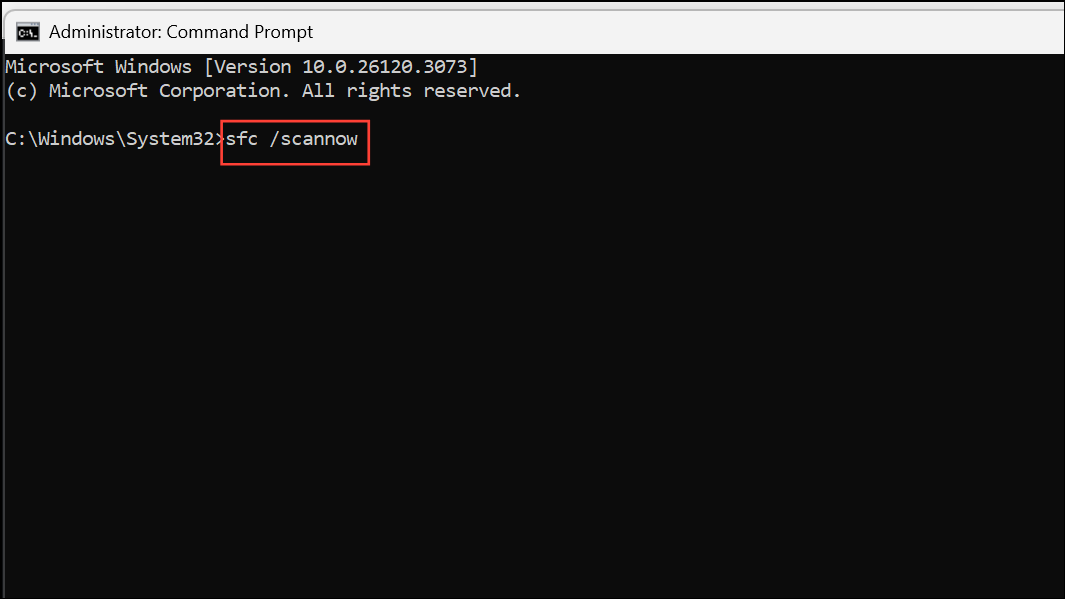
This process may take several minutes. It checks for damaged or missing system files and automatically repairs them where possible.
Dism /Online /Cleanup-Image /ScanHealth
Dism /Online /Cleanup-Image /CheckHealth
Dism /Online /Cleanup-Image /RestoreHealth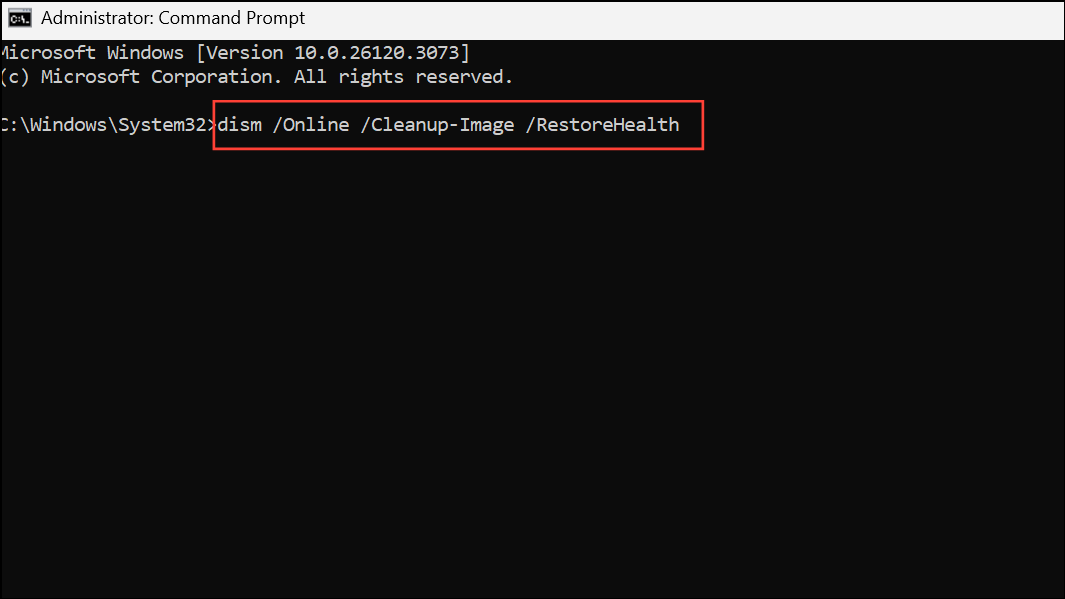
DISM connects to Microsoft’s servers to repair deeper issues in the system image that SFC cannot address. After completion, restart your computer and check if the error persists.
Check and Repair Disk Errors
chkdsk c: /f /r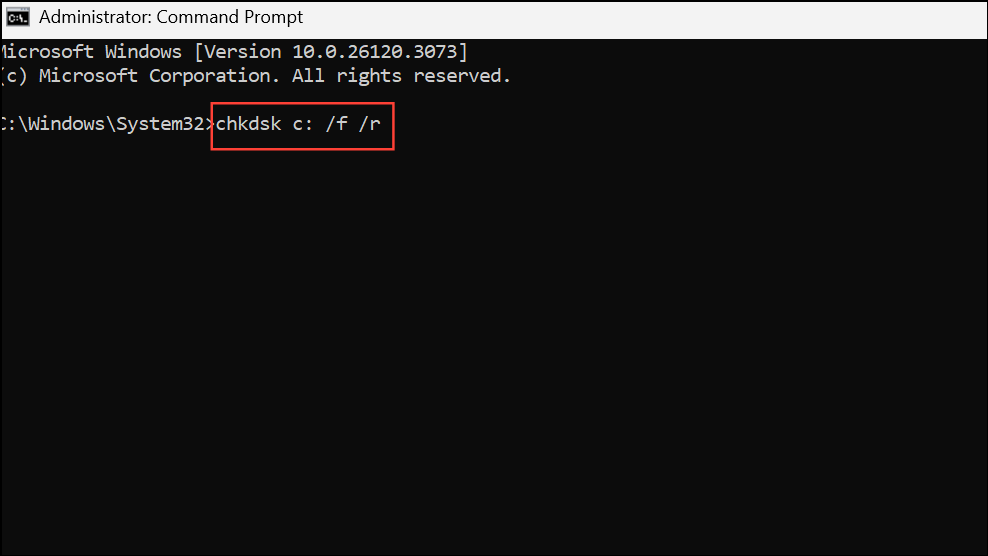
If prompted, confirm that the scan should run on the next reboot. Restart your PC. This process scans your disk for bad sectors and repairs them, which can resolve file system errors caused by disk issues.
Repair or Reset the Photos App
Settings using Win + I. Navigate to Apps and select Installed apps or Apps & features depending on your build.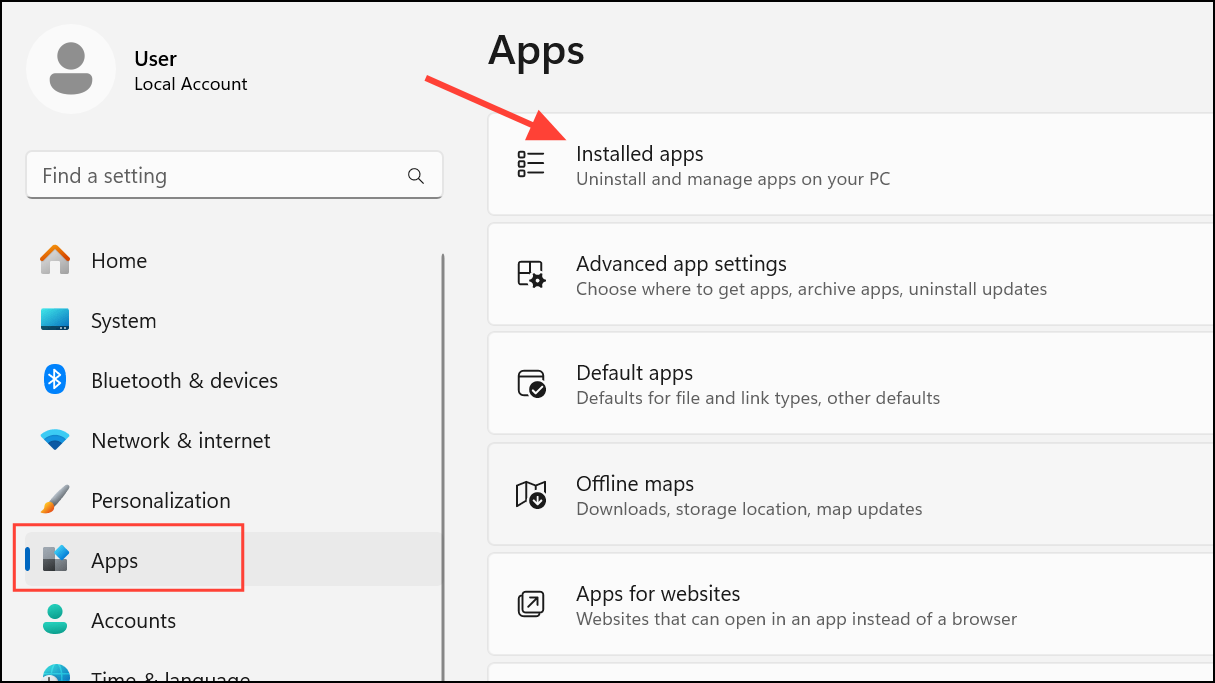
Repair to attempt a non-destructive fix. If problems continue, click Reset. Resetting may remove app data but often resolves persistent glitches.Reinstall the Photos App Using PowerShell
If repairing and resetting do not resolve the issue, a full reinstall can help.
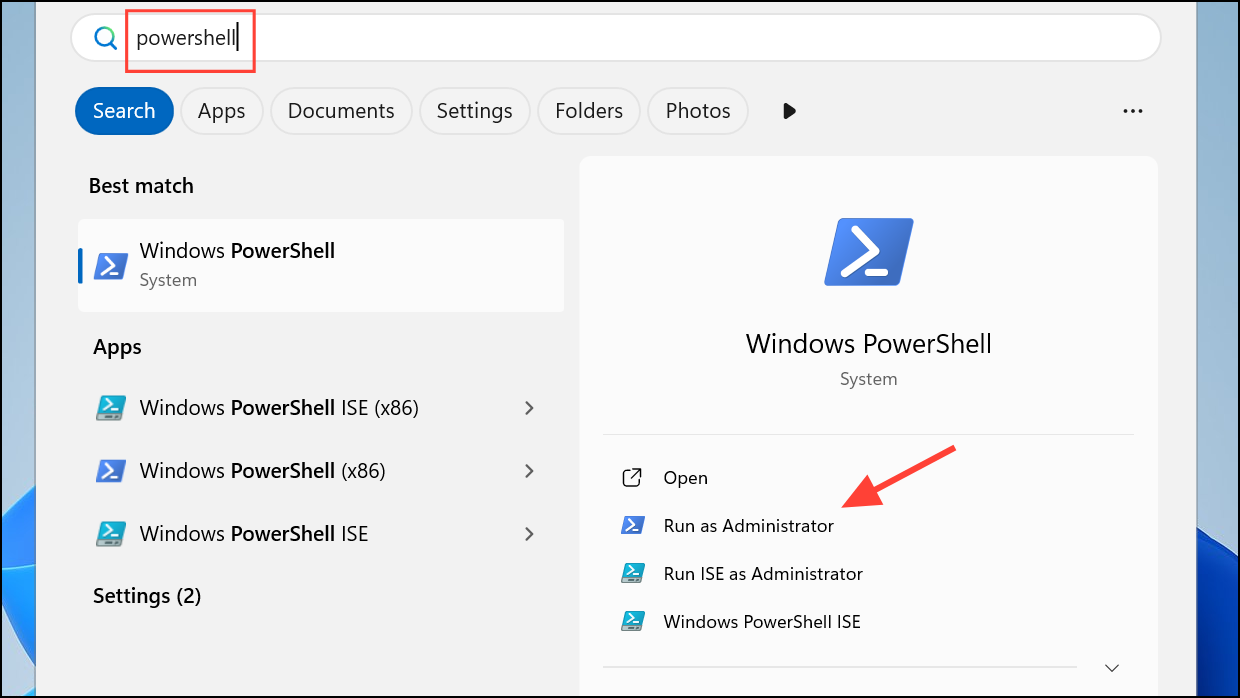
Get-AppxPackage *photo* | Remove-AppxPackage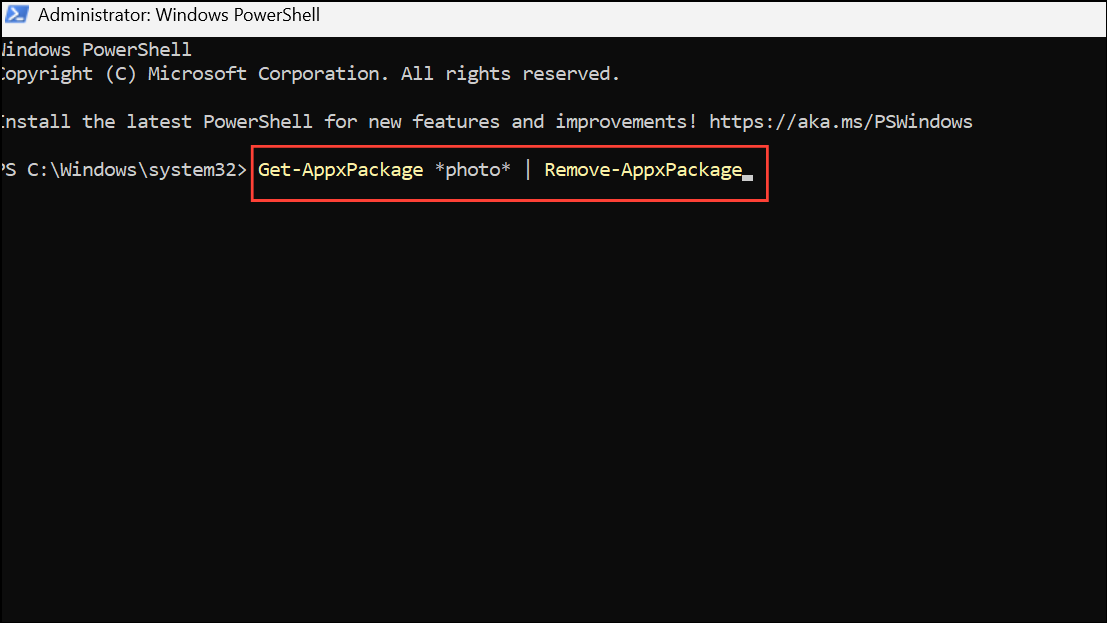
Microsoft Photos, and reinstall it. This process replaces corrupted app files with fresh ones from the Store.Configure Windows License Manager Service
Improper service configuration can trigger file system errors. Ensuring the Windows License Manager Service is set to start automatically helps prevent such issues.
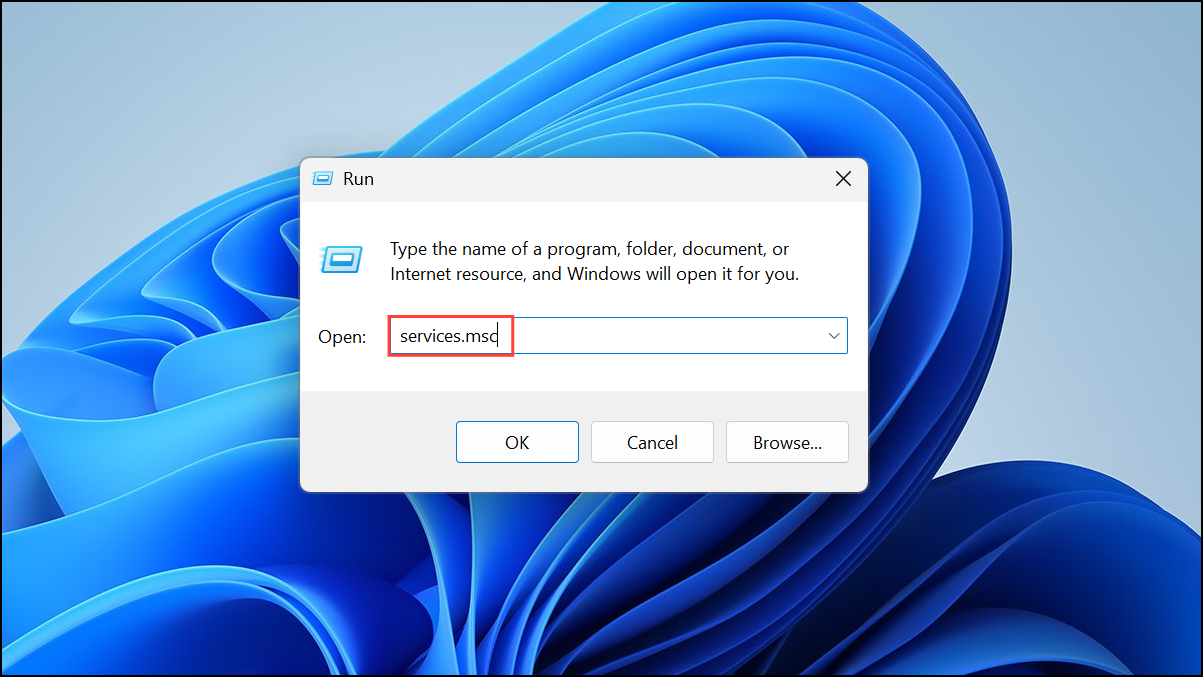
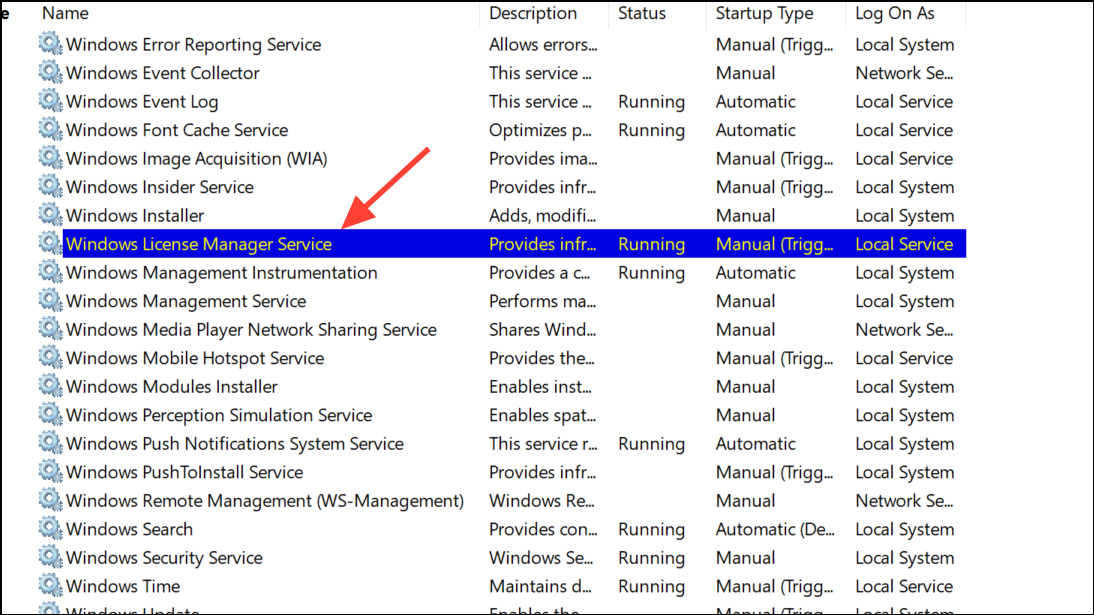
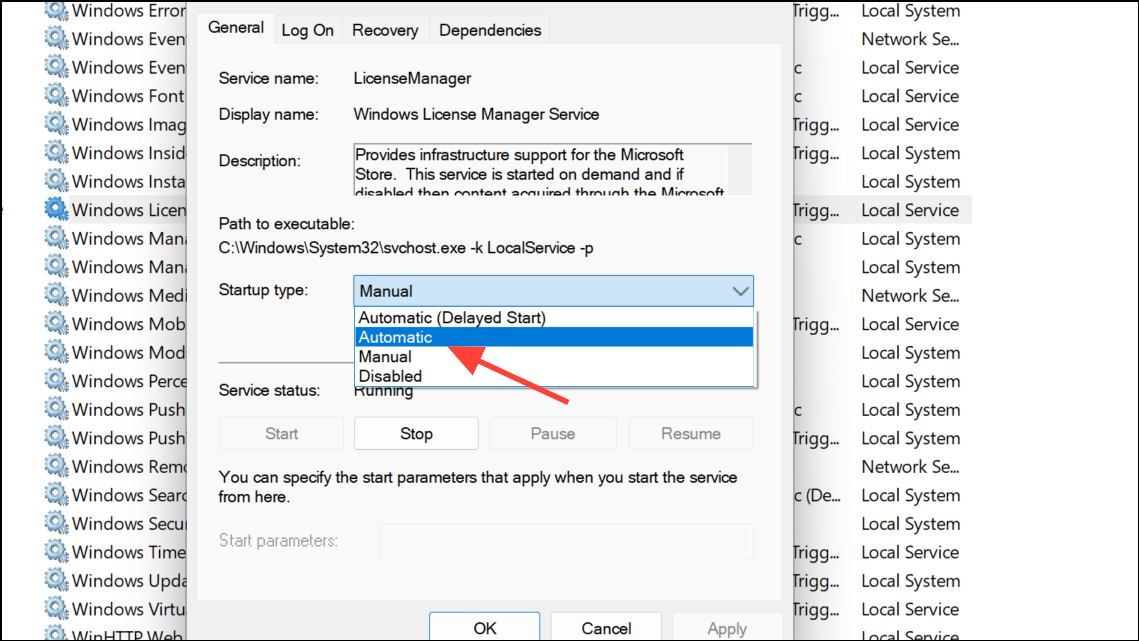
Run the Windows Store Apps Troubleshooter
Built-in troubleshooters can detect and resolve app-related issues without manual intervention.
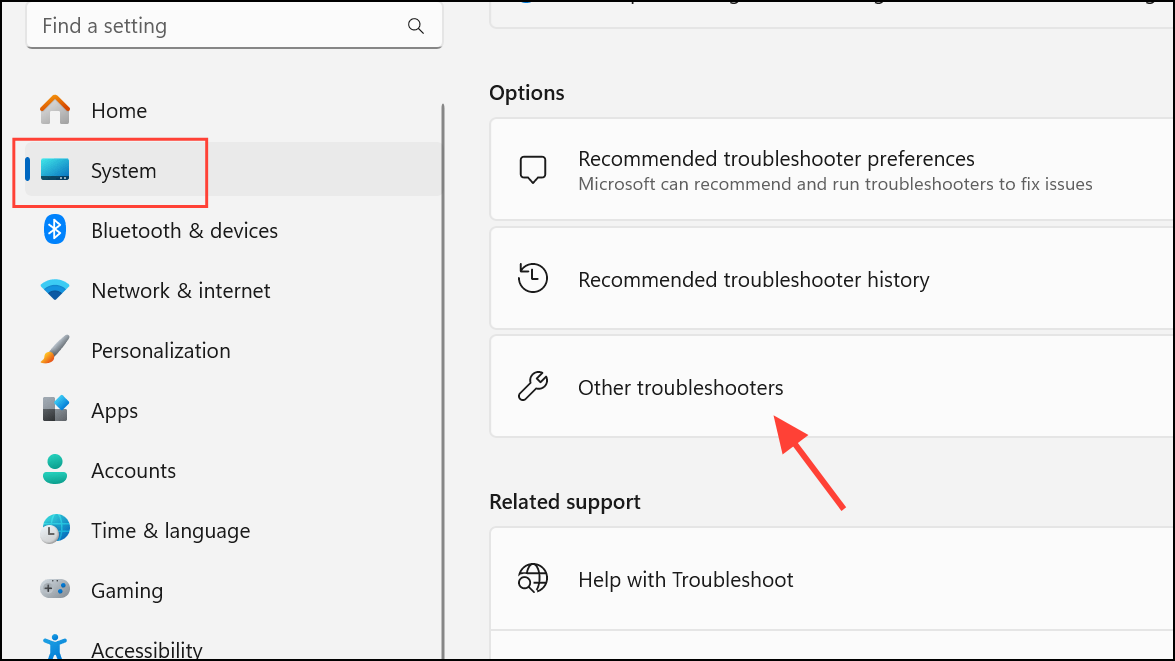
Windows Store Apps and click Run. Follow the on-screen steps. The troubleshooter will attempt to identify and fix problems blocking app launches.Perform an In-Place Upgrade (Repair Install)
If none of the above approaches resolve the error, an in-place upgrade repairs all Windows files, services, and registry entries while keeping your apps and data intact.
Upgrade this PC now.Keep personal files and apps. This preserves your data and installed programs while replacing corrupted system files.Addressing file system error (-2147219195) in Windows 11 often restores access to the Photos app and Store, with most users seeing results after repairing system files or reinstalling affected apps. If issues persist, a repair install provides a comprehensive fix without erasing your data.



