

Repeated keystrokes—where your Windows 11 PC types the same letter or symbol over and over without your input—can disrupt writing, password entry, and even simple navigation tasks. This issue may stem from hardware faults, misconfigured system settings, outdated drivers, or software glitches. Addressing the correct root cause restores normal typing and prevents further frustration.
Check for Hardware Issues First
Keyboards can malfunction due to stuck keys, internal faults, or debris lodged beneath the keys. Hardware faults often result in specific keys repeating, while software-related issues may cause random or widespread duplication.
Update or Reinstall Keyboard Drivers
Software issues often arise from outdated, corrupt, or incompatible keyboard drivers. Updating or reinstalling the driver can resolve communication errors between Windows 11 and your keyboard hardware.
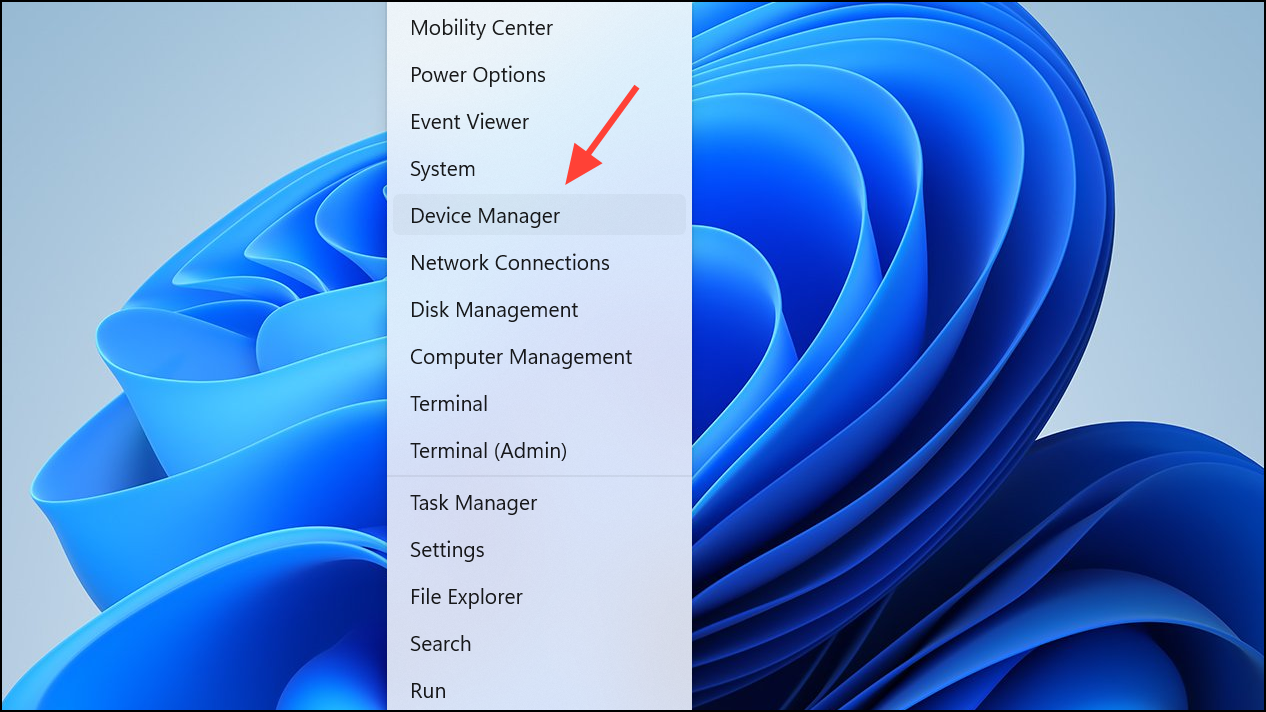
Keyboards section. Right-click your keyboard device and select Update driver to search for new drivers automatically. If no update is found, choose Uninstall device instead.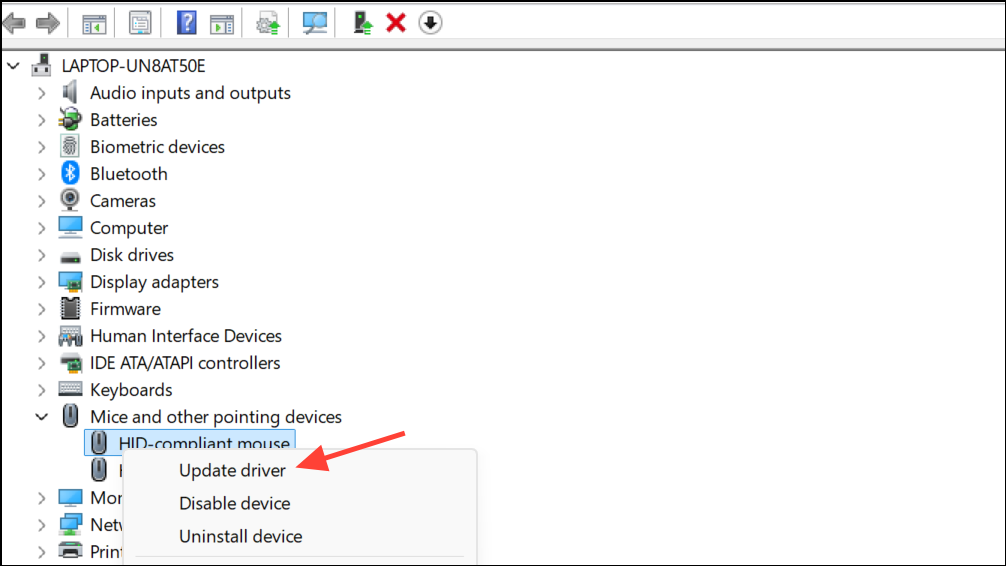
Adjust Keyboard Settings in Windows 11
Incorrect keyboard repeat rate or delay settings can cause characters to appear multiple times with a single press. Adjusting these settings can reduce or eliminate accidental repeats.
Windows + I to open Settings. Navigate to Time & Language and select Typing or search for Keyboard in the search bar.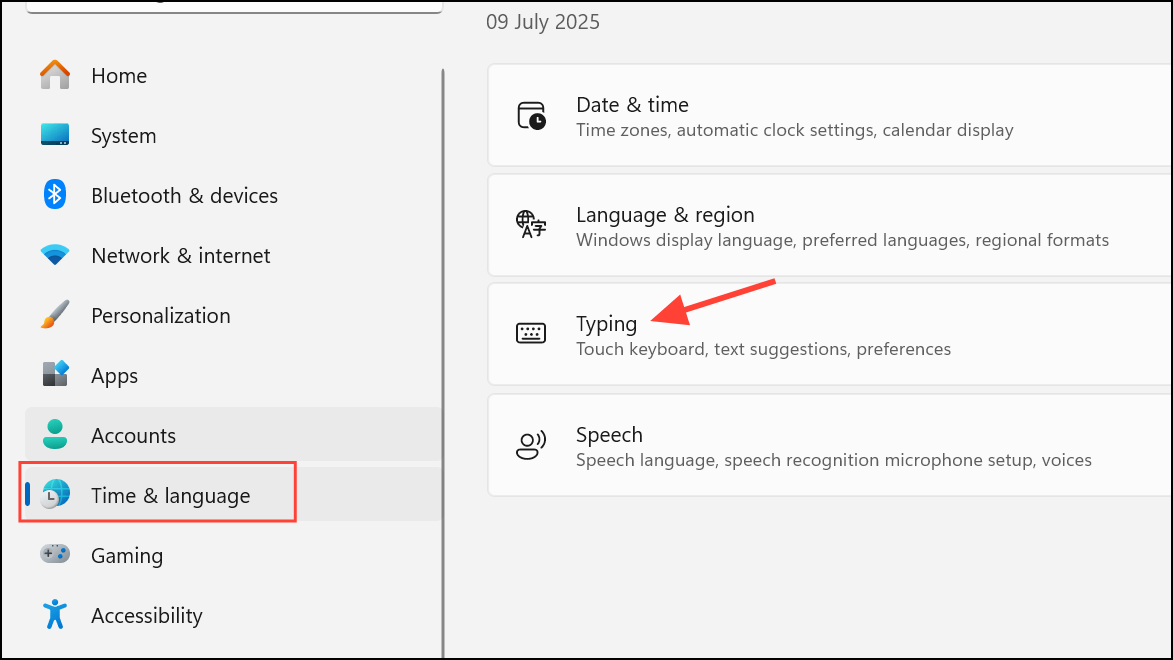
Advanced keyboard settings or Keyboard Properties. Adjust the Repeat delay slider to a longer delay, and set the Repeat rate to a slower speed. Click OK to save changes.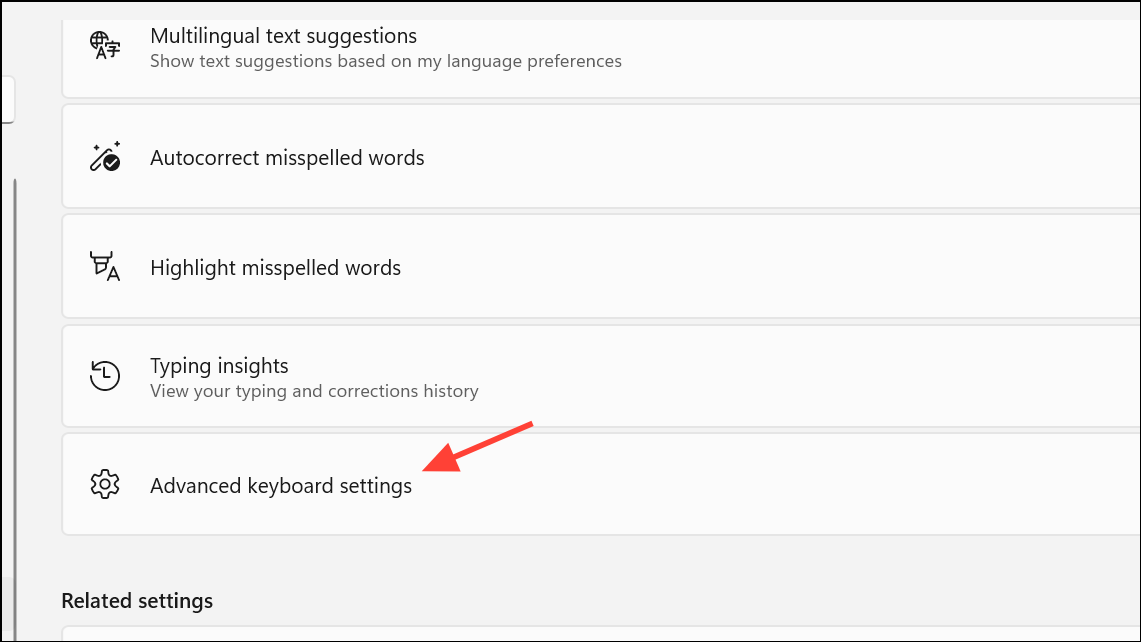
Run the Keyboard Troubleshooter
Windows 11 includes built-in troubleshooting tools to automatically detect and fix keyboard-related problems.
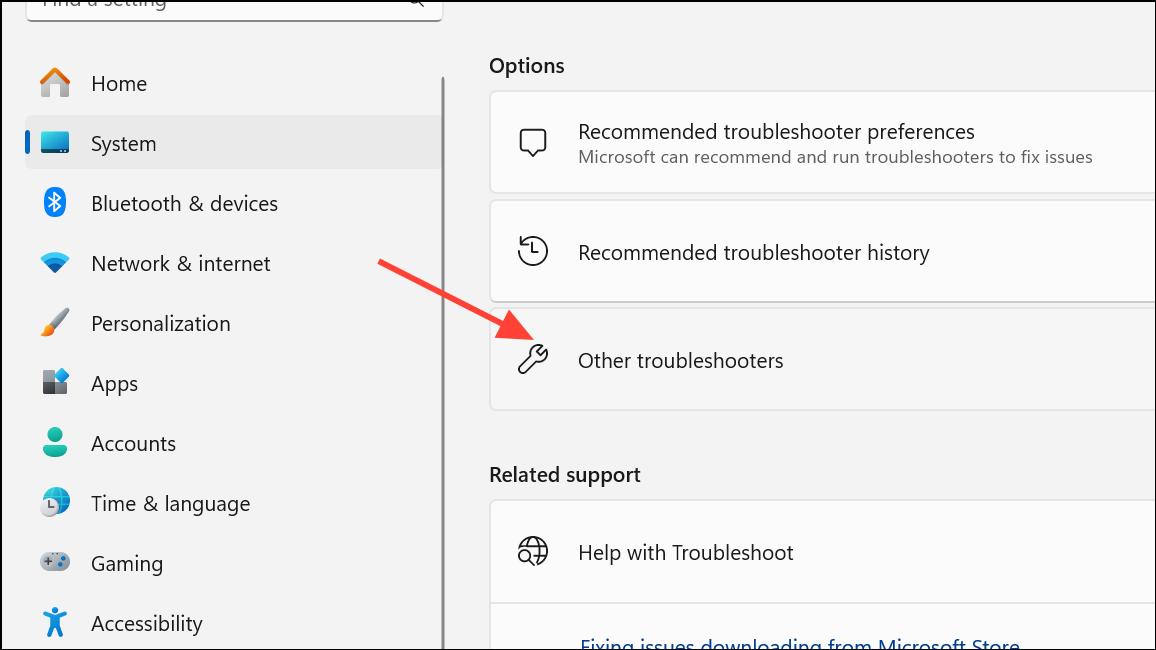
Keyboard in the list and click Run. Follow on-screen instructions. The troubleshooter will scan for issues and offer fixes such as resetting settings or repairing drivers.Update Windows 11 to the Latest Version
Some character repetition bugs are linked to specific Windows 11 builds. Installing the latest updates can resolve these issues, especially if they are known bugs in earlier versions.
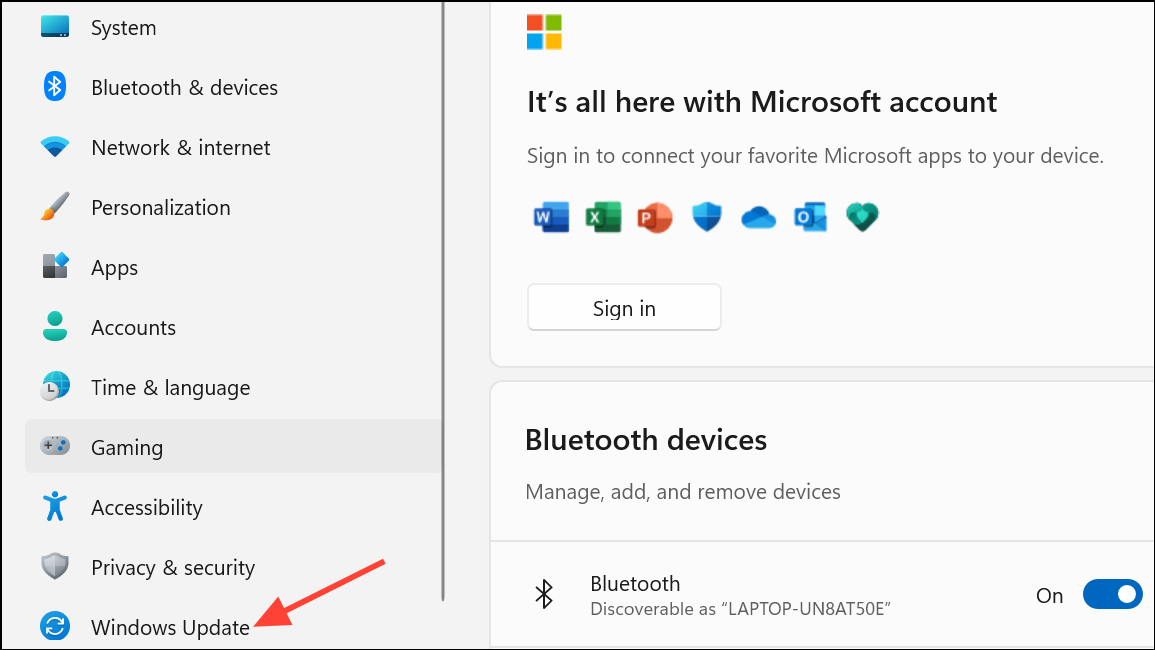
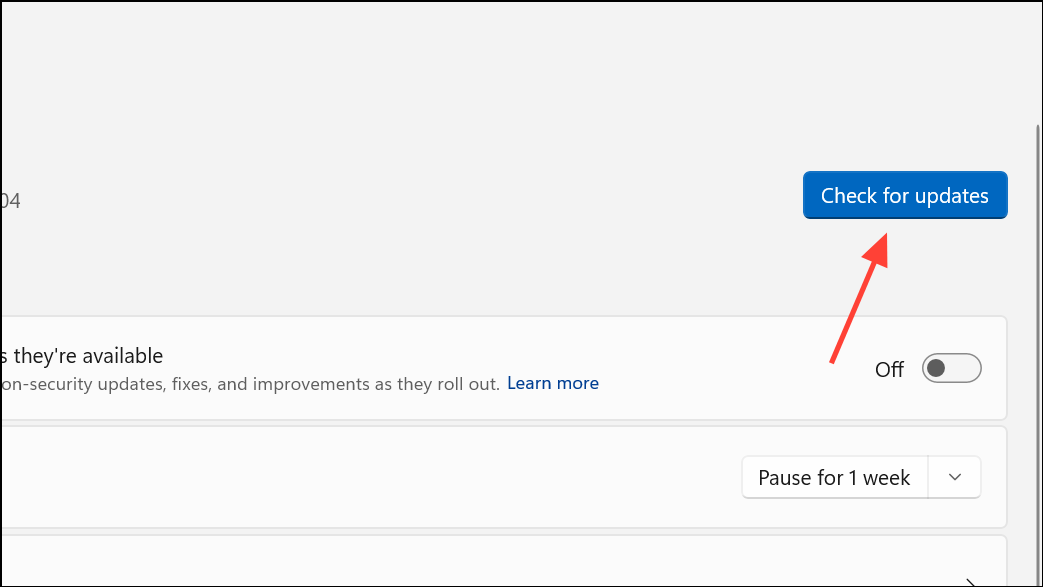
Scan for Malware and System Corruption
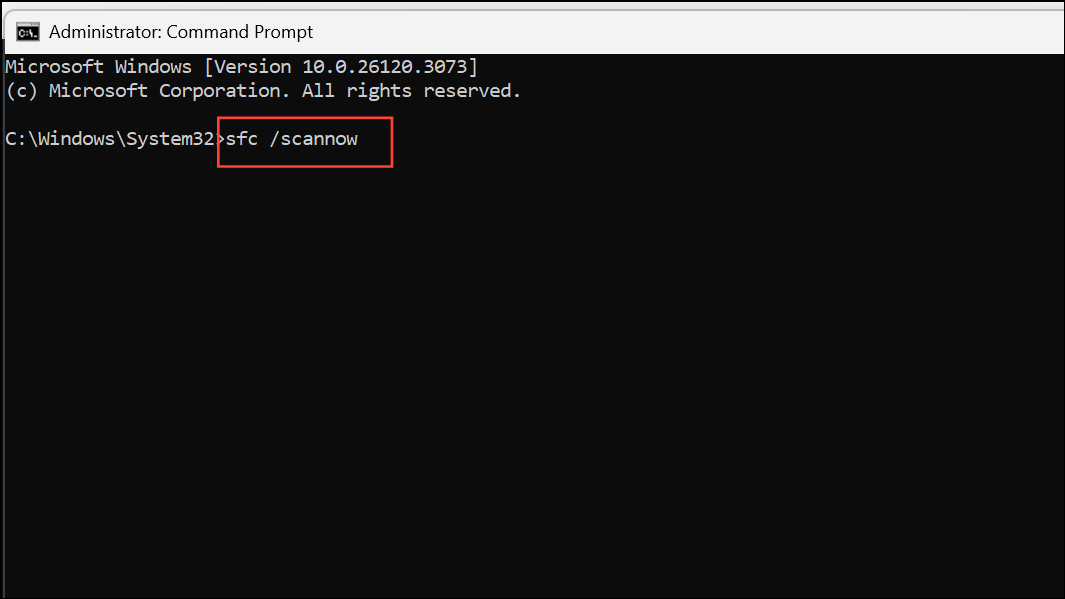
Malicious software or corrupted system files can interfere with keyboard input, causing repeated or random typing. Running a security scan and system file check can identify and resolve these problems.
Windows Security from the Start menu. Select Virus & threat protection and run a Quick scan to check for malware.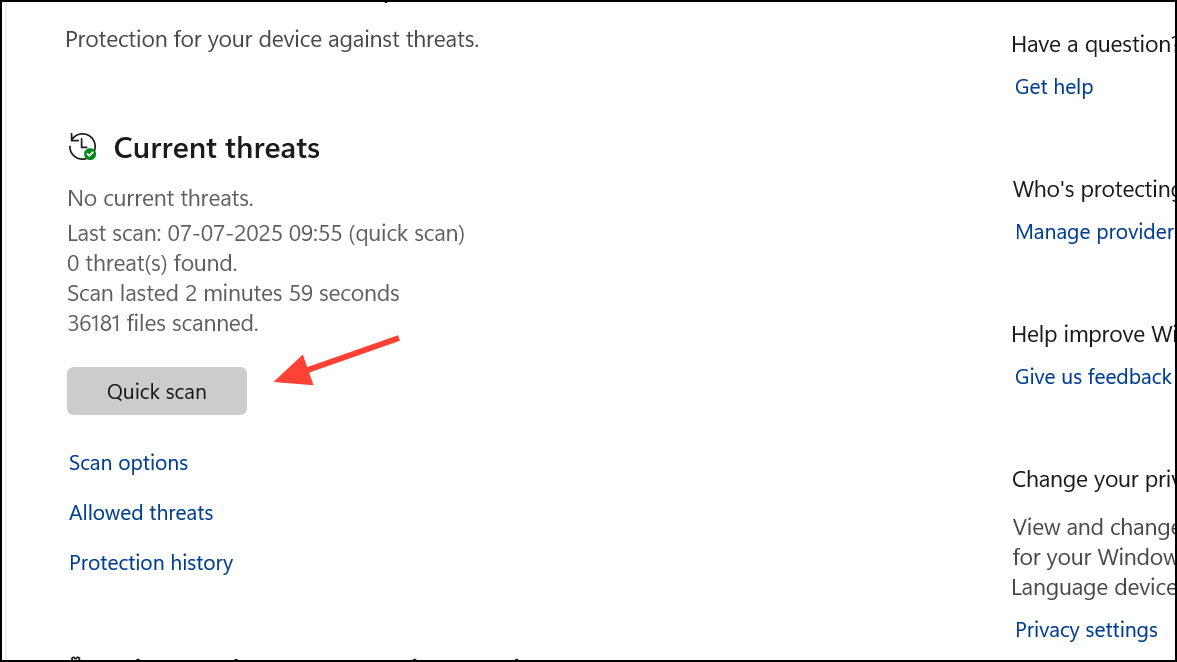
sfc /scannow
This command scans and repairs system files. Restart your computer after the scan completes.
Additional Tips and Considerations
- Try a system restore to a date before the issue began if you suspect recent changes or updates triggered the problem.
- If you use third-party keyboard software or custom layouts, temporarily disable or uninstall them to rule out conflicts.
- For persistent hardware faults on laptops, contact the manufacturer or authorized service provider, especially if the device is under warranty.
- When multiple keyboards (internal and external) show the same problem, consider a deeper system issue or possible motherboard fault.
Addressing repeated keystrokes on Windows 11 often comes down to targeted troubleshooting—starting with hardware checks and moving through driver updates, system settings, and software repairs. Once the underlying issue is fixed, normal typing speed and accuracy should return without further interruptions.



