Resolve the “Operation could not be completed” 0x000003e3 printer error in Windows 11 by updating drivers, resetting print spooler, and addressing recent Windows updates.
Resolve the “Operation could not be completed” 0x000003e3 printer error in Windows 11 by updating drivers, resetting print spooler, and addressing recent Windows updates.
by Pallav Pathak
Printer connections can break down when Windows 11 throws the 0x000003e3 error, often displaying “The I/O operation has been aborted because of either a thread exit or an application request.” This problem frequently results from outdated drivers, corrupted print spooler services, or recent system updates. Addressing these factors restores reliable printing and prevents job failures across networked or shared printers.
Update or Reinstall the Printer Driver
Outdated or incompatible printer drivers are the primary cause of the 0x000003e3 error. Installing the latest manufacturer-recommended driver ensures compatibility with Windows 11 and fixes driver-related conflicts.
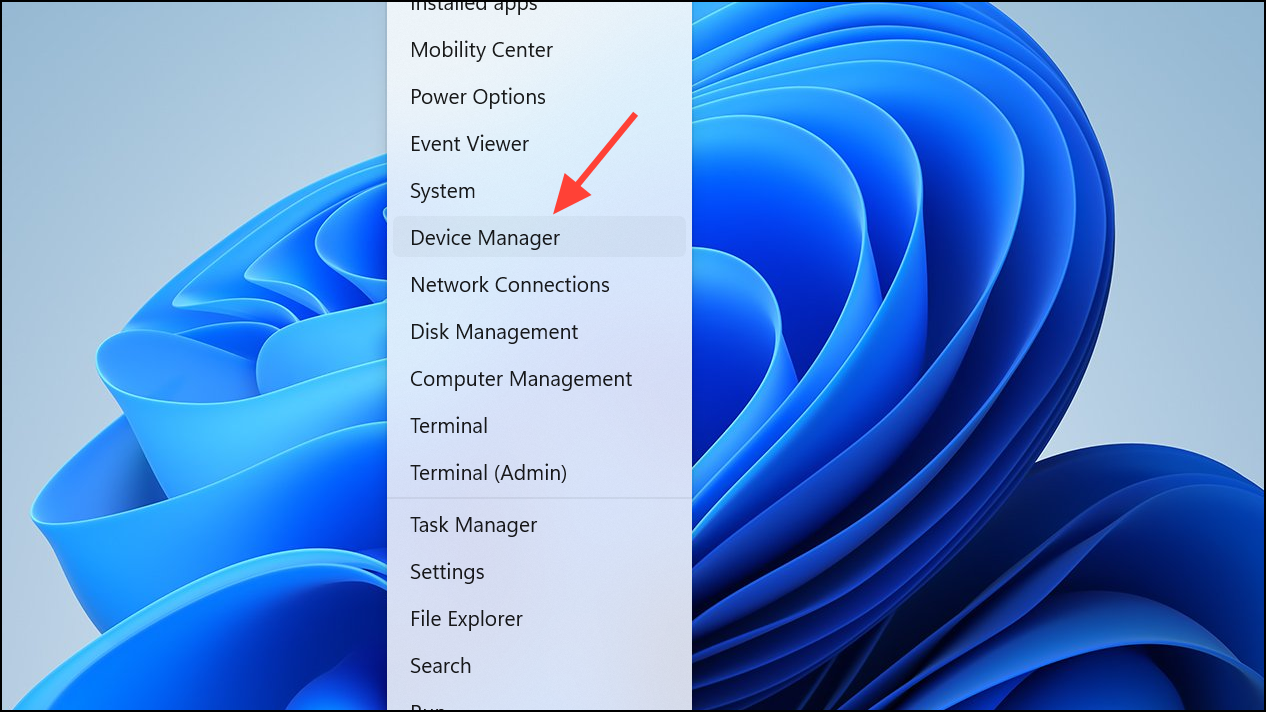
Press Windows + R to open the Run dialog, then enter devmgmt.msc to launch Device Manager. Alternatively, right-click the Start button and select Device Manager from the menu.
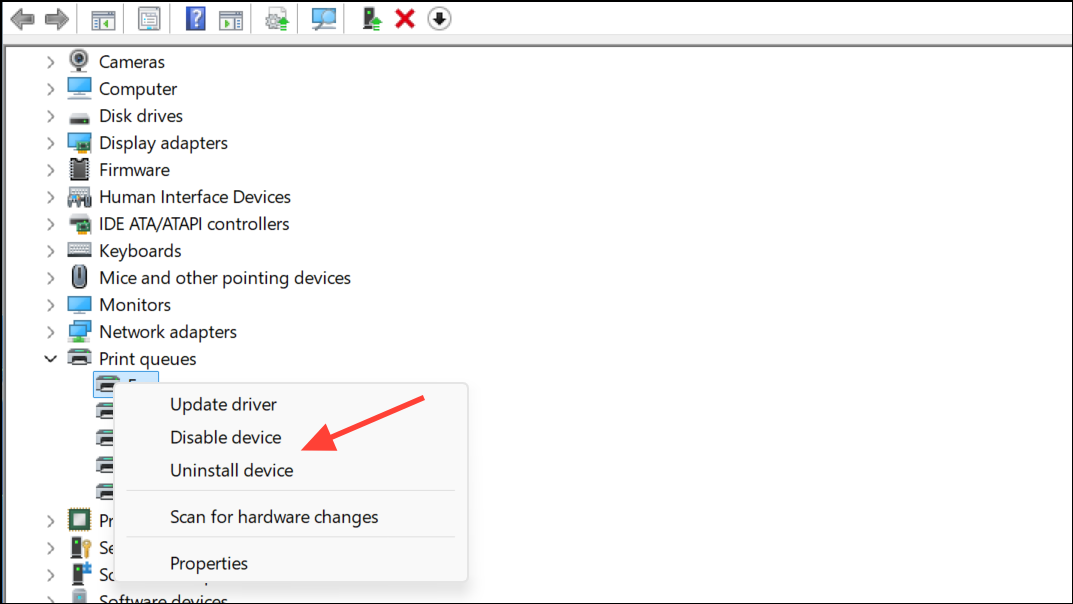
Expand the Printers section, right-click your printer, and select Uninstall device. Confirm any prompts to remove the device. The Printers section will only appear if you have a printer connected to your PC. You will see the Print queues section otherwise.
Reconnect your printer and run the driver installer you downloaded. Follow on-screen instructions to complete installation. Print a test page to verify the fix.
Reset the Print Spooler Service and Clear Print Jobs
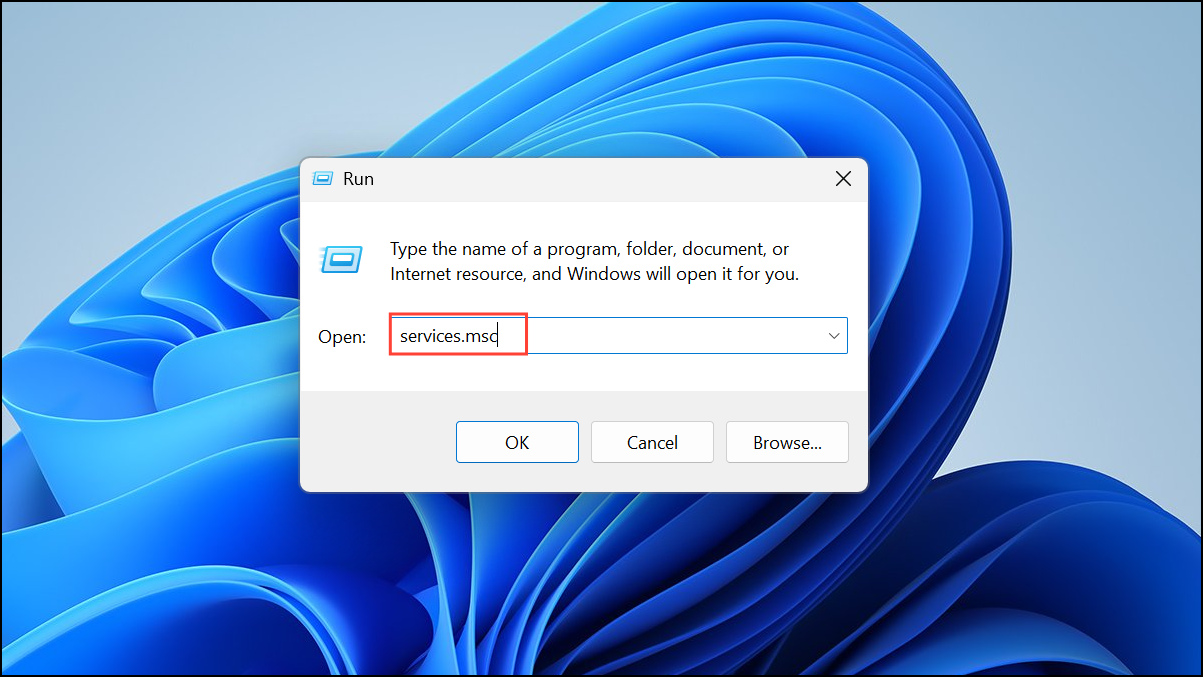
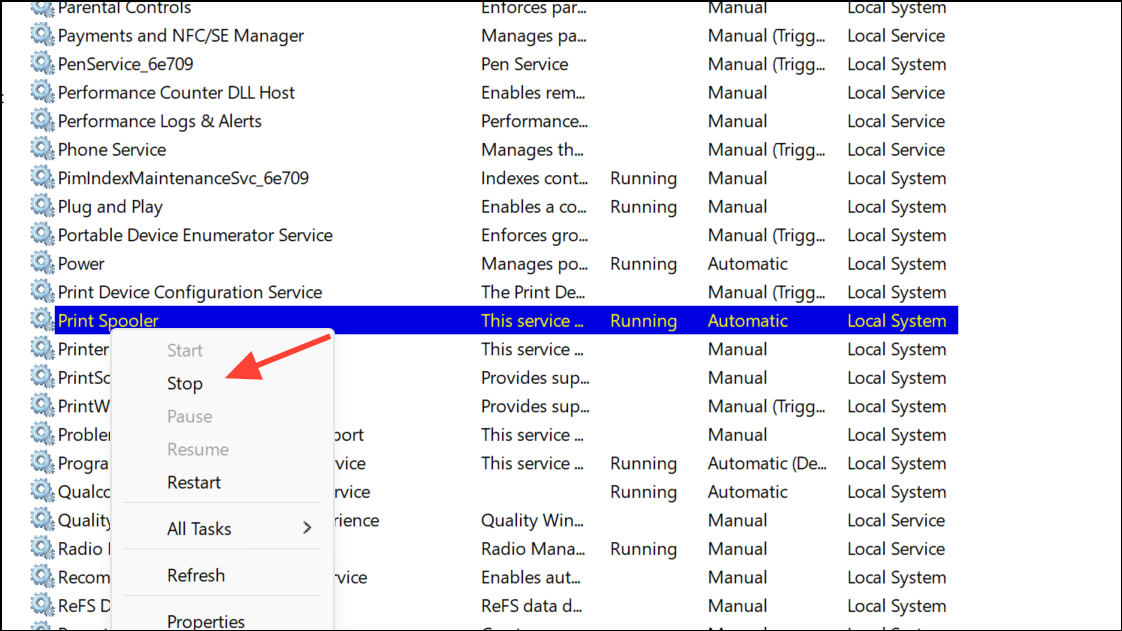
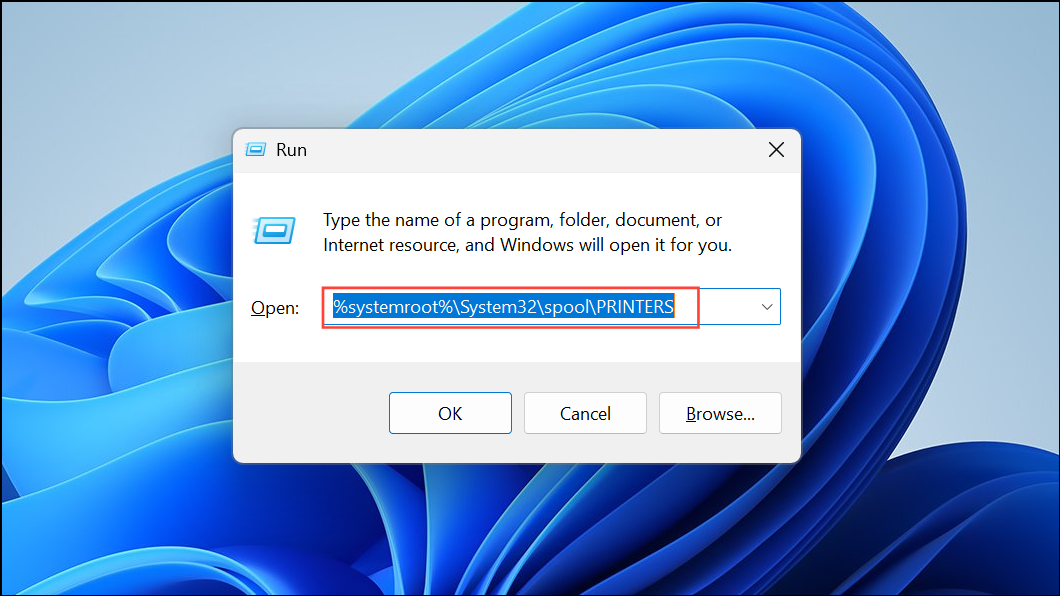
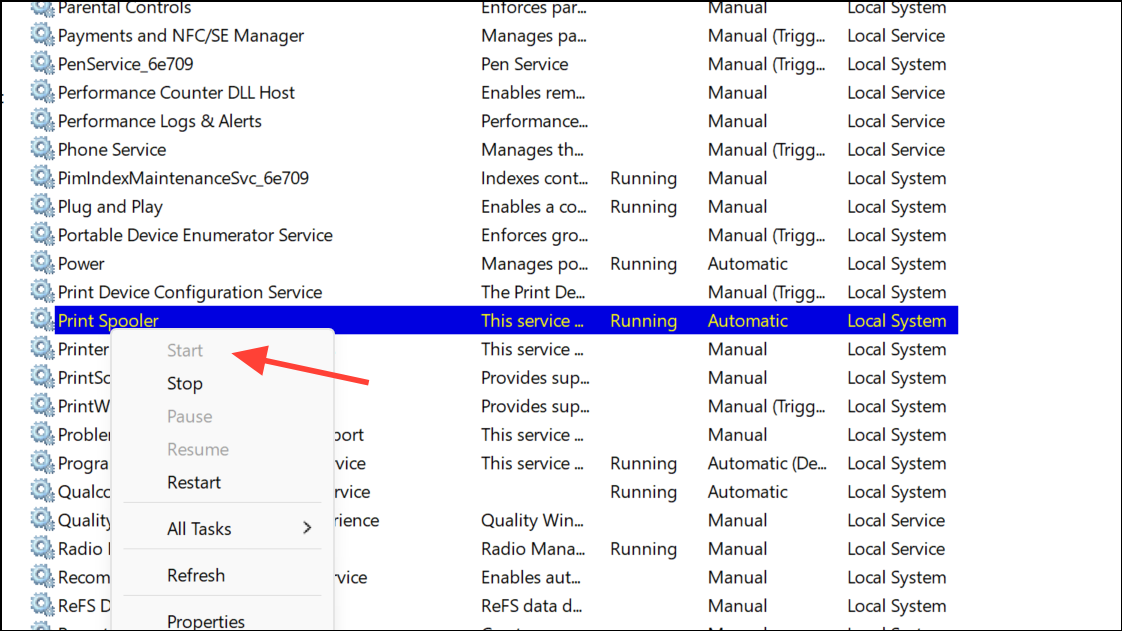
The Print Spooler service manages print jobs in Windows. Corruption or stuck jobs in this service can trigger error 0x000003e3. Restarting the service and clearing its queue often restores printing.
Try printing again to see if the error is resolved.
Run the Windows Printer Troubleshooter
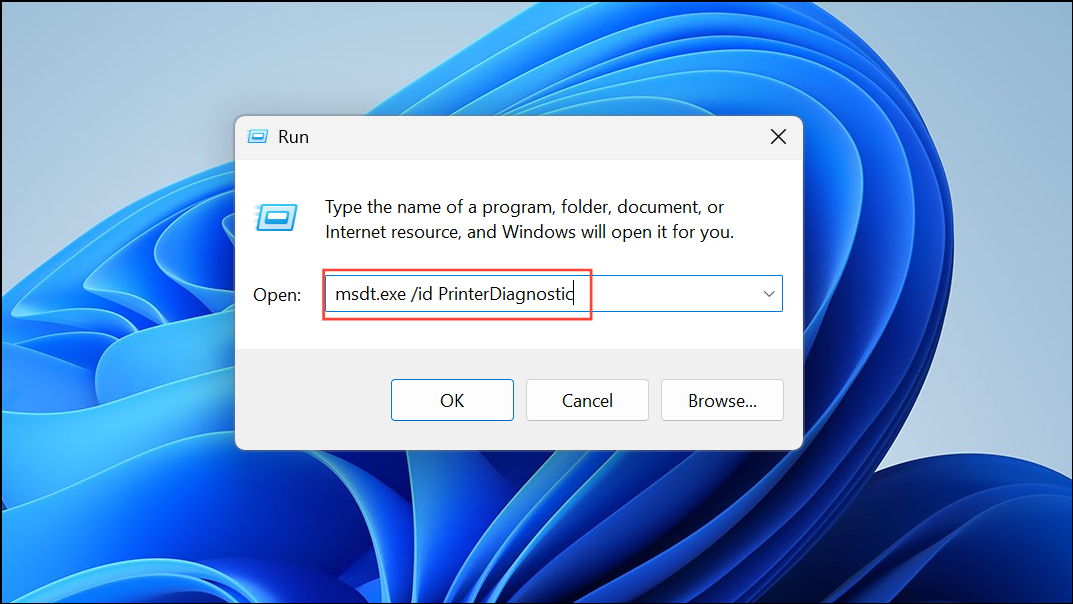
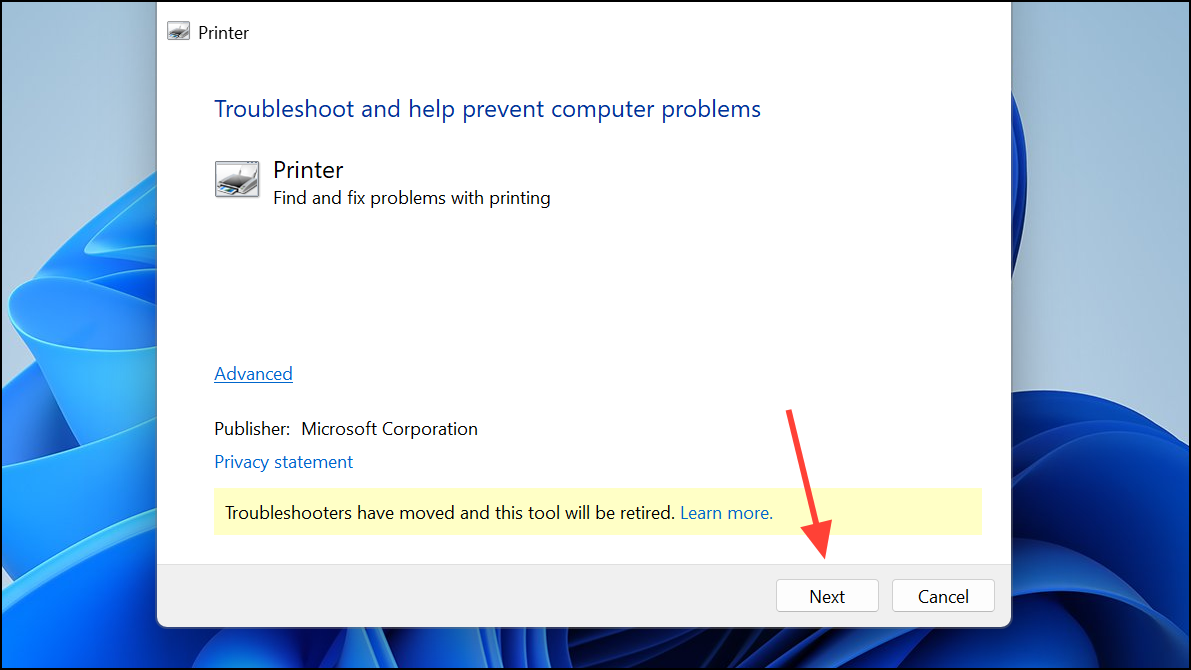
Windows 11 includes a built-in troubleshooting tool that automatically detects and repairs common printer issues, including service and connectivity problems.
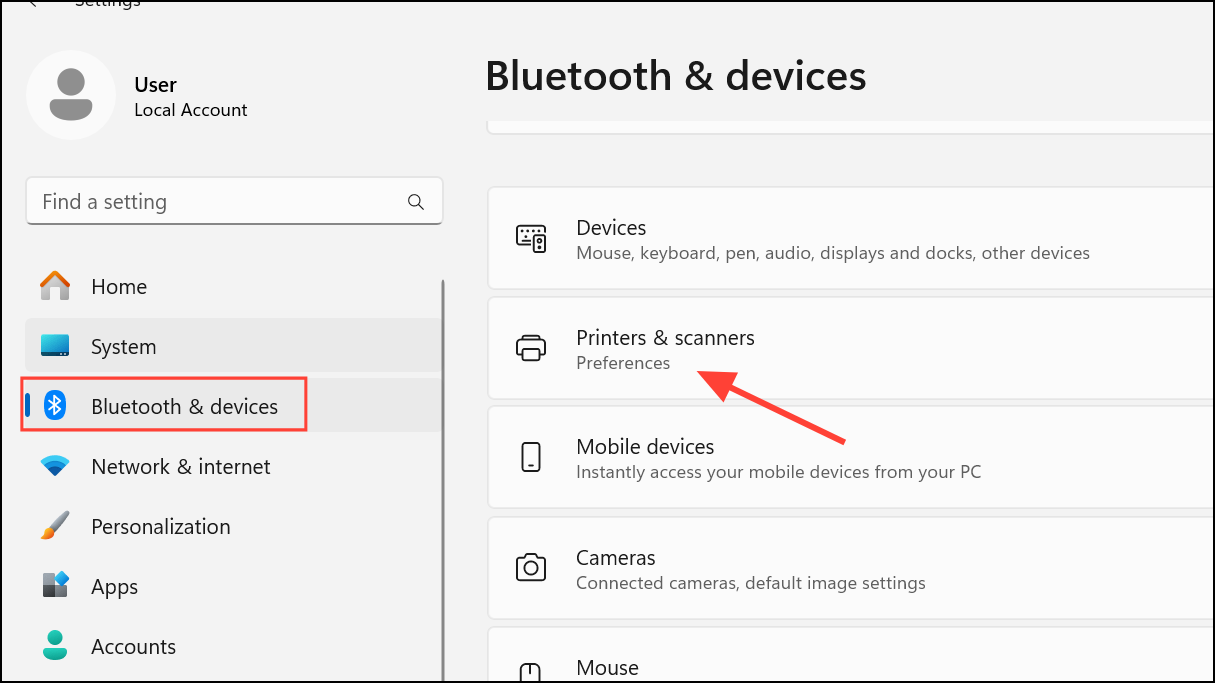
Return to Printers & scanners and click Add device. Select your printer from the detected devices and install it. Print a test page to confirm functionality.
Uninstall Recent Windows Updates
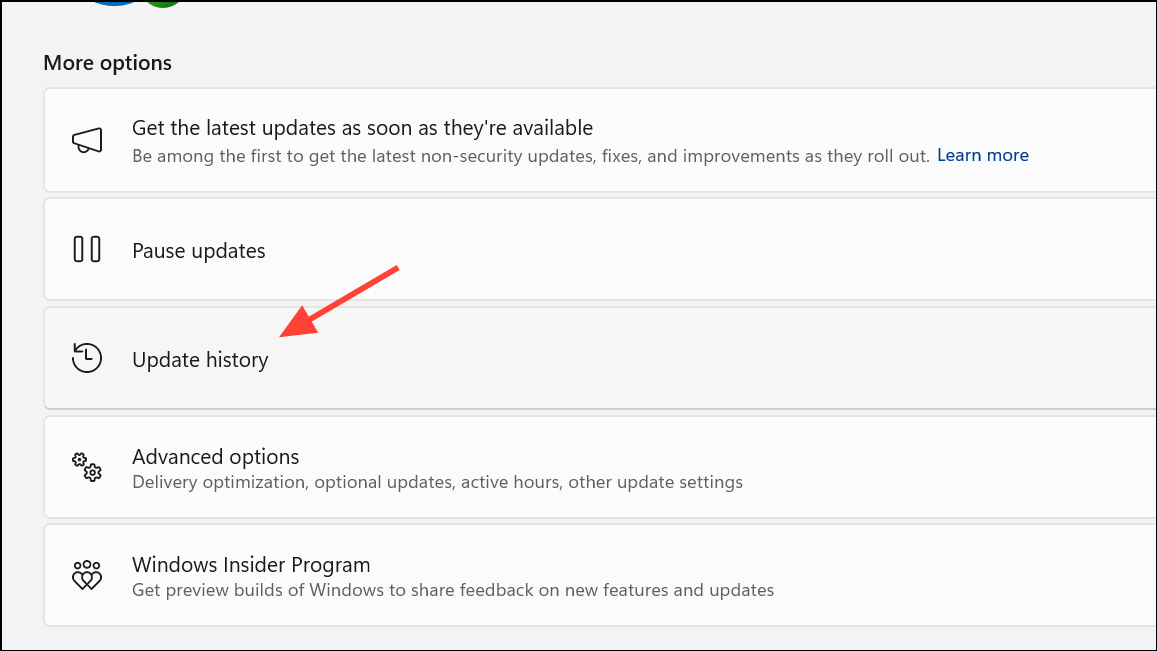
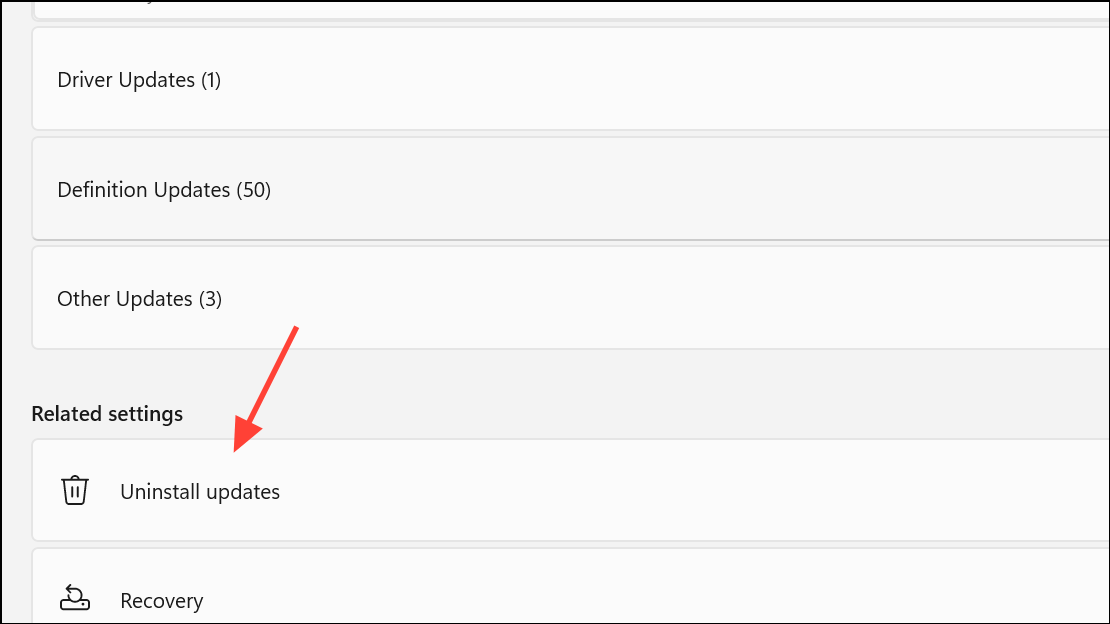
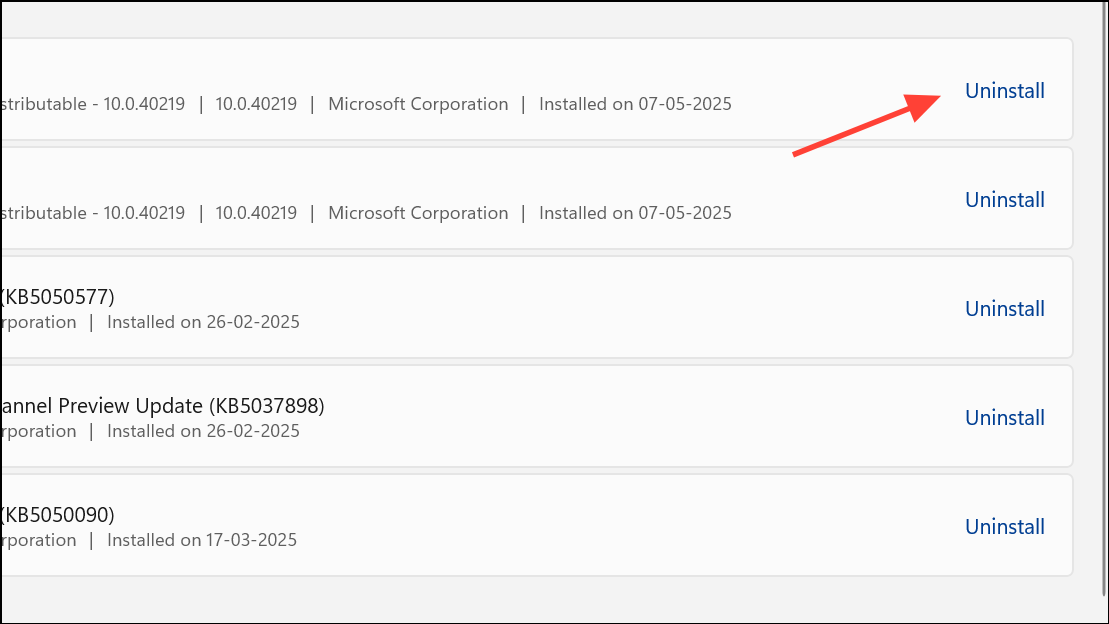
Problematic Windows updates—especially those affecting print services—can introduce the 0x000003e3 error. Rolling back recent updates can restore printing.
Restart your computer and test the printer connection again.
Modify Registry Entries (Advanced)
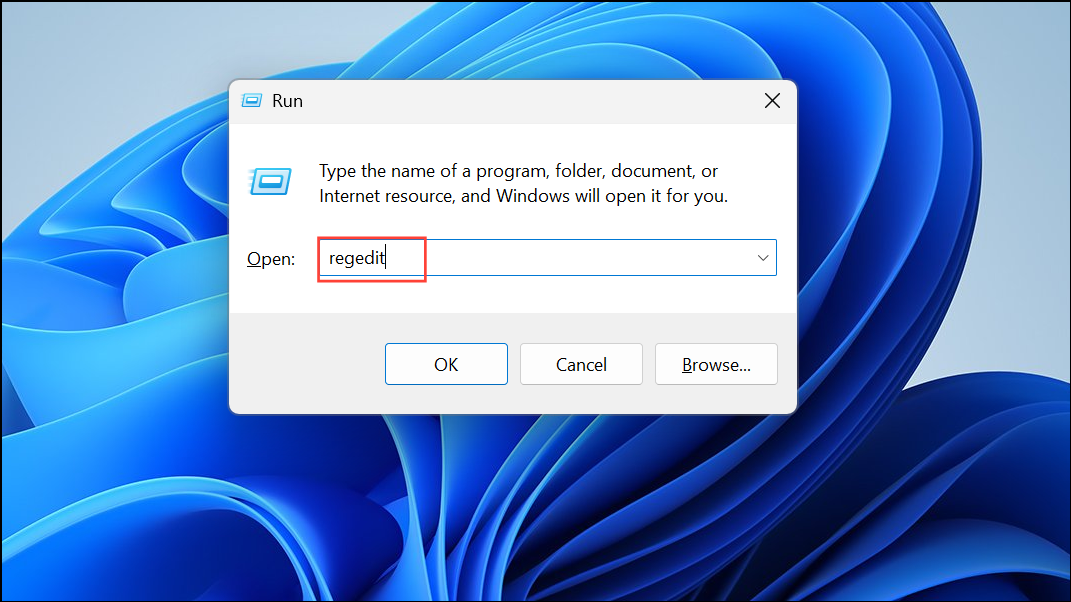
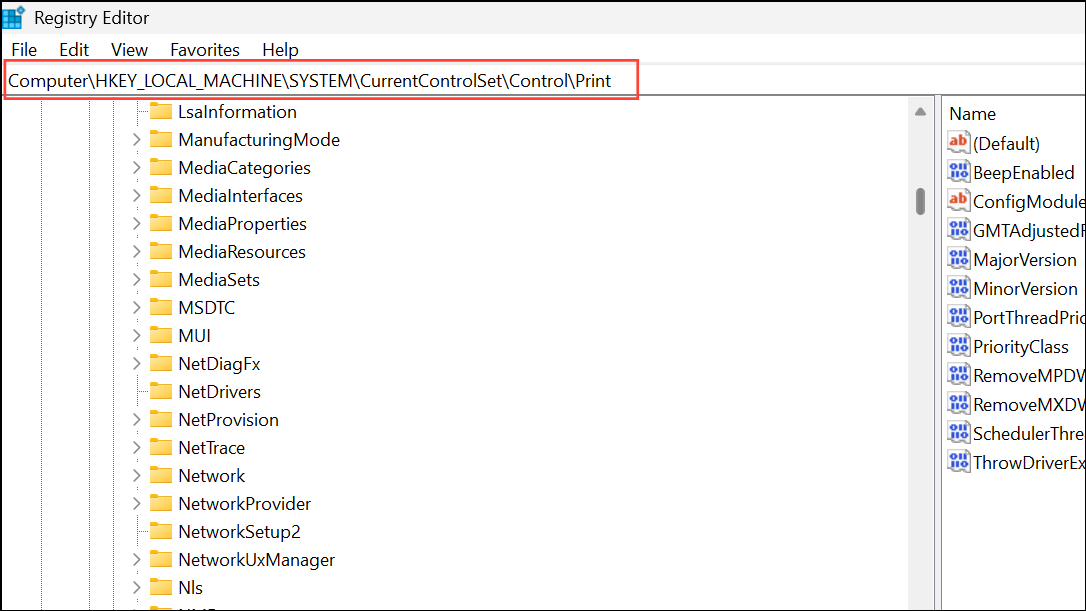
If driver corruption persists, cleaning out old registry entries related to printers can resolve the error. Always back up your registry before making changes.
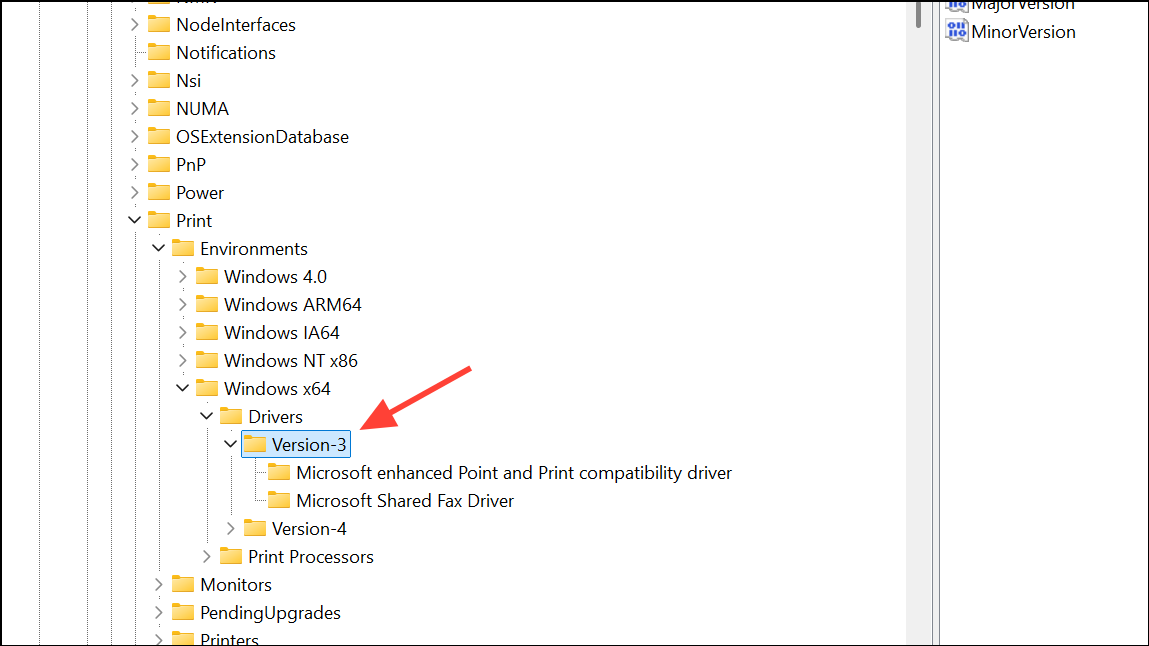
Expand Environments, select your OS architecture, then Drivers > Version 3, and delete all keys under Version 3. Also, clear keys under Monitors, PendingUpgrades, Printers, and Providers.
Restart the Print Spooler service and reboot your PC.
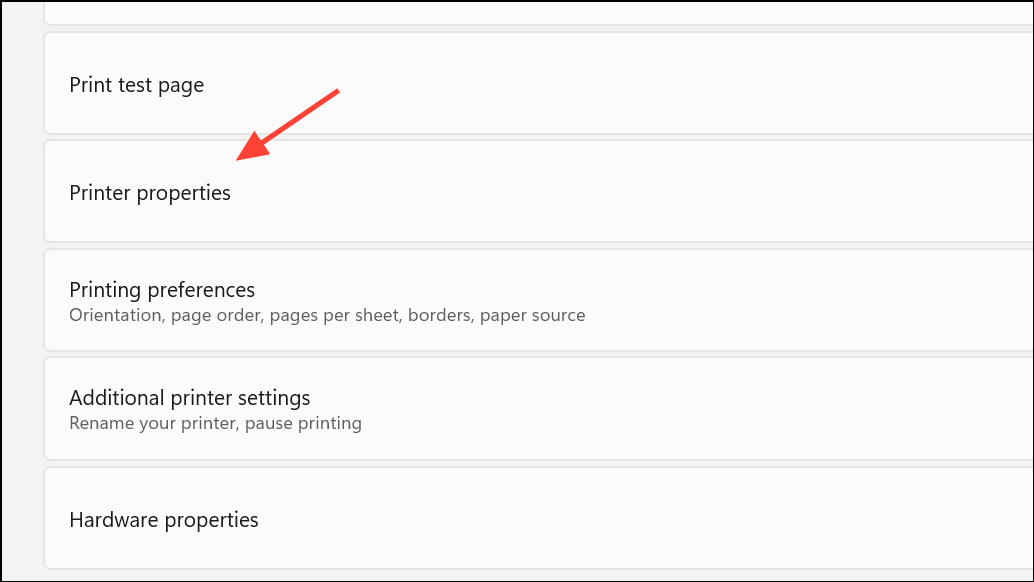
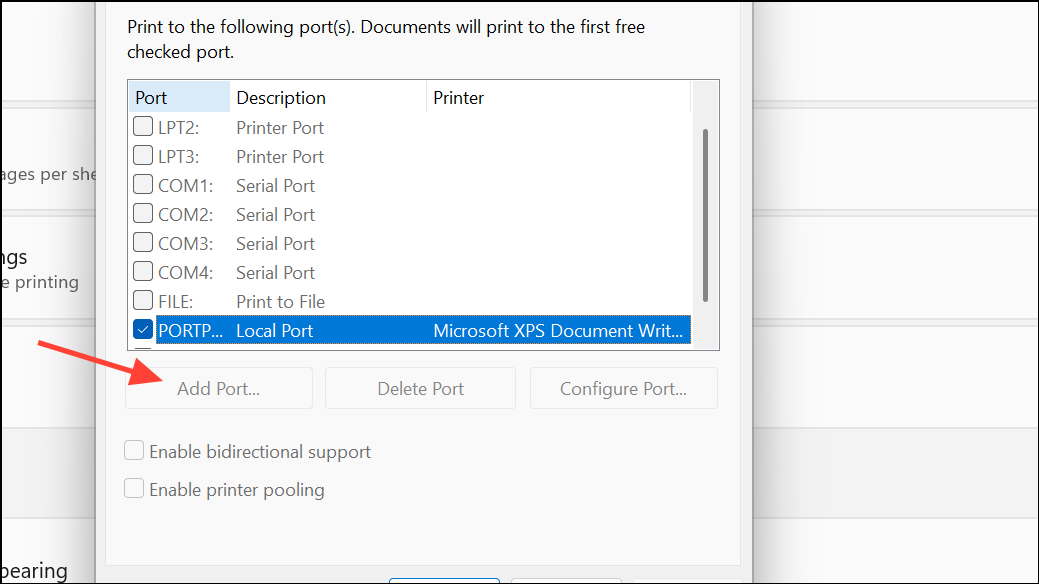
Switch Printer Port to TCP/IP
For networked printers, using a direct TCP/IP port instead of WSD or IPP can improve reliability and bypass port-specific issues causing error 0x000003e3.
Set the printer to use this new port and apply the changes. Print a test page to verify the fix.
Applying these methods restores reliable printer connectivity in Windows 11 and eliminates the 0x000003e3 error. Keeping printer drivers updated and monitoring Windows updates helps prevent similar issues in the future.