
Constant 100% CPU usage in Windows 11 can throttle system performance, trigger overheating, and disrupt even routine tasks. When system idle processes fail to activate or background tasks spike unexpectedly, the computer’s responsiveness drops sharply. Addressing this issue requires a combination of targeted fixes, monitoring tools, and configuration adjustments to both identify the source and keep processor load within optimal ranges.
How to Check CPU Usage in Windows 11
Ctrl+Shift+Esc on your keyboard. This utility displays real-time CPU usage for all running processes.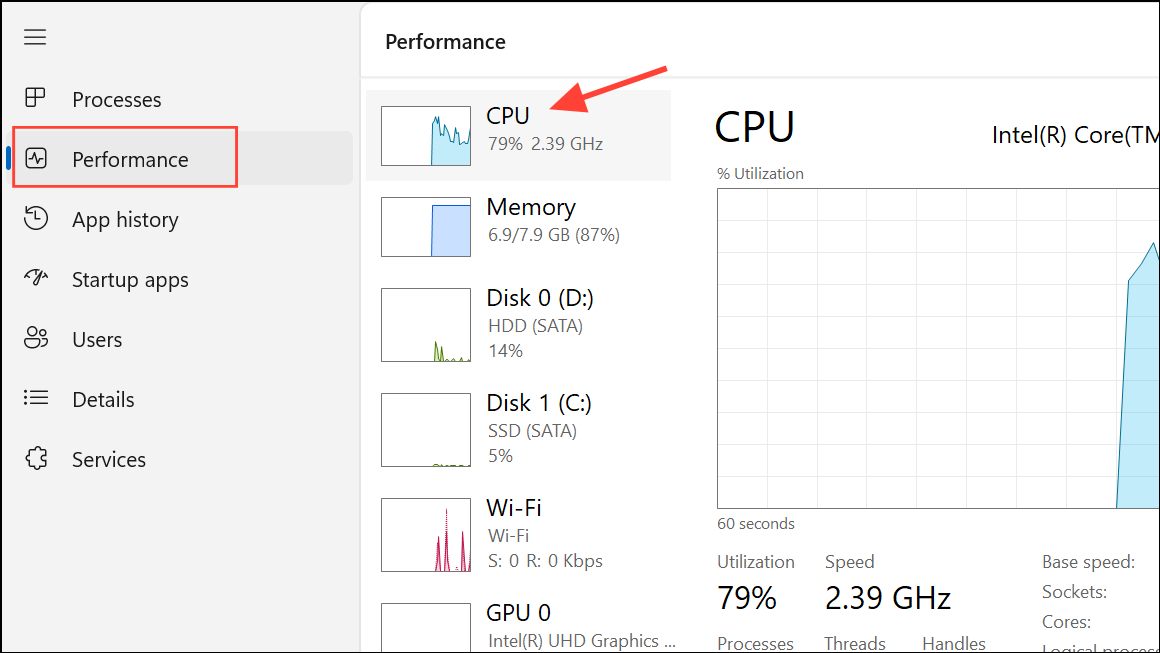
Resource Monitor into the Windows search bar and open it. The CPU tab provides more granular details about process activity and allows you to investigate unresponsive or abnormal tasks.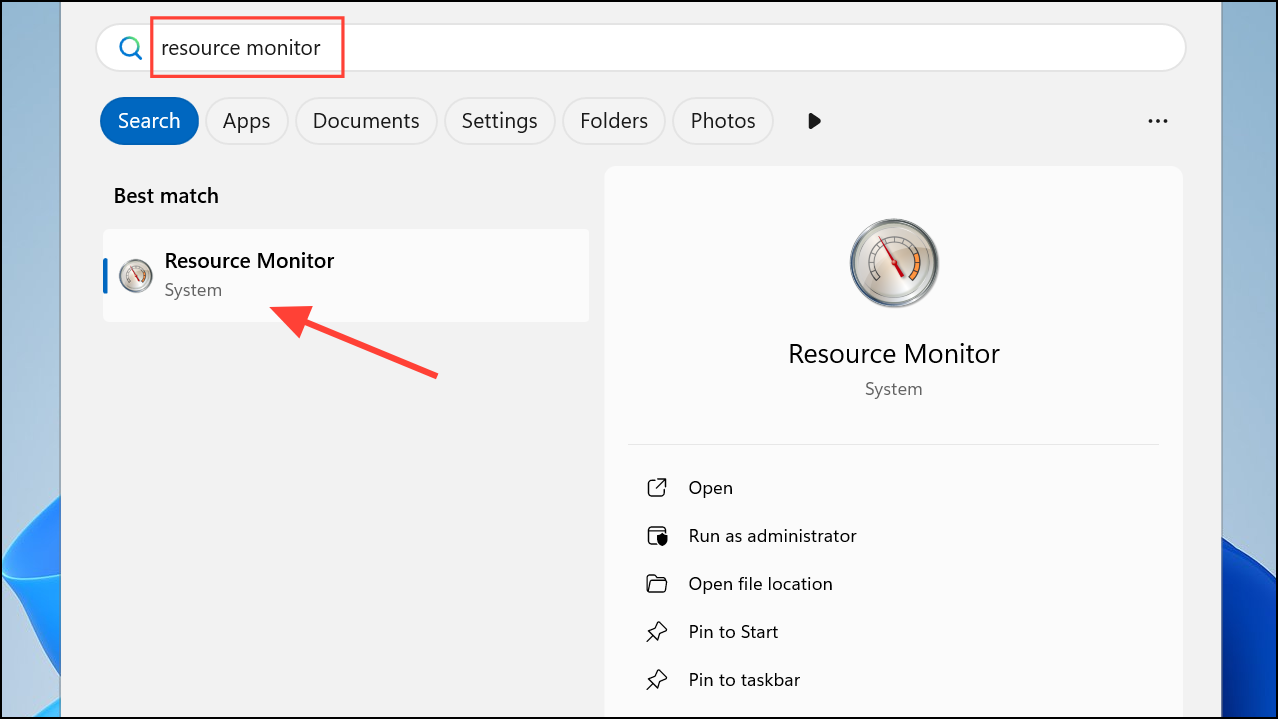
Performance Monitor from the search bar. Here, you can add custom counters to track CPU usage trends over time or monitor specific applications for spikes or irregularities.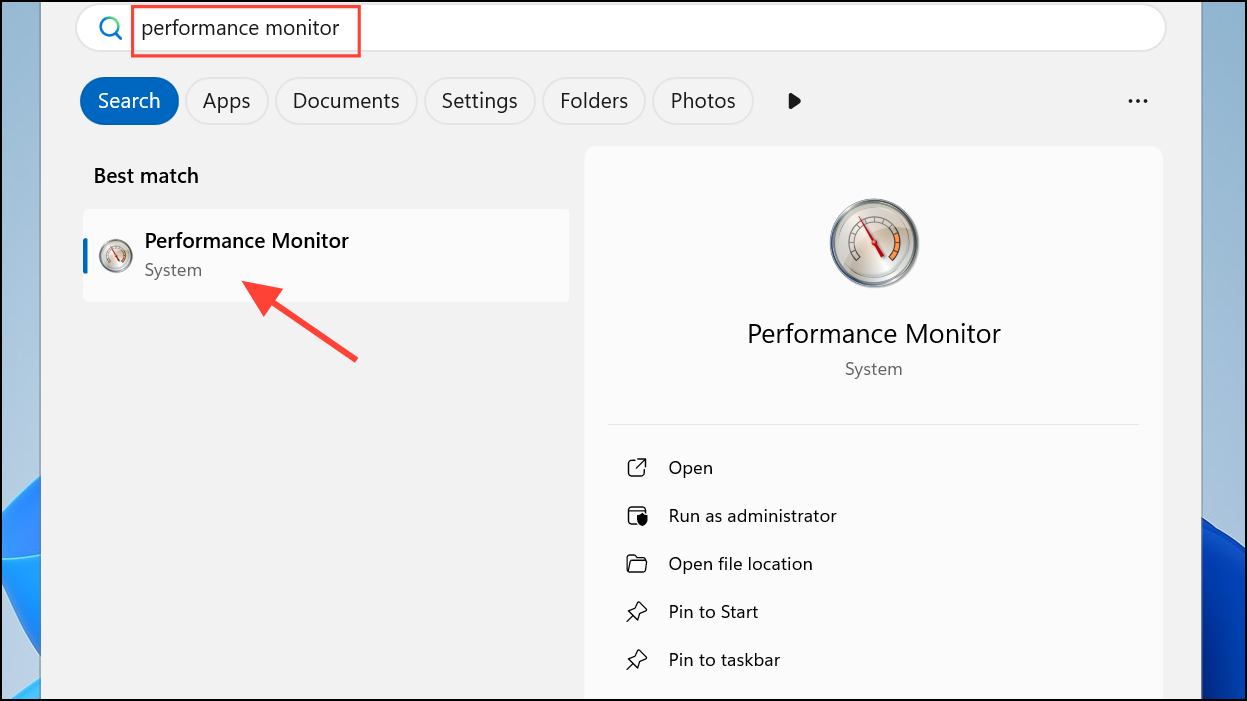
How to Lower CPU Usage in Windows 11
Method 1: Apply the Hidden Power Plan Fix for Persistent 100% CPU Usage
When CPU usage remains stuck at 100% even at idle, a hidden power plan setting may prevent the processor from entering its idle state. This issue often arises after installing or updating motherboard utilities (such as MSI Center), which can silently alter advanced power management options. The following fix directly addresses this root cause.
Windows Key + X and select Terminal (Admin) or Powershell (Admin) to open an elevated command prompt.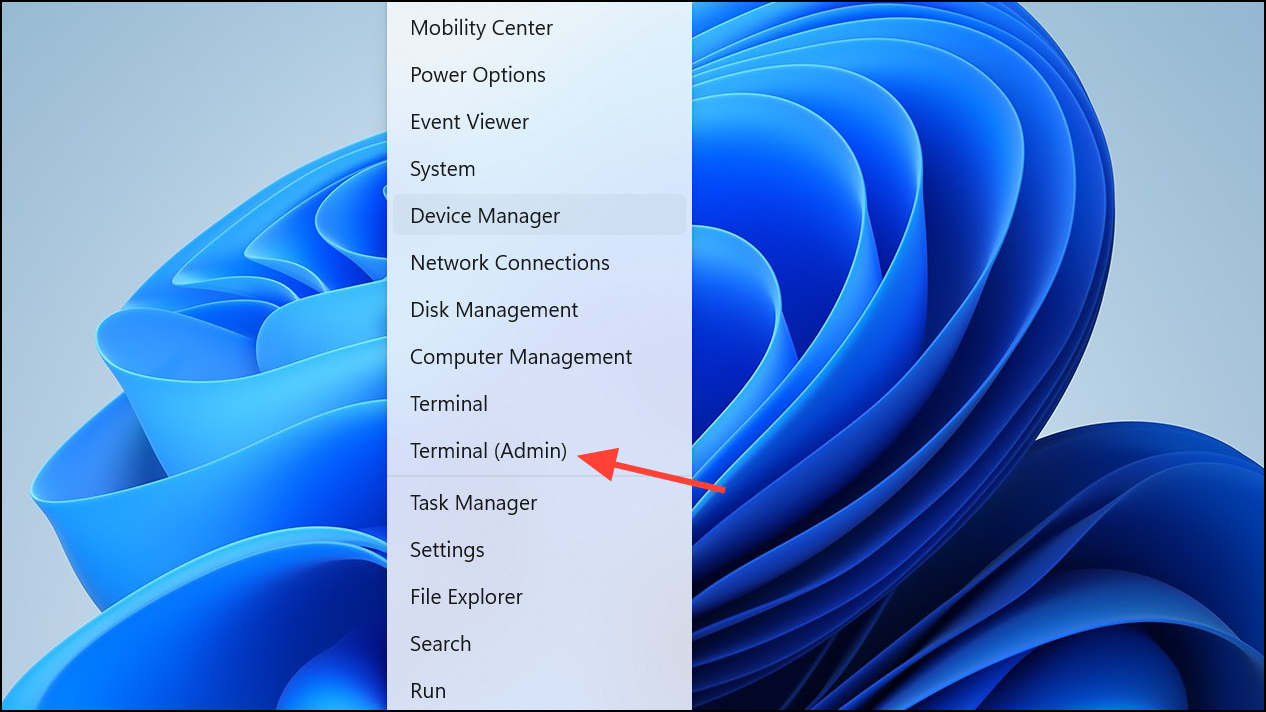
PowerCfg /SETACVALUEINDEX SCHEME_CURRENT SUB_PROCESSOR IDLEDISABLE 000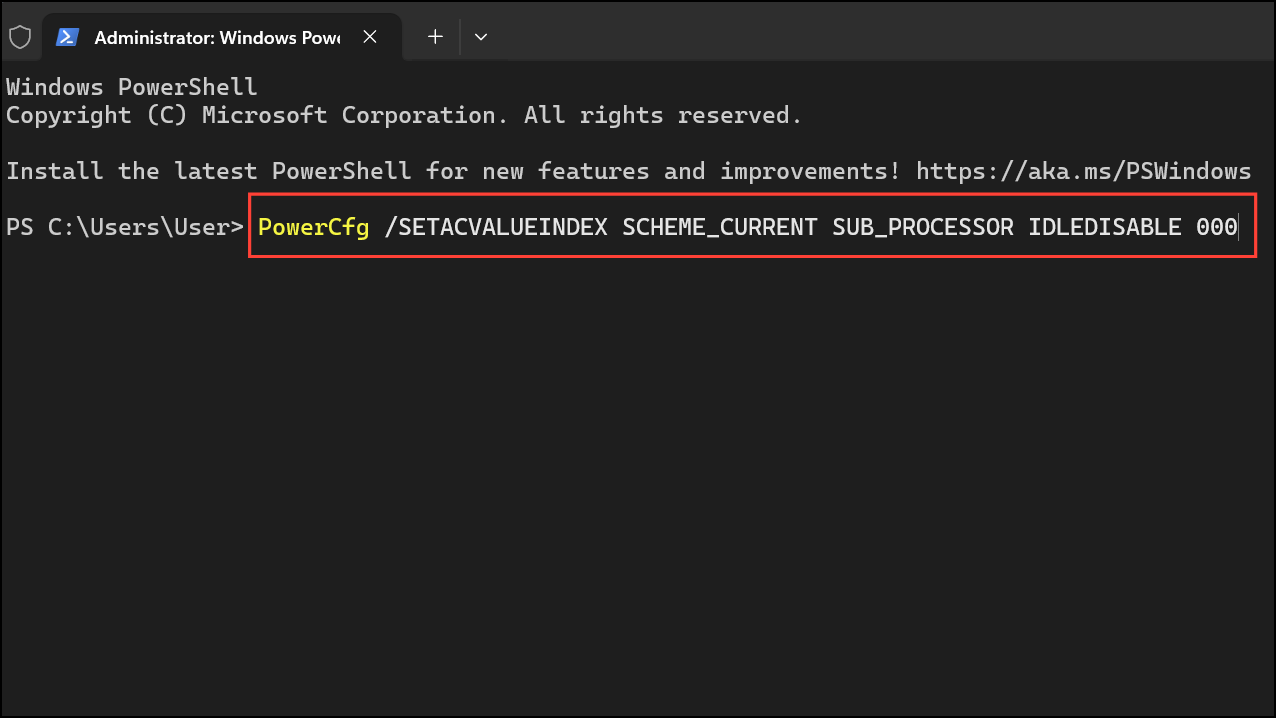
PowerCfg /SETACTIVE SCHEME_CURRENT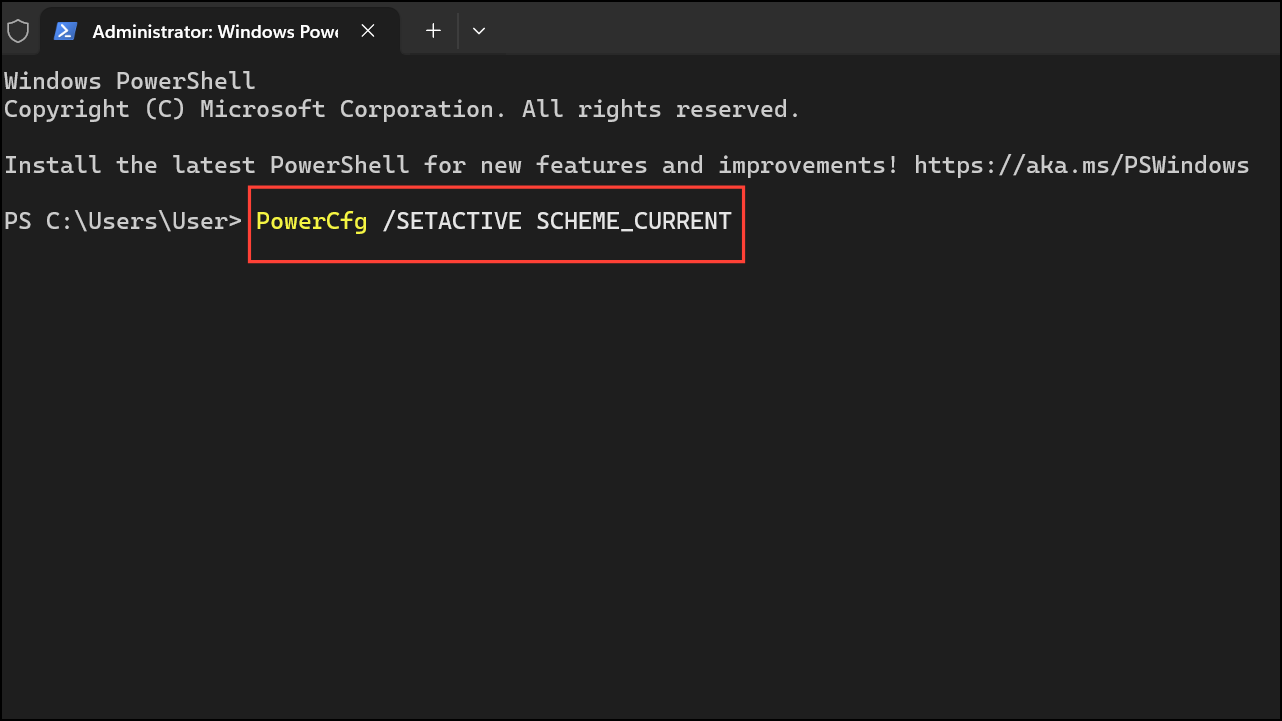
Method 2: Close Unnecessary Applications and Background Processes
High CPU usage often results from resource-intensive applications or too many programs running simultaneously. Closing unused software and background processes can quickly free up processor resources.
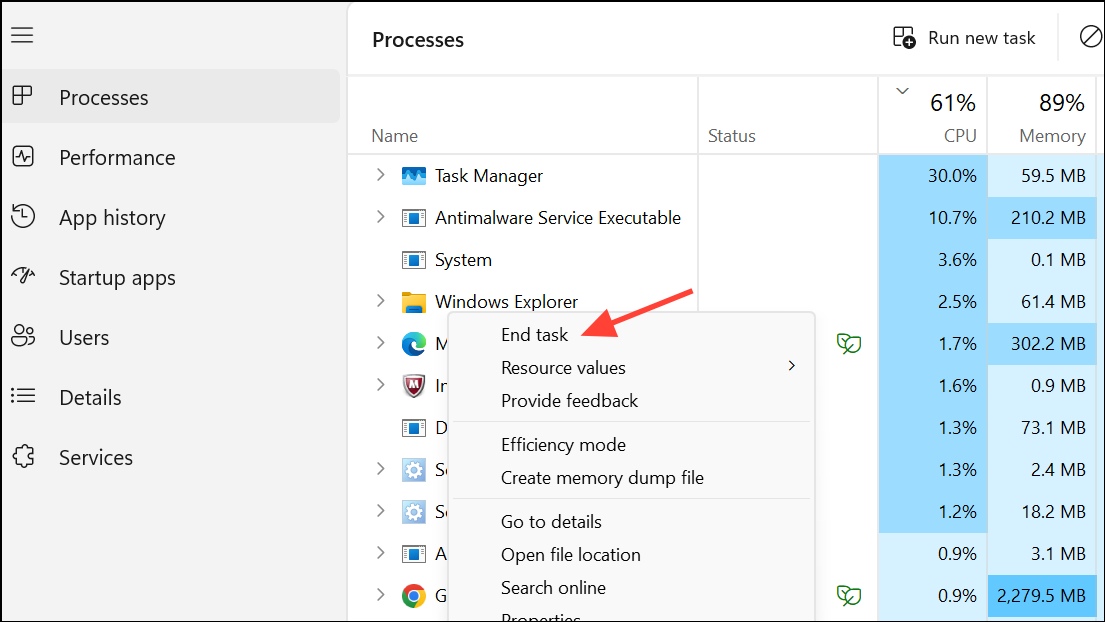
Method 3: Disable Startup Programs
Programs configured to start automatically with Windows can slow down boot times and increase baseline CPU usage.
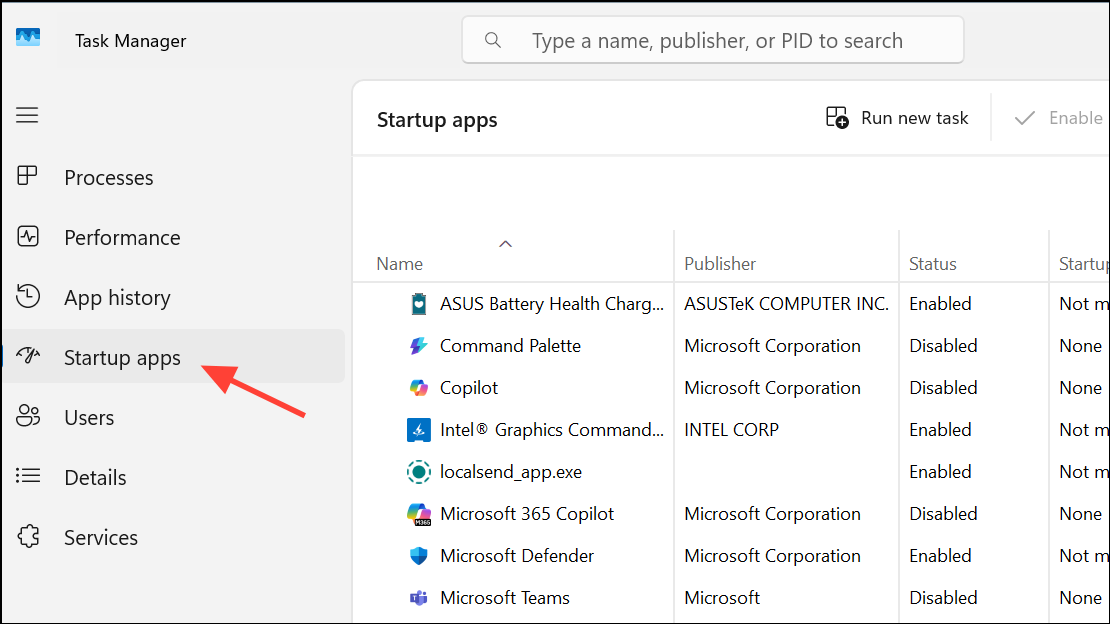
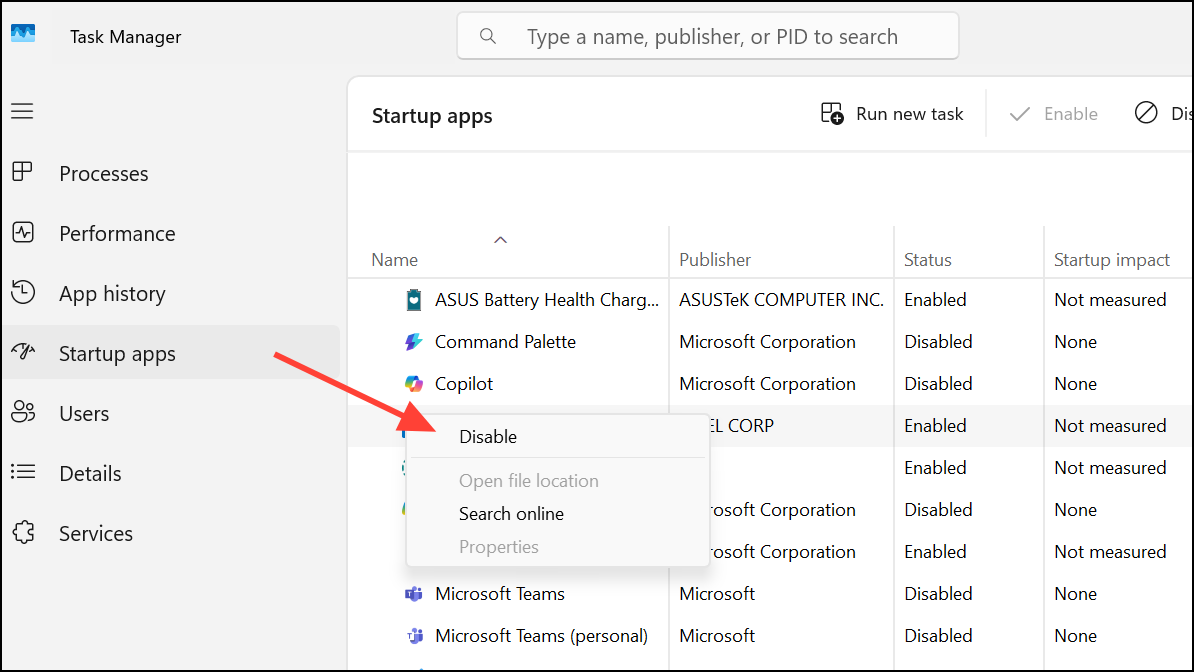
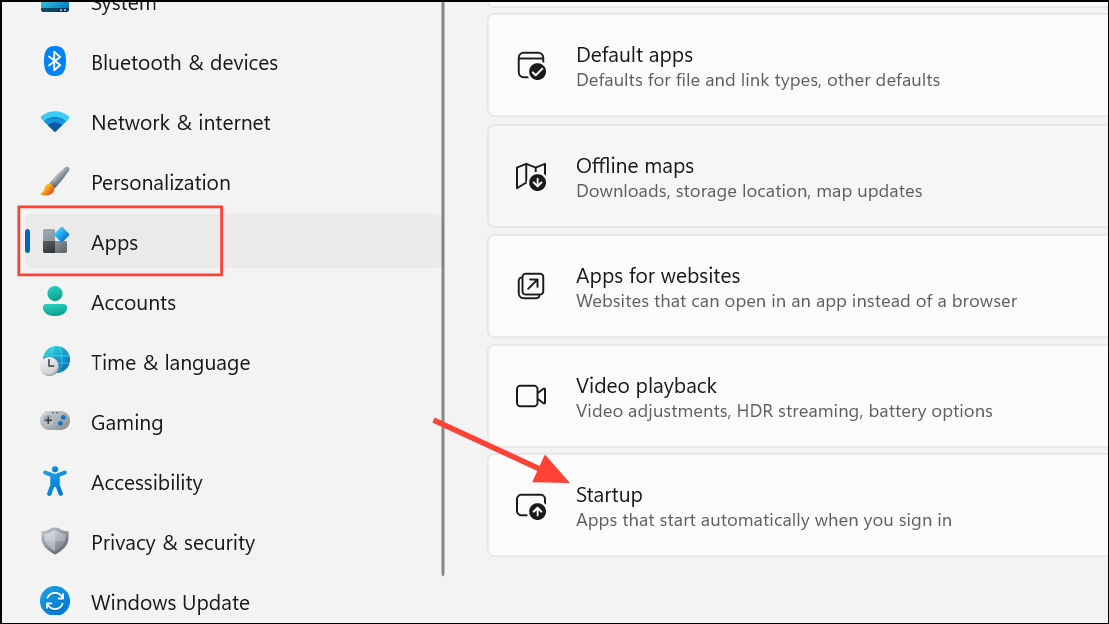
Alternative: In Settings, navigate to Apps > Startup and toggle off unnecessary programs from the list.
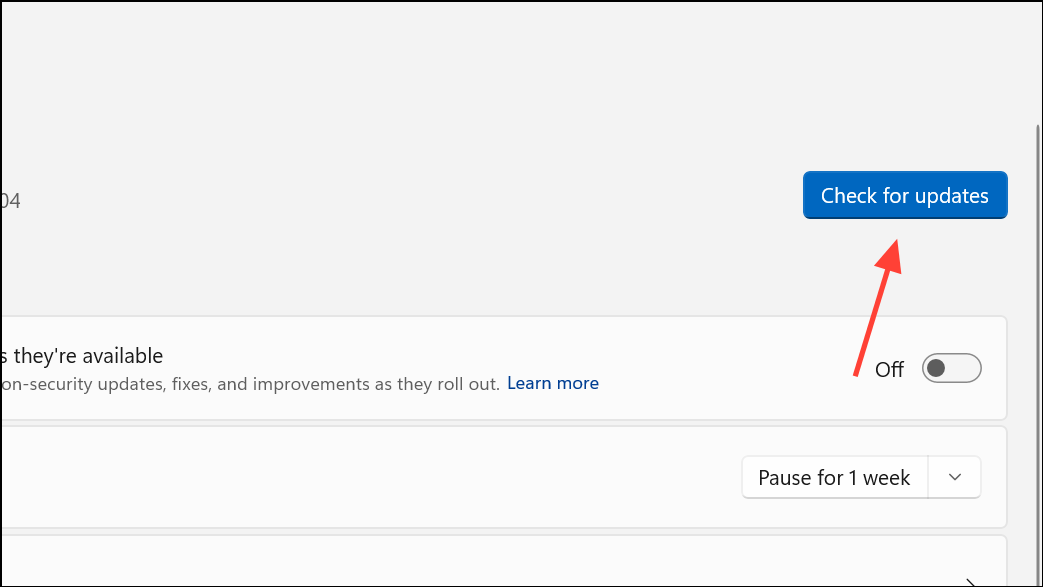
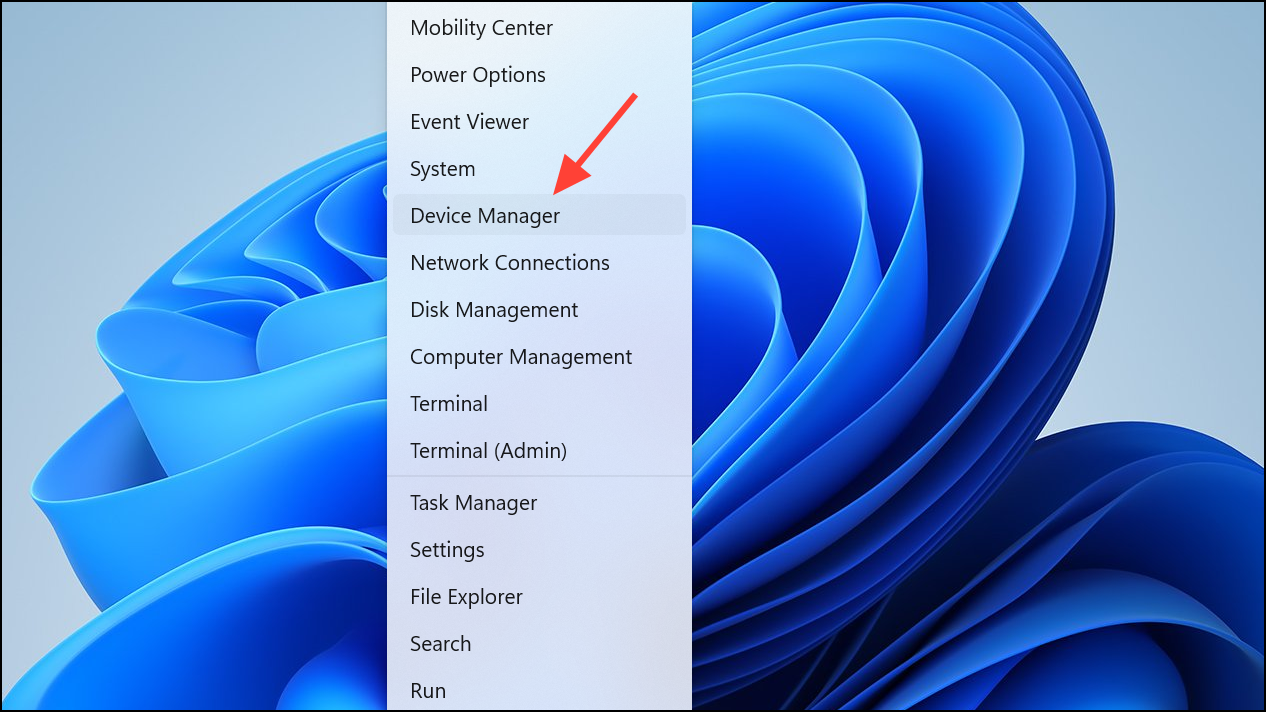
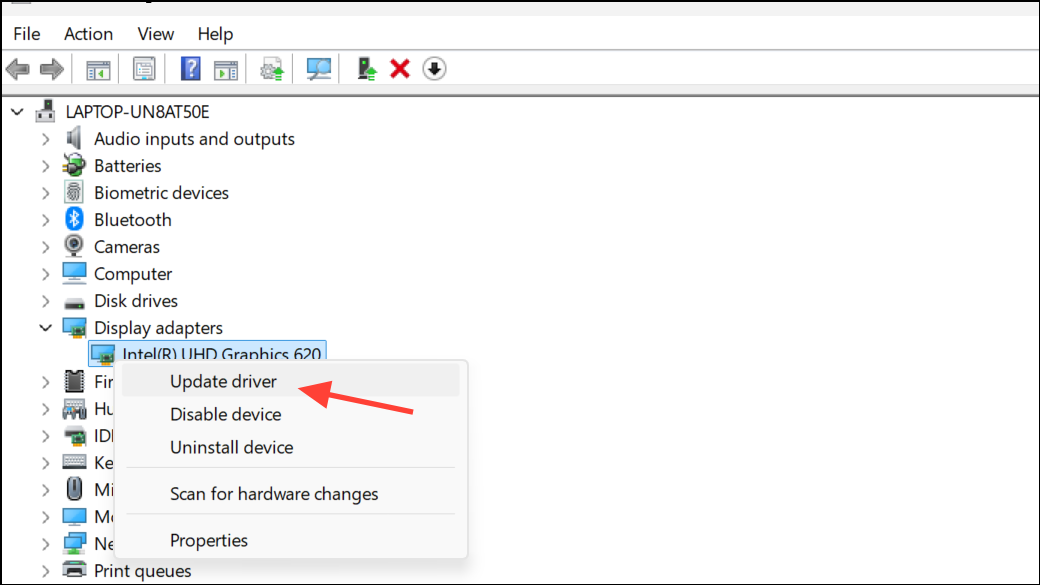
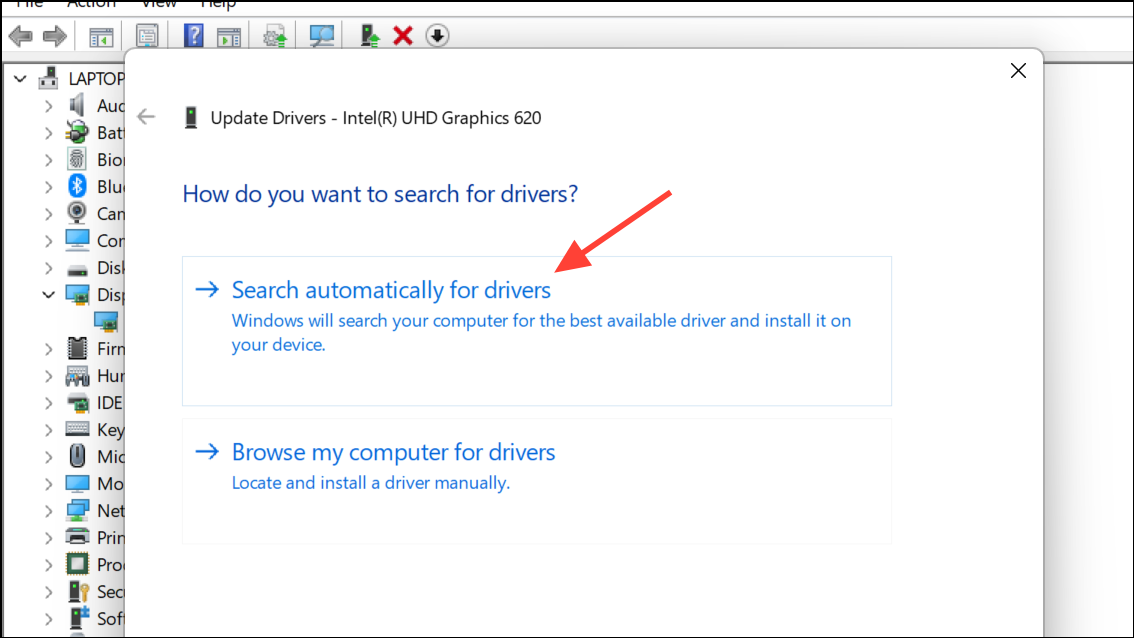
Method 4: Update Windows and Device Drivers
Outdated system files or drivers can cause inefficient CPU utilization, compatibility issues, or even system instability.
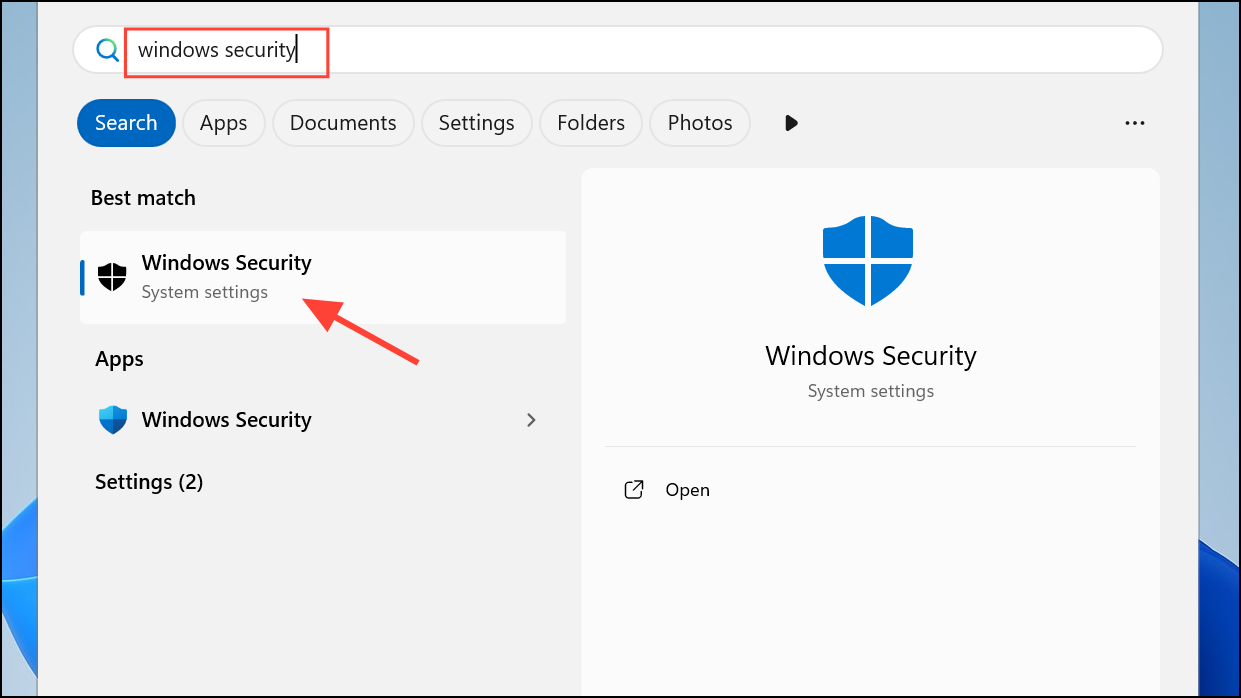
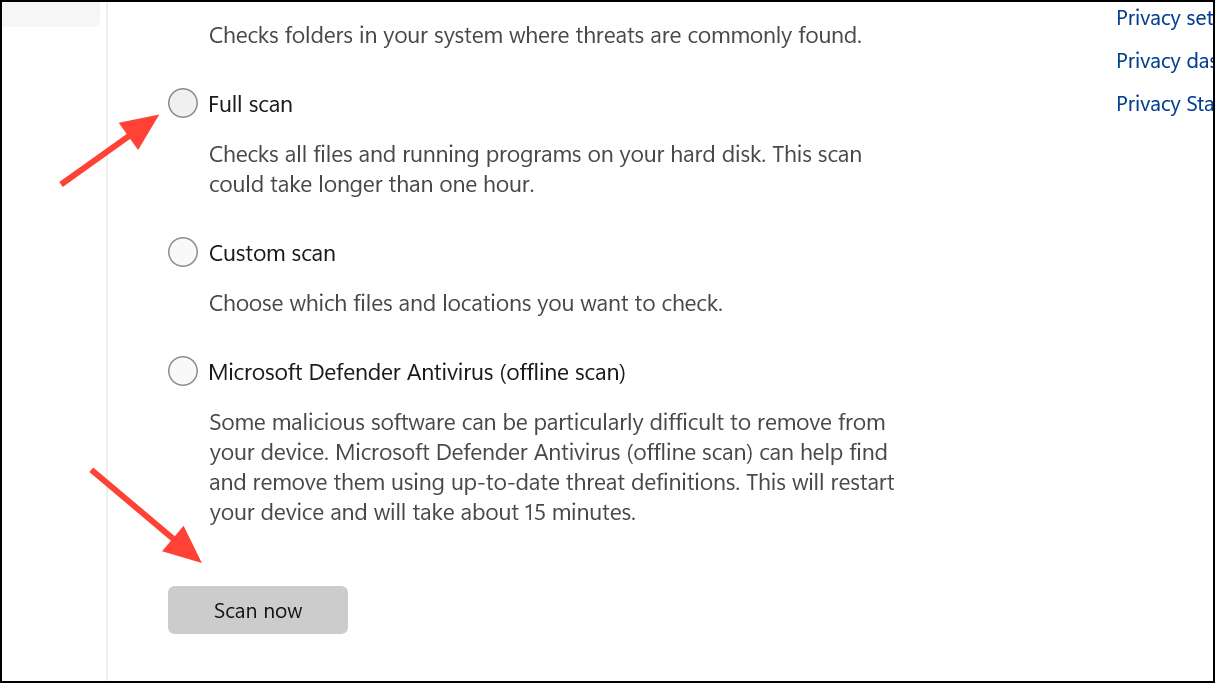
Method 5: Scan for Malware and Unwanted Software
Malware, spyware, or crypto-miners can operate in the background, consuming significant CPU resources without obvious symptoms.
Method 6: Adjust Power Settings
Windows 11 power plans can influence CPU performance and power consumption. Misconfigured or overly aggressive settings may prevent the CPU from entering low-power idle states.
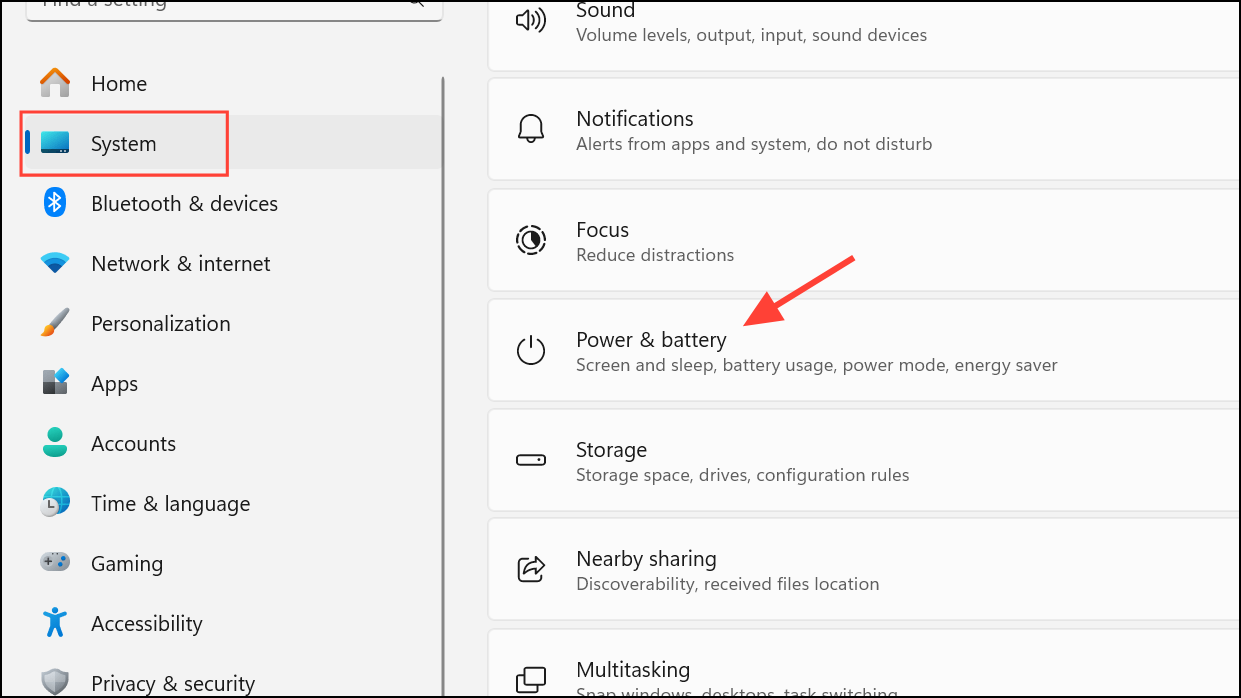
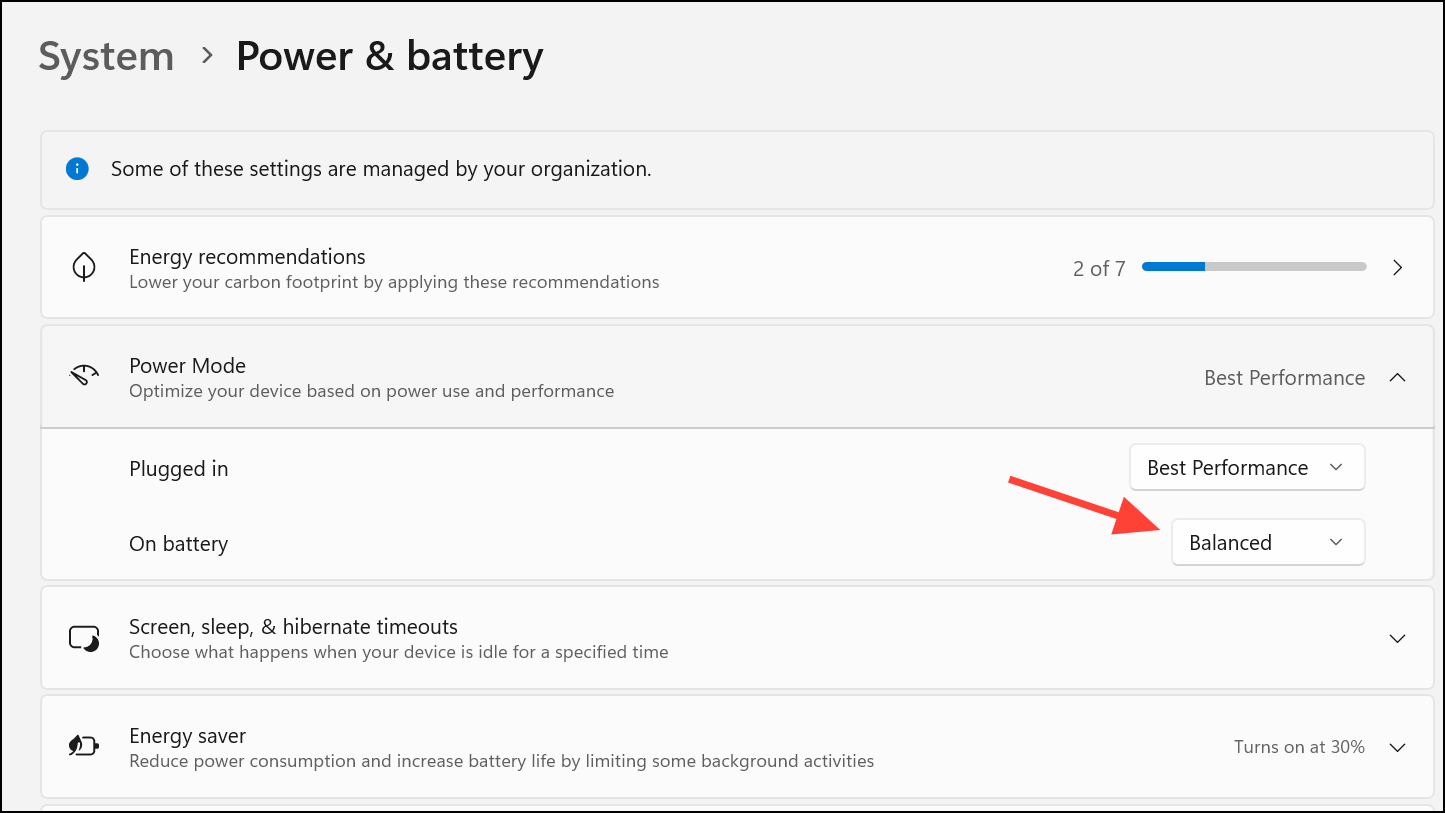
Advanced: To cap maximum processor usage, search for Edit power plan, open Change advanced power settings, and adjust the Maximum processor state under Processor power management.
Method 7: Physically Clean Your Computer
Dust buildup inside your PC can obstruct airflow, causing the CPU to overheat and the system to compensate by increasing fan speeds and clock speeds, sometimes resulting in sustained high CPU usage.
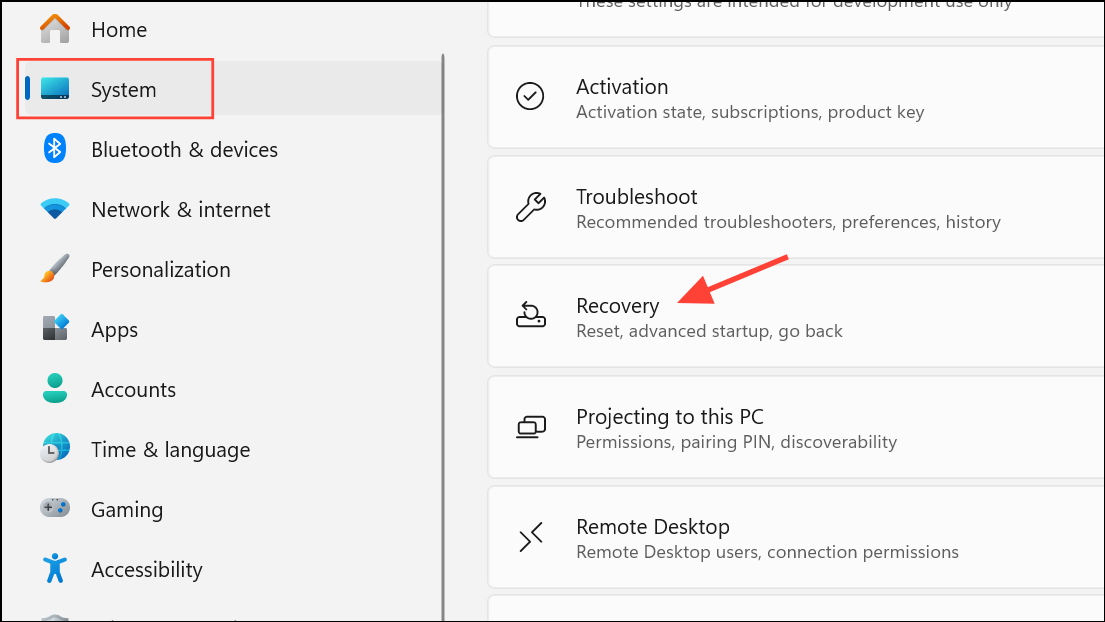
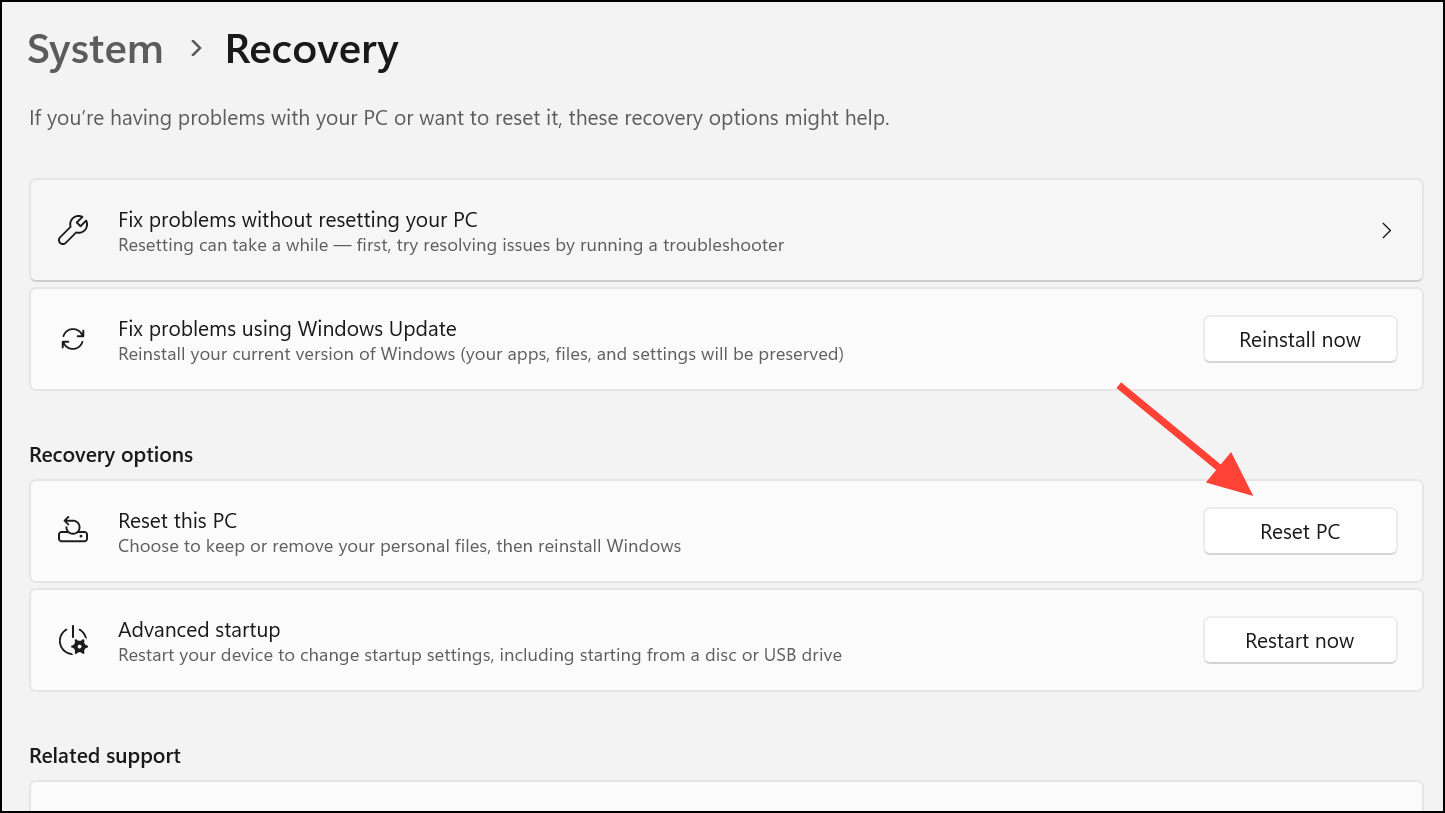
Method 8: Reset or Reinstall Windows 11
If persistent high CPU usage remains after all other troubleshooting steps, a system reset can resolve deep-seated software issues or registry corruption.
What Causes High CPU Usage in Windows 11?
- Background applications or browser tabs running simultaneously.
- Resource-heavy software such as video editors, games, or virtualization tools.
- Malware or unwanted background processes.
- Outdated drivers or system files leading to inefficient processing.
- Overheating due to dust, failed cooling, or poor ventilation.
- Misconfigured power plans or third-party utilities altering processor idle settings.
- Hardware issues, such as failing SSDs or RAM, indirectly increasing CPU load.
Monitoring and managing CPU usage in Windows 11 is crucial for maintaining a responsive and stable system. By combining the above methods—especially the targeted power plan fix for persistent 100% utilization—with routine cleaning, driver updates, and malware scans, you can optimize your computer’s performance and extend its lifespan.
Staying proactive with these maintenance steps keeps your Windows 11 system running smoothly and prevents frustrating slowdowns or overheating.



