How to Fix Slow Download Speeds on Microsoft Store in Windows 11
Resolve sluggish Microsoft Store downloads in Windows 11 by adjusting system settings, removing bandwidth limits, and troubleshooting connectivity issues.
Resolve sluggish Microsoft Store downloads in Windows 11 by adjusting system settings, removing bandwidth limits, and troubleshooting connectivity issues.
by Pallav Pathak
Microsoft Store downloads crawling at a fraction of your available internet speed can disrupt game installations, app updates, and even routine productivity. Users with high-speed connections often notice downloads stuck at kilobytes per second, while other platforms like Steam or Epic Games run at full capacity. This slowdown is frequently tied to Windows 11 system settings that unintentionally cap bandwidth or restrict network usage for the Store. Addressing these configuration issues and clearing potential app glitches restores download speeds and prevents future bottlenecks.
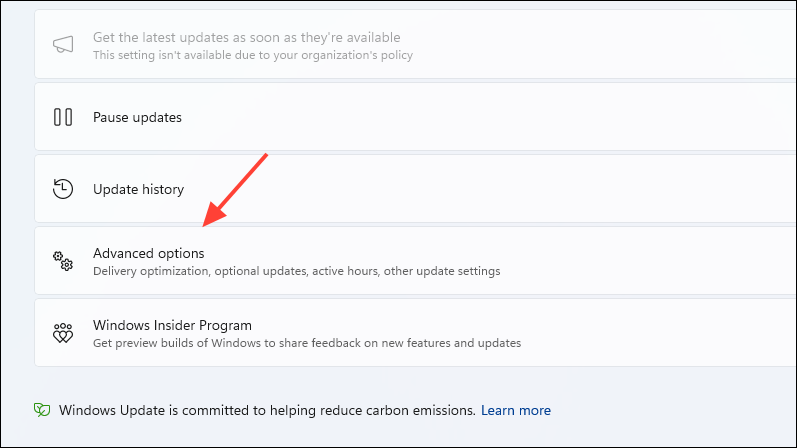
Navigate to Windows Update in the left sidebar, then select Advanced Options. Delivery Optimization settings control how Windows manages download bandwidth for updates and the Microsoft Store.
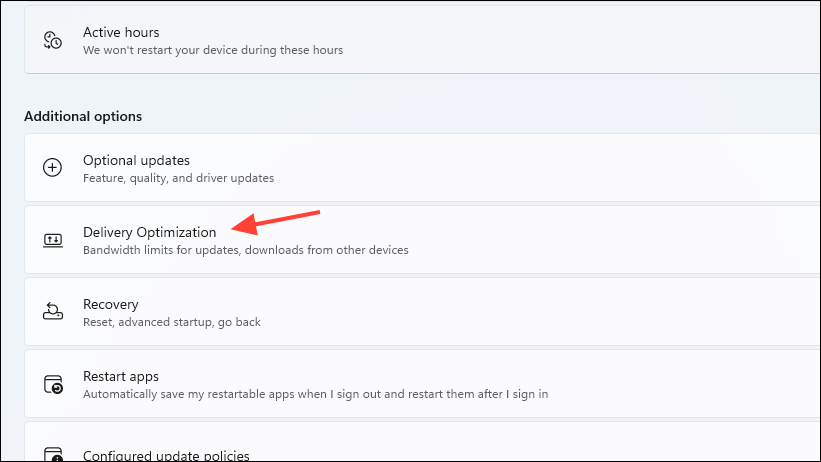
Click on Delivery Optimization and then choose Advanced Options within that section. Here, you’ll find bandwidth settings that can restrict download speeds.
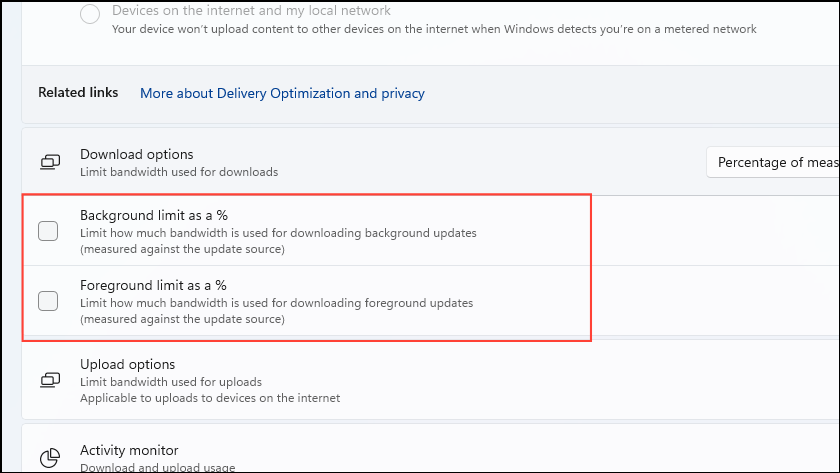
Locate the options labeled Limit how much bandwidth is used for downloading updates in the background and Limit how much bandwidth is used for downloading updates in the foreground. If either box is checked, uncheck them to remove any artificial speed caps.
If you prefer to set a specific limit, adjust the sliders to 100% or set the absolute bandwidth values to match your maximum connection speed. This ensures the Microsoft Store is allowed to use your full available bandwidth.
These changes take effect immediately and often result in a dramatic increase in Microsoft Store download speeds, as reported by users who saw rates jump from single-digit kilobytes to hundreds of megabits per second.
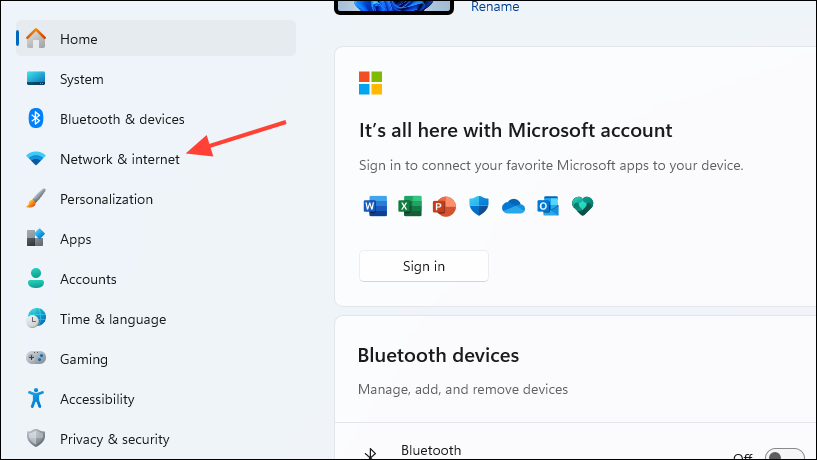
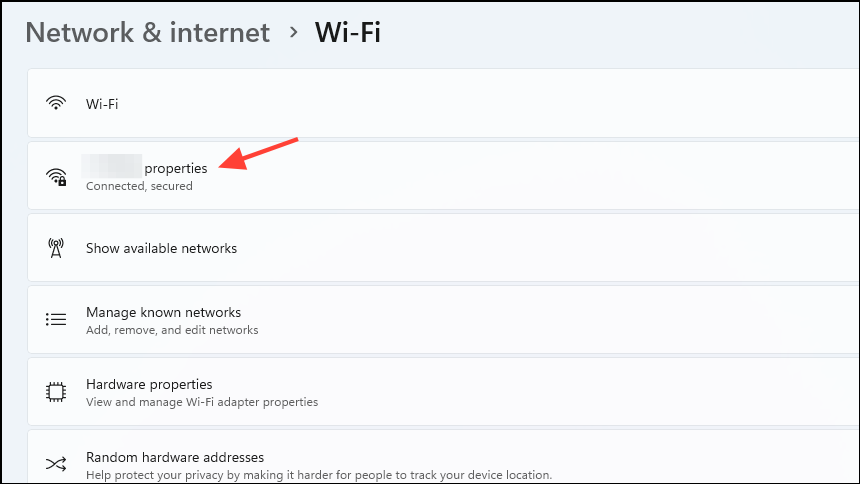
Open the Settings app using Win + I and go to Network & Internet. Metered connections are designed to save data but can severely restrict download speeds.
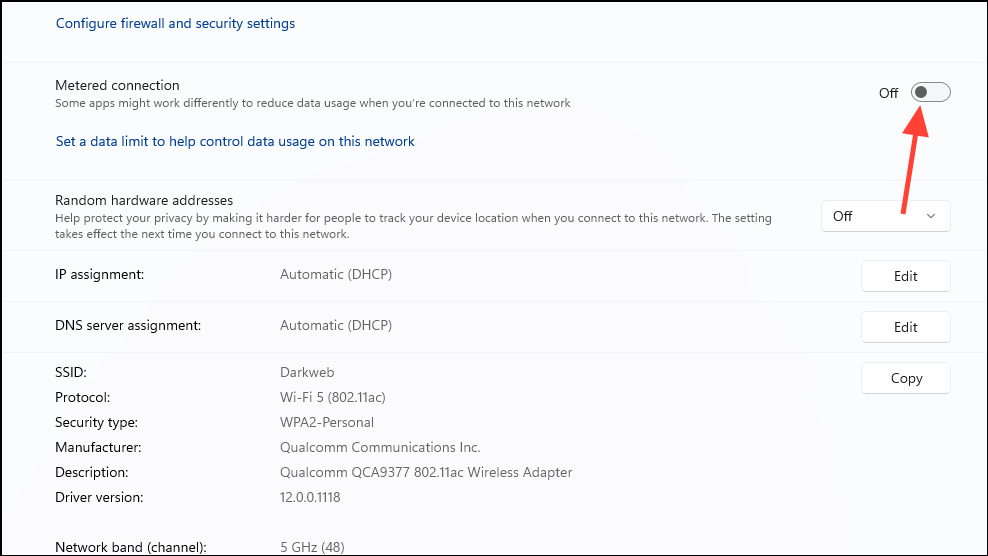
Scroll to the Metered connection section and make sure the toggle for Set as metered connection is turned off. This allows Windows and the Microsoft Store to use data without imposed limits.
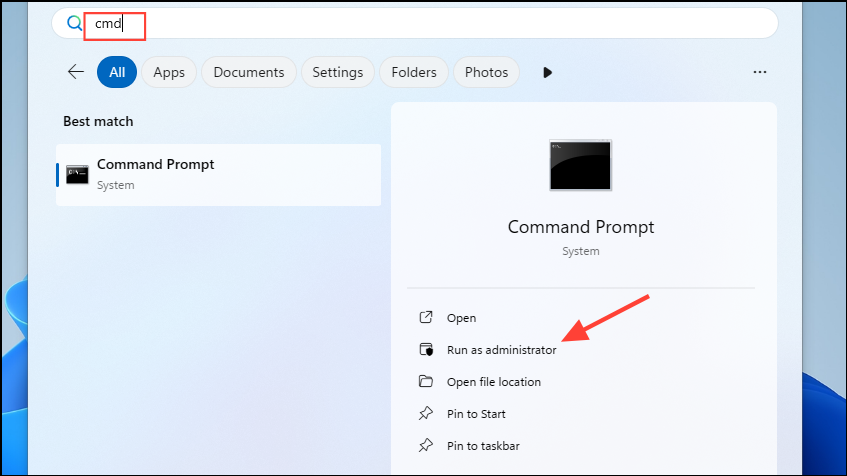
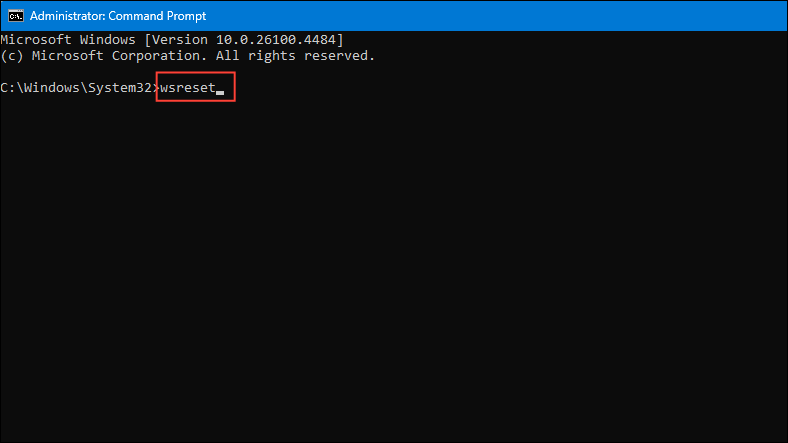
Type cmd in the Windows search bar, right-click Command Prompt, and select Run as administrator. Corrupted cache files can slow down or stall downloads.
In the Command Prompt window, enter wsreset and press Enter. This command clears the Microsoft Store cache without deleting your installed apps or settings. The Store will open automatically when the process is complete.
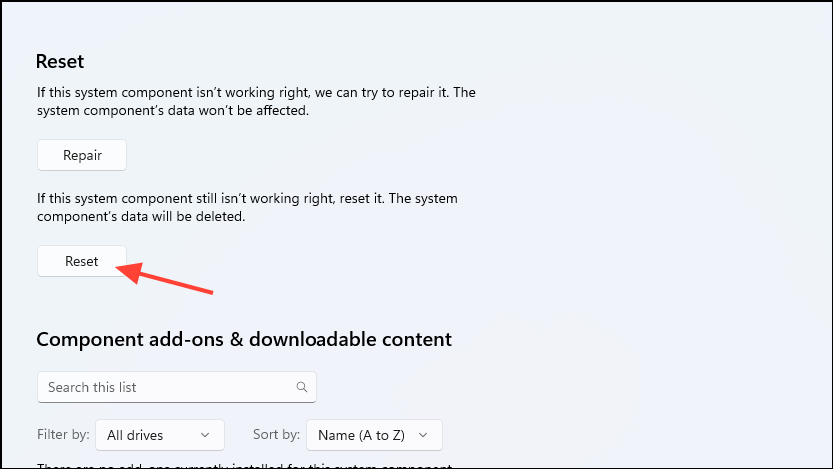
In the app settings window, scroll down and click Reset under the Reset section. This process restores the Store to its default state and can resolve persistent glitches affecting downloads.
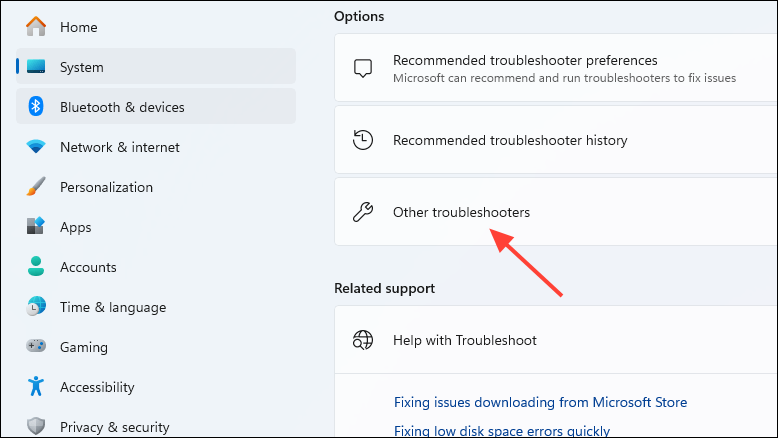
Find Windows Store Apps in the list and click Run. Follow the on-screen prompts. The troubleshooter scans for known issues and applies fixes automatically if any are found.
If you use a VPN or proxy, temporarily disconnect or disable it. Some ISPs or VPN providers throttle specific types of traffic, which can impact Microsoft Store downloads.
After disconnecting, restart your computer and try downloading from the Microsoft Store again. If download speeds improve, consider adjusting VPN or proxy settings, or switching to a different provider.
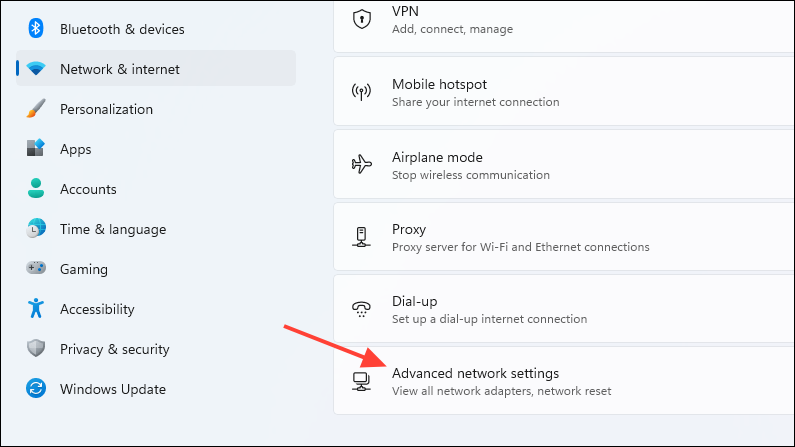
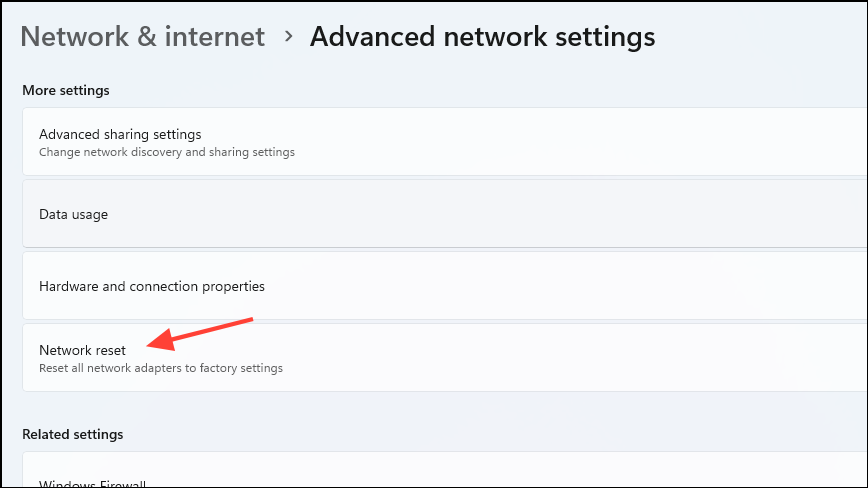
Click Network reset and follow the prompts. This will remove and reinstall all network adapters and reset networking components to their defaults. You may need to reconnect to your Wi-Fi network after this step.
Adjusting bandwidth settings and removing download restrictions in Windows 11 typically restores Microsoft Store download speeds to match your actual internet connection. If issues persist after these steps, monitor for service outages or contact your ISP for further troubleshooting.