
Audio playback failures in Windows Media Player on Windows 11 often trace back to error code 0x8007007e. This error typically appears when attempting to play music files and may be accompanied by a message suggesting issues with sound or video card drivers, or missing system components. Addressing this error involves checking hardware drivers, modifying audio settings, and ensuring proper file permissions.
Update Sound and Video Drivers
Outdated or incompatible drivers frequently cause playback errors. Ensuring your drivers are current can restore audio functionality and prevent conflicts with Windows Media Player.
Device Manager. Select the Device Manager app from the results. Or right-click the Start button and select it from the menu.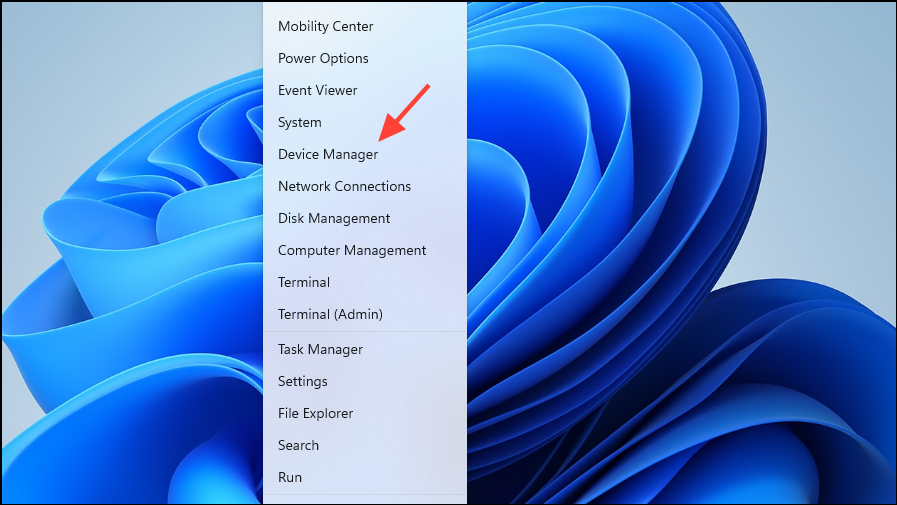
Sound, video and game controllers section. Right-click on your audio device and select Update driver.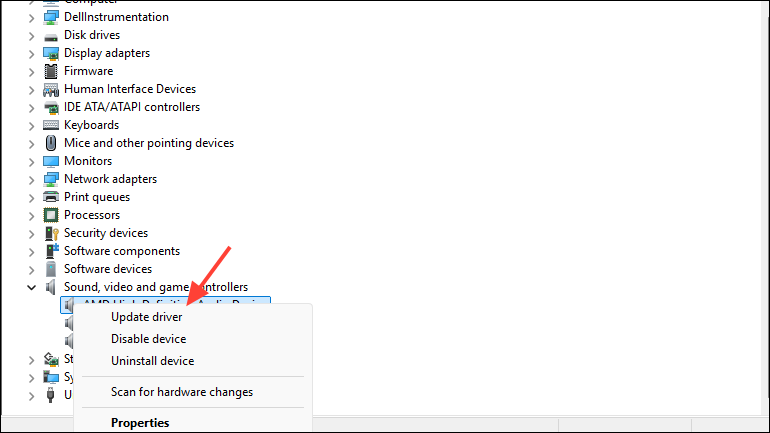
Search automatically for drivers. If Windows finds an updated driver, follow the prompts to install it. Repeat this process for any video devices listed.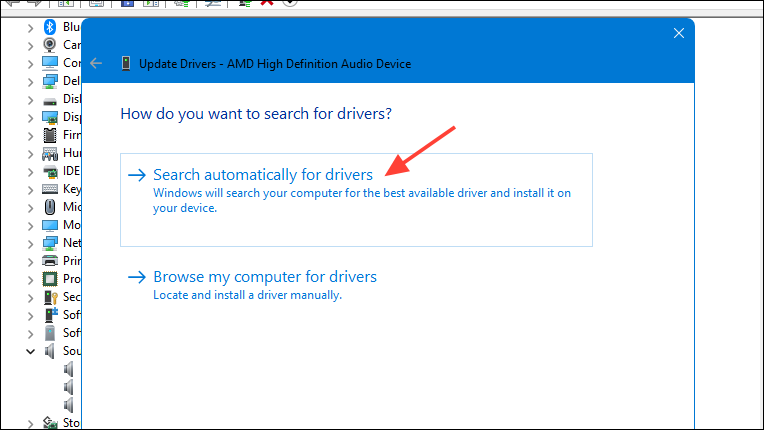
Disable Audio Effects in Playback Devices
Audio effects, sometimes called audio enhancements, can interfere with playback and trigger error 0x8007007e. Disabling these effects often restores normal function in Windows Media Player.
Sound settings or Playback devices.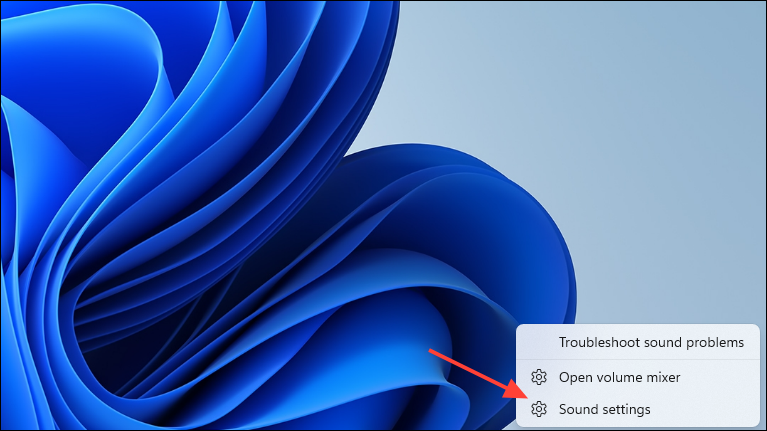
Speakers) and click Properties.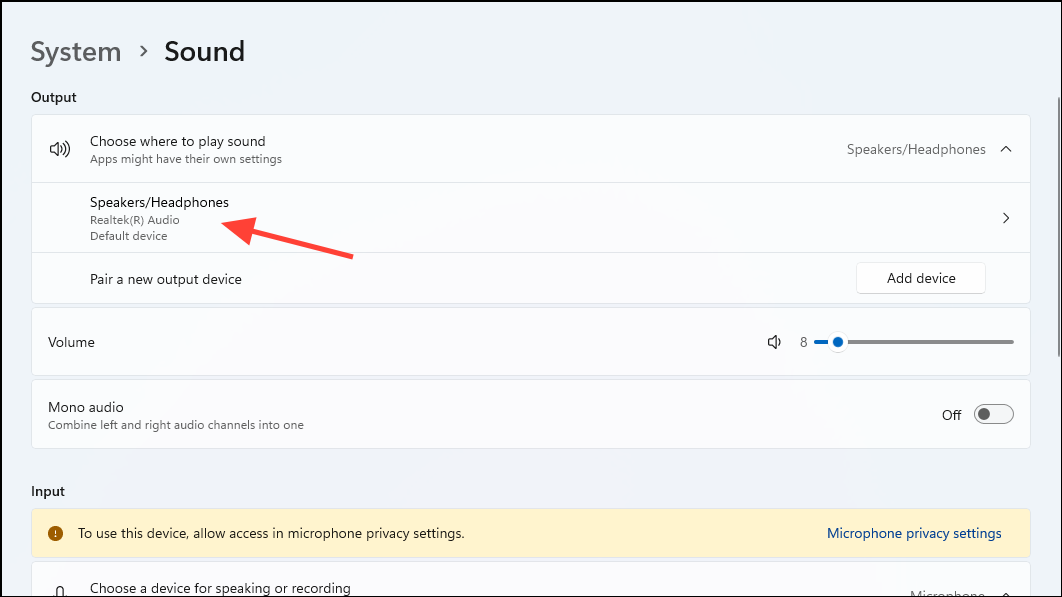
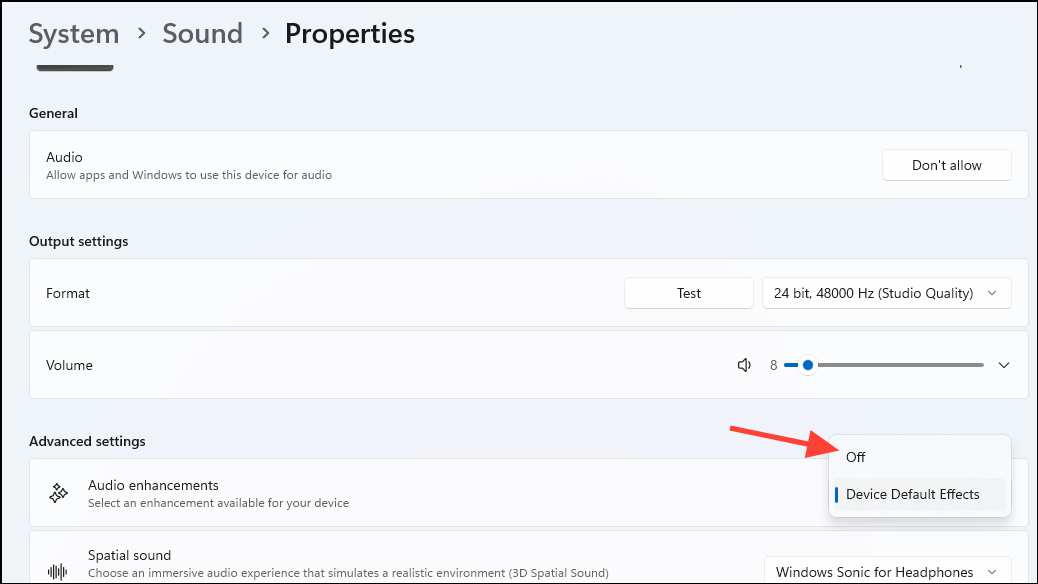
Disabling these effects removes potential conflicts introduced by third-party audio processing, which can block successful playback in Windows Media Player.
Check and Adjust File Permissions
Windows Media Player may fail to access music files if the folder or files have restrictive permissions. Adjusting access rights can resolve the error, especially if music is stored in system directories or user profile folders.
Properties.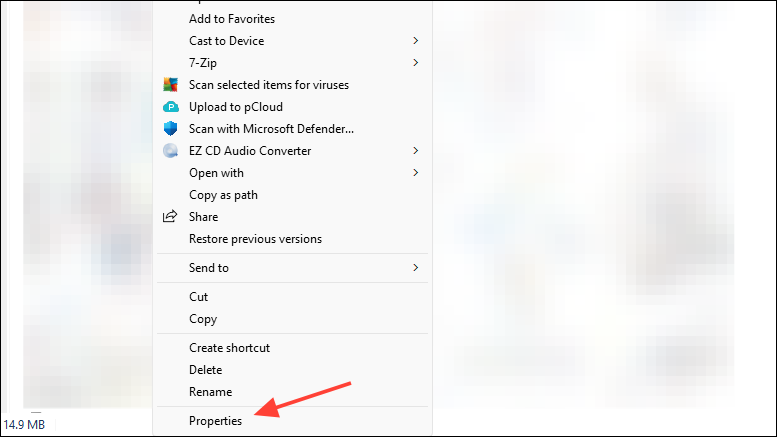
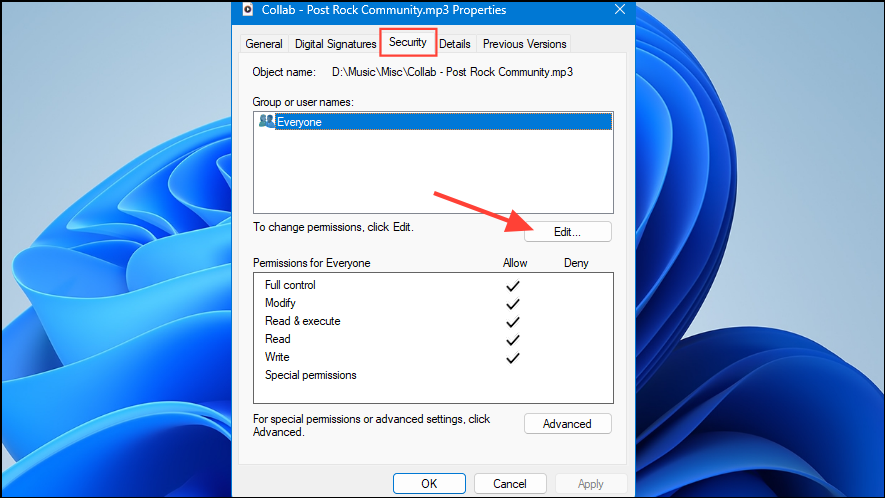
Full control is checked. If not, check the box and click Apply.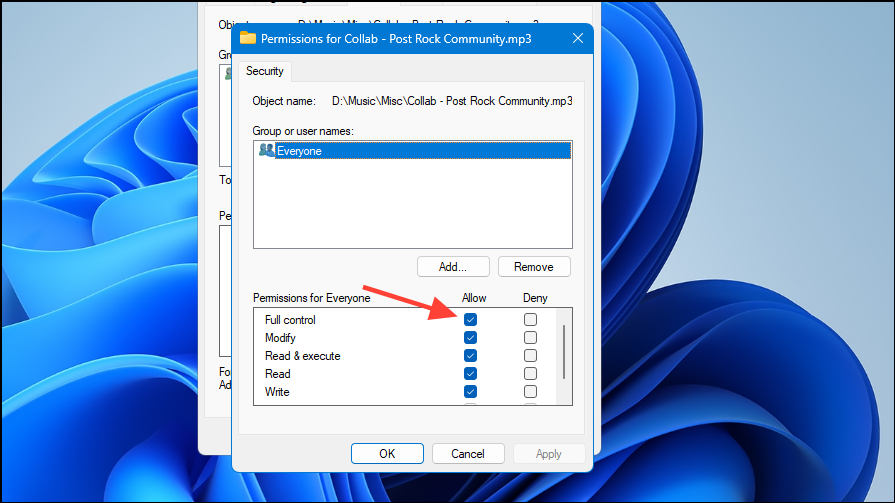
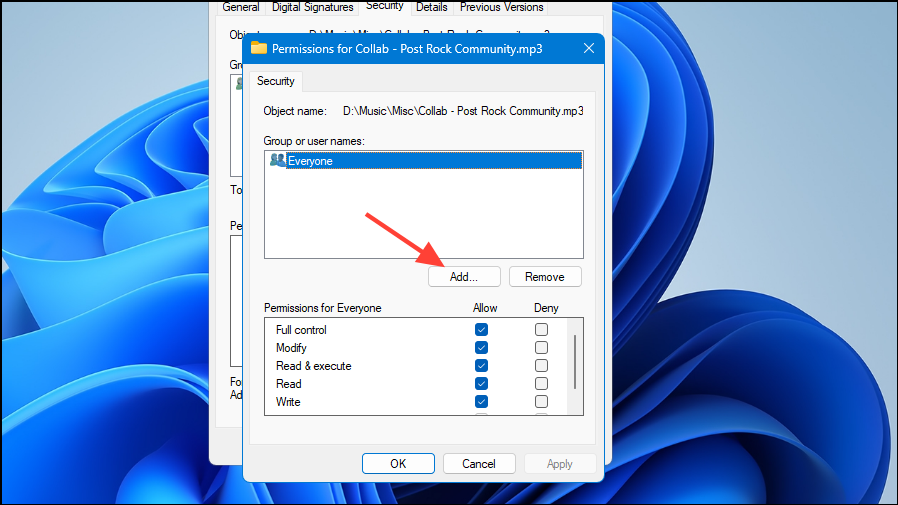
Granting proper permissions ensures that Windows Media Player can read and play files located in protected or non-standard directories.
Reinstall Windows Media Player
If the above methods do not resolve the error, reinstalling Windows Media Player can restore missing or corrupted program files and reset settings to default.
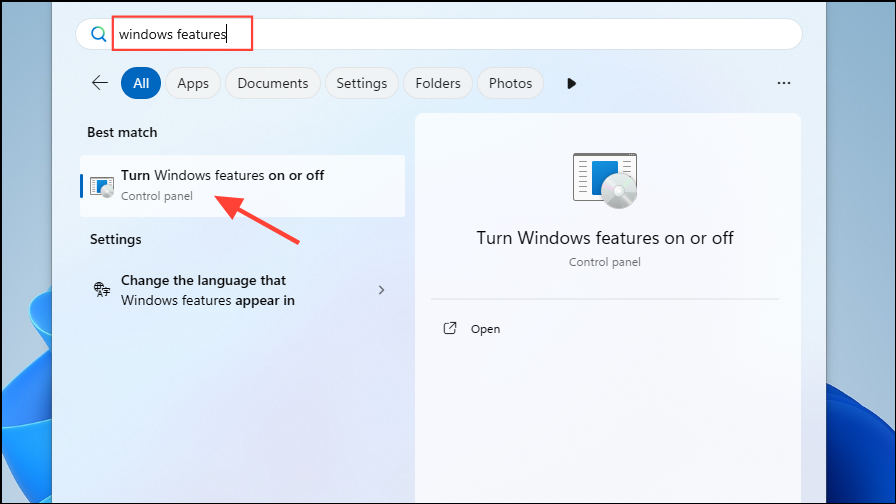
Media Features > Windows Media Player. Click OK to uninstall.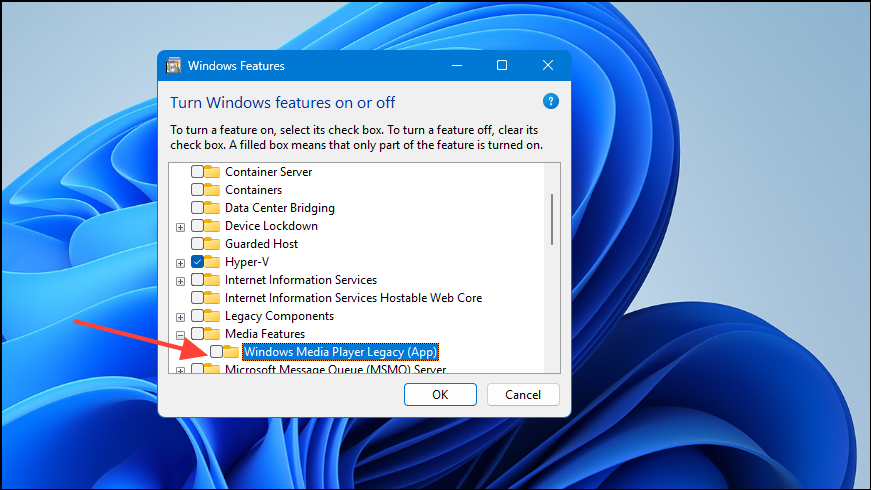
Windows Media Player, and click OK to reinstall.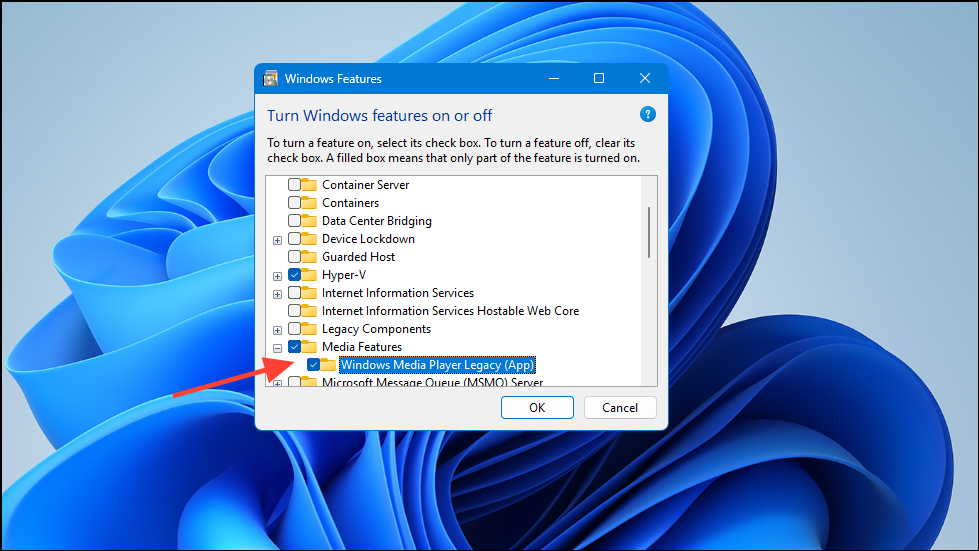
This process restores the default application state and can resolve persistent playback errors.
Run Windows Troubleshooter for Audio Playback
Windows includes built-in troubleshooters that automatically scan for and fix issues related to audio playback, drivers, and permissions.
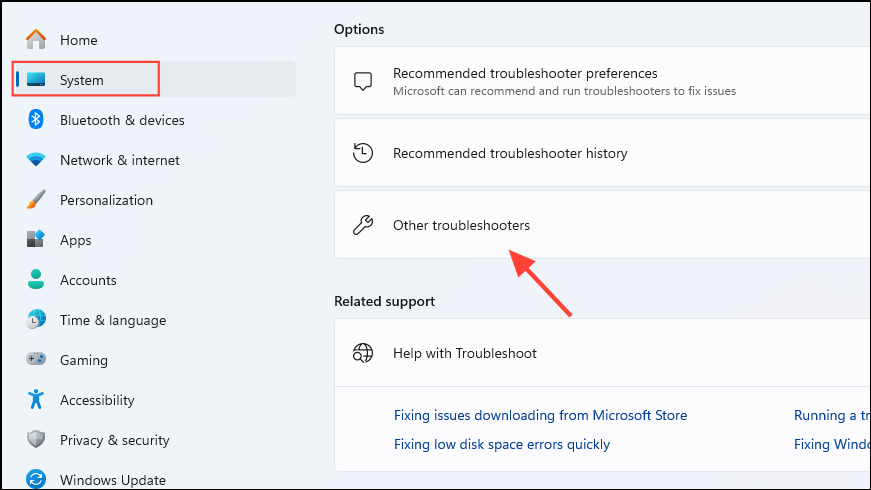
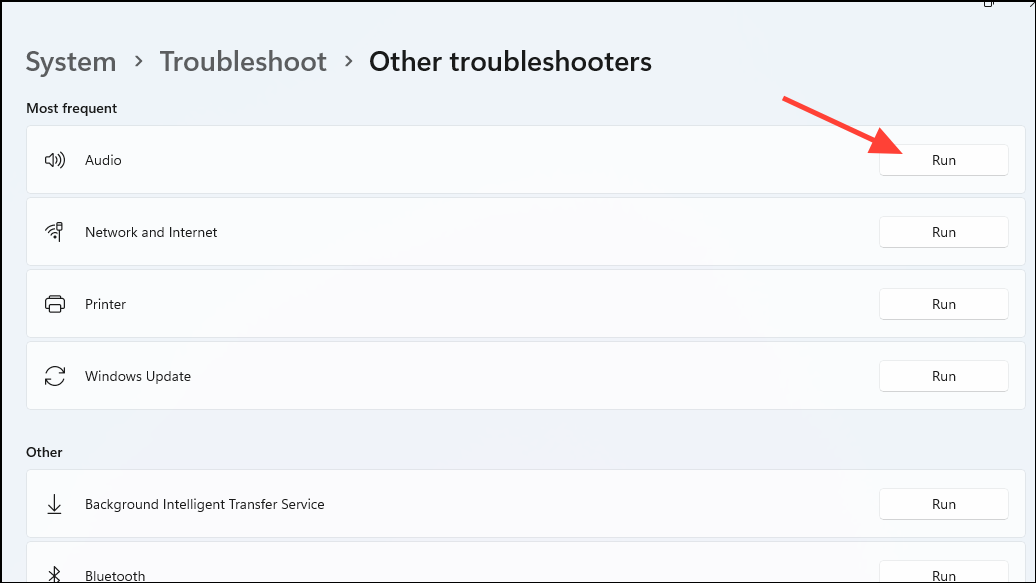
This tool can quickly identify misconfigurations or missing components that cause error 0x8007007e.
Resolving error 0x8007007e in Windows Media Player on Windows 11 typically involves updating drivers, disabling conflicting audio settings, and ensuring correct file access. With these changes, music playback should work reliably again.



