How to Fix “There Is a Problem with the Printer or Ink System” Error on Windows 11
Resolve the "problem with the printer or ink system" error on Windows 11 by addressing cartridge, printhead, driver, and system issues with these effective methods.
Resolve the “problem with the printer or ink system” error on Windows 11 by addressing cartridge, printhead, driver, and system issues with these effective methods.
by Pallav Pathak
The “There is a problem with the printer or ink system” message on Windows 11 often appears on HP and similar inkjet printers after cartridge changes or printhead issues. This error can prevent all printing functions and may persist even after restarting the printer. Addressing this problem requires a methodical approach, focusing on both printer hardware (like cartridges and printhead) and Windows 11 system settings.
Open the printer’s cartridge access door. Carefully remove all ink cartridges. Inspect each cartridge for leaks, damage, or debris on the contacts. Wipe the electrical contacts gently with a lint-free cloth slightly dampened with distilled water if any residue is visible.
If your printer allows, remove the printhead by following the manufacturer’s instructions. Check for ink buildup or blockages. Clean the printhead contacts gently with a lint-free cloth. If the printhead is clogged, avoid using tap water; instead, use distilled water and allow the printhead to dry completely before reinstalling.
Plug the printer directly into a wall outlet (not a surge protector) and turn it back on. Wait for the warm-up sequence to finish and check if the error is cleared.
Visit the printer manufacturer’s support website. Download the latest firmware and driver package for your specific model and Windows 11 version (check if you need 32-bit or 64-bit drivers).
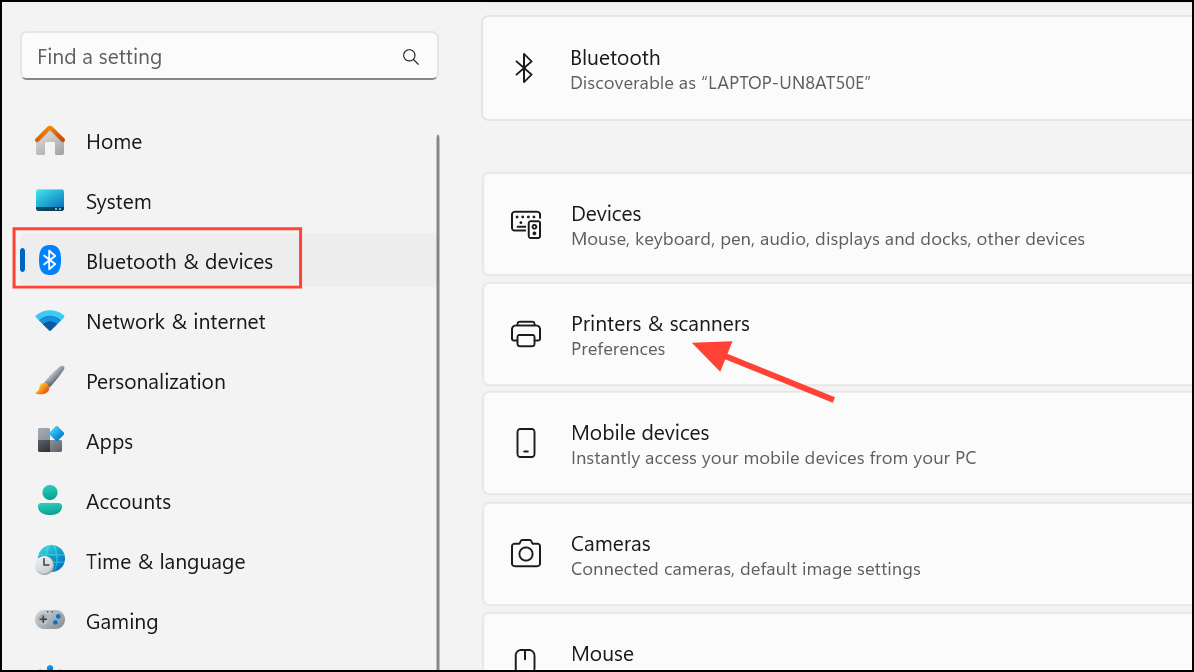
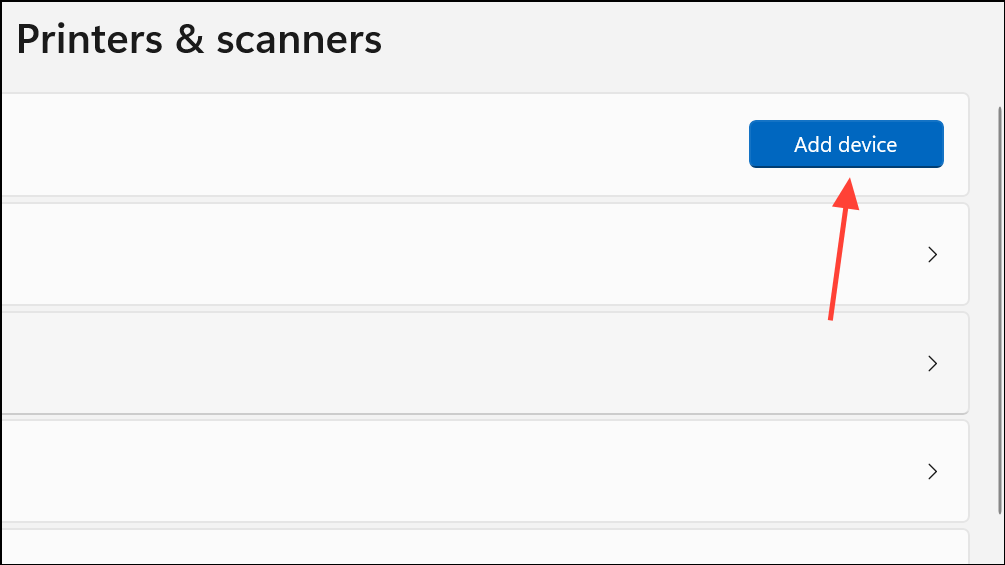
After updating, reinstall the printer by returning to Settings > Bluetooth & devices > Printers & scanners and clicking Add device. Follow on-screen prompts to complete the installation.
Perform a hardware reset by turning the printer off, unplugging the power cord from both the printer and the wall, and waiting at least 60 seconds. Reconnect the power cable directly to a wall outlet and power the printer back on.
If the error persists after cartridge and printhead cleaning, inspect the cartridge carrier and printhead assembly for bent or stuck metal contacts or springs. Poor contact can prevent the printer from recognizing cartridges, triggering the ink system error.
For advanced users, some have reported success by carefully cleaning the contacts and, if necessary, gently adjusting springs to restore proper contact. In rare cases, users have used small pieces of aluminum foil to bridge contacts (as seen in community repair videos), but this should only be attempted if you are comfortable with delicate hardware repairs and understand the risks.
Non-OEM or refilled cartridges may cause persistent ink system errors. If you have been using third-party cartridges, replace them with genuine manufacturer cartridges to rule out compatibility issues.
If the error remains after all above steps, the printhead may be permanently damaged. Replacement printheads are often expensive; weigh the cost against purchasing a new printer, especially for older models.
Additional Tips and Troubleshooting
Run the Windows printer troubleshooter via Settings > System > Troubleshoot > Other troubleshooters and select Printer.
Ensure your printer is connected directly to your PC or network and not through a USB hub or extender.
Check for Windows 11 updates. Sometimes, system updates include fixes for printing issues.
If your printer is networked, verify it is on the same Wi-Fi network as your PC.
For HP printers, use the HP Print and Scan Doctor tool for deeper diagnostics.
Regularly printing and keeping your printer powered on at intervals can help prevent ink from drying and reduce the chances of printhead clogs that cause ink system errors.
Resolving the “There is a problem with the printer or ink system” error on Windows 11 involves careful attention to both printer hardware and software. If all steps fail, hardware replacement or upgrading to a new printer may be the most practical solution.