
The error message Windows could not update the computer's boot configuration. Installation cannot proceed. frequently appears during Windows 11 installations, especially when disk partition layouts or BIOS settings do not match the system requirements. This issue can prevent Windows from setting up the necessary boot files, leaving the system unbootable until the underlying configuration problem is resolved.
Rebuild Boot Configuration Using Command Prompt
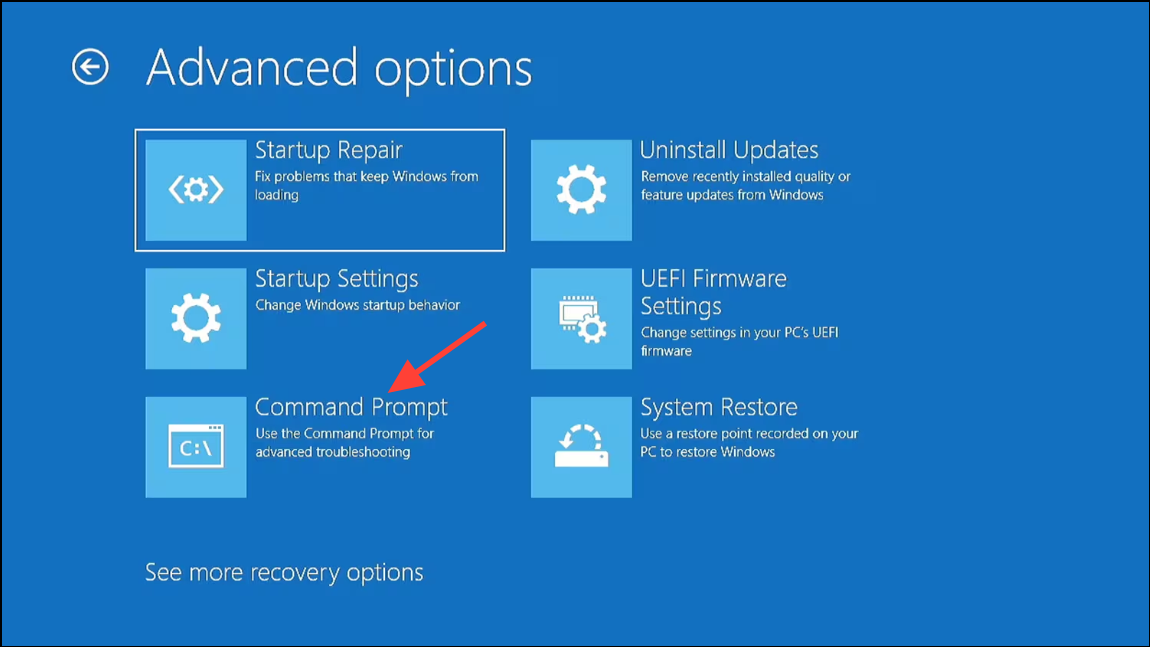
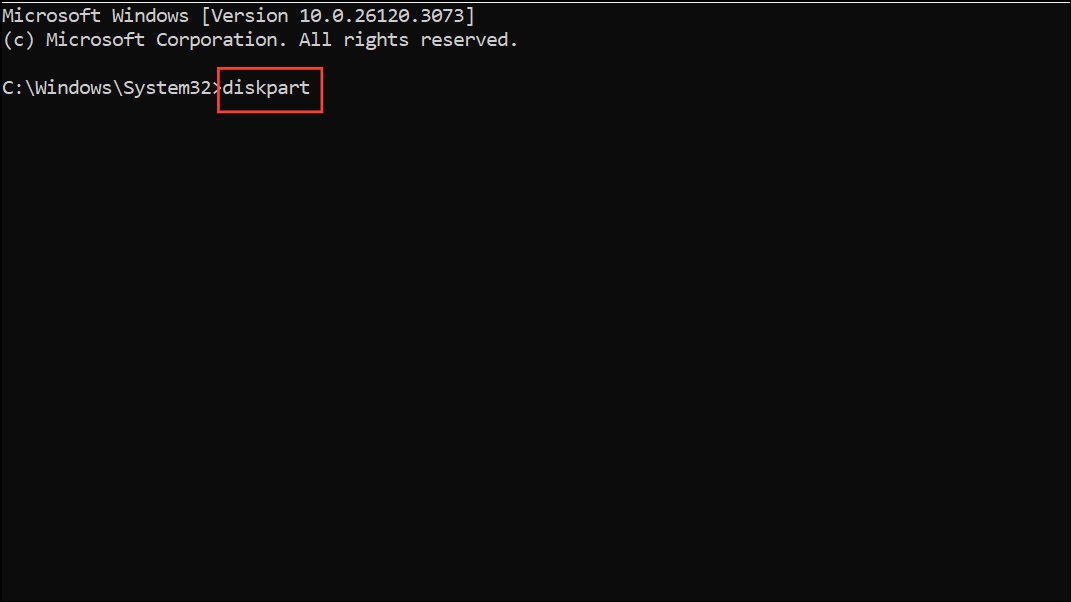
diskpart
list disk
select disk 0   (Replace 0 with your system disk number if different)
list partition
select partition 2   (Replace 2 with your EFI partition number, usually ~100MB, FAT32)
assign letter=w
exit
format /FS:FAT32 w:
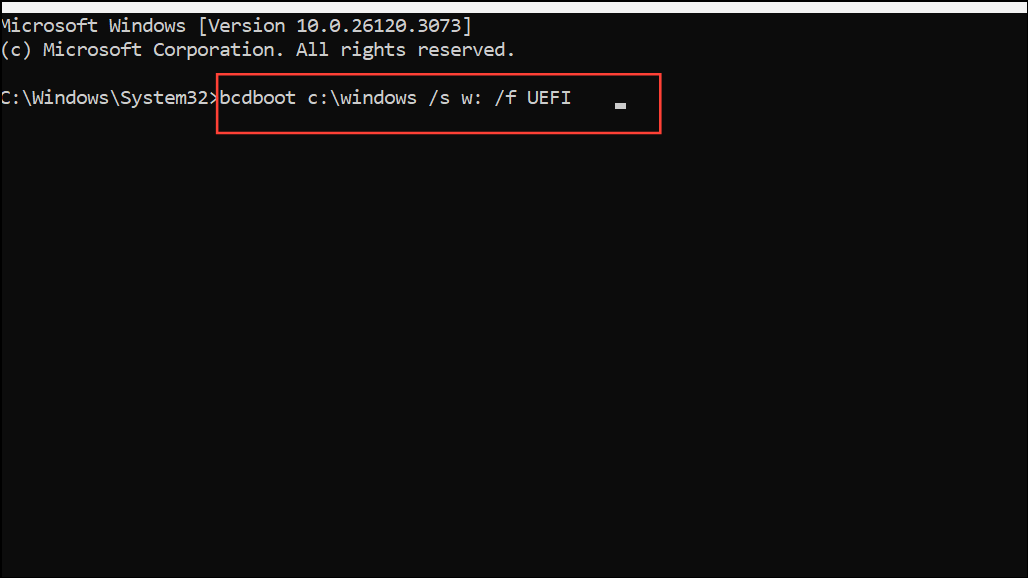
bcdboot tool. This command copies boot files from the Windows directory to the EFI partition and configures the boot environment:
bcdboot c:\windows /s w: /f UEFI
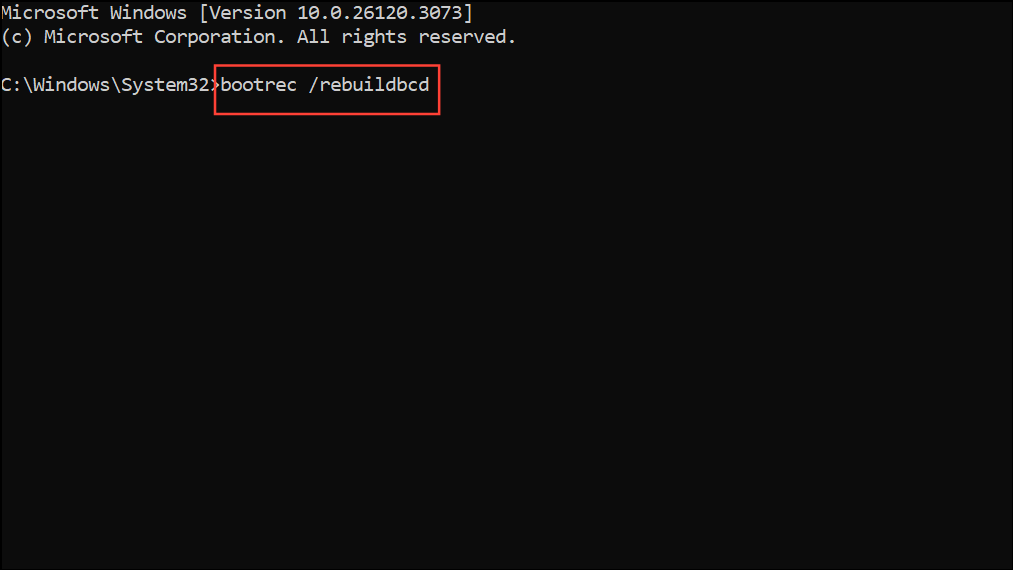
bootrec /rebuildbcd
Correct Disk Partition Style and BIOS Settings
Conflicts between disk partition style (MBR vs. GPT) and BIOS firmware mode (Legacy vs. UEFI) often cause boot configuration errors. Windows 11 requires a GPT disk and UEFI firmware mode for installation on most modern systems.
F2, F10, Del, or Esc immediately after powering on the computer. Refer to your motherboard or laptop manual for the exact key.Shift+F10 to open Command Prompt.
diskpart
list disk
select disk 0   (Replace 0 with your system disk number)
clean
convert gpt
exit
Check and Recreate Installation Media
Corrupted or improperly created installation media can also trigger boot configuration errors.
Additional Troubleshooting Tips
- Disconnect all non-essential drives and peripherals before installing Windows 11. Only the target system disk should remain connected.
- Update BIOS/UEFI firmware to the latest version from your system or motherboard manufacturer’s website.
- Reset BIOS/UEFI settings to factory defaults if you suspect configuration issues.
- If you are using automated installation tools (such as NTLite), verify that your
autounattend.xmlor preset files do not contain conflicting or incomplete partition instructions. - Manually partitioning drives with
diskpart, followed by runningdismandbcdboot, can bypass some automated setup errors.
Resolving the “Windows could not update the computer’s boot configuration” error in Windows 11 requires careful alignment of disk partition style, BIOS settings, and installation media. Following these steps restores the system’s ability to boot and allows Windows 11 to install without further interruption.



