
Windows 11 can display the error message We couldn't install some updates because the PC was off when update processes are interrupted, system files are corrupted, or update components become stuck. This issue blocks important security and feature updates, potentially leaving your device vulnerable or causing compatibility problems with applications. Addressing this error restores normal update functionality and keeps your system protected.
Reset Windows Update Components
Resetting Windows Update components clears out temporary files and resets services responsible for downloading and installing updates. This process resolves many update-related issues caused by corrupted files or stuck update services.
cmd, right-click on Command Prompt, and select Run as administrator. This gives you the necessary permissions to modify system components.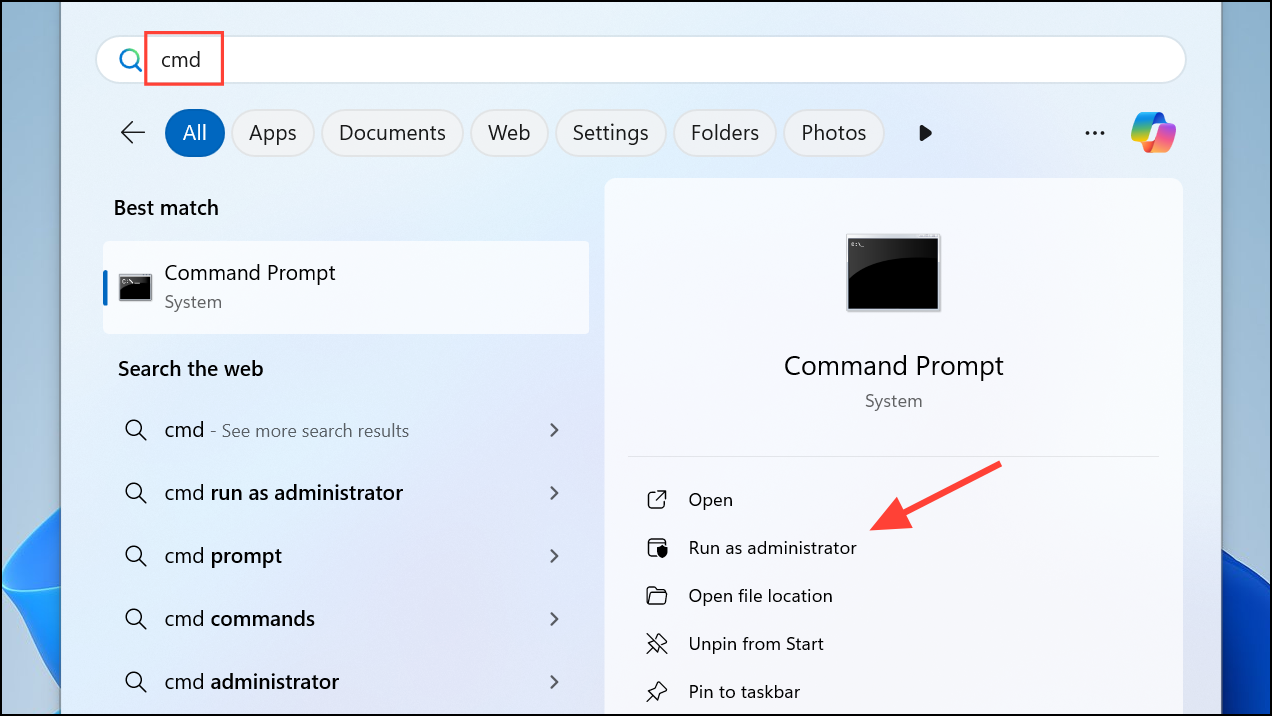
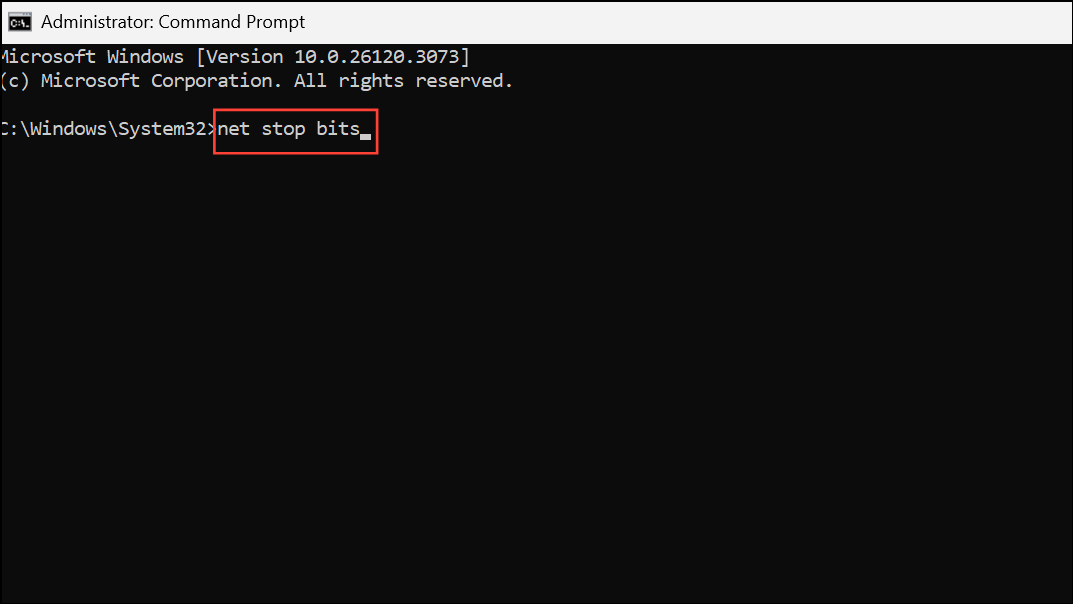
net stop bits
net stop wuauserv
net stop cryptsvc
ren %systemroot%\softwaredistribution softwaredistribution.bak
ren %systemroot%\system32\catroot2 catroot2.bak
net start bits
net start wuauserv
net start cryptsvc
Settings > Windows Update and click Check for updates to verify that updates now install correctly.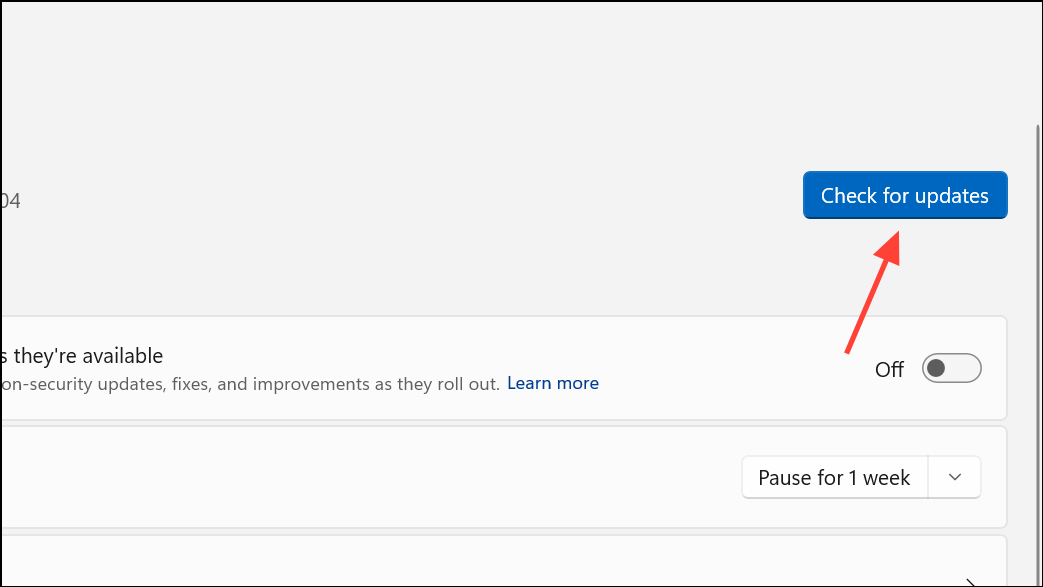
Run the Windows Update Troubleshooter
The built-in Windows Update Troubleshooter scans for common problems with update components and automatically applies fixes.
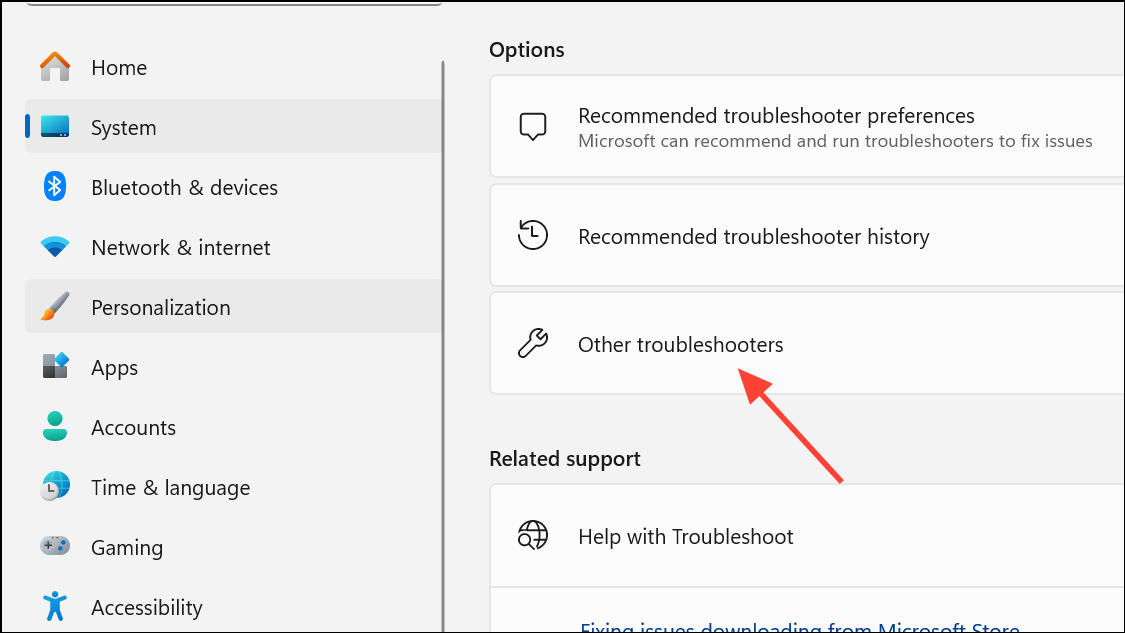
Windows Update in the list and click Run. Follow the on-screen instructions and apply any suggested fixes.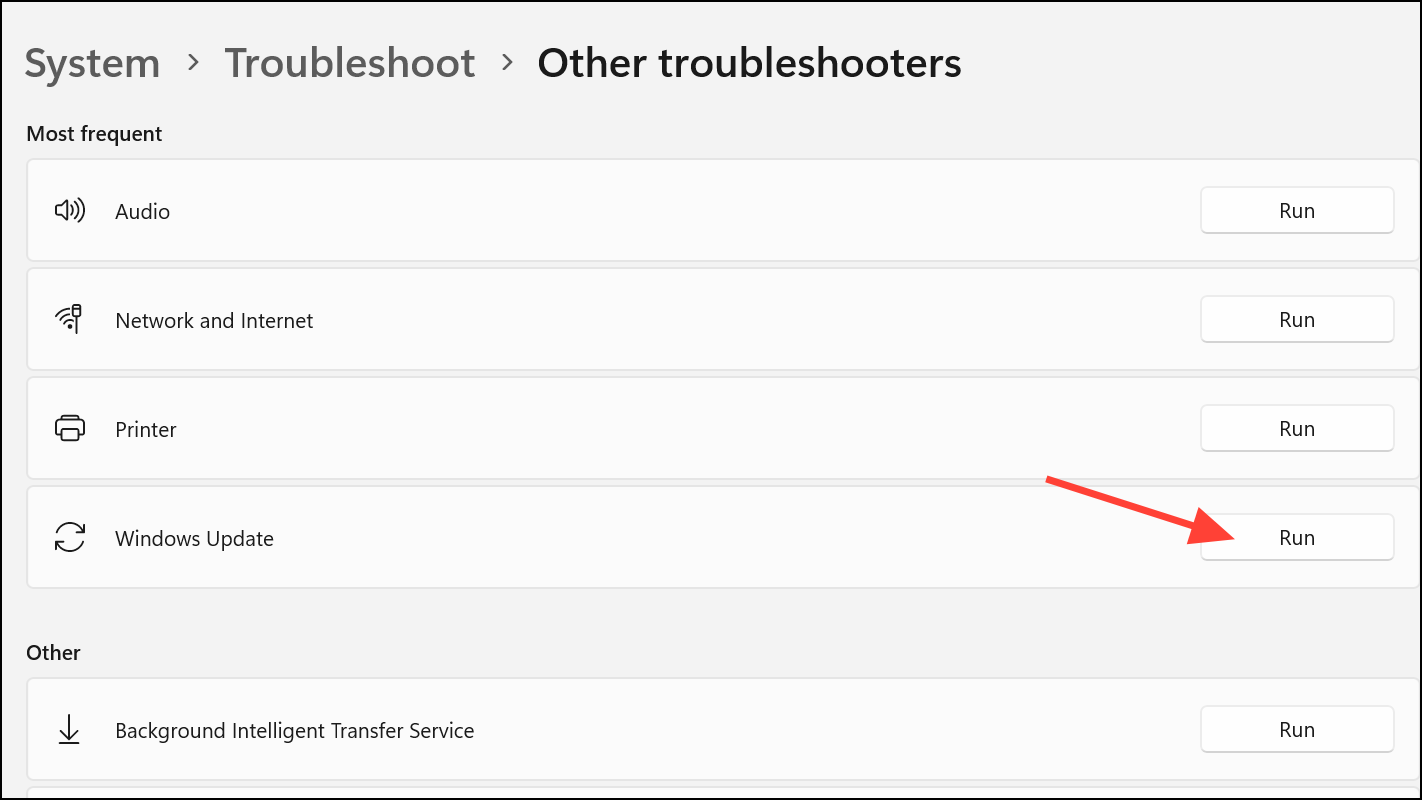
Settings > Windows Update > Check for Updates.Repair System Files
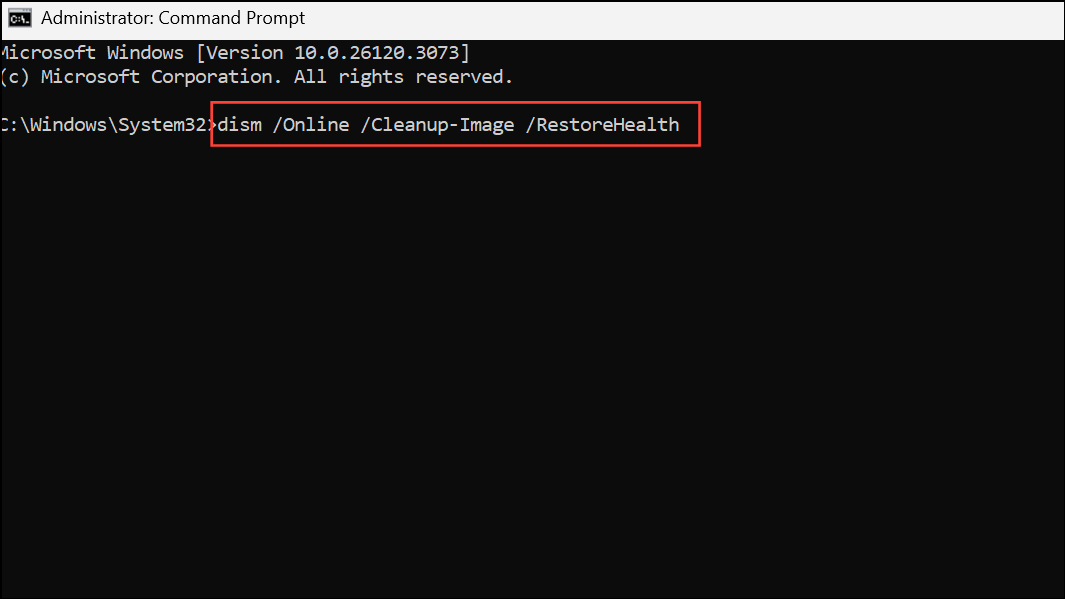
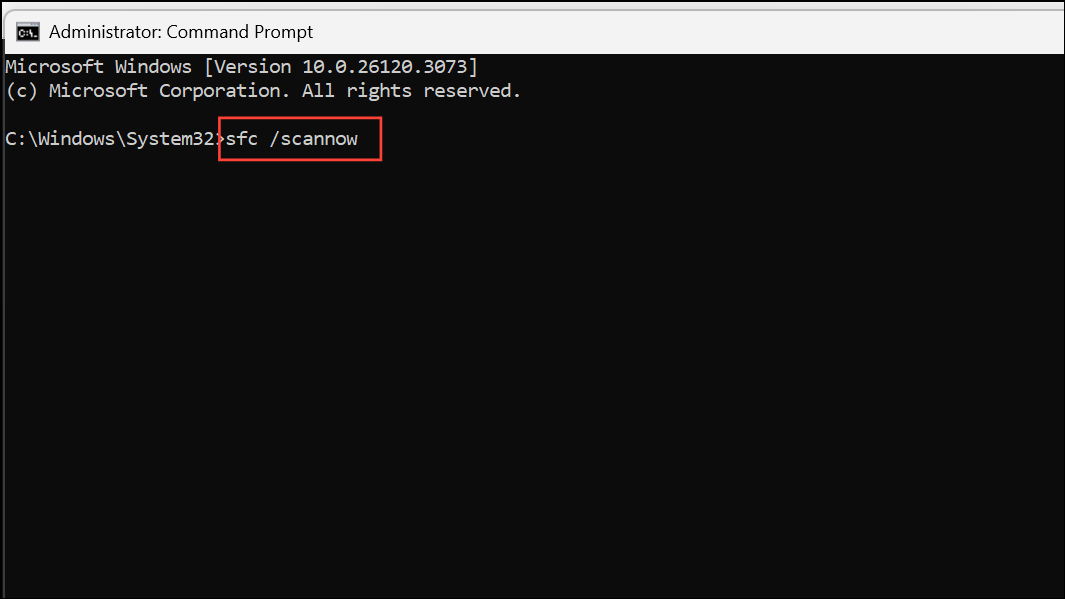
Corrupted system files can prevent updates from installing. The DISM and SFC tools repair Windows images and system files, restoring update functionality.
DISM.exe /Online /Cleanup-image /Restorehealth
sfc /scannow
Perform an In-Place Upgrade Using Windows 11 ISO
An in-place upgrade reinstalls Windows 11 while keeping your files, settings, and applications. This method repairs deeper system issues that prevent updates from installing.
Change how Setup downloads updates and choose Not right now for a faster process. Accept the license terms.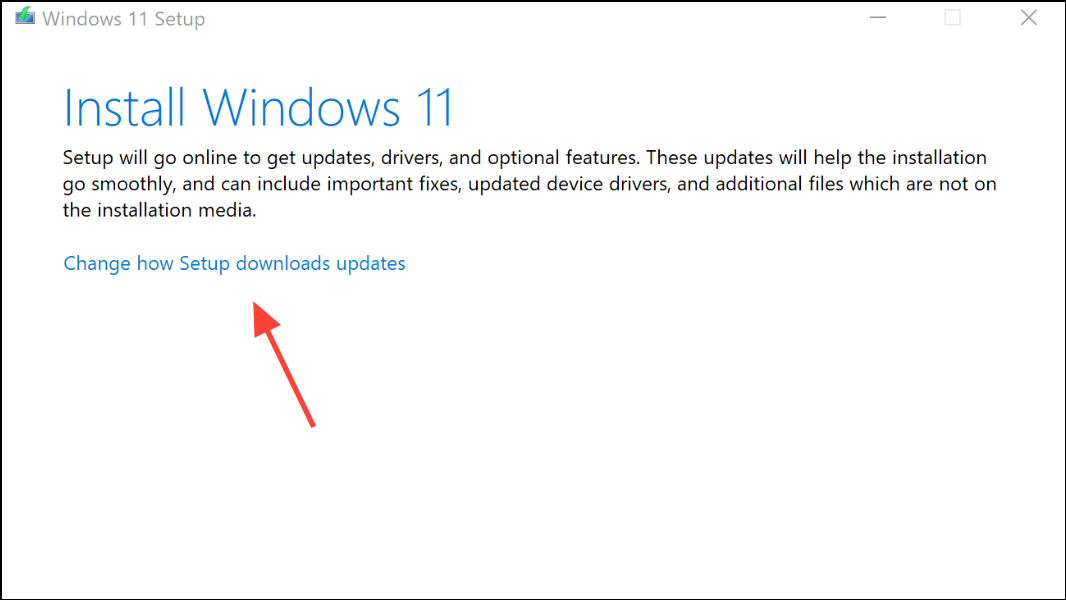
Choose what to keep and make sure your files and apps are preserved. Click Install and allow the upgrade to complete. Your PC will restart several times.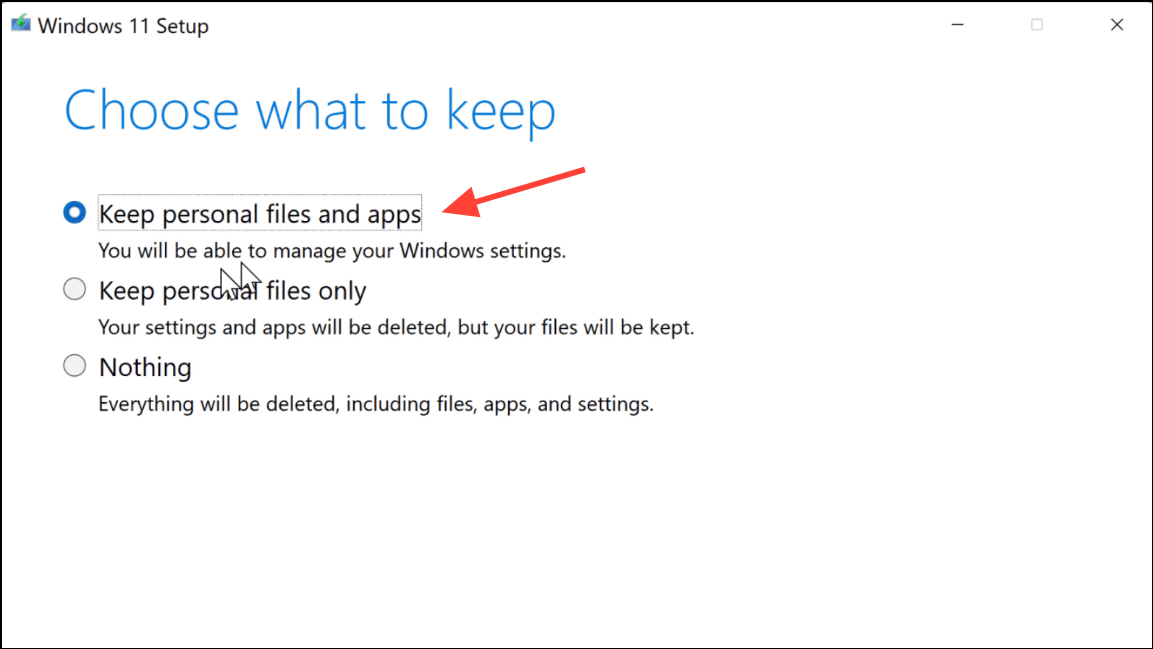
Settings > Windows Update and check for updates again. Updates should now install successfully.Additional Steps for Persistent Issues
If updates still fail, consider these advanced troubleshooting steps:
- Uninstall third-party antivirus or security software, as these can block update processes.
- Disconnect non-essential external devices (USB drives, printers, etc.) during updates to avoid hardware conflicts.
- Free up disk space on your system drive to ensure there is enough room for updates.
- Update all device drivers and BIOS/firmware from your hardware manufacturer’s support site.
- If the problem started recently, use
System Restoreto revert your system to a point before update failures began. - As a last resort, back up your files and perform a system reset or clean installation of Windows 11.
Restoring Windows Update functionality ensures your device stays secure and up to date. Regularly checking for updates and maintaining your system prevents similar issues in the future.



