

Bluetooth devices such as headphones, keyboards, and mice can lose power unexpectedly if you don’t monitor their battery status. Windows 11 provides several ways to check the battery level of supported Bluetooth devices, helping you avoid interruptions and keep your workflow moving.
Check Bluetooth Battery Level in Windows 11 Settings
Win+I to open the Settings app. This shortcut quickly brings up the main Windows 11 settings panel.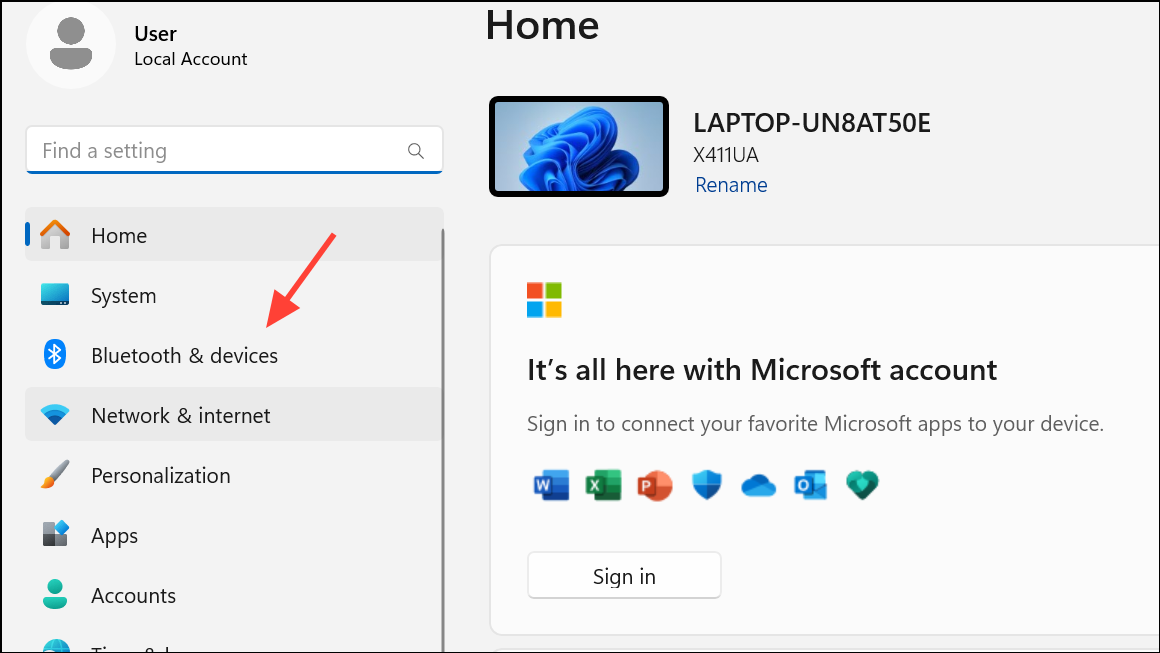
Checking battery status through Windows Settings is straightforward and does not require any additional software, but it depends on the device’s compatibility with Windows battery reporting protocols.
Show Bluetooth Battery Level in the System Tray with Third-Party Apps
Some users prefer seeing Bluetooth device battery levels directly in the system tray for quicker access. Windows 11 does not natively display this information in the notification area, but several third-party utilities fill this gap.
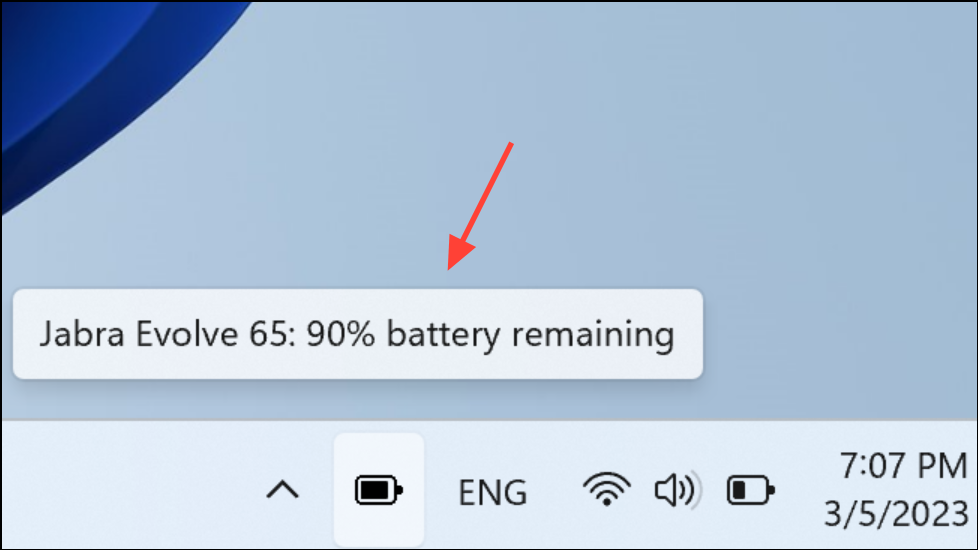
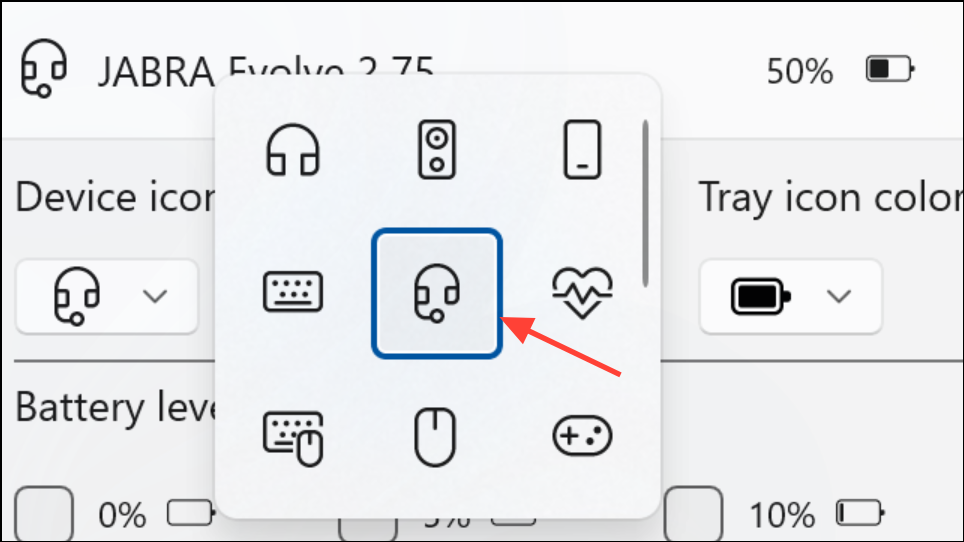
These tools are especially useful for users who frequently switch between devices or want a persistent, always-visible battery indicator. Note that some third-party apps may require a small purchase or subscription for full functionality.
Check Bluetooth Battery Level Using PowerShell
For users comfortable with command-line tools, PowerShell can retrieve Bluetooth device battery information with the right script. This method is more technical but can be automated or customized.
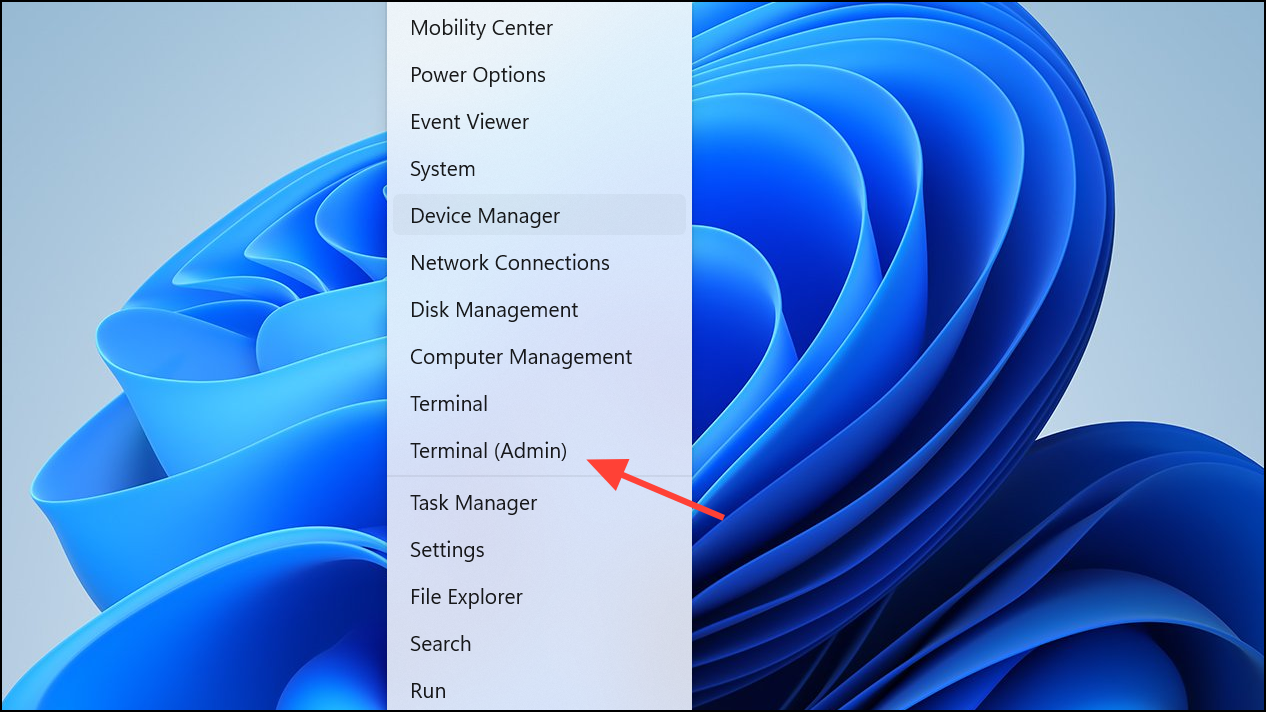
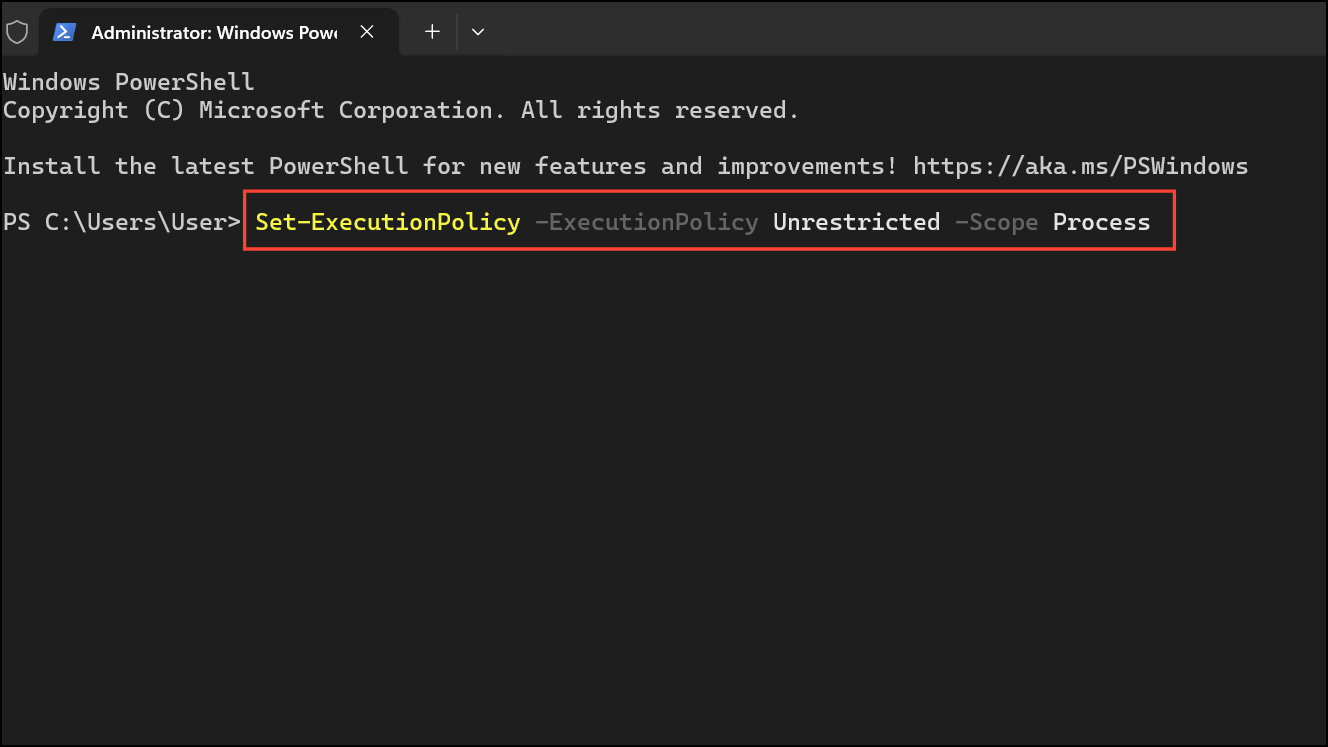
Set-ExecutionPolicy -ExecutionPolicy Unrestricted -Scope Process
$BTDeviceFriendlyName = "Your Device Name"
$BTHDevices = Get-PnpDevice -FriendlyName "*$($BTDeviceFriendlyName)*"
if ($BTHDevices) {
    $BatteryLevels = foreach ($Device in $BTHDevices) {
        $BatteryProperty = Get-PnpDeviceProperty -InstanceId $Device.InstanceId -KeyName '{104EA319-6EE2-4701-BD47-8DDBF425BBE5} 2' |
            Where-Object { $_.Type -ne 'Empty' } |
            Select-Object -ExpandProperty Data
        if ($BatteryProperty) {
            $BatteryProperty
        }
    }
    if ($BatteryLevels) {
        Write-Host "Battery Level of $($BTDeviceFriendlyName): $BatteryLevels %"
    } else {
        Write-Host "No battery level information found for $($BTDeviceFriendlyName) devices."
    }
} else {
    Write-Host "Bluetooth device not found."
}
This approach is suited for users who want more control or wish to automate battery checks, but it requires some familiarity with PowerShell and device management.
Limitations and Device Compatibility
Not every Bluetooth device supports battery reporting in Windows 11. Older devices or those using proprietary communication protocols may not display battery information. If you do not see a battery percentage in Settings or third-party tools, check with the device manufacturer for compatibility or firmware updates. Some devices may gain support with driver or firmware upgrades.
Monitoring your Bluetooth device battery levels in Windows 11 is possible through built-in settings, third-party utilities, or custom scripts. Choose the method that fits your workflow to avoid losing connection at inconvenient moments.



