
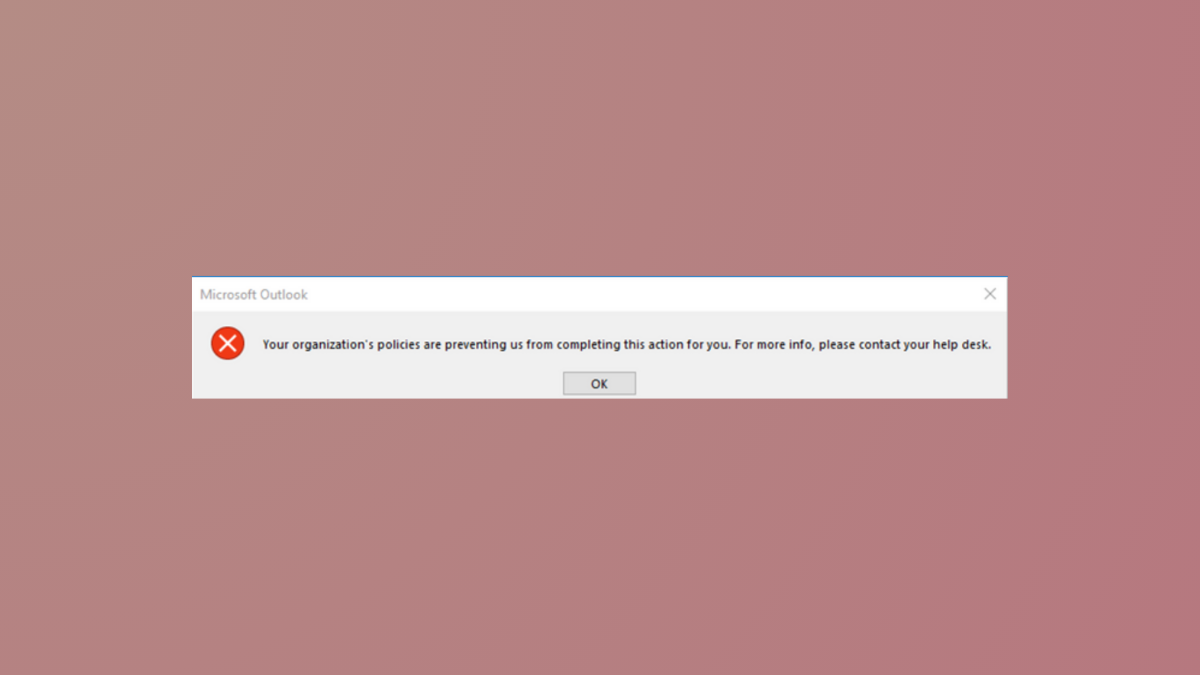
Clicking hyperlinks in Outlook on Windows 11 sometimes triggers the message: Your organization's policies are preventing us from completing this action for you. This issue often blocks you from opening web links directly from emails and can disrupt daily workflows, even on personal PCs with no organizational controls. The root cause typically relates to browser defaults, file associations, or registry keys rather than actual group policies. The following methods address the problem, starting with the most effective solutions.
Correct .html and .htm File Associations
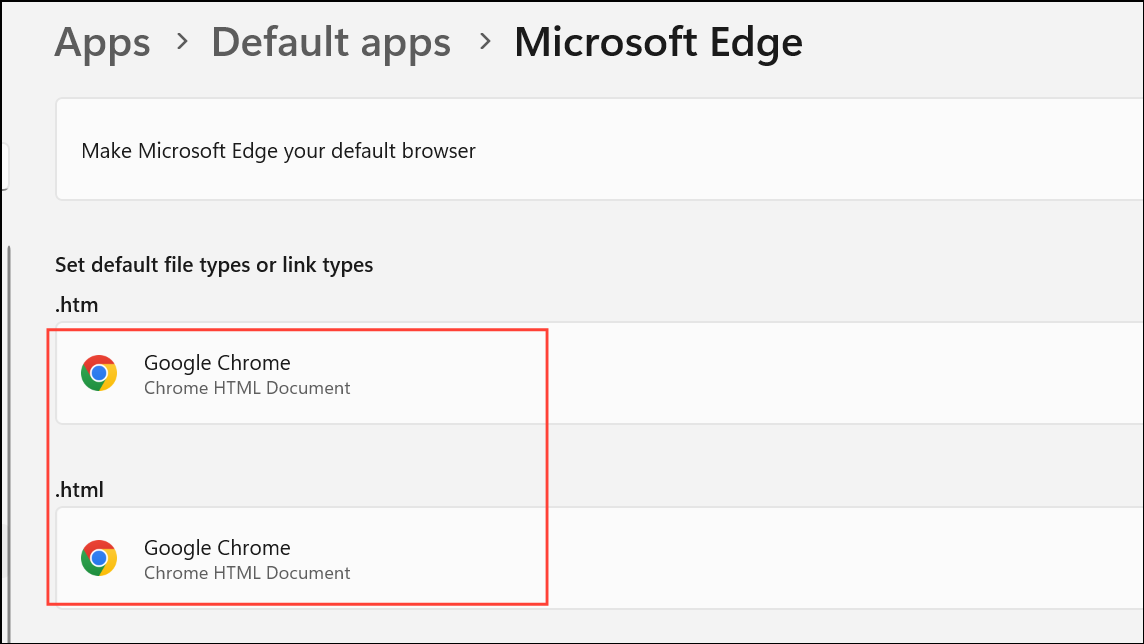
Incorrect or missing file associations for web file types like .html and .htm frequently cause this error. The system must know which browser to use for these files. Even if your default browser is set, Windows 11 may not properly link these file types after browser installs, removals, or updates.
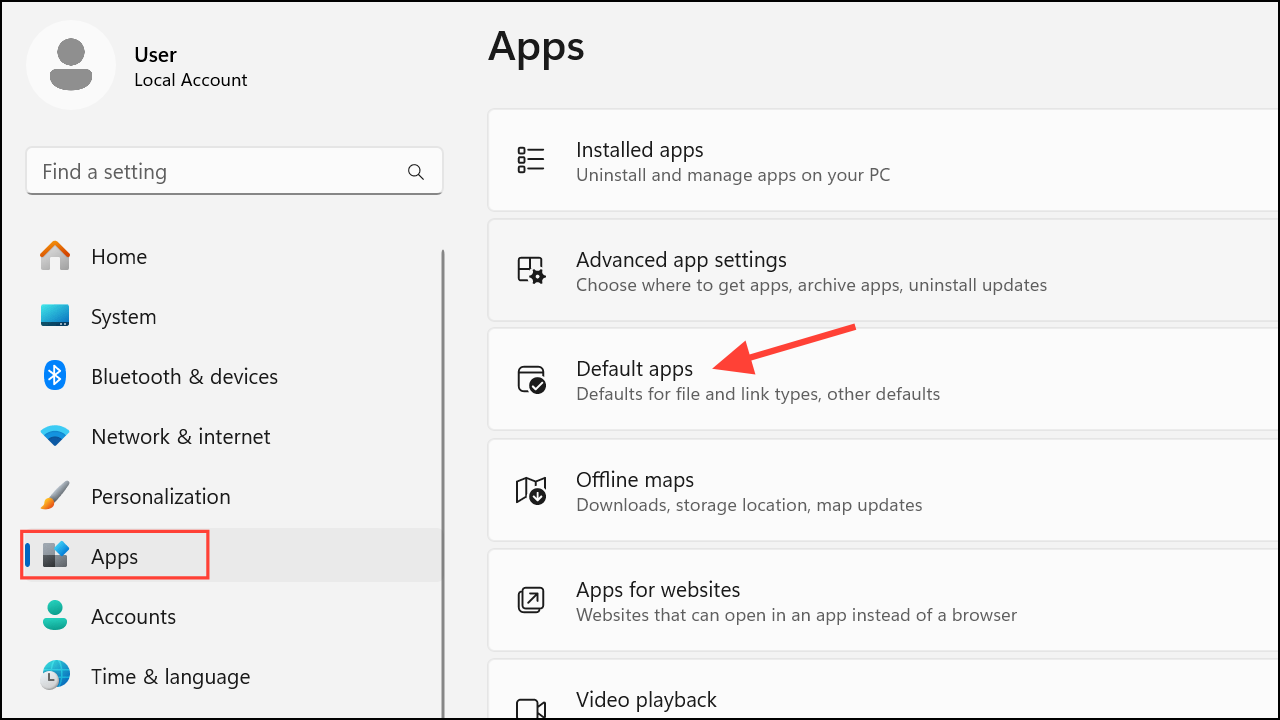
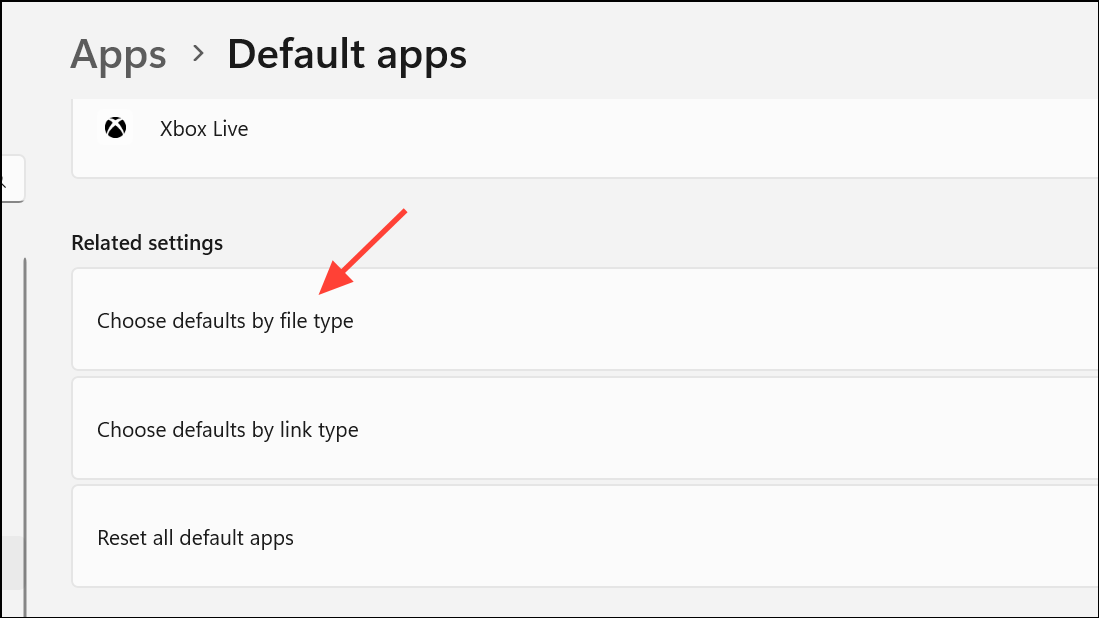
.html and .htm. Make sure both are assigned to your preferred web browser (such as Microsoft Edge or Google Chrome).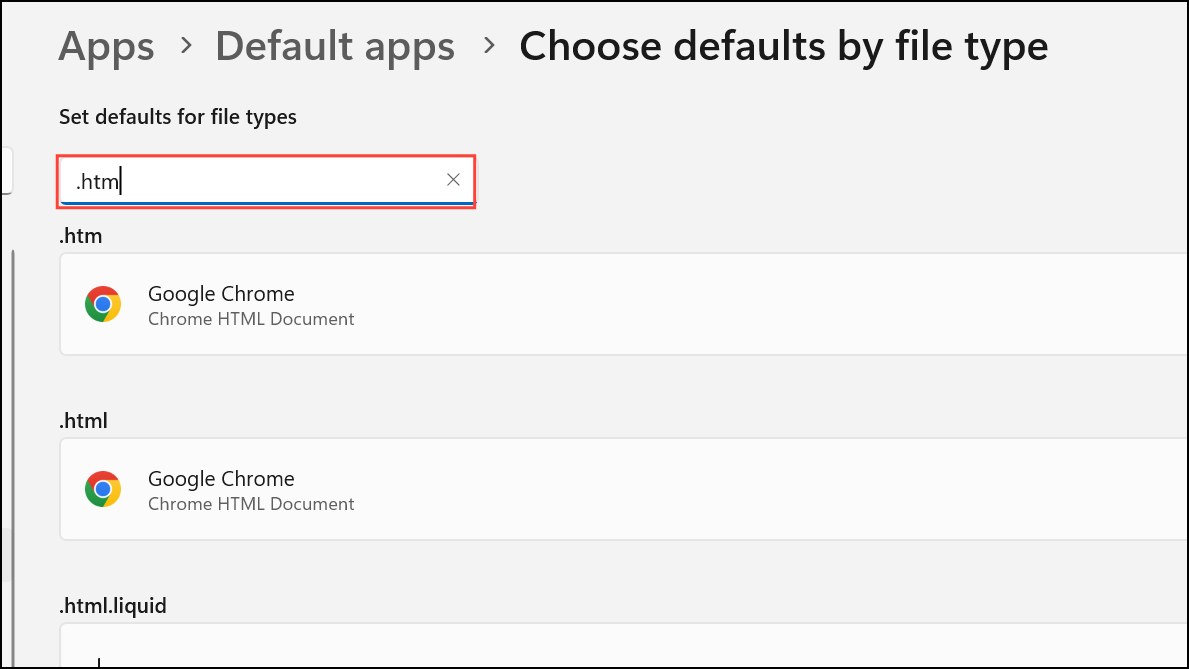
Set Microsoft Edge and Outlook as Default Programs
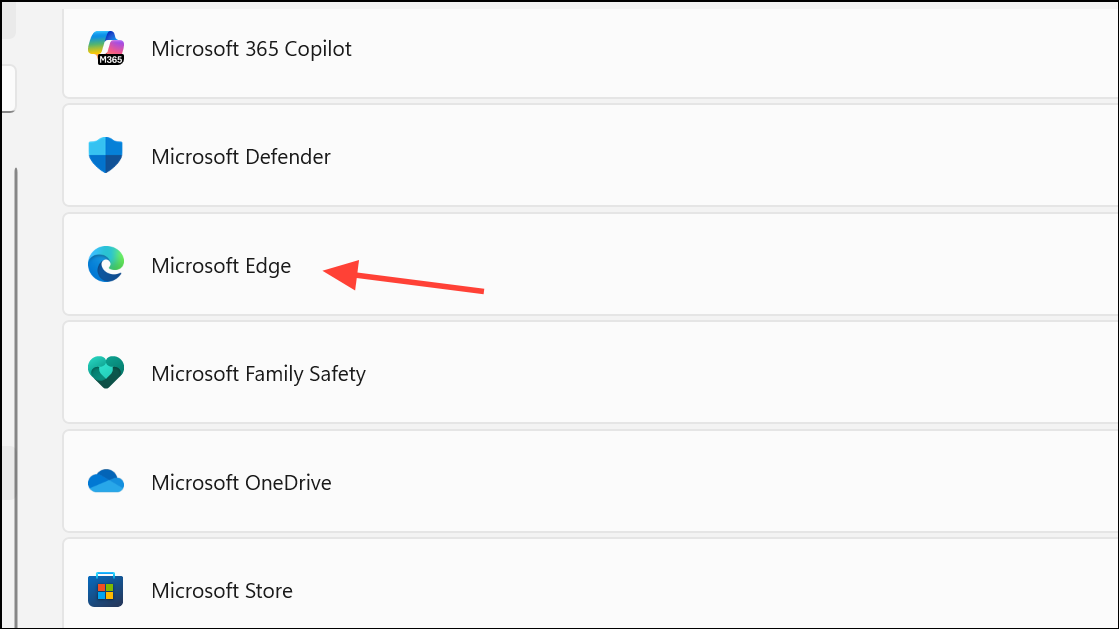
Windows 11 sometimes fails to update default applications after browser changes. Explicitly setting Edge (or your preferred browser) and Outlook as defaults can resolve the error.
Repair Registry Entries for HTML File Handling
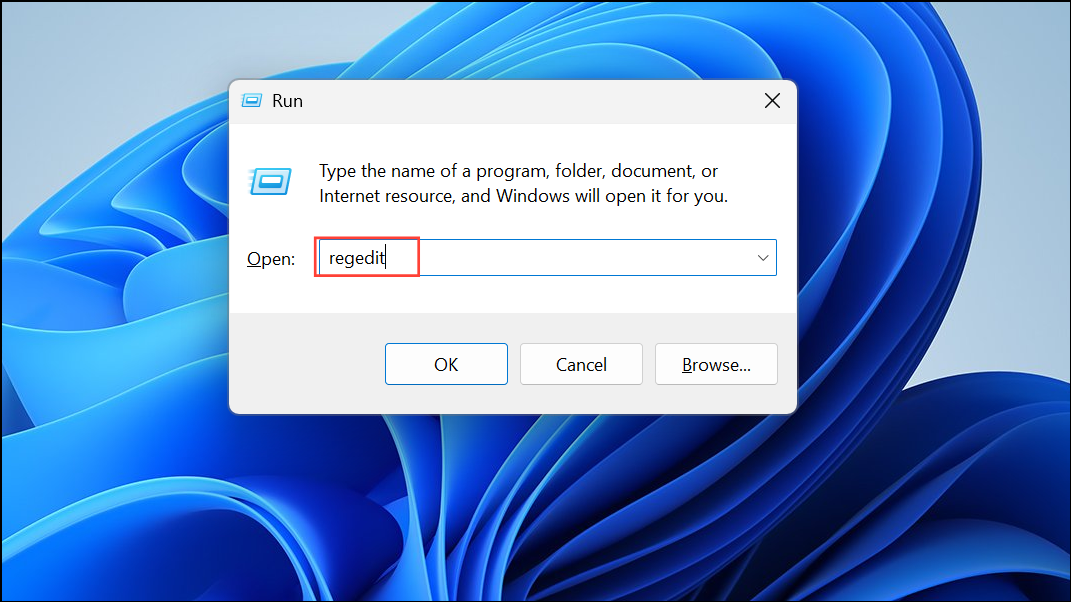
Corrupted or outdated registry entries for HTML files can prevent Outlook from launching links. This is especially common after uninstalling browsers or upgrading Windows. Always back up your registry before making changes.
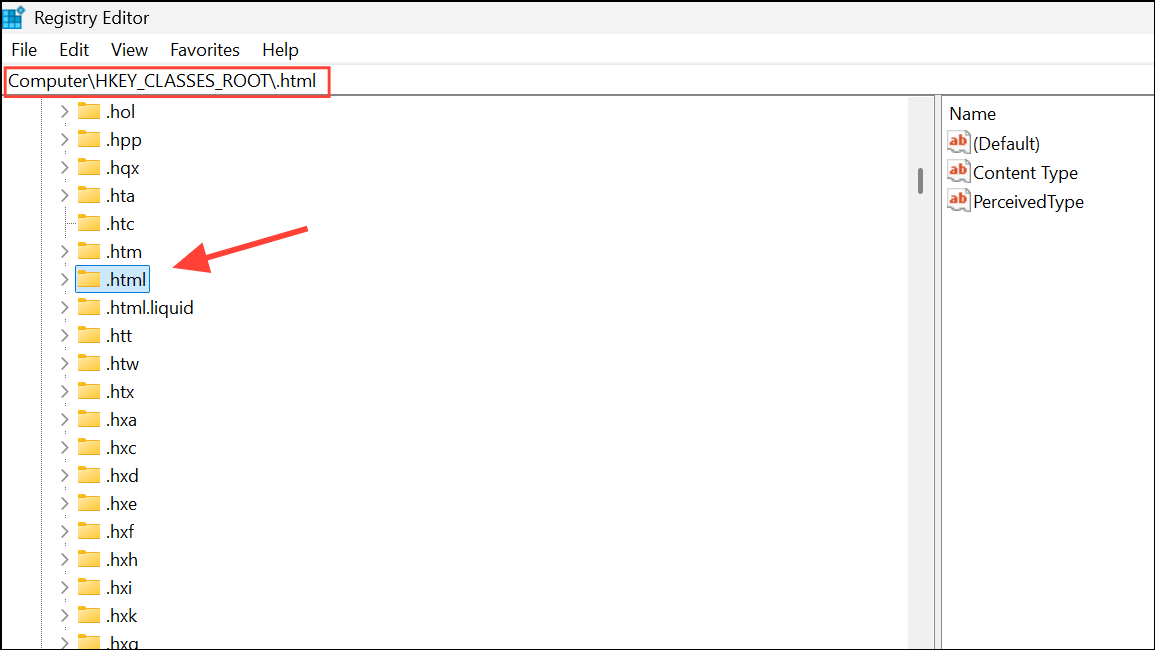
(Default) value in the right pane. Set its value to htmlfile (case-sensitive) and click OK.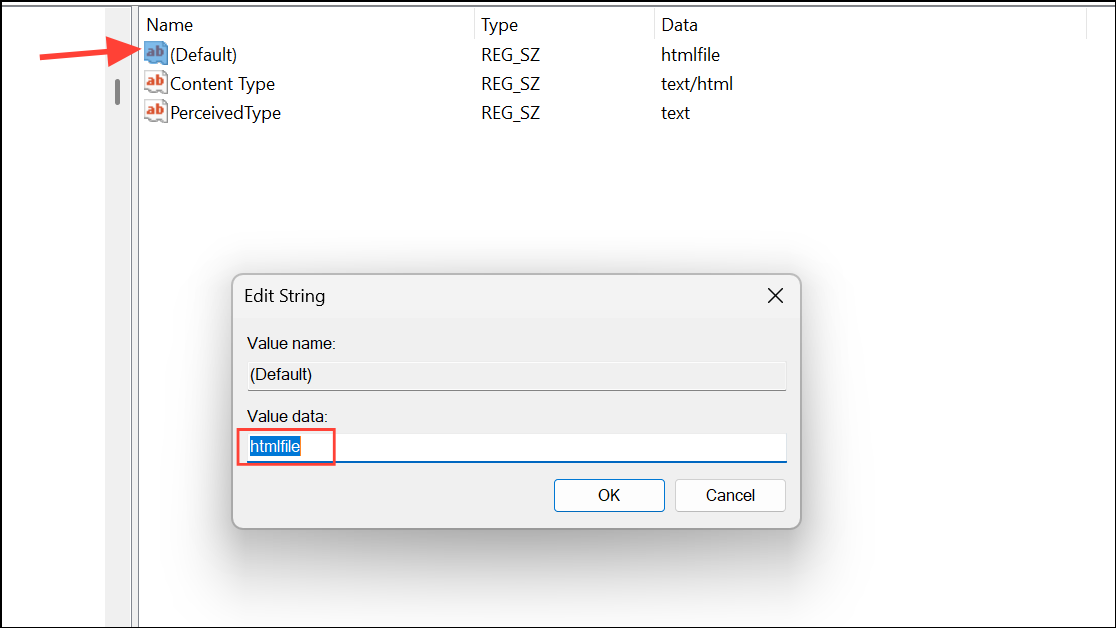
Alternatively, if the above registry path is missing or the error persists, create the following registry keys:
Computer\HKEY_LOCAL_MACHINE\SOFTWARE\Classes\htmlfile\shell\open\command
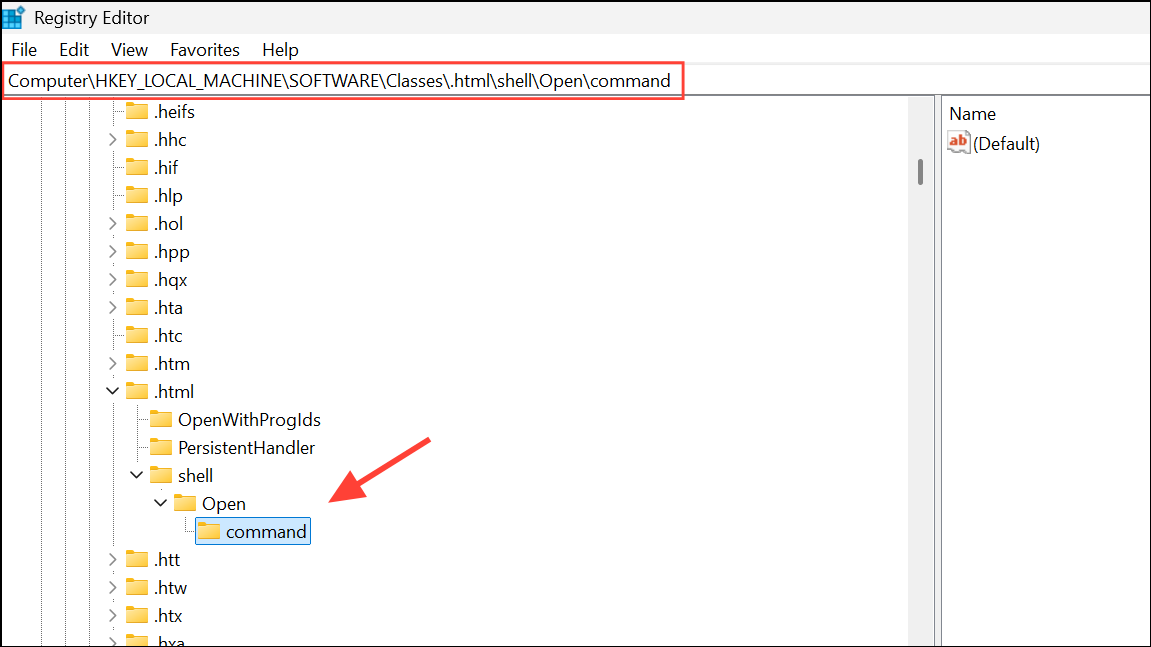
Ensure the command key exists and points to your browser’s executable path. This tells Windows which application to use for HTML files.
Reset Internet Explorer and Internet Zone Settings
Even though Internet Explorer is deprecated, some Windows 11 components and legacy Office features still rely on its configuration. Removing or disabling Internet Explorer as a Windows feature can cause Outlook hyperlink errors.
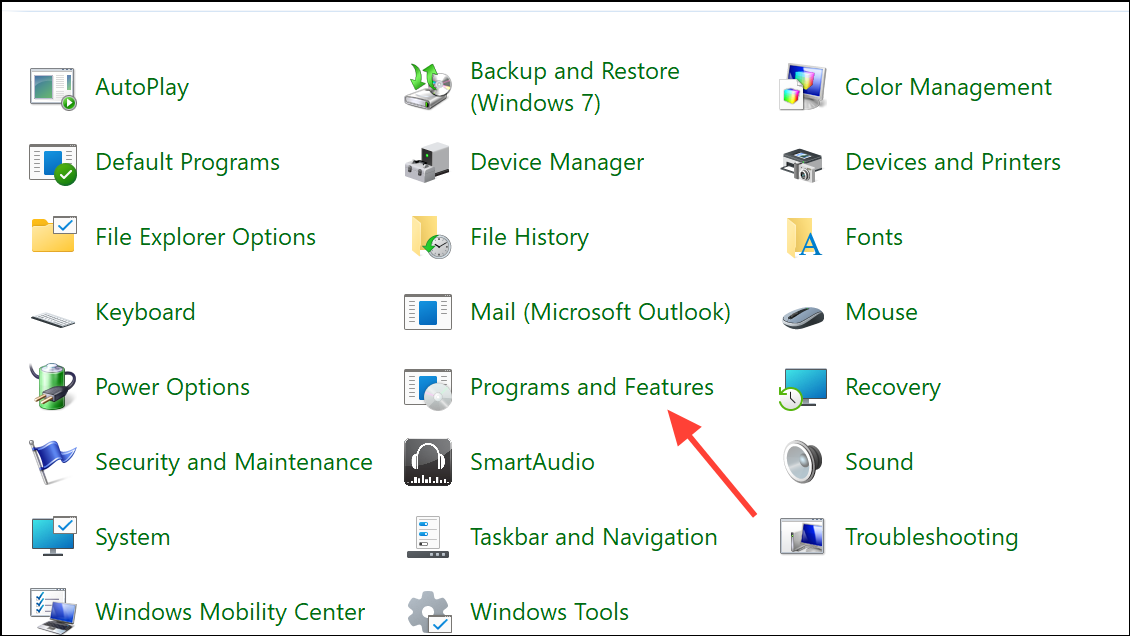
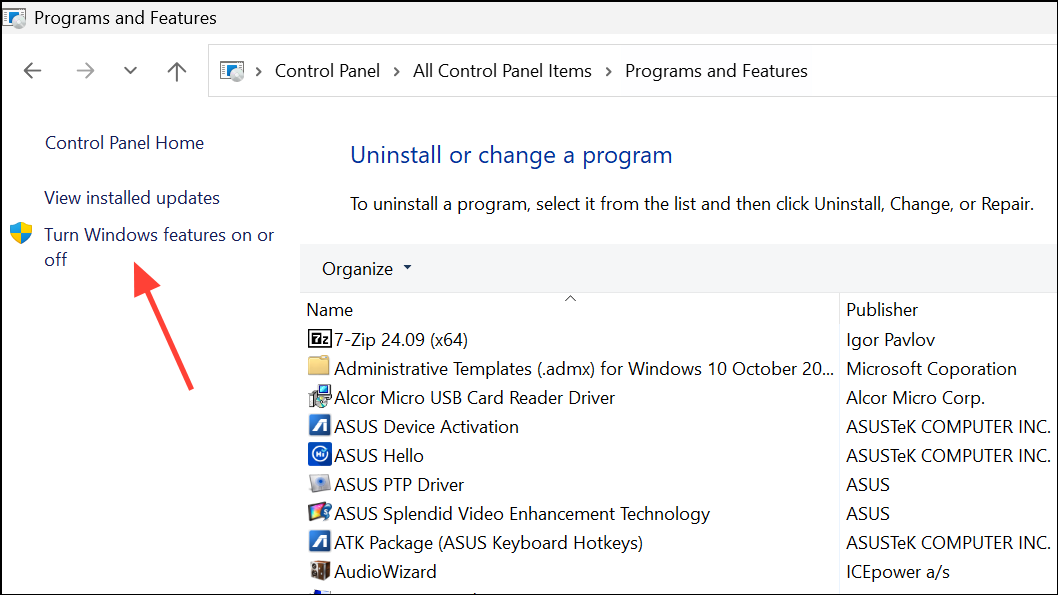
Settings > Internet Options. Under the Security tab, click Reset all zones to default level. Then, under the Advanced tab, click Reset and confirm by checking Delete Personal Settings.Reset Microsoft Edge to Default
If Microsoft Edge is the default browser but links still fail, resetting Edge can fix hidden configuration issues. This process refreshes Edge settings and removes potential corruption.
Reinstall or Repair Browsers
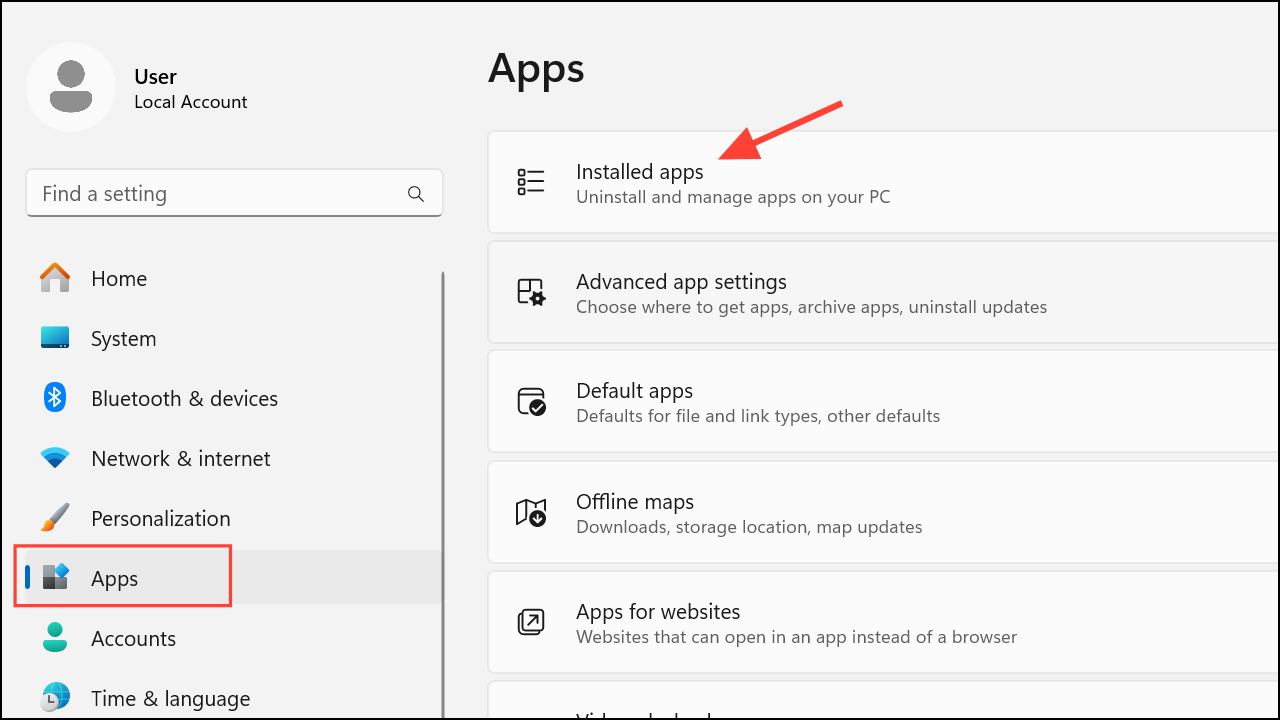
Uninstalling or reinstalling browsers like Chrome or Firefox can resolve lingering file association problems. Sometimes, uninstalling a browser leaves broken links or registry entries, which interfere with Outlook’s ability to open hyperlinks.
Settings > Apps > Installed apps.Addressing the “Your organization’s policies are preventing us from completing this action for you” message in Windows 11 usually comes down to fixing browser defaults, file associations, and registry entries. With these steps, you should be able to restore normal hyperlink functionality in Outlook and other apps.



