
Swift Pair in Windows 11 reduces the time and effort required to connect Bluetooth devices, such as headphones, keyboards, and mice. By automatically detecting supported peripherals in pairing mode, Swift Pair eliminates the need to manually search for devices in settings. This feature is especially valuable when connecting new accessories or switching between multiple devices, providing a notification-based workflow that speeds up the process.
Enable Bluetooth Swift Pair in Windows 11
Windows + I on your keyboard, or select Start and then Settings from the Start menu.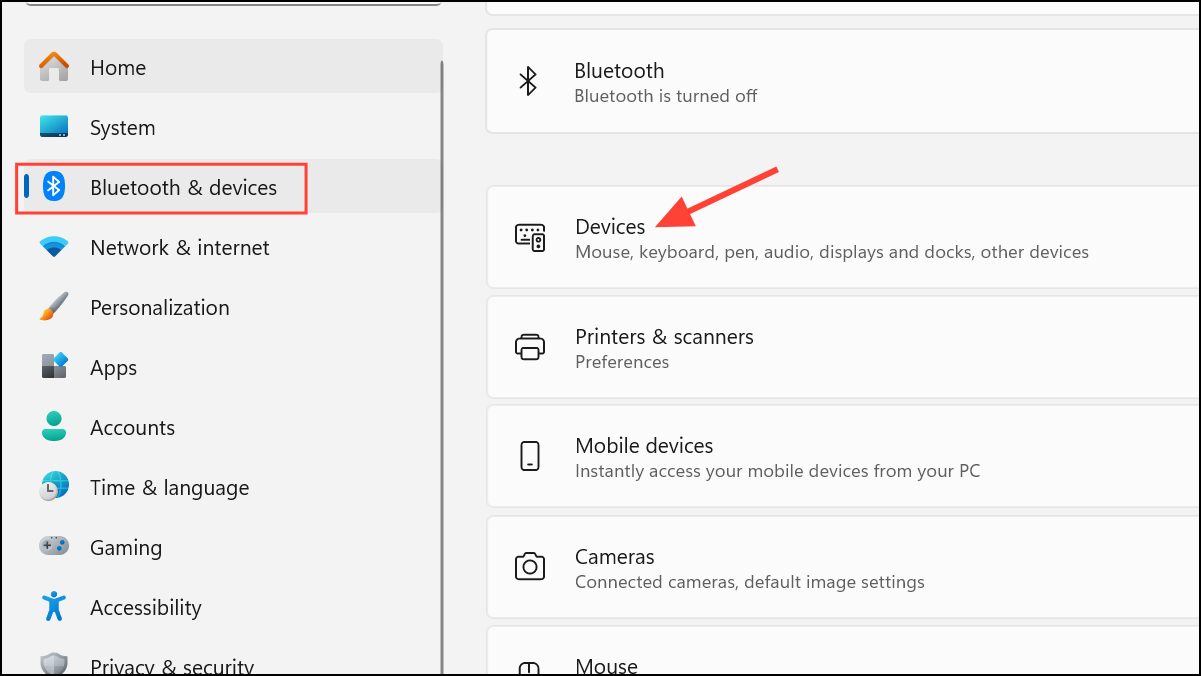
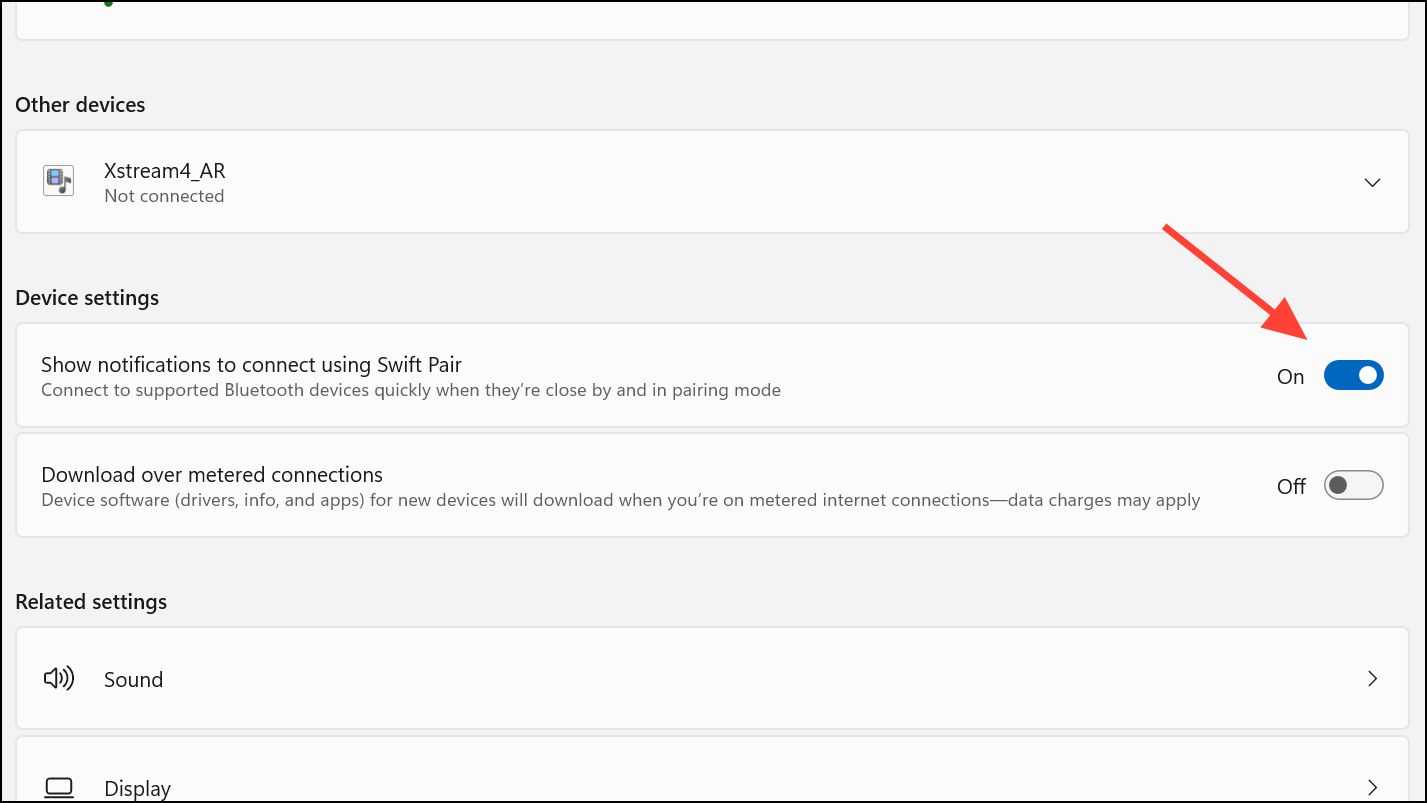
Swift Pair relies on your PC’s Bluetooth radio supporting continuous monitoring of Bluetooth Low Energy (LE) advertisements. If the option to enable Swift Pair does not appear, your hardware may not support this feature, or you may need to update your Bluetooth drivers.
Pair a Bluetooth Device Using Swift Pair
0000).If the notification does not appear, make sure Swift Pair is enabled and your device supports this feature. For devices that do not support Swift Pair, use the manual pairing method described below.
Pair a Bluetooth Device Manually in Windows 11
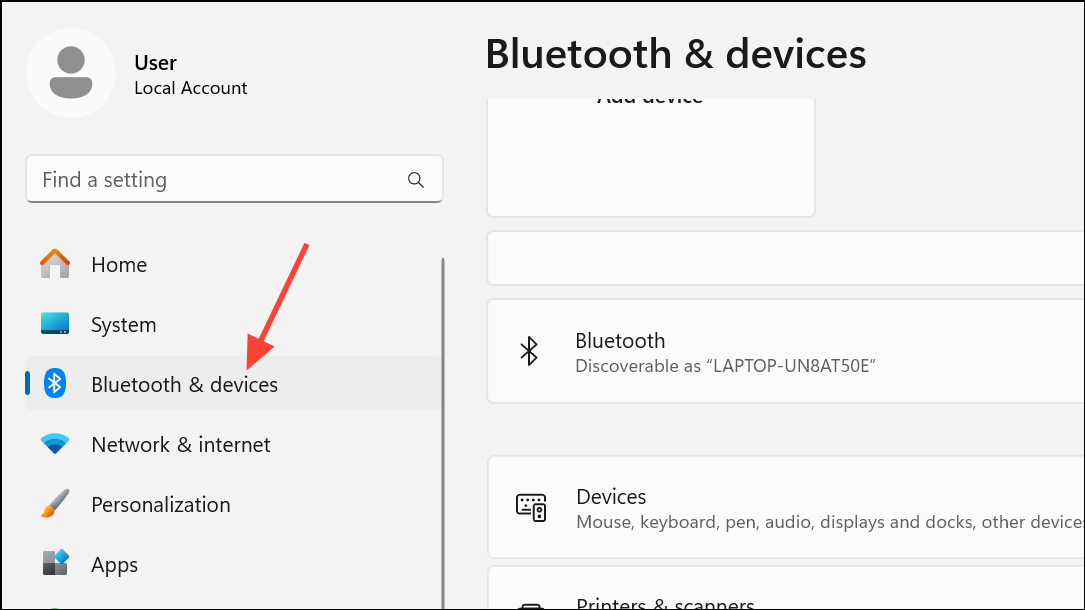
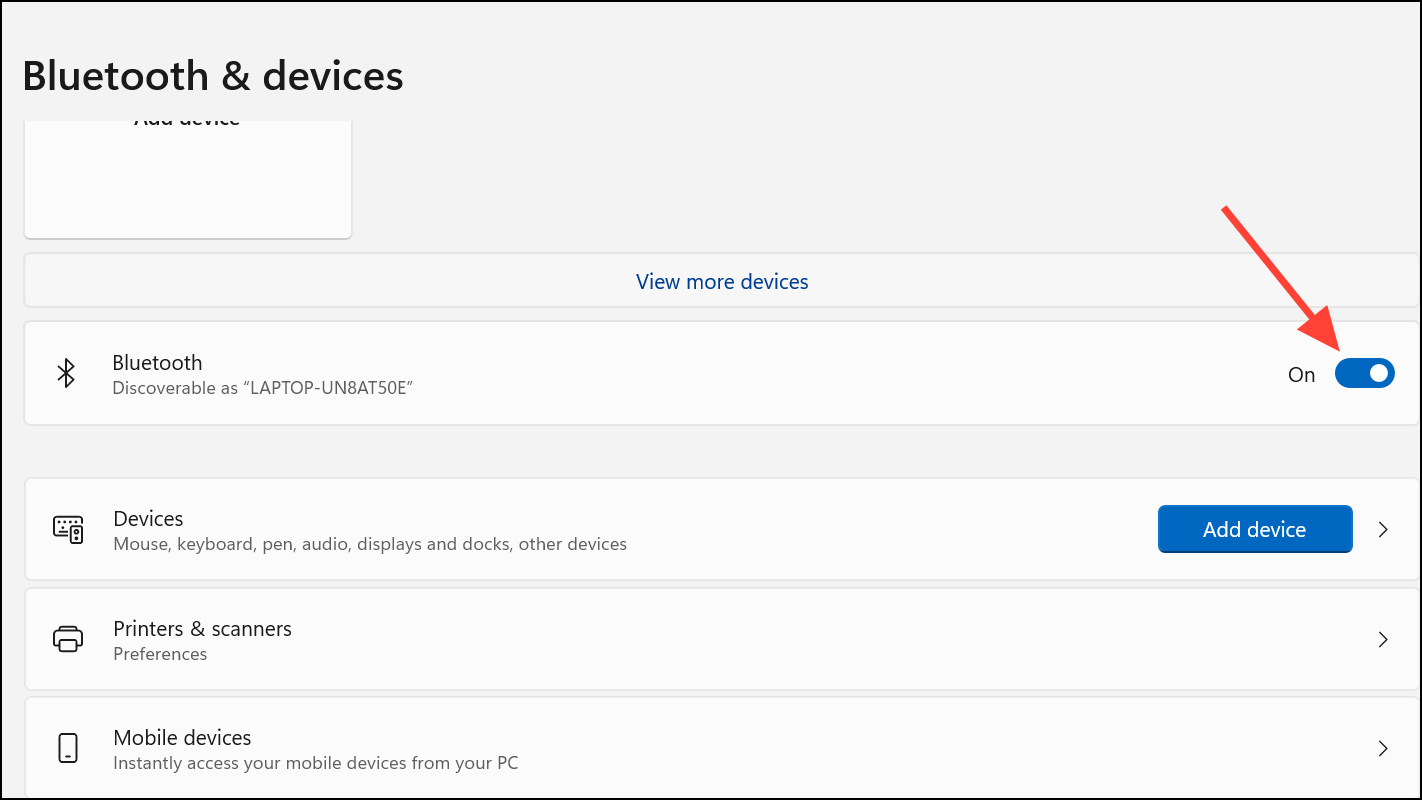
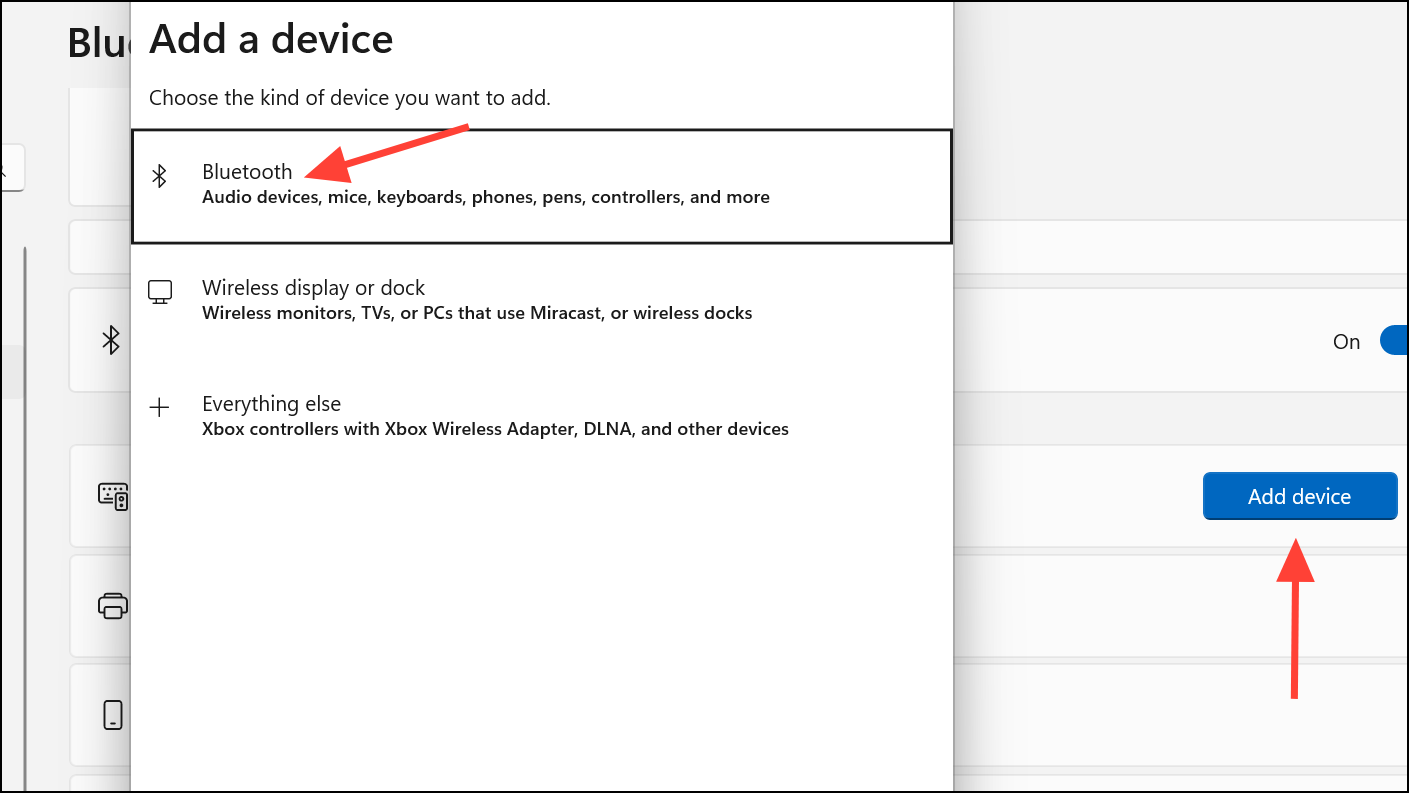
0000 or the code provided in your device manual. Wait for the pairing process to finish, then confirm the connection is established.This method works for all Bluetooth devices, including those that do not support Swift Pair or when notifications do not appear.
Key Points and Troubleshooting
- Swift Pair is only available for devices that support Microsoft’s Swift Pair protocol. Check your device specifications or manufacturer documentation for compatibility.
- If your PC does not show the Swift Pair option, update your Bluetooth drivers or consult your device manufacturer to confirm hardware support.
- Bluetooth devices must be in pairing mode and close to your computer for Swift Pair to work reliably.
- If pairing fails or the device does not appear, disable and re-enable Bluetooth on your PC, or restart your computer and try again.
- Once paired, most devices will reconnect automatically when powered on and within range.
Swift Pair in Windows 11 speeds up Bluetooth device connections and reduces manual steps, making it a practical feature for users who frequently add new peripherals. Keeping your PC and device firmware up to date further improves compatibility and reliability.



