
Unexpected laptop shutdowns following a “locking” message on Windows 11 often signal underlying issues with hardware, power management, or system configurations. These interruptions can disrupt work, cause data loss, and indicate a risk of hardware damage if not addressed promptly. Optimizing system settings and performing targeted diagnostics can restore stable performance and prevent further shutdowns.
Check for Overheating and Hardware Issues
Sudden shutdowns that occur after a “locking” message frequently result from thermal protection mechanisms. When the CPU or other components reach unsafe temperatures, the system powers off to prevent permanent damage. Dust buildup, failing fans, or degraded thermal paste can all contribute to overheating.
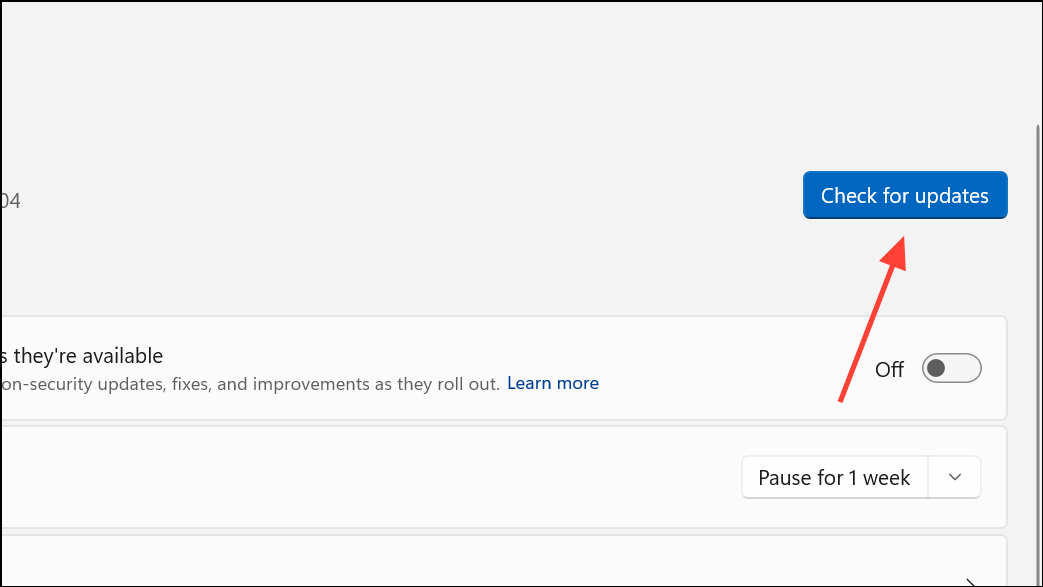
Update BIOS, Drivers, and Windows
Outdated firmware or drivers can cause compatibility issues that trigger shutdowns or lockups. Keeping all system software current can resolve many stability problems.
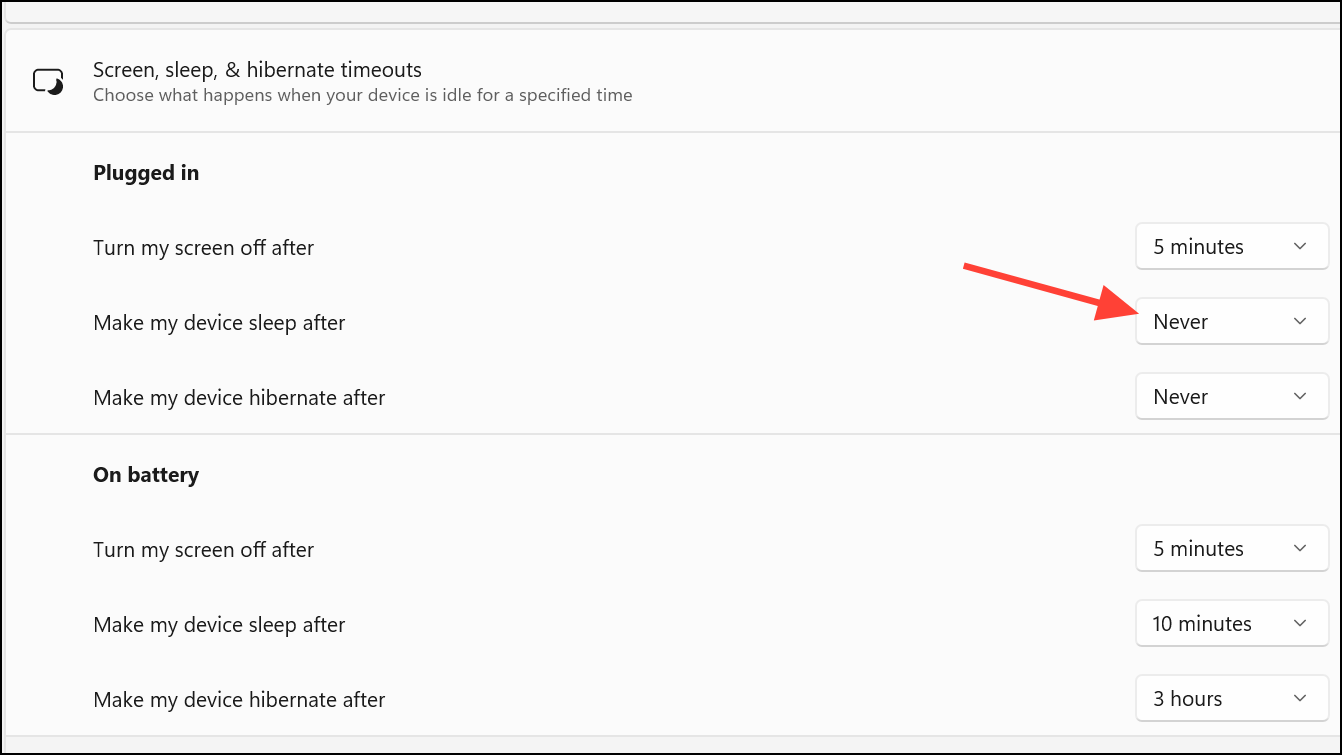
Adjust Power and Sleep Settings
Improper power management settings can cause the system to enter sleep or hibernate unexpectedly, sometimes resulting in shutdowns or lock screens. Adjusting these settings can prevent unwanted power state transitions.
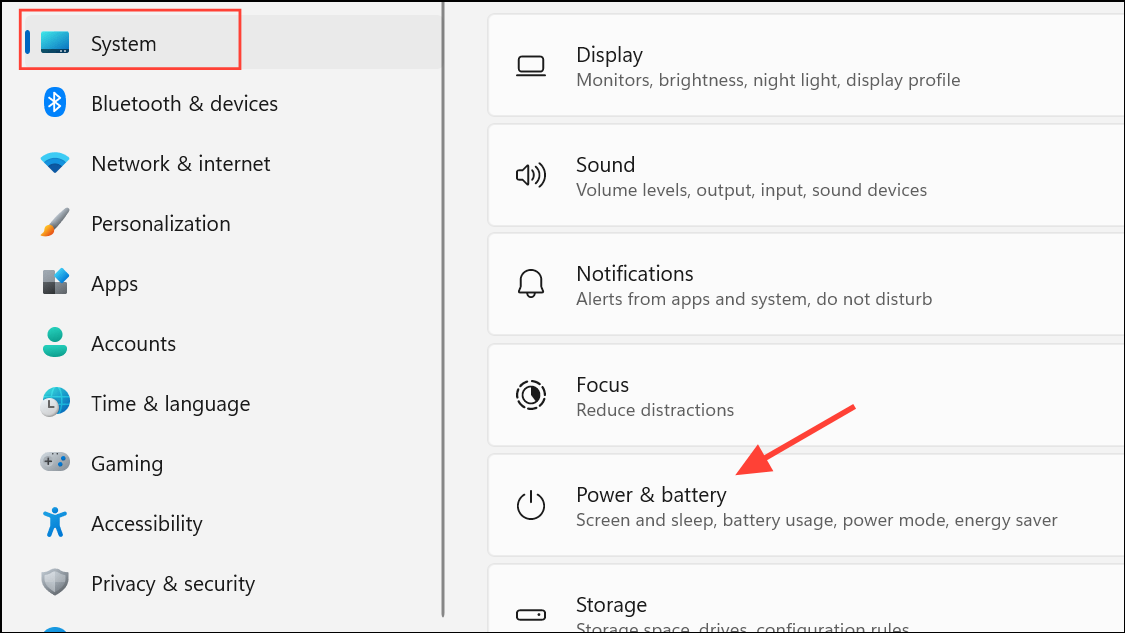
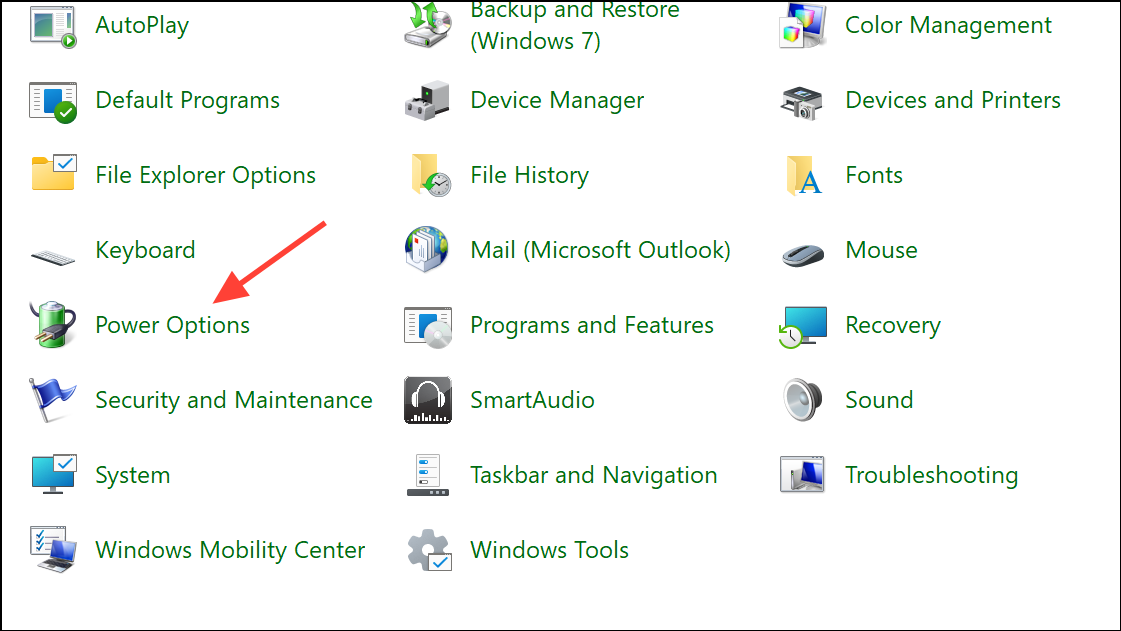
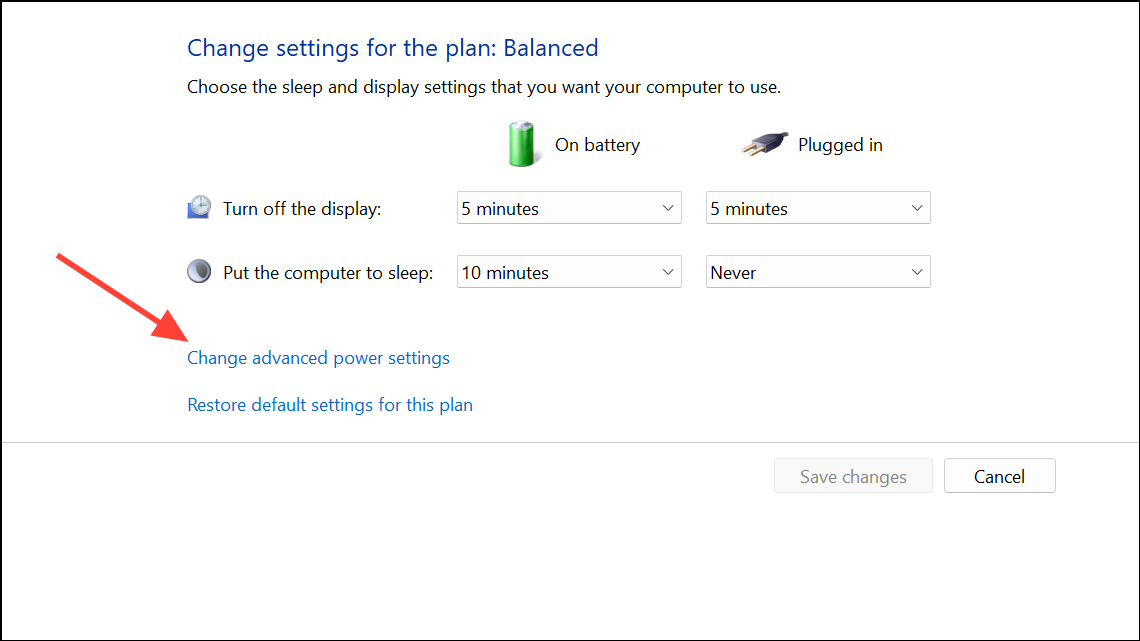
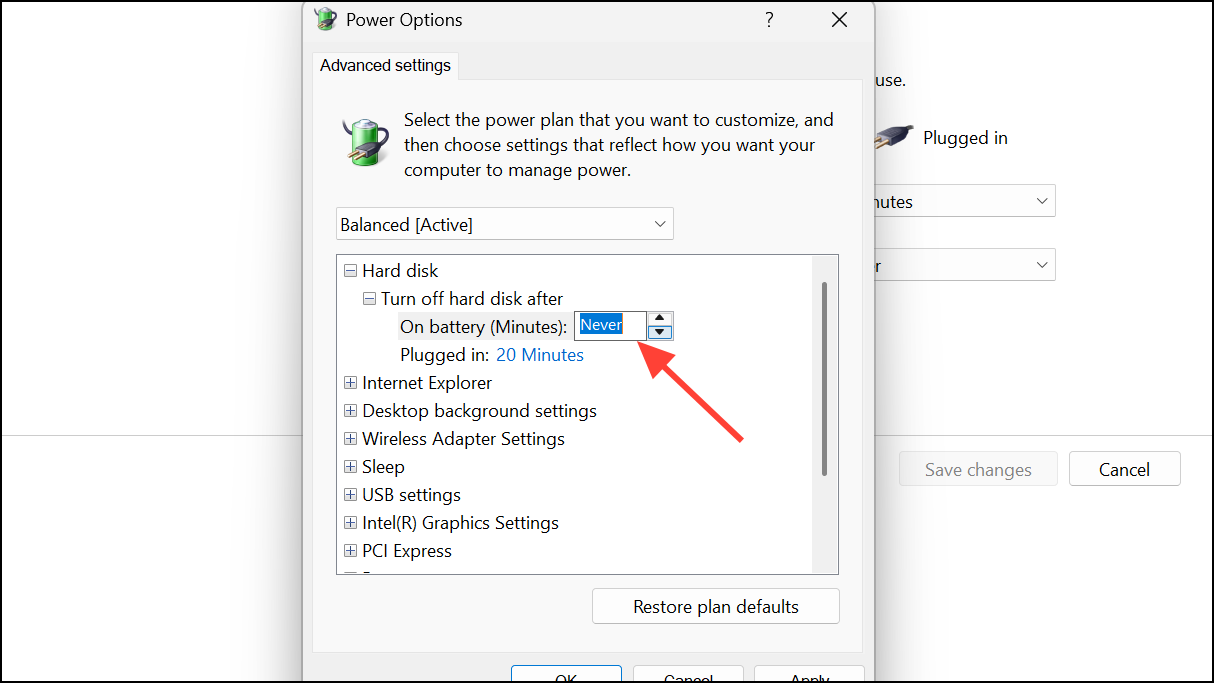
Control Panel > Hardware and Sound > Power Options > Choose what the power buttons do. Uncheck Turn on fast startup (recommended) and save changes.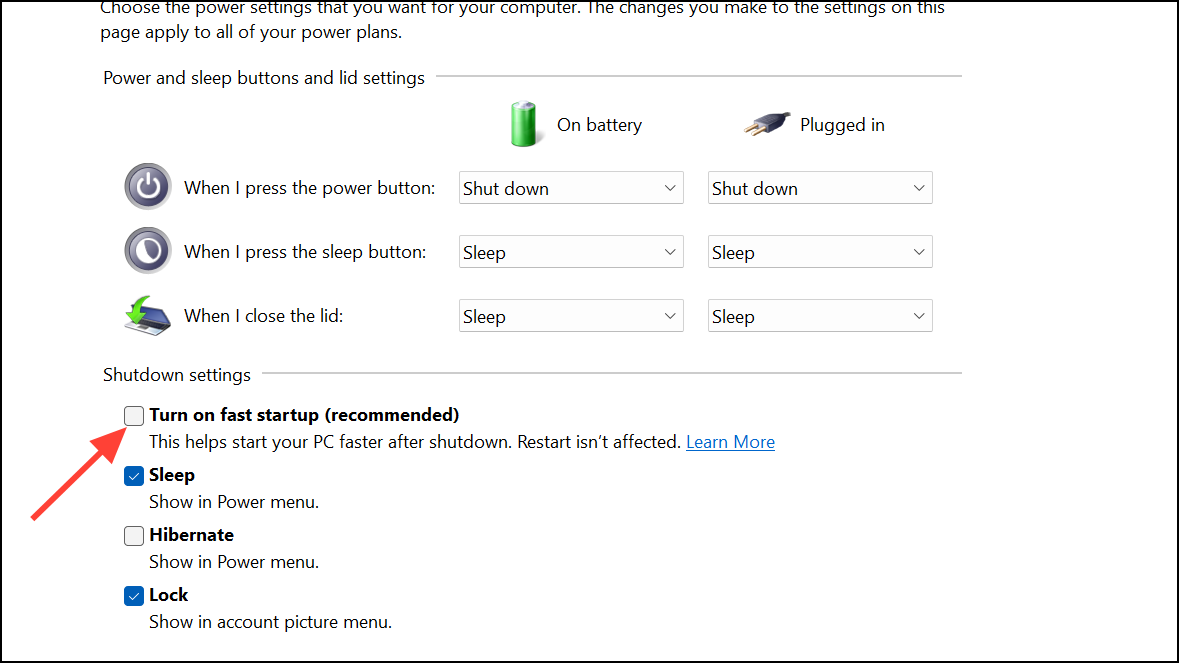
Run System File Checker and DISM Tools
Corrupted system files can disrupt normal shutdown and lock operations. Running repair utilities can restore system integrity and prevent recurring issues.
Windows Terminal (Admin) or Command Prompt (Admin).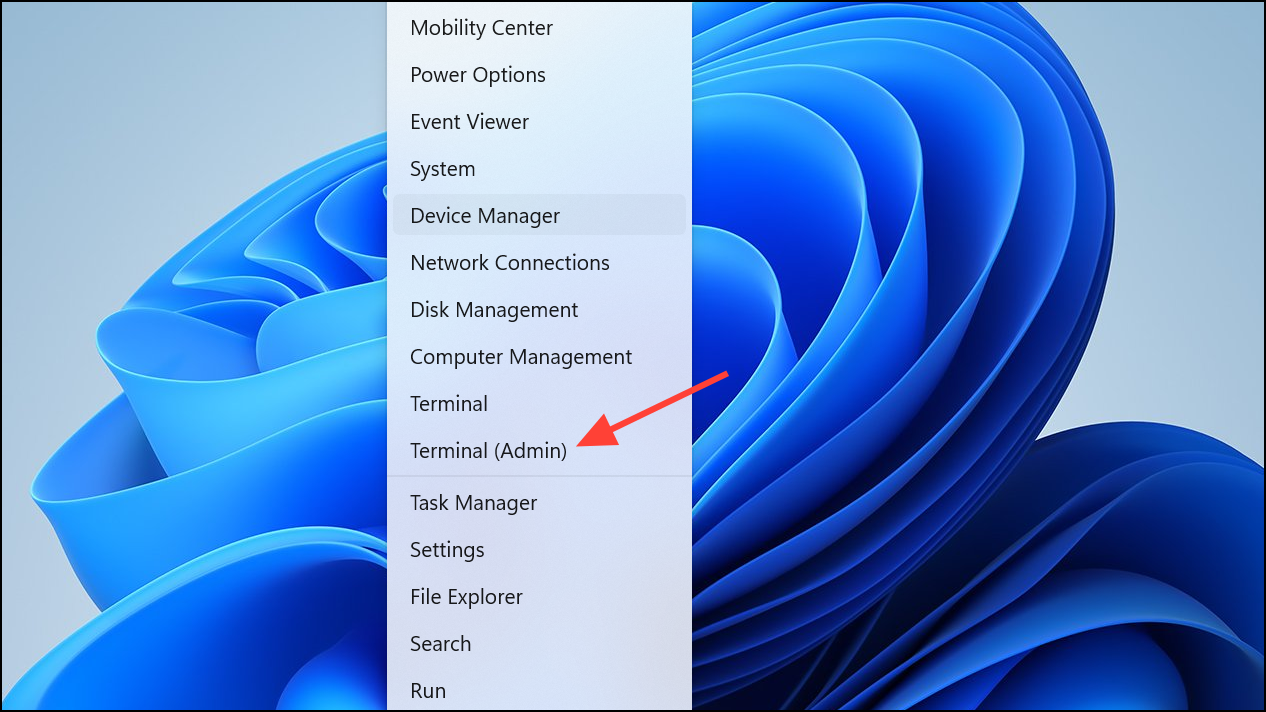
sfc /scannow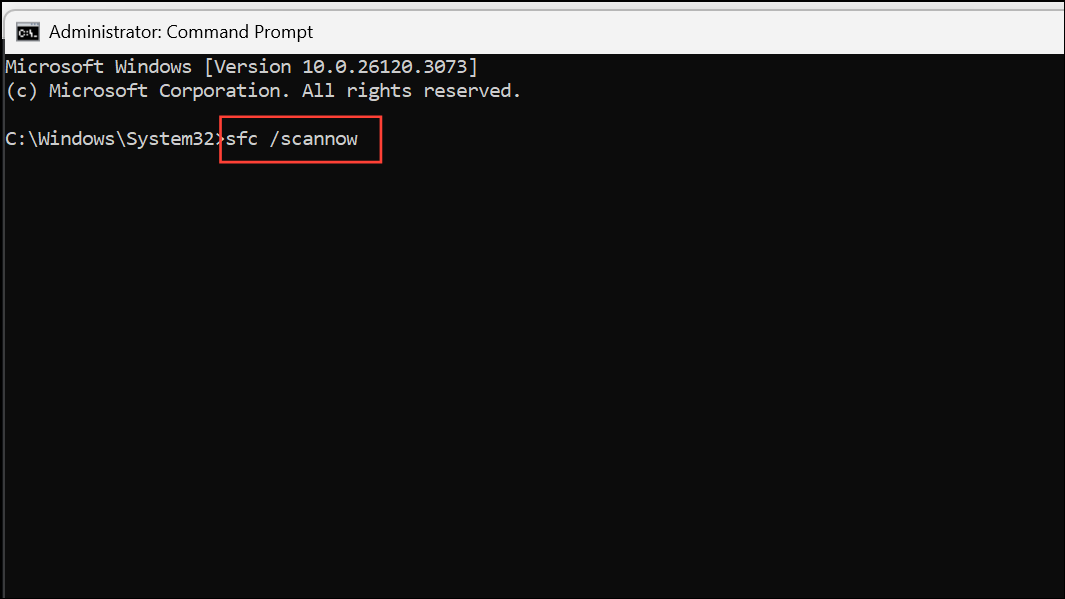
DISM.exe /Online /Cleanup-image /Scanhealth
DISM.exe /Online /Cleanup-image /Restorehealth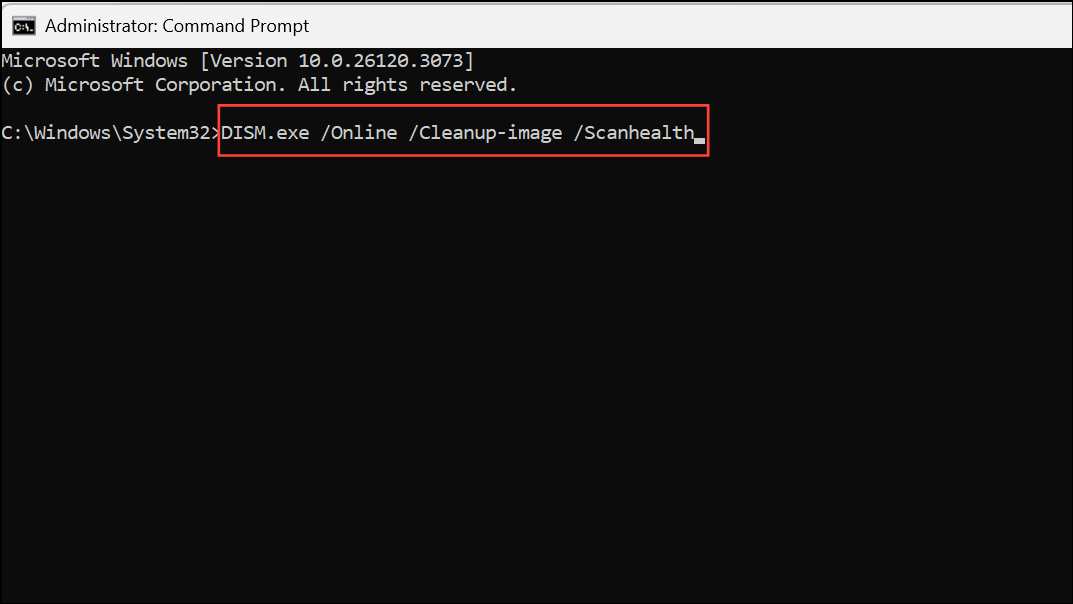
Inspect External Devices and Recent Changes
External peripherals or recently added hardware can introduce compatibility problems that trigger shutdowns or lockups.
Reset or Restore Windows 11
Persistent shutdowns after exhausting other troubleshooting steps may indicate deeper system corruption or configuration problems. Restoring the system can return Windows to a stable state.
Settings > System > Recovery and select Reset this PC. Choose whether to keep or remove your files, then follow on-screen prompts to reinstall Windows.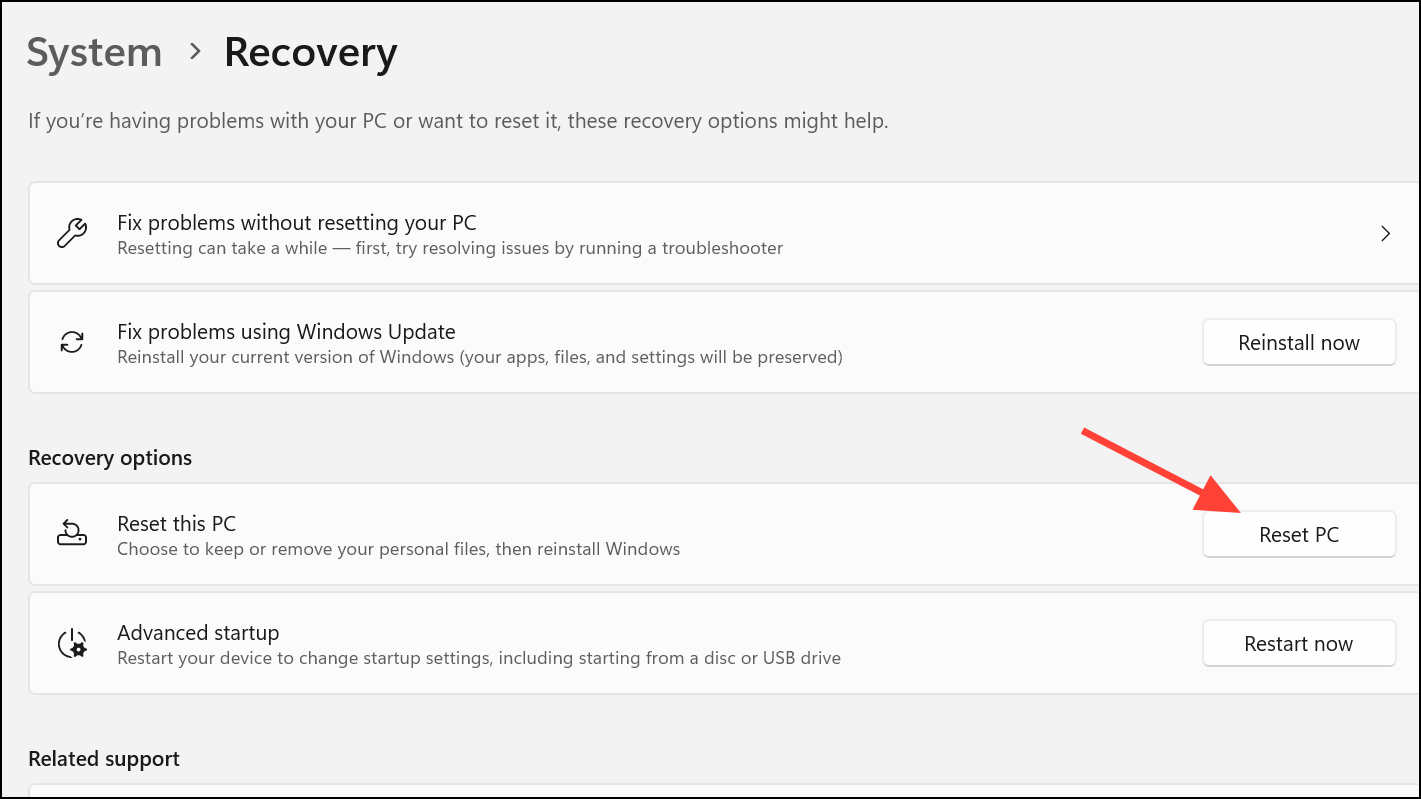
Regular maintenance—like keeping vents clear, updating drivers, and reviewing power settings—helps prevent recurring shutdowns and “locking” messages on Windows 11 laptops. If the issue continues after these steps, consult your device manufacturer for further diagnostics or hardware repair.



