

A Windows 11 update can get stuck during the download or installation phase due to corrupted temporary files or issues with the update services themselves. The most direct way to resolve this is by manually resetting the components responsible for managing updates, which clears out old data and allows the process to start fresh.
Reset Windows Update Components
This method involves using the command line to stop the services related to Windows Update, renaming the folders where update files are stored, and then restarting the services. This forces Windows to recreate the necessary folders and redownload the update files, resolving most corruption-related issues.
Terminal, right-click the result, and select “Run as administrator.” If you see Command Prompt or PowerShell, you can use those as well, as long as they are run with administrative privileges.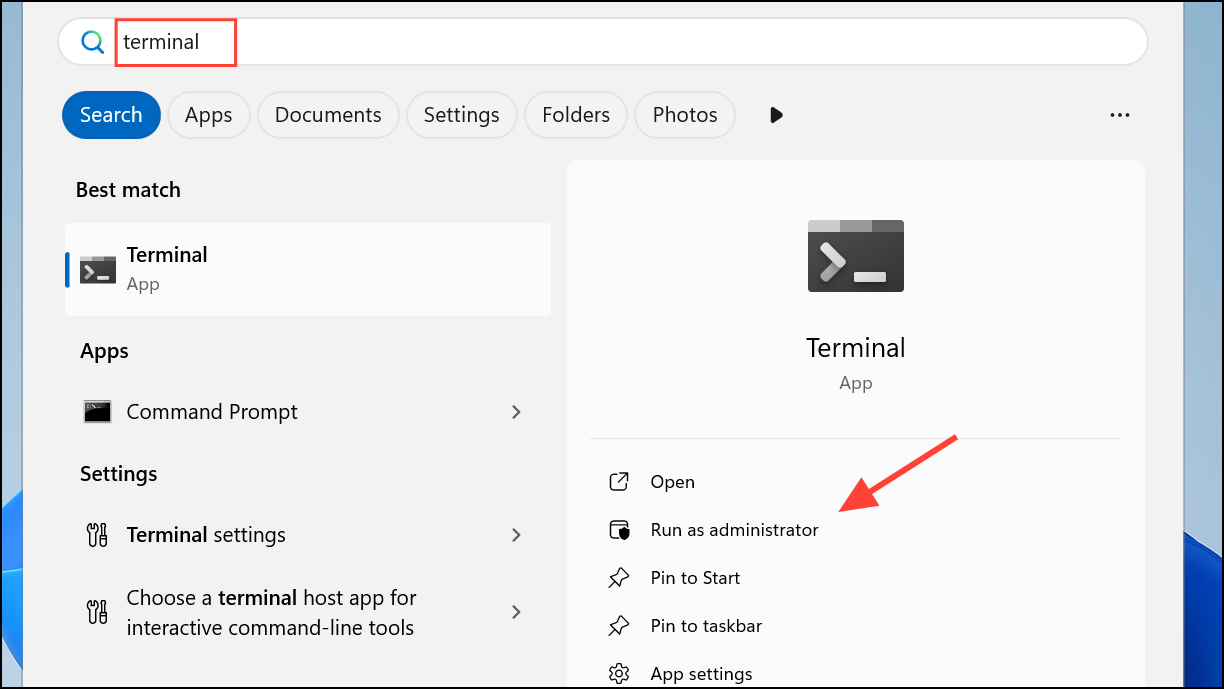
Enter after each command. These services include the Windows Update Service (wuauserv), Cryptographic Services (cryptSvc), Background Intelligent Transfer Service (bits), and the Windows Installer (msiserver).net stop wuauserv
net stop cryptSvc
net stop bits
net stop msiserver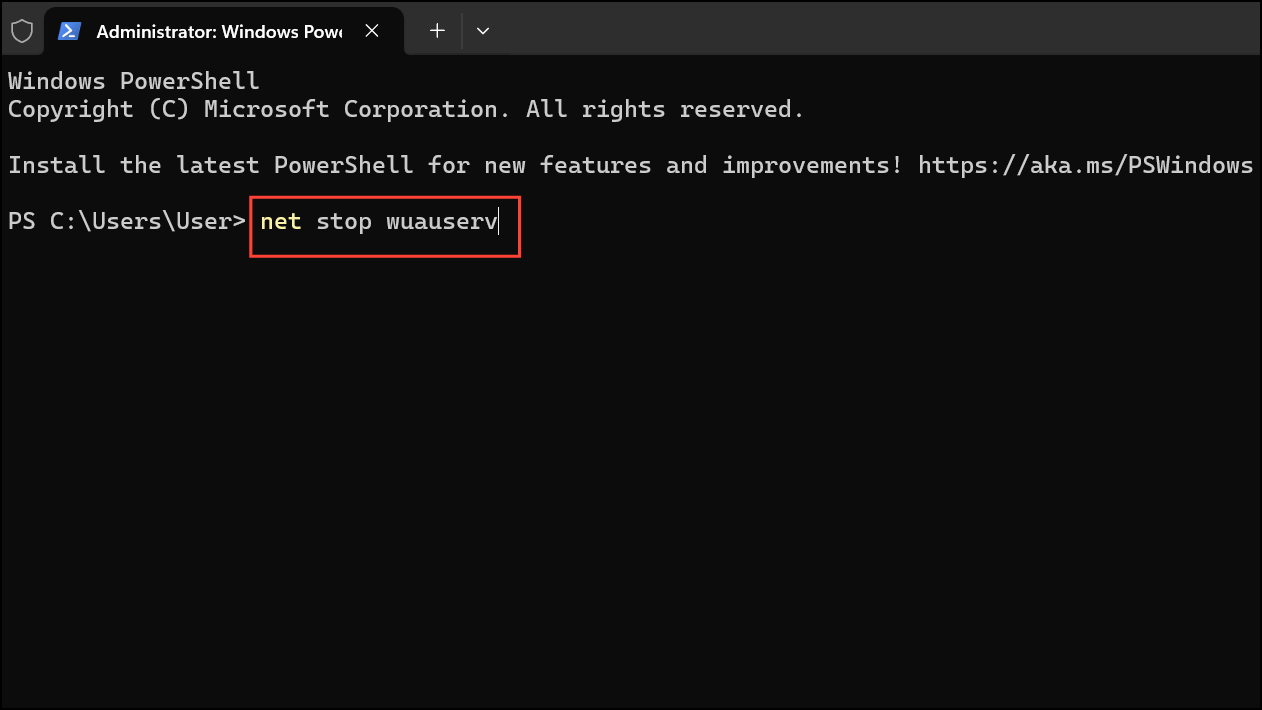
Enter after each one. The SoftwareDistribution folder stores temporary update files, while catroot2 stores the signatures of the update packages.ren C:\Windows\SoftwareDistribution SoftwareDistribution.old
ren C:\Windows\System32\catroot2 Catroot2.old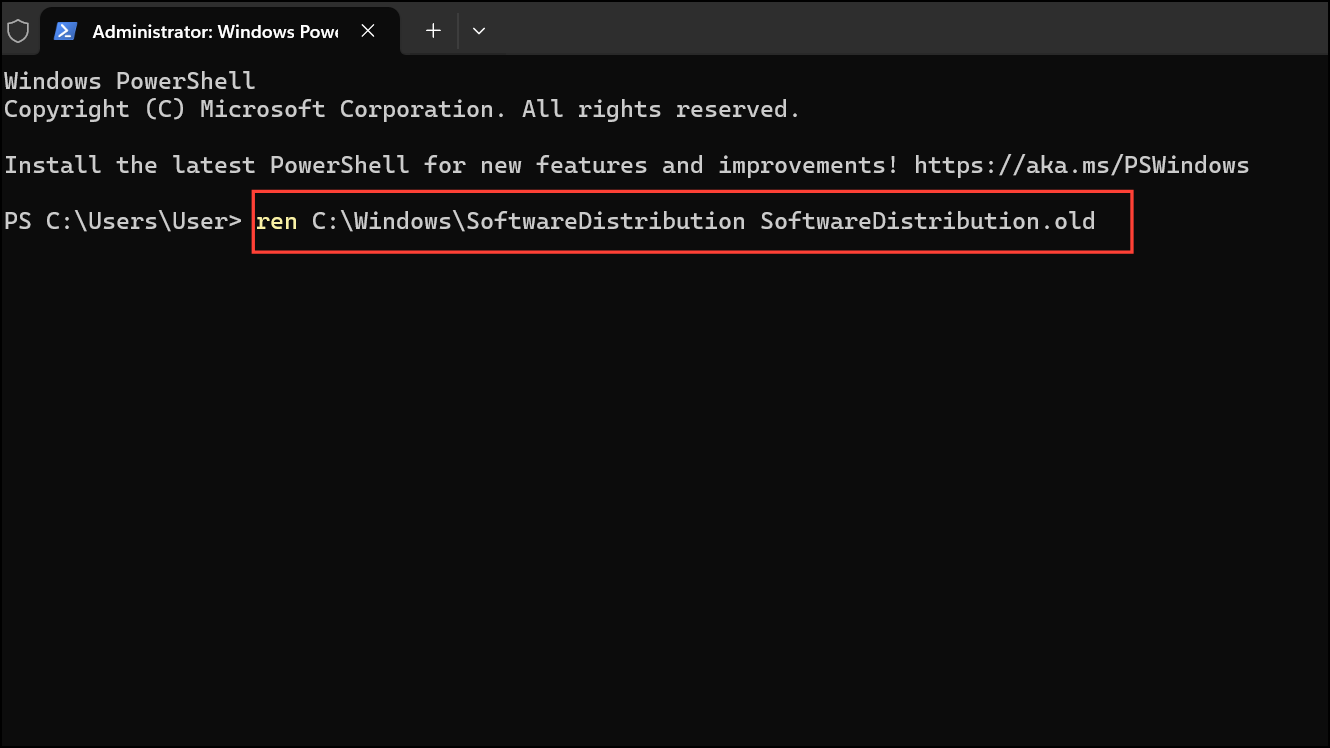
Enter after each one to get the update system running again.net start wuauserv
net start cryptSvc
net start bits
net start msiserver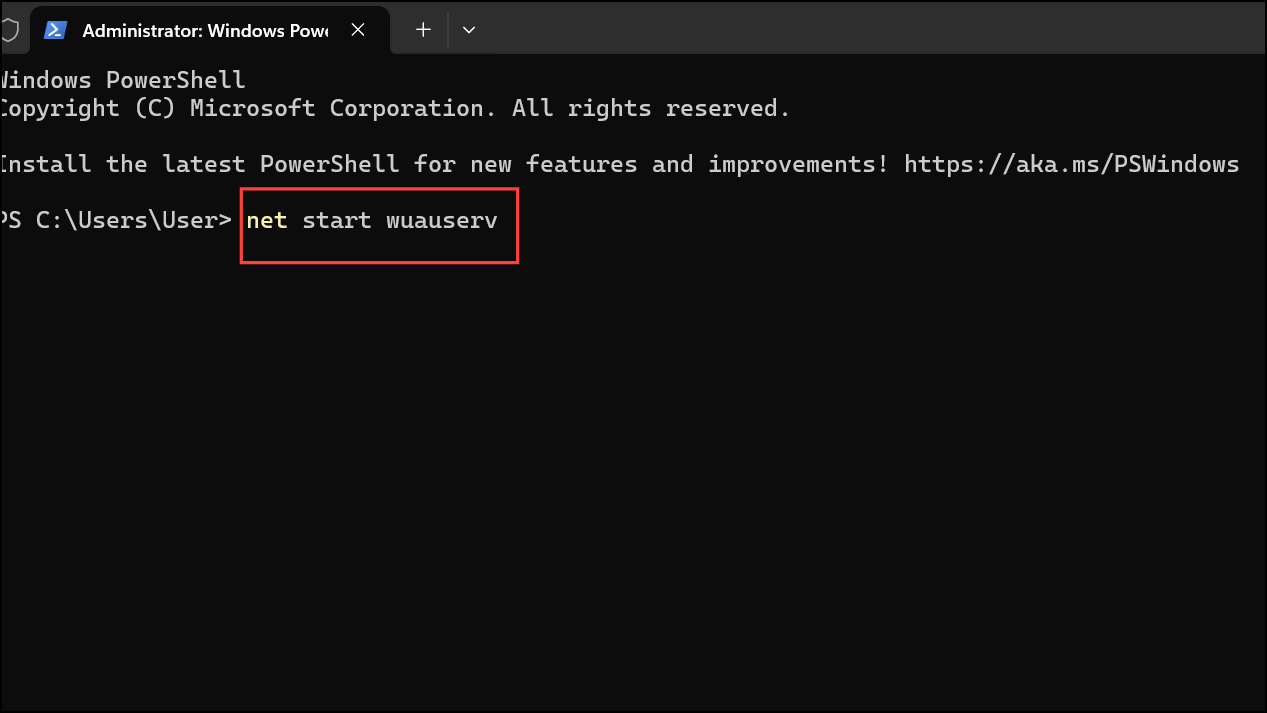
Run the Windows Update Troubleshooter
If you prefer a less manual approach, Windows 11 has a built-in troubleshooter designed to automatically diagnose and fix common update problems. It checks for issues with services, file integrity, and network connections.
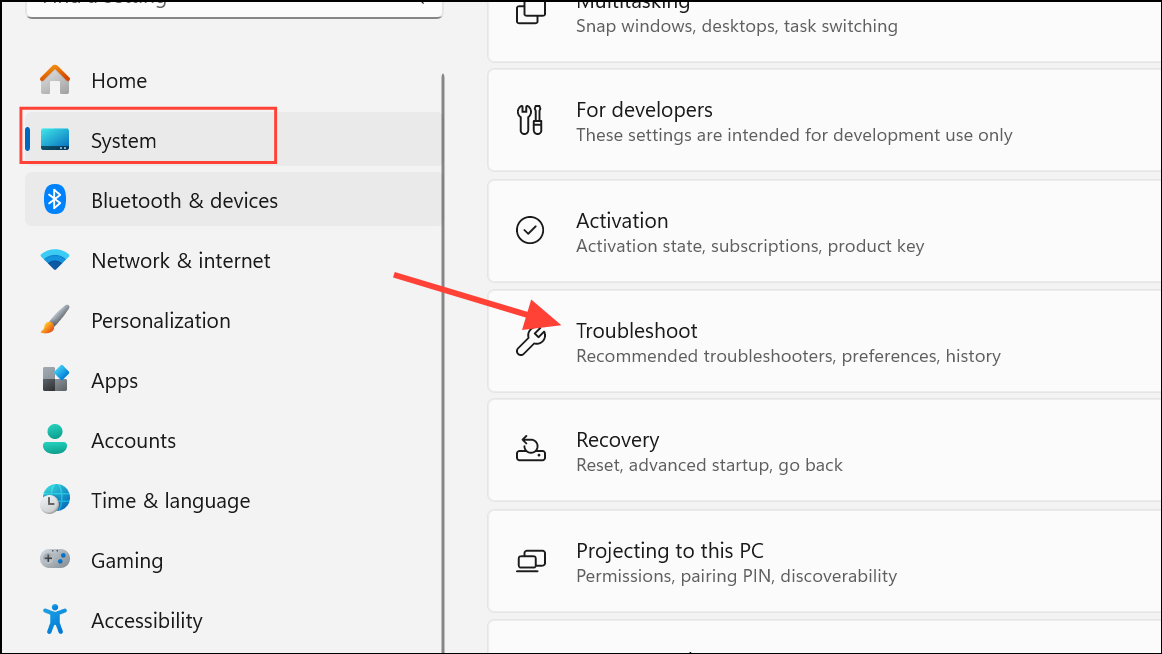
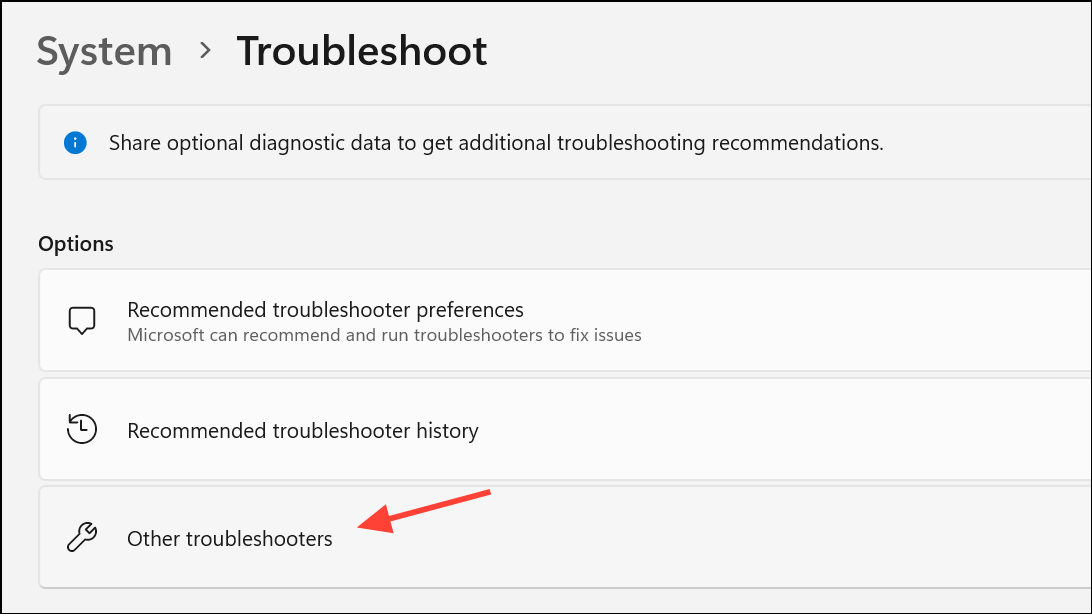
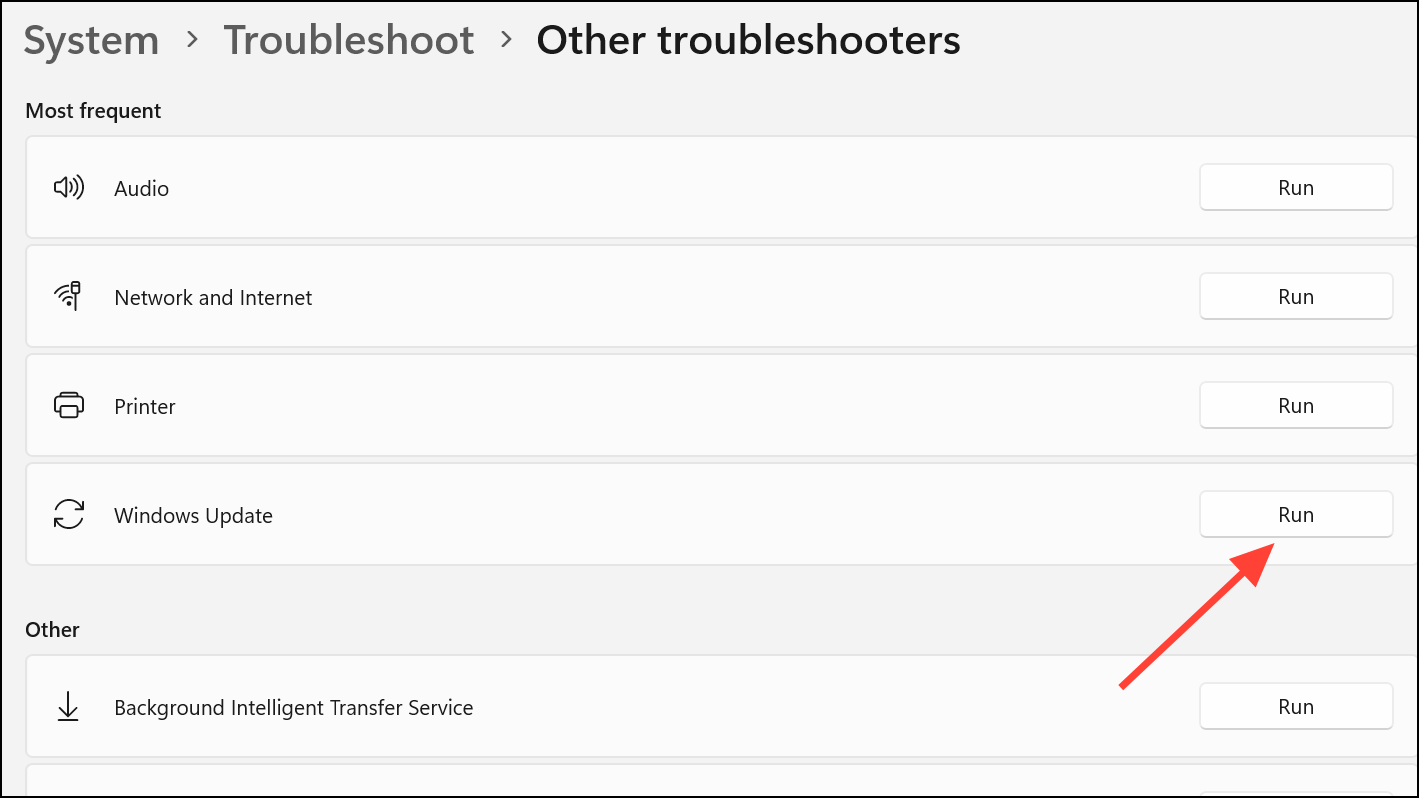
Scan and Repair System Files
Sometimes, the problem isn’t with the update files but with the core Windows operating system files. Damaged or corrupt system files can interfere with the update process. Windows provides two powerful command-line tools, System File Checker (SFC) and Deployment Imaging Service and Management Tool (DISM), to find and repair these issues.
Enter. This scan may take several minutes.DISM.exe /Online /Cleanup-image /Scanhealth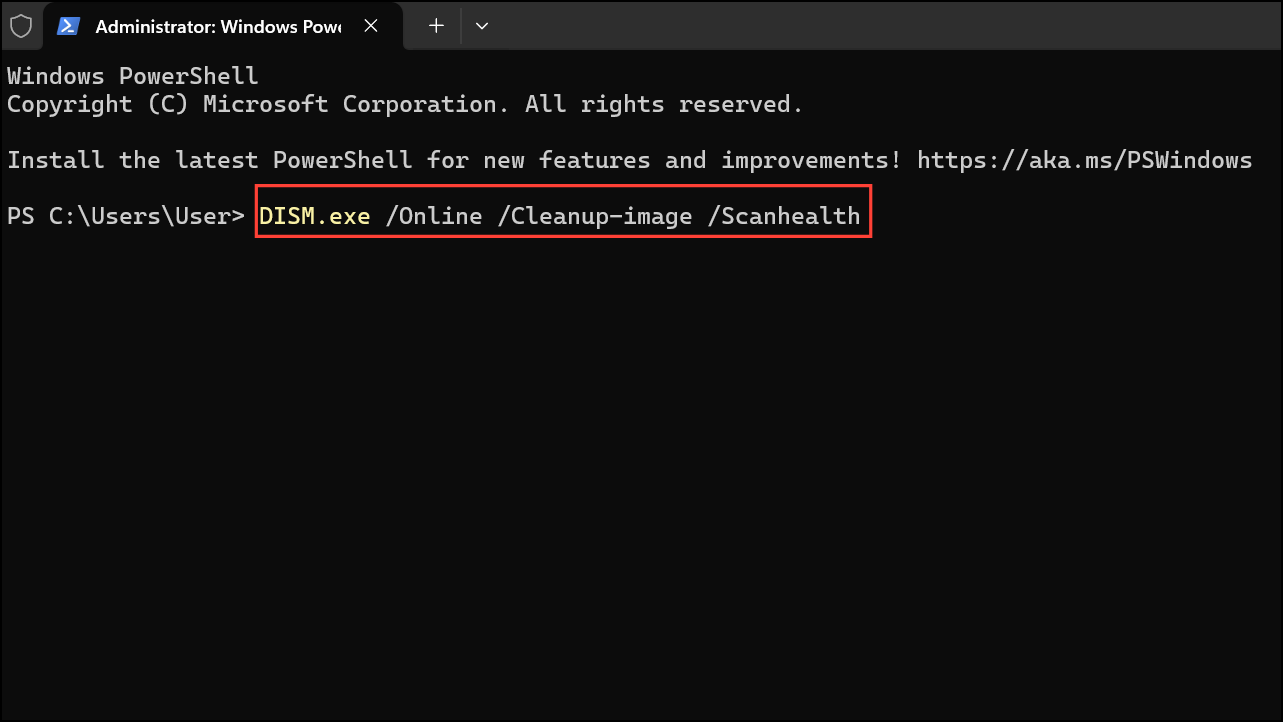
Enter.sfc /scannow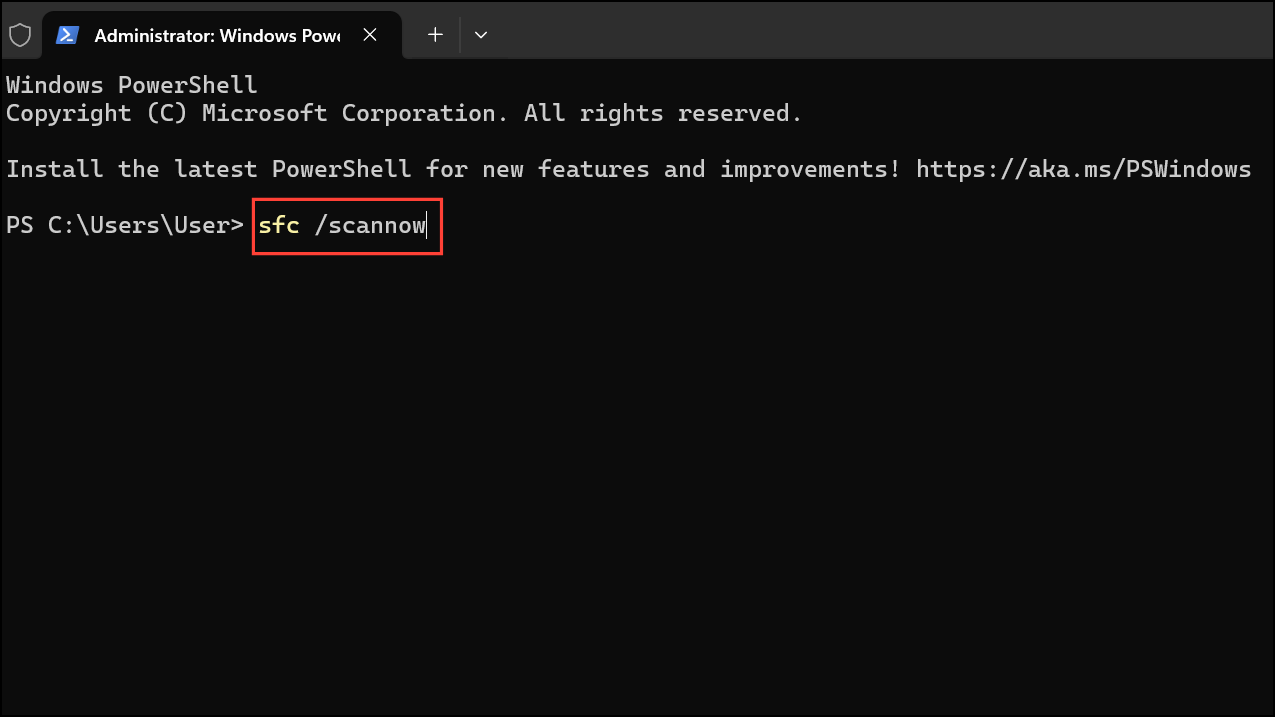
Free Up Disk Space
Windows updates, especially major ones, require a significant amount of free storage space to download and unpack files. If your primary drive is nearly full, the update process can stall or fail without a clear error message.
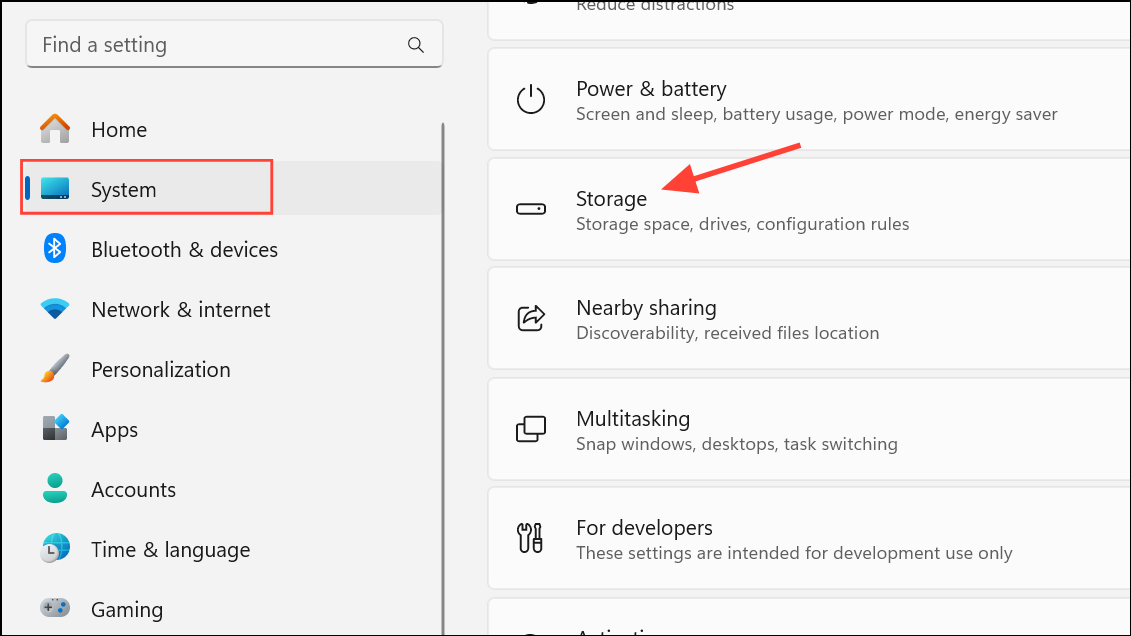
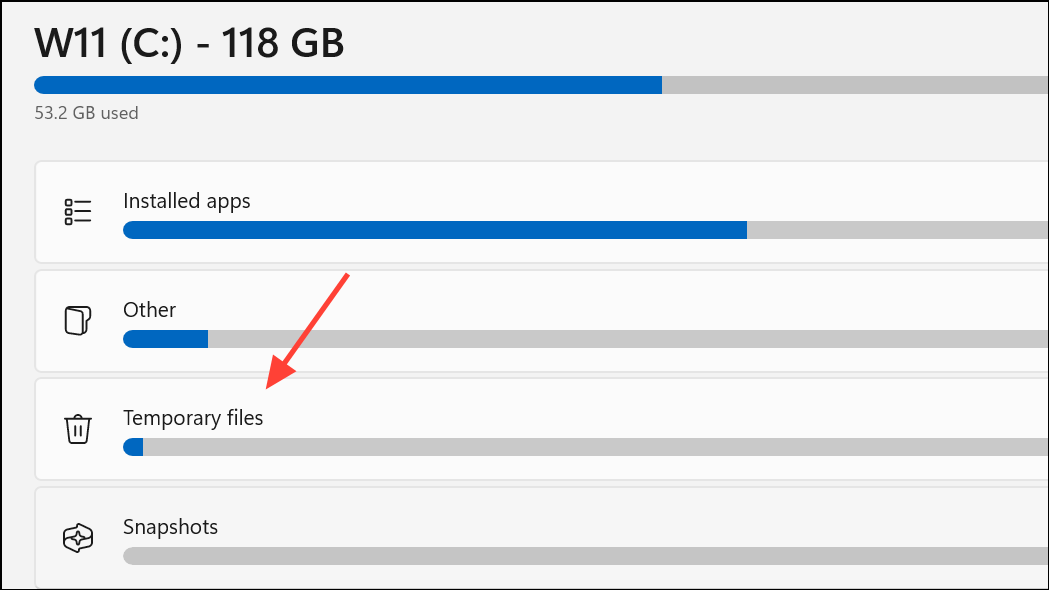
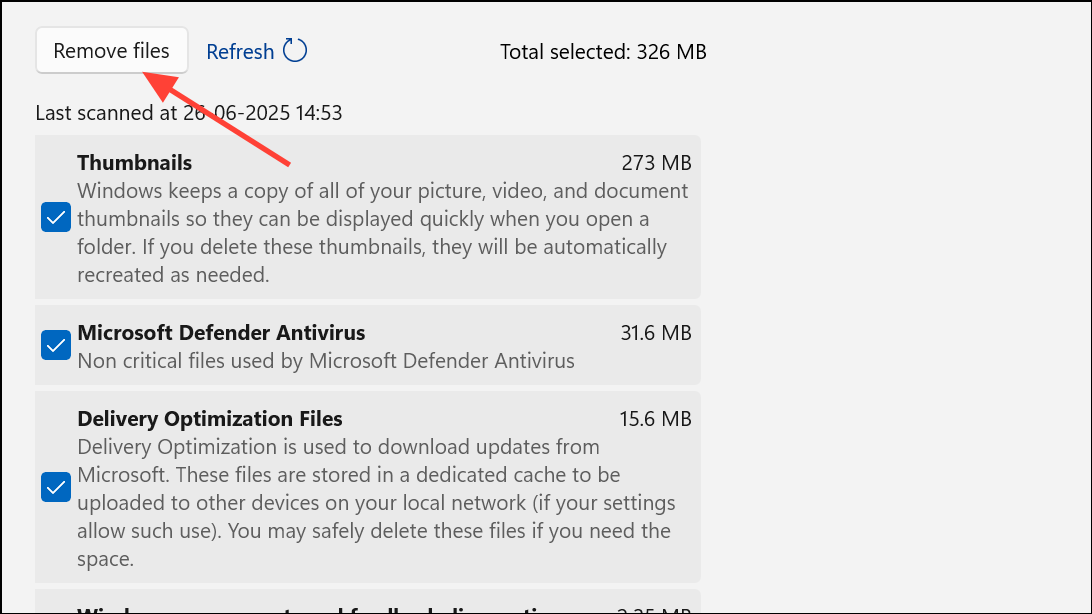
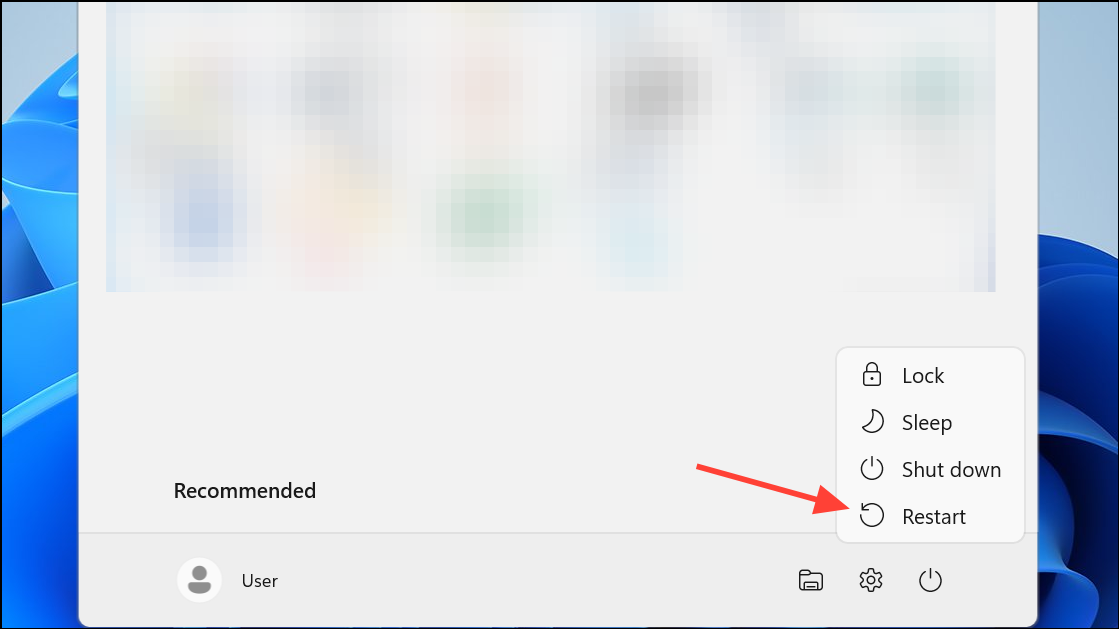
Restart Your Computer
While it may seem overly simple, a basic restart can often resolve temporary glitches or processes that are hanging in the background. Sometimes, a previous update requires a reboot to finalize its installation before a new one can begin. If your update has been stuck for a while, a clean restart is a quick and easy troubleshooting step before moving on to more complex solutions.
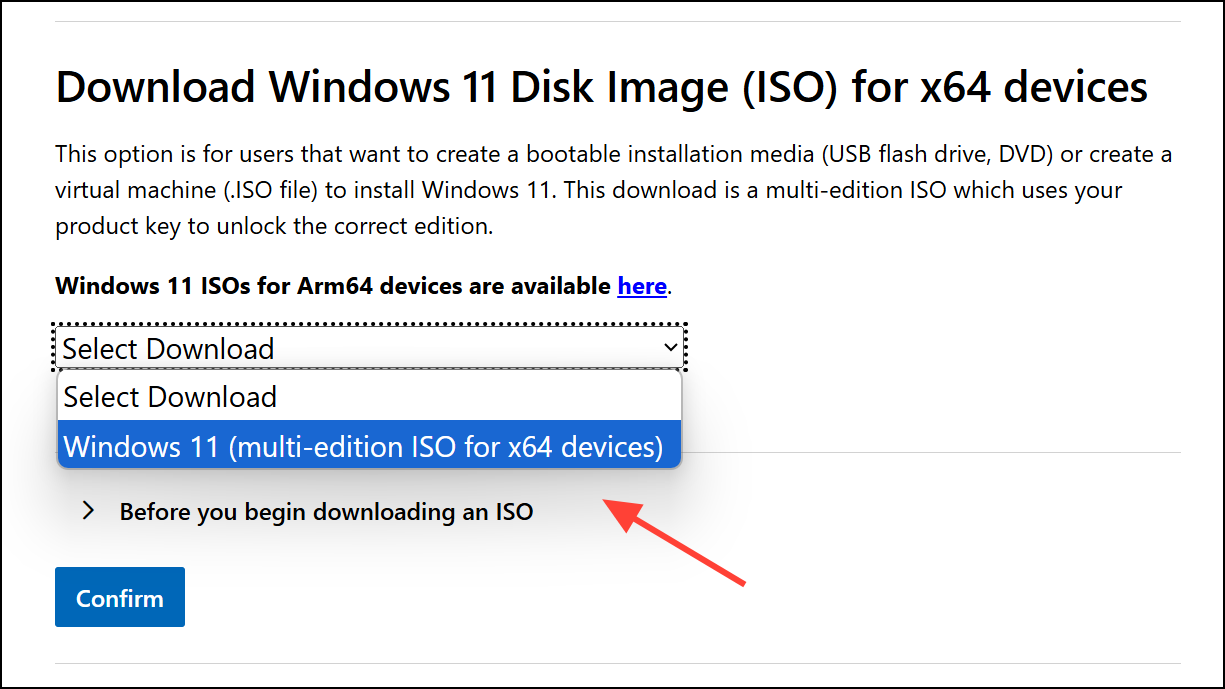
Manually Install the Update Using an ISO
If the Windows Update service continues to fail, you can bypass it entirely by downloading the latest version of Windows 11 as an ISO file and performing an in-place upgrade. This process reinstalls Windows over your existing installation, keeping your files and applications intact while applying the latest updates.
With these methods, you should be able to get your Windows updates running smoothly again, ensuring your PC remains secure and up-to-date.



