
Attempting to copy or download large files in Windows 11 can trigger the error code 0x800700df: The file size exceeds the limit allowed and cannot be saved. This issue typically arises when transferring files via network shares, WebDAV folders, or external drives, and is directly linked to preset file size restrictions in Windows system components. Understanding and addressing these restrictions will restore your ability to manage large files smoothly.
Modify Registry to Increase File Size Limit
Windows enforces a default file size cap for transfers involving the WebClient service, which is often set at 50,000,000 bytes (about 47 MB). When files exceed this threshold, the transfer fails with error 0x800700df. Raising this cap through the Windows Registry is the most direct and effective solution.
Windows + R on your keyboard. Type regedit and press Enter to launch the Registry Editor.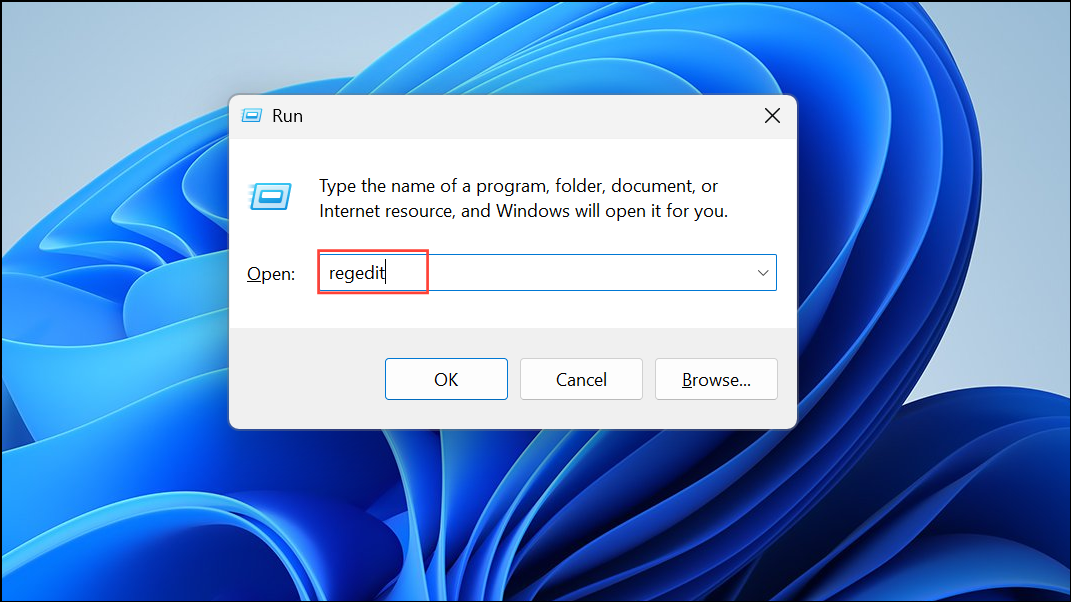
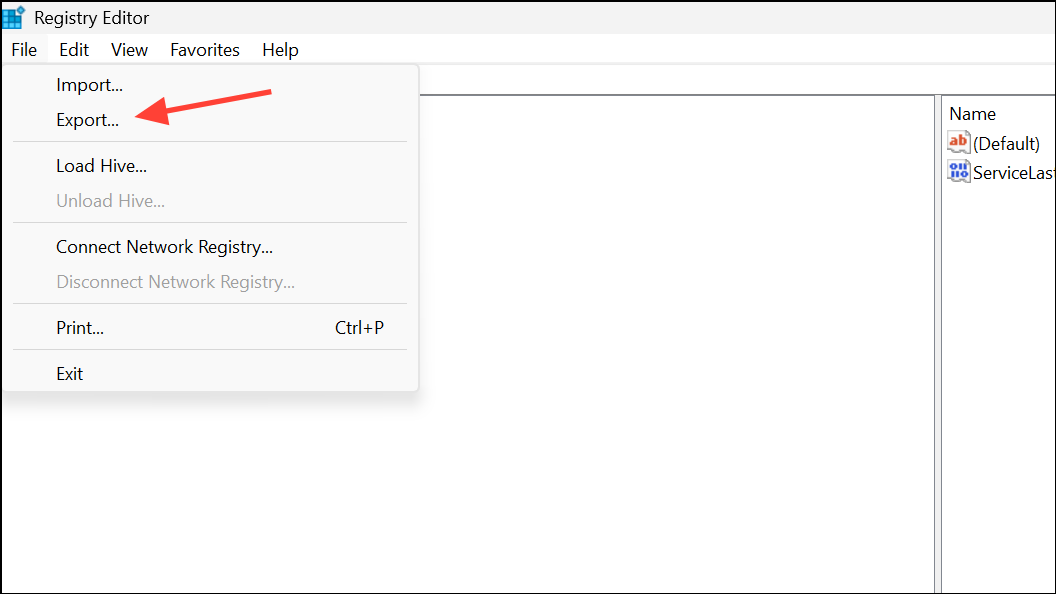
HKEY_LOCAL_MACHINE\SYSTEM\CurrentControlSet\Services\WebClient\Parameters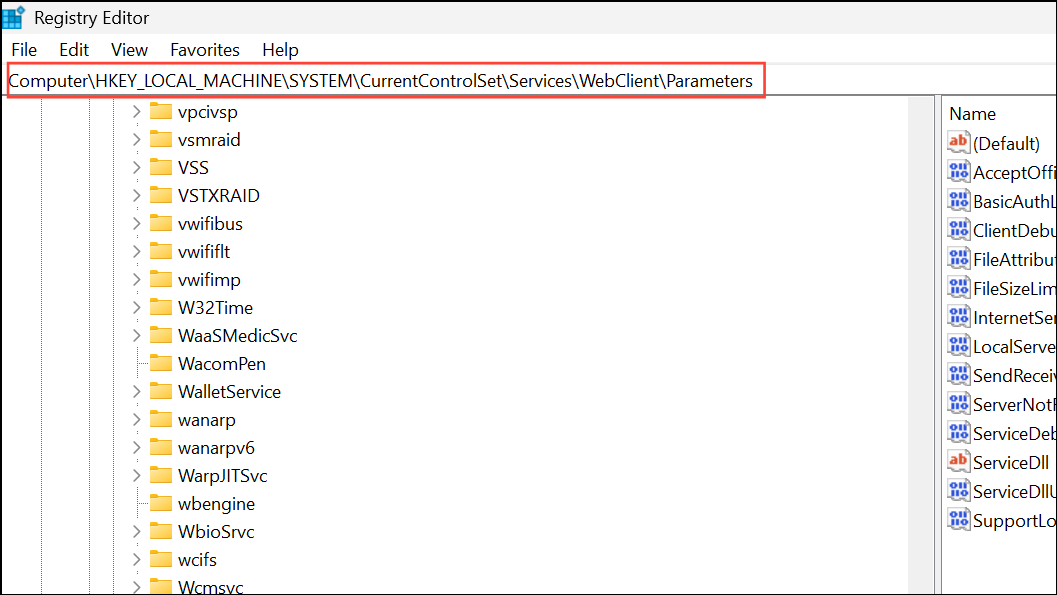
FileSizeLimitInBytes entry in the right pane. If it does not exist, right-click the blank area, select New > DWORD (32-bit) Value, and name it FileSizeLimitInBytes.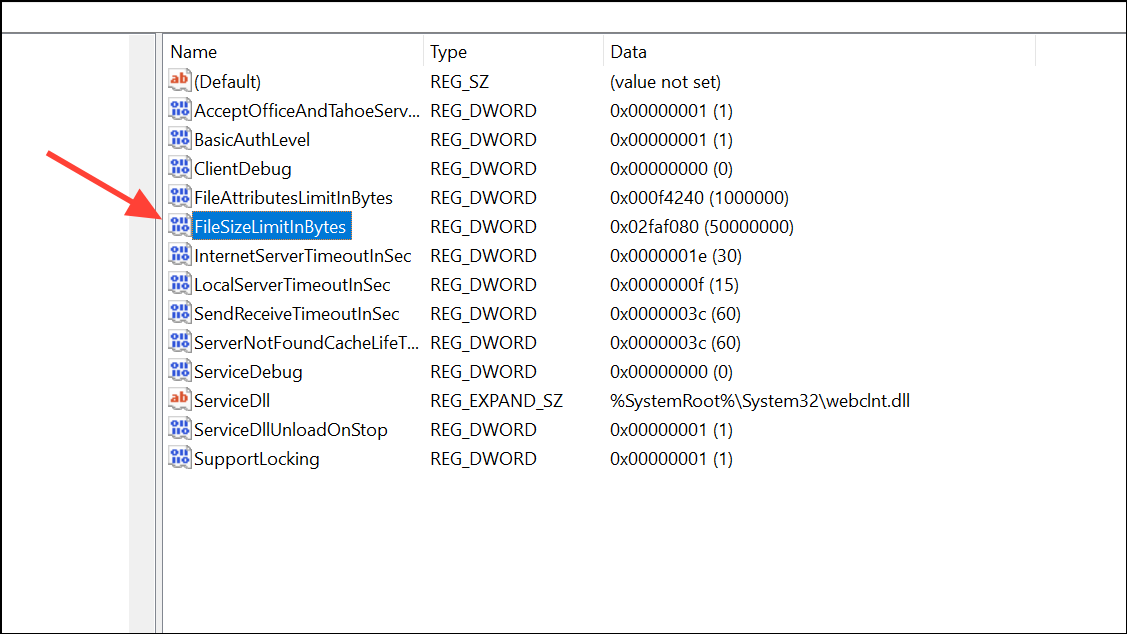
FileSizeLimitInBytes to edit its value. Select the Decimal option, then enter a value larger than the file you wish to transfer. For example, entering 500000000 allows for files up to approximately 476 MB. For maximum compatibility, some users set this value to 4294967295 (the highest possible value for a DWORD in decimal).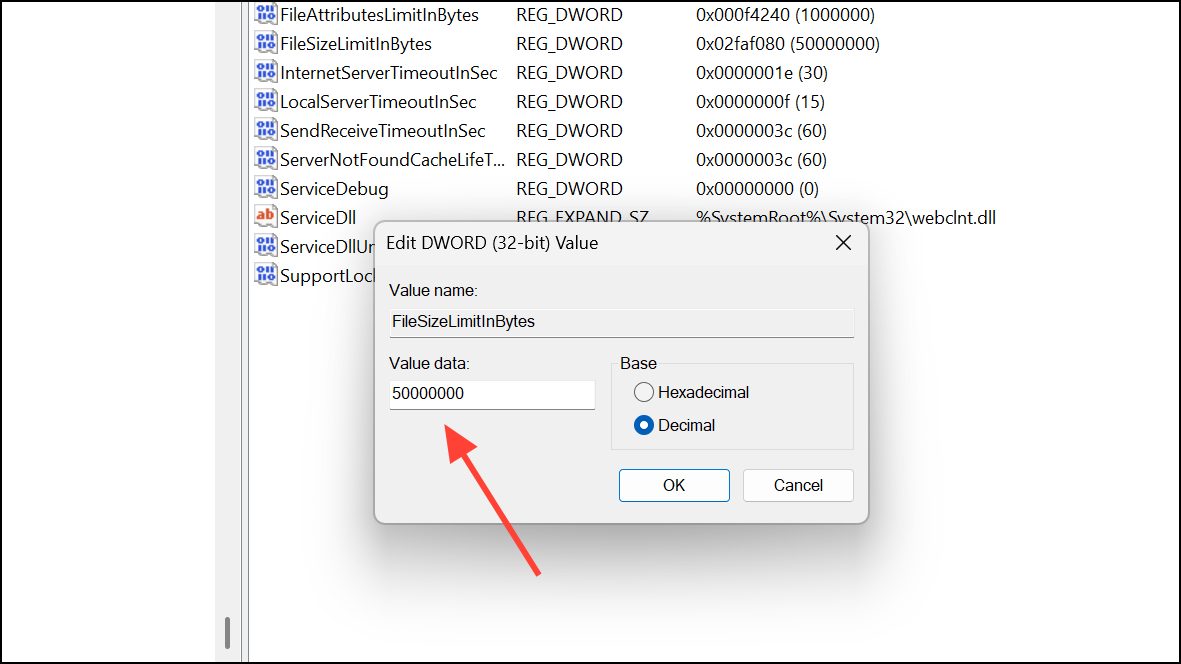
Restart or Configure the WebClient Service
The WebClient service is responsible for handling WebDAV and network file transfers in Windows. If this service is not running or is misconfigured, file transfers may fail regardless of registry changes.
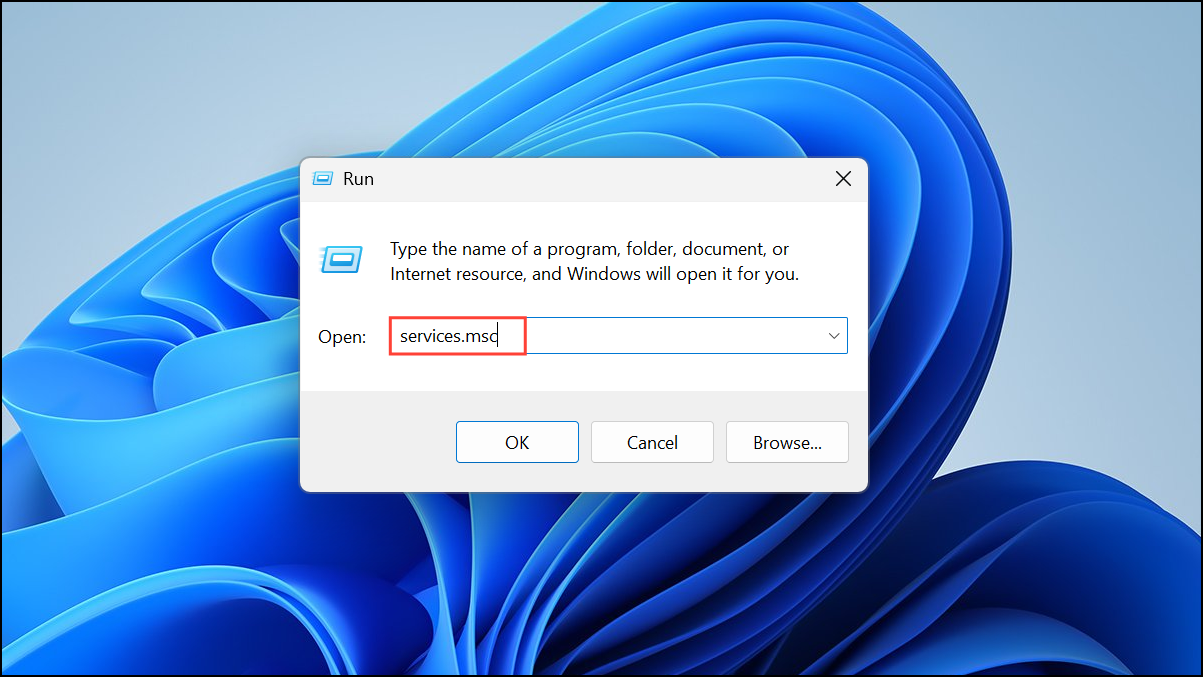
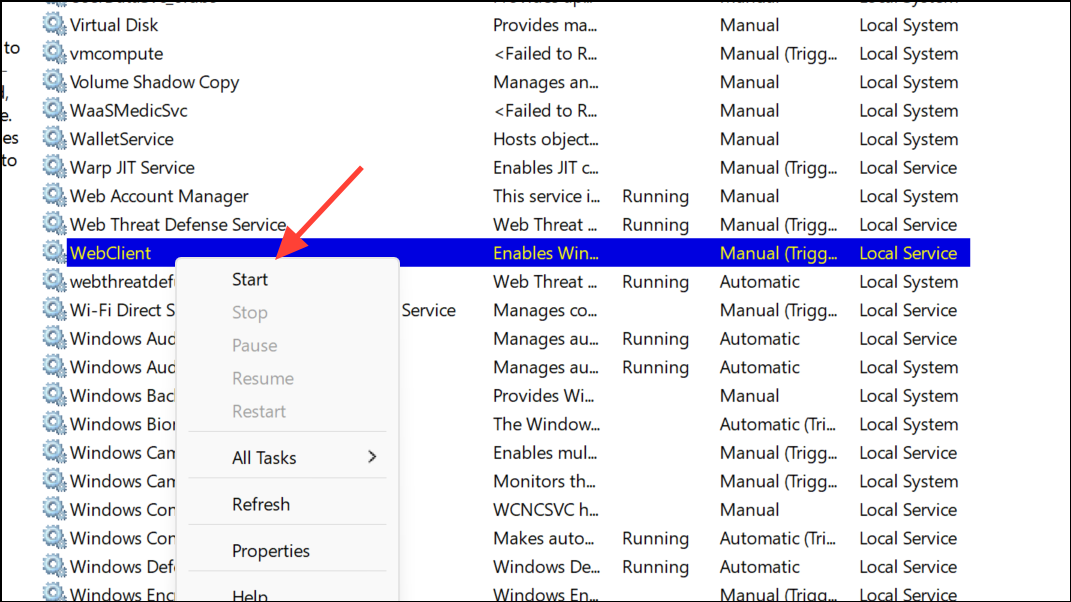
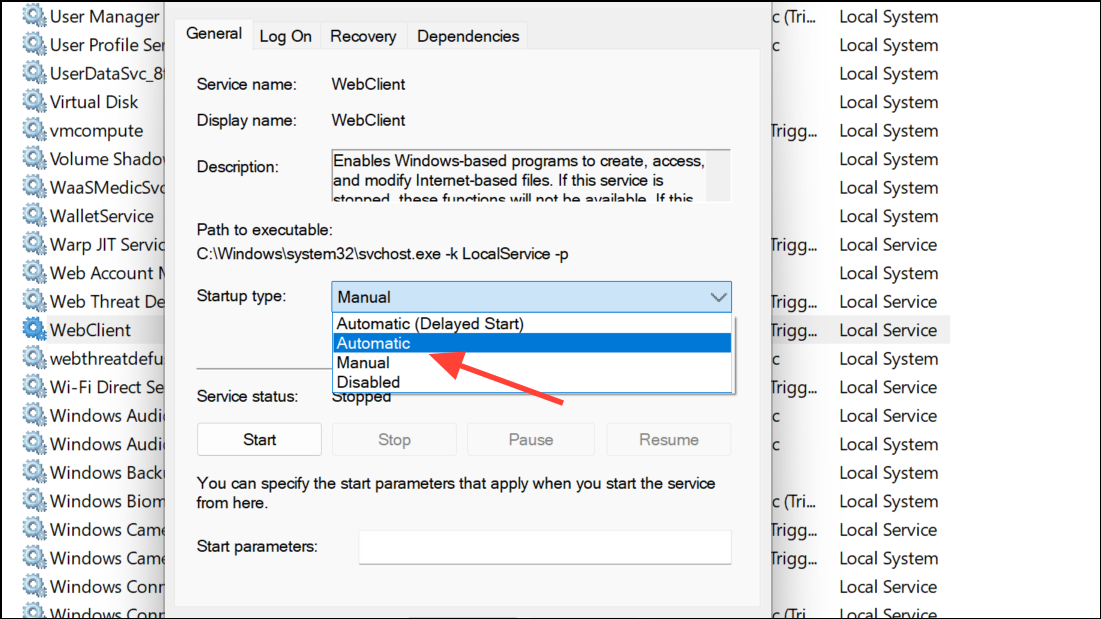
Restarting or enabling this service ensures that Windows applies the new file size limit during file transfers.
Format External Drives to NTFS File System
File system limitations can also cause the error, especially when using external drives or USB sticks formatted with FAT32. FAT32 restricts individual files to a maximum of 4 GB, while NTFS supports much larger files.
Switching to NTFS removes file size restrictions imposed by FAT32, allowing you to transfer larger files without encountering error 0x800700df.
Scan for Malware or System Corruption
Occasionally, malware or system corruption can interfere with file transfers and trigger error 0x800700df even when size limits are not exceeded. Running a full system scan can identify and resolve such issues.
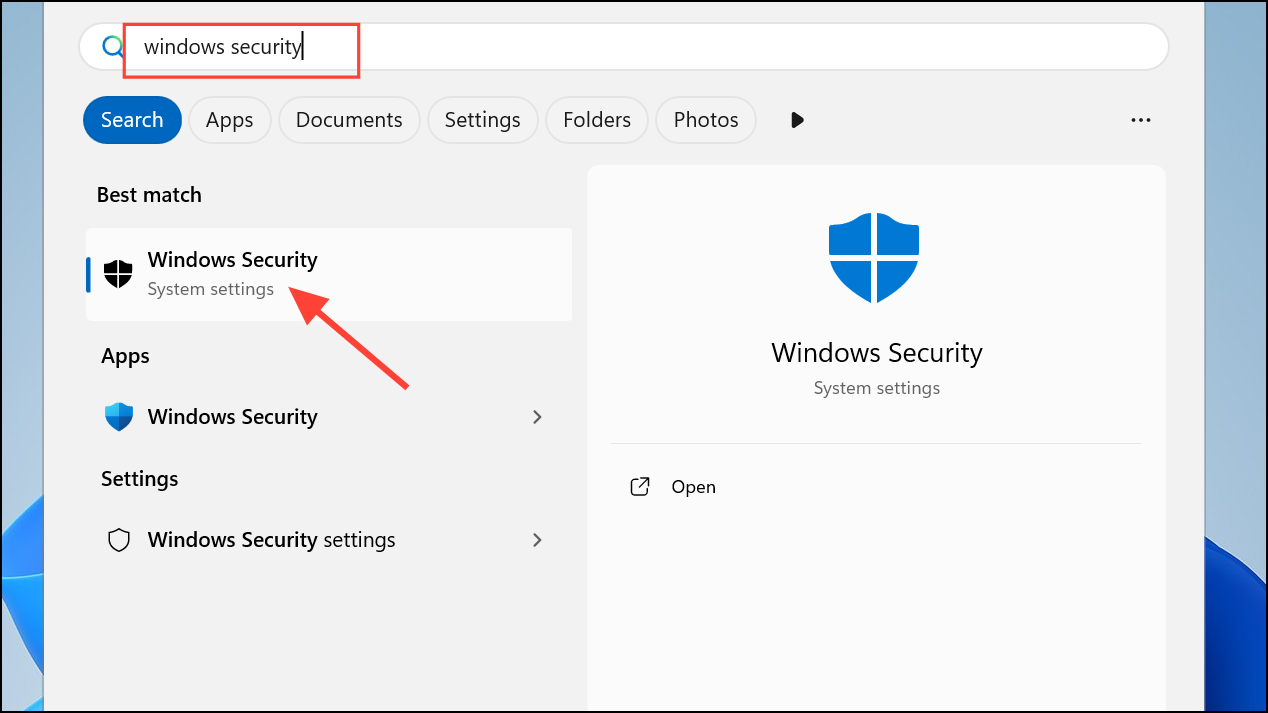
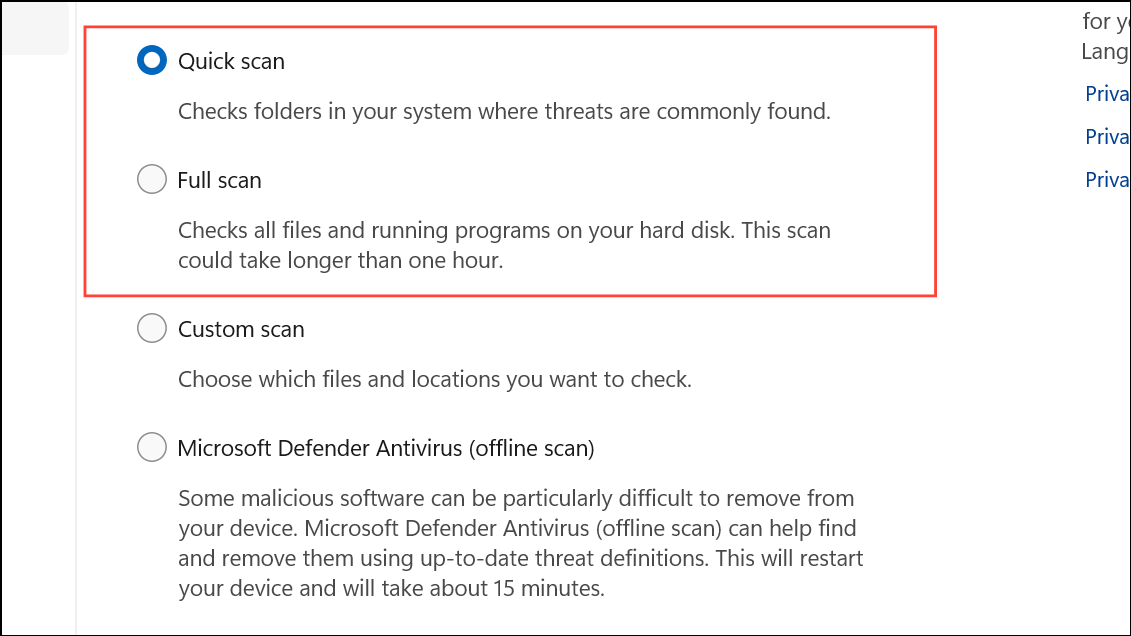
Scanning and removing malware can restore normal file transfer operations and eliminate unexpected interruptions.
Adjust SharePoint or Network Quotas
When transferring files to SharePoint or certain network shares, server-side upload limits may override your local settings. If error 0x800700df occurs in these scenarios, increasing the upload quota on the server is necessary.
Contact your network or SharePoint administrator if you lack permission to change these settings, as server-side restrictions may still block large transfers.
Updating registry limits, ensuring the WebClient service is active, formatting drives to NTFS, scanning for malware, and checking network quotas will resolve error 0x800700df for nearly all Windows 11 file transfer cases. After applying these fixes, file transfers should succeed for files well beyond the previous size limits.



