
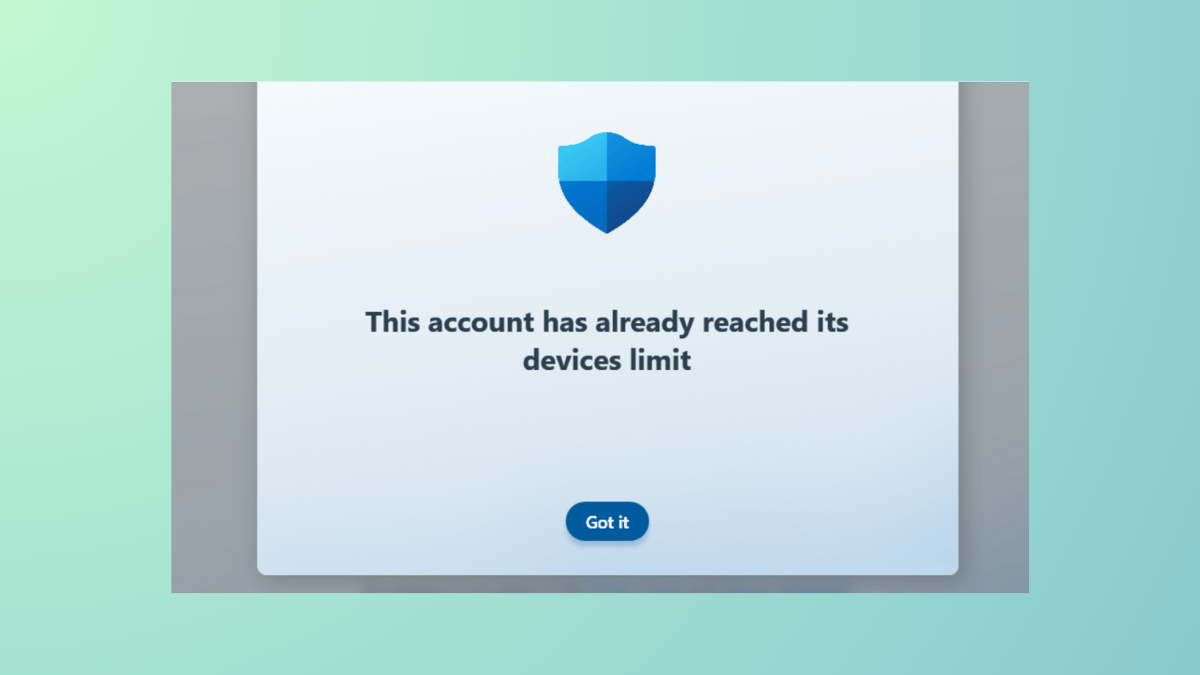
The message “Ten of your devices have apps & games from Store already installed on them. That’s the limit. Remove a device to make room for this new one.” appears when attempting to download from the Microsoft Store after hitting the device cap. Microsoft restricts each account to a maximum of 10 devices for Store content downloads, and exceeding this limit blocks new installations, even if some devices are no longer in use. This issue can persist after device removal, leading to confusion and download failures.
Remove Devices from Microsoft Store Device Management
https://account.microsoft.com/devices/content. Sign in with the same Microsoft account you use in the Store. This page displays all devices currently linked for Store app and game downloads.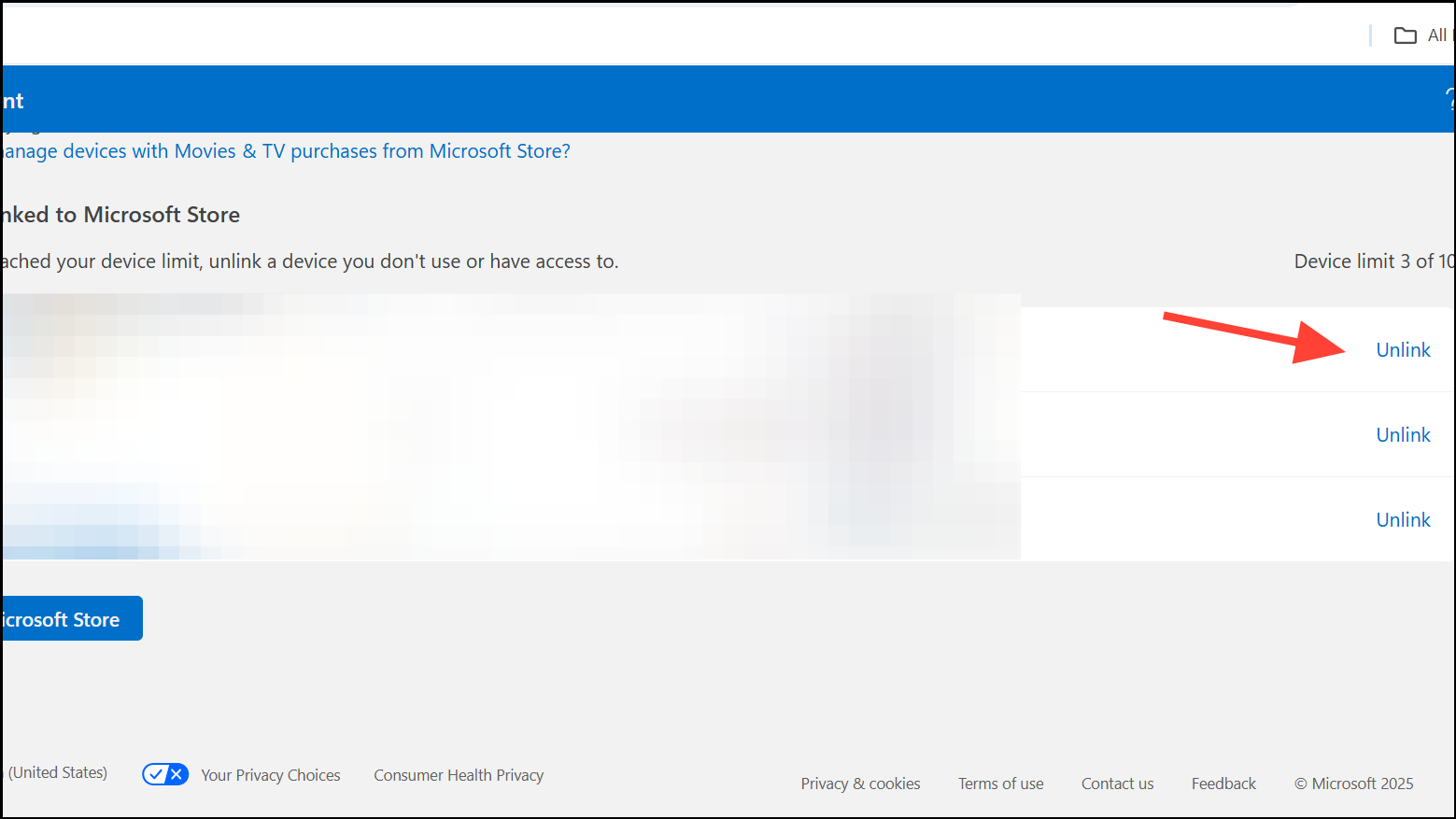
Remove Devices from General Microsoft Account Device List
Some users report the Store device management page does not always show every device linked to their account. In these cases, removing devices from the general device list can resolve persistent errors.
https://account.microsoft.com/devices and sign in. This page lists all hardware registered to your Microsoft account, including those not directly linked to Store downloads.Reset the Microsoft Store App and Cache
If device removal does not immediately resolve the error, resetting the Store app and its cache can prompt the system to recognize the updated device list.
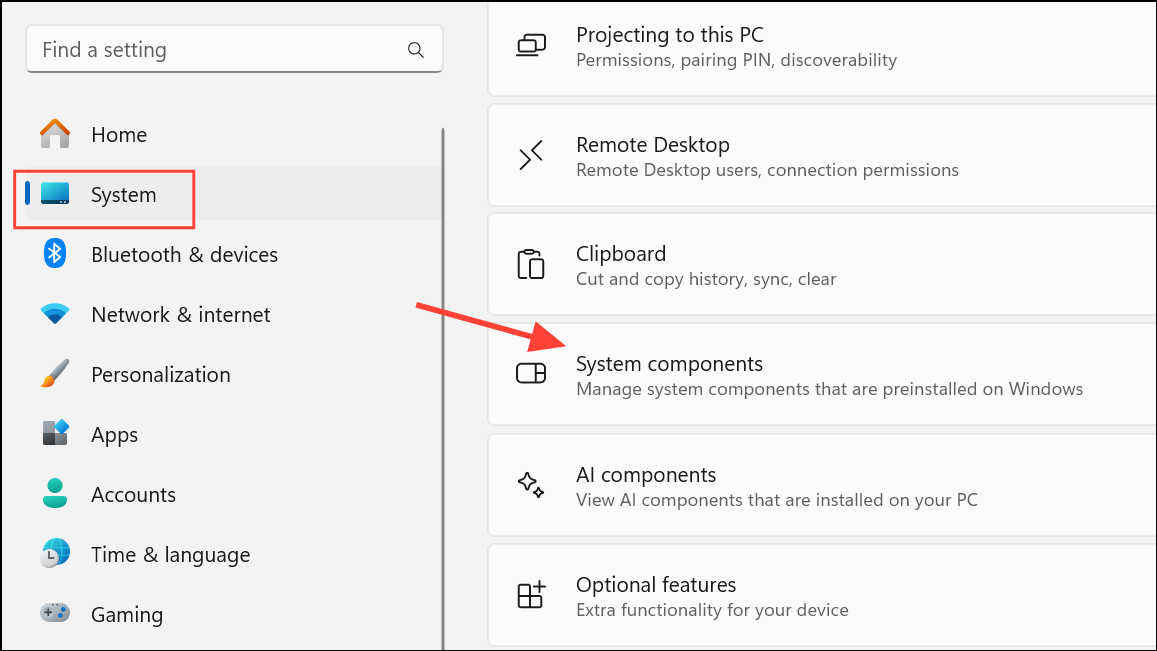
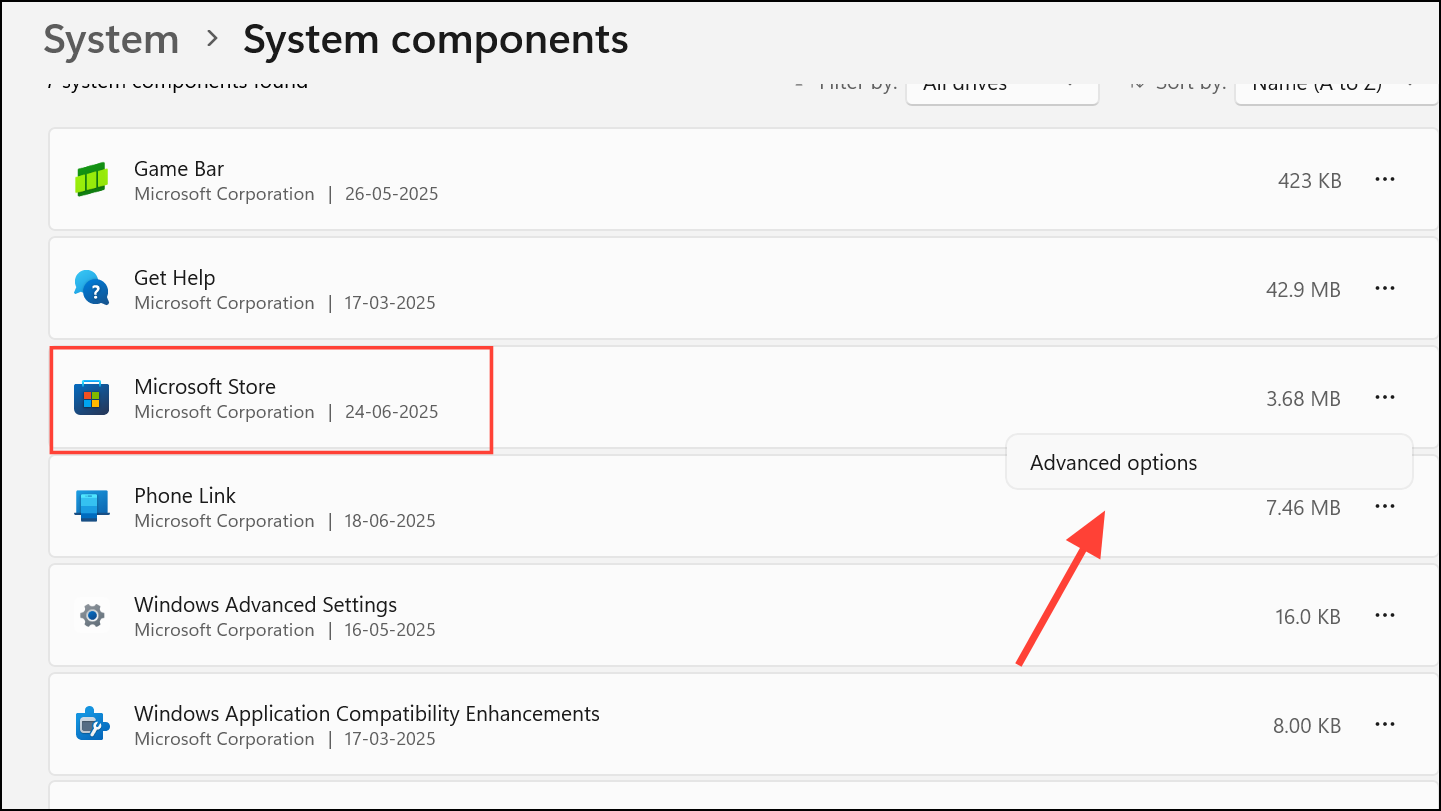
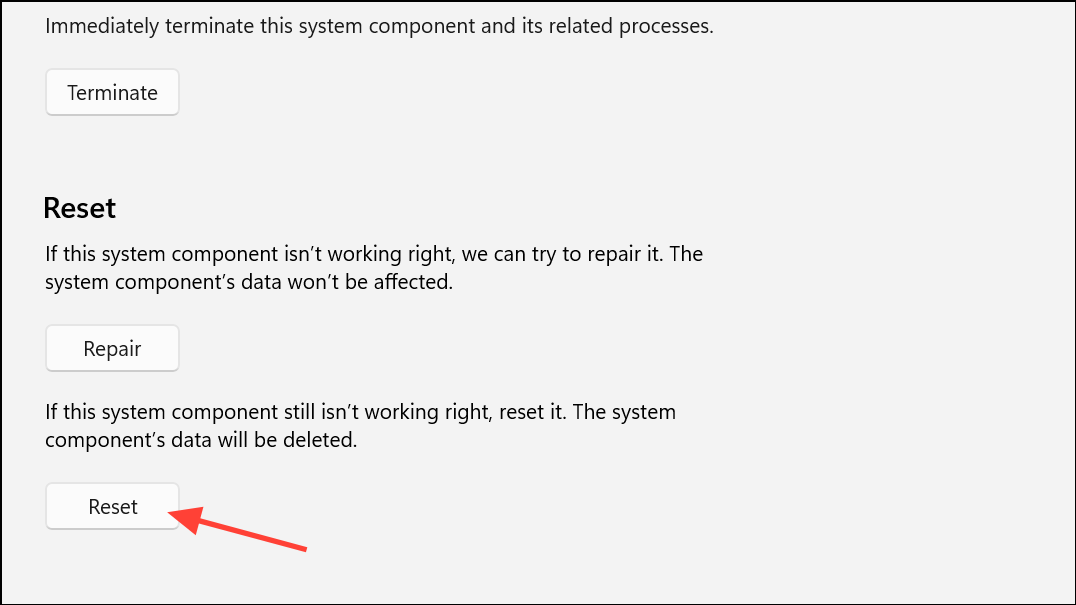
Win + R to open the Run dialog. Type wsreset.exe and press Enter. A command prompt window will appear briefly, then close, automatically reopening the Store. This process removes cached data that may cause device sync issues.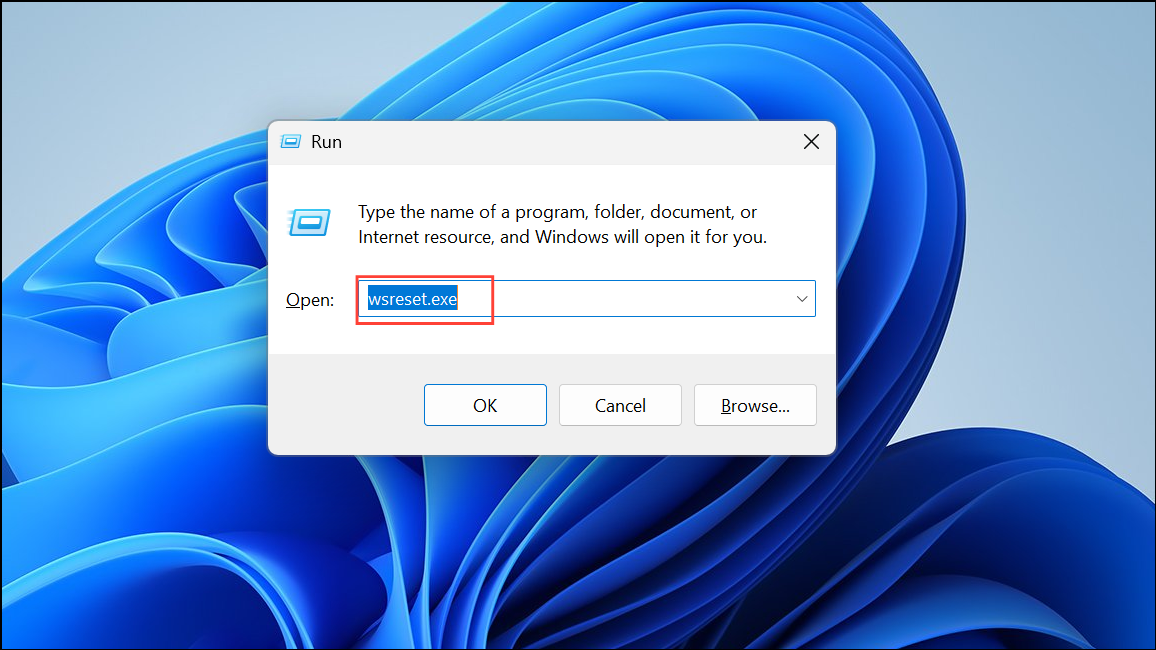
Additional Tips and Troubleshooting
In rare cases, the device limit error persists even when the account shows fewer than 10 devices. This can be caused by synchronization delays or bugs in Microsoft’s device management system. If you have tried all removal and reset steps but still see the error:
- Sign out of the Microsoft Store app, then sign back in with your account.
- Repeat the removal steps after a few hours to allow for backend synchronization.
- Contact Microsoft Support via live chat or their support portal for direct assistance if the issue continues.
For users with Xbox consoles, Game Pass devices, or multiple PCs, always double-check both the Store device management and the general device list. Devices may appear in one list but not the other, so clearing both ensures all possible associations are removed.
Unlinking old devices from your Microsoft account and resetting the Store app reliably restores the ability to download apps and games in Windows 11. Keeping your device list current prevents future device limit issues.



