
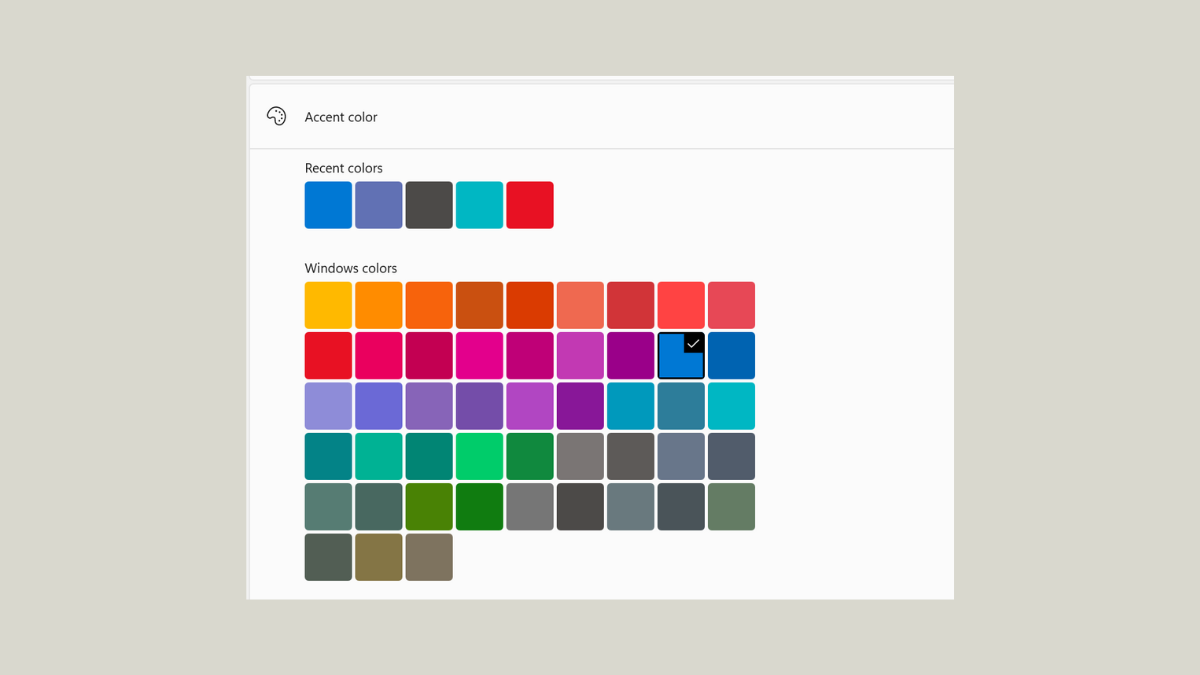
Applying a custom color theme to the Windows 11 Start menu streamlines the look of your desktop and makes navigation more visually consistent. While Windows 11 offers built-in options for accent colors, some users want more control or wish to go beyond the default limitations. Here are the most effective methods to add a custom color theme to the Start menu, starting with the native settings and progressing to advanced third-party solutions.
Using Windows 11 Built-In Personalization Settings
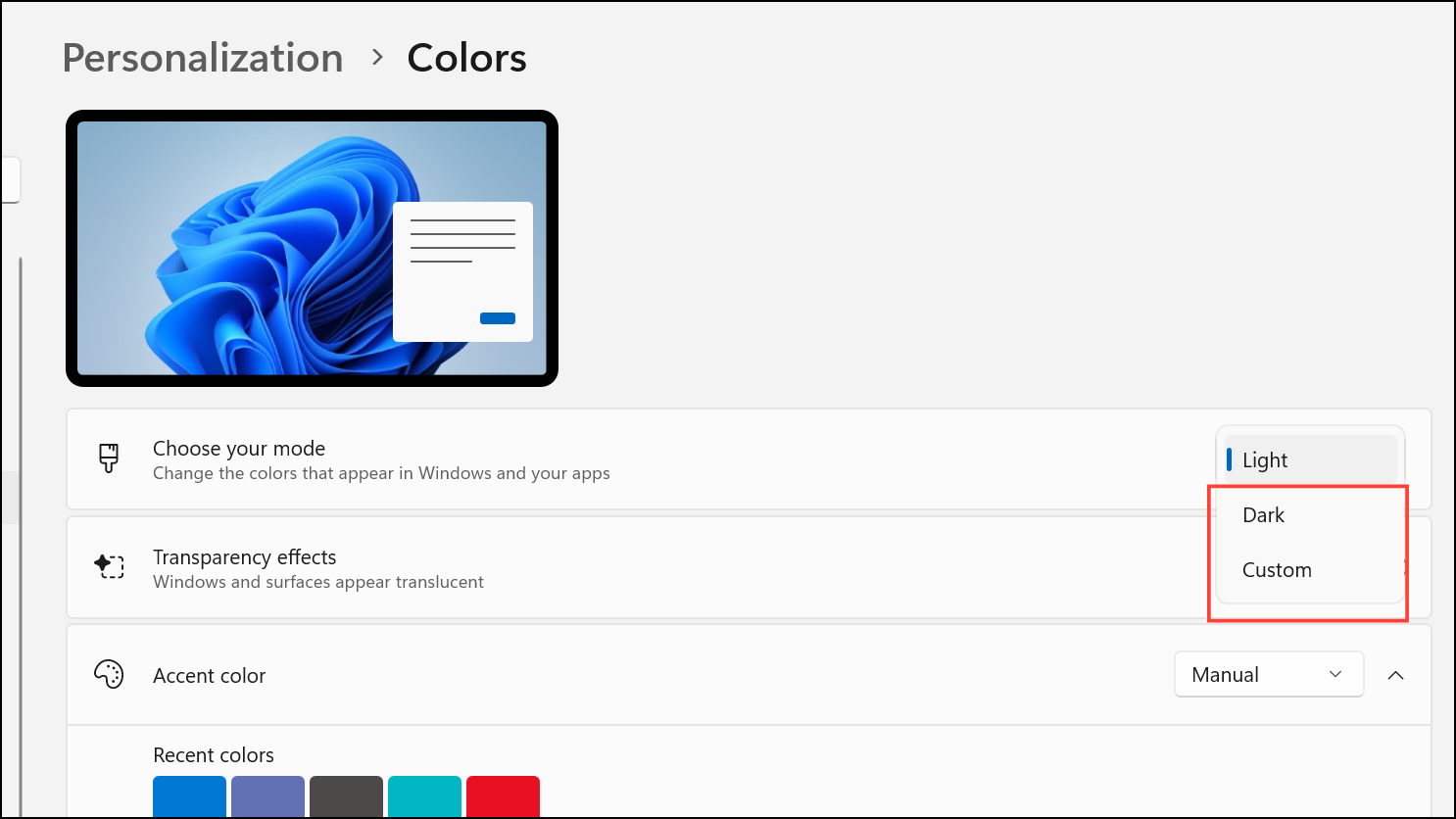
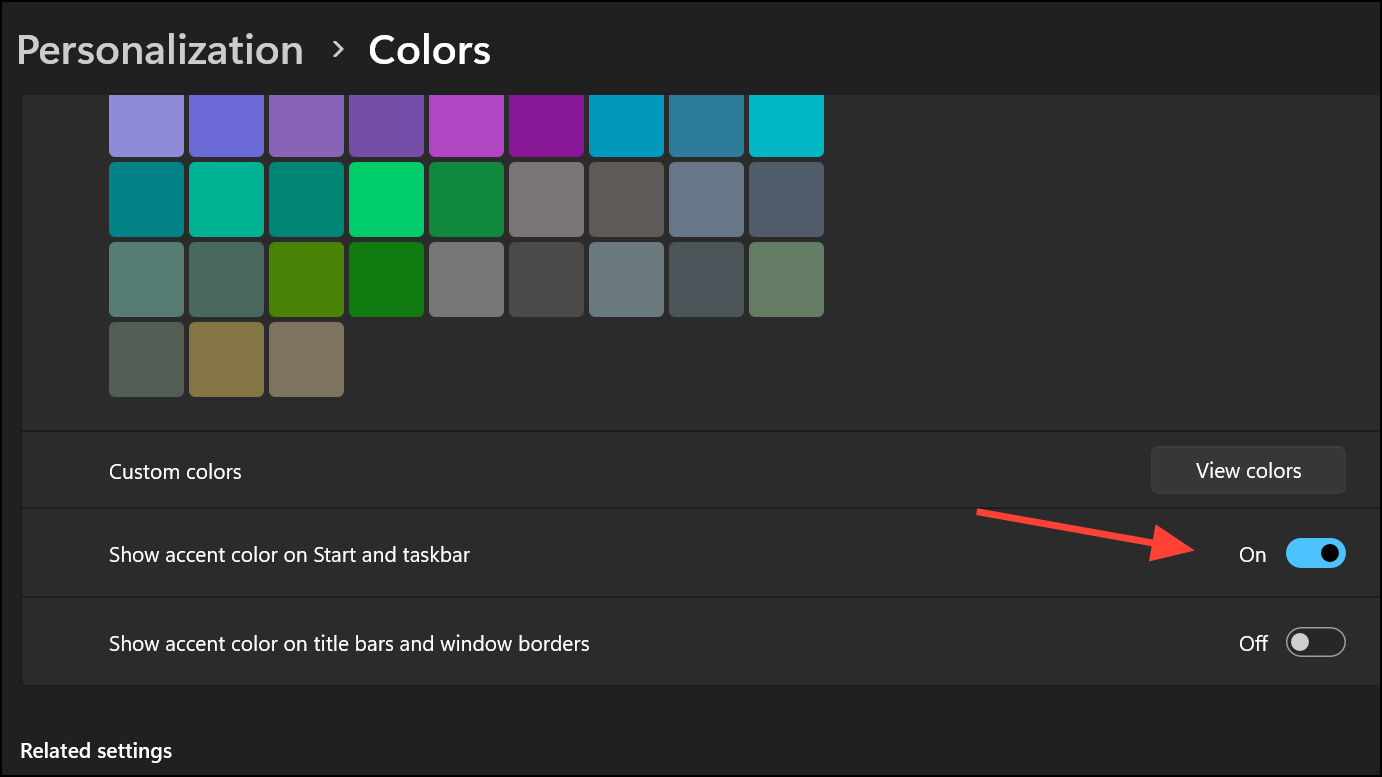
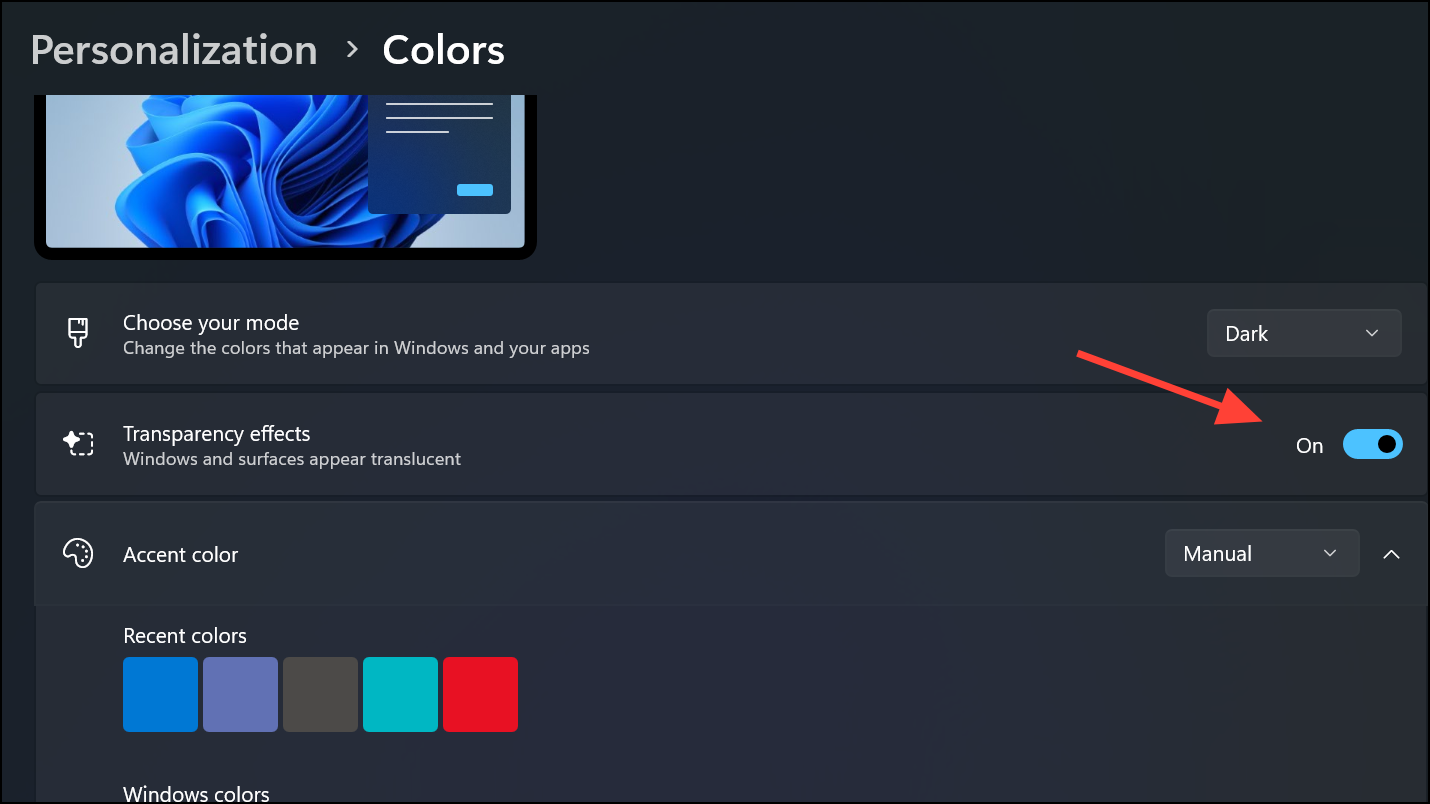
Windows 11 allows users to apply accent colors to the Start menu and taskbar, but this feature is only available when using the dark or custom color mode. The accent color is a highlight color that appears on interactive UI elements, including the Start menu background and taskbar. However, direct customization of the Start button’s color is not supported natively; the accent color applies to the menu and taskbar background, not the Start icon itself.
Windows + I. In the sidebar, select Personalization, then click Colors.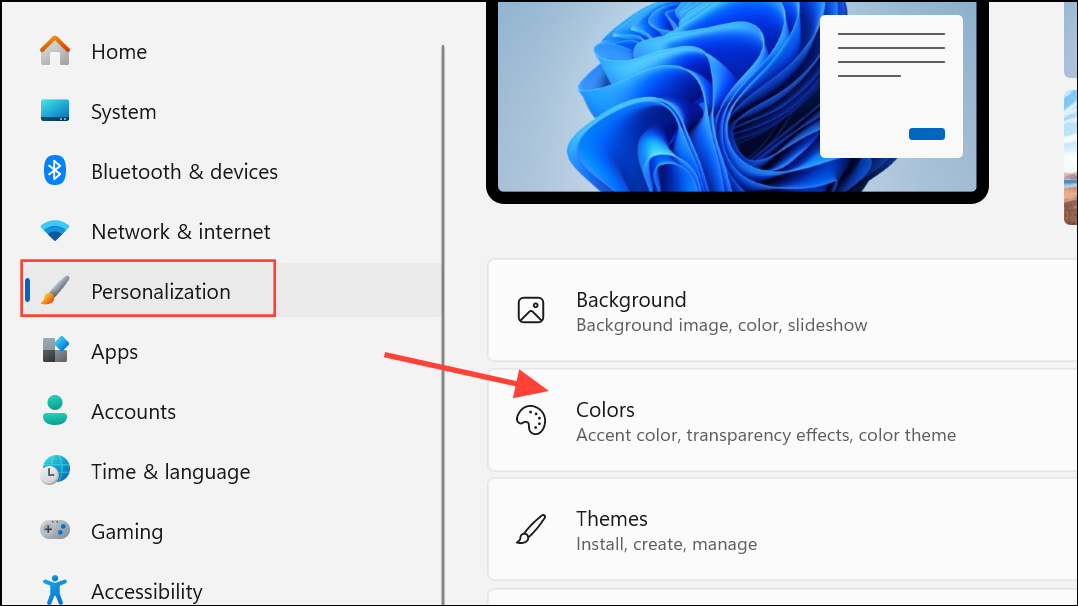
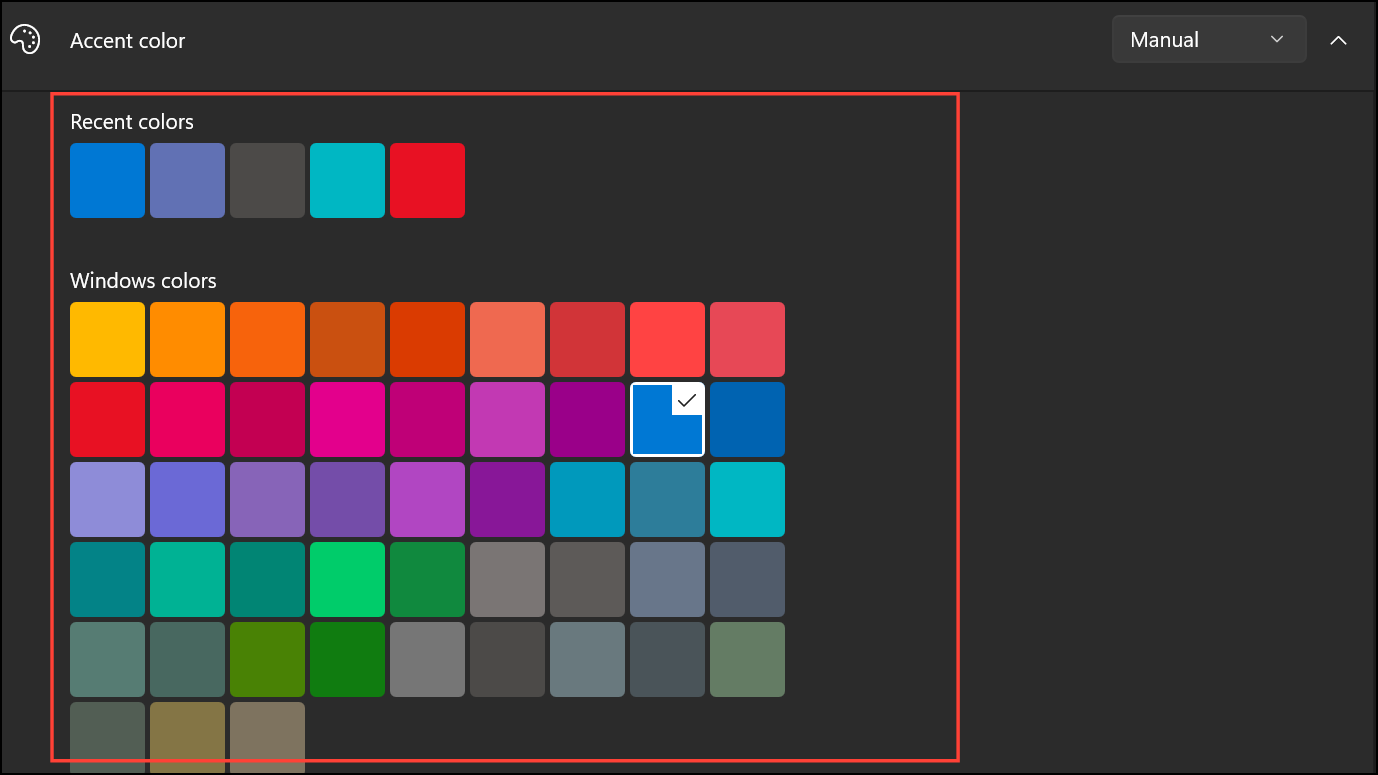
Applying Custom Color Themes with Third-Party Tools
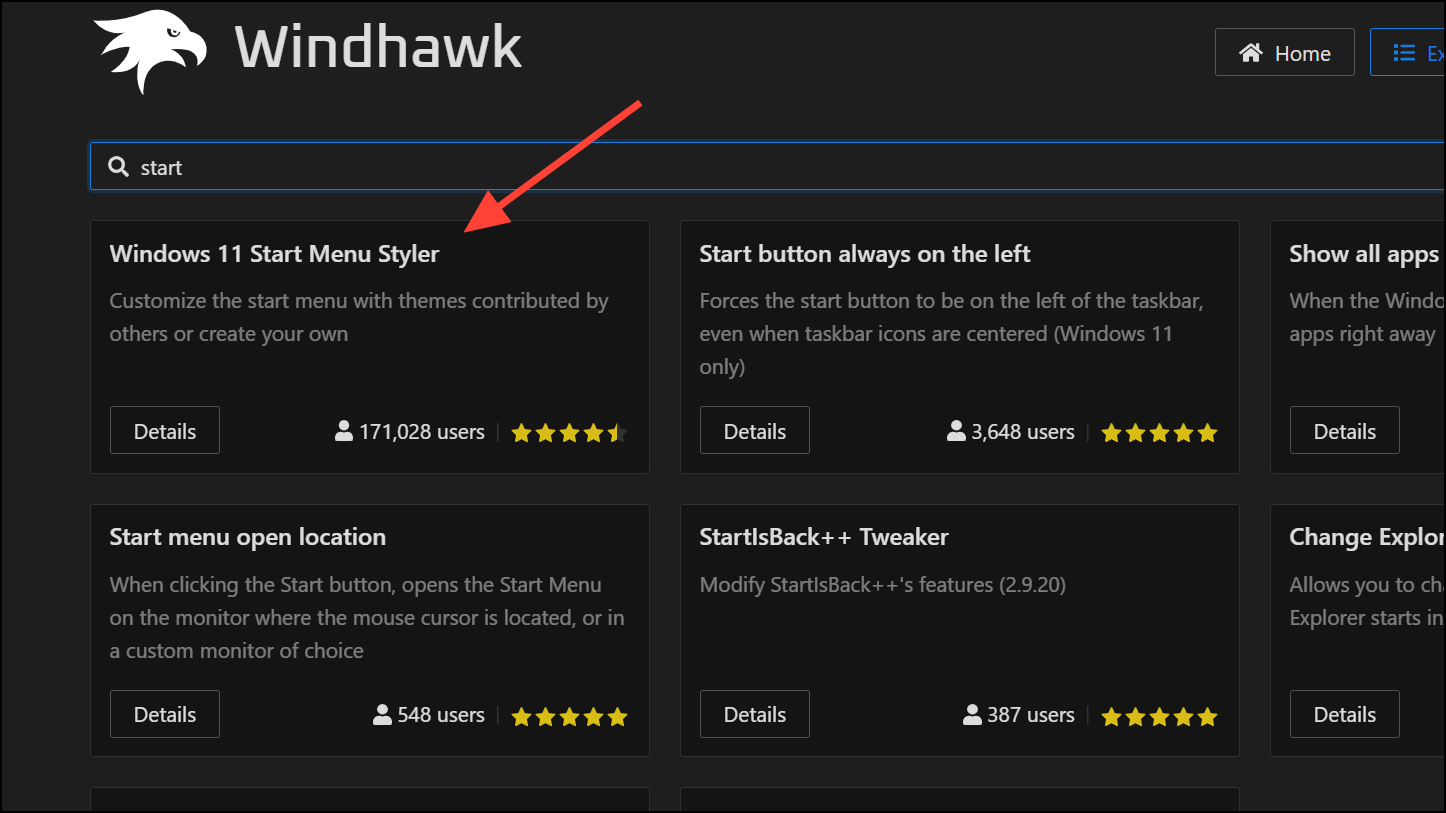
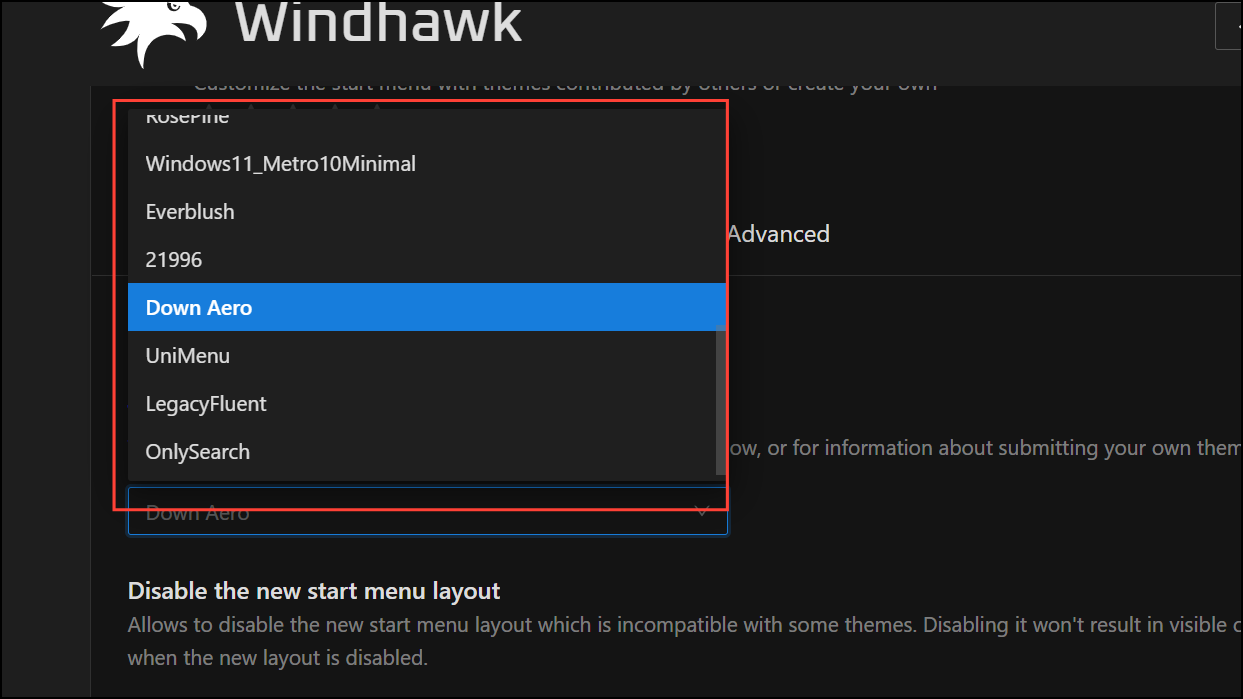
For users seeking more granular control or wanting to apply custom styles beyond the available accent color options, third-party utilities such as Windhawk and Start Menu Styler provide advanced customization. These tools allow you to modify the Start menu’s appearance, including its color theme, size, transparency, and even the Start button itself, bypassing Windows’ built-in restrictions.
Windhawk and Start Menu Styler
Troubleshooting and Additional Customization Tips
If the accent color option for Start and taskbar is grayed out, double-check that your color mode is set to Dark or Custom. In Custom mode, set Windows default mode to Dark and app mode to Light if you prefer light apps but want a colored Start menu and taskbar. This workaround grants access to accent color options while keeping app windows bright.
For users who want even more detailed control, utilities like Winaero Tweaker and WinPaletter can provide advanced colorization features for title bars, inactive windows, and other UI elements. These tools go beyond what’s available in standard Windows settings, but may require additional configuration.
Direct modification of the Start button icon color is not possible through built-in settings. If this is a priority, look for third-party Start menu replacements such as Start11 or Open Shell, which offer full theming capabilities, including icon customization. Be aware that these replacements may alter the behavior of the Start menu and introduce new features or layouts.
Applying a custom color theme to your Windows 11 Start menu improves visual consistency and lets you express your style. Whether you stick with Windows’ built-in accent color options or use advanced third-party tools, you can upgrade your desktop’s look with just a few steps.



