
Unexpected system shutdowns in place of restarts disrupt workflow and can complicate updates or troubleshooting. Windows 11 may shut down instead of restarting due to power management features, firmware settings, or driver issues. Addressing this behavior involves targeted changes to system power settings, firmware updates, and careful review of hardware configurations.
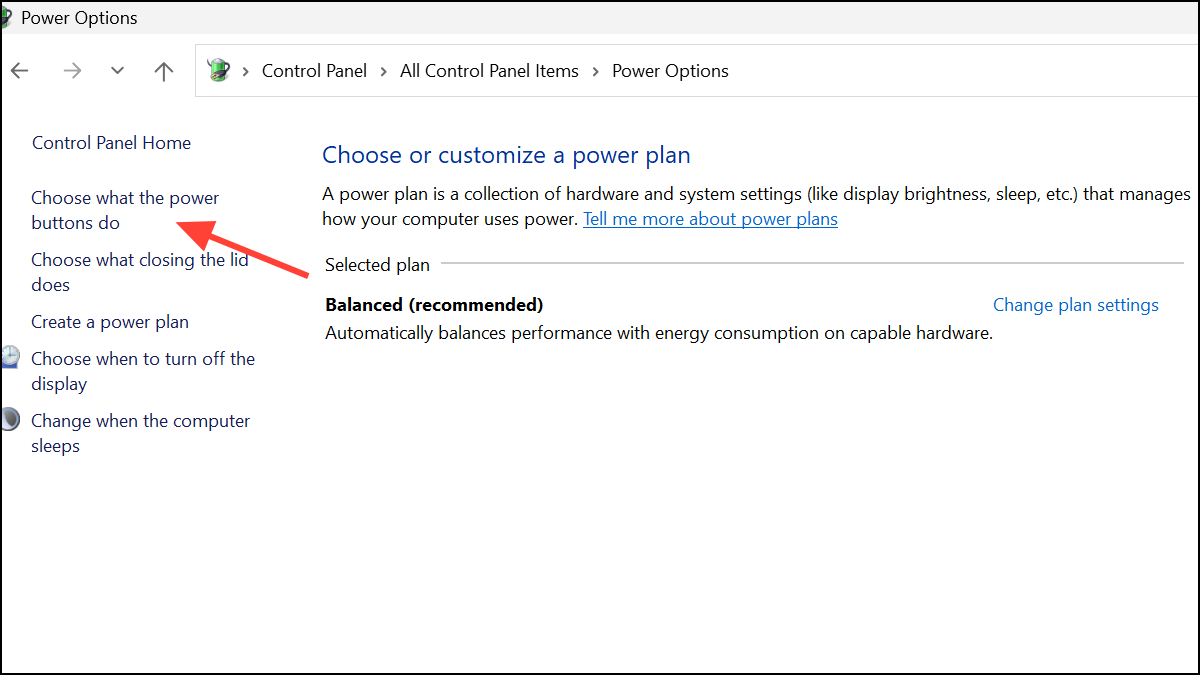
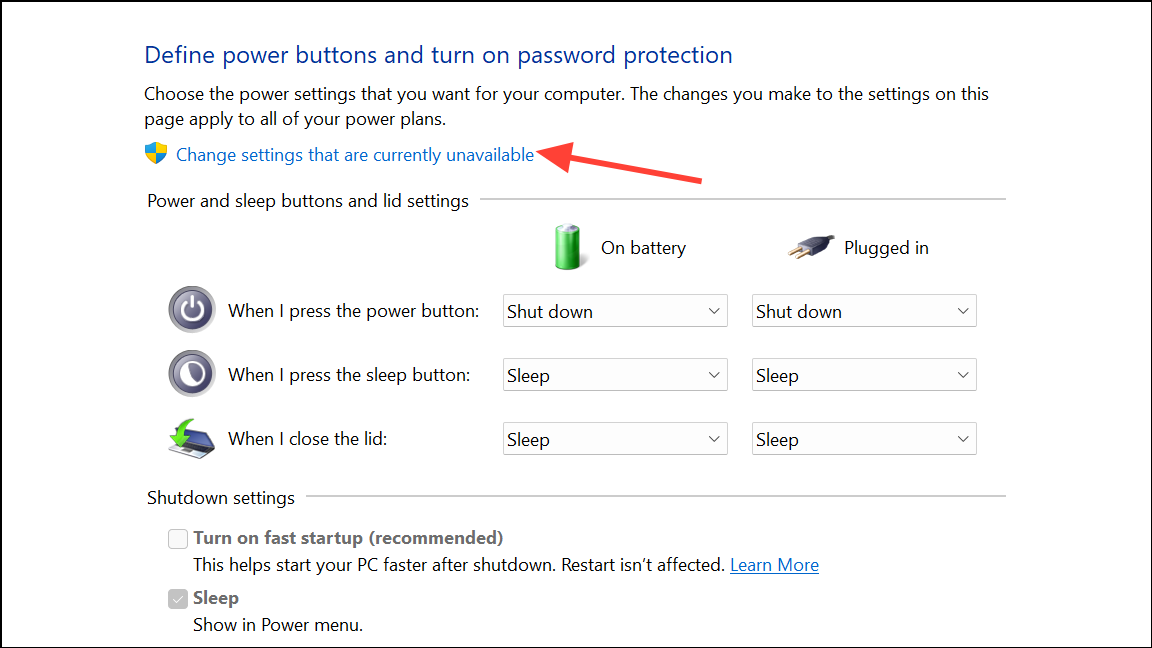
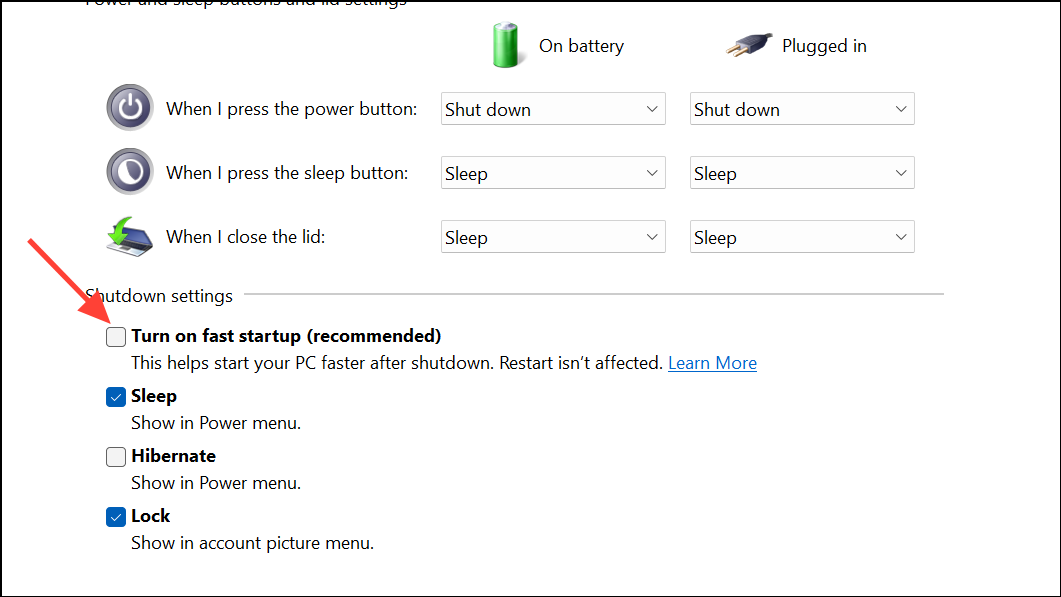
Disable Fast Startup
Control Panel. Choose the Control Panel app from the results.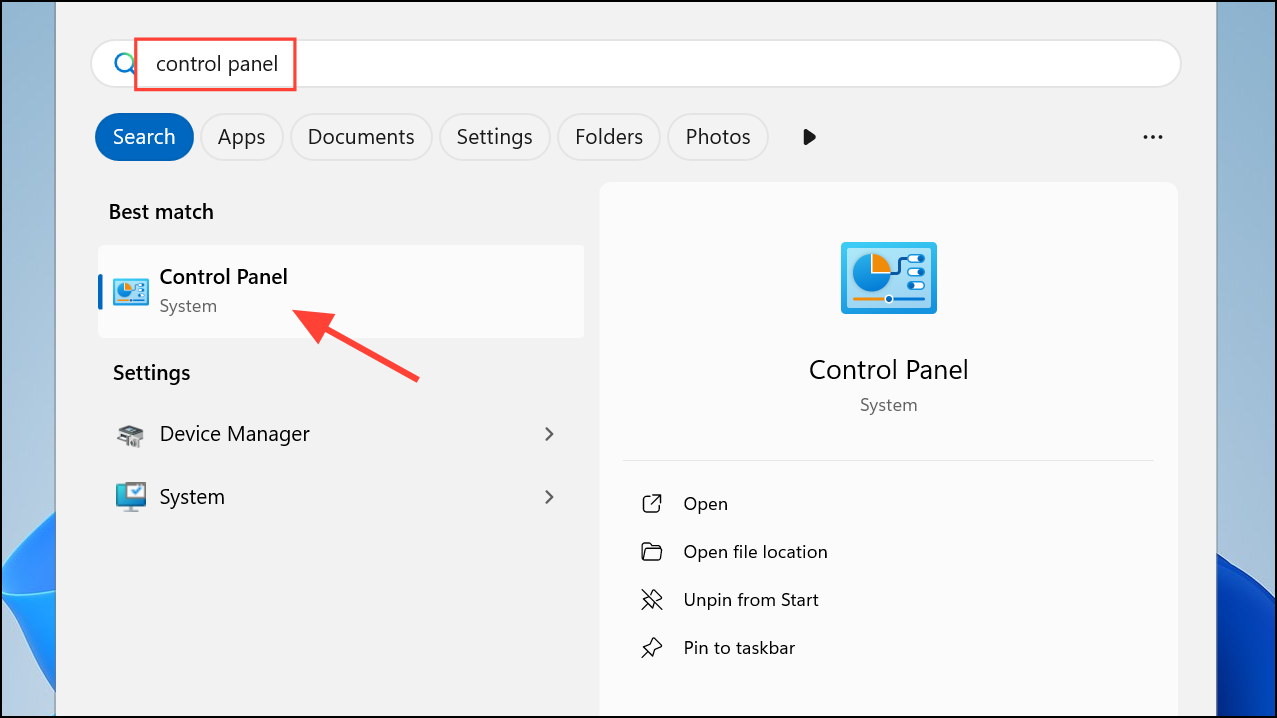
Update BIOS/UEFI Firmware
msinfo32, and press Enter. The System Summary will show your BIOS version and date.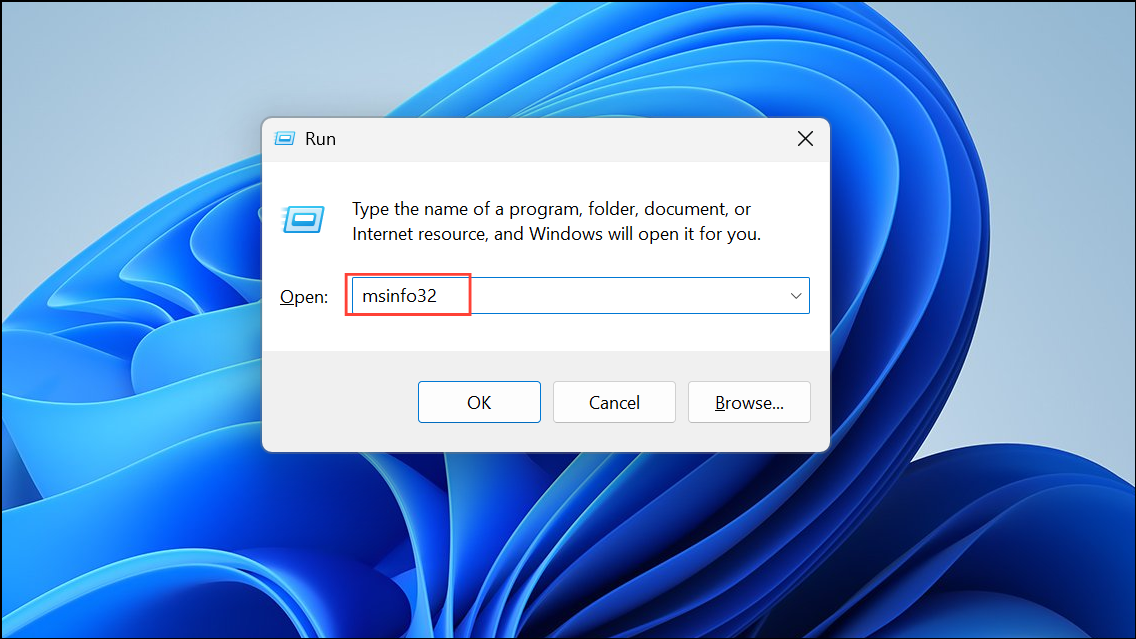
Updating firmware corrects bugs and ensures Windows 11 power management functions align with the hardware, significantly reducing shutdown and restart anomalies.
Check Power Management Settings in BIOS/UEFI
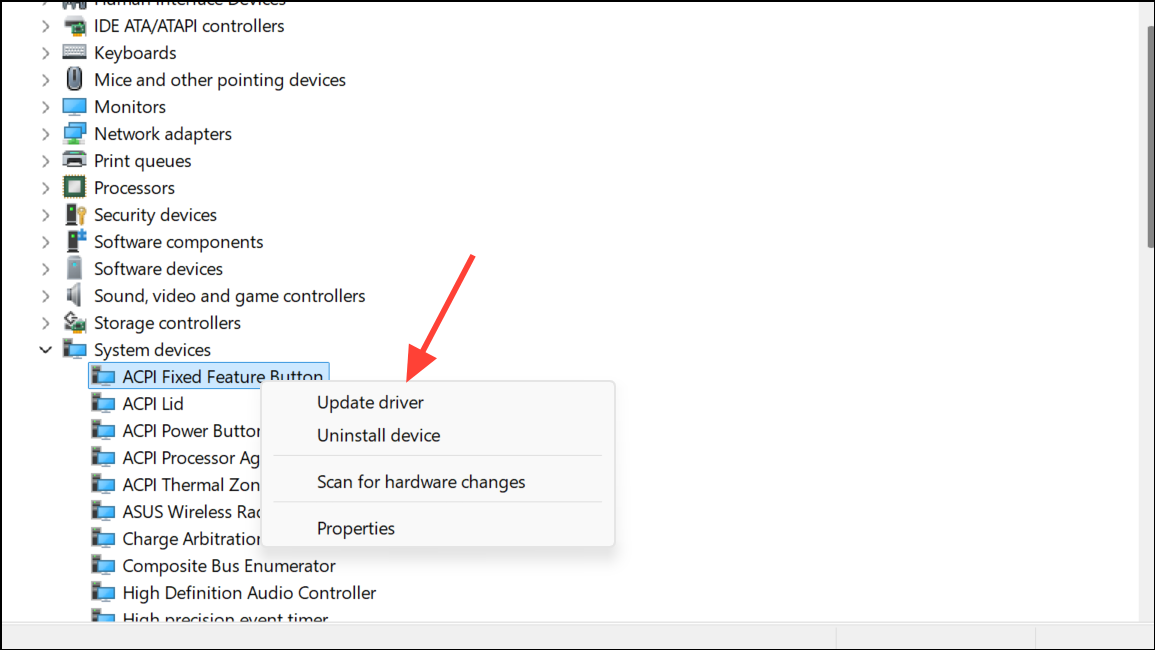
F2, F10, Delete, or Esc).Update Device Drivers
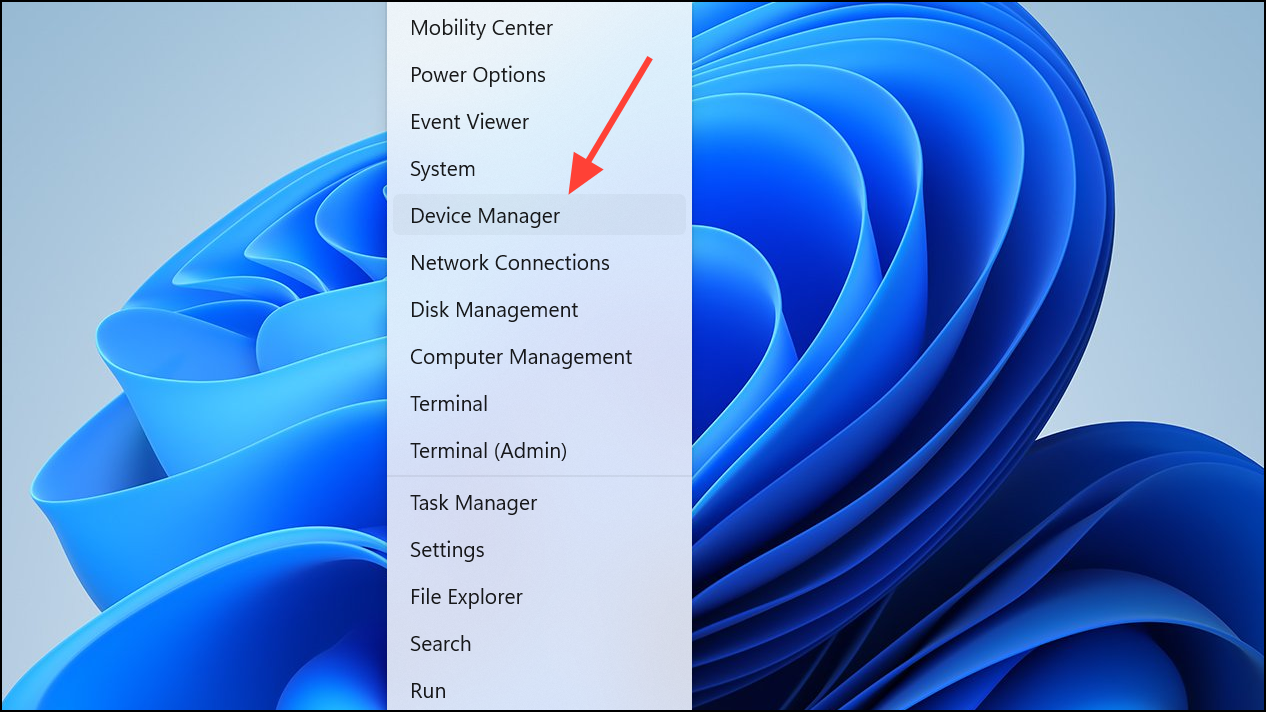
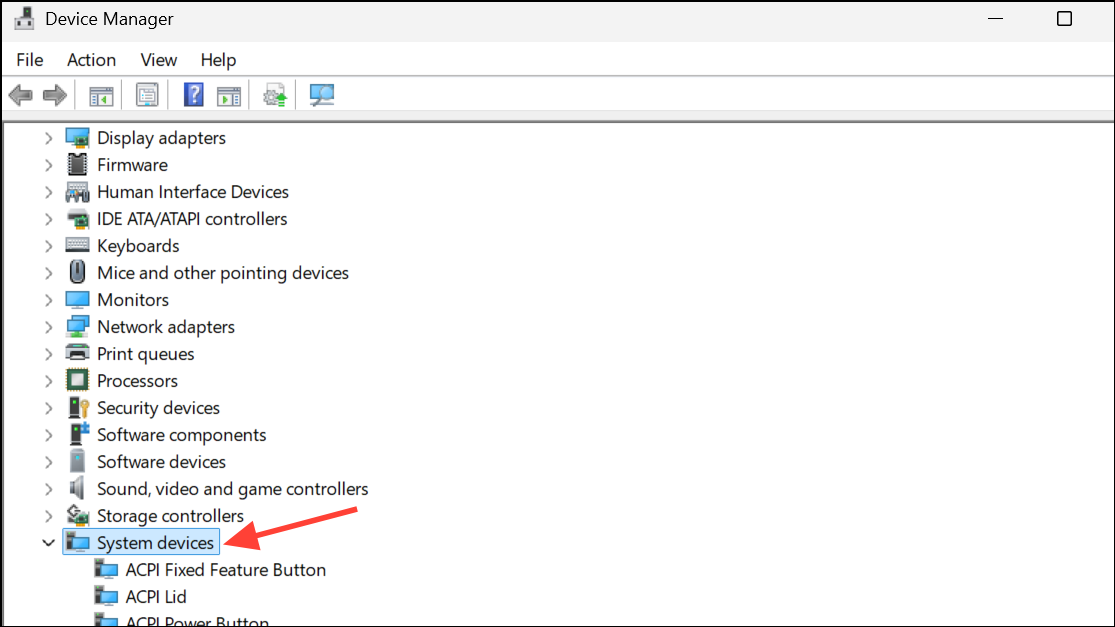
Reset Power Settings Using Command Prompt
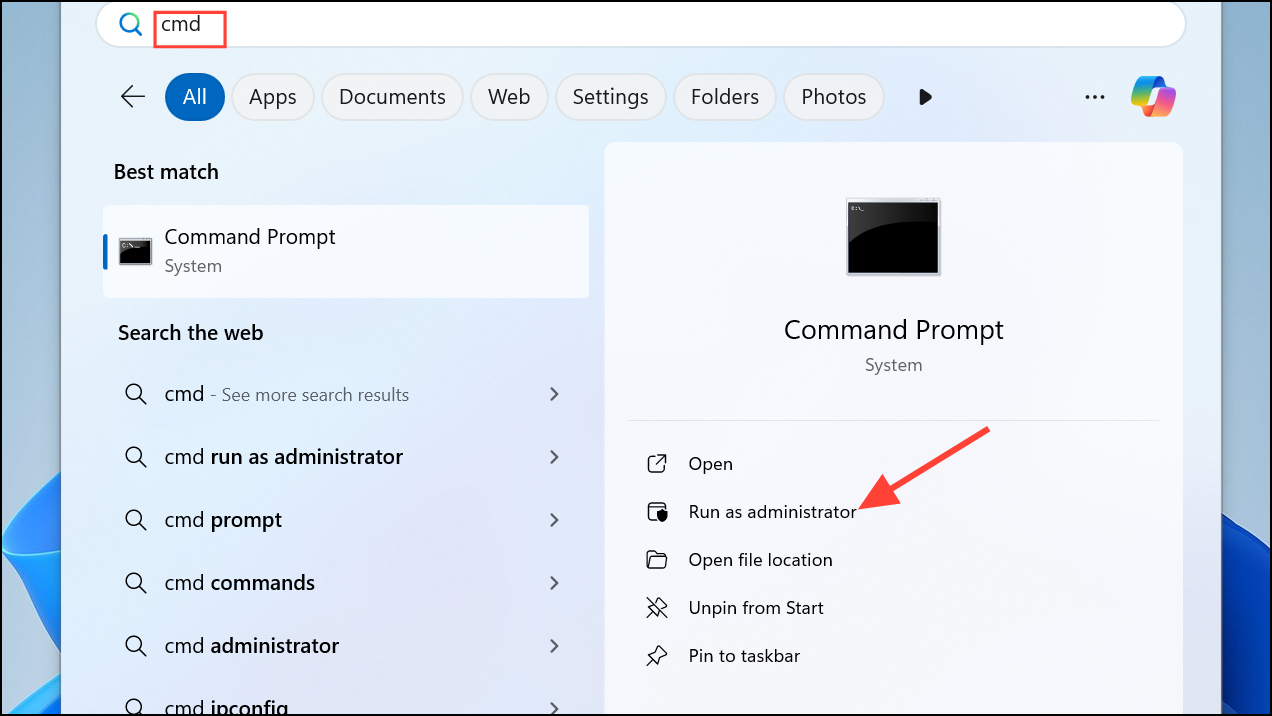
powercfg -h off
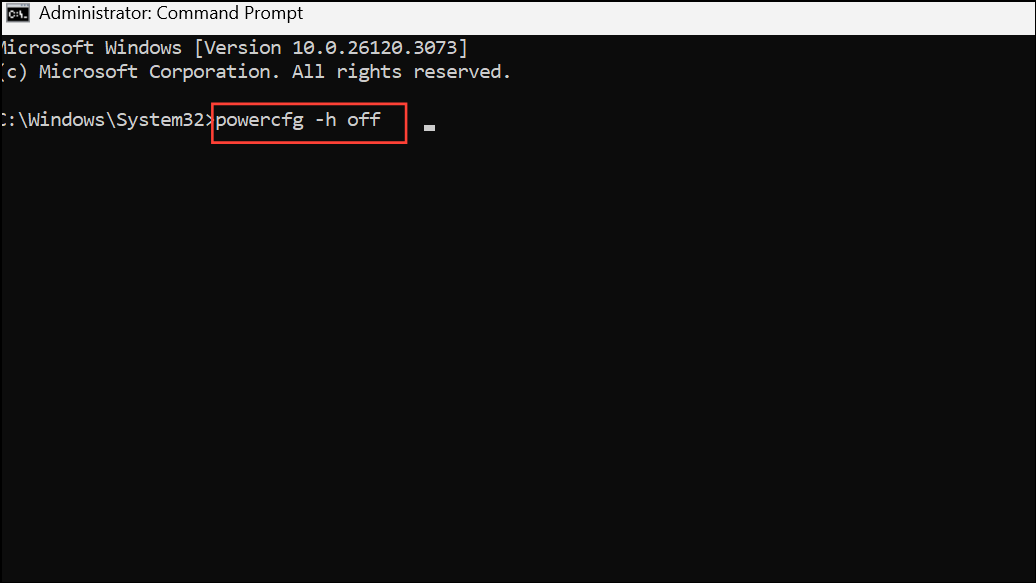
This command turns off Hibernate, which can interact with Fast Startup and cause shutdown issues.
shutdown /s /f /t 0
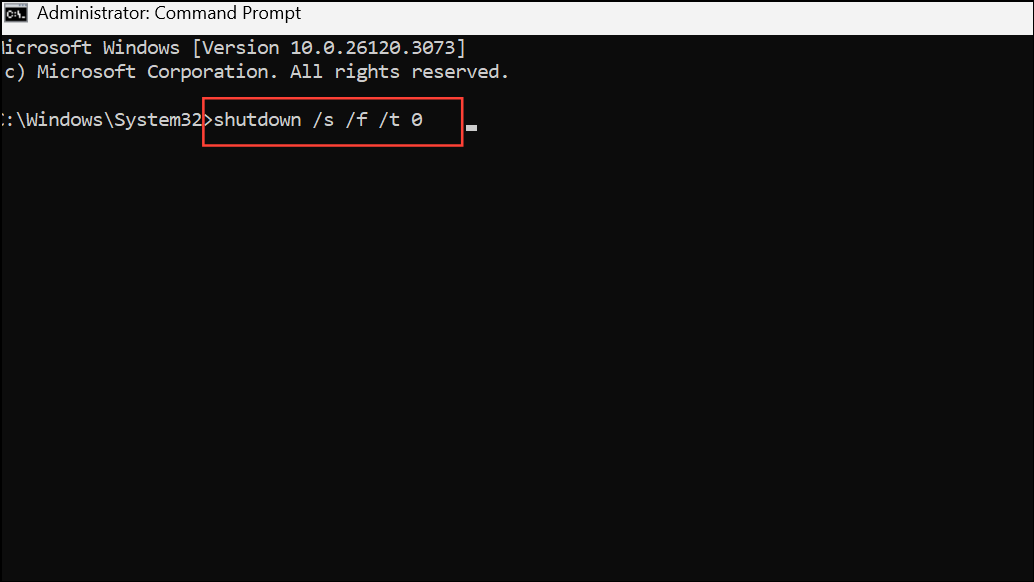
This command forces the system to shut down immediately, bypassing any processes that may trigger a restart.
Additional Troubleshooting Steps
If the above methods do not resolve the problem, consider these steps:
- Install all pending Windows Updates from Settings > Windows Update to address known bugs.
- Review Task Scheduler for automated tasks that may trigger restarts.
- Check for background applications or scripts that could interfere with shutdown processes.
- Inspect Event Viewer (
eventvwr.msc) for logs related to unexpected restarts or shutdown failures. - Perform a Windows repair install if system files are suspected to be corrupted.
- For laptops, reseat or replace the battery if hardware issues persist, and reinstall battery drivers using Device Manager.
- Test restart behavior in Safe Mode to rule out third-party software conflicts.
Hardware faults, such as motherboard or power supply issues, can also cause restart and shutdown confusion. If all software solutions fail, consult a qualified technician for further diagnostics.
Tuning power settings, updating firmware, and refreshing drivers will usually stop Windows 11 from shutting down when a restart is requested. If the problem reappears, double-check for new updates or hardware changes before repeating these steps.



