
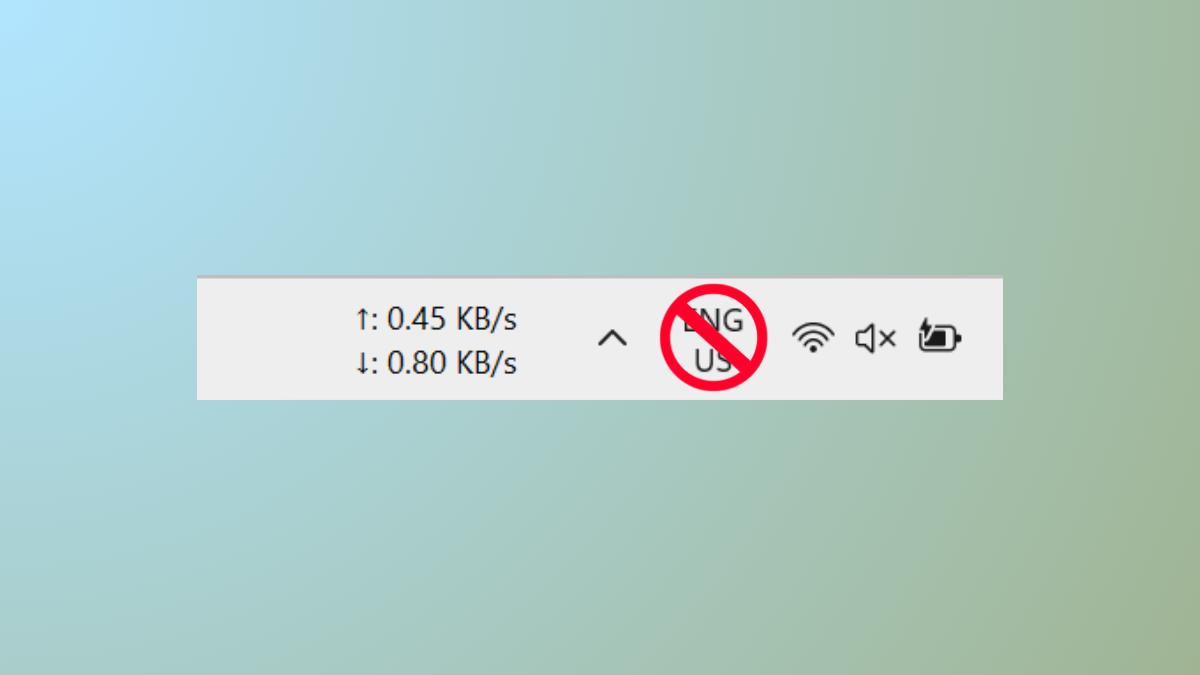
The language bar or input indicator on Windows 11 appears as a small icon—often showing a three-letter code like ENG—in the taskbar near the clock. This tool is designed for switching between keyboard layouts or languages, but it can become distracting or unnecessary if you only type in one language. Taskbar clutter, flashing icons, and confusion over keyboard layouts are common complaints when the language bar remains visible. Disabling it streamlines the interface and prevents accidental layout changes.
Disable the Language Bar via Advanced Keyboard Settings
Advanced keyboard settings in the search bar. Select the matching system settings result to open the relevant window. This section controls how Windows manages input methods and language bar visibility.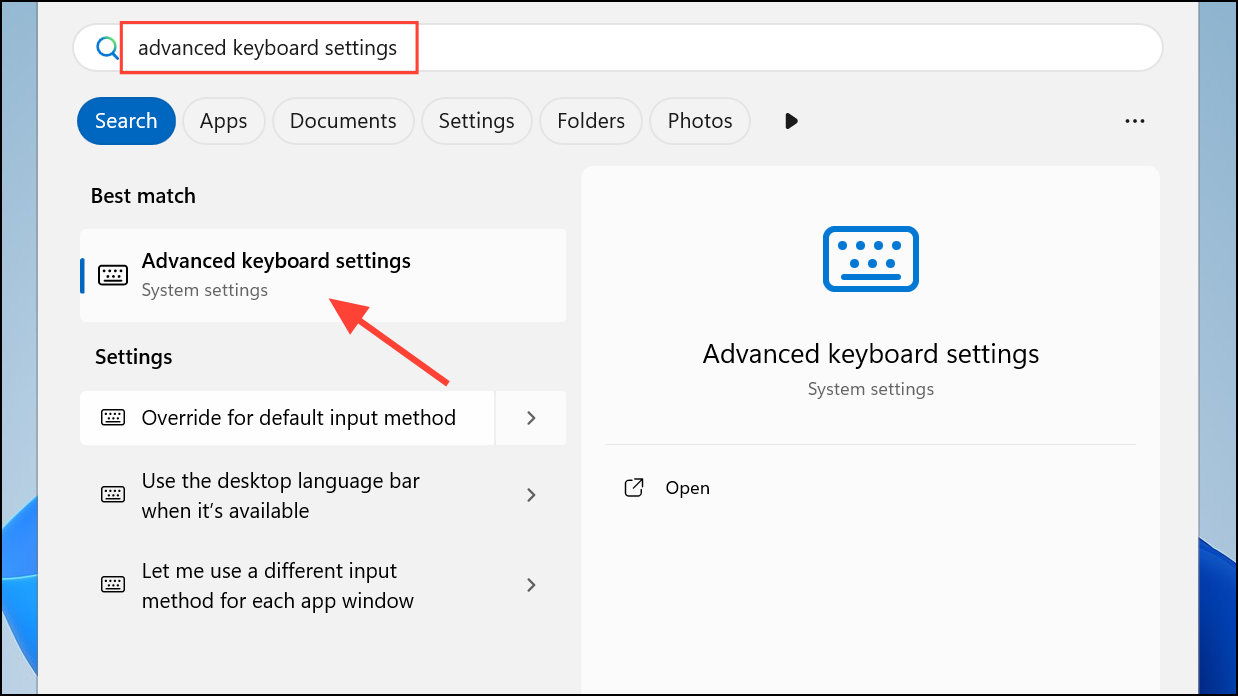
Use the desktop language bar when it's available. This setting enables access to detailed language bar options not shown by default in Windows 11.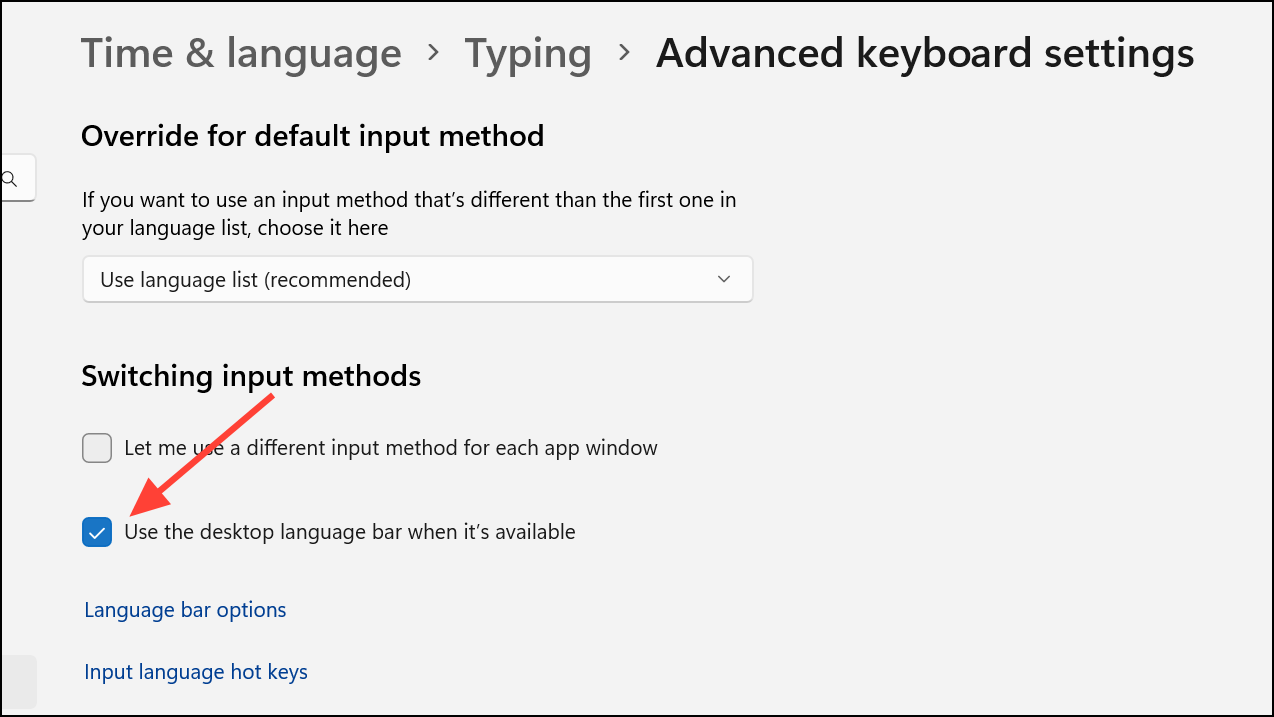
Language bar options link that appears below the checkbox. This opens a new dialog titled Text Services and Input Languages.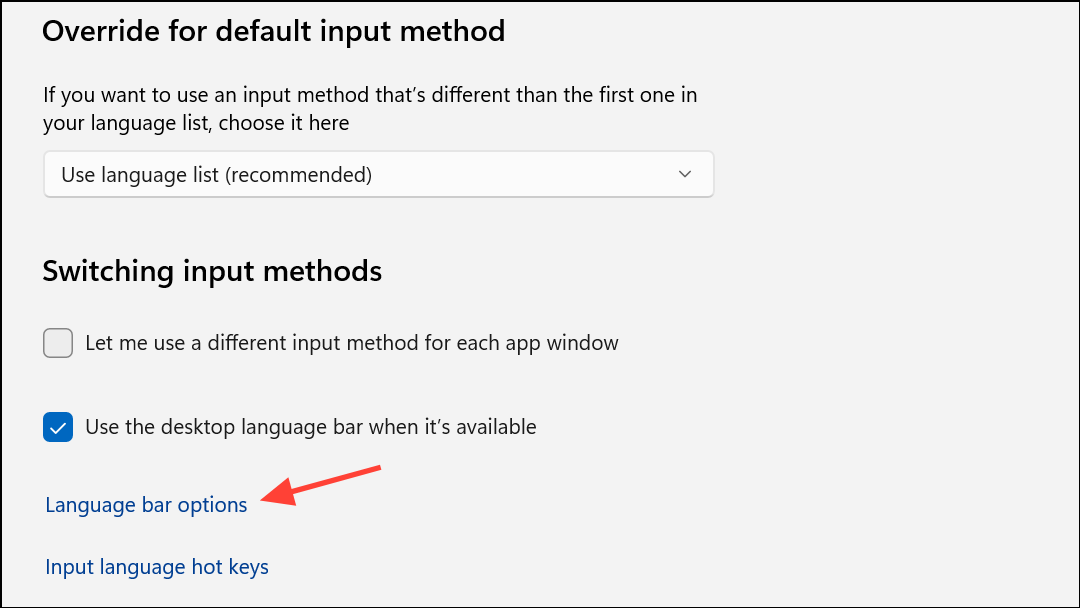
Language Bar section. Select the Hidden radio button to prevent the language bar from appearing anywhere on your desktop or taskbar. Click OK to save the change. This adjustment takes effect immediately and should remove the input indicator from your taskbar.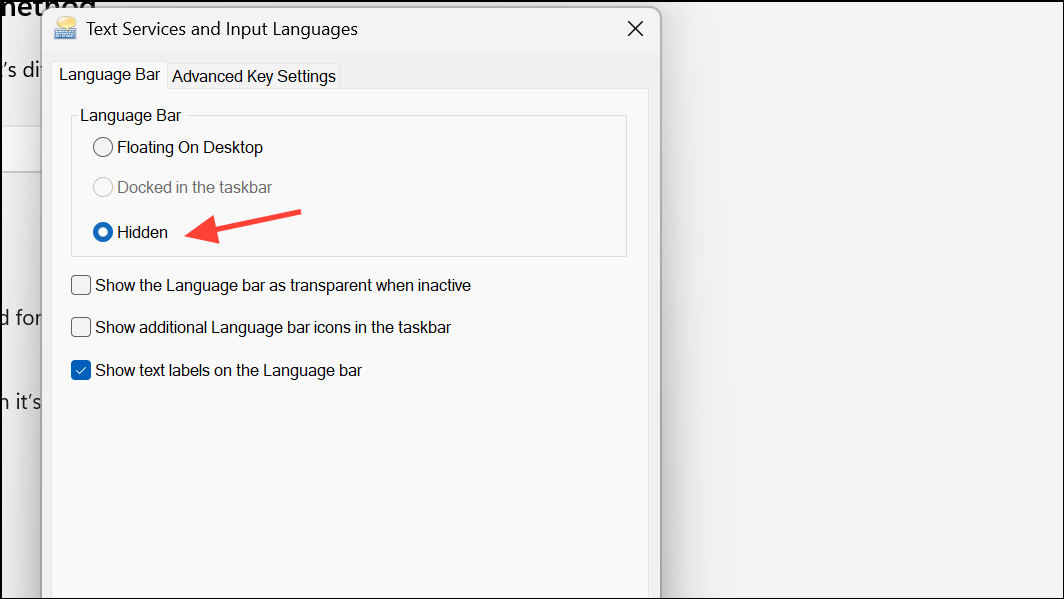
This method works reliably for most users, even when previous attempts to hide the language bar have failed. It addresses cases where simply hiding the language bar via standard settings does not work by ensuring both the desktop language bar and hidden options are enabled together.
Remove Extra Keyboard Layouts and Languages
Edit language and keyboard options. Select the result to access your list of installed languages and keyboard layouts.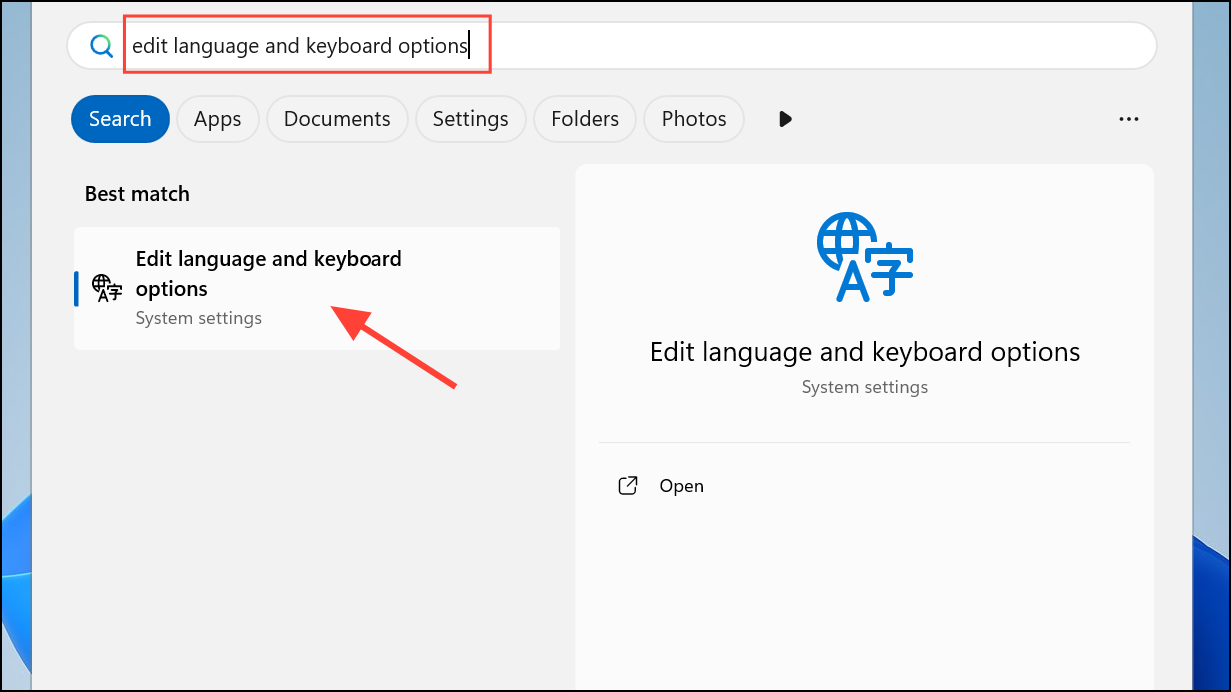
Remove. Windows 11 displays the language bar only when multiple input methods are present, so removing extras usually eliminates the indicator.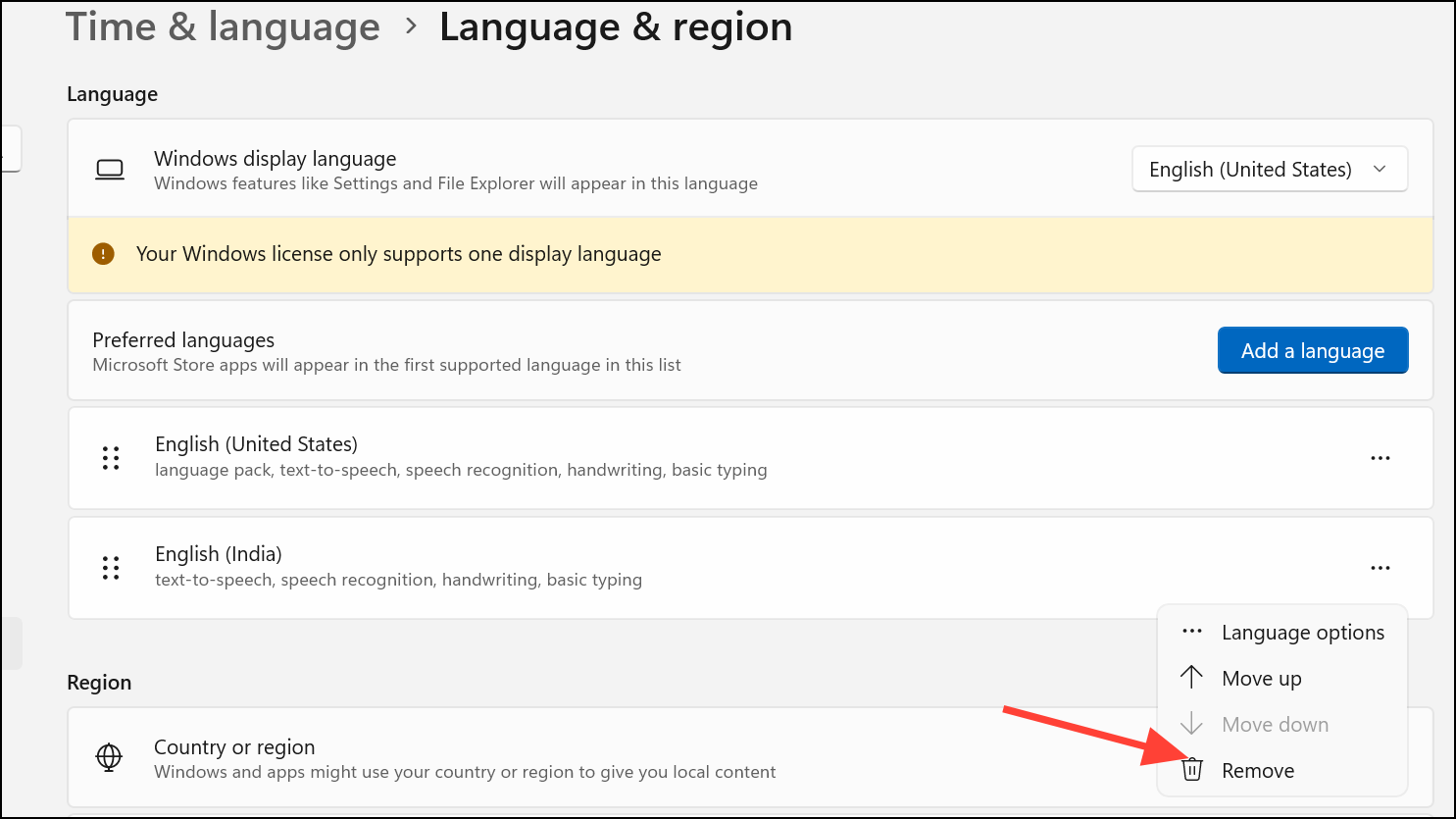
This approach is effective for users who only need a single input method. However, if you require multiple keyboard layouts for different languages, proceed to the next method.
Turn Off Input Indicator in Taskbar Settings
Taskbar settings. This opens the customization panel for system icons and notifications.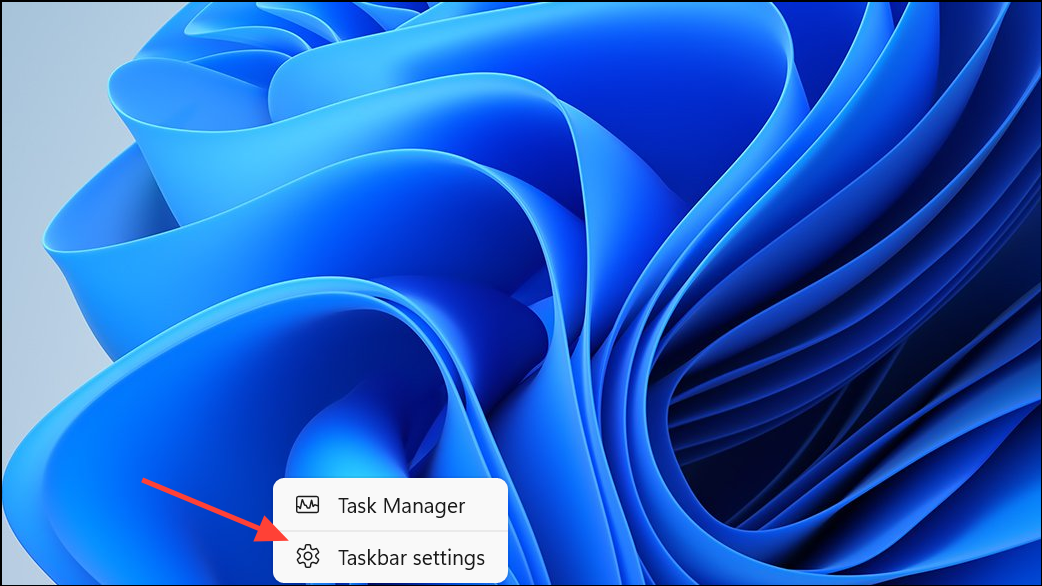
System tray icons or Taskbar corner icons (the exact wording may vary by Windows 11 build). Click Turn system icons on or off.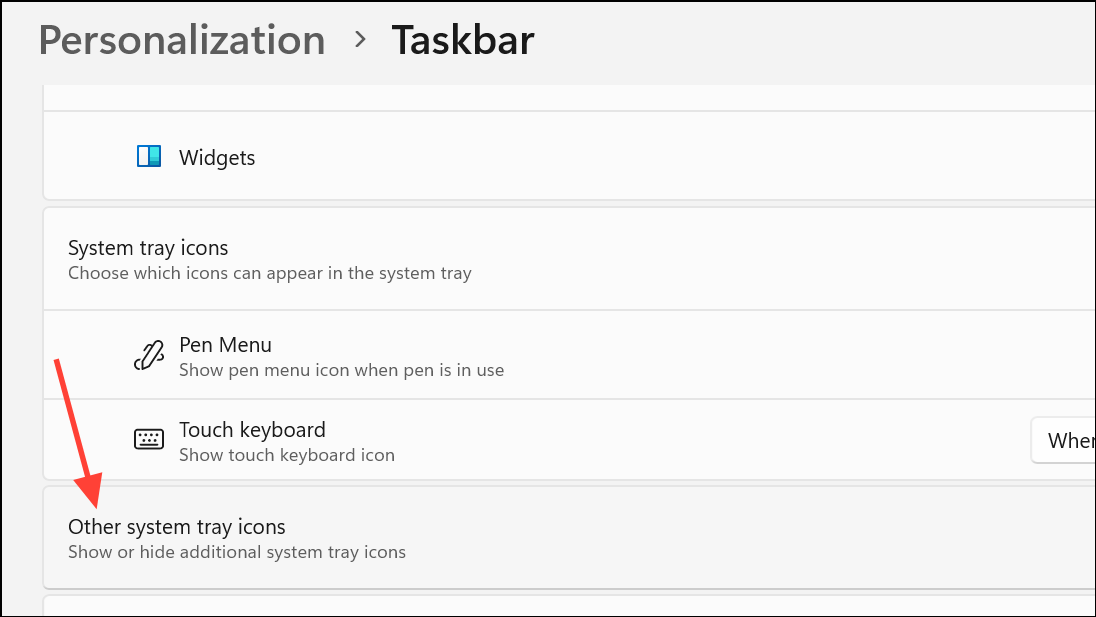
Input Indicator and switch it off. This hides the icon from the taskbar, but the language bar may still appear in certain scenarios if multiple input methods are installed.This method is quick but may not fully remove the language bar for all configurations, especially if multiple languages are enabled or if system policies override user preferences.
Advanced: Edit the Windows Registry to Remove Keyboard Layouts
Win + R to open the Run dialog, then type regedit and press Enter to launch the Registry Editor. Editing the registry can affect system stability, so proceed carefully and consider backing up your registry first.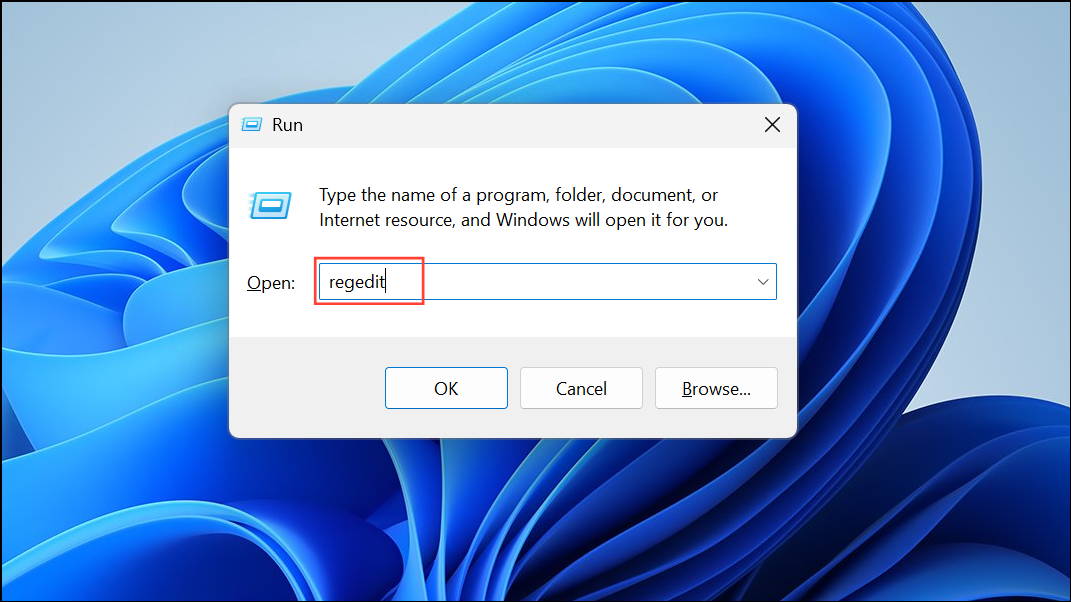
HKEY_CURRENT_USER\Keyboard Layout\Preload
HKEY_LOCAL_MACHINE\SYSTEM\CurrentControlSet\Control\Keyboard Layouts
HKEY_LOCAL_MACHINE\SYSTEM\KeyboardLayout\Preload
HKEY_USERS\.DEFAULT\Keyboard Layout\Preload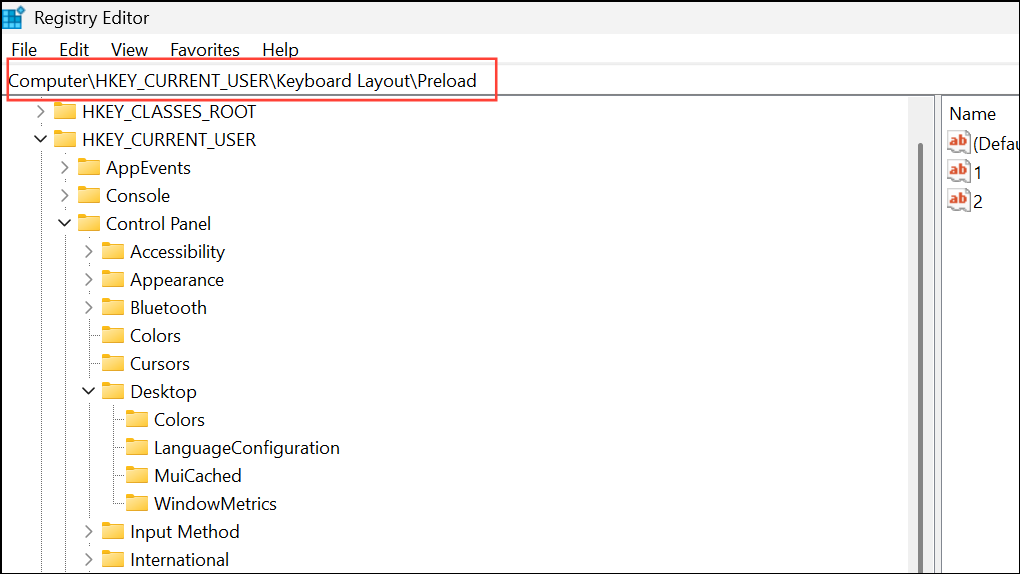
Within each key, identify entries corresponding to languages or keyboard layouts you do not use. For example, the US English layout is 00000409. Right-click and delete or rename these entries to remove them from the system.
Only use this method if standard settings do not work, as incorrect registry changes can disrupt keyboard functionality or remove access to needed languages.
Removing the input indicator or language bar in Windows 11 simplifies the taskbar and minimizes distractions, especially for users who stick to a single language or keyboard layout. If you ever need to switch languages again, you can always re-enable these settings in just a few steps.



