

Switching the Recycle Bin icon in Windows 11 streamlines desktop customization, giving your workspace a look that matches your preferences or retro themes. The process relies on built-in system settings, so you don’t need third-party tools or registry edits. This approach ensures that both the empty and full states of the Recycle Bin reflect your chosen style.
Change the Recycle Bin Icon Using Desktop Icon Settings
Win + I. This shortcut launches the central configuration panel for your Windows device.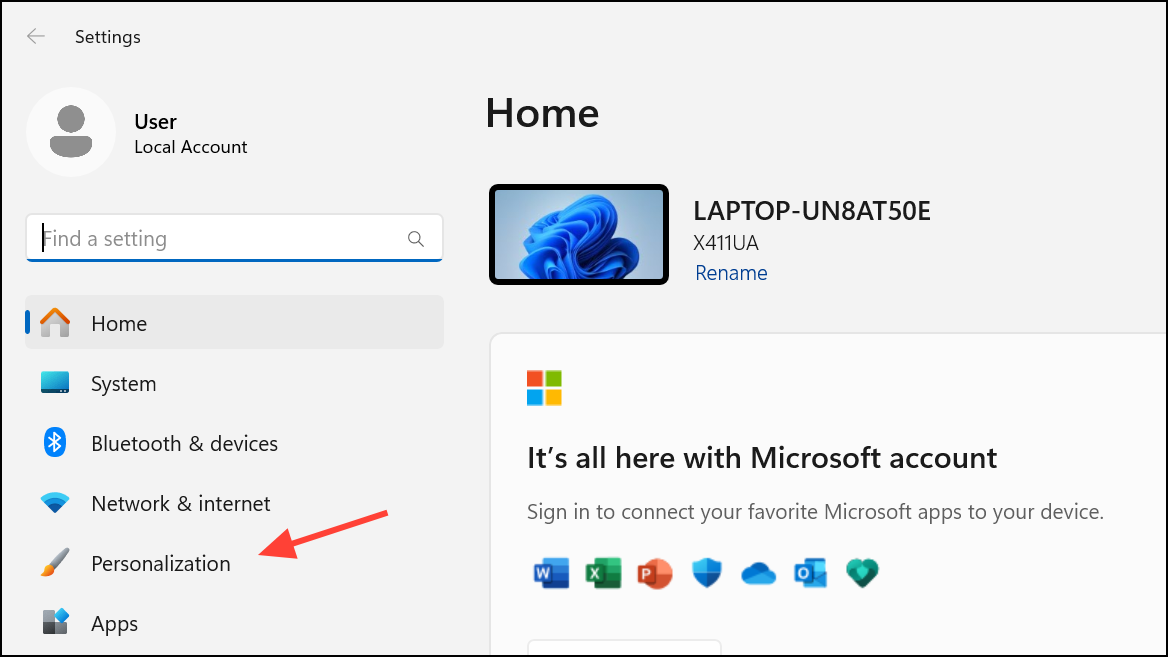
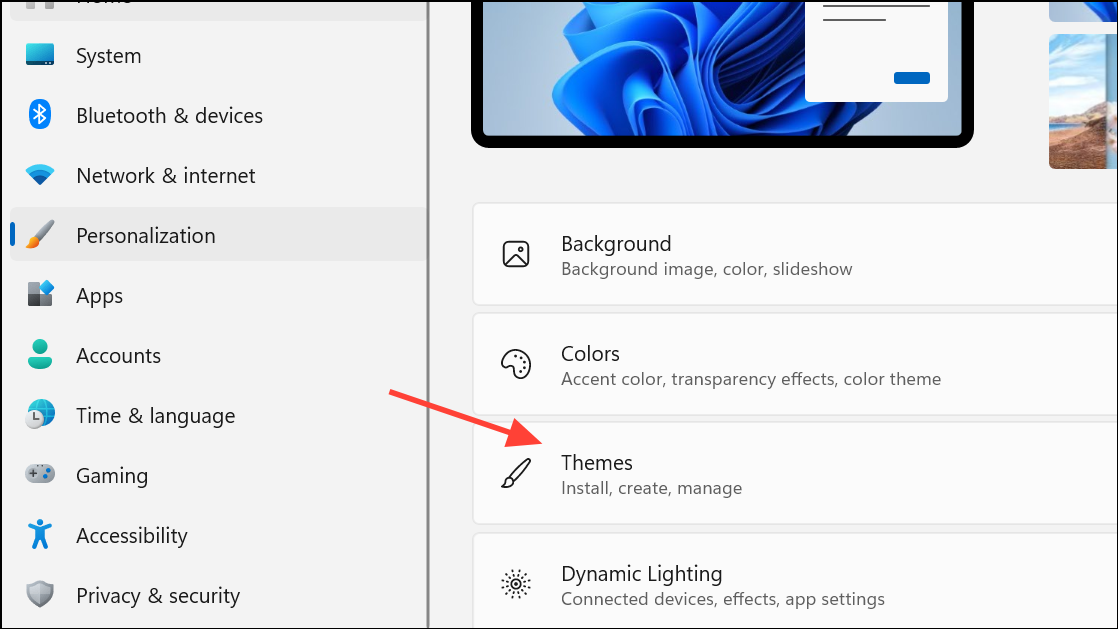
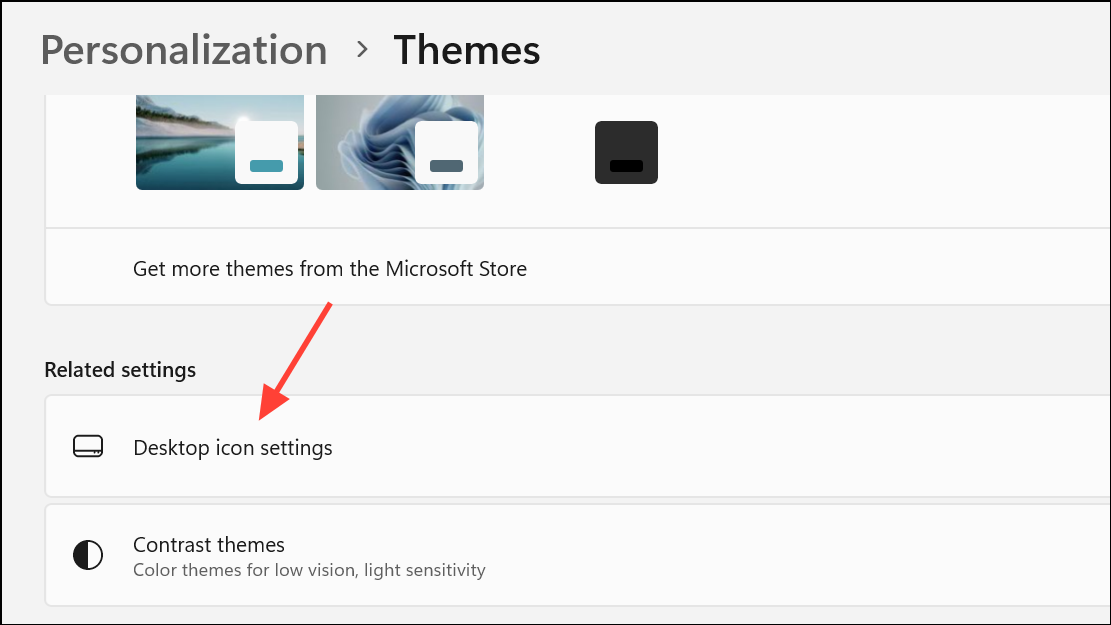
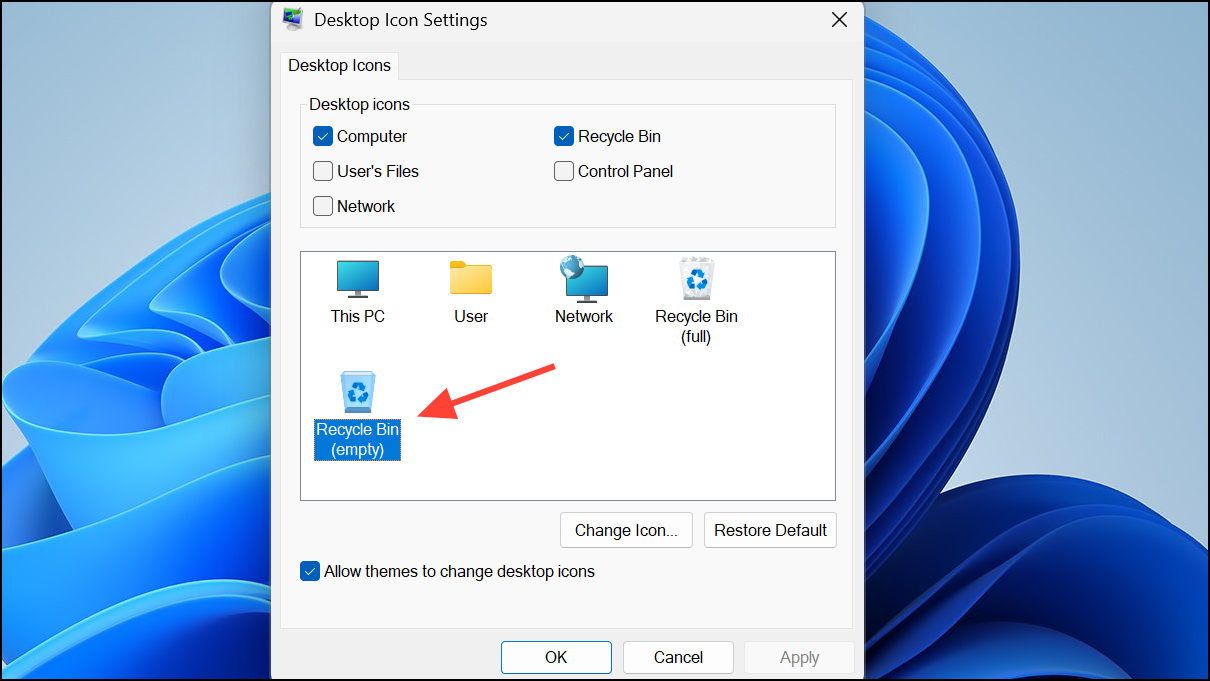
.ico file on your computer. For users aiming for a classic or Windows 98 look, download or create an appropriate icon in .ico format before this step.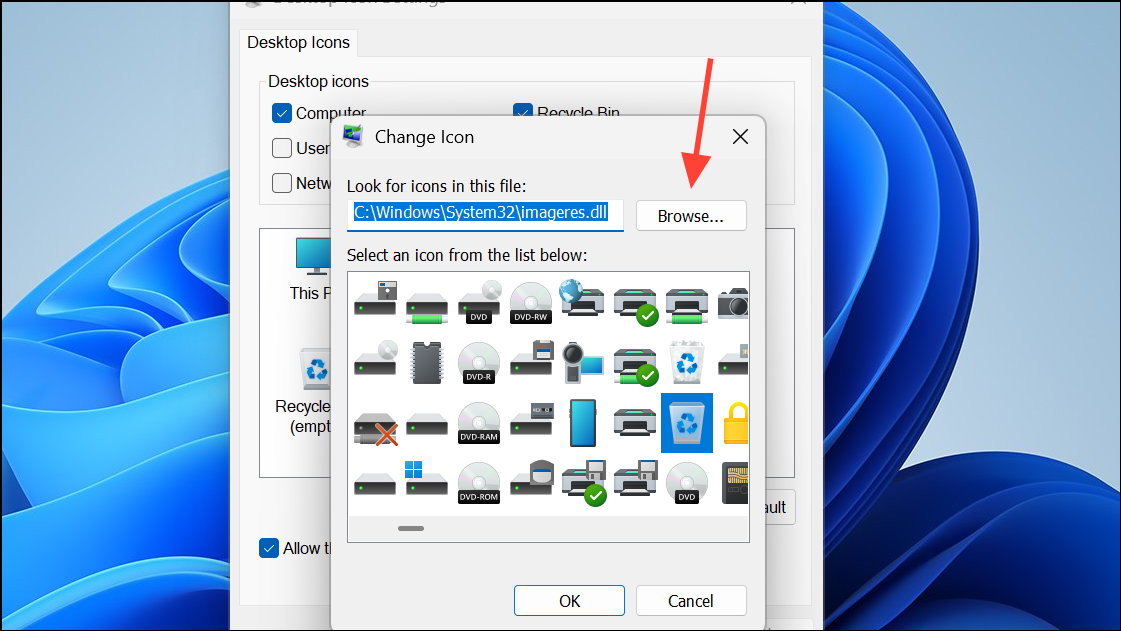
To prevent themes from automatically changing your custom icon, uncheck the option labeled Allow themes to change desktop icons before applying changes. This setting ensures that your preferred icon remains in place even when switching Windows themes.
Alternative: Create a Custom Recycle Bin Shortcut with a New Icon
If the standard method does not work due to profile restrictions or system issues, you can create a custom shortcut that functions as a Recycle Bin link and assign it a unique icon.
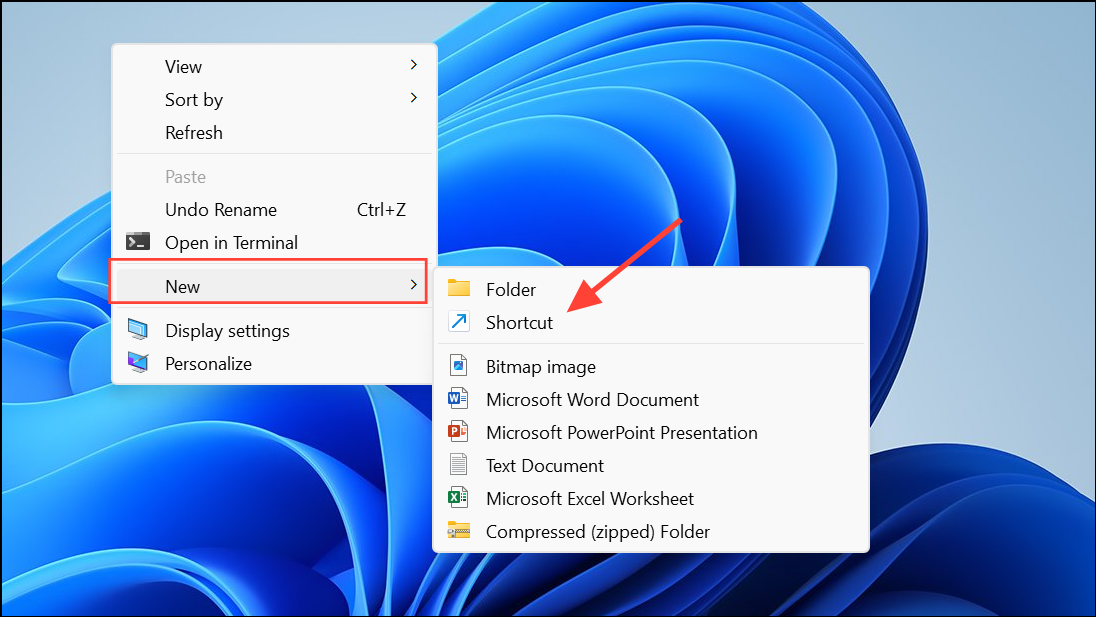
explorer.exe shell:RecycleBinFolder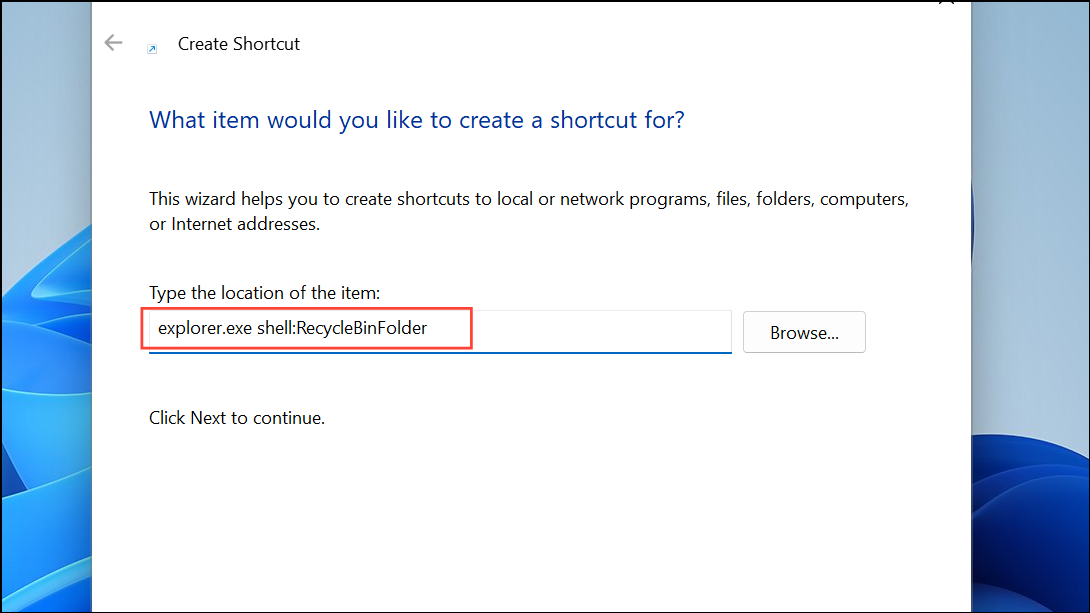
This command opens the Recycle Bin folder when the shortcut is used.
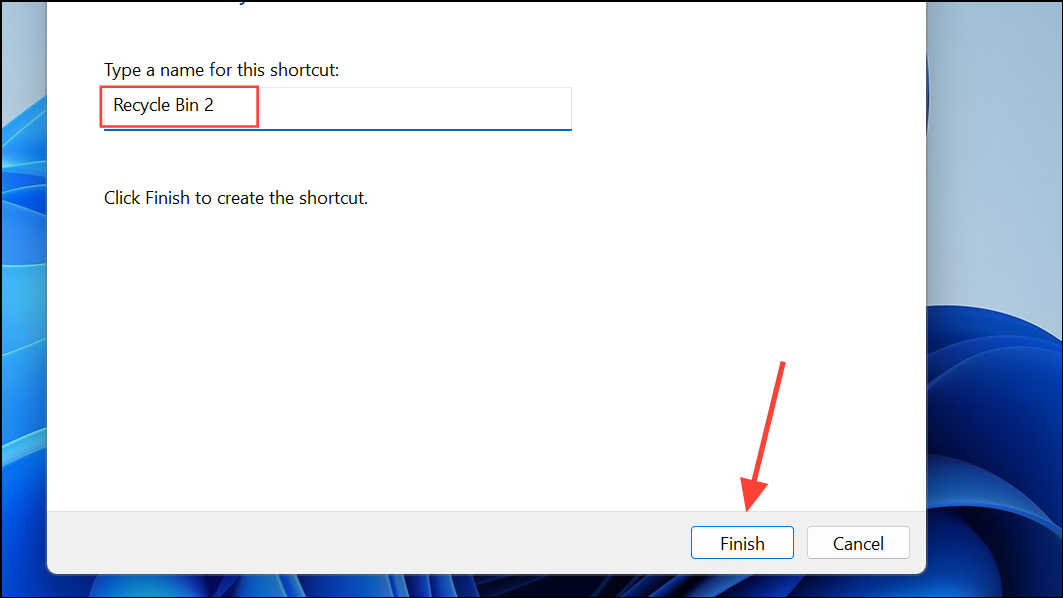
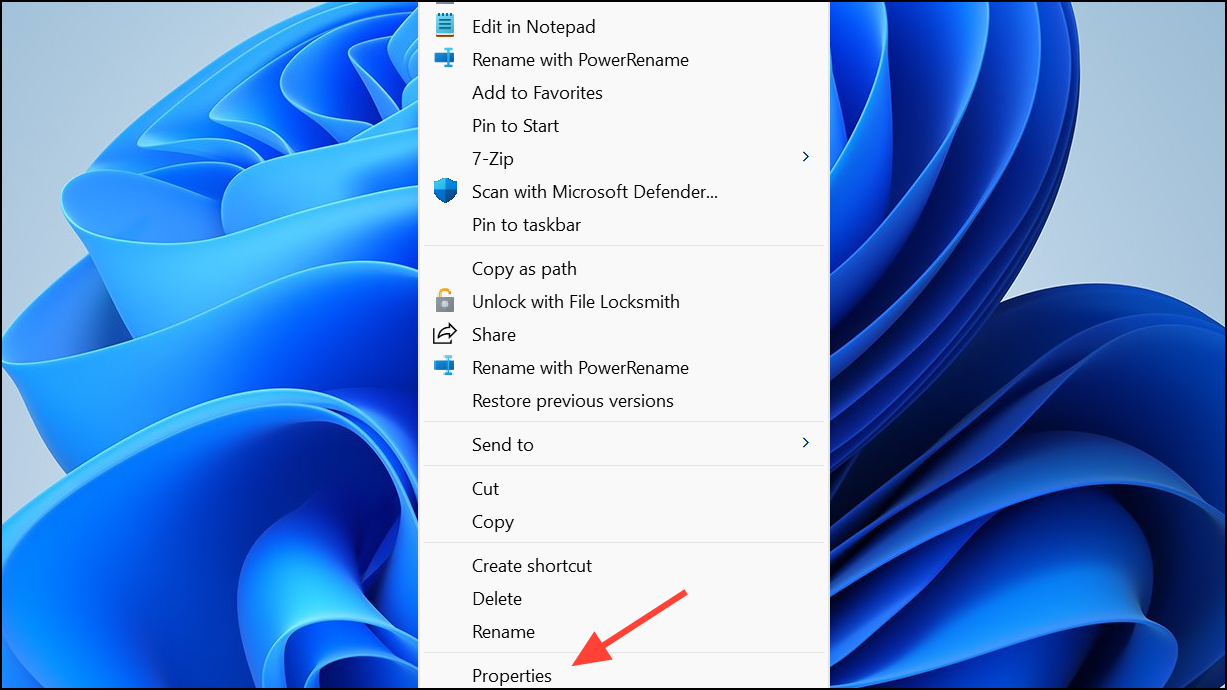
.ico file or select from the default system icons, then confirm your choice with OK.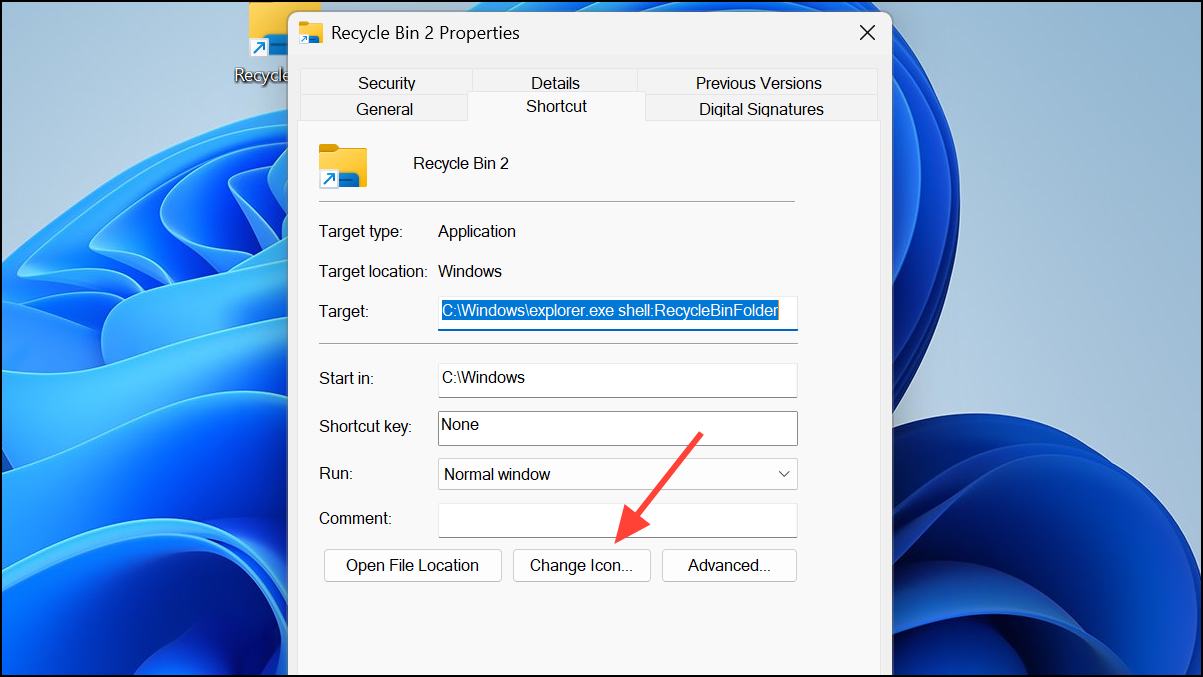
This method is especially useful if the original Recycle Bin icon is missing or unresponsive, or if you want to pin the Recycle Bin to the taskbar by right-clicking this shortcut and selecting Pin to taskbar.
Restoring or Adding the Default Recycle Bin Icon
Sometimes, the Recycle Bin icon may disappear from your desktop due to accidental changes or system glitches. To restore it, revisit the Desktop icon settings (as described above) and ensure the Recycle Bin checkbox is ticked. Click Apply and OK to bring the icon back.
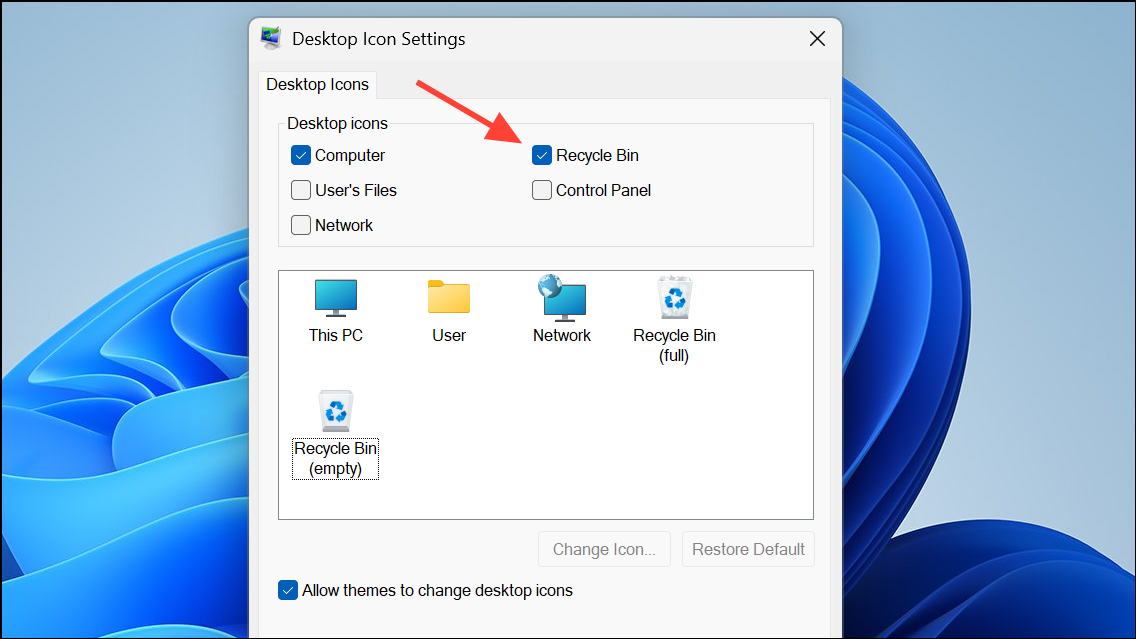
If this method fails, an alternative is to create a special folder that acts as the Recycle Bin:
Recycle bin.{645FF040-5081-101B-9F08-00AA002F954E}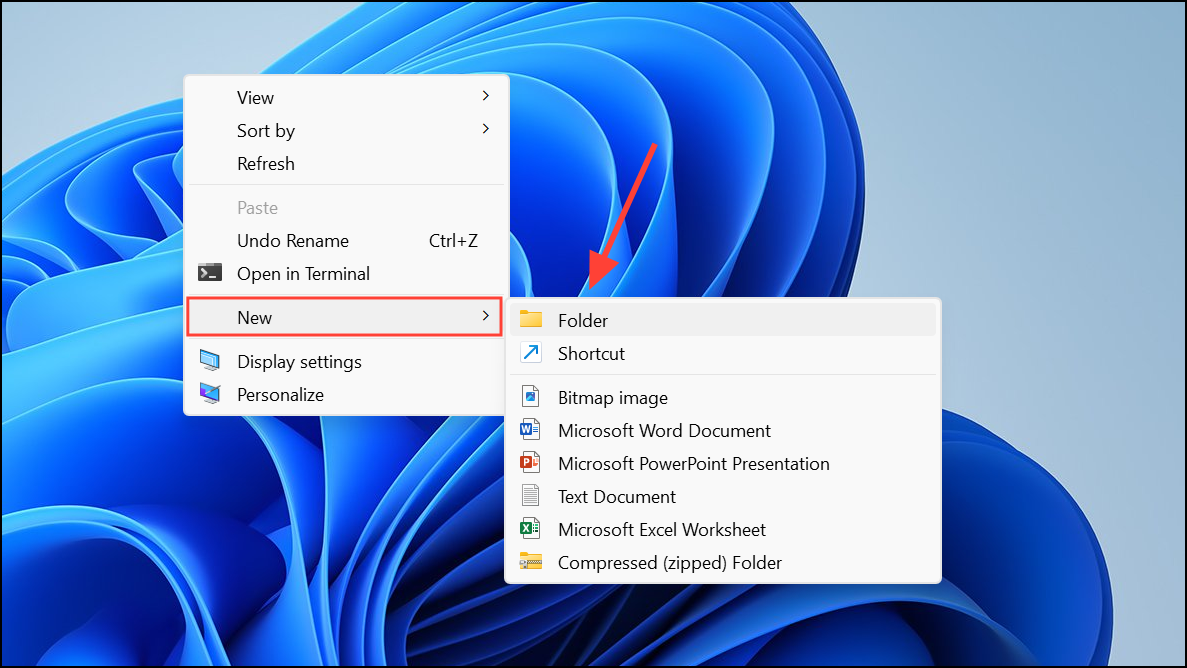
After pressing Enter, the folder transforms into a working Recycle Bin icon. This workaround is particularly helpful if the standard settings method does not restore the icon.
Customizing the Recycle Bin icon in Windows 11 gives your desktop a unique look and can make it easier to spot at a glance. If you ever want to revert to the default icon, repeat the steps above and select the original icon from the built-in list.



