
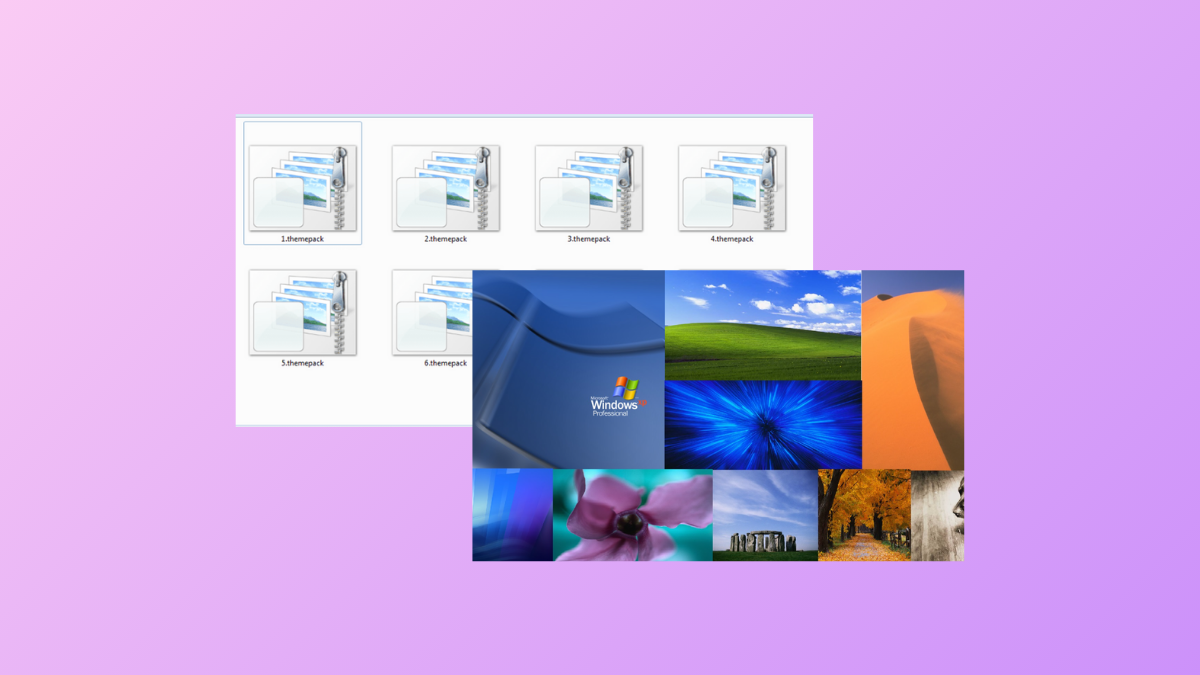
Applying a Windows 11 themepack often results in a rotating slideshow of wallpapers, but many users want to pick and save specific images for long-term use or to transfer them to another computer. Extracting these wallpapers from a themepack or deskthemepack file, or from an already-applied theme, is possible with a few practical steps. The following methods detail how to locate and save individual wallpapers from Windows 11 themes, using both file extraction tools and built-in system folders.
Extract Wallpapers Directly from Themepack or Deskthemepack Files
.themepack or .deskthemepack file on your computer. These files are often obtained from the Microsoft Store or official theme galleries and are usually located in the %localappdata%\Microsoft\Windows\Themes folder.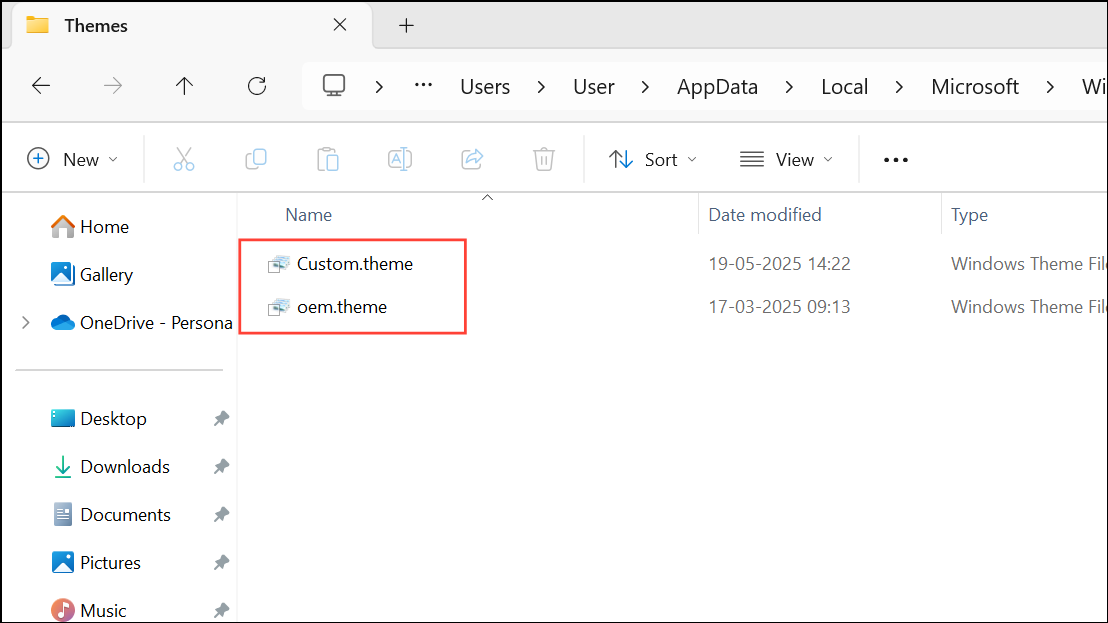
Show more options if you are on Windows 11. Choose your extraction utility, such as 7-Zip or WinRAR. If you use 7-Zip, select Extract Here or Extract to "FolderName". The contents of the themepack, including all wallpapers, will be extracted.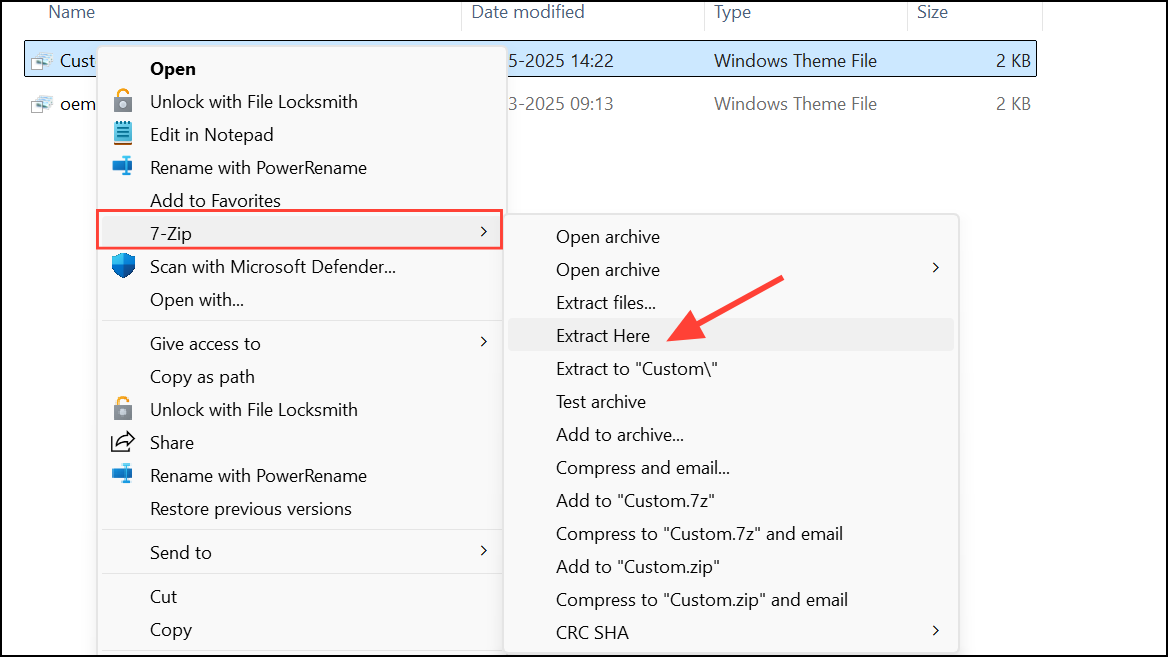
View tab and checking File name extensions. Rename the file extension from .themepack or .deskthemepack to .zip. Confirm the change if prompted.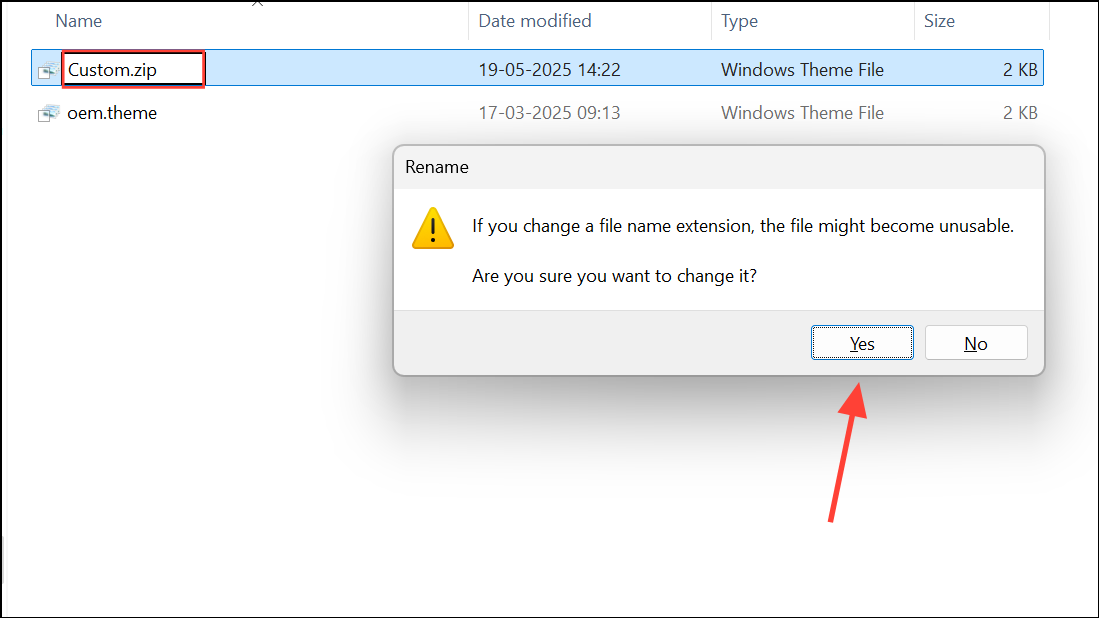
.cab and open it with your extraction tool.DesktopBackground subfolder where all theme wallpapers are stored as individual image files (usually JPEG or PNG). Copy or move these images to any location you prefer for easy access or backup.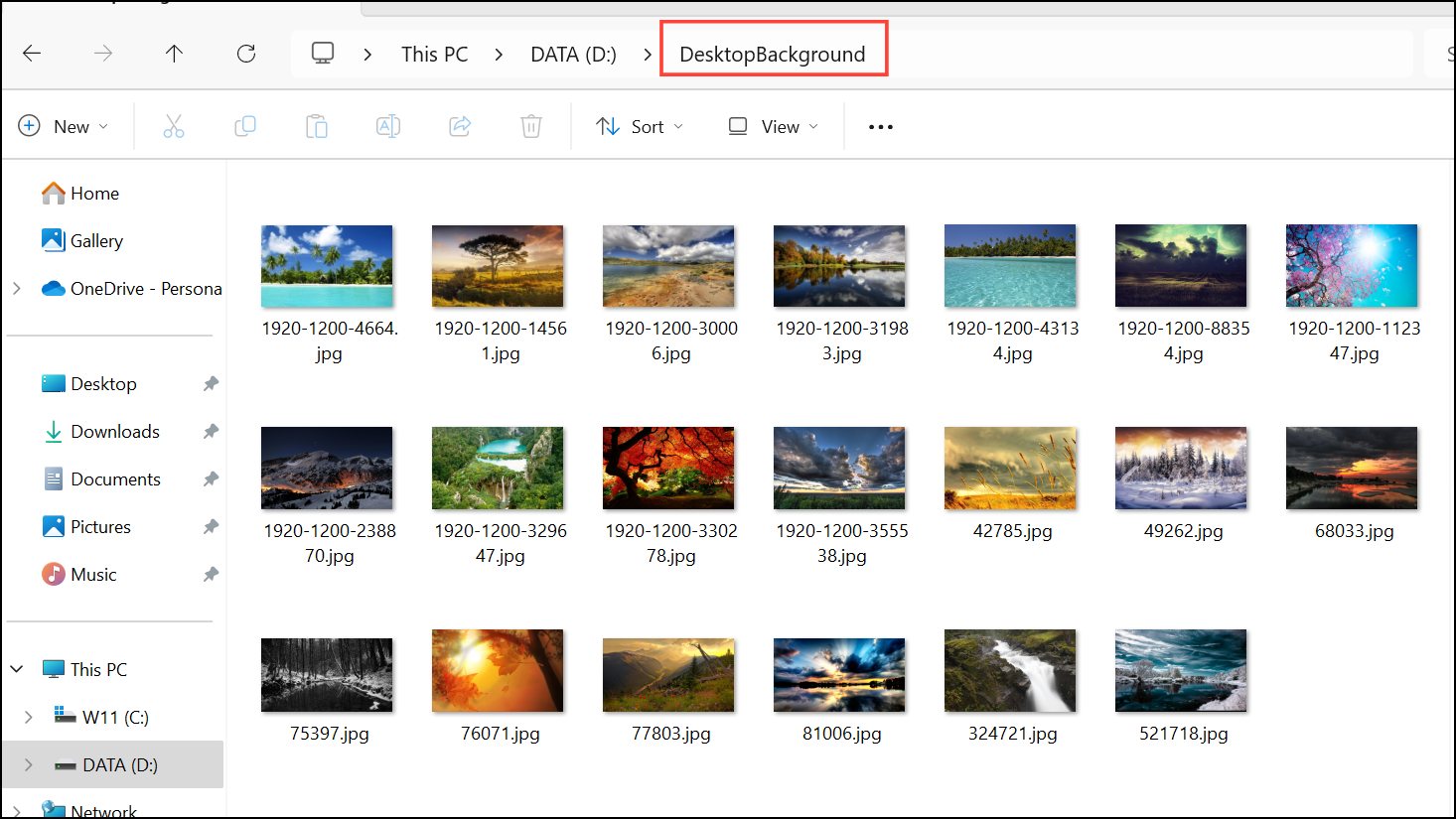
Retrieve Wallpapers from Installed or Applied Themes
View > Show > Hidden items.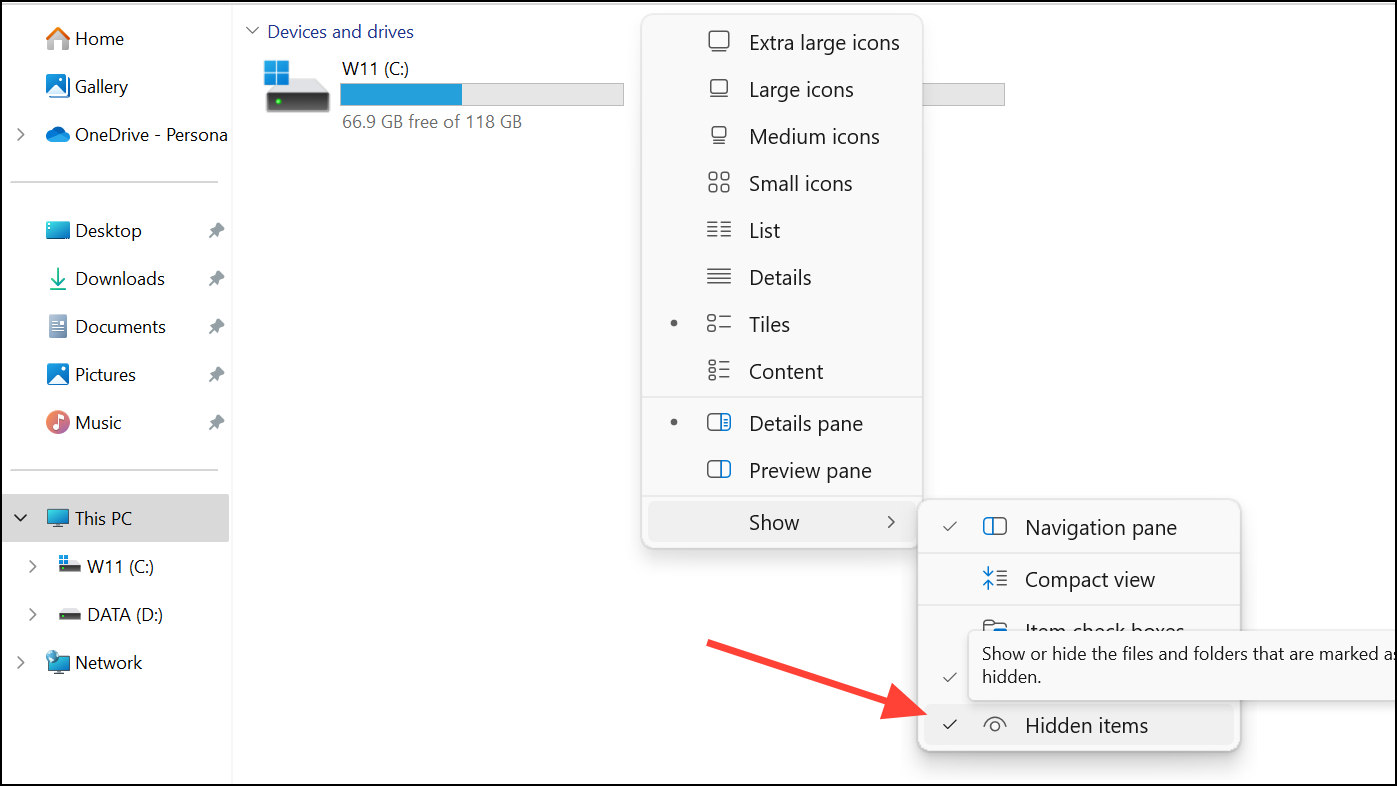
%localappdata%\Microsoft\Windows\Themes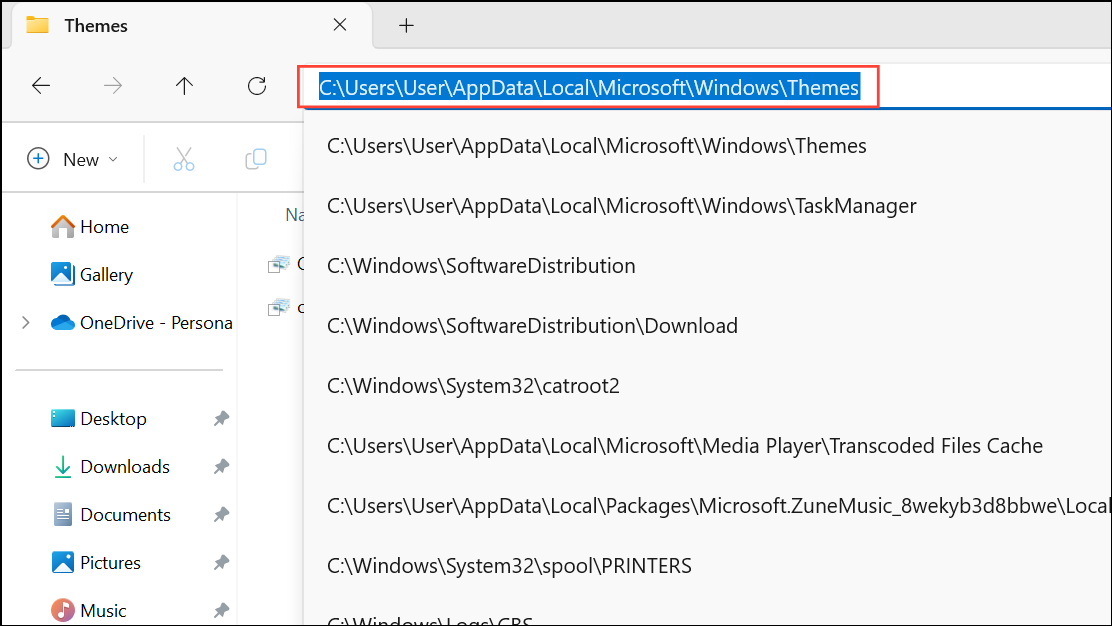
This shortcut opens the folder where Windows stores theme resources for the current user.
DesktopBackground subfolder to find the image files. Select and copy the wallpapers you want to another folder for personal use or sharing.Access Default Windows 11 Wallpapers
C:\Windows\Web\Wallpaper\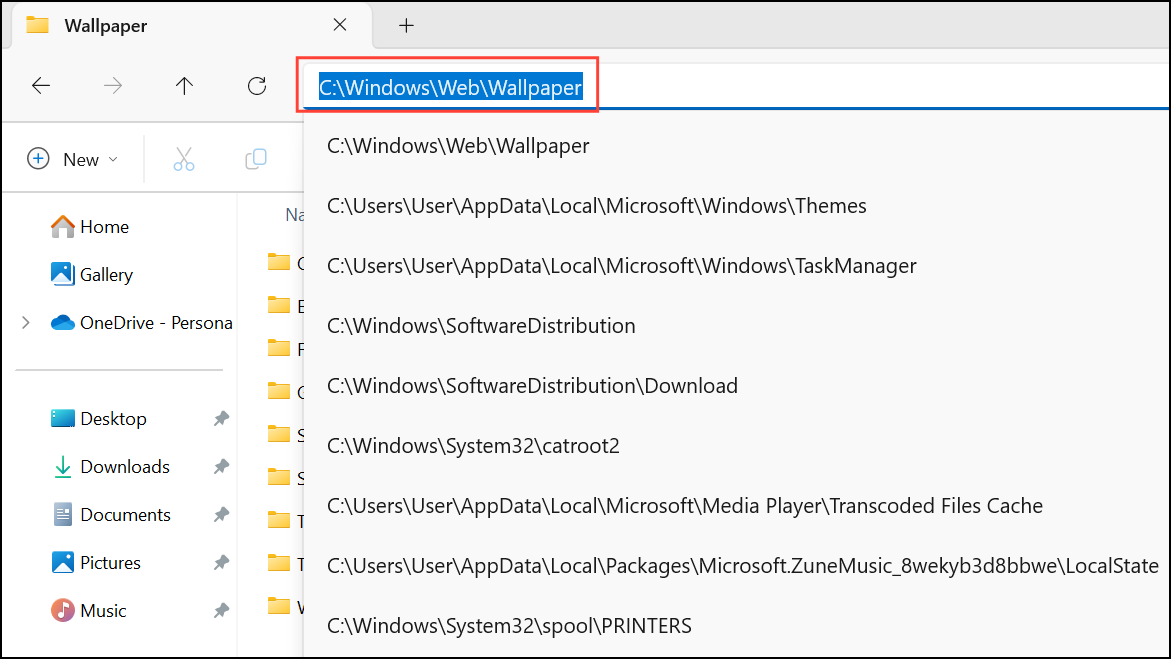
This directory contains the stock wallpapers that come pre-installed with the operating system. You can copy any image from here for use as your desktop background or for backup purposes.
Additional Tips and Considerations
- Some themes downloaded from the Microsoft Store may be packaged as appx files. Advanced users can extract these using tools like 7-Zip by opening the appx file directly and locating the theme’s wallpapers within its internal folders.
- Always make copies of theme files before making changes to avoid accidental loss of data.
- If you plan to use extracted wallpapers on another PC, simply transfer the saved image files via USB drive, cloud storage, or network share.
- To set a specific wallpaper, right-click the image and select
Set as desktop background, or use the Personalization settings to browse and select your preferred image.
Saving individual wallpapers from a Windows 11 themepack or installed theme streamlines the process of customizing your desktop and makes it easier to use your favorite images across devices. With these methods, you can quickly access, extract, and organize theme wallpapers to suit your preferences.



