

Media files sometimes fail to play on Windows 11 due to missing or incompatible codecs. Codecs—software components that compress and decompress digital media—determine which types of audio and video files your system can process. Knowing which codecs are installed helps you troubleshoot playback issues, select compatible file formats, and decide if you need to add additional codec support. Several methods allow you to view installed codecs and supported formats on Windows 11, each with its own advantages.
Using Windows Media Player to View Installed Codecs
Windows Media Player in the Windows search bar or by pressing Win + R, entering wmplayer, and pressing Enter.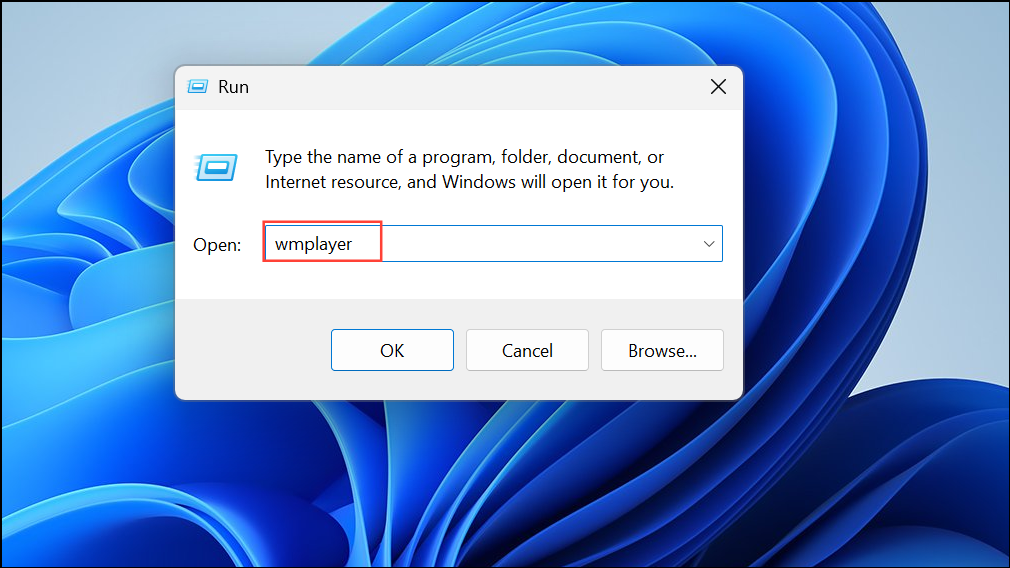
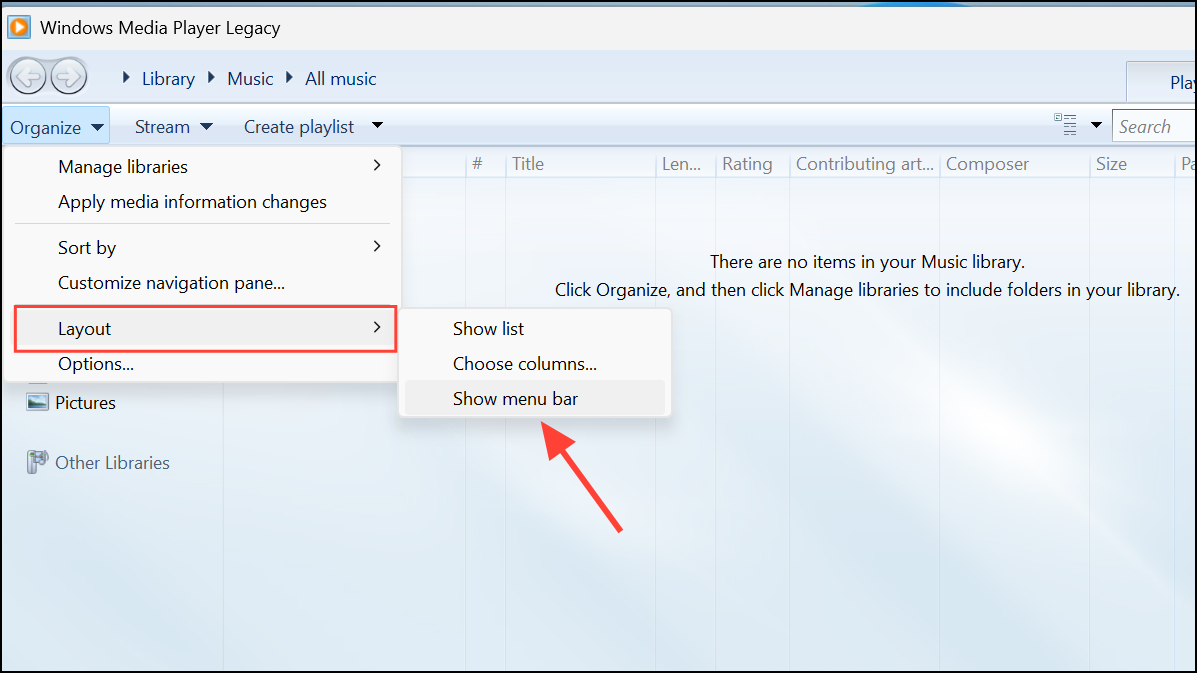
Help on the menu bar, then select About Windows Media Player. In the window that appears, click Technical Support Information.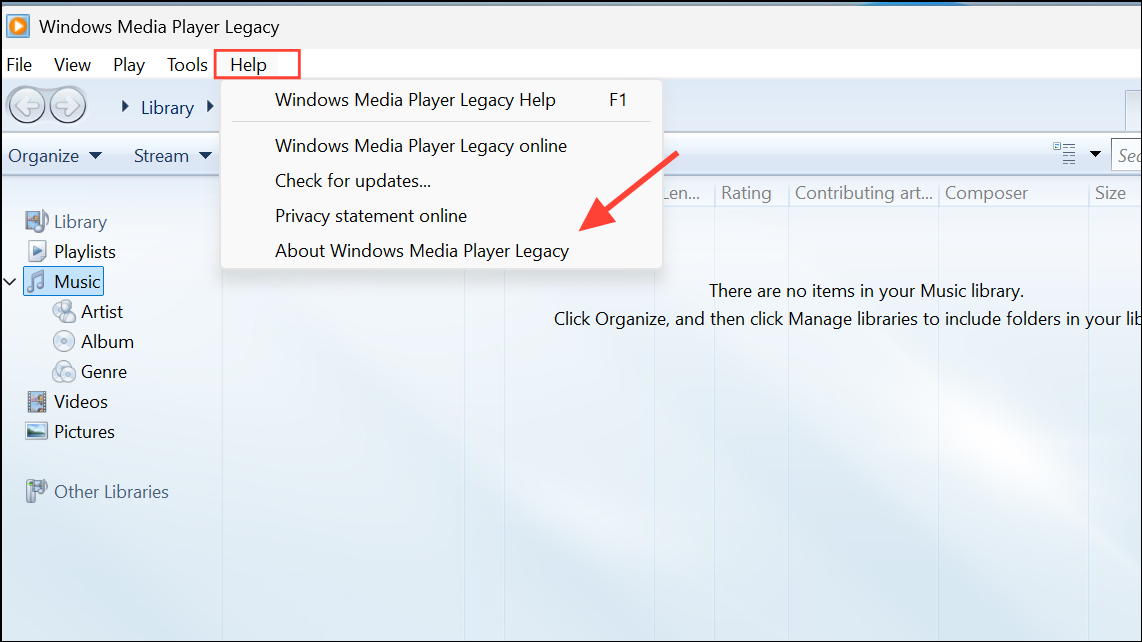
Checking Installed Codecs with System Information
System Information in the Windows search bar and selecting the matching app.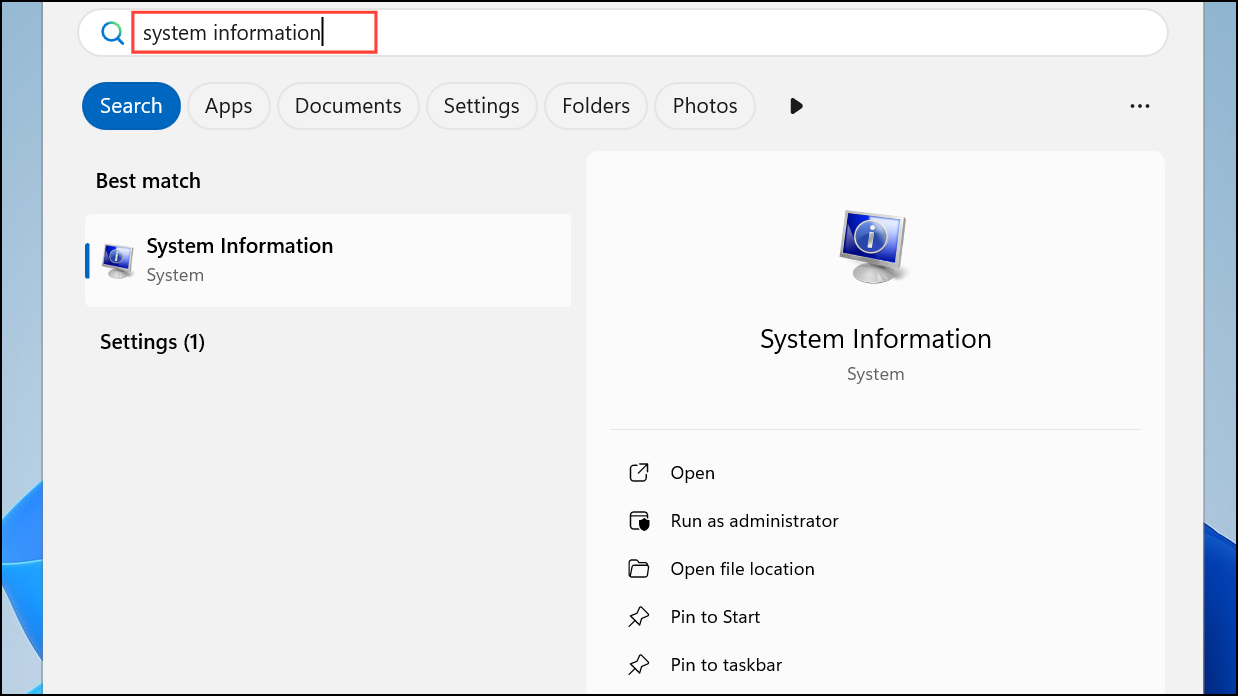
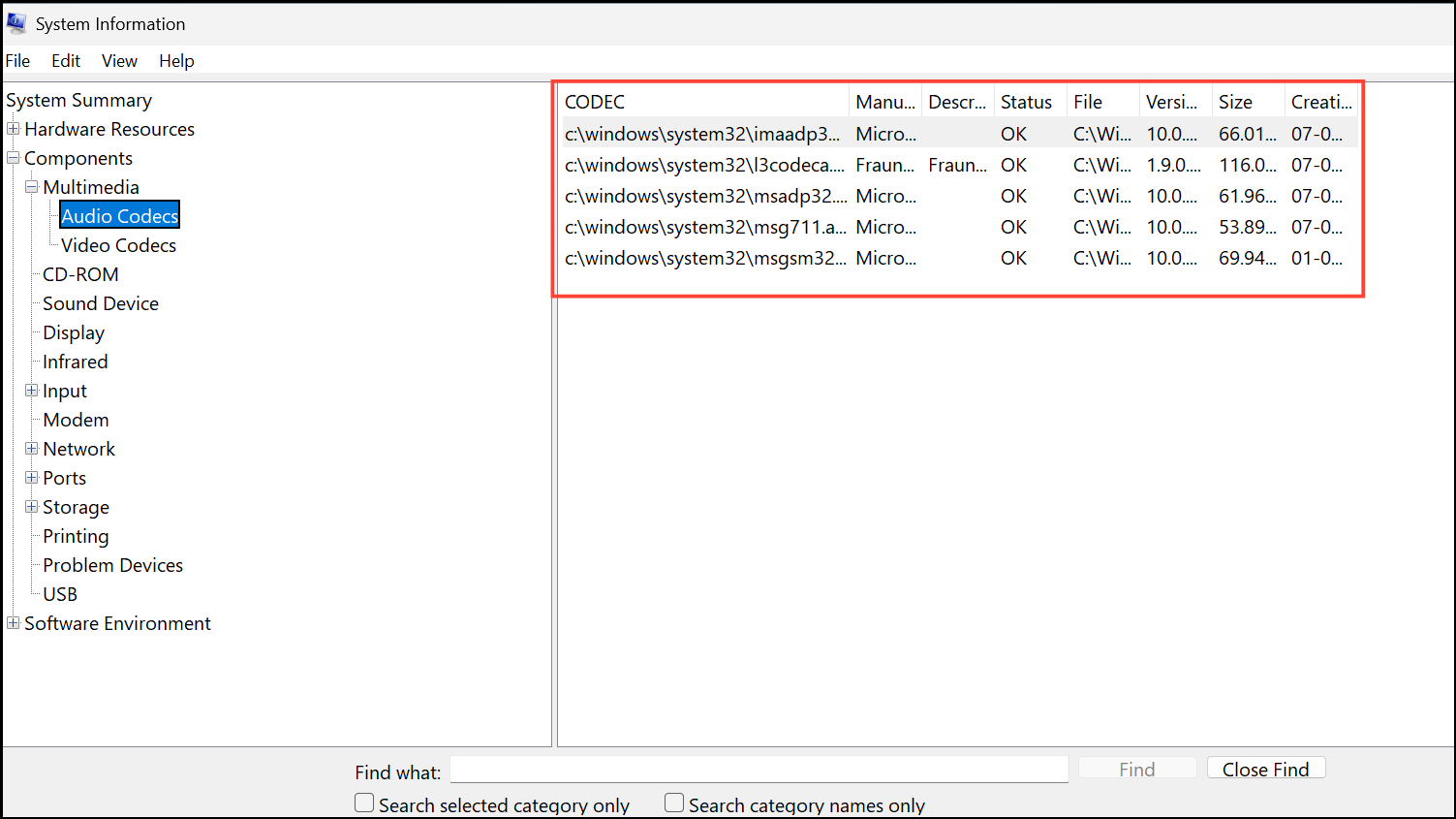
Components, then expand Multimedia. You will see two categories: Audio Codecs and Video Codecs.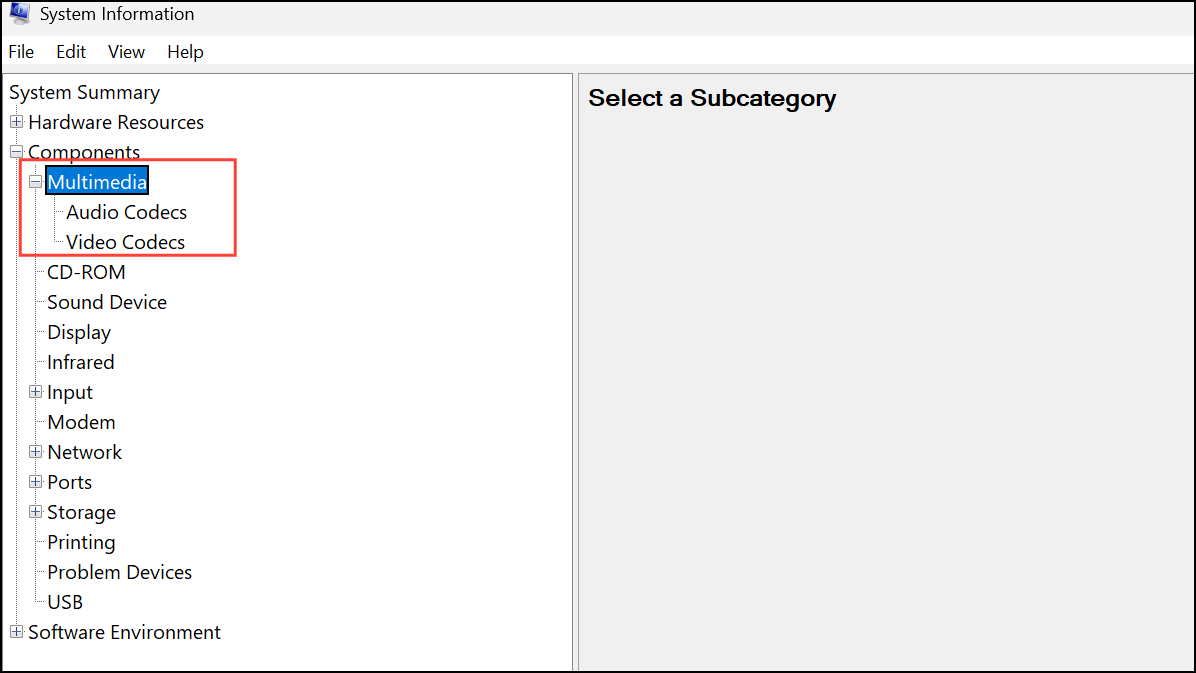
Using Third-Party Tools for Detailed Codec Information
For comprehensive details about installed codecs and the technical properties of media files, third-party utilities offer advanced features:
- MediaInfo: This free program displays technical and tag data for audio and video files, including codec type, profile, and bit rate. It can also export reports for analysis.
- VideoInspector or GSpot: These utilities identify which codecs are required to play a given file and check if they are installed on your system.
Download and install your preferred tool. Open it, then load a media file or scan your system to view codec details. These tools are valuable when troubleshooting files that refuse to play in Windows Media Player but work in other players like VLC.
Viewing Codec Information in File Explorer
Windows Explorer can display codec details for individual video files:
More..., then scroll down and check Video Tracks and Audio Tracks. This displays codec information such as H.264 or HEVC for each file.This method is convenient for quickly checking the codec of multiple files in a folder, but may not display details for all formats or containers.
Understanding Default and Optional Codecs in Windows 11
Windows 11 includes built-in support for major audio and video codecs, such as:
- MPEG-1, MPEG-2 (MP3, MP2)
- AAC, M4A
- FLAC, ALAC
- WAV, WMA
- H.264, MPEG-4, VC-1, WMV, DV, VP8, Motion JPEG
Some codecs, like HEVC (H.265), VP9, AV1, and OGG, require separate extensions from the Microsoft Store. For example, the HEVC Video Extension enables playback of HEVC files in apps like Media Player and Movies & TV. Note that these extensions are primarily for UWP and Microsoft apps, not for traditional desktop players like MPC-HC or VLC, which include their own codecs.
As of Windows 11 version 24H2, the AC-3 (Dolby Digital) codec is no longer included by default. Device manufacturers may pre-install it, or it may be retained after upgrading from earlier Windows versions.
Tips for Troubleshooting Codec Issues
- Files that play in VLC but not in Windows Media Player may use codecs not supported by default. VLC includes its own codecs, bypassing system limitations.
- If Windows Media Player or PowerPoint cannot play certain files, check codec compatibility and consider re-encoding videos using a supported profile.
- Codec packs can introduce compatibility problems or unwanted changes. Use them cautiously and prefer standalone players or official Microsoft extensions where possible.
- For persistent playback issues, running
sfc /scannowin an elevated terminal can repair system files, but may not resolve codec-specific problems.
Checking installed codecs on Windows 11 gives you the information needed to resolve playback issues and choose compatible media formats. Using built-in tools or third-party utilities streamlines troubleshooting and helps you avoid unnecessary software installations.



