

Task Manager in Windows 11 sometimes fails to display running processes, leaving users unable to monitor or end tasks. This issue can occur even when other tabs like Performance or App History remain functional, and may persist until a full system restart. The underlying causes range from resource exhaustion and system file corruption to software conflicts or malware infections. Addressing this problem restores visibility into system activity and allows users to effectively manage their applications and resources.
Restart Windows Explorer
Ctrl + Shift + Esc to open Task Manager. If the Processes tab is blank, use the navigation pane to select the Details or Performance tab to confirm Task Manager is running.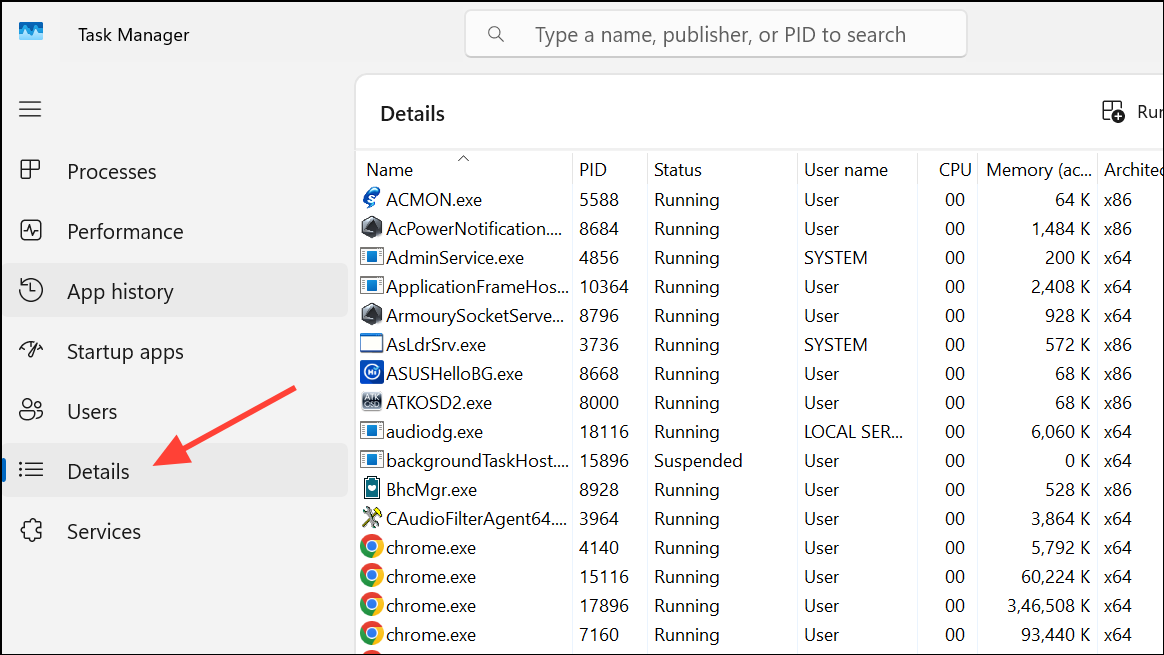
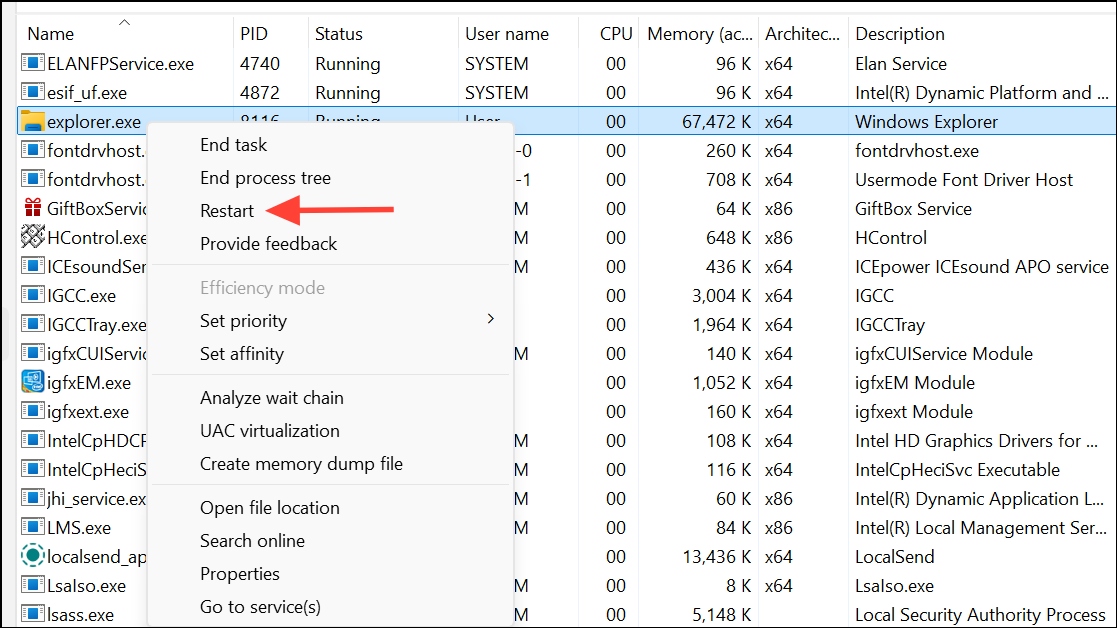
Restarting Windows Explorer often restores Task Manager’s ability to show processes without requiring a full system reboot.
Scan for Malware and Viruses
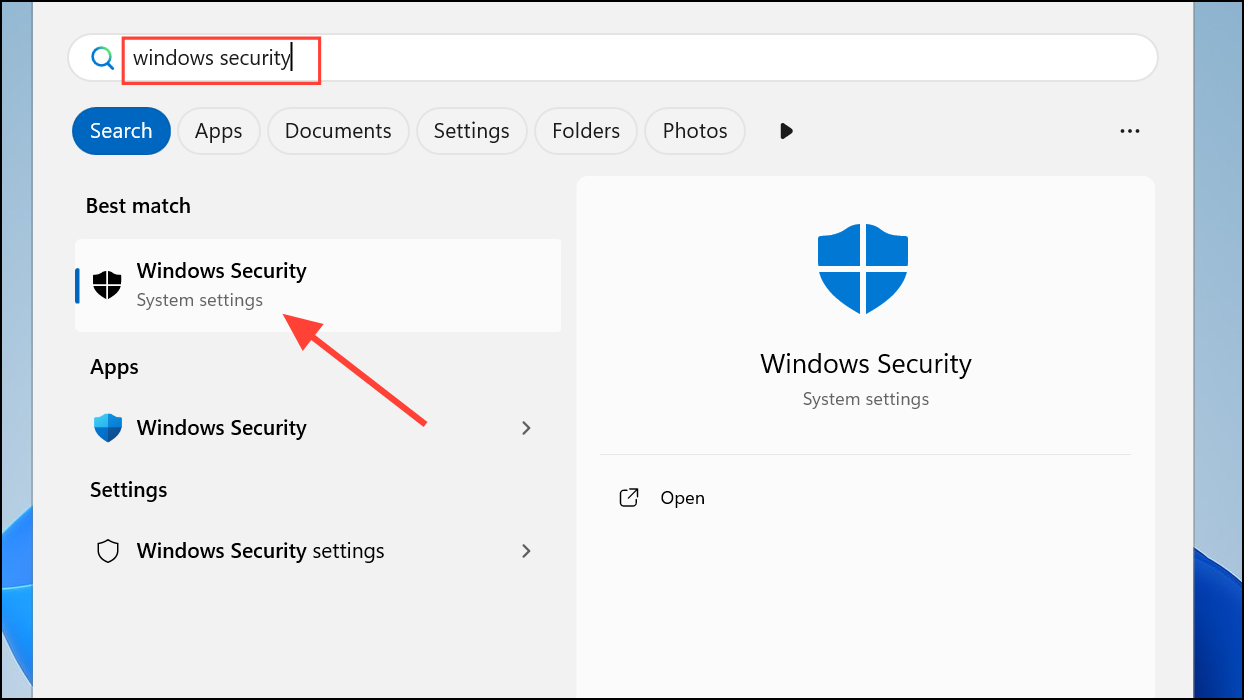
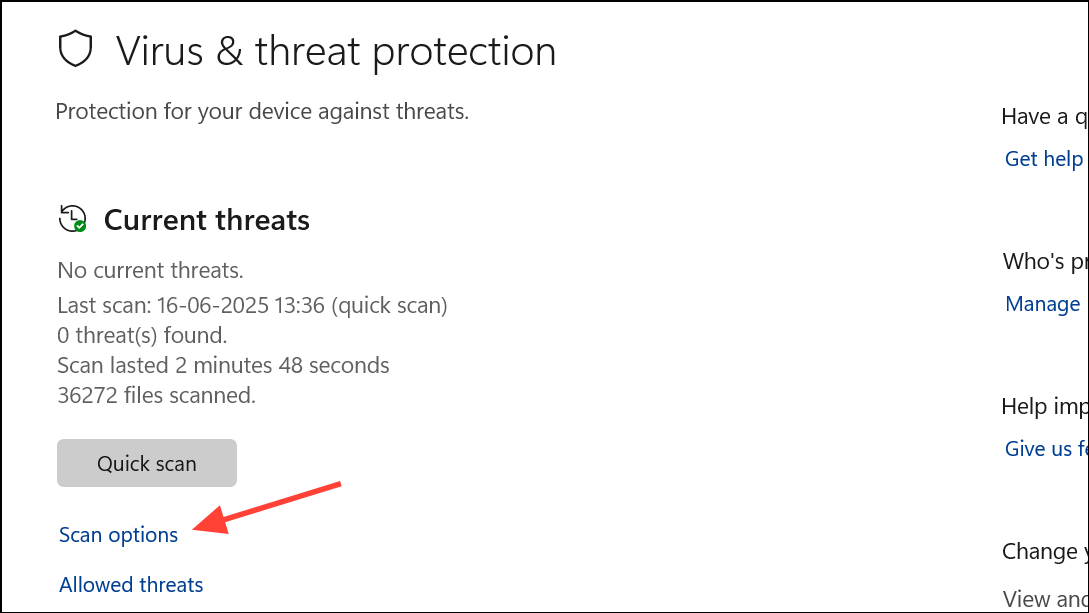
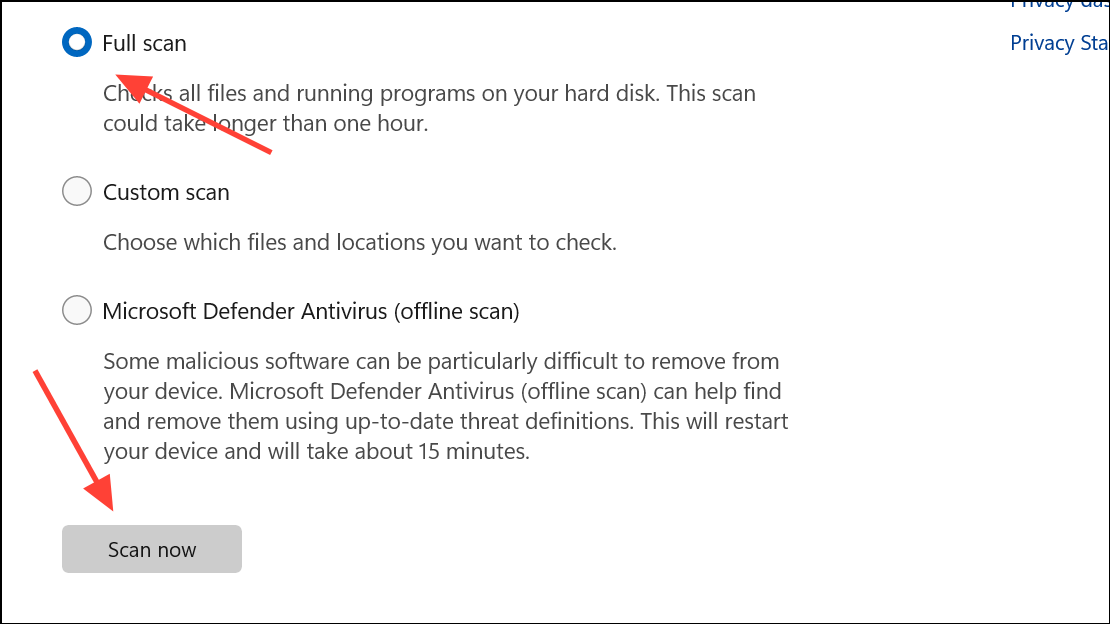
Malware can interfere with system utilities like Task Manager. Removing threats may immediately restore normal display of processes.
Run System File Checker (SFC) and DISM
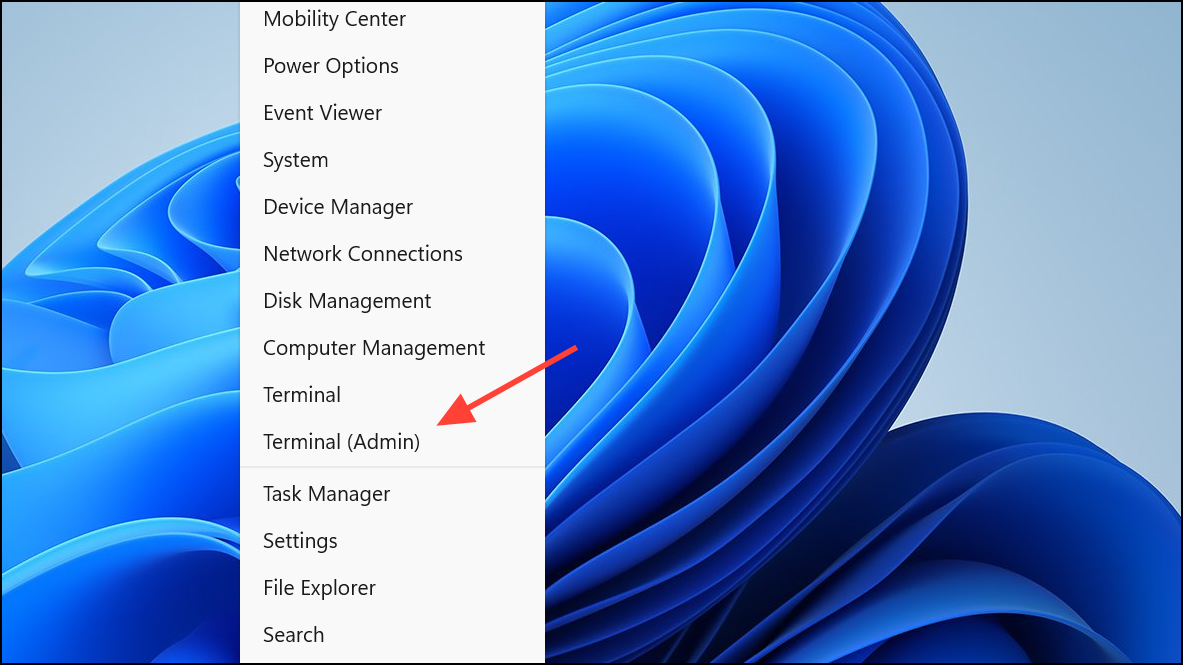
sfc /scannow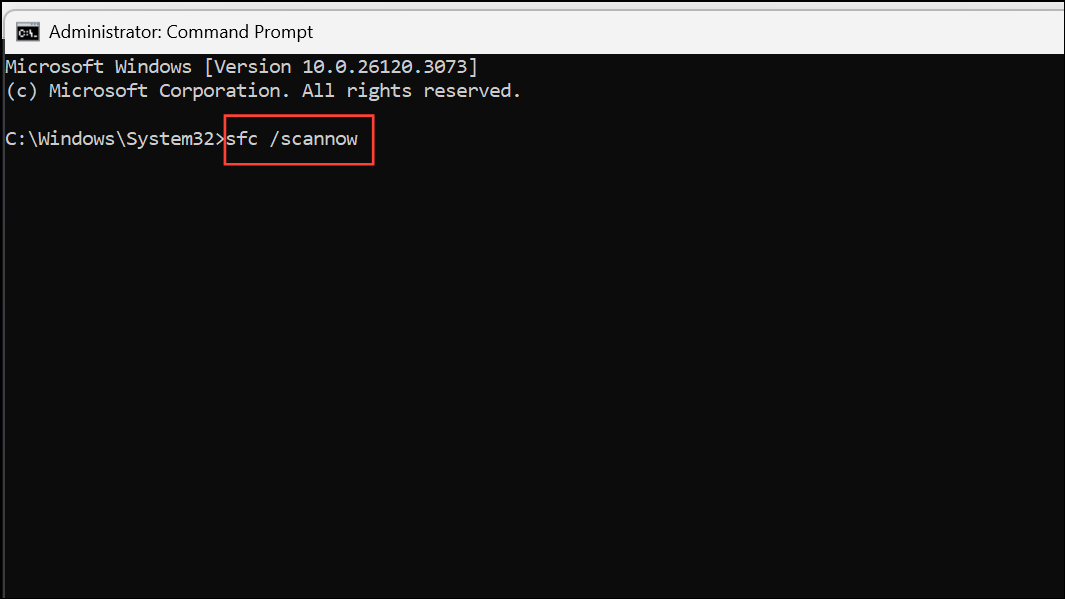
This process checks for and attempts to fix corrupted or missing system files that may cause Task Manager to malfunction.
DISM /Online /Cleanup-Image /RestoreHealth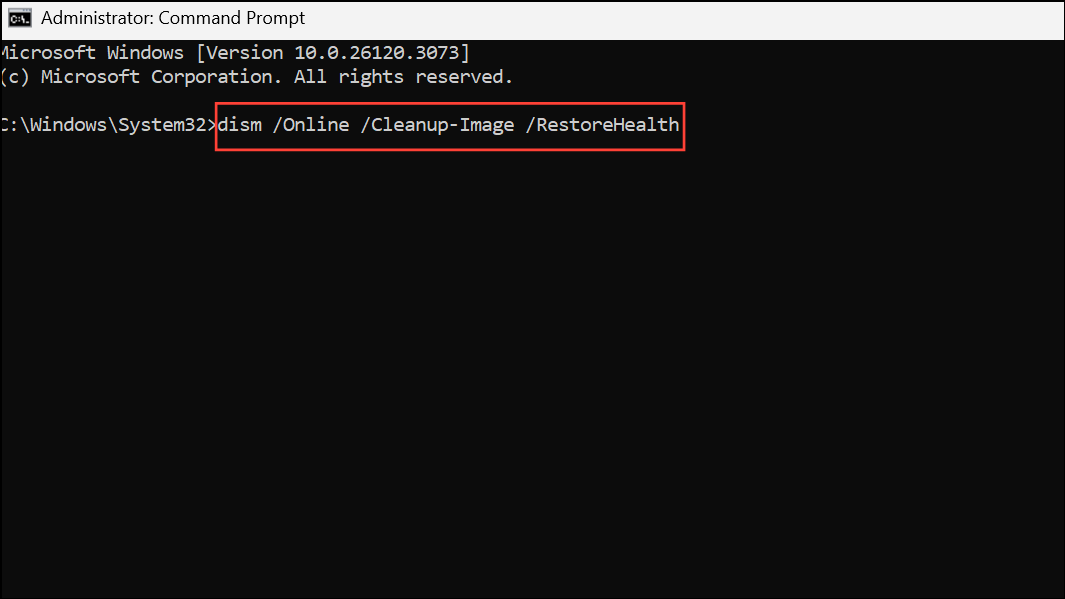
Wait for the command to finish, then restart your computer. These scans address underlying file or image corruption that can prevent Task Manager from displaying processes.
Perform a Clean Boot
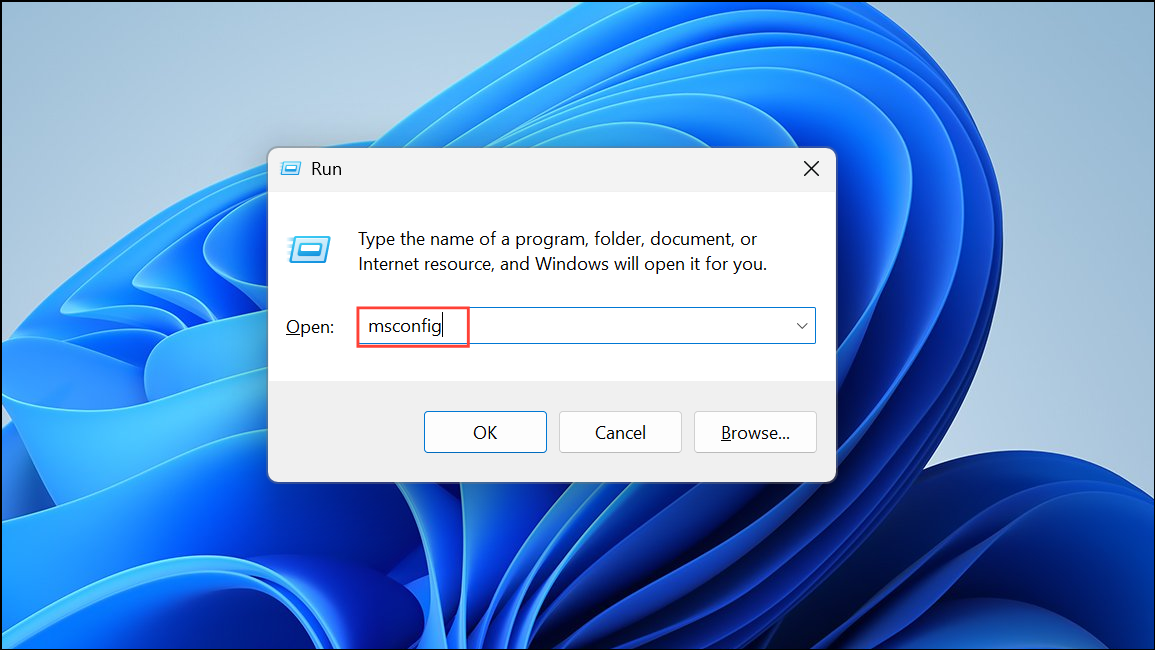
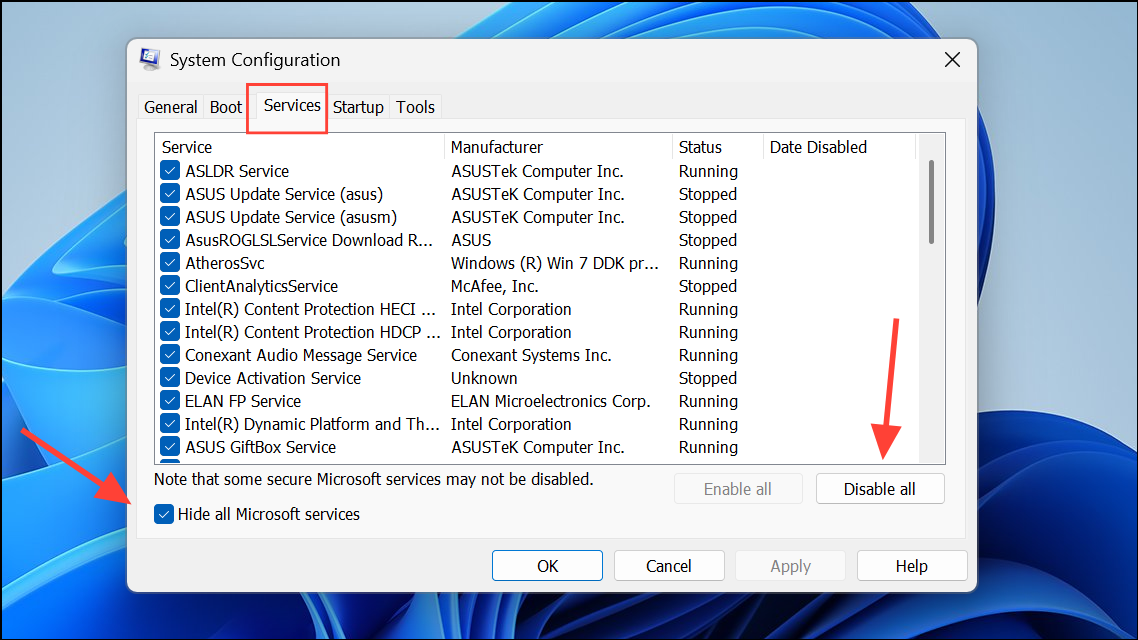
A clean boot loads Windows with a minimal set of drivers and startup programs, helping identify if third-party software is causing Task Manager to display incorrectly. If Task Manager works after a clean boot, re-enable services one at a time to find the source of the conflict.
Check Task Manager View and Columns
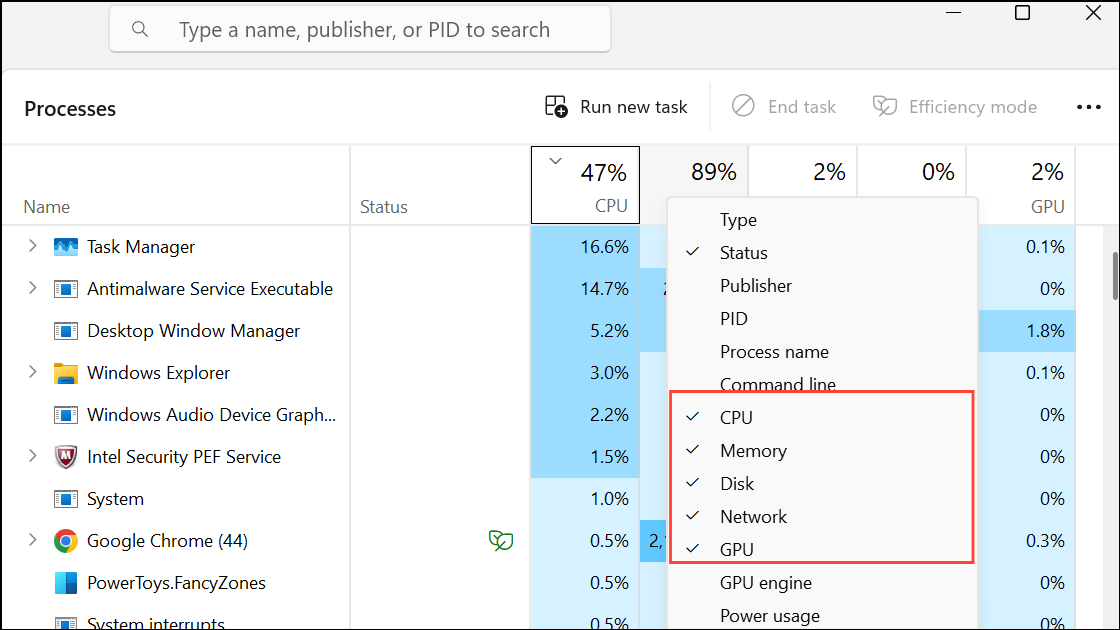
Customizing columns can resolve cases where Task Manager shows only partial data or appears empty due to column settings.
Create a New User Account
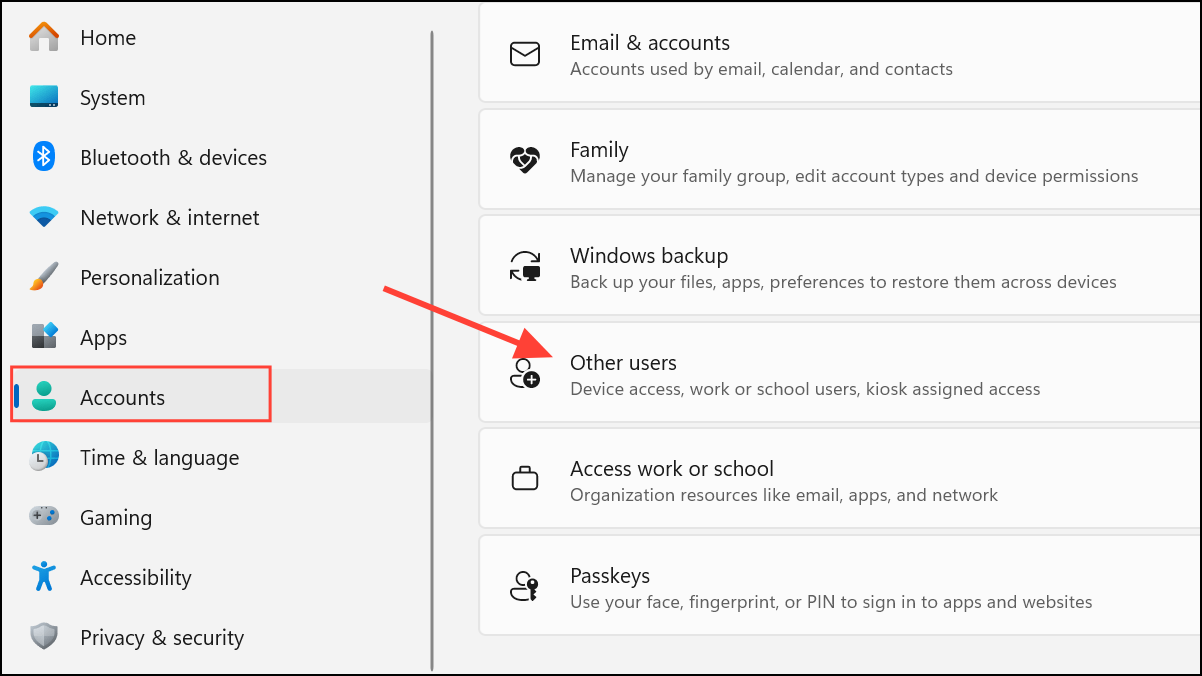
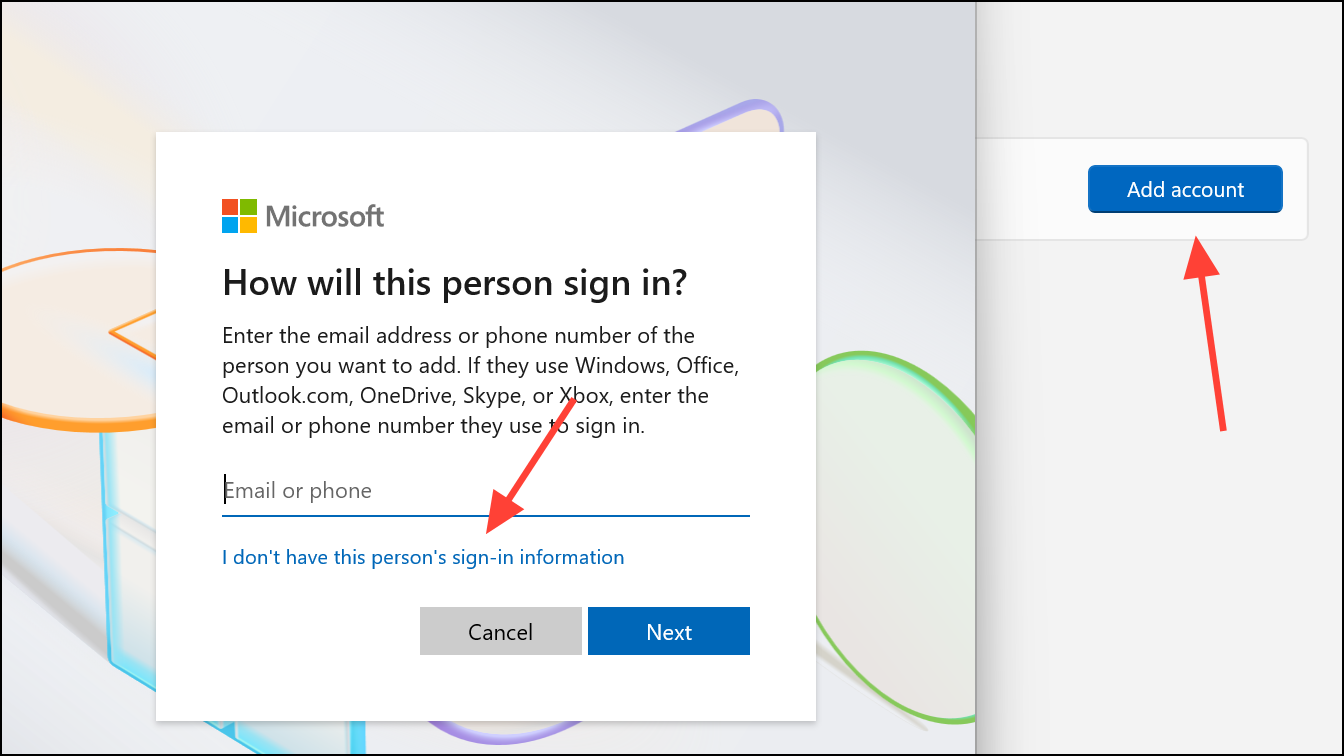
If Task Manager works in the new account, your original profile may be corrupted. You can transfer data to the new account or attempt to repair the existing one.
Update Windows 11
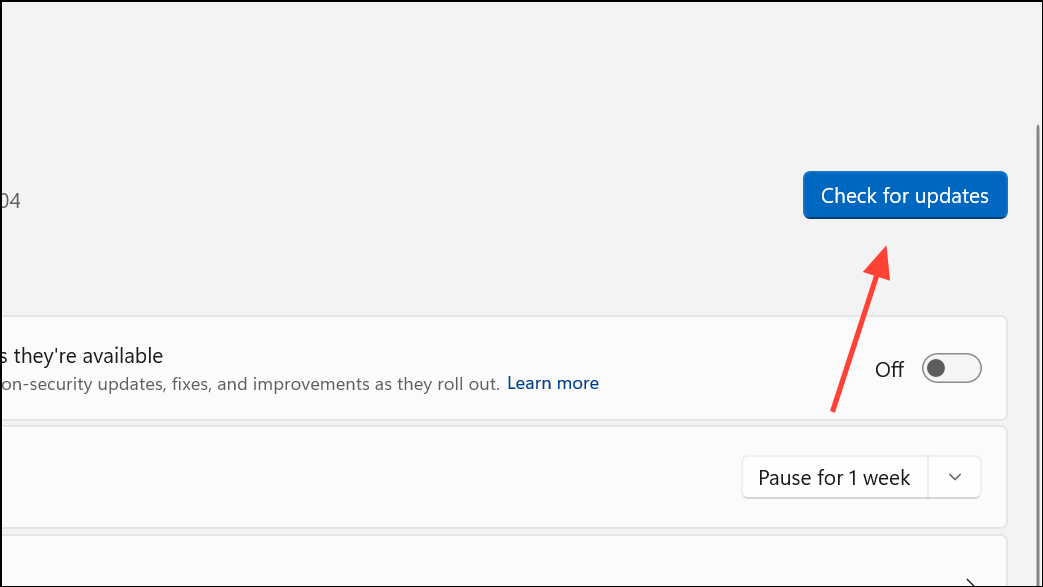
Updating Windows applies bug fixes and stability improvements, some of which may address Task Manager display issues introduced in previous builds.
Additional Troubleshooting Tips
- Running Task Manager as administrator may resolve sluggish performance or missing process information.
- If Task Manager remains blank after all steps, consider performing an in-place upgrade or repair install of Windows 11 to restore system integrity without removing personal files.
- Disabling Windows animations under Performance Options can speed up Task Manager responsiveness, especially on older hardware.
- Third-party tools like Process Explorer or System Informer can serve as temporary alternatives for process management if Task Manager continues to malfunction.
Applying these methods restores Task Manager’s full functionality, making it easier to monitor and control running processes on Windows 11. Regular system maintenance and software updates help prevent future display issues in Task Manager.



