Fix Microsoft Store Error 0x80d05001 on Windows 11
Resolve Microsoft Store download and update failures on Windows 11 by addressing system file issues, network settings, and Store cache problems with these comprehensive solutions.
Resolve Microsoft Store download and update failures on Windows 11 by addressing system file issues, network settings, and Store cache problems with these comprehensive solutions.
by Pallav Pathak
Microsoft Store error 0x80d05001 interrupts app downloads and updates on Windows 11, often displaying messages about failed installations or unresponsive Store behavior. This issue can stem from a corrupted Store cache, incorrect network configuration, outdated system files, or conflicts with proxy, VPN, or security software. Addressing these root causes restores full Store functionality and allows seamless access to app updates and purchases.
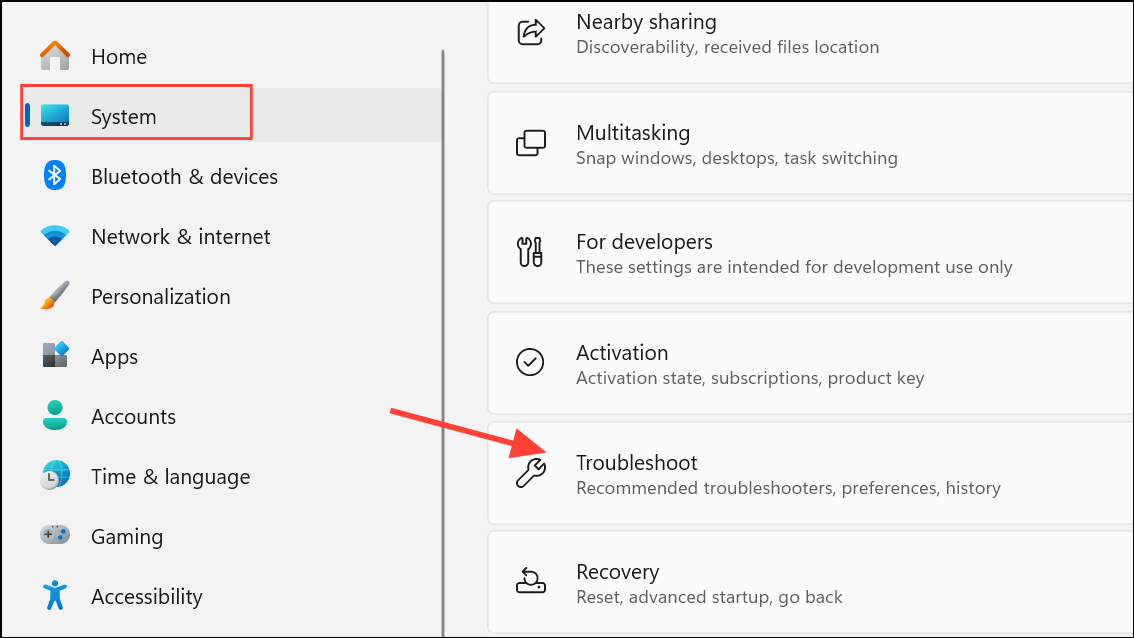
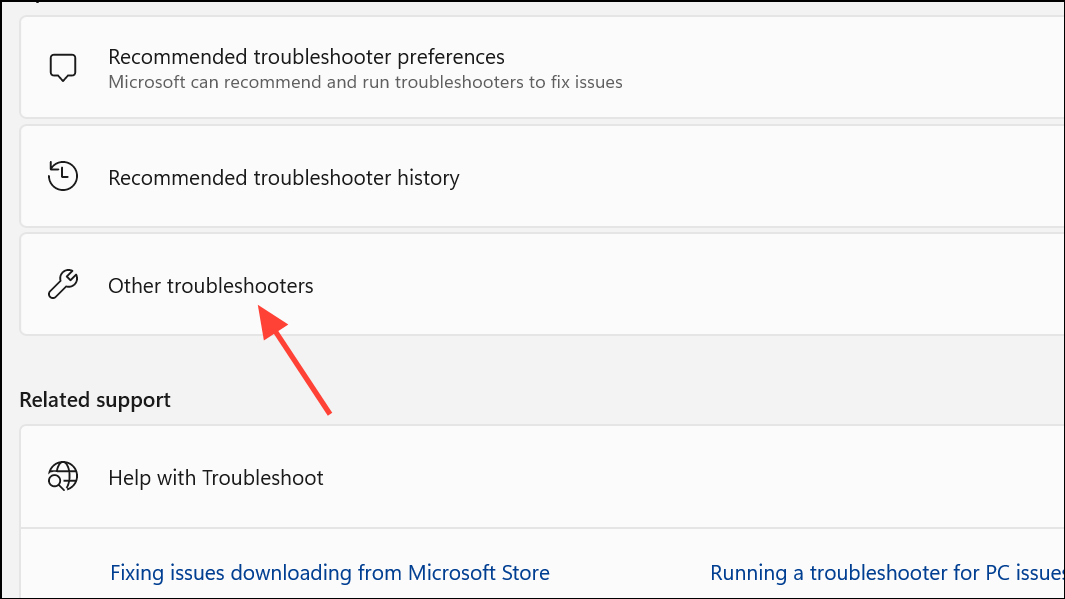
Wait for the troubleshooter to scan for issues. If any problems are detected, follow the on-screen prompts to apply the recommended fixes. Restart your device after the troubleshooter completes, which often resolves minor glitches and resets Store app components.
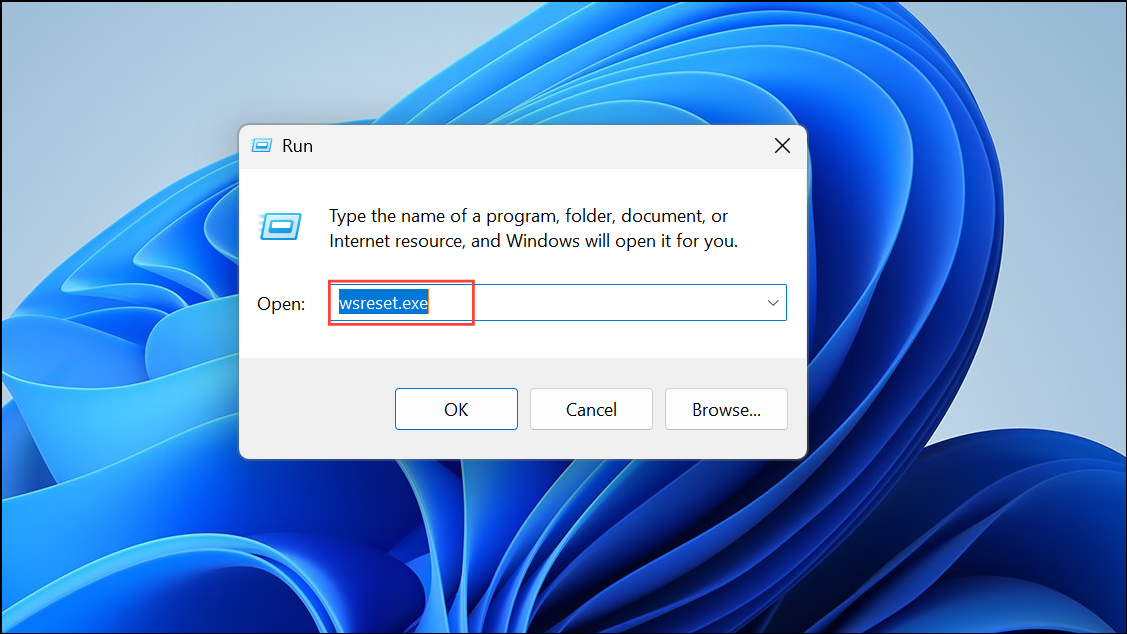
A blank Command Prompt window will appear while the cache is cleared. Once the window closes, the Microsoft Store will open automatically. This process removes corrupted or outdated cache files that could block app downloads or updates.
On the next screen, click Repair. If the issue persists, click Reset. This action reinstates Store defaults and removes problematic app data, which can resolve persistent errors.
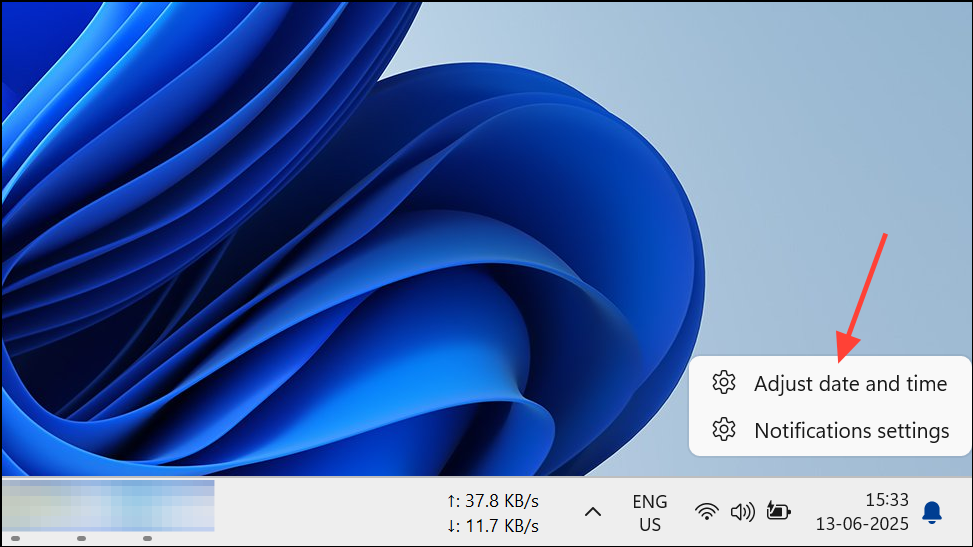
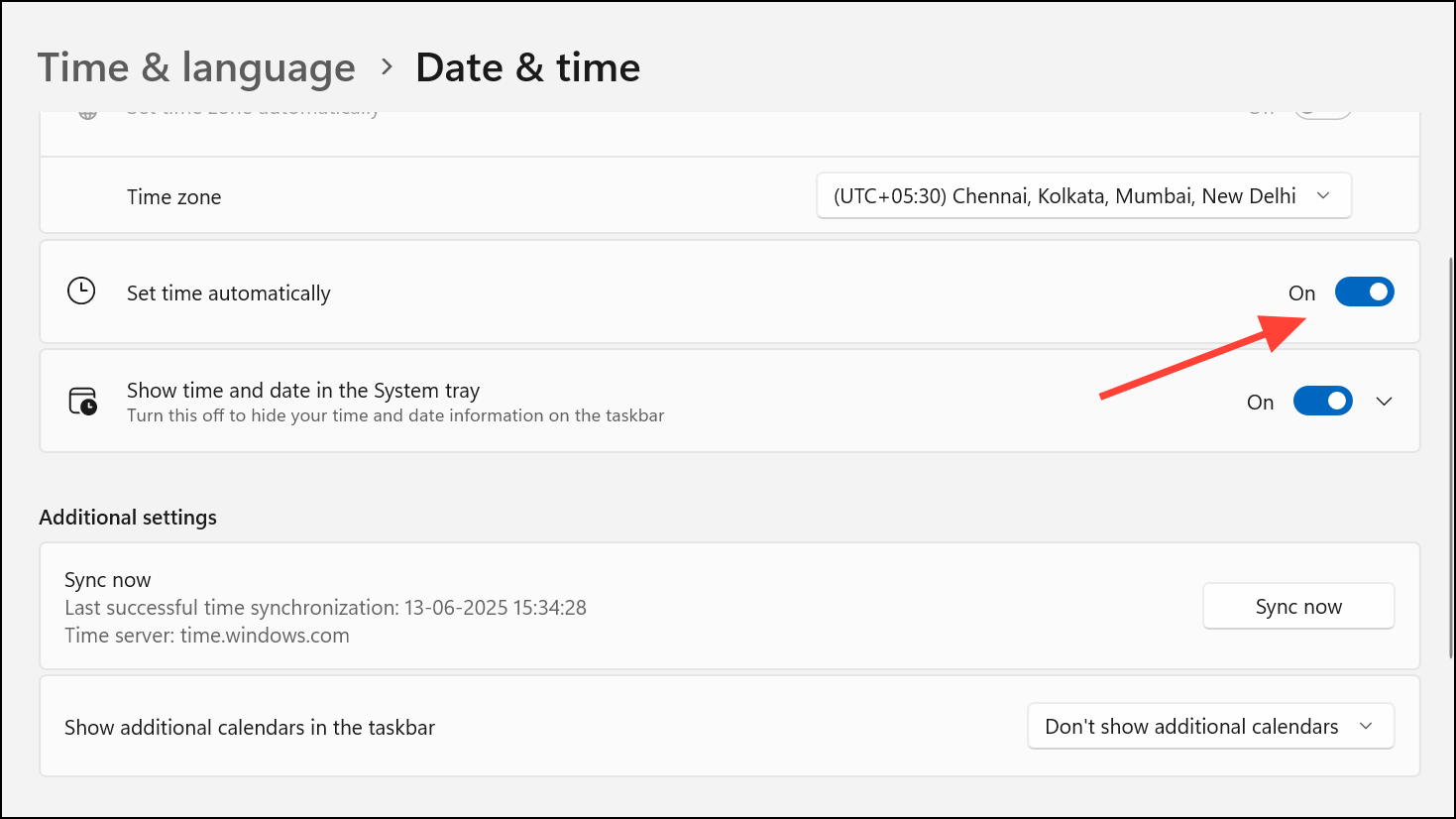
Check and Correct Date, Time, and Time Zone Settings
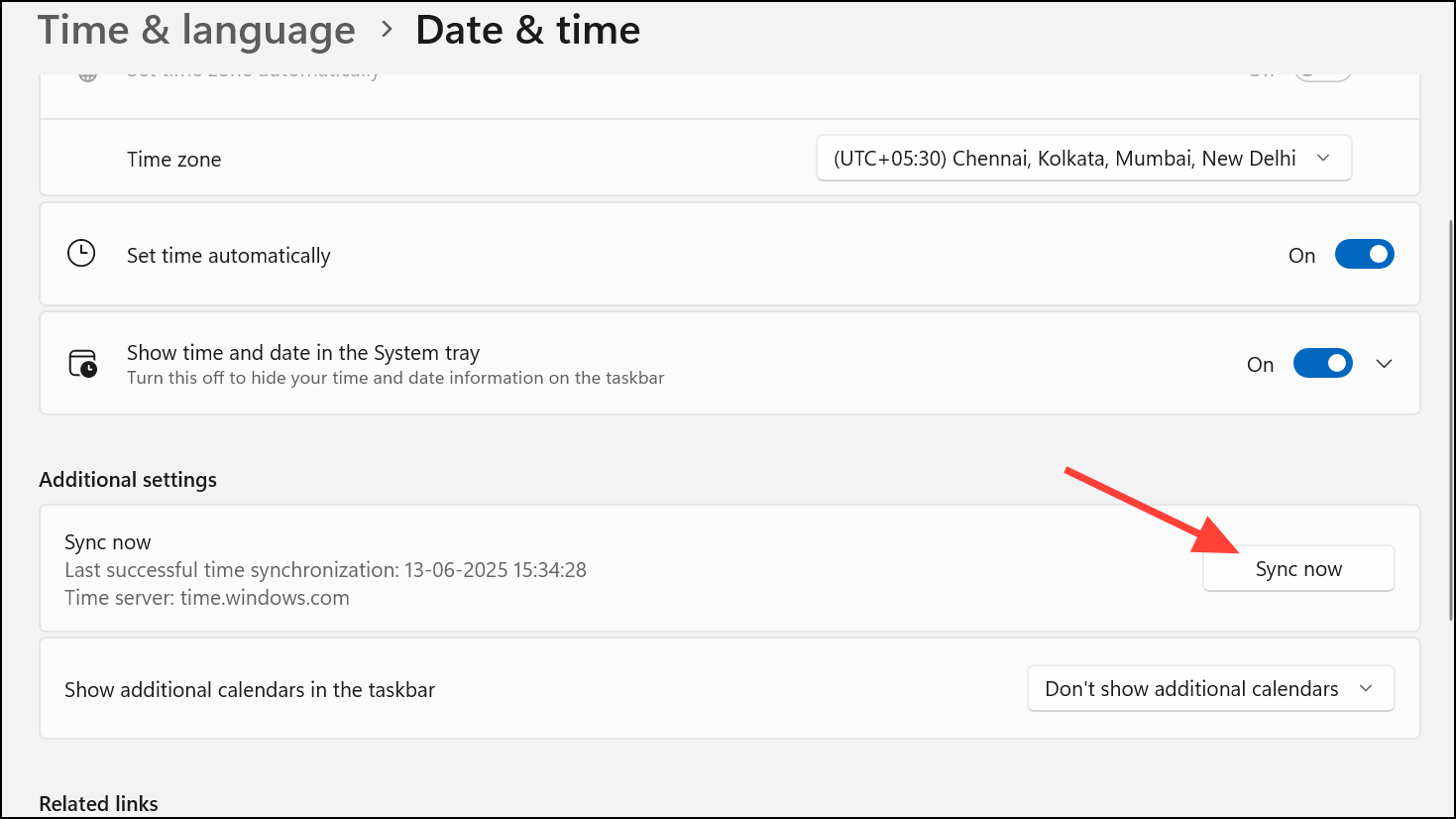
If the time is still incorrect, manually click Sync now or adjust the date and time. Incorrect time settings can cause authentication failures with Microsoft servers, blocking Store access.
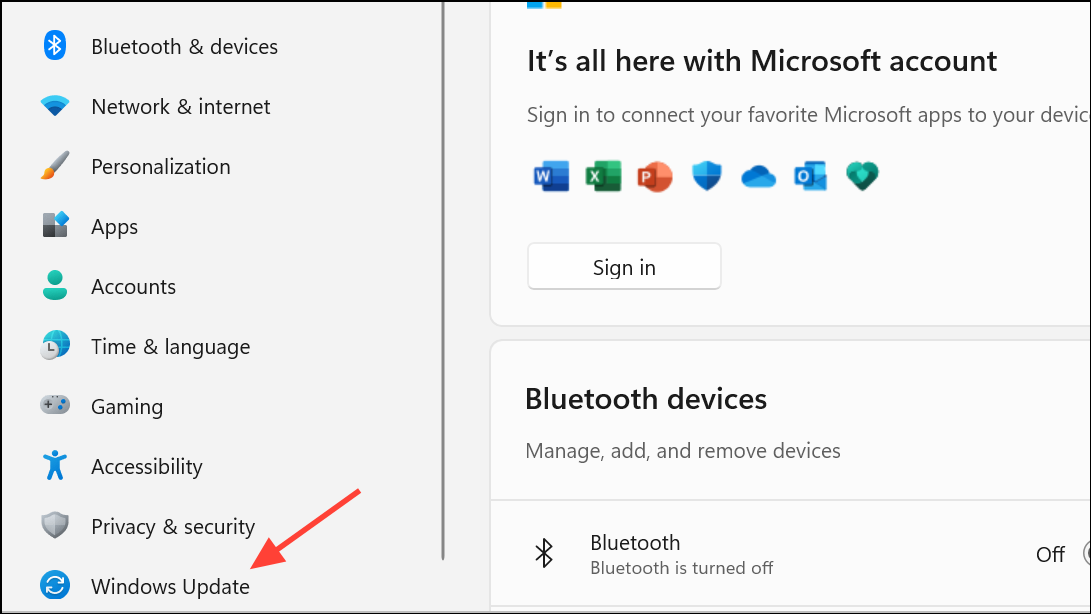
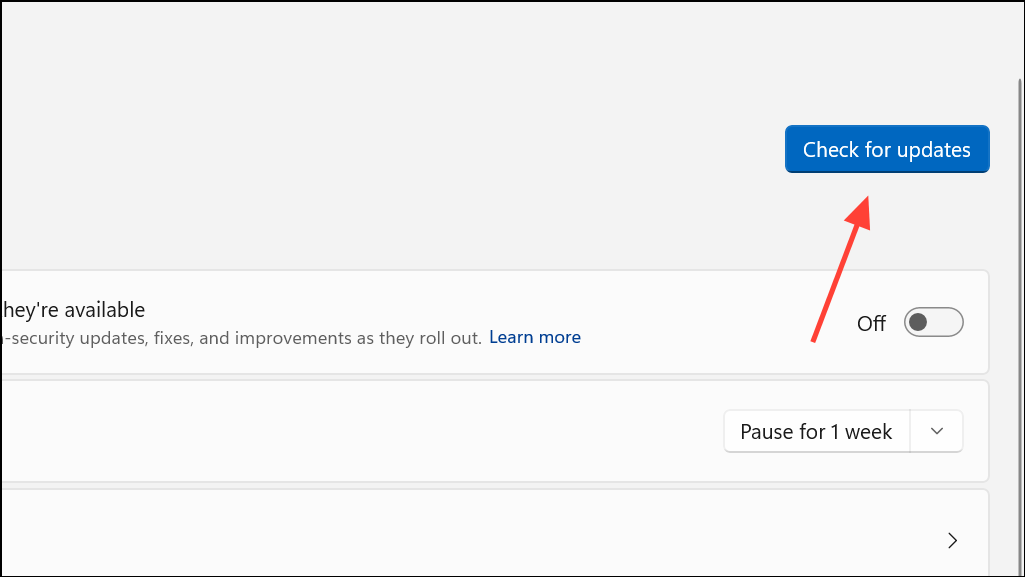
Restart your PC after updates are installed. Outdated system files or components often prevent the Microsoft Store from functioning properly, and updating ensures compatibility and bug fixes are applied.
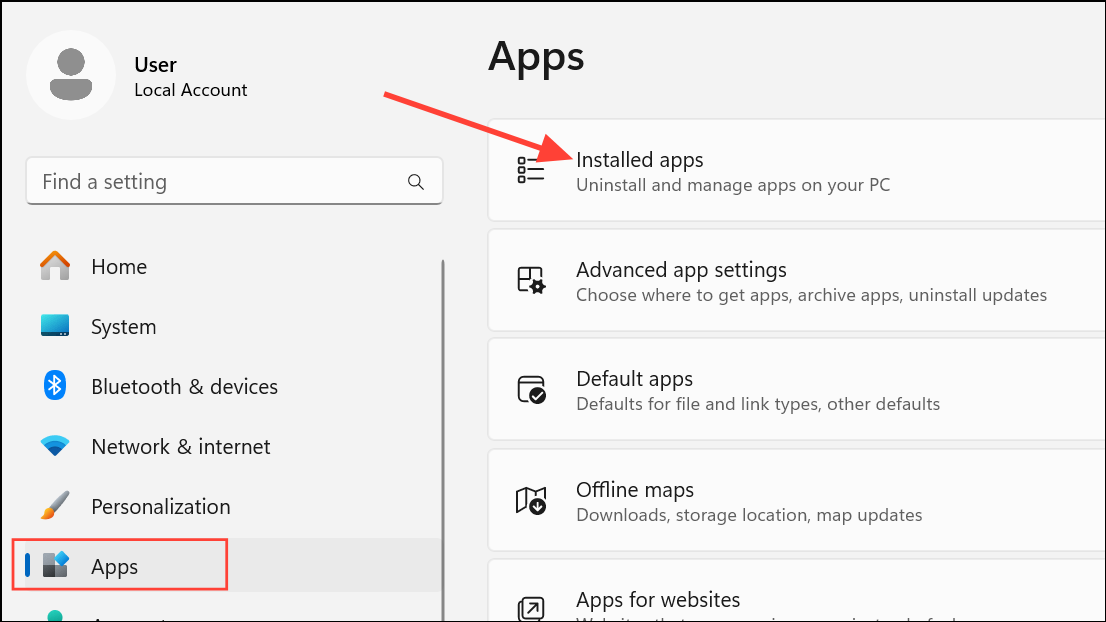
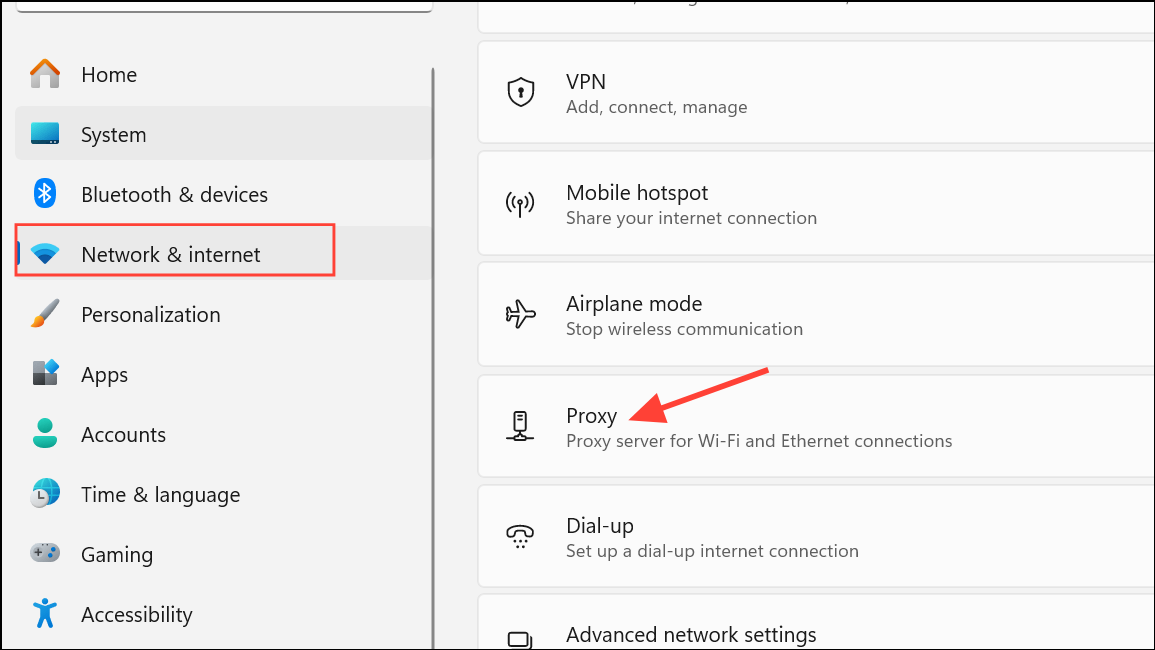
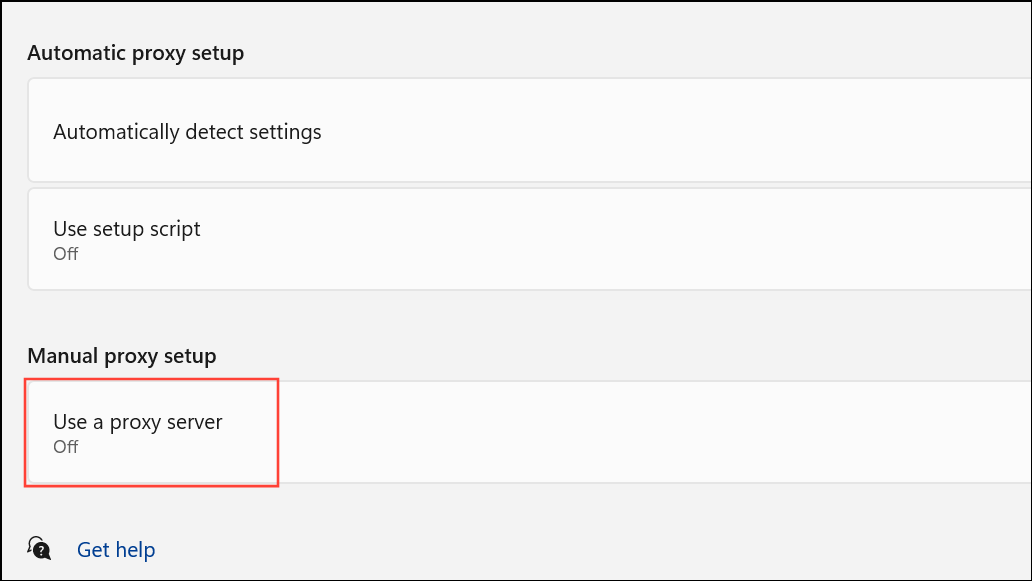
If you use a VPN, disconnect it or uninstall the VPN app via Settings > Apps. Restart your computer. Proxy servers and VPNs can interfere with Store authentication and content delivery, especially if misconfigured.
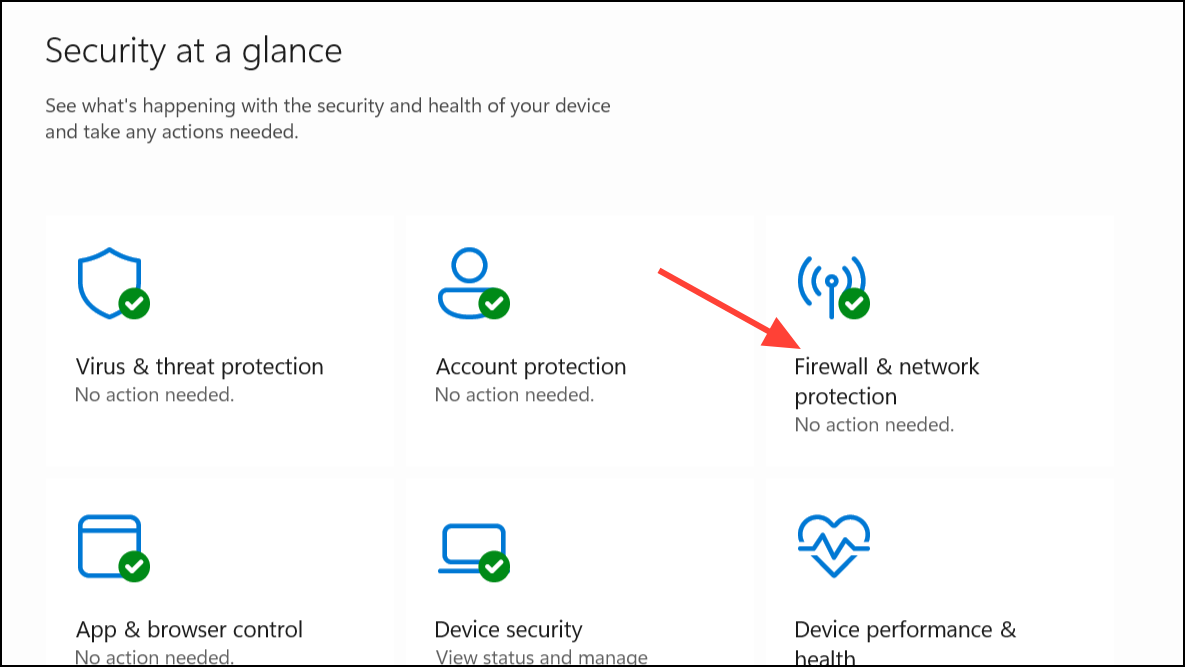
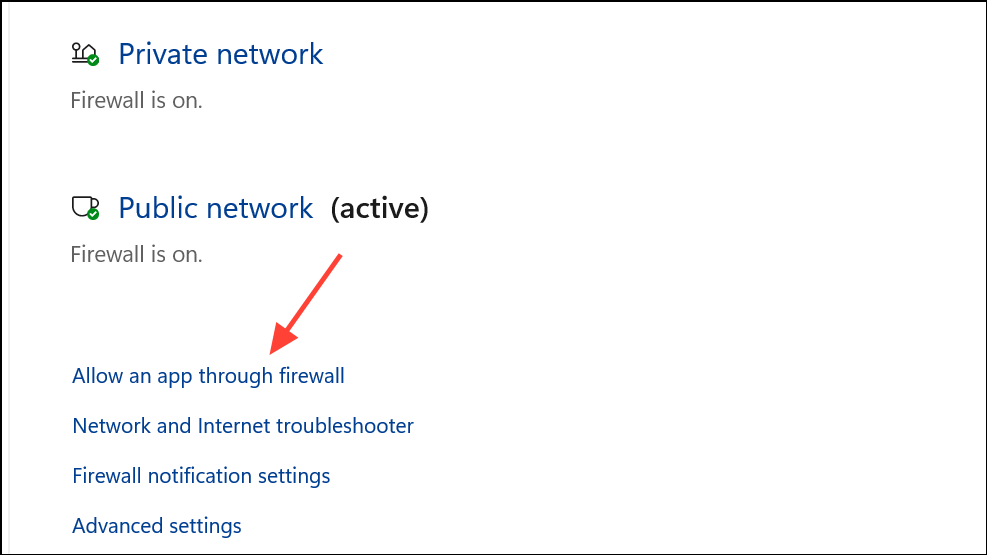
If you have third-party antivirus or firewall software, temporarily disable it and test the Store. Some security tools block Store connections, causing download or update failures.
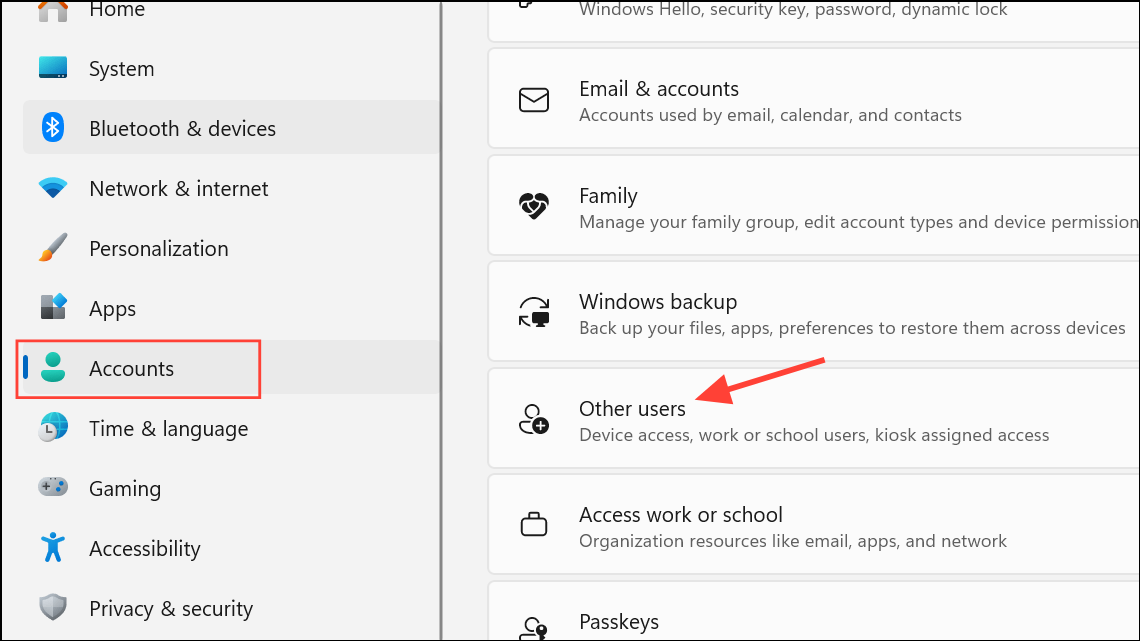
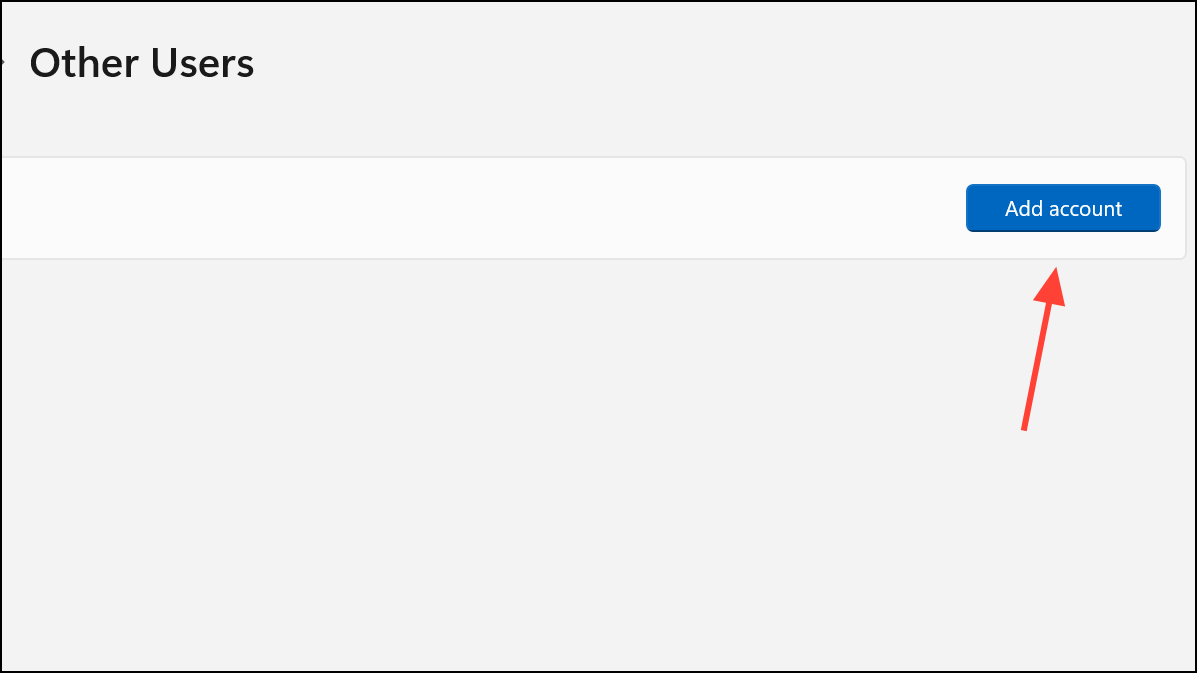
Sign into the new account and test the Microsoft Store. If it works, the issue may be profile-specific, and you can migrate your data to the new account if needed.
Resolving error 0x80d05001 in Microsoft Store on Windows 11 usually involves resetting Store components, correcting system configurations, or addressing network and security conflicts. Consistent Store access is restored by methodically working through these steps.