
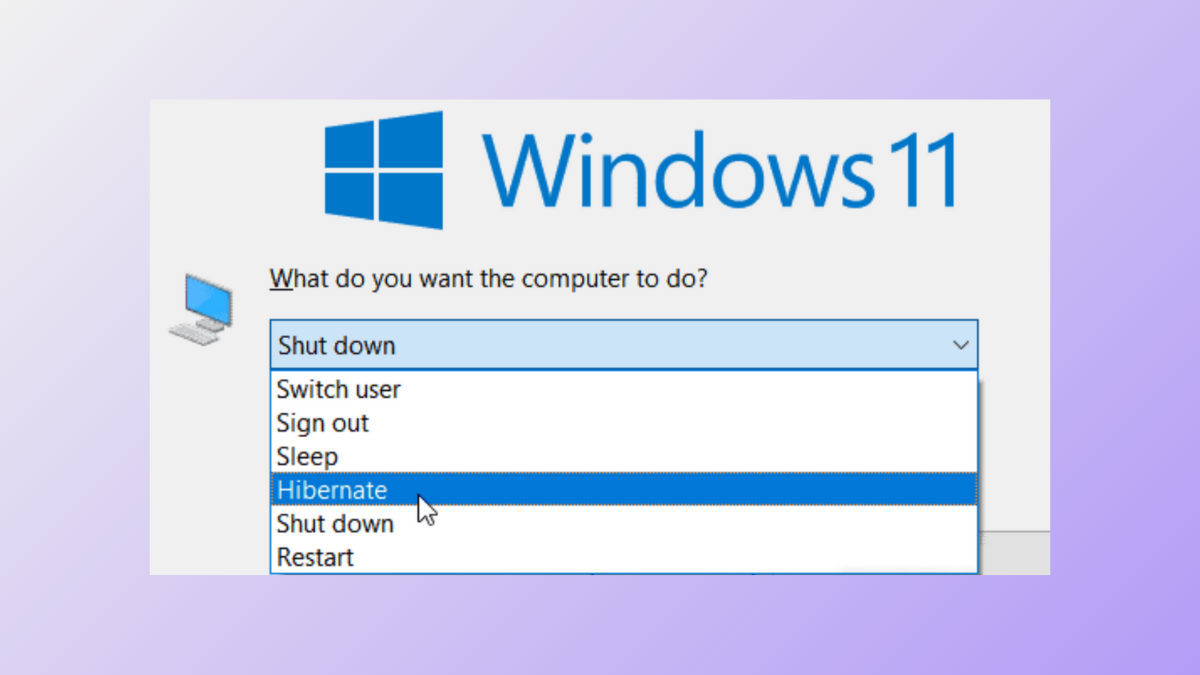
Missing the Hibernate option from the Windows 11 power menu limits your ability to save your session for long-term power-off, especially on laptops where battery life is a concern. Hibernate stores your open documents and programs to disk, allowing you to power down completely and resume work exactly where you left off. By default, Windows 11 often hides this feature, but you can restore it using several reliable methods.
Enable Hibernate via Control Panel
Control Panel. Select the Control Panel app from the results. If you prefer, you can also use Win + R and enter control to launch it directly.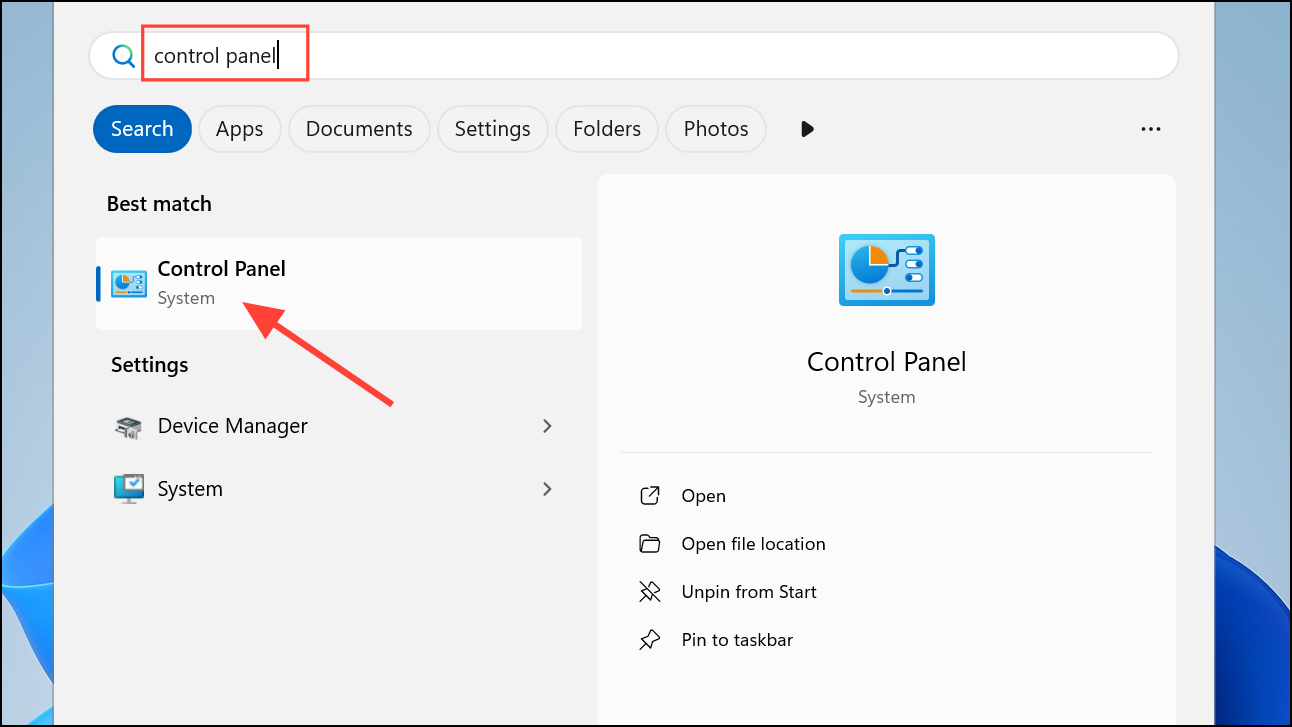
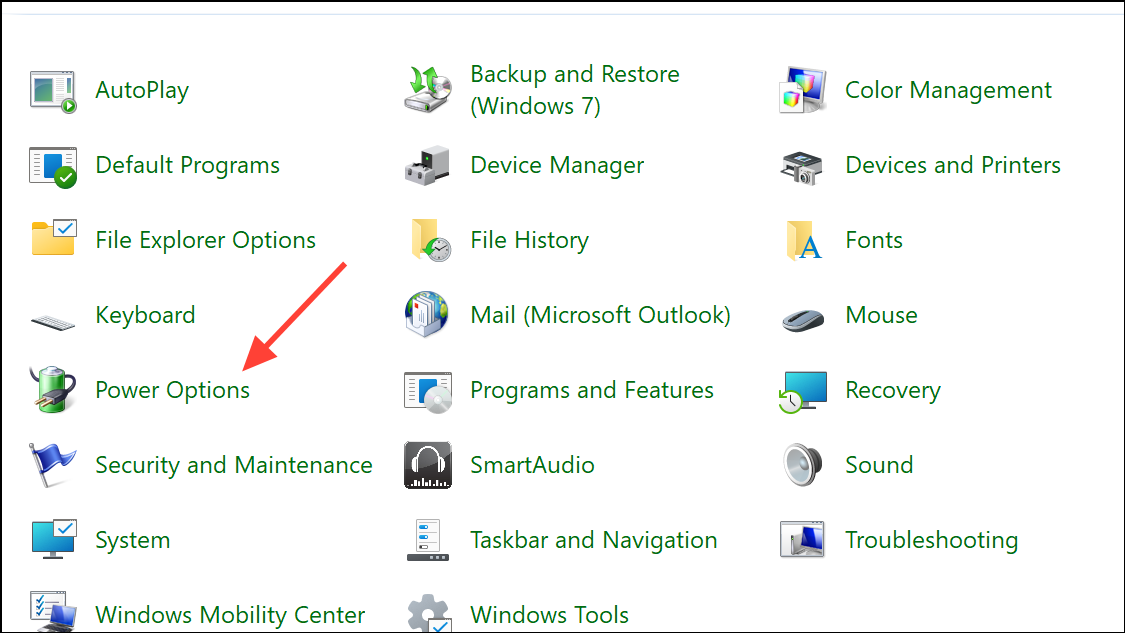
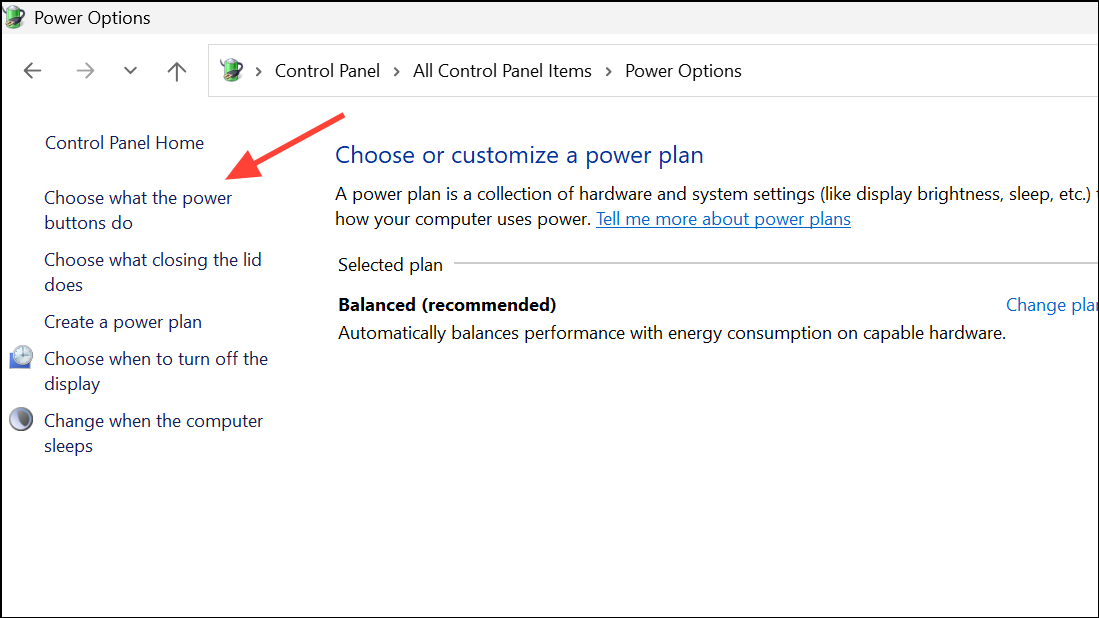
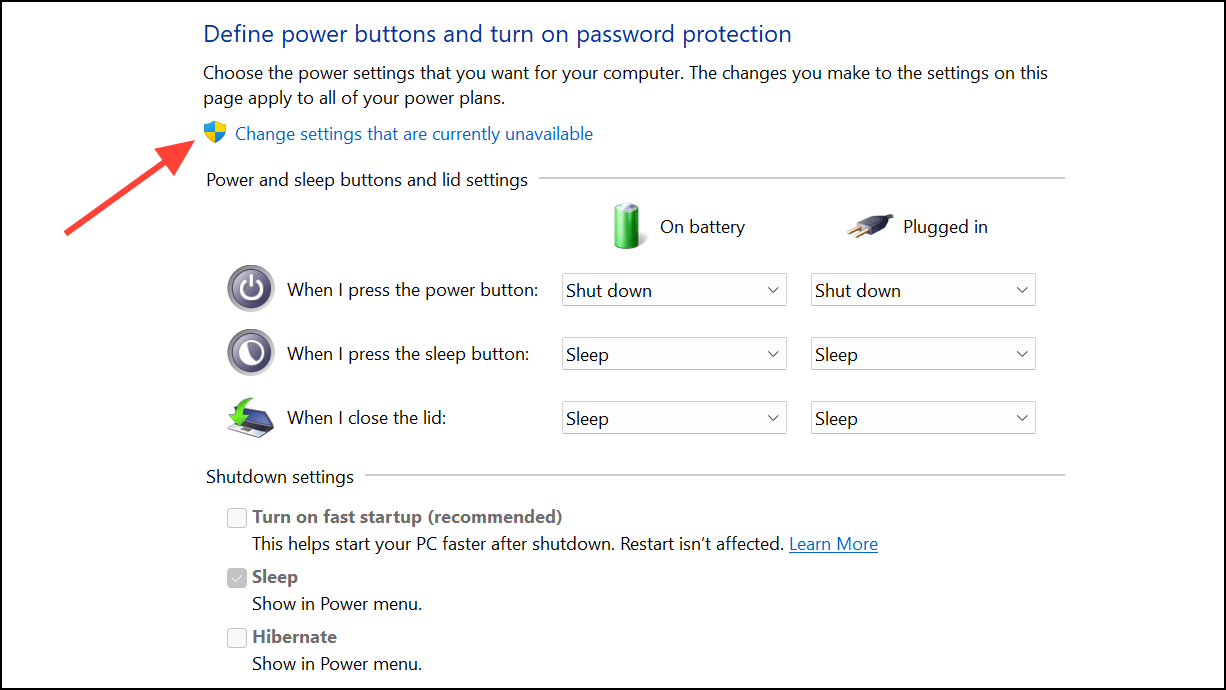
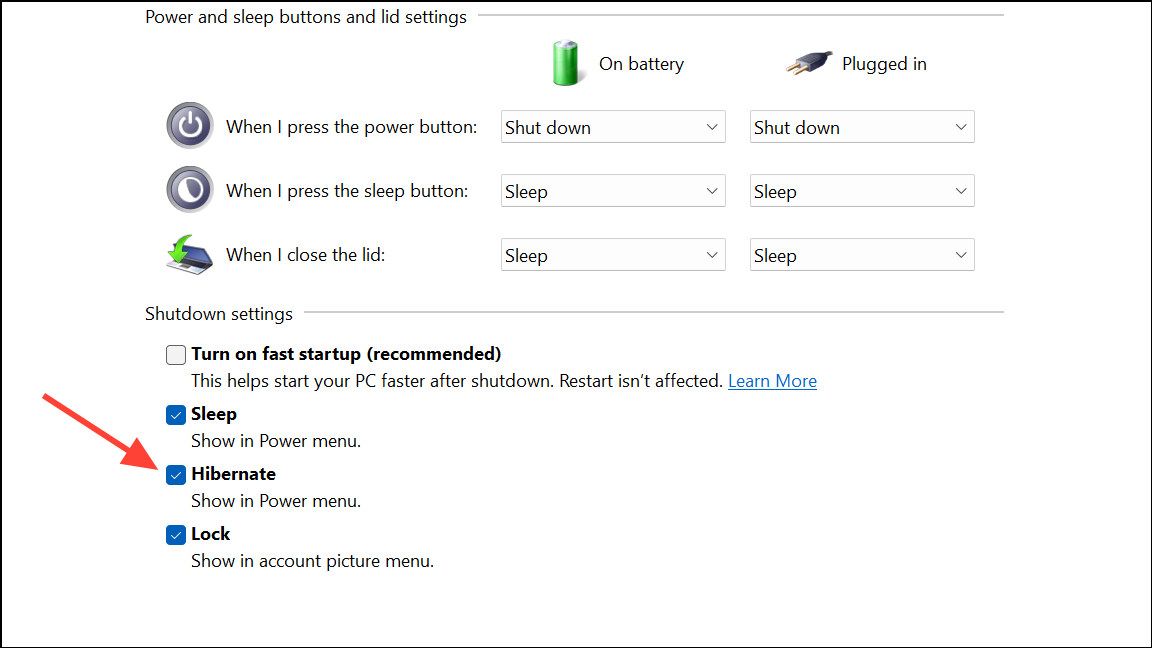
Win + X), and other power menus.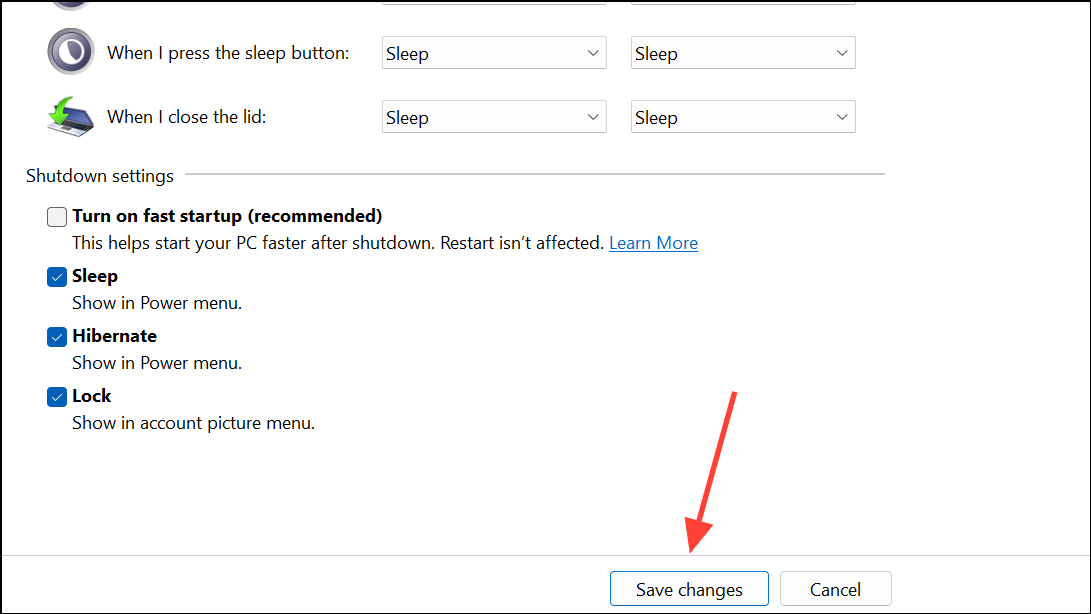
Enable Hibernate Using Command Prompt or PowerShell
Command Prompt or PowerShell in the Start menu. Right-click the result and select Run as administrator to launch with elevated privileges.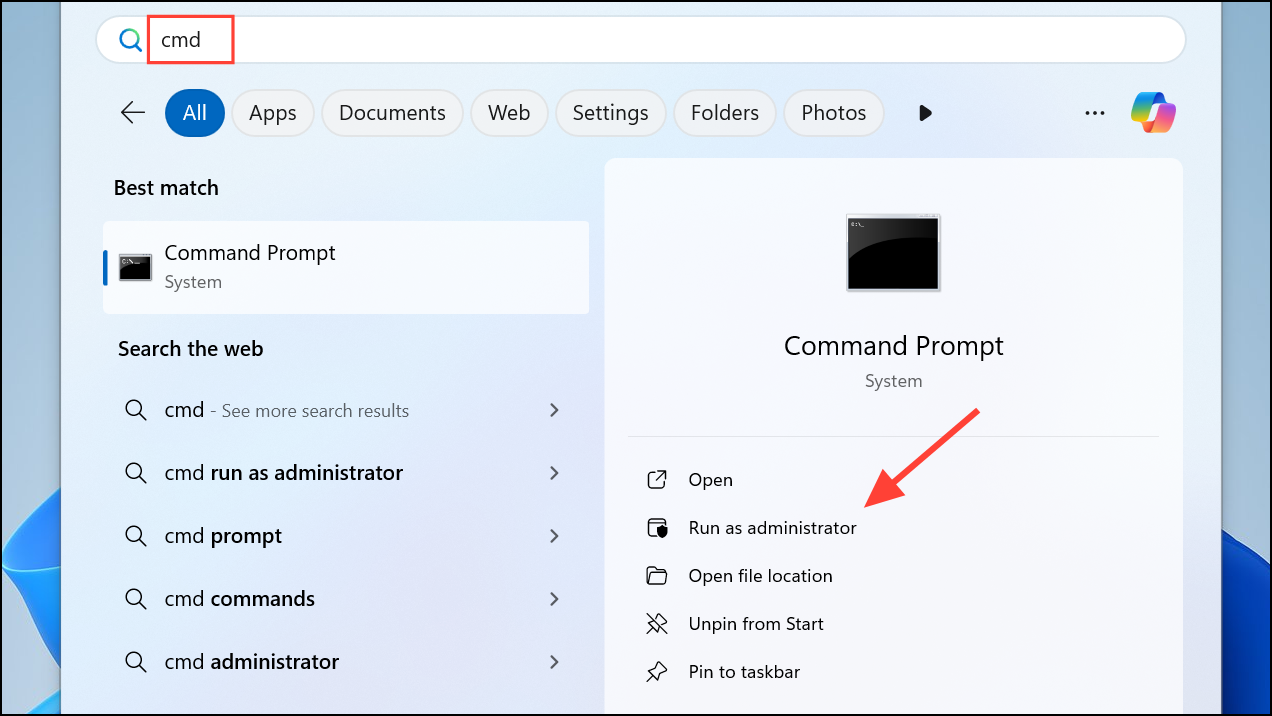
powercfg /availablesleepstates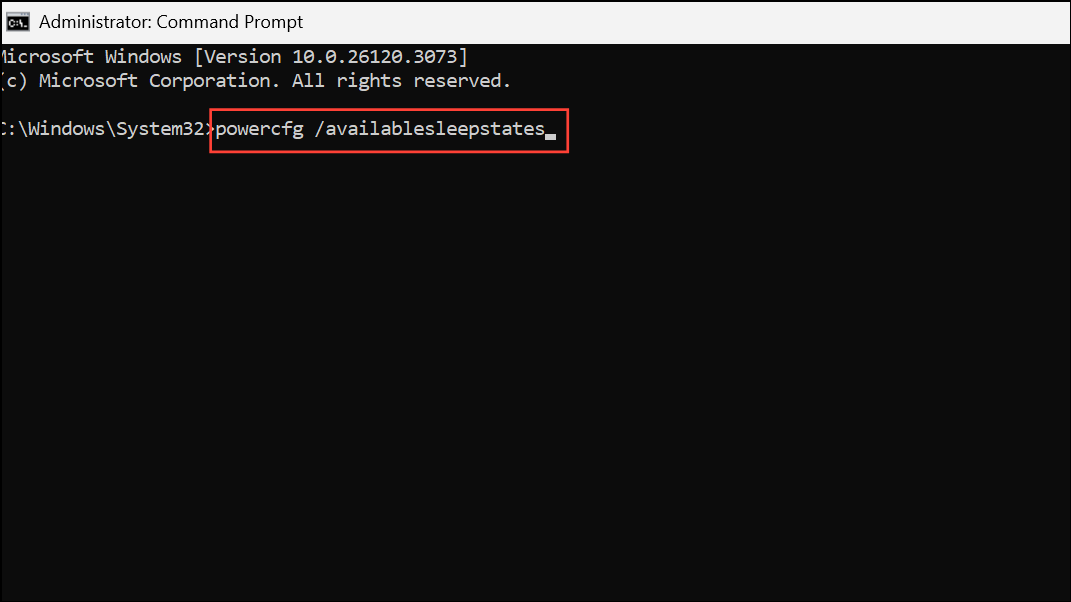
This lists all supported power states. If hibernation is not listed, proceed to the next step to enable it.
powercfg /hibernate on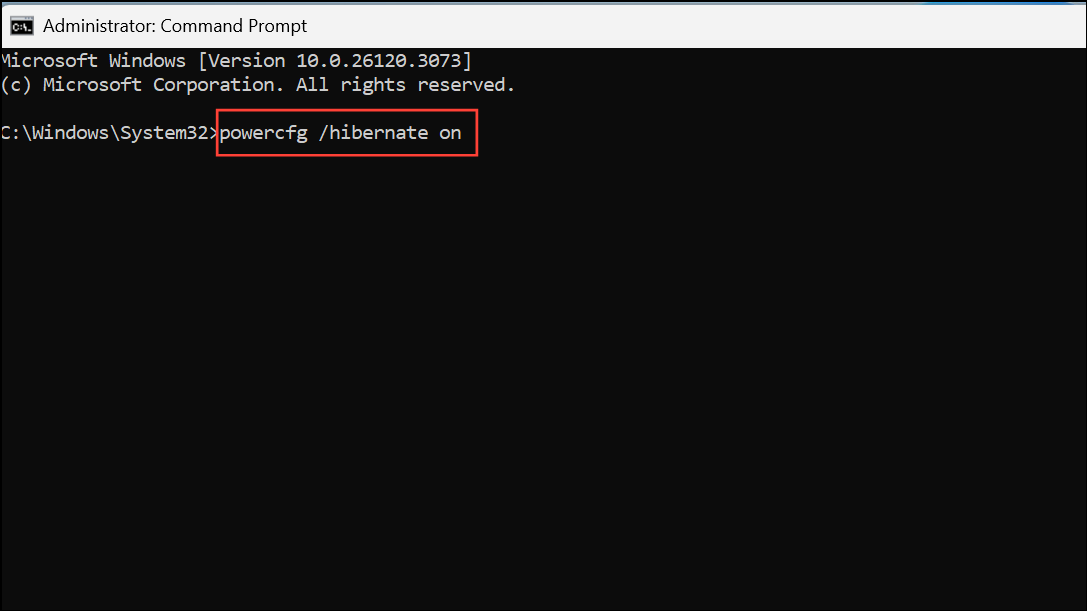
This command creates the necessary hibernation file (hiberfil.sys) and activates the feature. Afterward, revisit the Control Panel method above to add Hibernate to the power menu if it’s still missing.
powercfg /hibernate off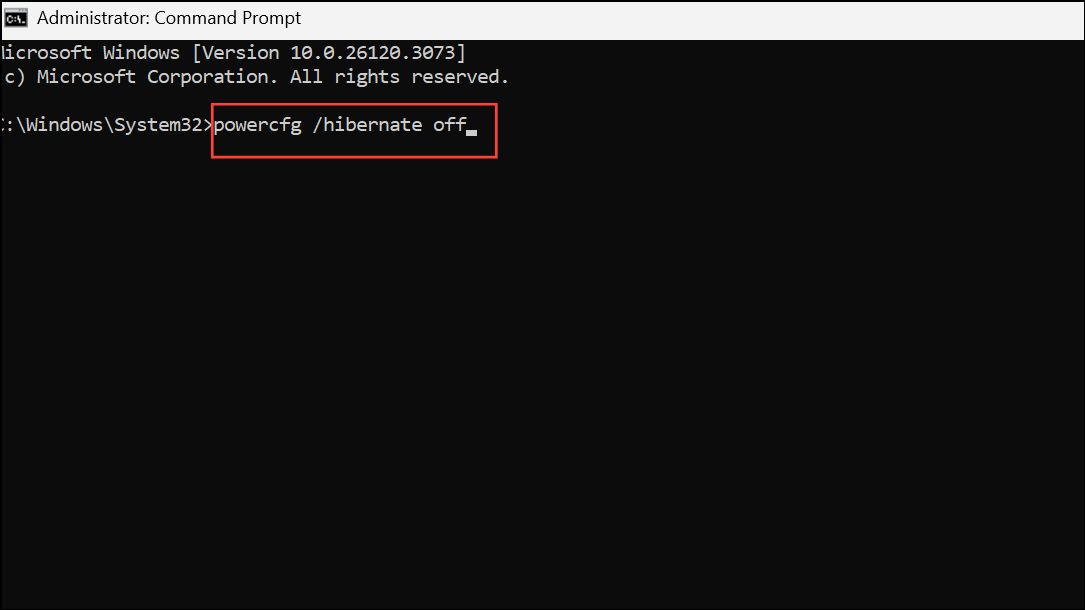
This removes the hibernation file and hides the option from all menus.
Show Hibernate Option via Windows Registry
Win + R, type regedit, and press Enter to open the Registry Editor. Approve any User Account Control prompts.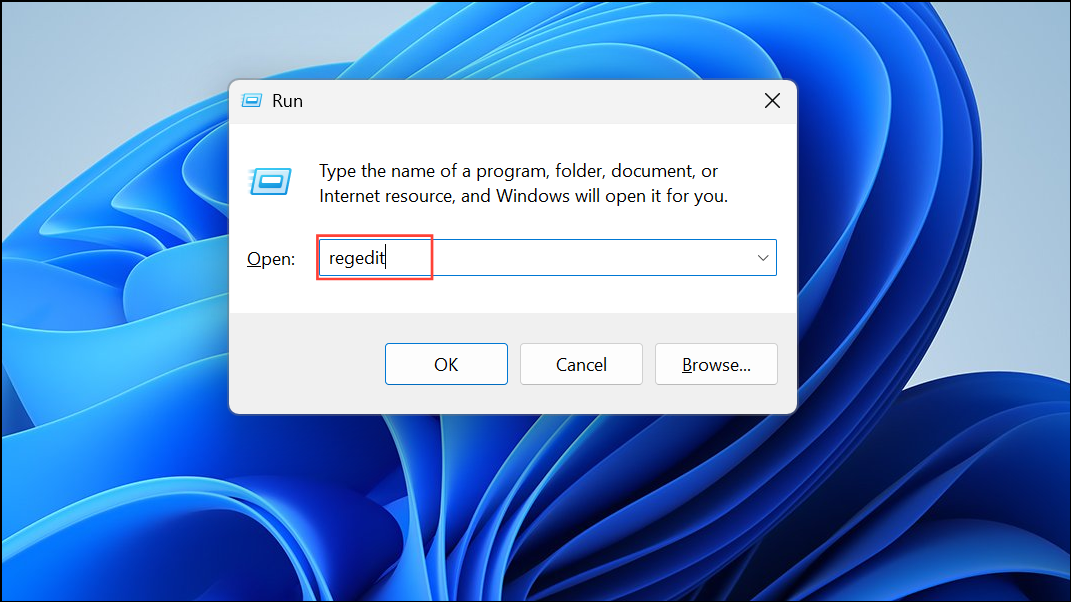
HKEY_LOCAL_MACHINE\SYSTEM\CurrentControlSet\Control\Power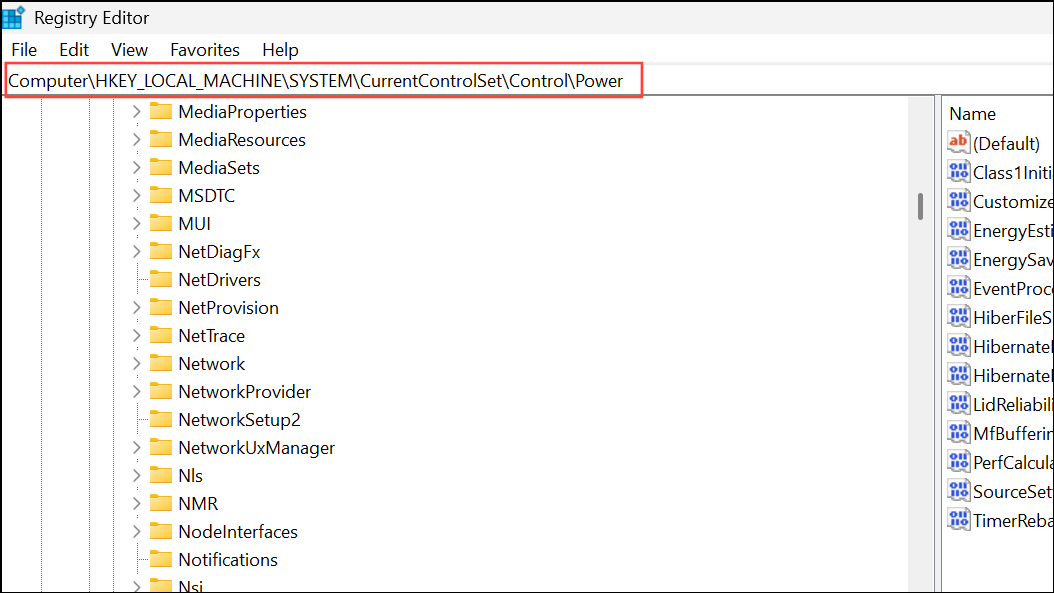
HibernateEnabled DWORD value. Double-click it and set its value to 1 to enable hibernation, or 0 to disable.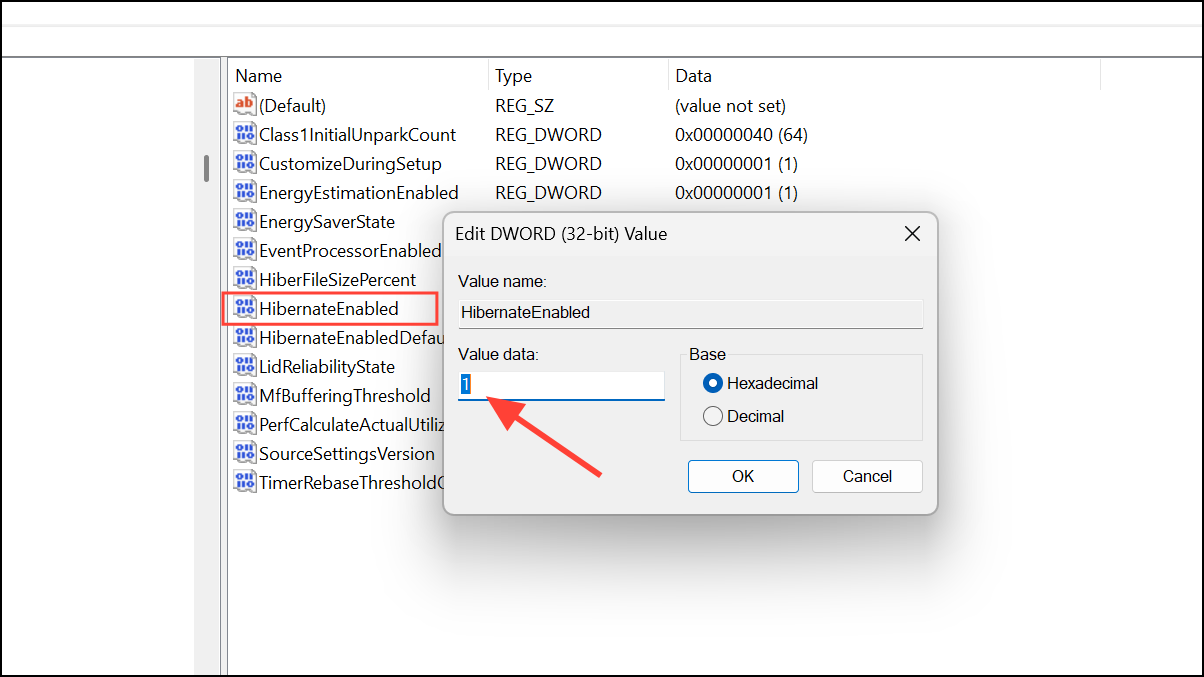
HKEY_LOCAL_MACHINE\SOFTWARE\Microsoft\Windows\CurrentVersion\Explorer\FlyoutMenuSettings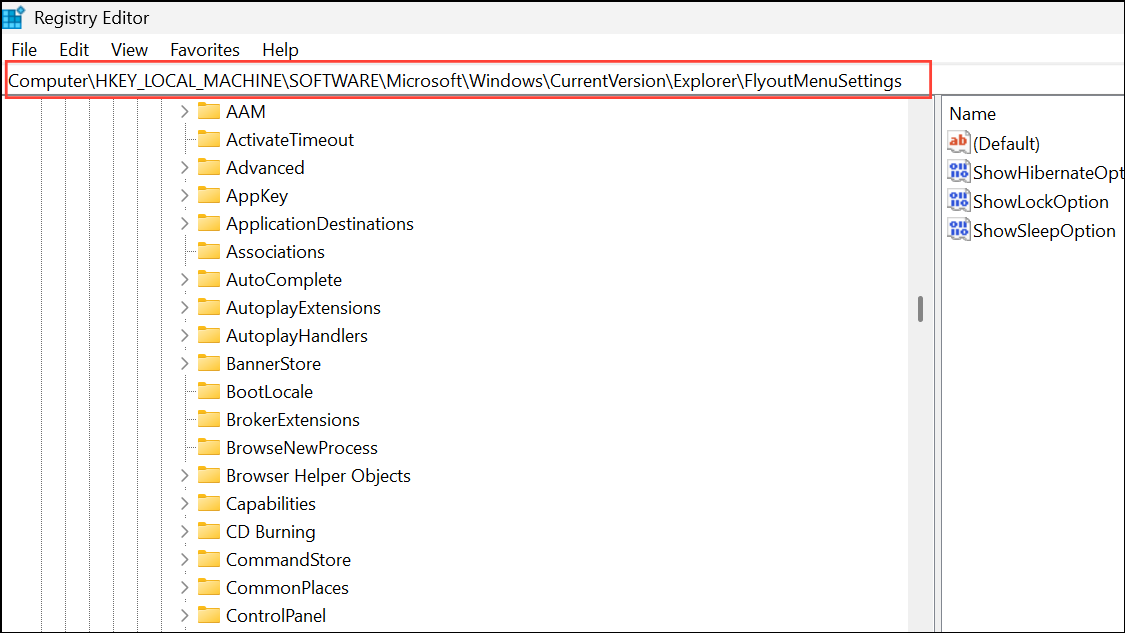
If FlyoutMenuSettings does not exist, right-click Explorer, select New > Key, and name it accordingly.
FlyoutMenuSettings, create a new DWORD (32-bit) Value named ShowHibernateOption. Set its value to 1 to show Hibernate, or 0 to hide it.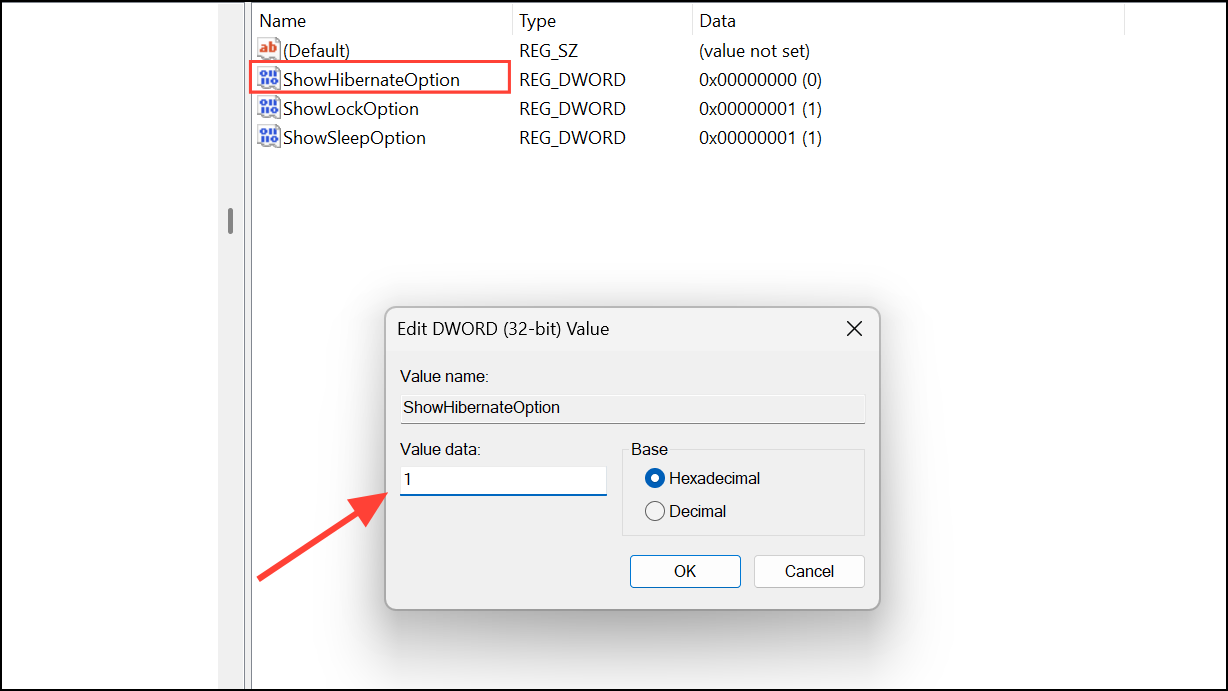
Enable Hibernate Using Group Policy
gpedit.msc. Click the result to launch the Local Group Policy Editor. Note that this tool is only available in Windows 11 Pro, Enterprise, and Education editions.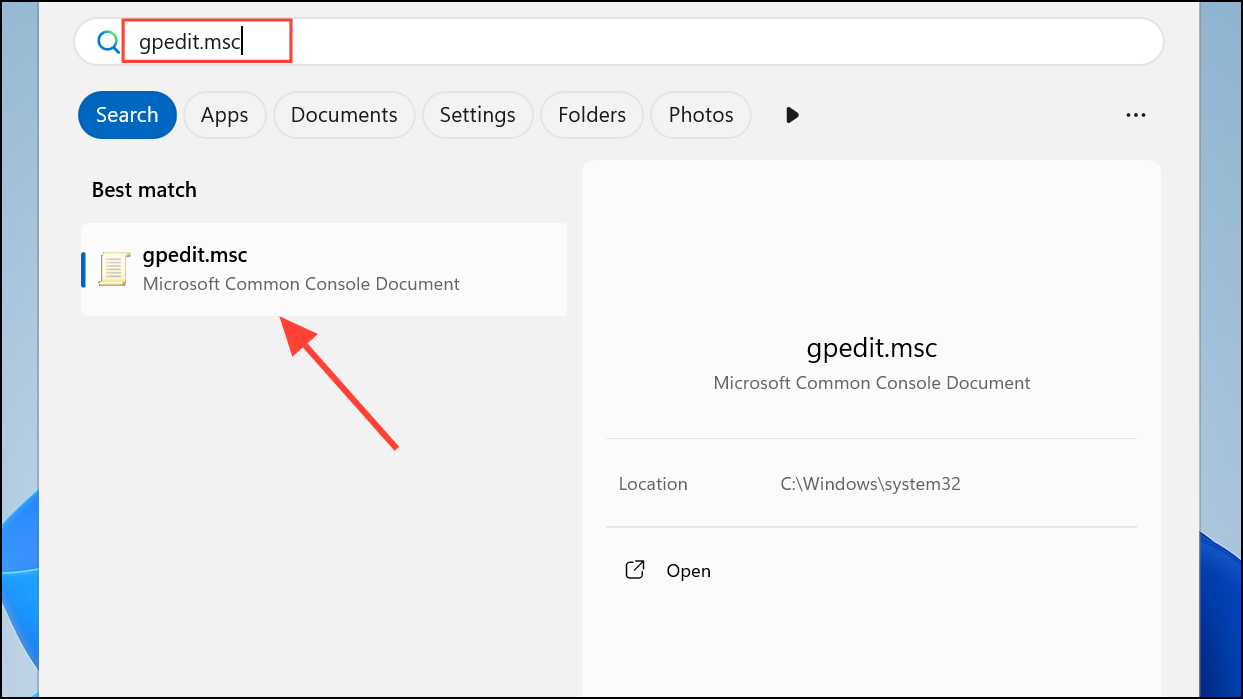
Computer Configuration > Administrative Templates > Windows Components > File Explorer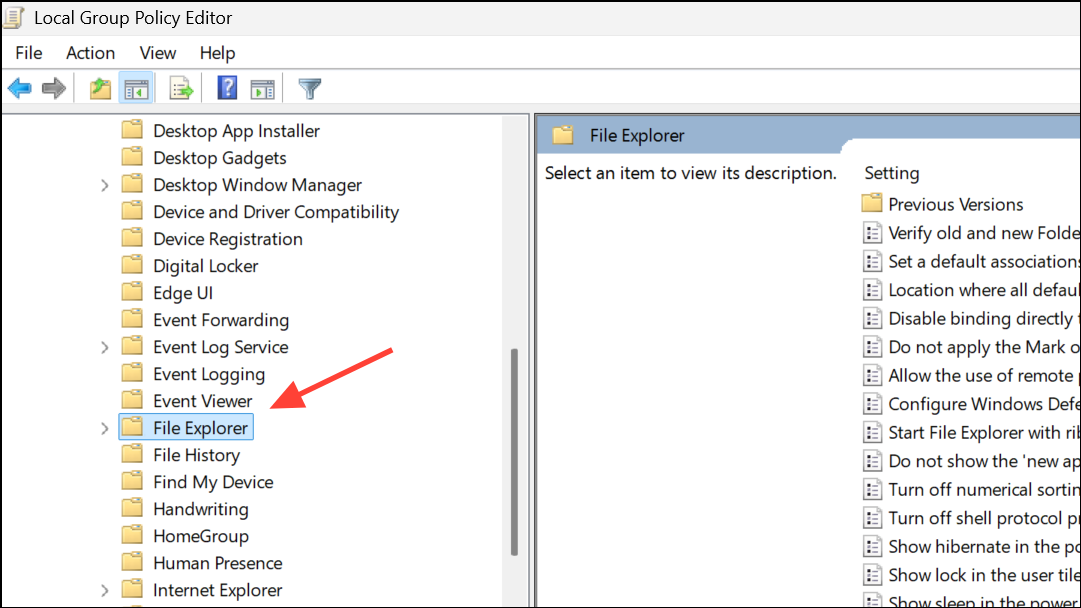
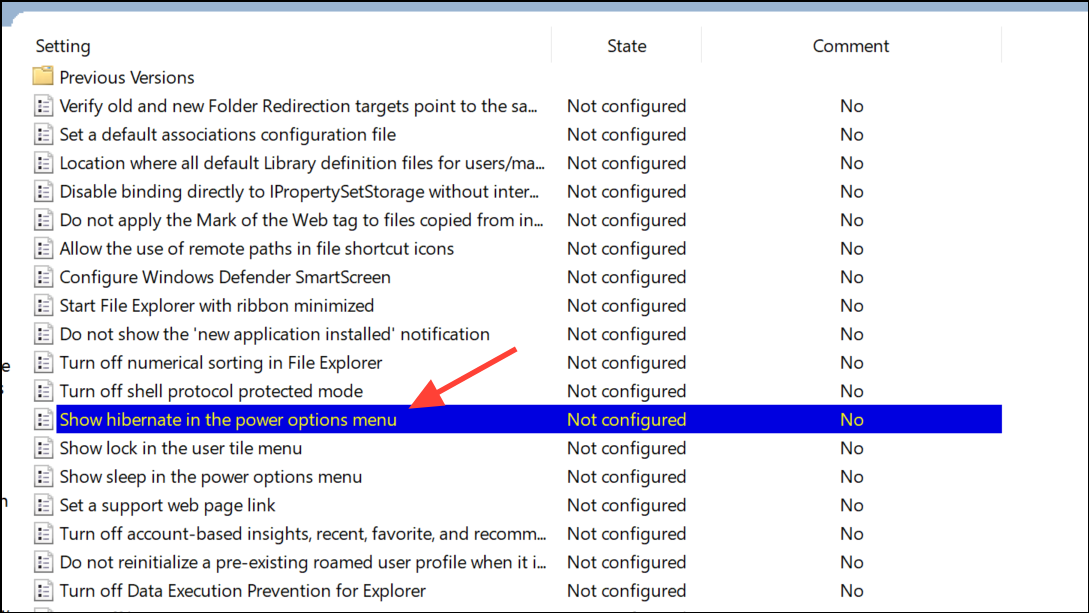
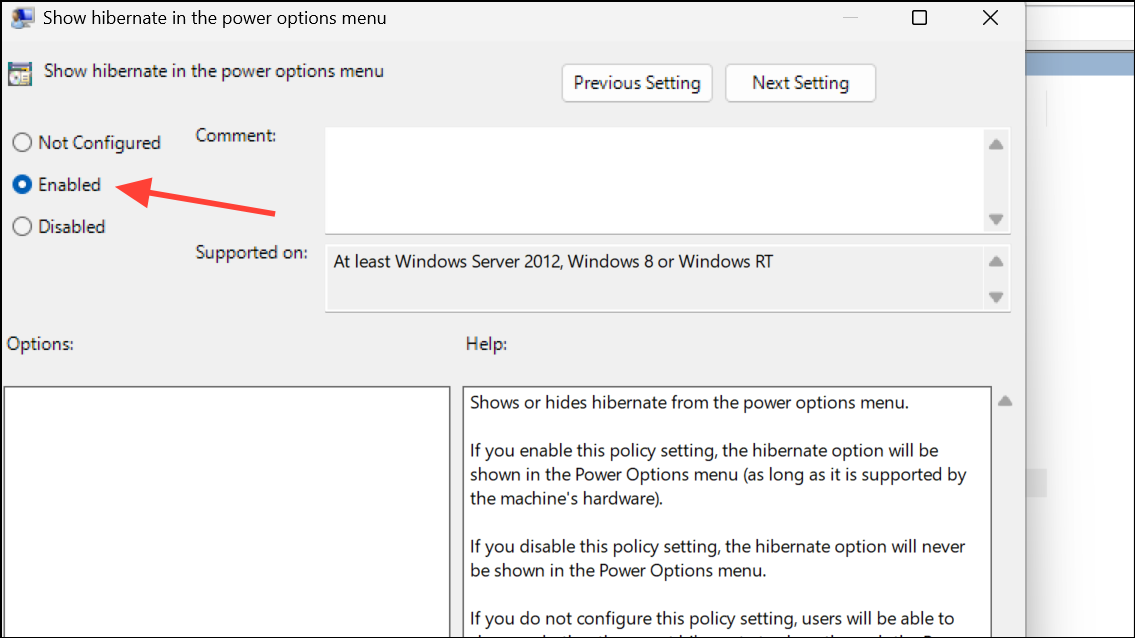
Enable Hibernate via Intune or Device Management Solutions
For IT administrators managing multiple endpoints, Microsoft Intune provides a scalable way to configure Hibernate settings across devices.
Restoring the Hibernate option in Windows 11 gives you greater control over power management and session persistence, especially for extended downtime. If the option remains unavailable, confirm your device supports hibernation and that no third-party utilities or system policies are blocking the feature.



