

Directly opening files and folders from the Command Prompt in Windows 11 reduces navigation time and supports efficient workflows, especially when working across multiple directories or automating tasks. Whether you want to launch a document, image, or an entire folder in File Explorer, Command Prompt offers several practical commands to get the job done quickly.
Open Files Using Command Prompt
cmd in the Start menu and selecting the app from the results. You do not need administrator privileges for opening files, unless the file or its directory requires elevated access.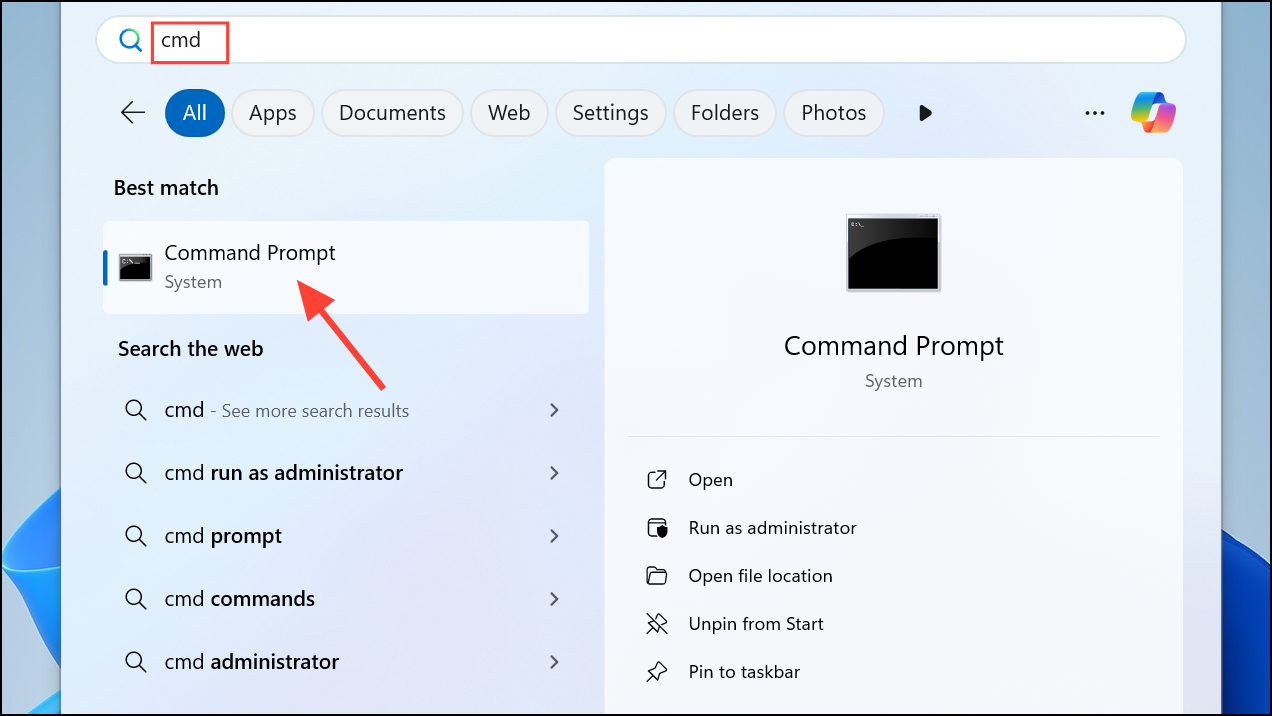
cd command followed by the folder path. If your folder path contains spaces, enclose it in double quotes. For example:cd "C:\Users\YourName\Documents\Project Files"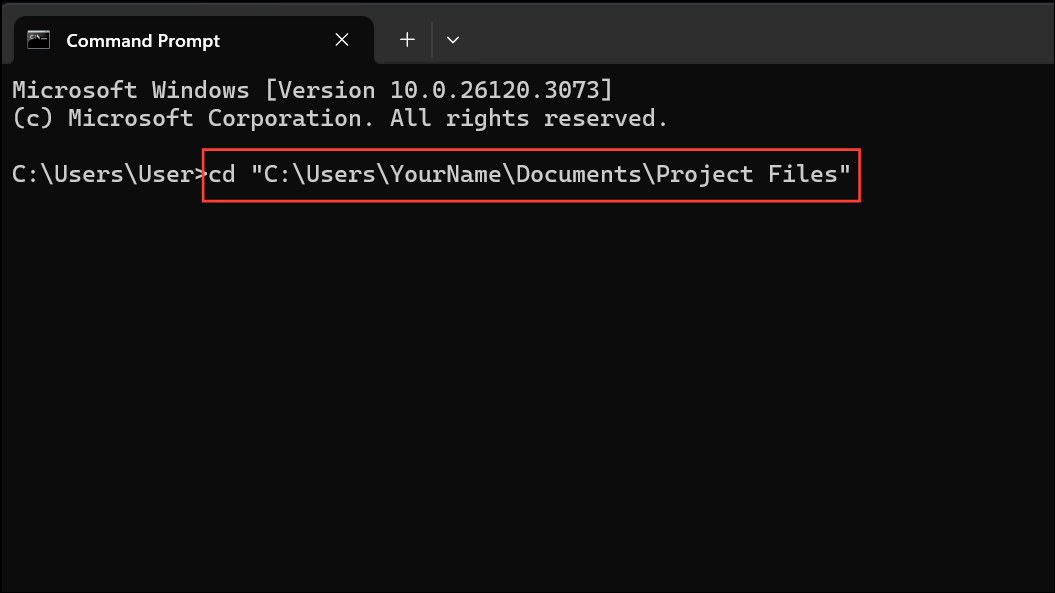
"report.pdf"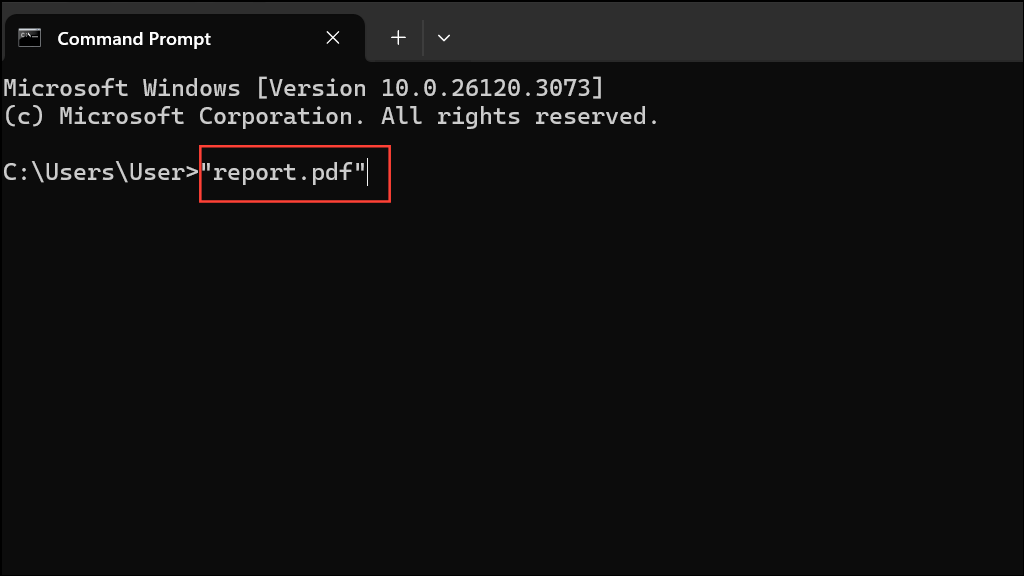
Alternatively, you can use the start command to explicitly open the file with its default program:
start "report.pdf"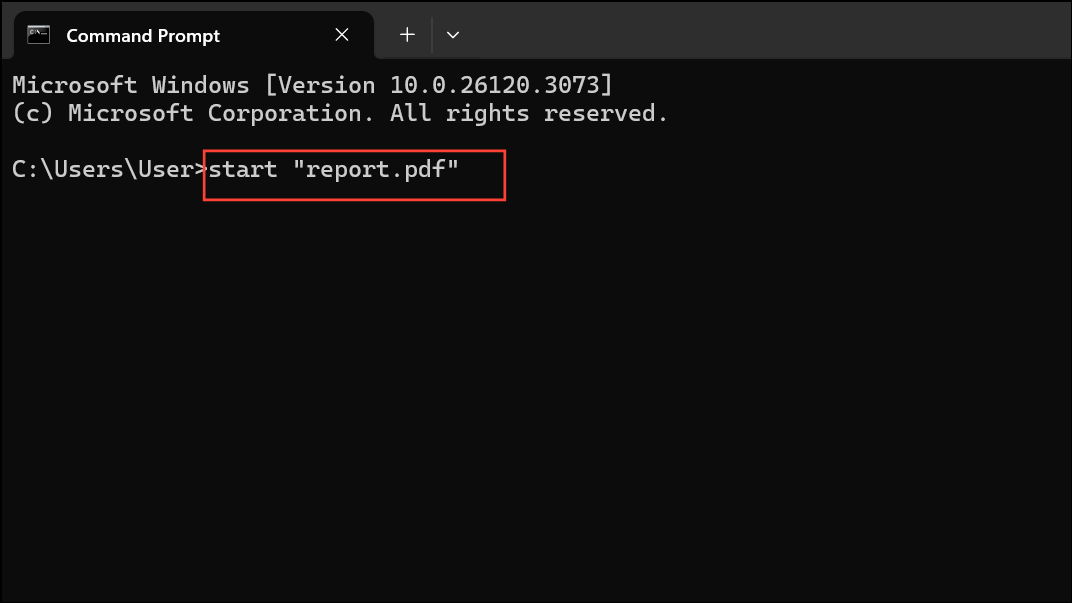
If the file is not in the current directory, provide the full path:
start "C:\Users\YourName\Downloads\summary.xlsx"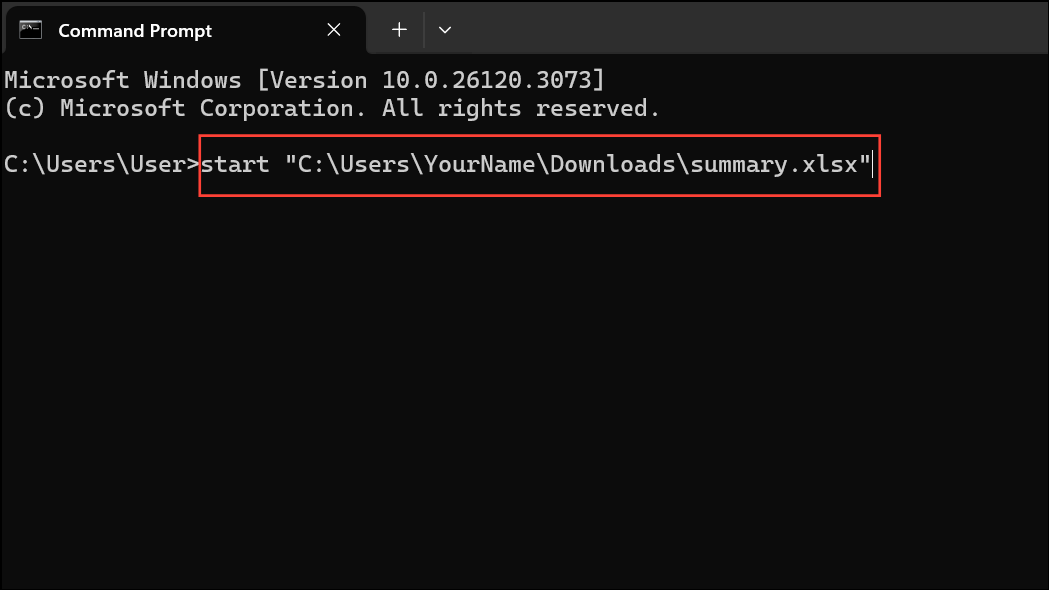
This method works with all file types, provided you have an application associated with the file extension.
Open Folders in File Explorer Using Command Prompt
cd "C:\Users\YourName\Pictures"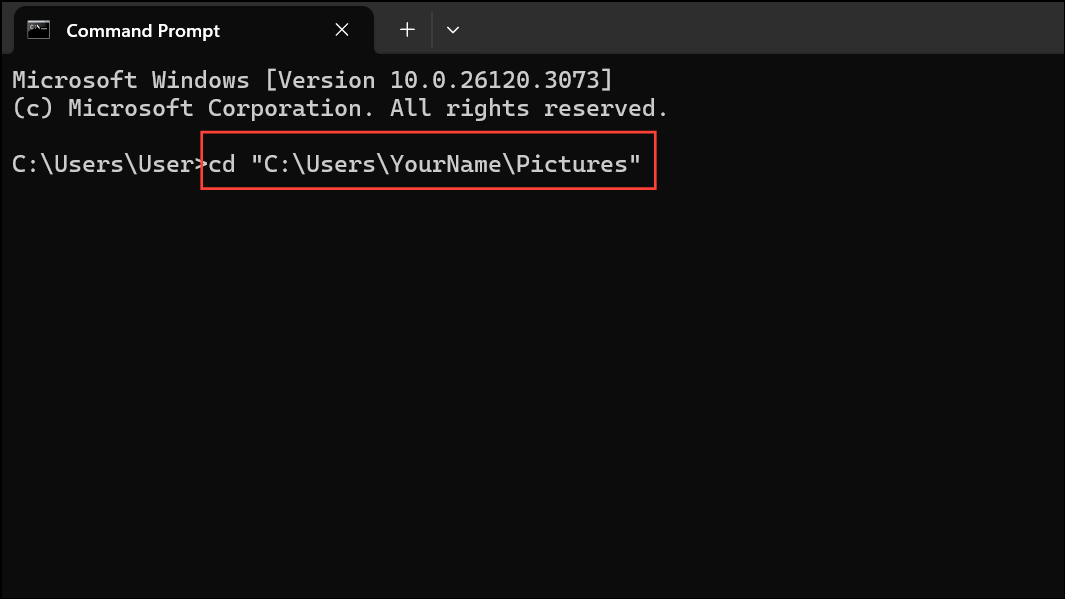
start .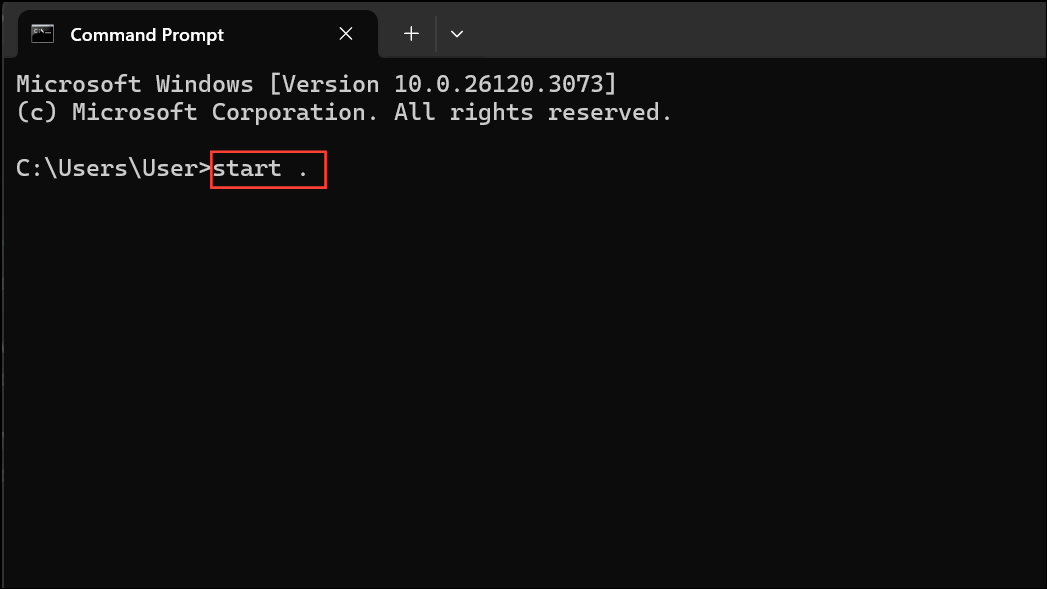
To open a specific folder directly, use the full path after start:
start "C:\Users\YourName\Documents\Invoices"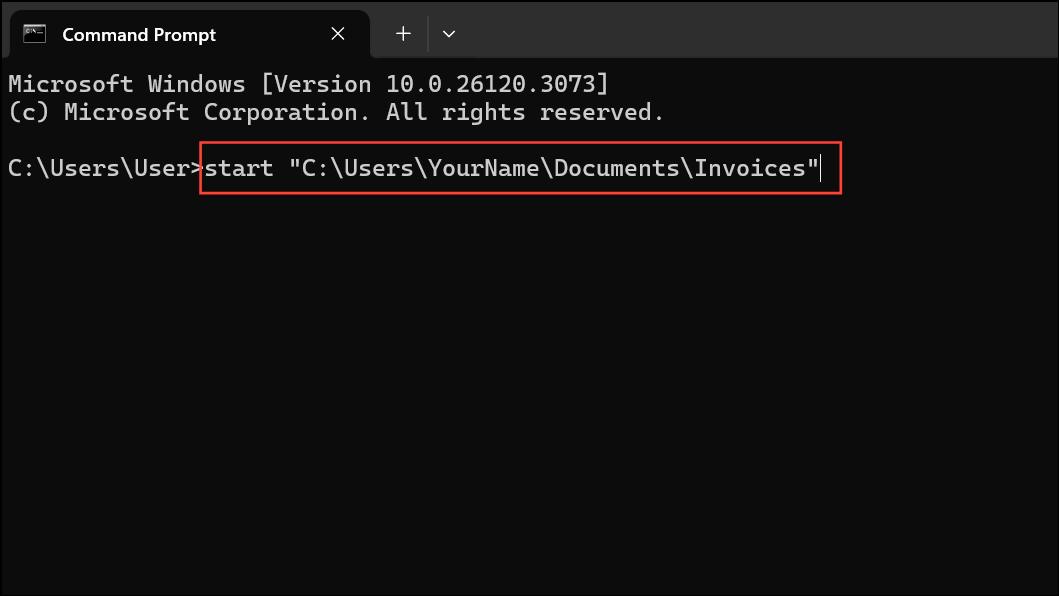
These commands launch File Explorer at the specified location, allowing you to visually browse and manage files.
Open Files with a Specific Application
Sometimes you may want to open a file with a particular program instead of its default application. This is especially useful for file types that can be handled by multiple apps.
"C:\Path\To\Application.exe" "C:\Path\To\Your\File.txt"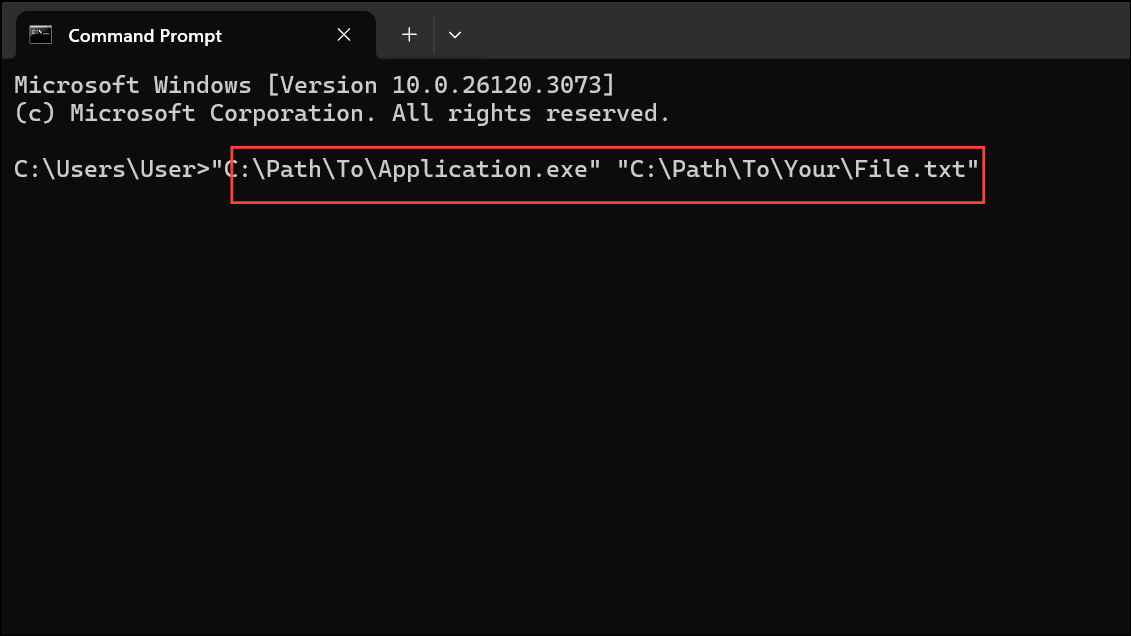
For example, to open an image in Paint:
mspaint "C:\Users\YourName\Pictures\logo.png"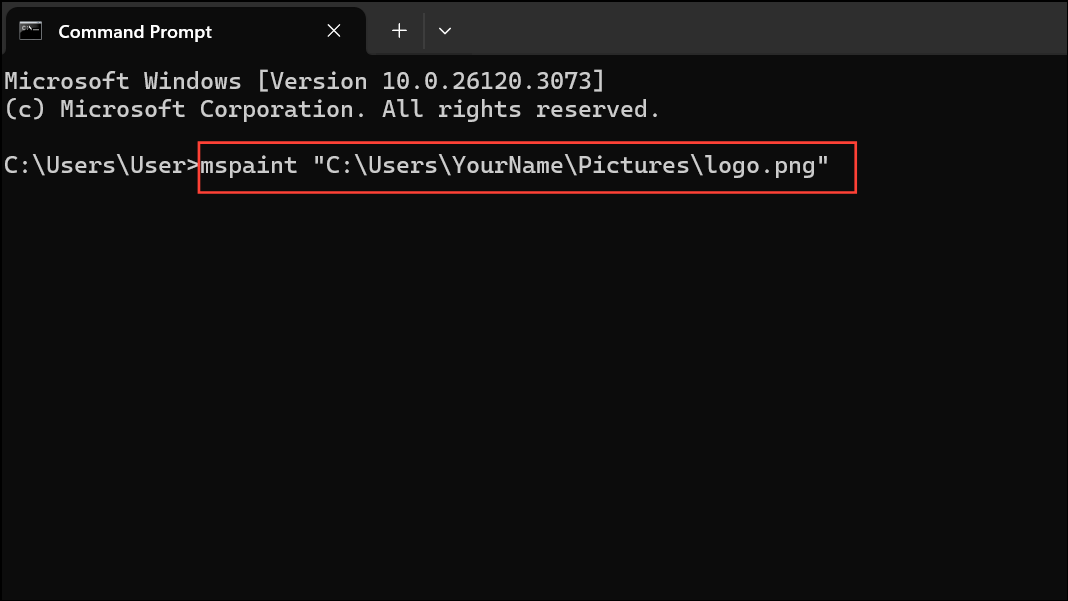
Ensure both the application and file paths are correct and enclosed in double quotes if they contain spaces.
Find Files Before Opening
If you’re unsure of a file’s exact location or name, Command Prompt provides tools to search for it. The dir command lists files and supports wildcards.
cd "C:\Users\YourName\Documents"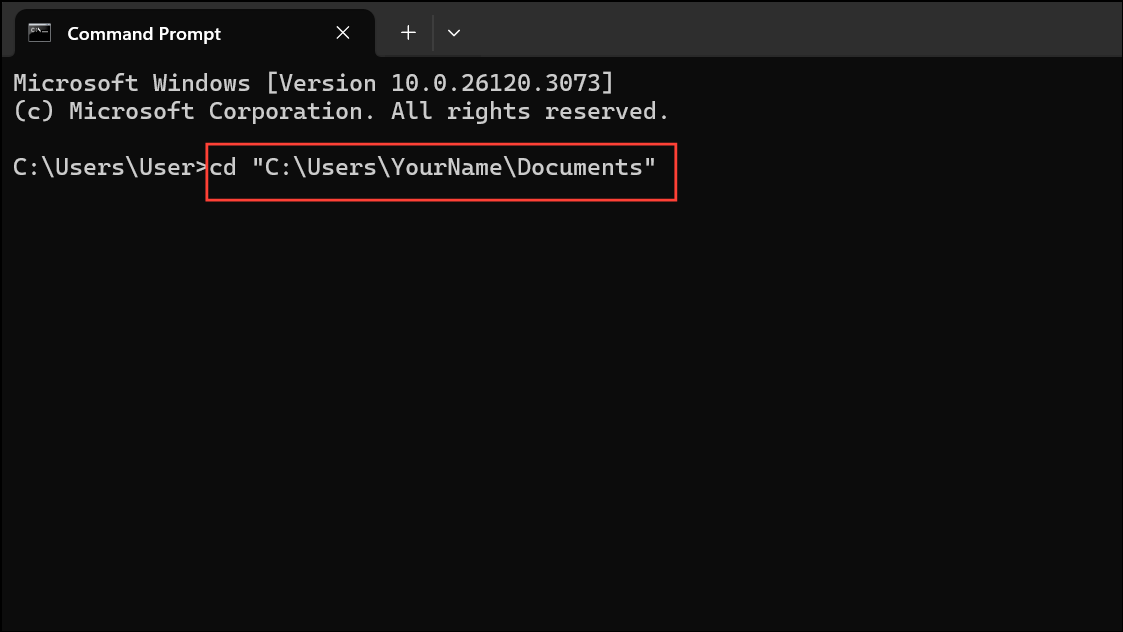
dir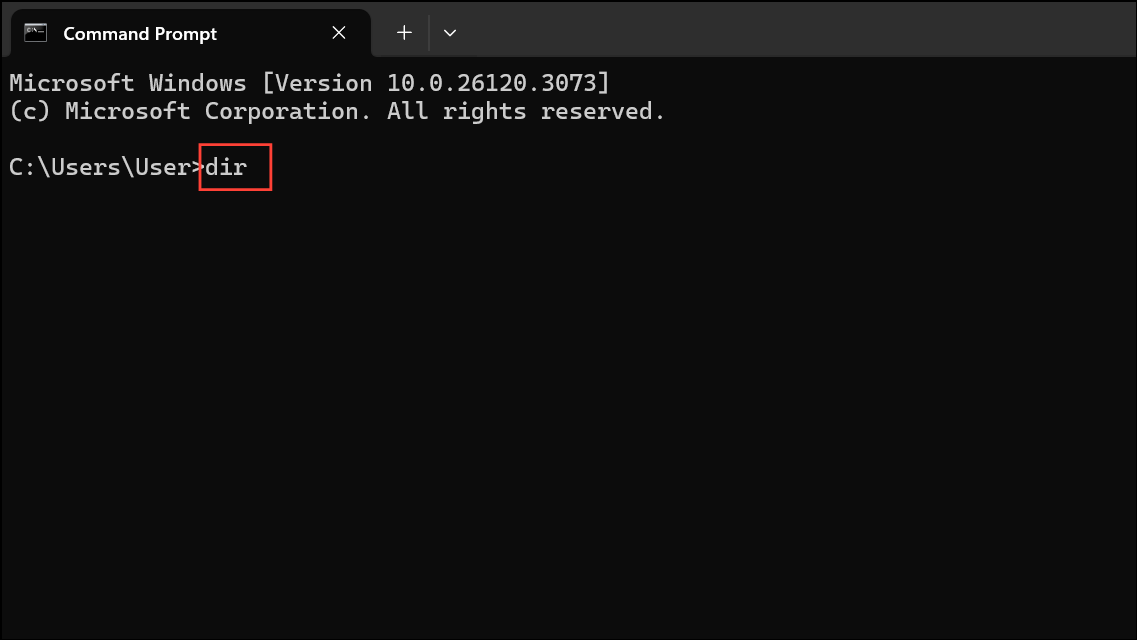
dir *.pdf /s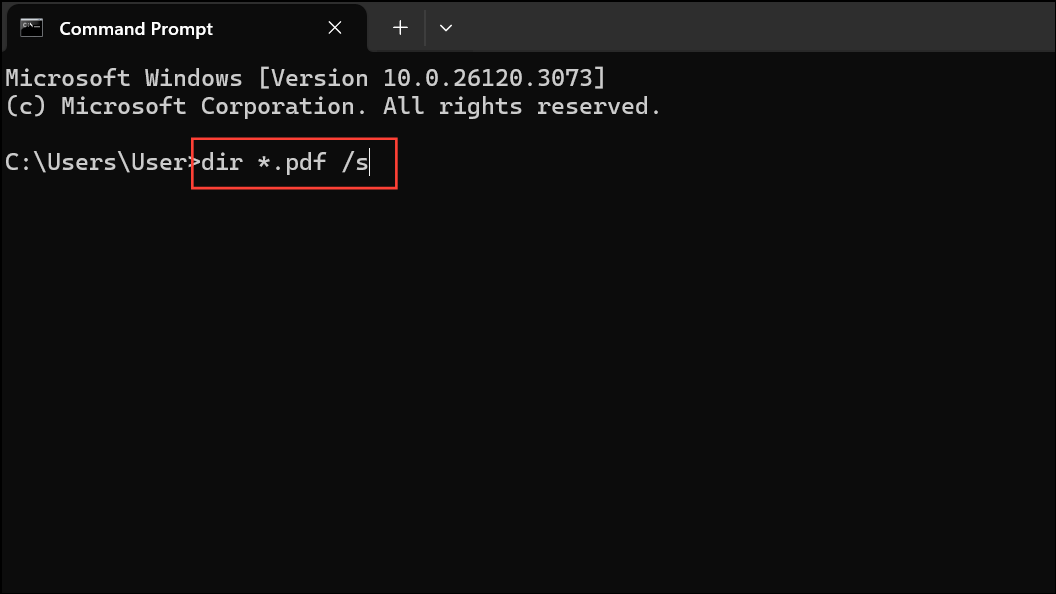
The /s switch searches all subfolders. Once you locate the file, use the earlier methods to open it.
Open Folders or Files Using Windows Terminal or PowerShell
Windows Terminal and PowerShell provide similar capabilities with slightly different commands and added flexibility.
Windows Terminal.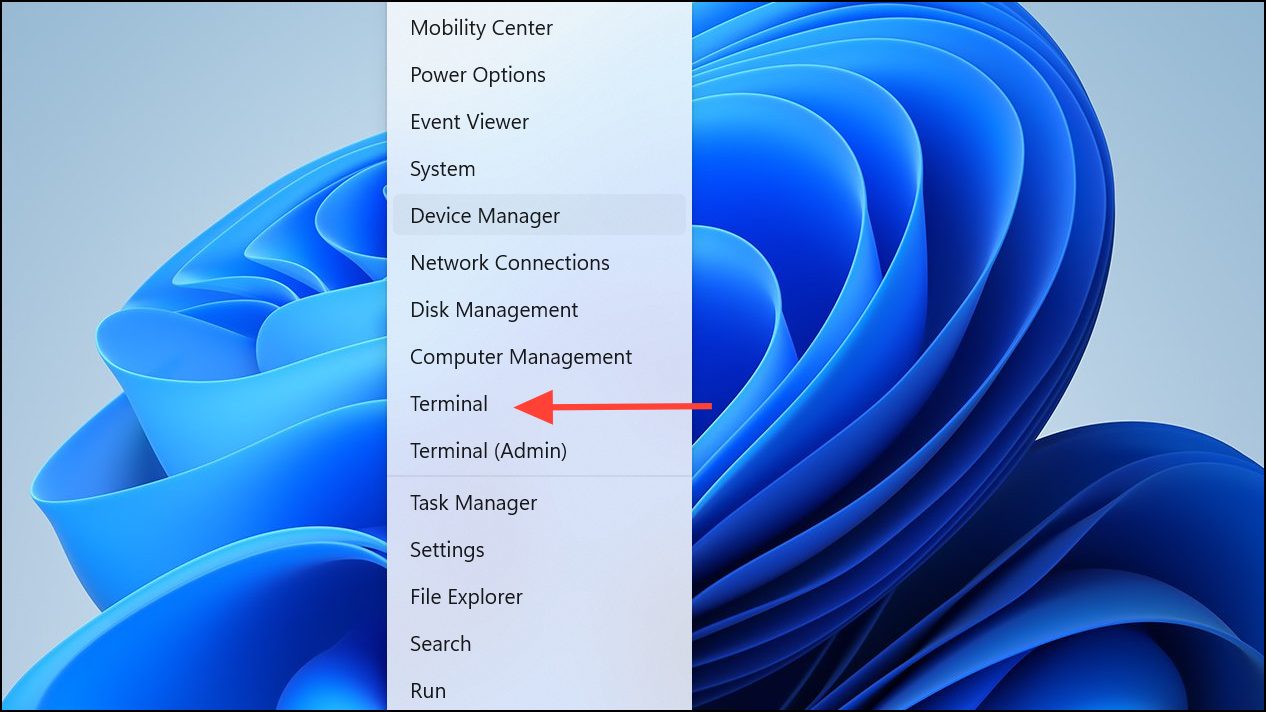
Invoke-Item or its alias ii to open files or folders. For example, to open a folder:ii "C:\Users\YourName\Desktop\Photos"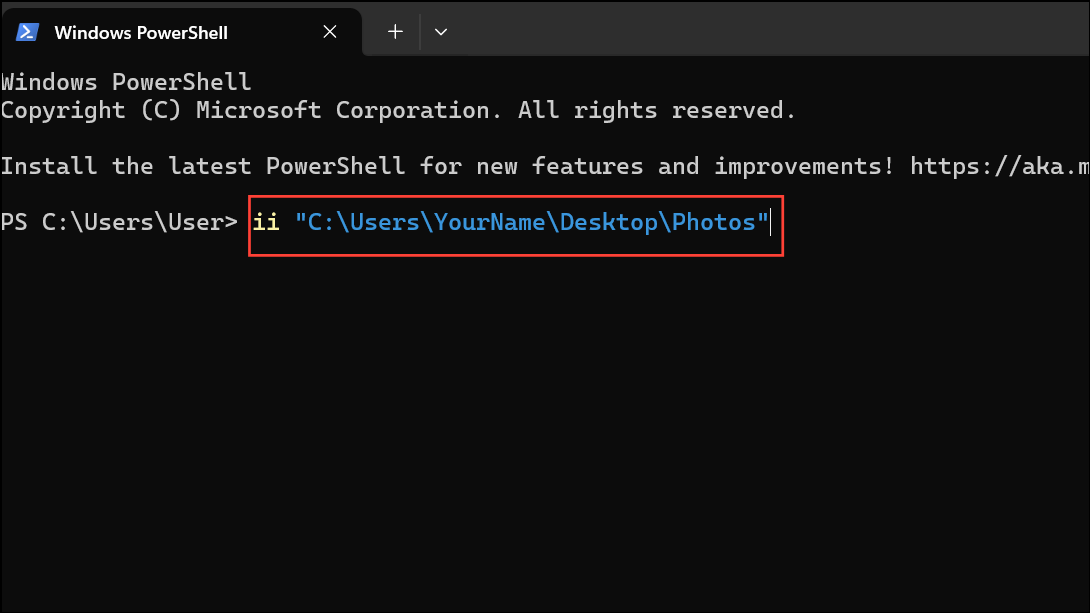
To open a file:
ii "C:\Users\YourName\Documents\summary.docx"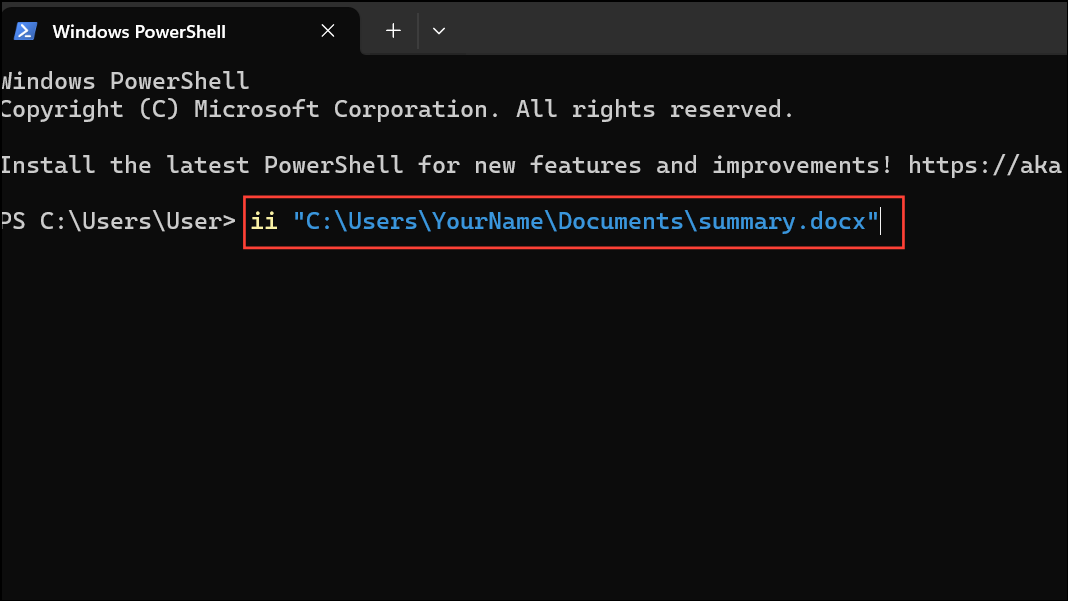
To open the current directory in File Explorer:
ii .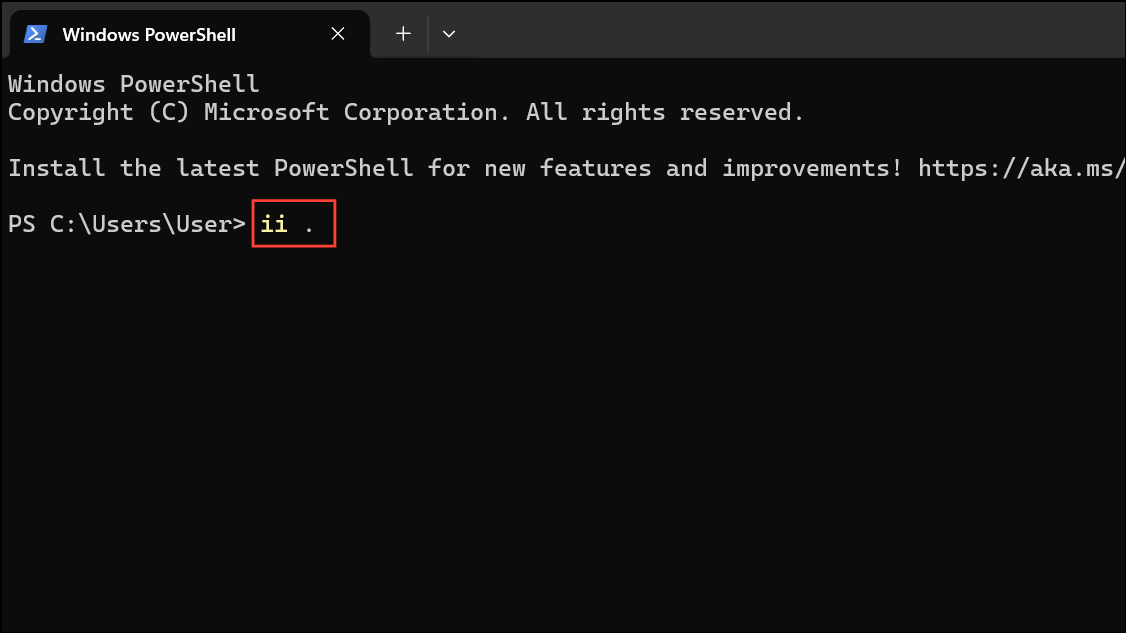
PowerShell automatically uses the default application for the file type.
Additional Tips for Efficient File Access
- Use
help [command]to get information about any command in Command Prompt or PowerShell. - Drag and drop a file or folder into the Command Prompt window to auto-fill its path.
- Use
dir /A:Hto list hidden files in a directory. - Access the command history in Command Prompt by pressing
F7or using the up/down arrow keys. - To copy the full path of a file or folder in File Explorer, right-click and select “Copy as path”.
Opening files and folders using Command Prompt in Windows 11 streamlines file management and supports advanced workflows, saving time and reducing reliance on the graphical interface.



