

Windows 11 includes built-in privacy controls that give you the ability to decide which apps can access sensitive data, such as your text messages. Restricting this access prevents unauthorized apps from reading, sending, or managing your messages, which directly reduces the risk of data leaks or unwanted notifications. Whether you want to block all apps from accessing your texts or just select a few, the following methods provide reliable solutions.
Using Windows 11 Privacy Settings
Windows key + I. This shortcut launches the main configuration panel for your system.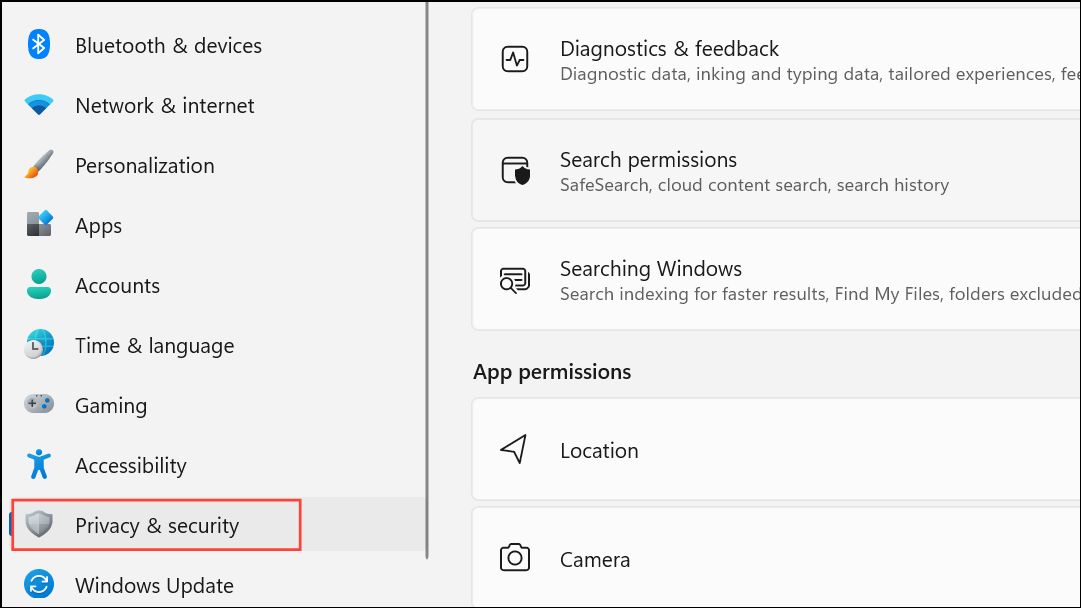
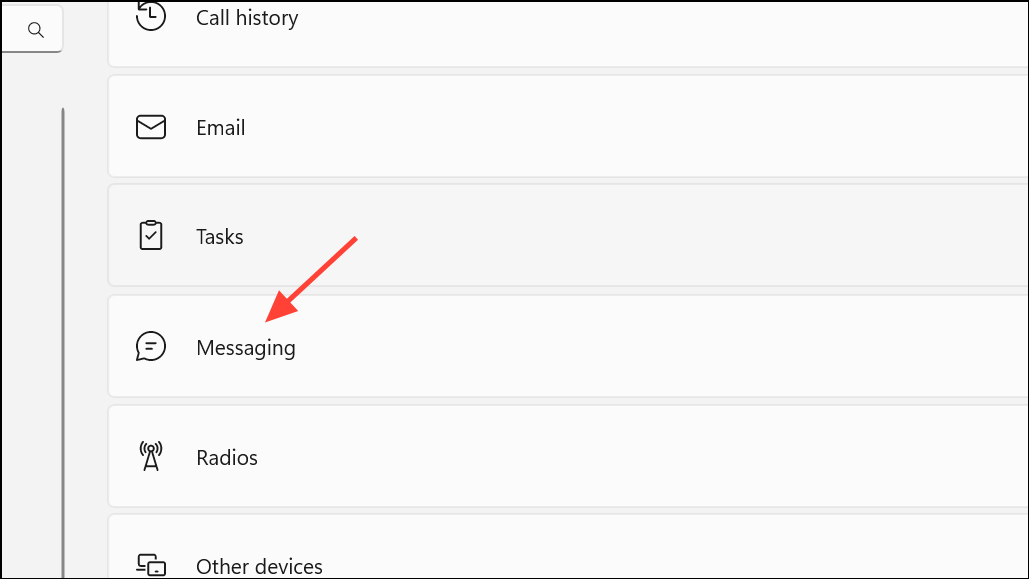
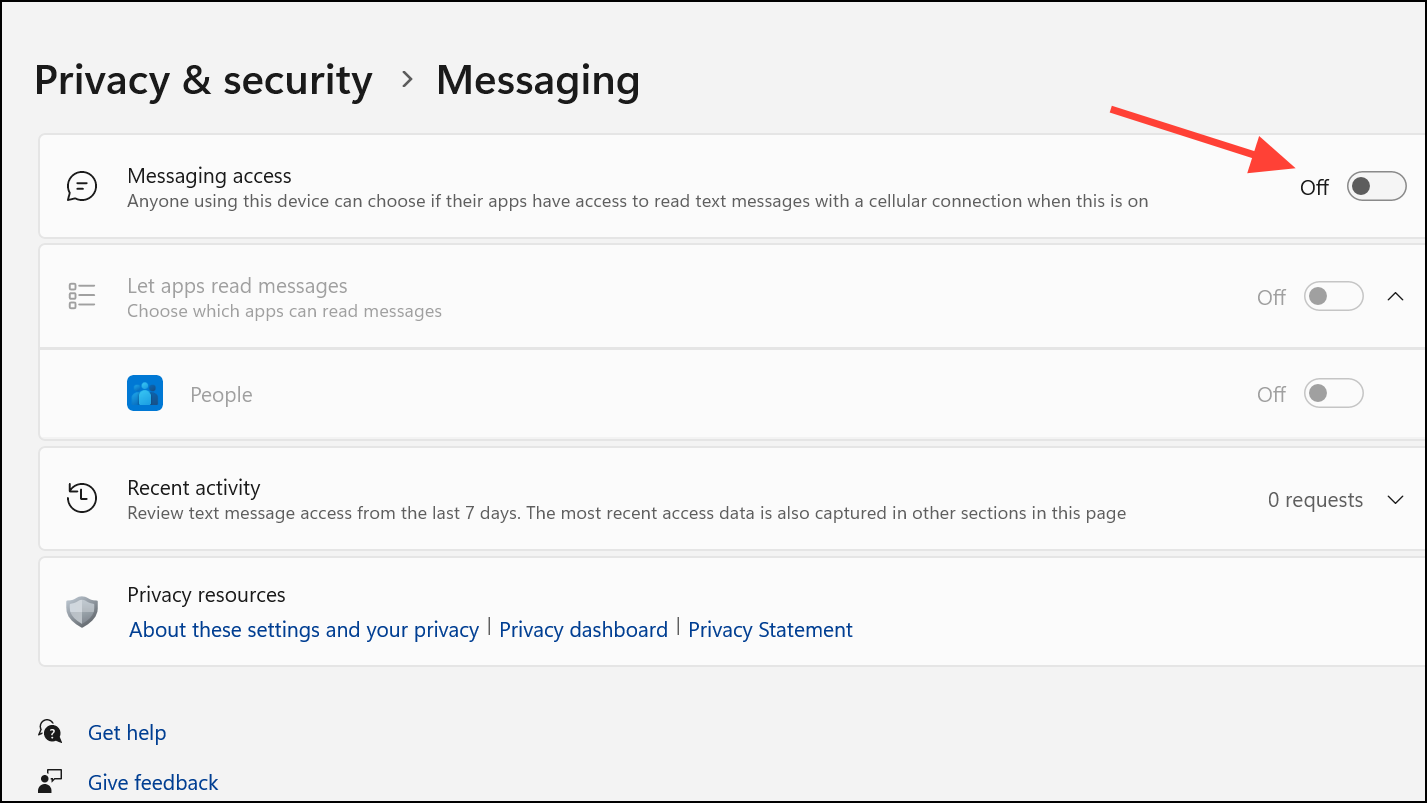
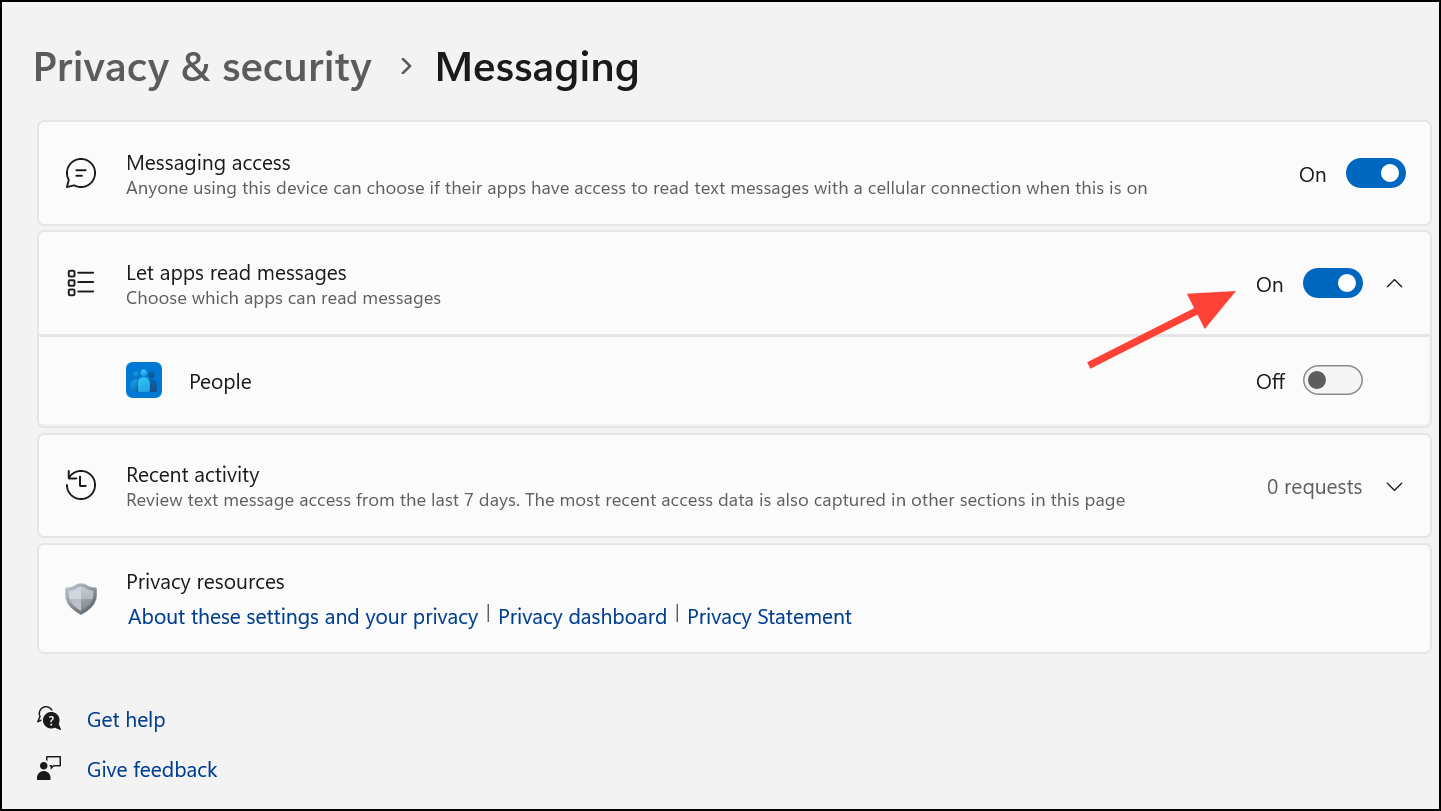
Using these settings, you can quickly revoke message permissions for any app that doesn’t need access, which directly improves your device’s privacy and limits exposure of personal information.
Blocking App Access Using Registry Editor
For users who want to enforce restrictions at a deeper system level, editing the Windows registry can override message access permissions. This method is especially useful if the Settings app doesn’t provide the level of control you require. Caution: Editing the registry can cause system instability if not done correctly. Always back up your registry or create a restore point before proceeding.
Windows key + R to open the Run dialog, then type regedit and press Enter. This command opens the Registry Editor.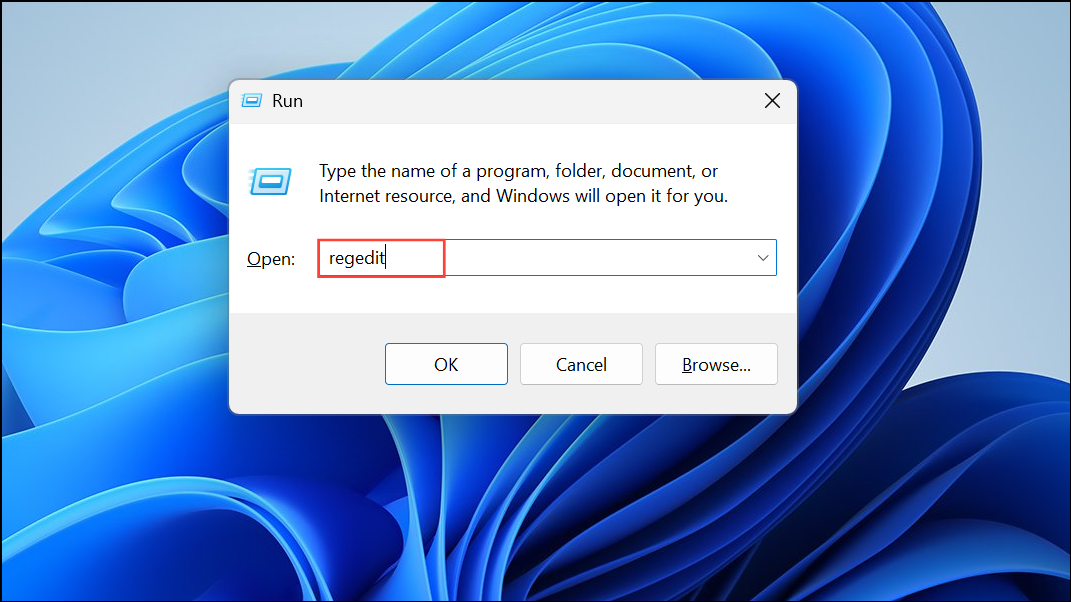
HKEY_LOCAL_MACHINE\SOFTWARE\Microsoft\Windows\CurrentVersion\CapabilityAccessManager\ConsentStore\chat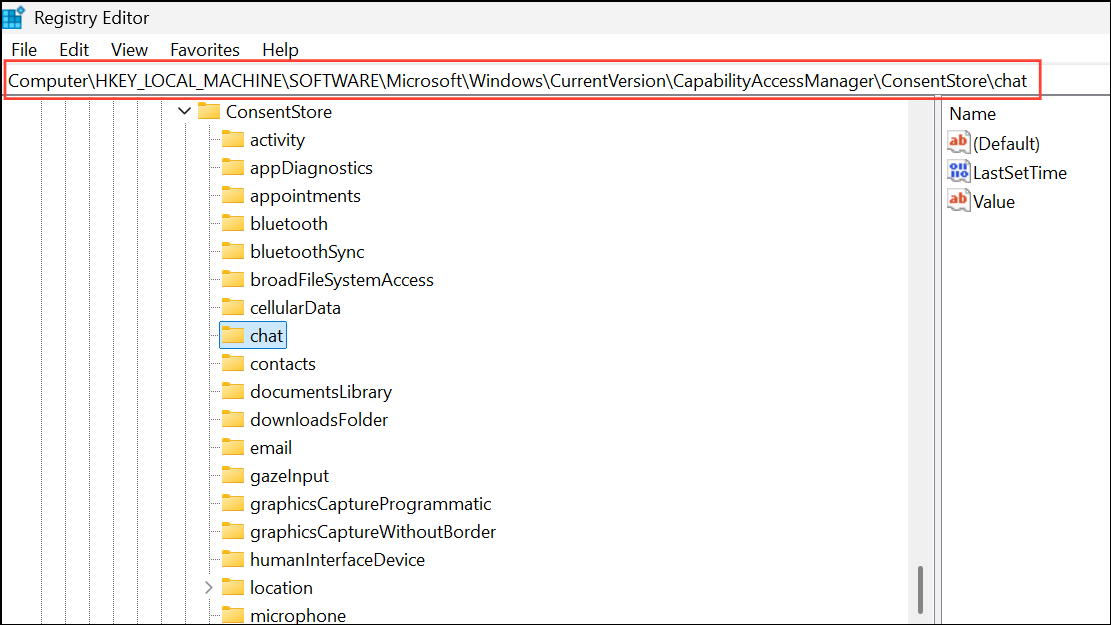
Value or similar). Change the Value data field to Deny to block all apps from reading or sending messages.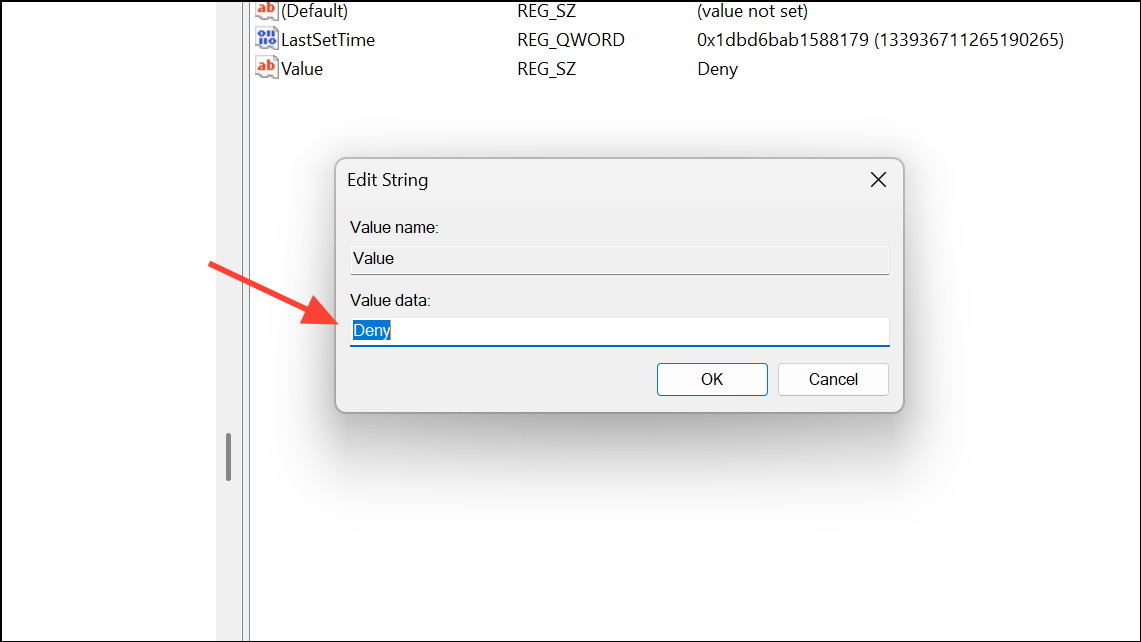
This method is more forceful and can be used if privacy settings are not sufficient or if you need to apply restrictions across all user accounts on the device.
Managing App Permissions for Other Sensitive Data
Besides messaging, Windows 11 allows you to manage app permissions for other data types such as location, camera, microphone, and contacts. To adjust these:
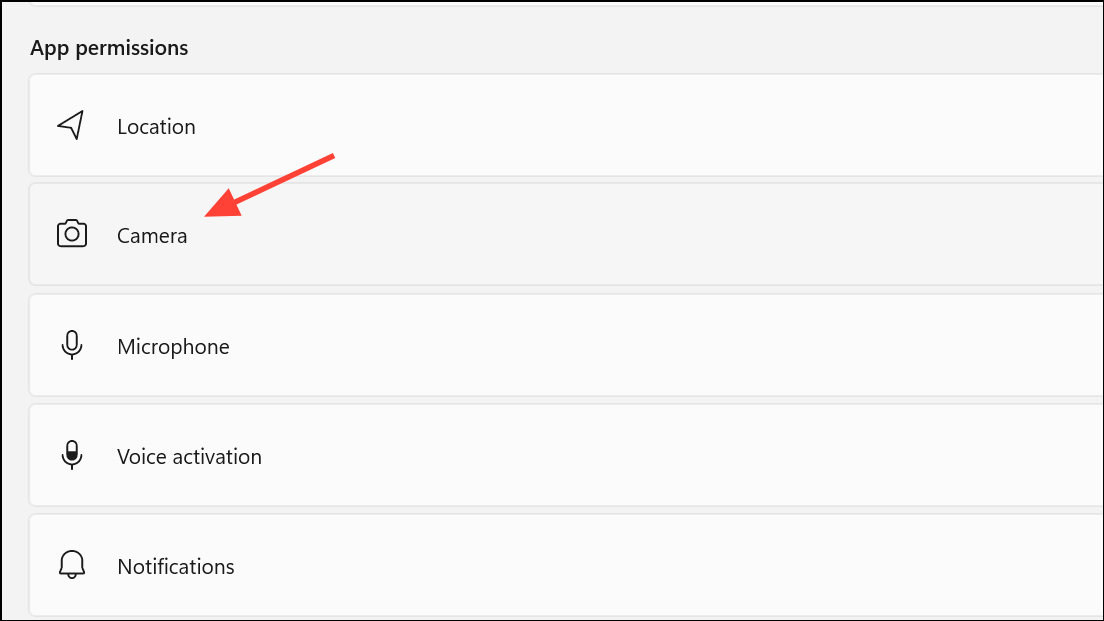
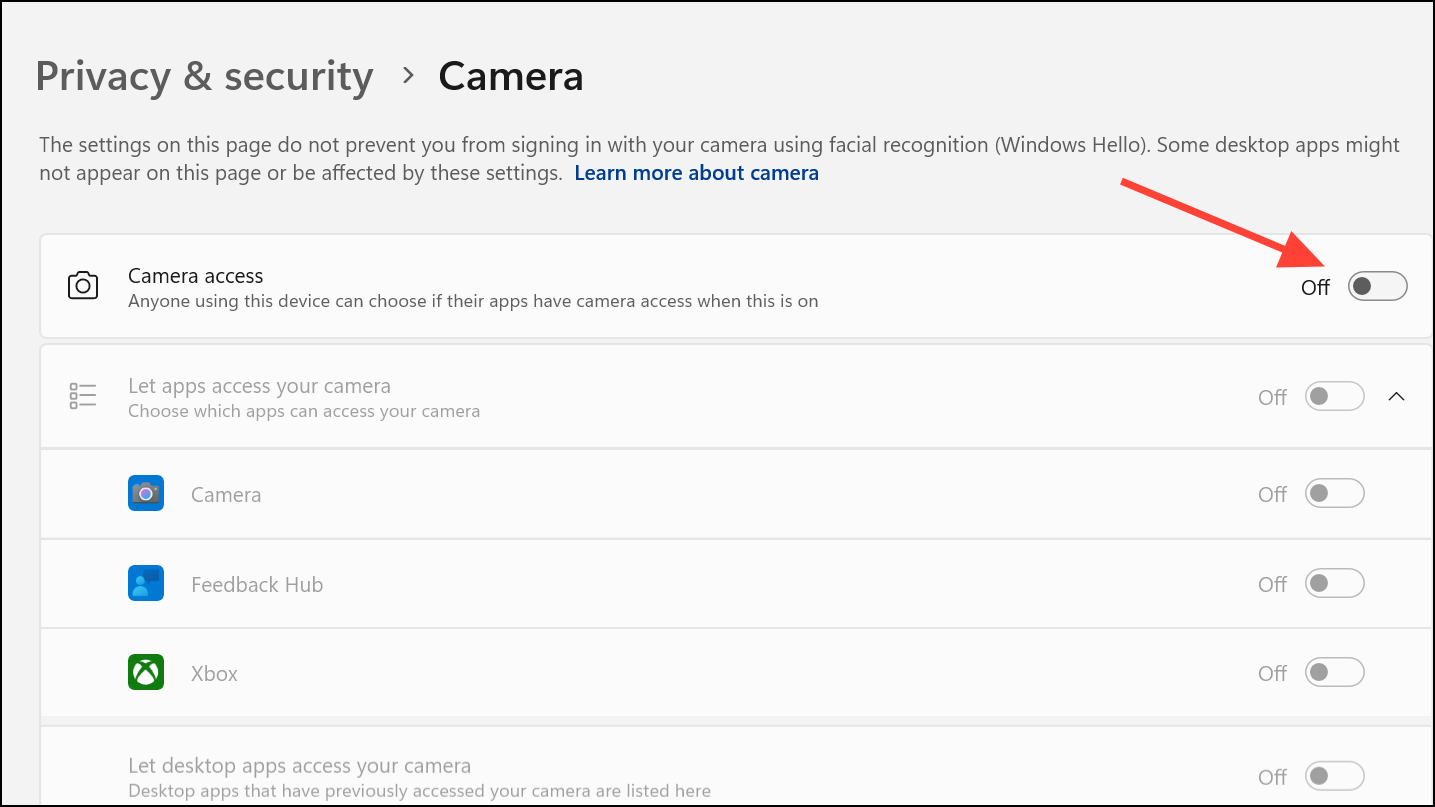
Regularly reviewing these settings ensures that only trusted apps have access to sensitive resources, which reduces the risk of unwanted data collection or misuse.
Restricting App Access With Local Group Policy or AppLocker
For advanced users or administrators managing multiple PCs, Windows 11 Pro and Enterprise editions provide additional controls through Local Group Policy and AppLocker.
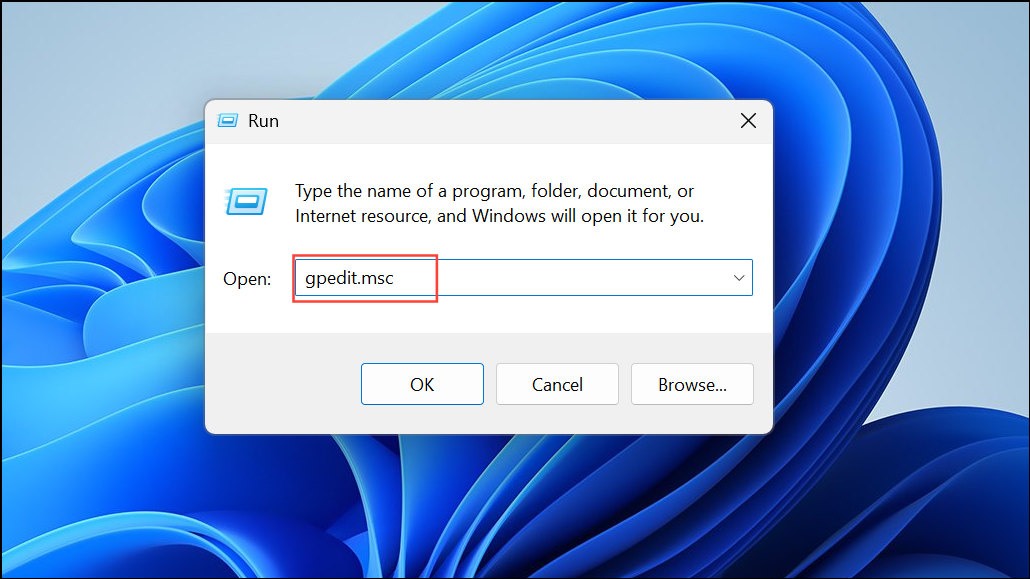
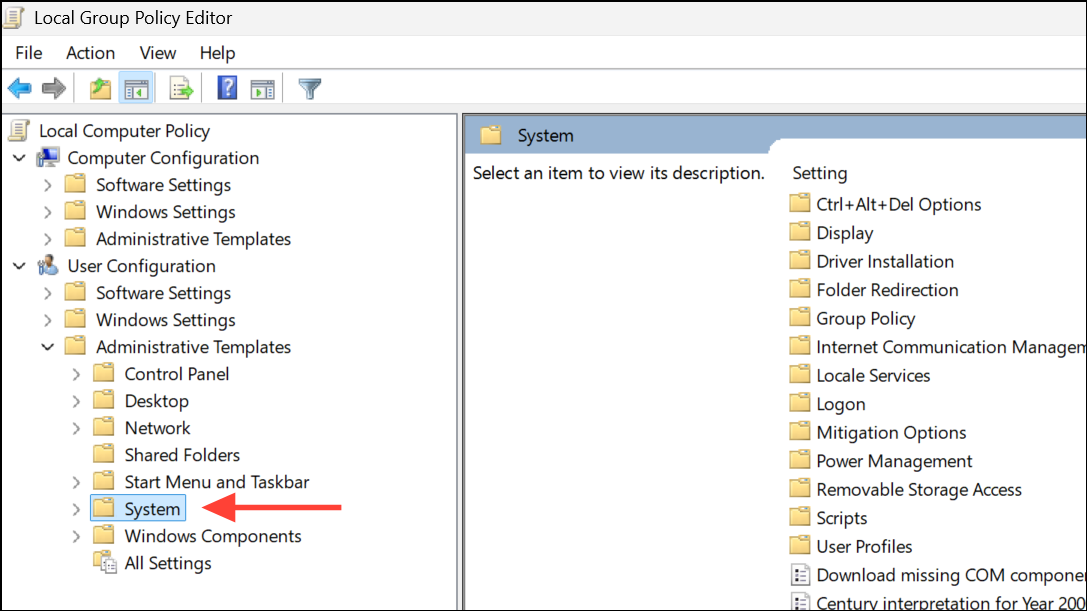
appname.exe) of the apps you wish to block.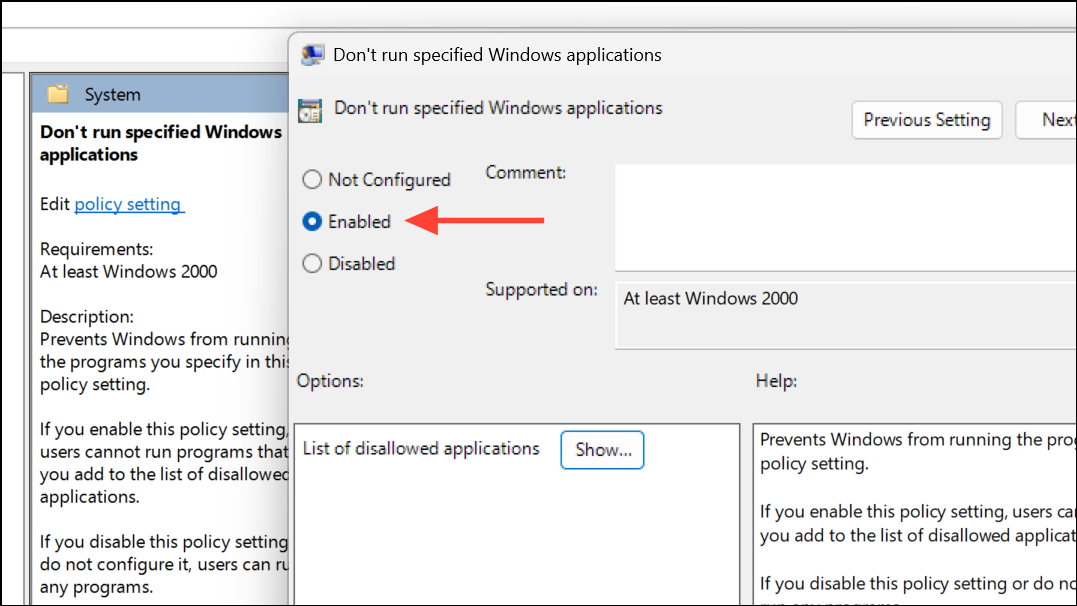
AppLocker offers even more granular control, including the ability to create allow or deny rules for specific users or groups. These tools are particularly effective for organizational devices or shared computers.
Additional Measures: Blocking Notifications and Hiding Apps
If your goal is to reduce distractions rather than restrict data access, Windows 11’s Focus Assist feature can mute notifications from specific apps or during defined periods.
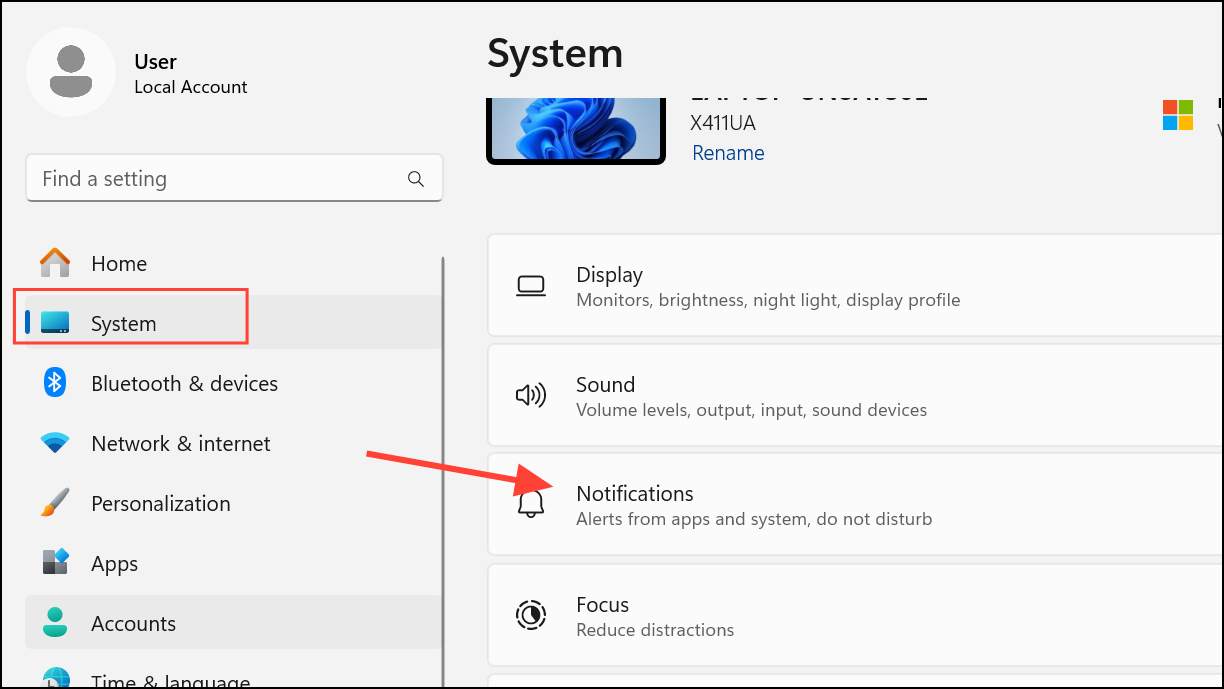
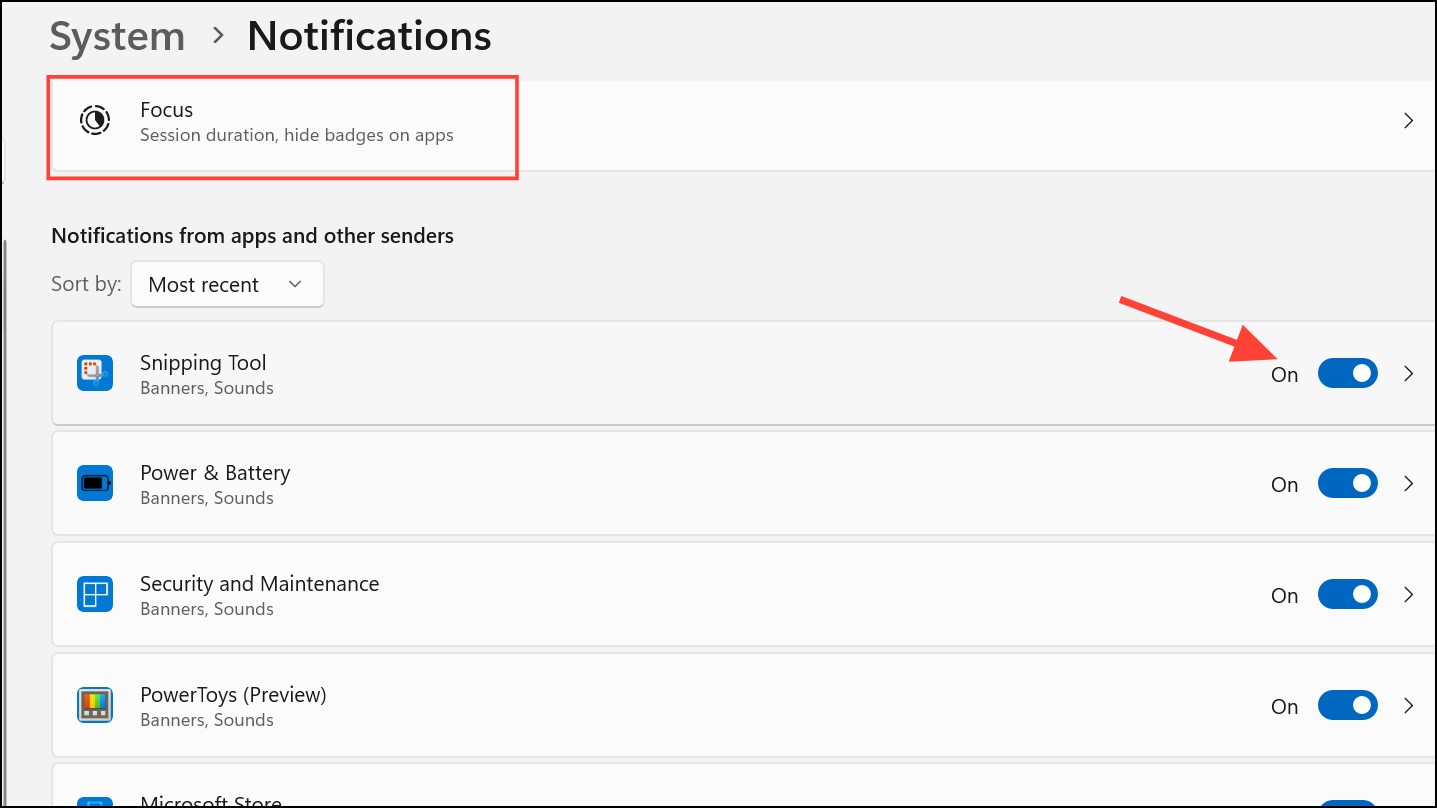
For hiding apps from other users, you can mark executable files as hidden and exclude their folders from Windows Search indexing. However, this approach is less secure, as hidden files can be revealed and accessed by users with sufficient knowledge.
Regularly reviewing and adjusting app permissions in Windows 11 strengthens your privacy and limits the risk of unauthorized access to your messages. Staying proactive with these settings ensures your personal data remains protected.



