Resolve Discord voice connection issues like "No Route," "RTC Connecting," and audio dropouts in Windows 11 with effective troubleshooting for reliable voice chat.
Resolve Discord voice connection issues like “No Route,” “RTC Connecting,” and audio dropouts in Windows 11 with effective troubleshooting for reliable voice chat.
by Pallav Pathak
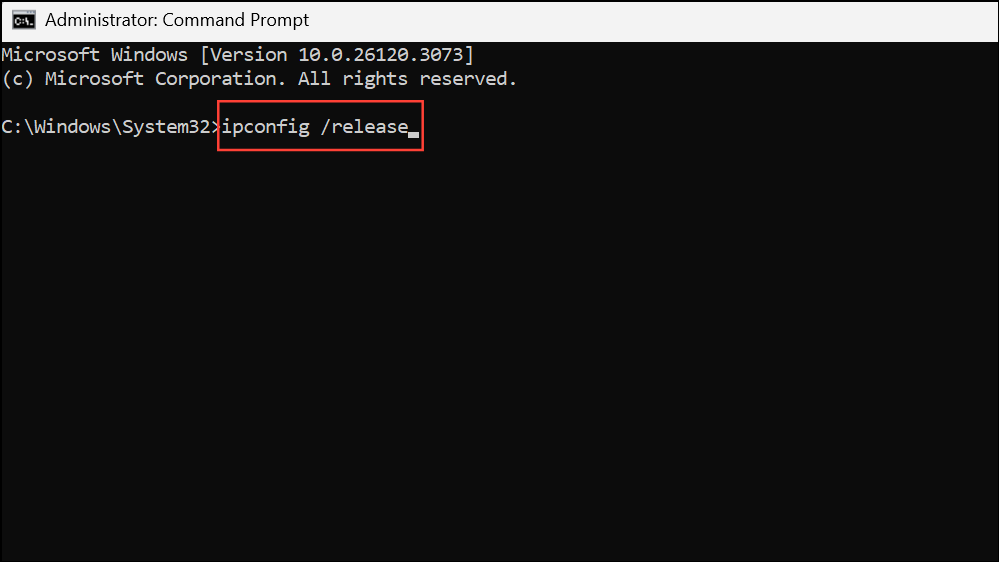
Audio dropouts, “RTC Connecting” stalls, and “No Route” errors in Discord voice channels often stem from network configuration, firewall restrictions, or software conflicts on Windows 11. These issues disrupt real-time communication, making group calls and gaming coordination unreliable until resolved.
Power cycle your modem and router by unplugging their power cables for at least 10 seconds, then plugging them back in. This action clears temporary glitches and resets network routing tables, which can resolve underlying connectivity problems affecting Discord voice chat.
Restart your Windows 11 PC. This refreshes system resources, clears cached network states, and ensures all networking services and drivers initialize correctly. After rebooting, launch Discord and check if voice channels are accessible without errors.
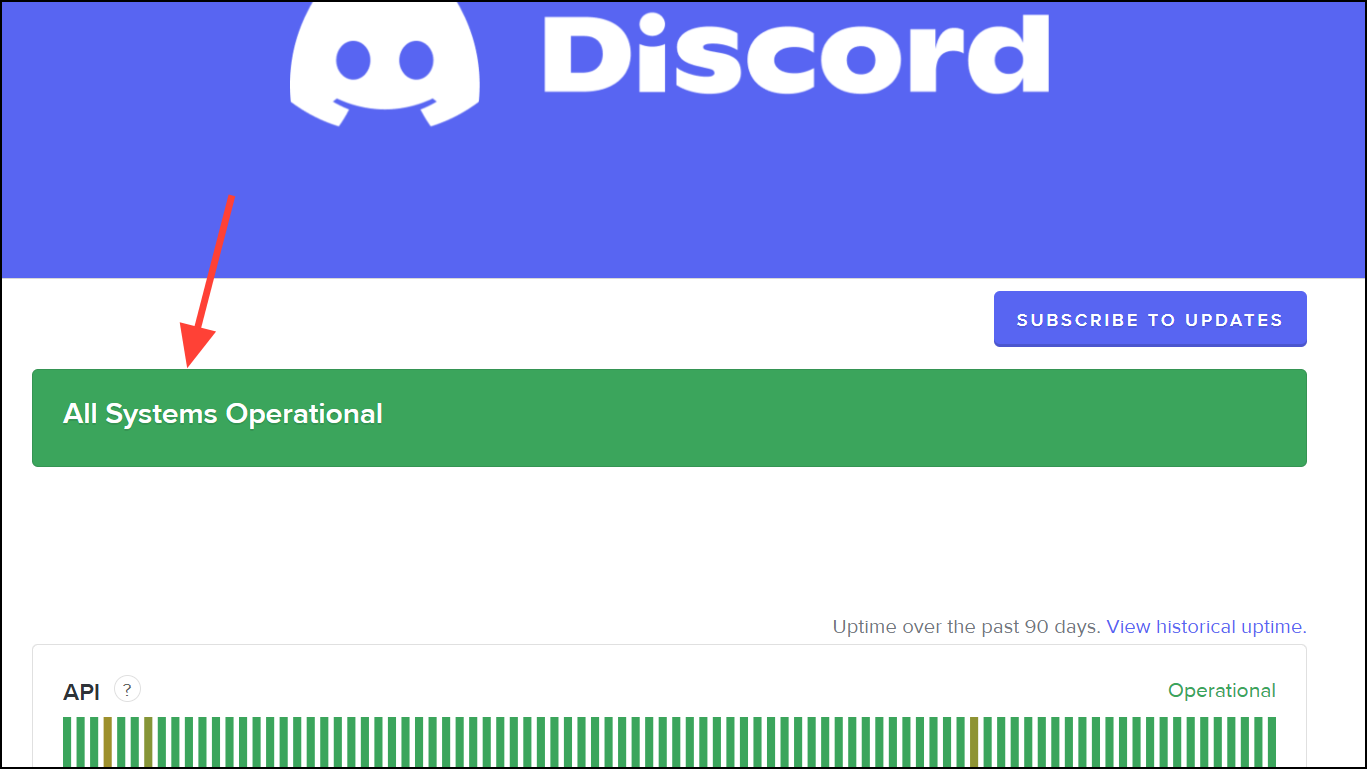
Visit https://discordstatus.com/ to check for active outages or degraded performance in your region. Discord voice errors can result from server-side issues, especially during peak usage or maintenance periods.
If the status page shows ongoing problems, wait for Discord’s engineers to resolve them before troubleshooting further. If all systems are operational, continue with local troubleshooting steps.
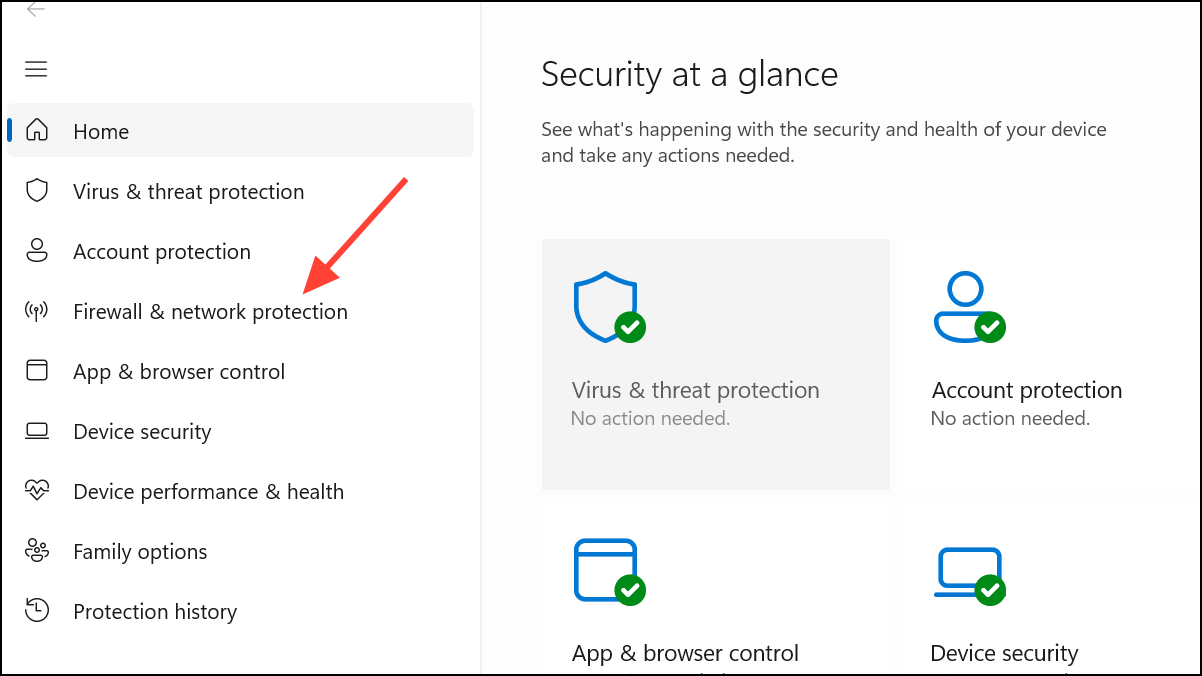
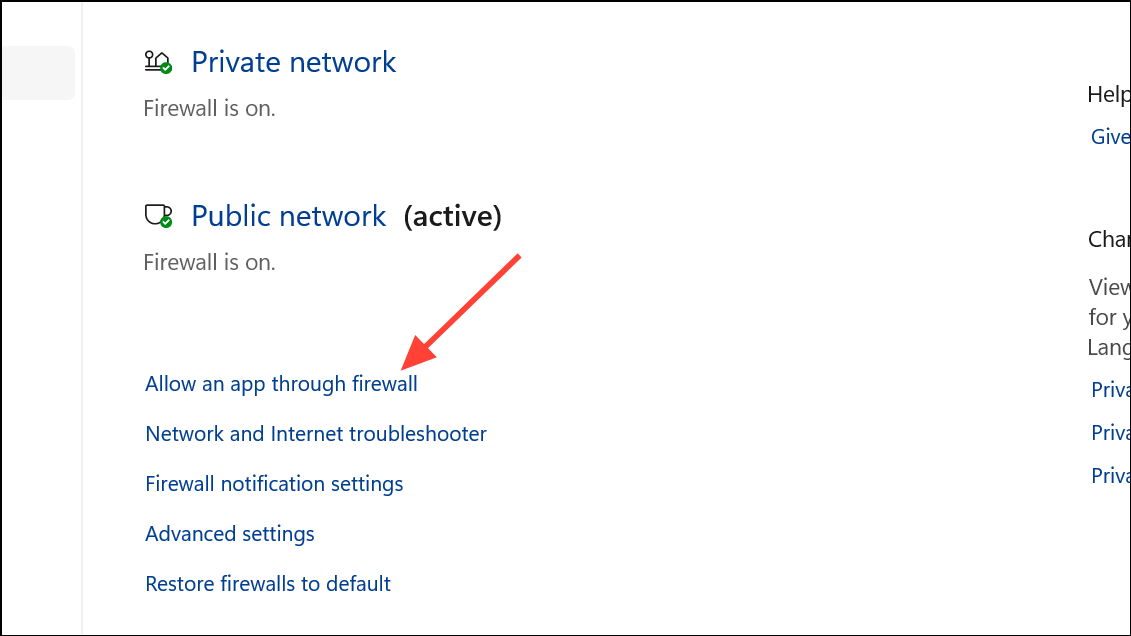
If you use third-party antivirus software, open its dashboard and either temporarily disable its firewall or explicitly whitelist Discord. Some security tools block UDP traffic required for Discord voice channels, resulting in persistent connection errors.
Disconnect from your VPN if you are currently using one. Discord voice relies on UDP, which some VPNs do not support, causing connection failures or voice lag.
If using a VPN is essential, ensure it supports UDP traffic. Check your VPN’s documentation or settings for a UDP mode and enable it. If issues persist, try switching to a different VPN provider known for reliable UDP support.
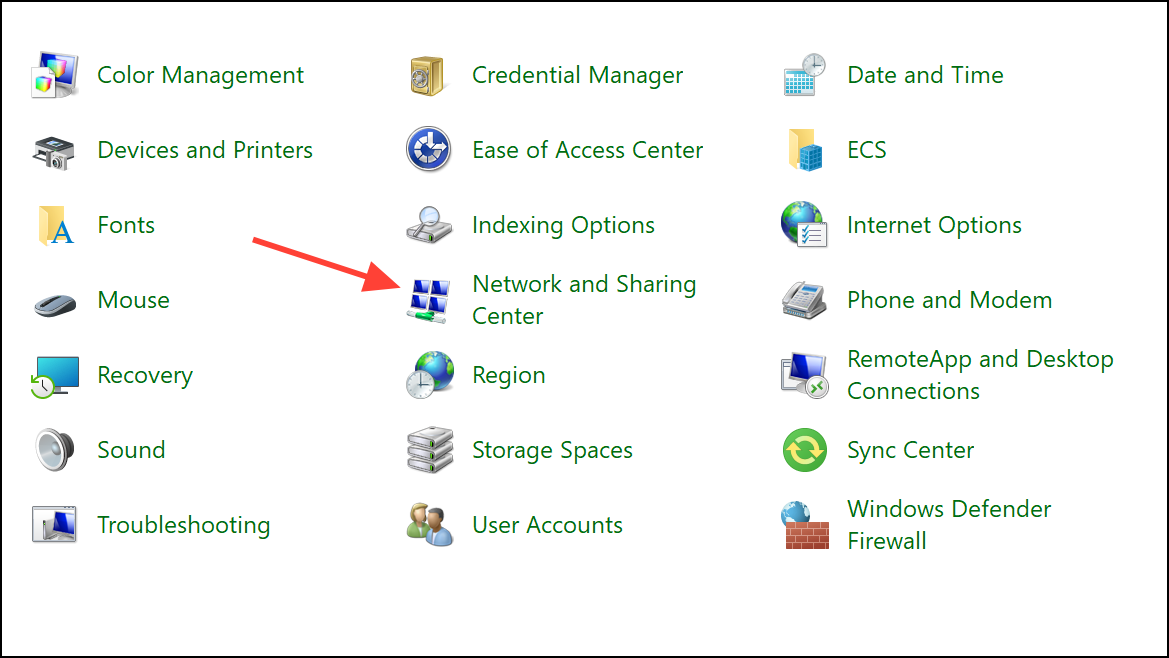
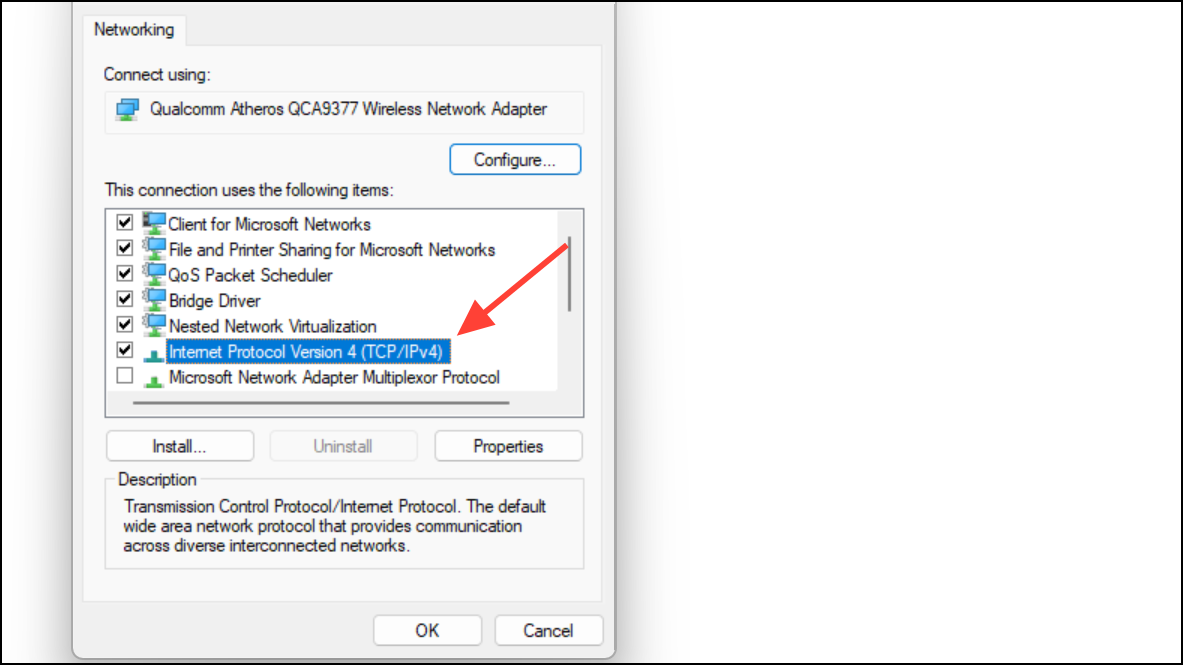
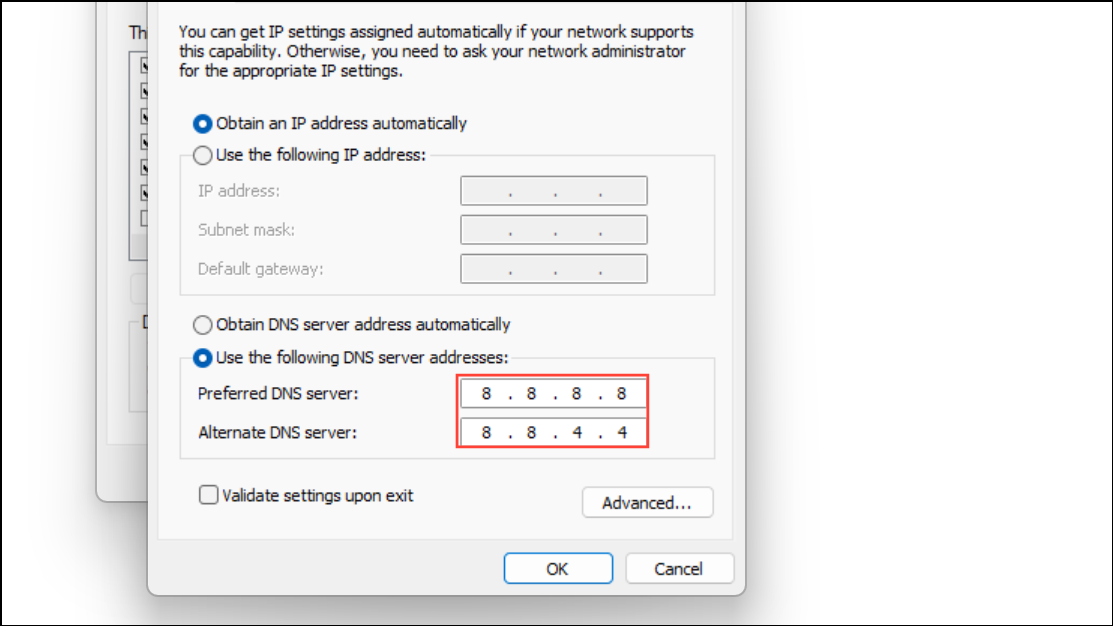
Choose Use the following DNS server addresses and enter 8.8.8.8 for Preferred DNS and 8.8.4.4 for Alternate DNS (Google DNS). Click OK and restart your PC. This change can resolve routing issues that block Discord from reaching its voice servers.
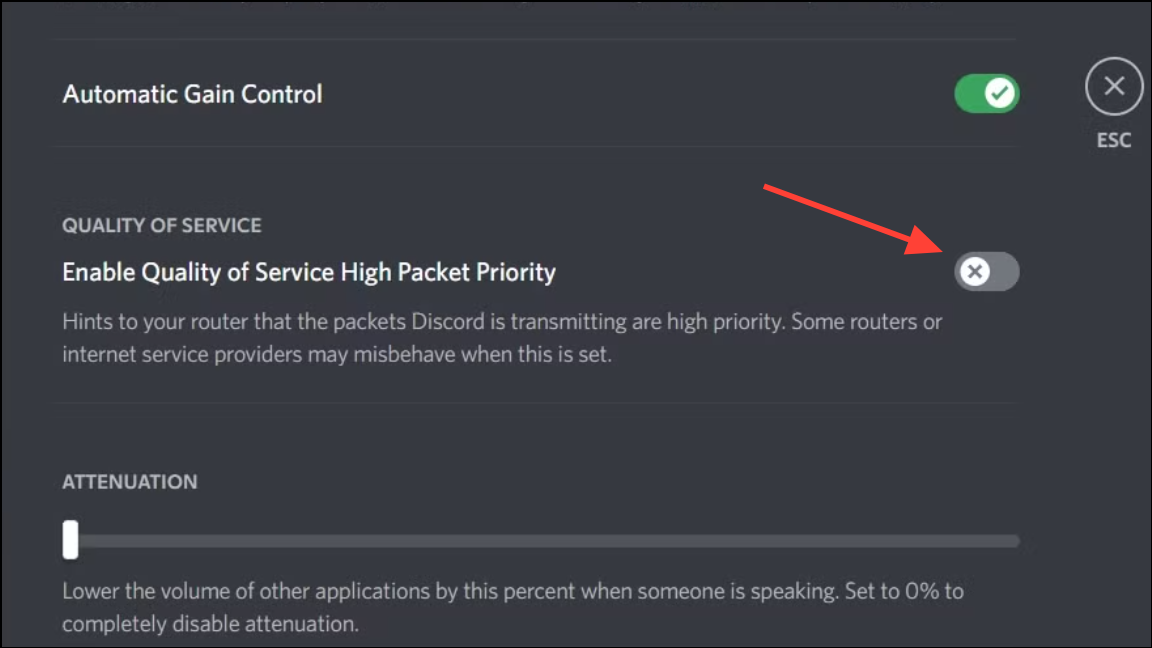
Scroll down to the Quality of Service section and toggle off Enable Quality of Service High Packet Priority. Some networks or ISPs mishandle QoS packets, causing voice drops or connection stalls.
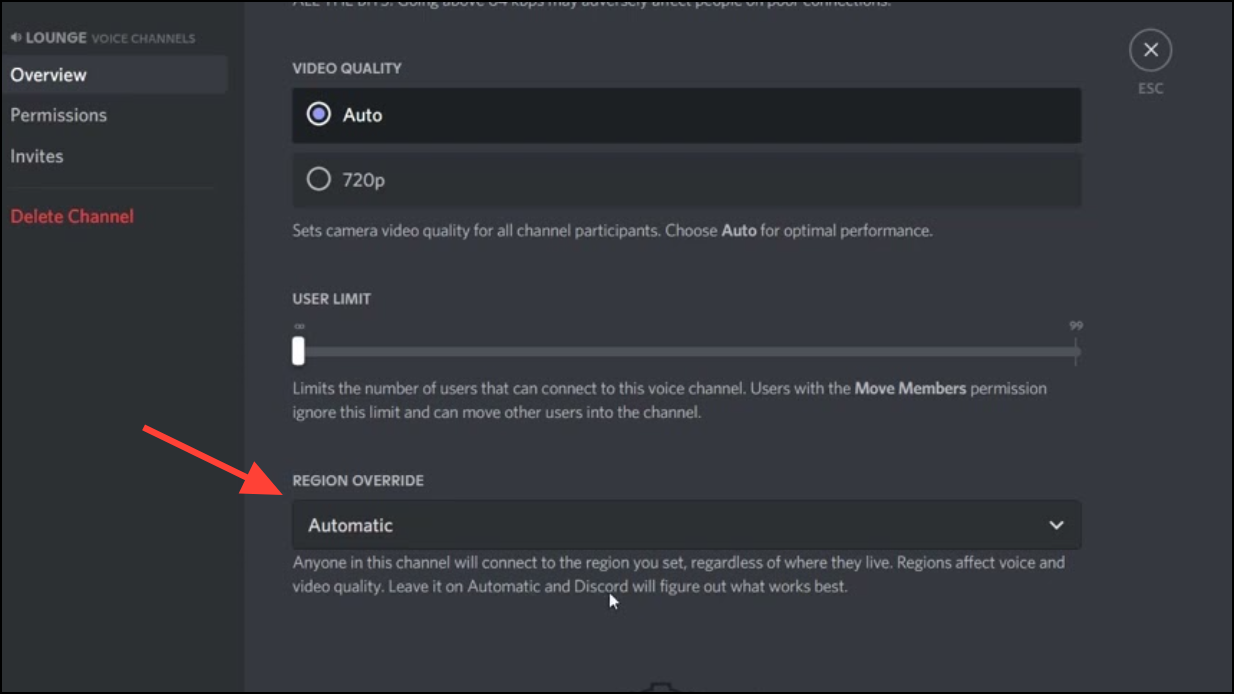
Choose a different region closer to your location or your group’s majority. This adjustment can reduce latency and resolve “No Route” or “RTC Connecting” errors tied to regional server congestion or routing faults.
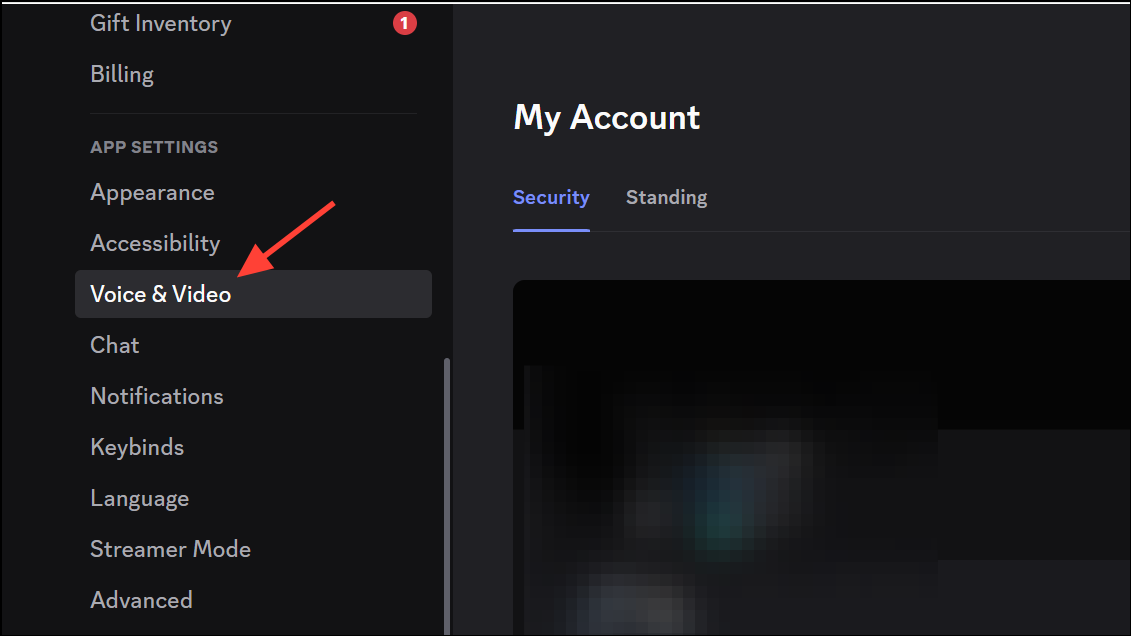
This action restores all voice-related configurations to default, correcting any accidental misconfigurations that block audio input, output, or network access.
Press Ctrl + R in Discord to force a manual update. If issues persist, uninstall Discord via Settings > Apps > Installed Apps, then download and install the latest version from the official website.
If the desktop app continues to fail, open Discord Web in Chrome or Firefox. Log in and join a voice channel. If voice works in the browser, the issue is isolated to the desktop client or its configuration.
Alternatively, try Discord on a different device connected to the same network. This test helps determine if the problem is local to your Windows 11 installation or a broader network issue.
If none of the above steps resolve the issue, gather diagnostic logs. Download the Discord PTB or Canary client, replicate the error, and press Ctrl + Shift + i to open Developer Tools. Click the Console tab and take a screenshot of any error messages.
Submit a request to Discord Support, attaching your logs and a detailed description of the troubleshooting steps you’ve already tried.
Applying these targeted fixes restores stable Discord voice chat on Windows 11, allowing for uninterrupted calls and clear audio in gaming or community channels. If issues persist, hardware or ISP-level troubleshooting may be necessary.