

Error 0x80071AC3 appears in Windows 11 when the system cannot read or write files on a disk, often displaying the message: Error 0x80071AC3: The operation could not be completed because the volume is dirty. Please run chkdsk and try again. This problem disrupts file transfers and can affect external drives, USB sticks, SD cards, and sometimes even internal hard disks or SSDs. The root cause is usually file system corruption, bad sectors, write protection, or interference from features like ReadyBoost. Addressing this error restores normal access to your data and prevents further corruption.
Check and Repair Disk Errors with CHKDSK
Start menu, search for Command Prompt, right-click it, and select Run as administrator. This provides the necessary permissions to repair file system issues.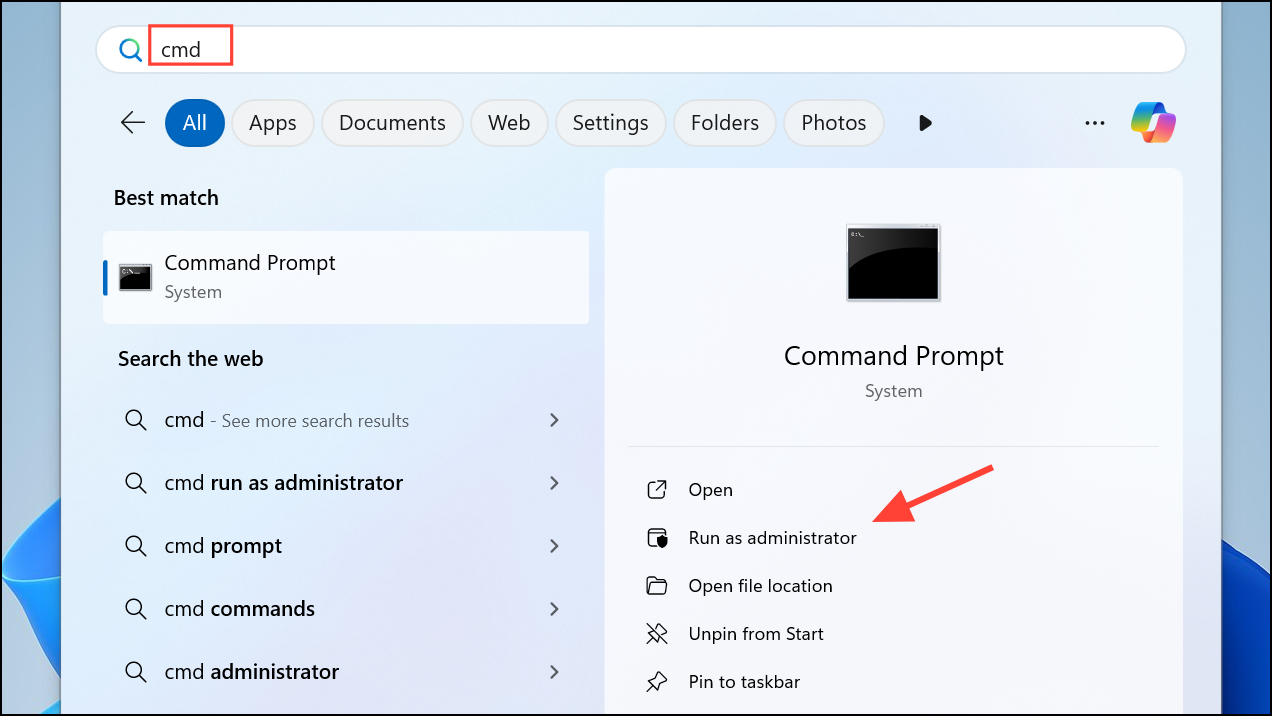
chkdsk X: /f /r (replace X with the letter of the affected drive) and press Enter. The /f flag fixes detected errors, while /r locates and attempts to recover data from bad sectors.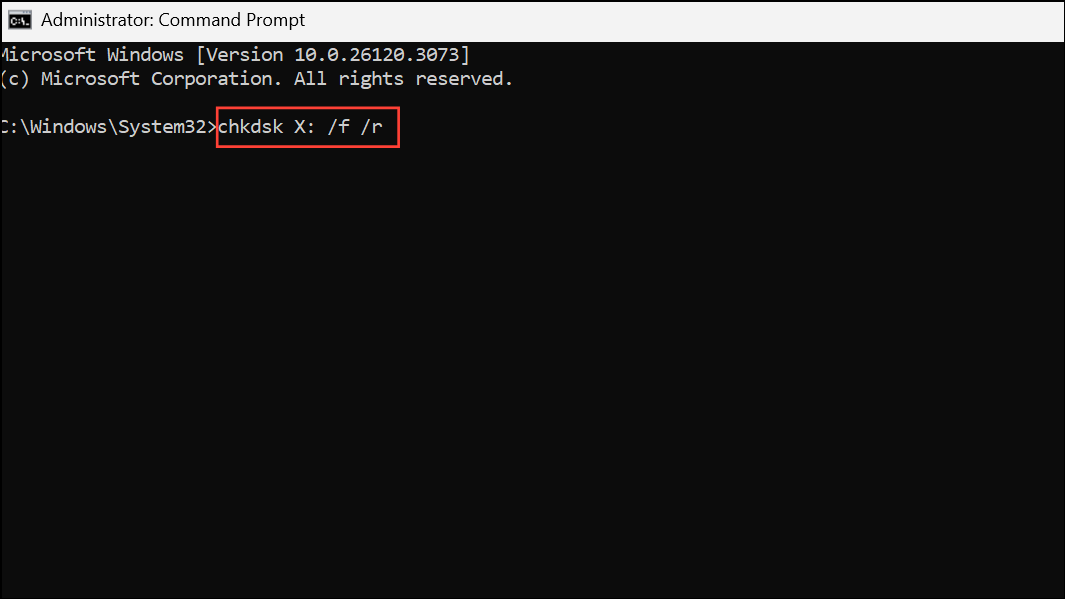
Y and restart your computer. For external drives, the scan runs immediately.Disable ReadyBoost on Removable Drives
ReadyBoost is a Windows feature that uses external storage devices as a cache to speed up system performance. However, it can sometimes interfere with file operations and trigger error 0x80071AC3.
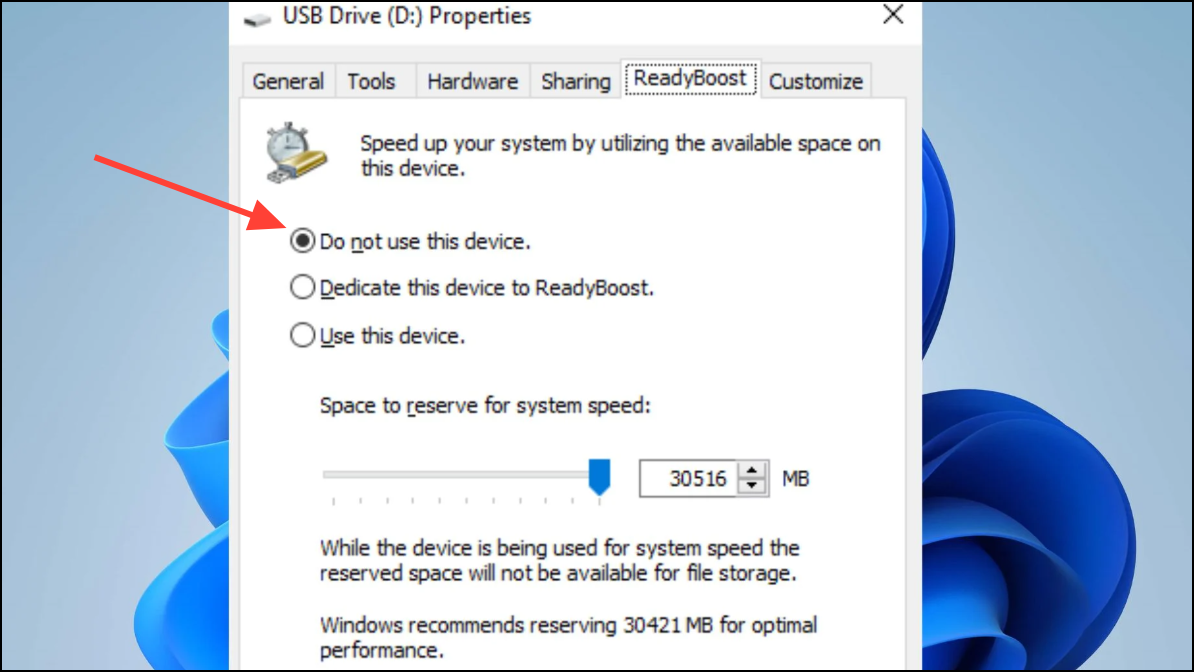
Apply and then OK to save your changes. Safely eject and reconnect the drive, then check if the error persists.Reinstall or Update Device Drivers
Corrupted or outdated device drivers can prevent Windows 11 from communicating properly with your storage devices, resulting in error 0x80071AC3.
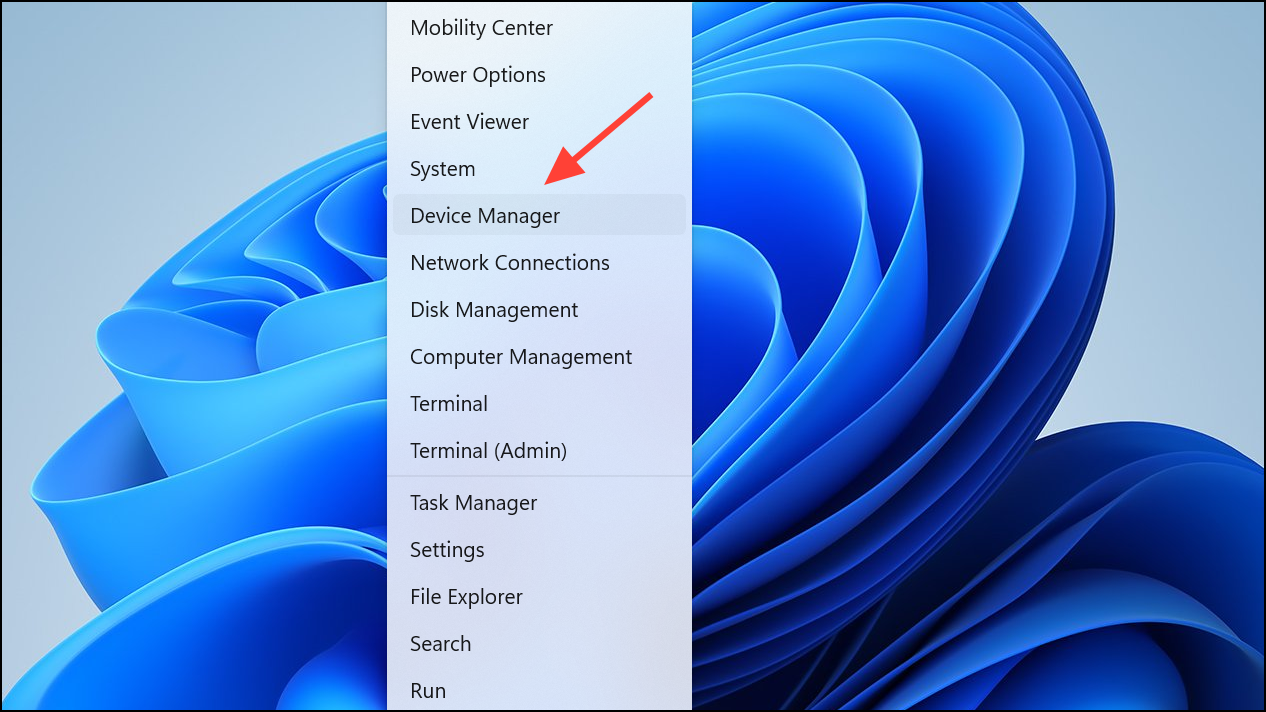
Disk drives section, locate the problematic drive, right-click it, and choose Uninstall device.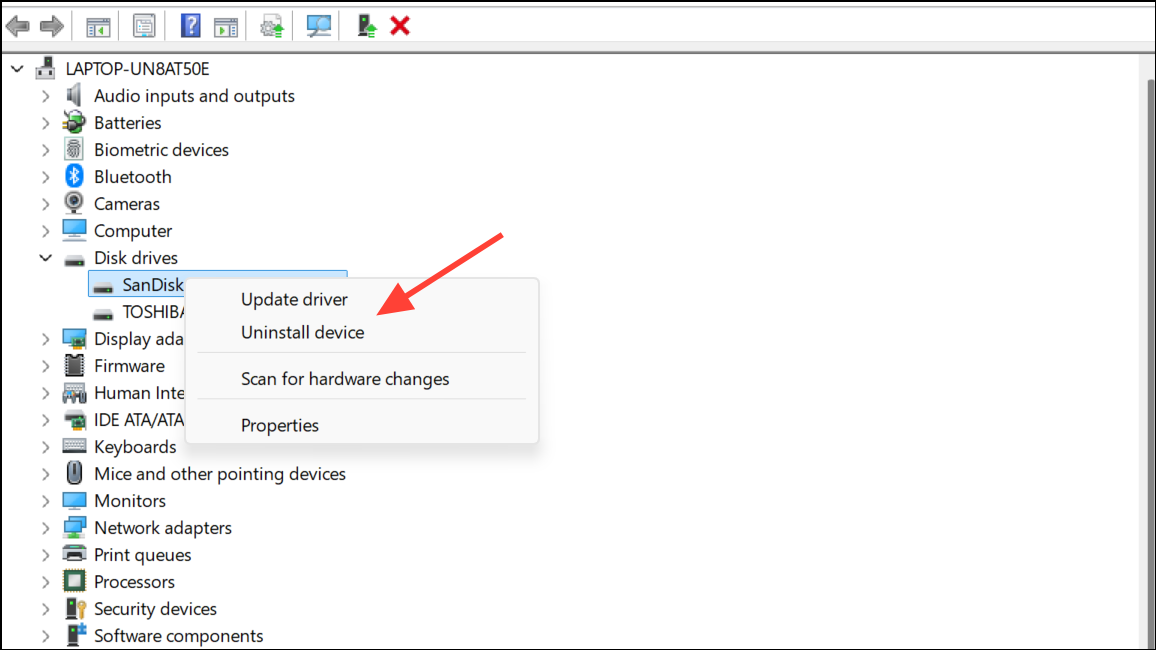
Action in the menu bar, and choose Scan for hardware changes. Windows will detect the drive and install fresh drivers. Test file operations again.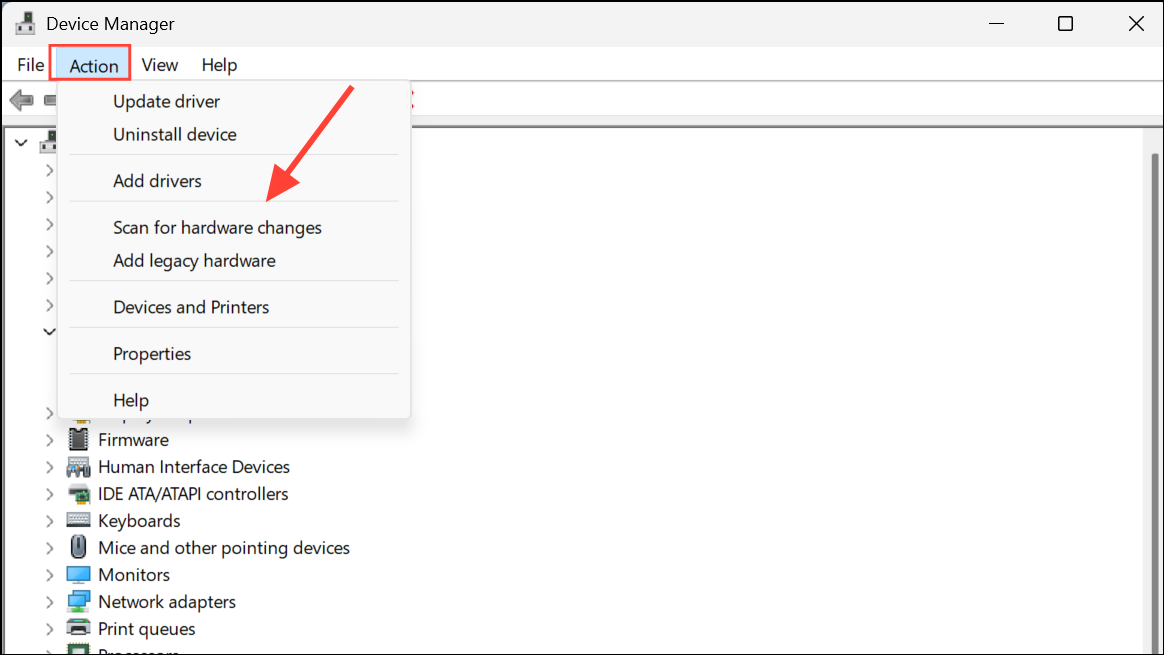
Remove Write Protection via Registry Editor
Write protection prevents files from being modified or added to a drive. If enabled in the Windows Registry, it can trigger error 0x80071AC3.
Windows + R to open the Run dialog, type regedit, and press Enter to launch the Registry Editor.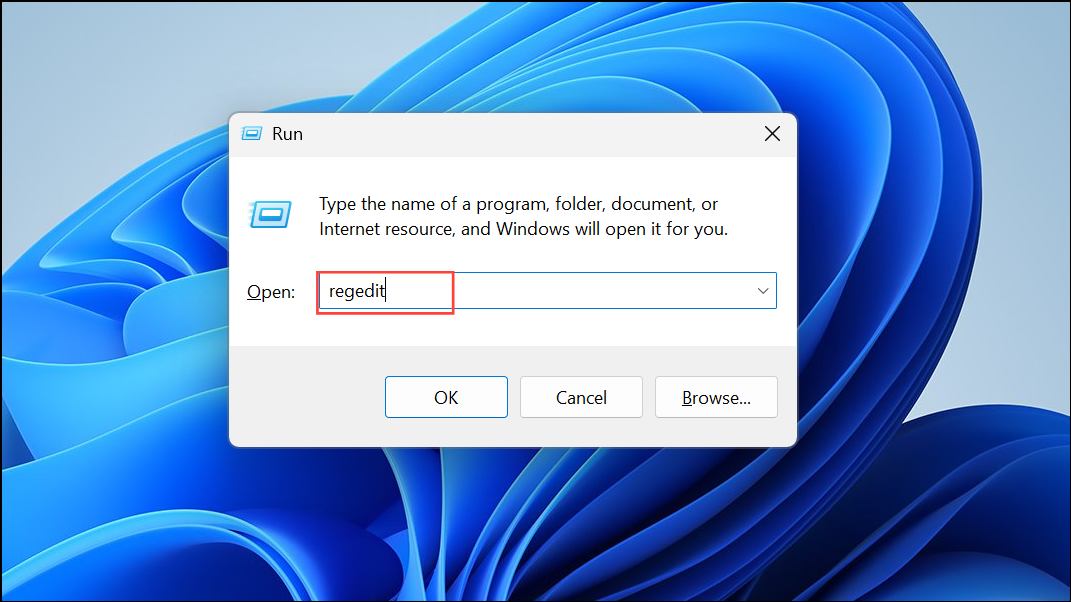
HKEY_LOCAL_MACHINE\SYSTEM\CurrentControlSet\Control\StorageDevicePolicies. If StorageDevicePolicies does not exist, you may need to create it.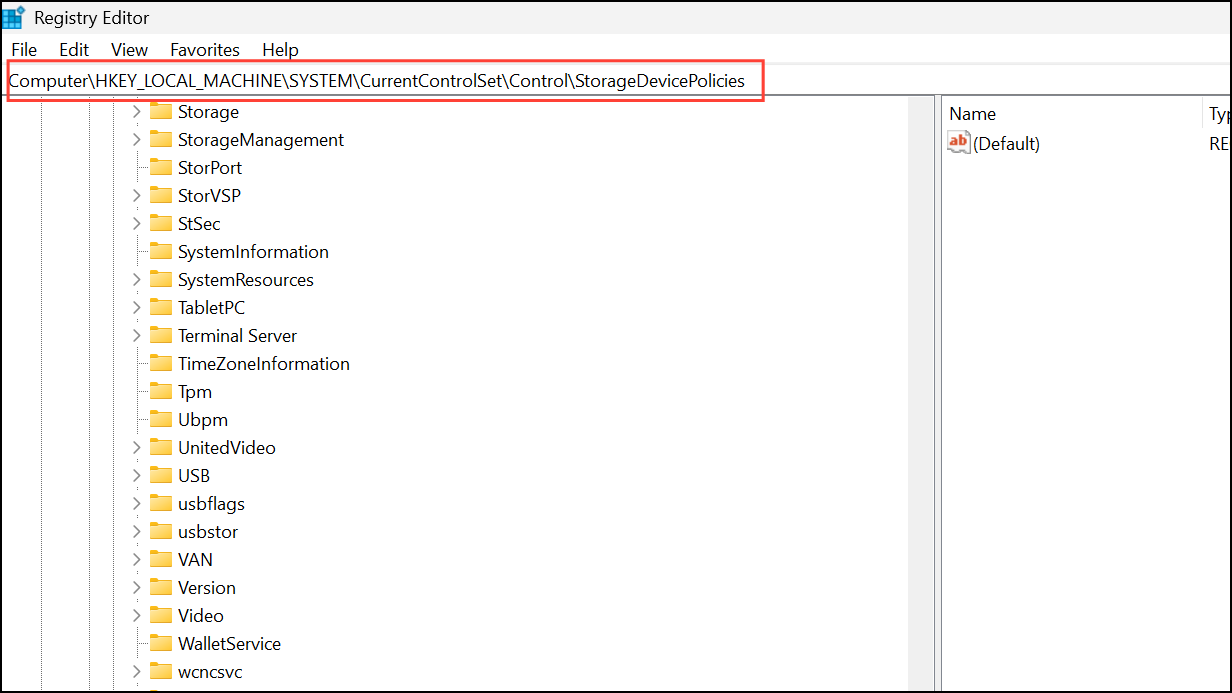
WriteProtect. Set its value to 0 to disable write protection, then click OK.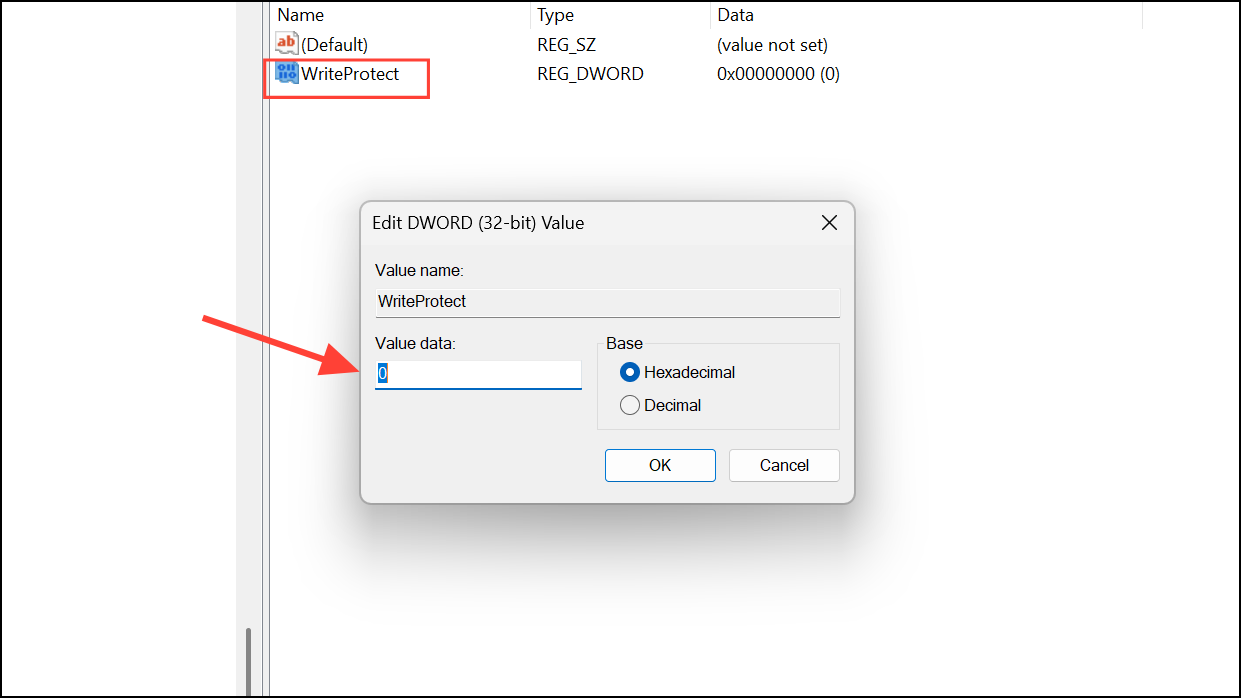
Format the Drive (Last Resort)
If none of the previous methods fix error 0x80071AC3, formatting the affected drive can restore normal operation by removing file system corruption. This process erases all data on the drive, so back up any important files first.
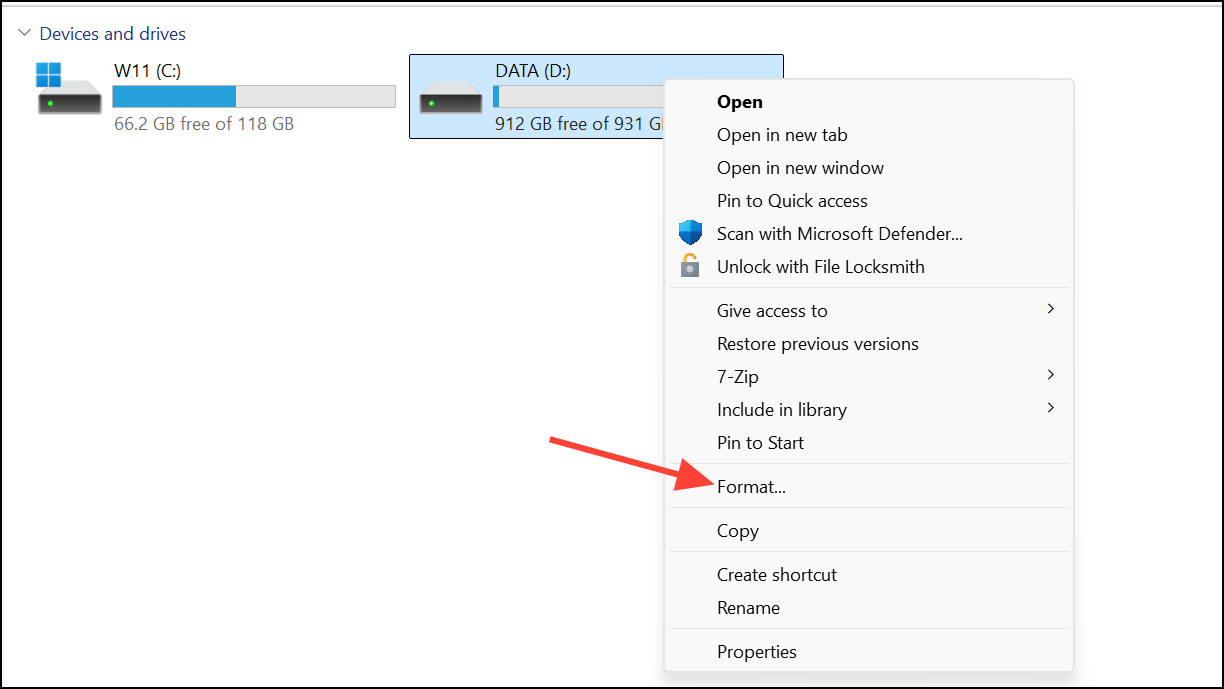
Restore device defaults to select recommended settings. Choose a file system (typically NTFS or exFAT for external drives) and ensure Quick Format is checked for a faster process.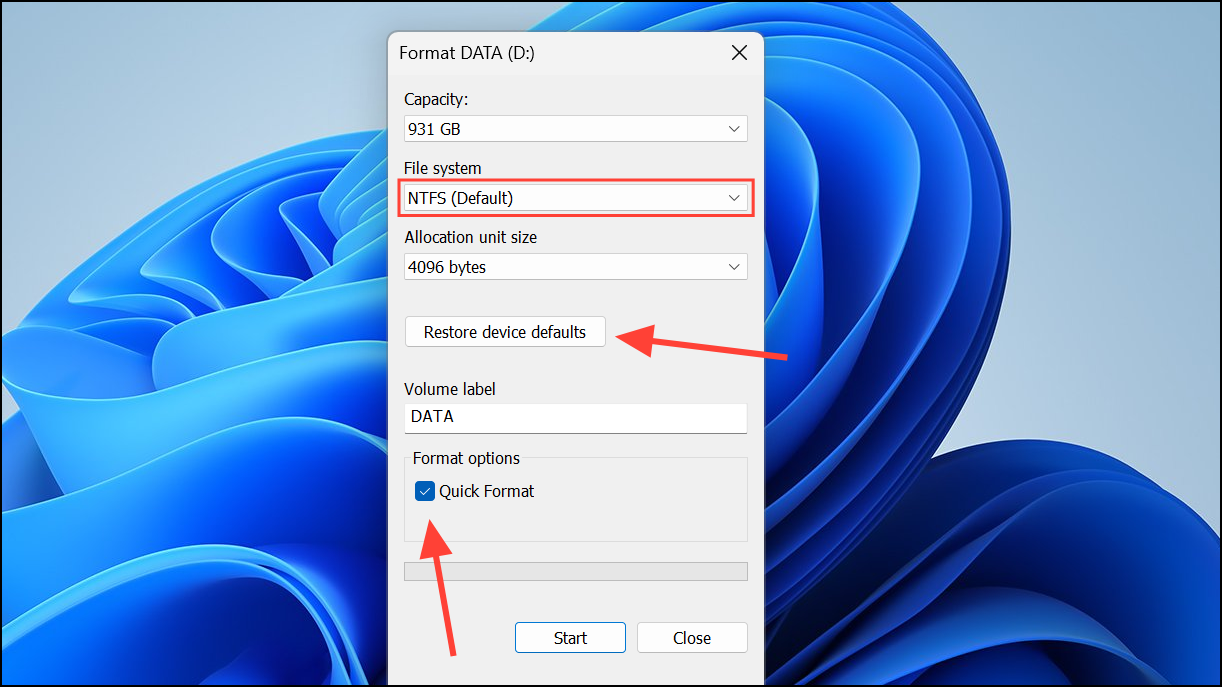
Start, confirm the warning about data loss, and wait for formatting to complete. Once finished, the drive will be ready for use and error 0x80071AC3 should no longer appear.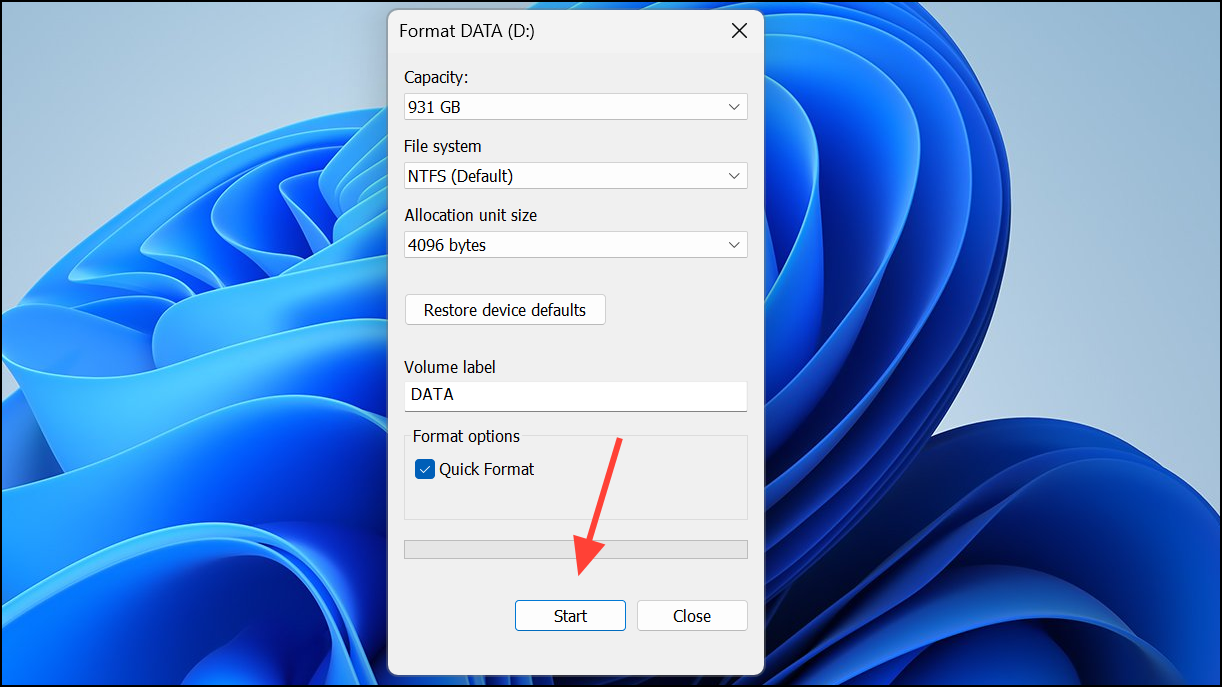
Resolving error 0x80071AC3 in Windows 11 restores reliable file access and prevents further data loss. Regularly backing up your drives and safely ejecting removable media can help avoid similar issues in the future.



