
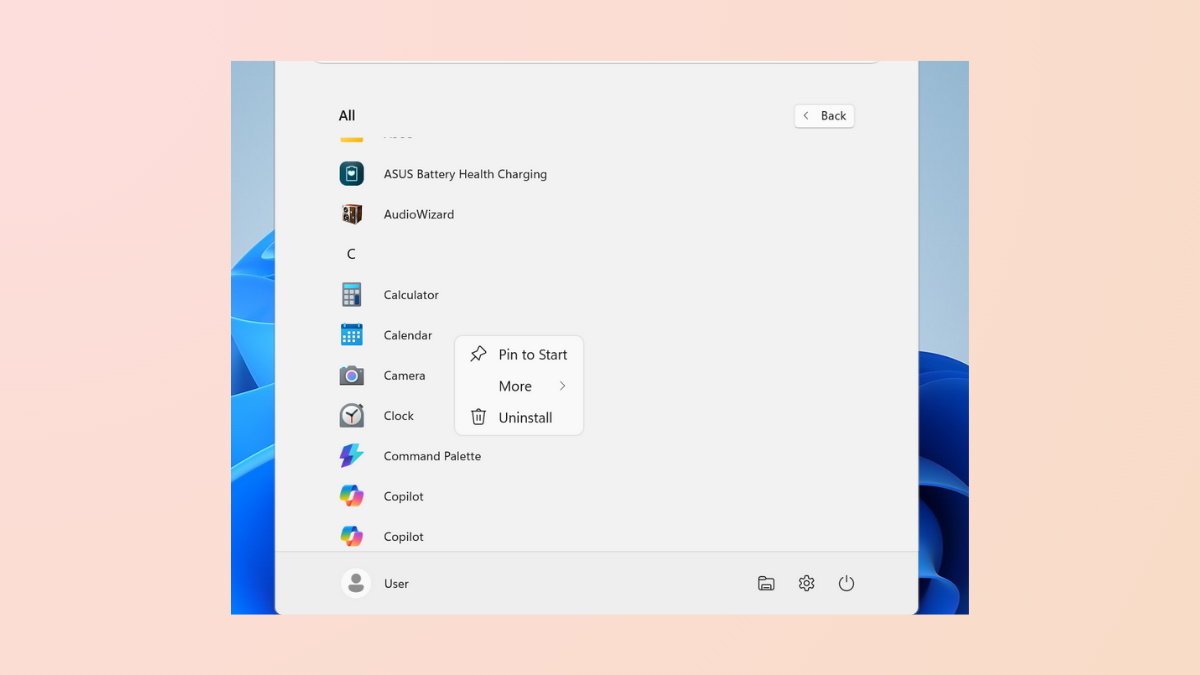
The Pin to Start feature in Windows 11 allows users to quickly access preferred apps, files, and folders directly from the Start menu. When this option disappears or stops working, productivity can drop as users lose convenient shortcuts to essential items. This problem is often linked to policy restrictions, registry misconfigurations, or recent updates. Below are the most effective solutions to restore the Pin to Start option and ensure it functions as expected.
Restore Pin to Start via Group Policy Editor
Group Policy settings control many aspects of Windows behavior, including Start menu customization. If your system is configured to prevent changes to the Start layout, the Pin to Start option may be hidden or disabled. Adjusting these settings can immediately restore the missing option.
gpedit.msc in the Windows search bar and selecting the matching result.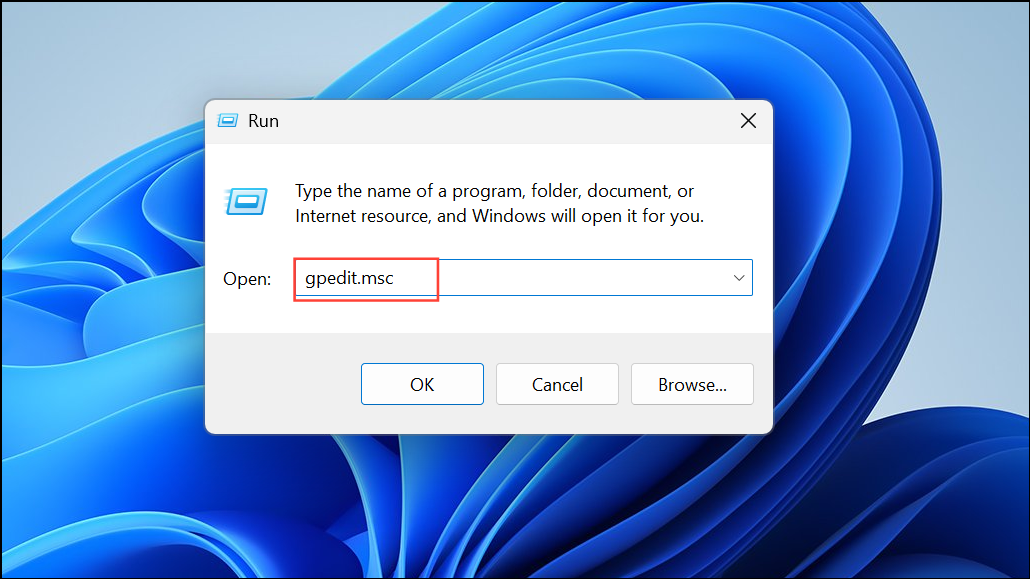
User Configuration > Administrative Templates > Start Menu and Taskbar.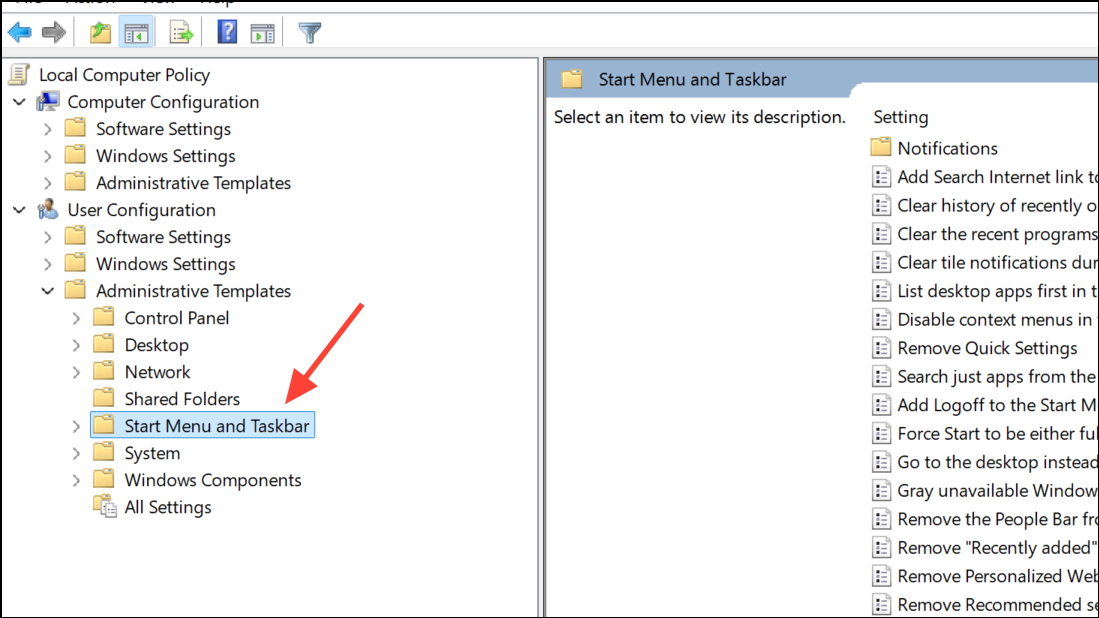
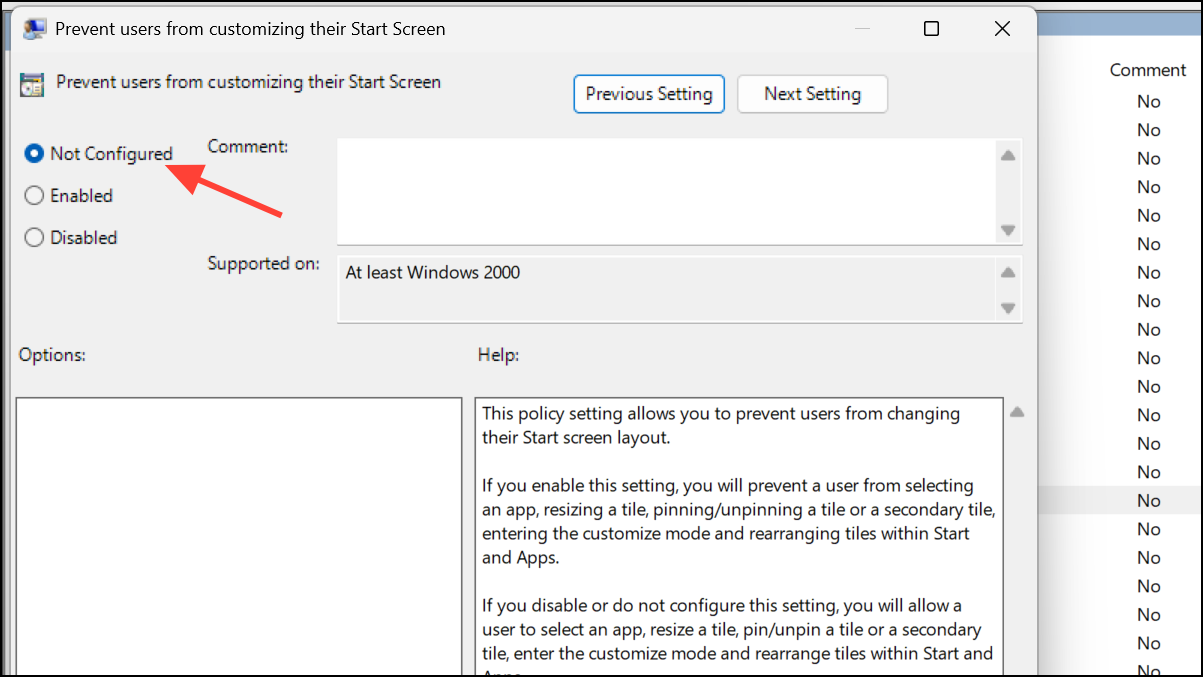
Prevent users from customizing their Start Screen in the right pane. Double-click to open its properties.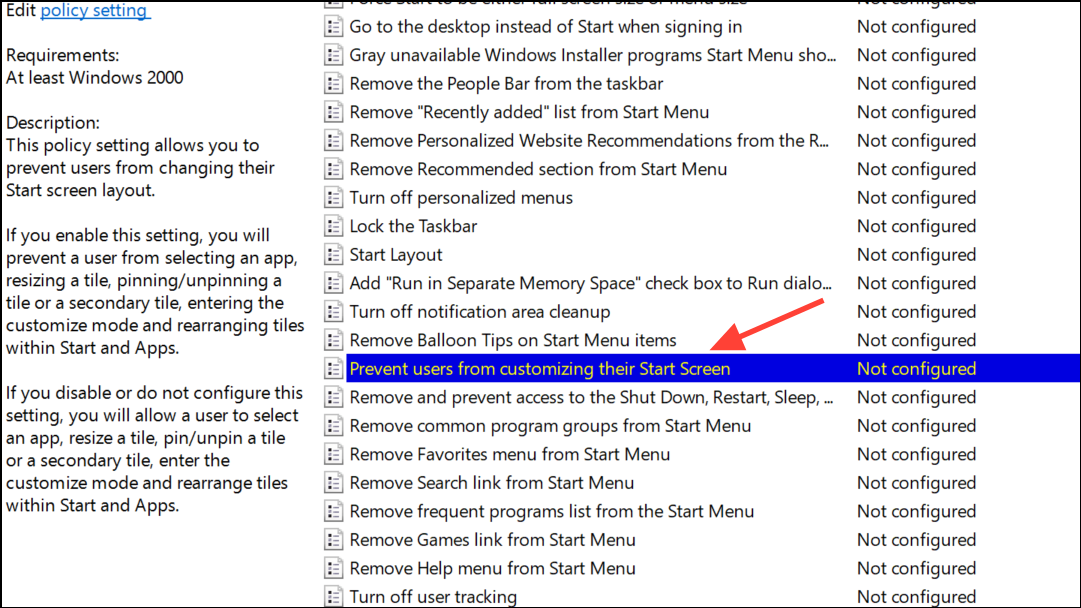
Start Layout policy in the same section. Double-click and set it to Disabled or Not Configured. Apply the changes and close the editor.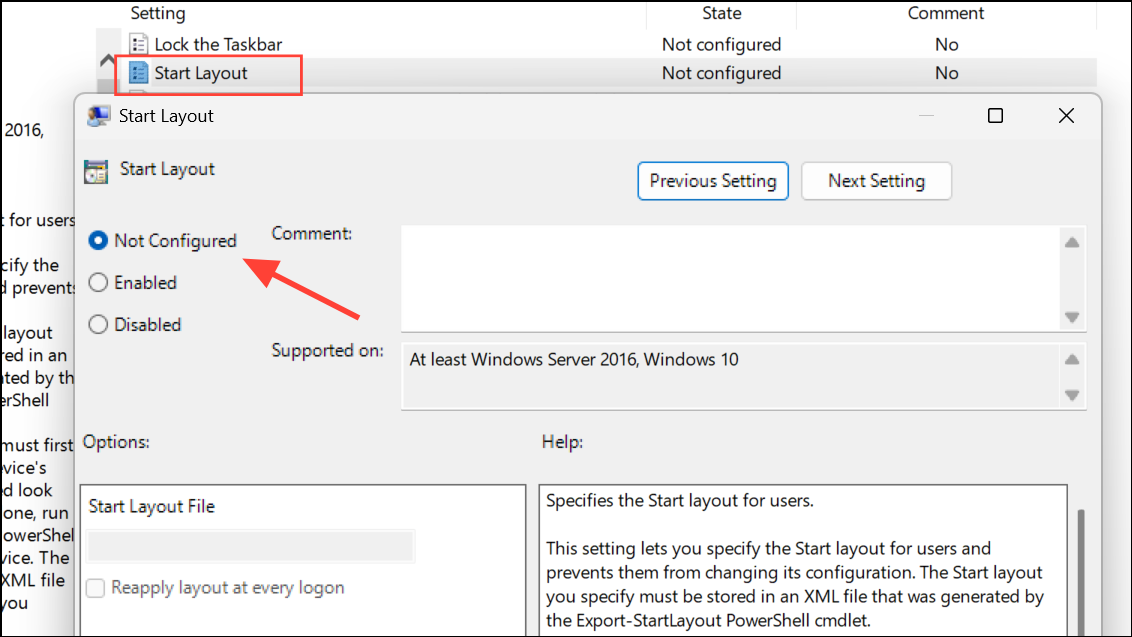
Restore Pin to Start Using the Registry Editor
For Windows 11 Home users or systems without Group Policy Editor, registry modifications can restore Pin to Start functionality. Incorrect registry settings can restrict Start menu customization, so removing or correcting these entries often resolves the problem. Always back up the registry before making changes to avoid accidental data loss.
Win + R to open the Run dialog, type regedit, and press Enter. Approve any User Account Control prompts.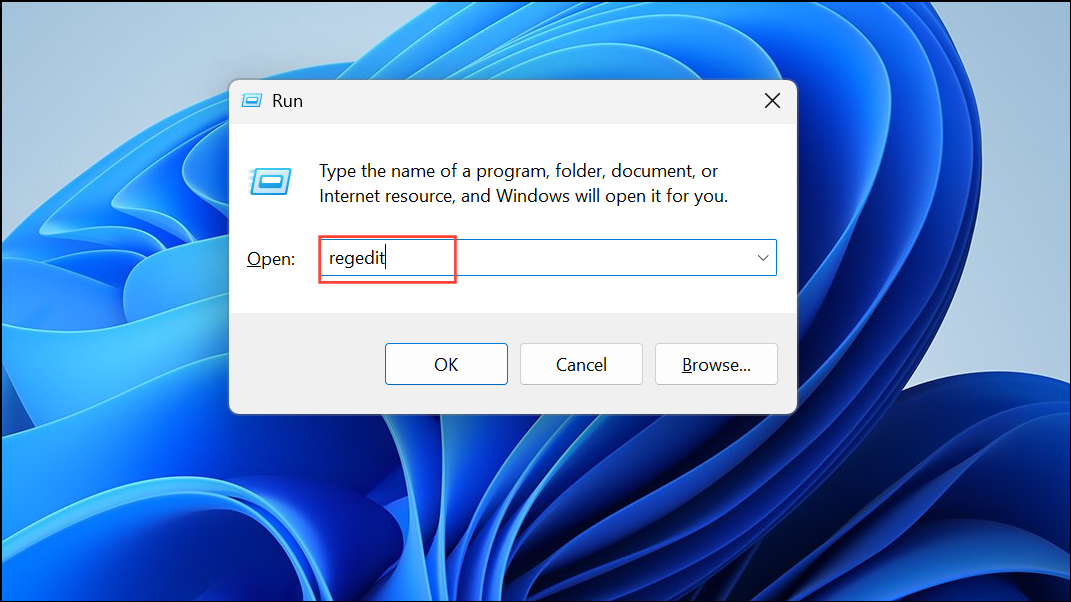
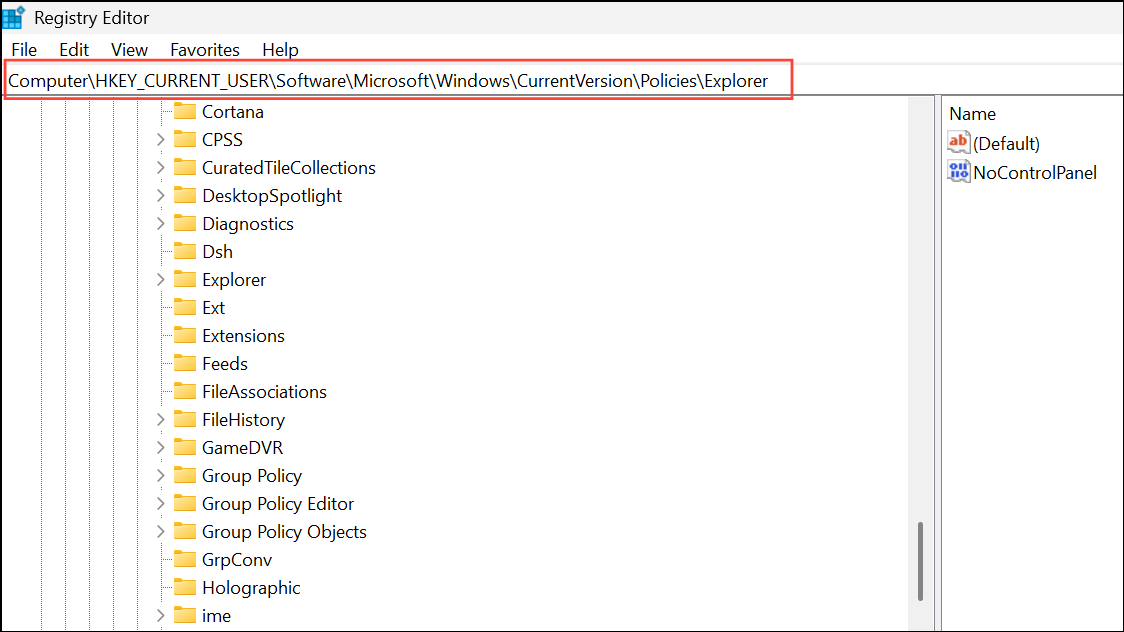
HKEY_CURRENT_USER\SOFTWARE\Policies\Microsoft\Windows\Explorer. Locate LockedStartLayout and delete it if present.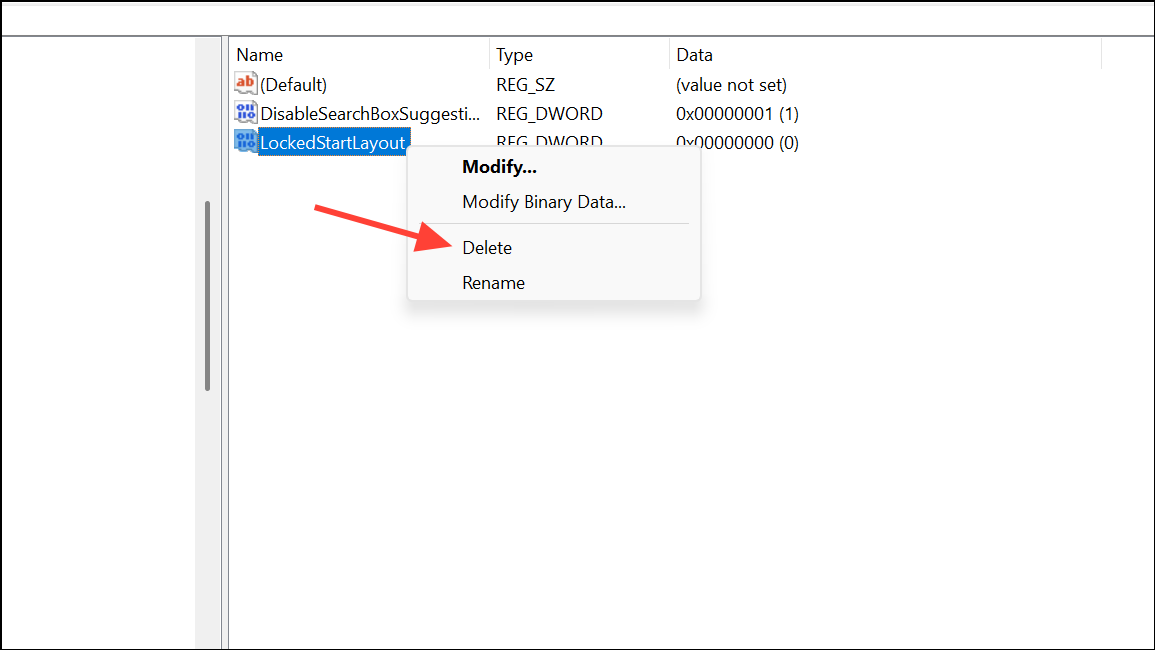
HKEY_LOCAL_MACHINE\SOFTWARE\Microsoft\Windows\CurrentVersion\Policies\Explorer and HKEY_LOCAL_MACHINE\SOFTWARE\Policies\Microsoft\Windows\Explorer for the same keys and remove them if found.Check Start Layout XML and Intune/MDM Policies
In managed environments, administrators often deploy custom Start menu and taskbar layouts via XML files or Intune/MDM policies. Certain configurations, especially those using the LockedStartLayout or restrictive XML attributes, can lock the Start menu and prevent users from pinning or unpinning items.
LayoutCustomizationRestrictionType attribute in the XML to SpecifiedGroupsAndUserGroups or UserGroups to allow user modifications.Re-register Shell32.dll
The shell32.dll file manages Windows Explorer shell features, including Start menu context menus. If this file becomes unregistered or corrupted, Pin to Start may stop appearing.
cmd, right-clicking the result, and selecting Run as administrator.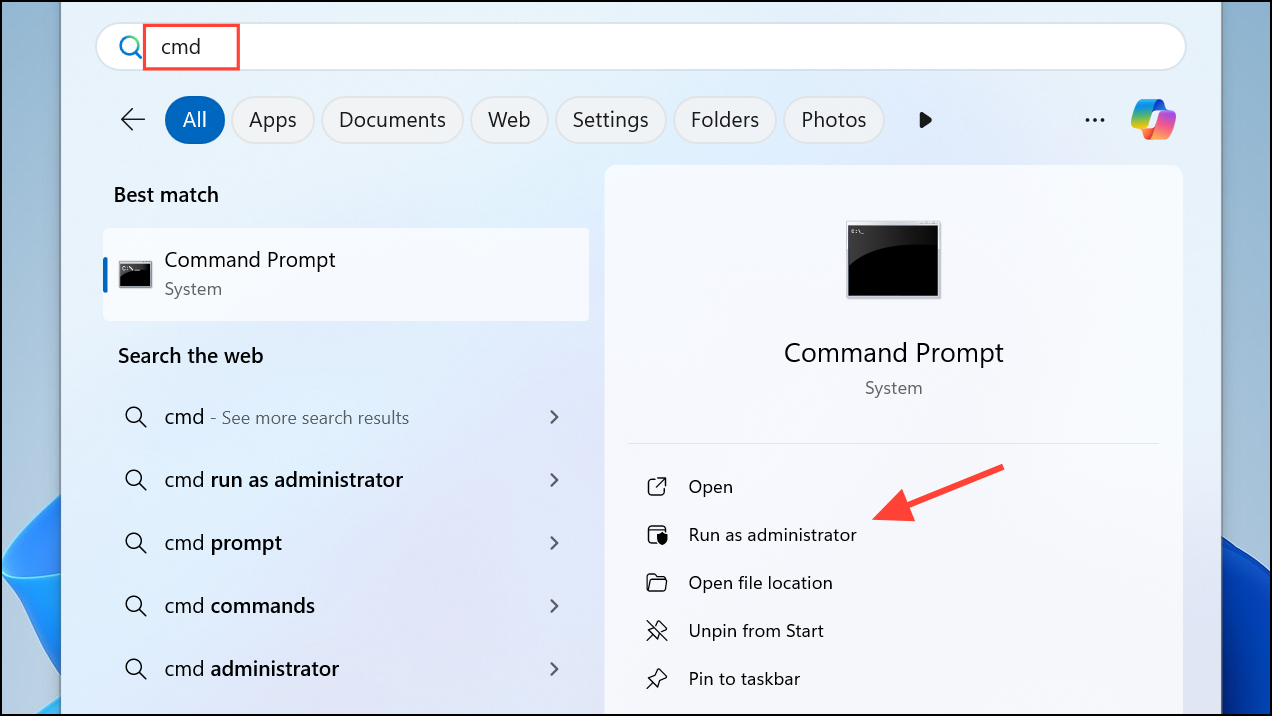
regsvr32 /i shell32.dll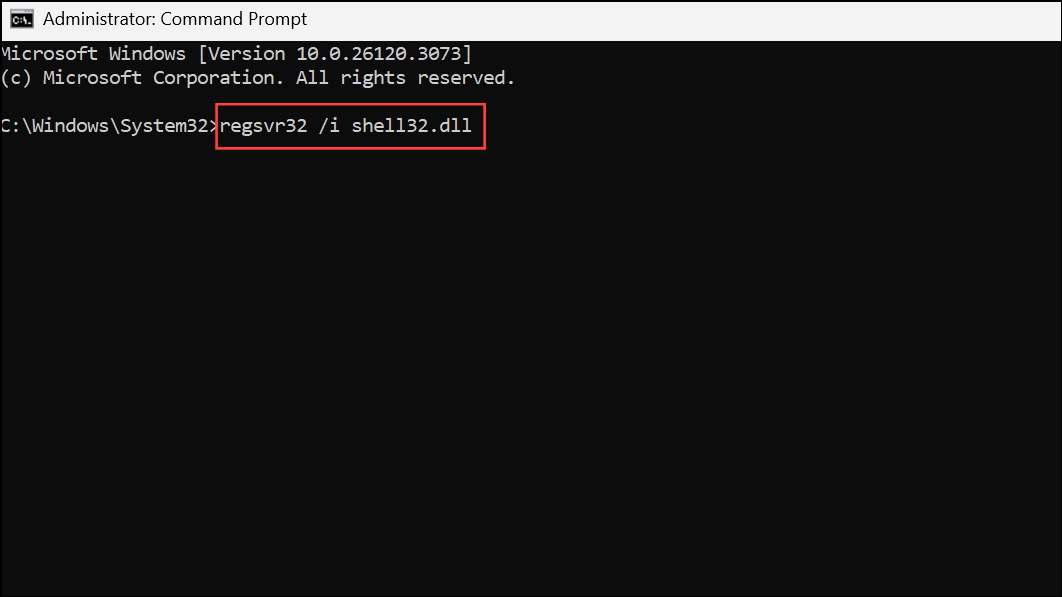
This command re-registers the shell32.dll file. A success message should appear. Restart your system and test the Pin to Start option.
Repair System Files
Corrupted system files can disrupt Start menu operations. Running built-in Windows repair tools can restore essential files and resolve the issue.
sfc /scannow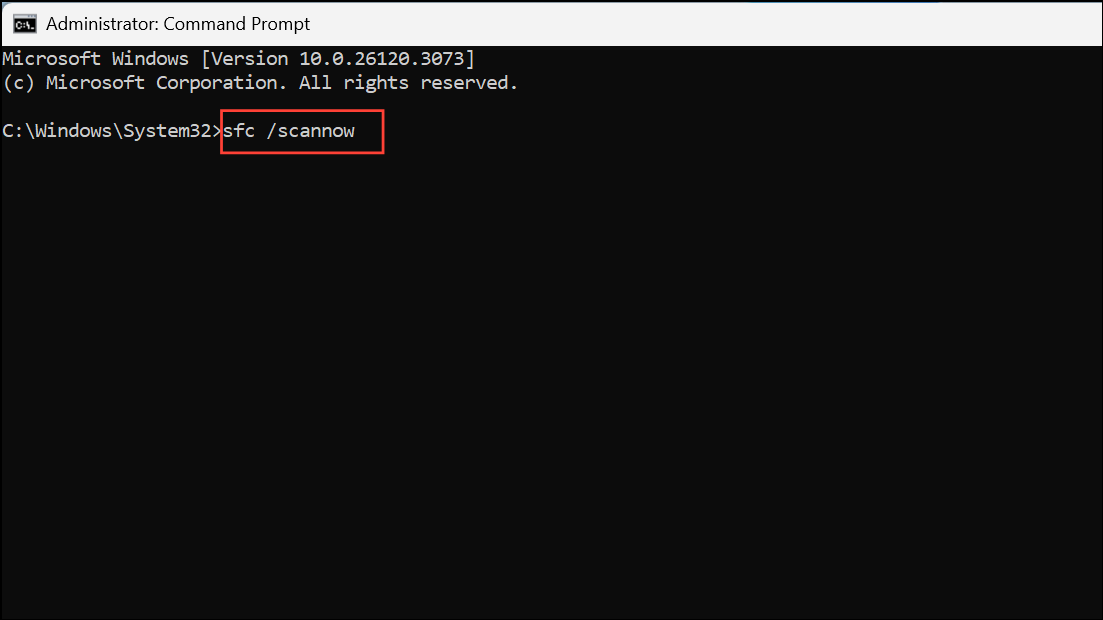
dism /online /cleanup-image /restorehealth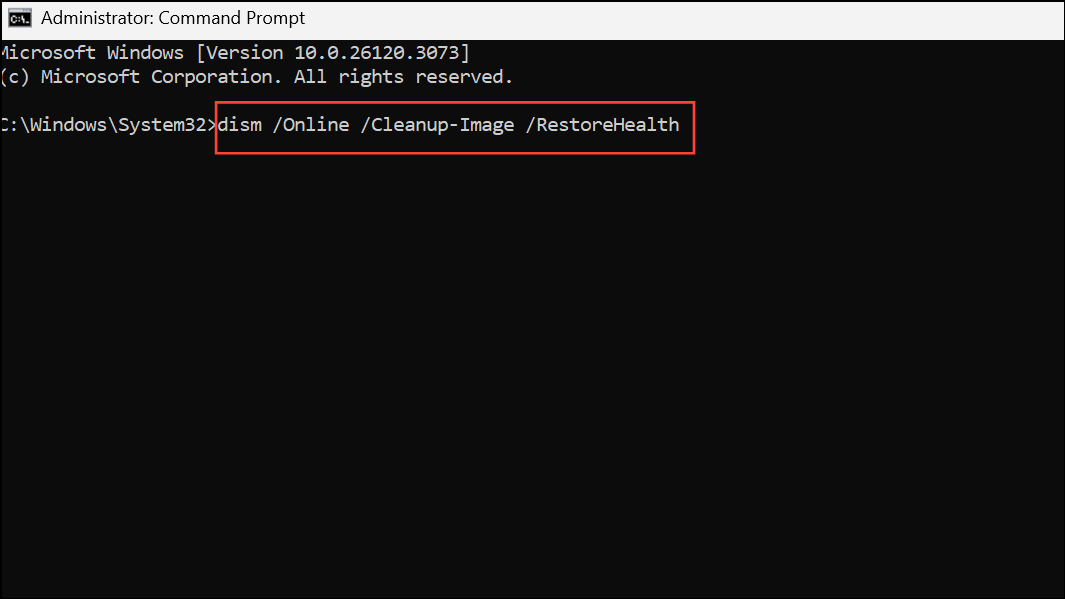
The first command scans and repairs corrupted system files, while the second checks and restores the system image. After both commands complete, restart your computer and check if Pin to Start is working.
Reset Start Menu Cache
The Start menu cache stores information about pinned items and layout. If this cache becomes corrupted, Pin to Start may malfunction.
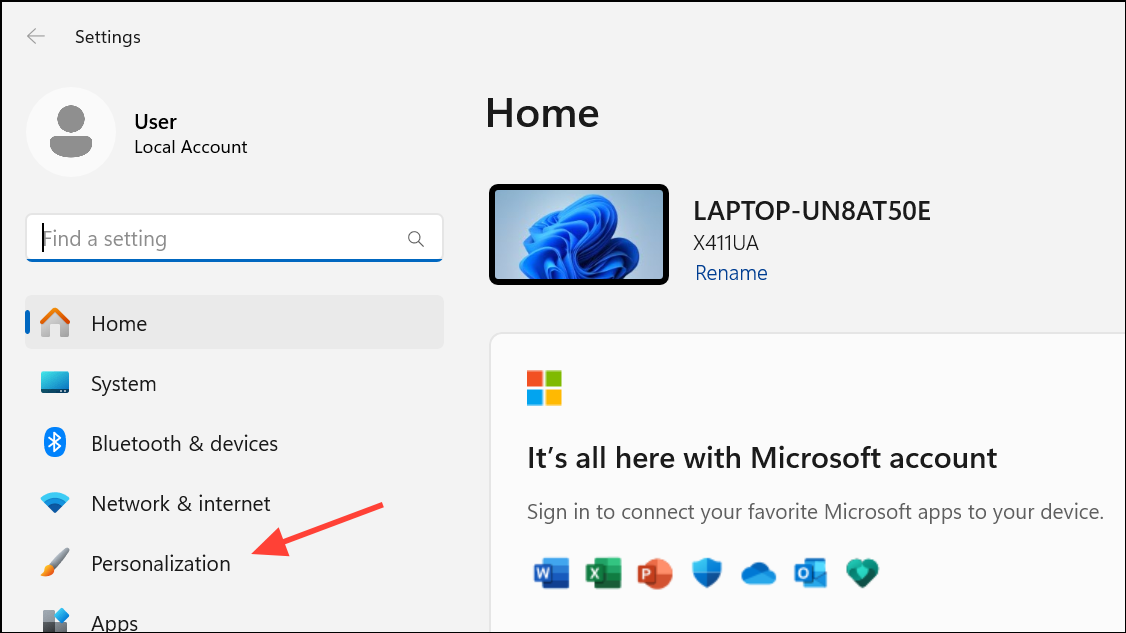
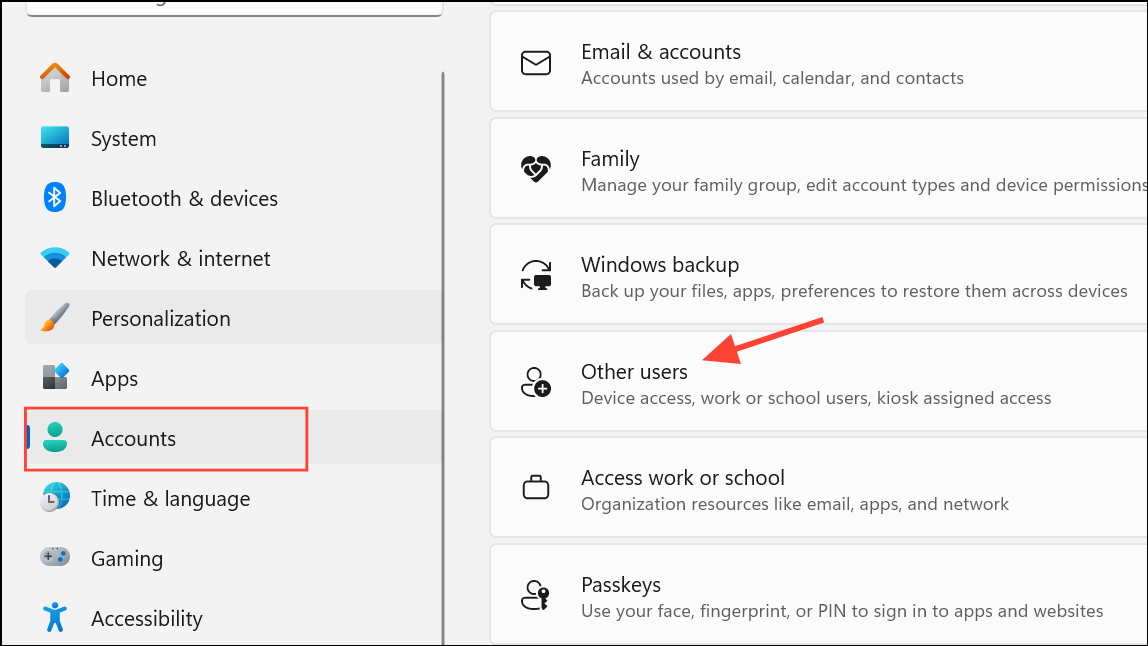
Modify User Account Control (UAC) Settings
User Account Control settings can sometimes interfere with Start menu actions. Ensuring your account has administrator privileges can resolve permission-related issues.
Reset Windows 11
If all previous methods fail, resetting Windows 11 can resolve deep system issues while preserving your personal files. This process reinstalls the operating system and restores default settings.
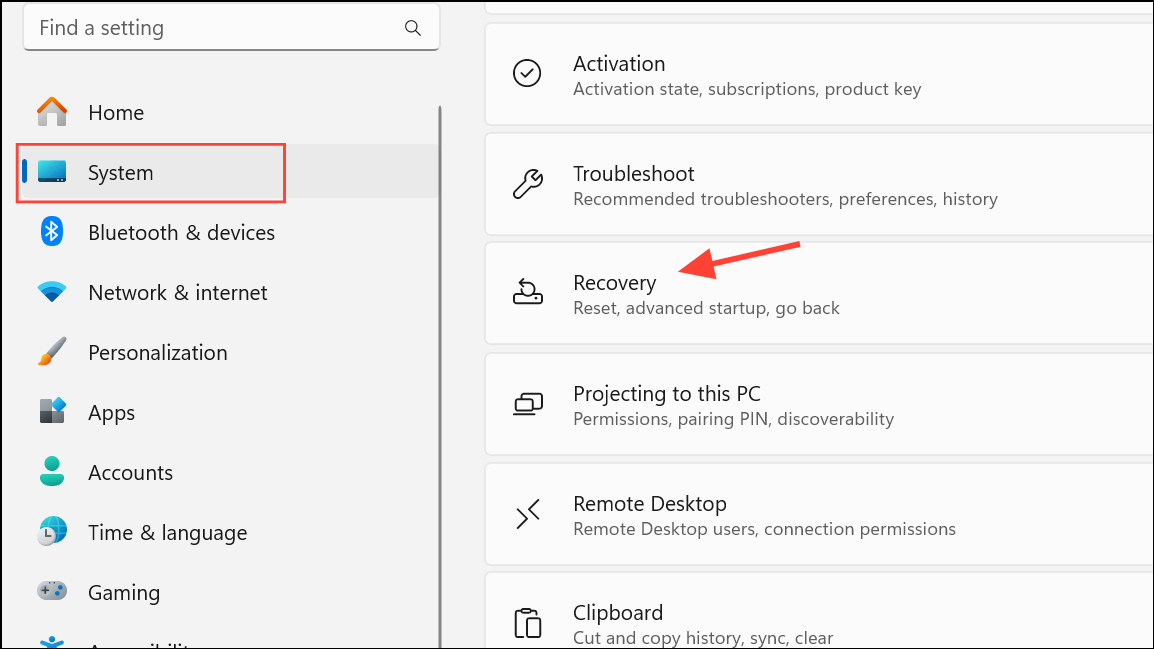
Reset this PC, click Get started. Choose the option to keep your files and follow the on-screen instructions to complete the reset.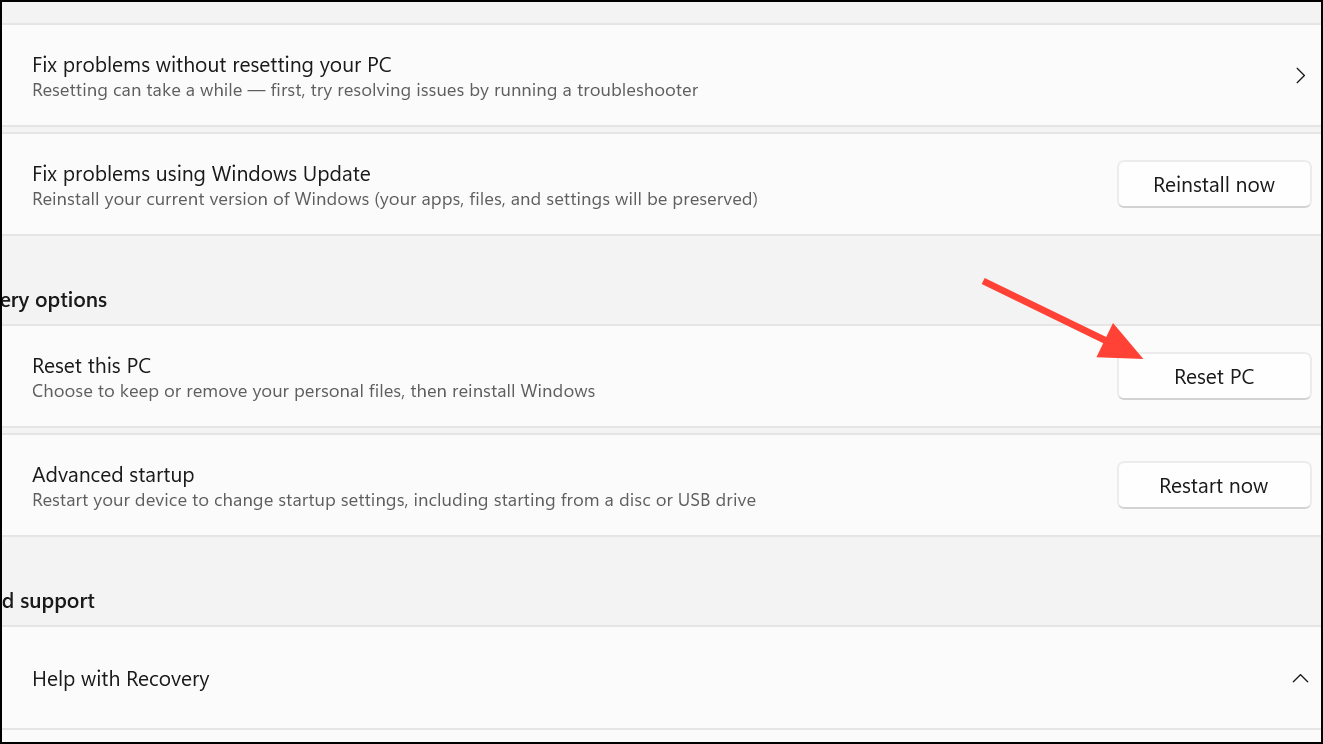
Addressing the Pin to Start issue on Windows 11 often involves adjusting policy or registry settings, repairing system files, or reviewing deployed management policies. With the right approach, you can restore full Start menu functionality and regain efficient access to your favorite apps and files.



