

Canon printers displaying error 853 on Windows 11 typically fail to process print jobs due to driver mismatches or issues with the Secure Print feature. This error can prevent printing from both simple and complex applications, with jobs either disappearing from the print queue or the printer showing as idle while nothing prints. Addressing the root cause—usually a driver or Secure Print setting—restores normal printing functionality and eliminates repeated interruptions.
Install the Canon UFR II Driver
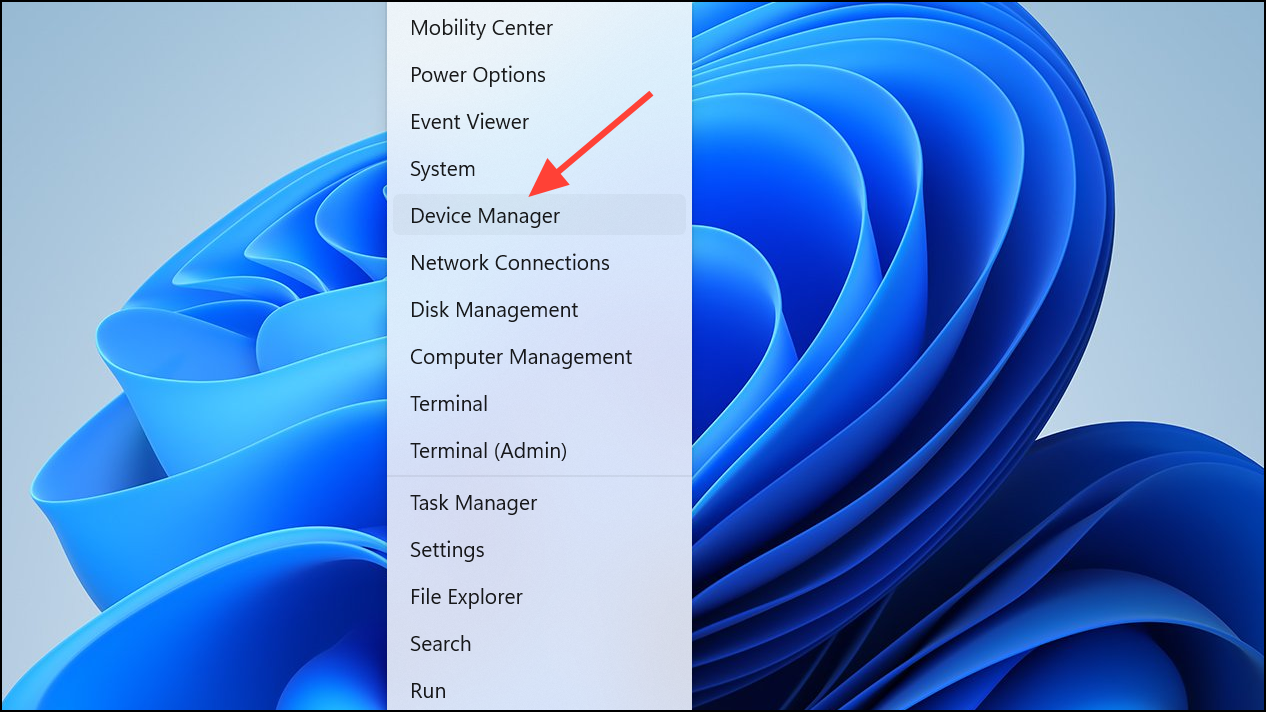
Print queues, right-click your Canon printer, and select Properties. On the Drivers tab, confirm that Canon Generic Plus UFR II is selected. If not, use the dropdown to choose it, click Apply, and restart your PC again.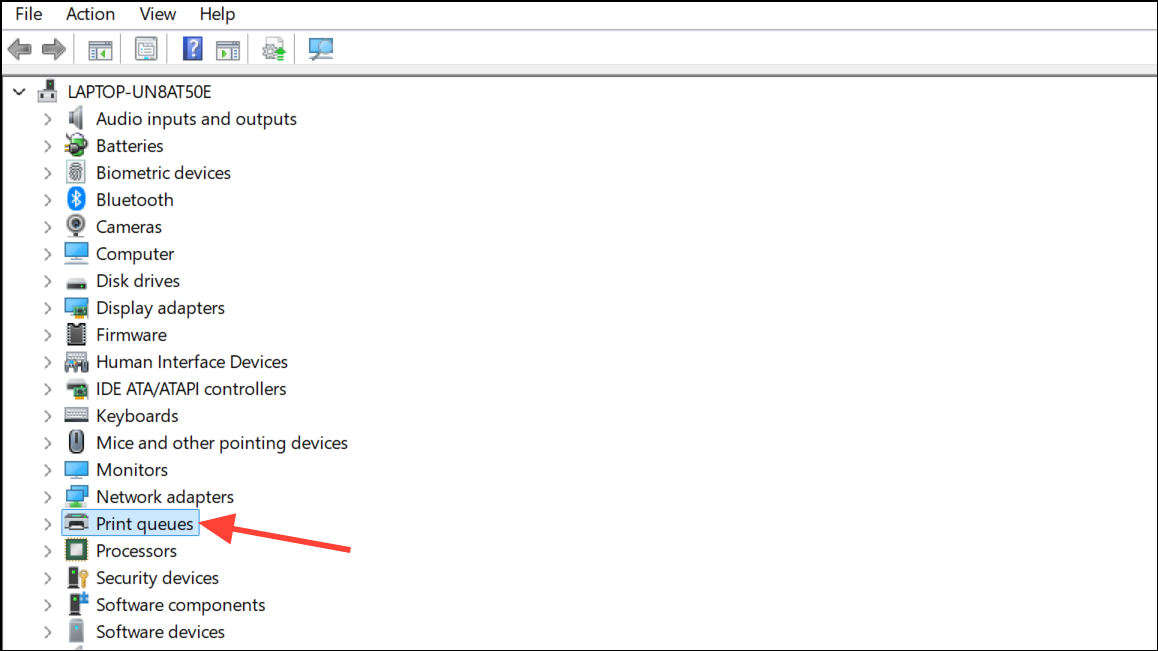
Disable Secure Print on the Printer
Secure Print is a feature that requires users to enter a password before the printer releases a document. While intended to protect sensitive information, it can sometimes trigger error 853 if not configured correctly or if the driver and printer are out of sync on this setting.
Turning off Secure Print often resolves error 853 immediately by allowing documents to print without password authentication, which can be disrupted by driver or network issues.
Run the Windows Printer Troubleshooter
If driver and Secure Print adjustments do not resolve the issue, use the built-in Windows troubleshooter to automatically detect and fix common printing problems.
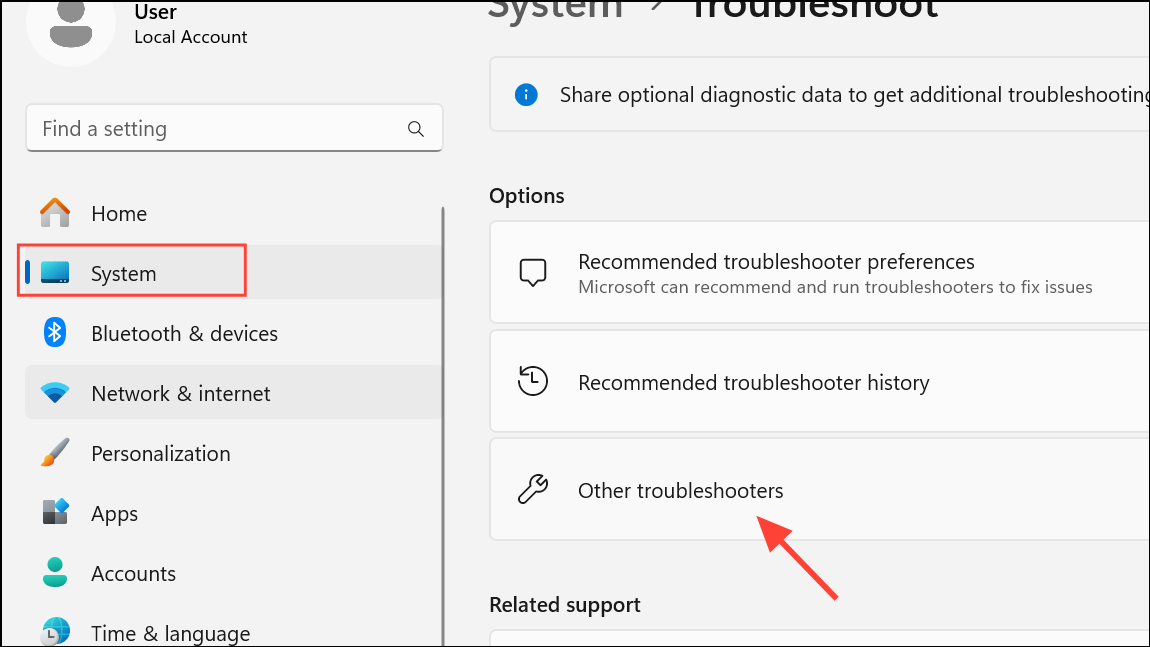
Printer and then Run the troubleshooter. Follow the prompts to let Windows automatically check for and attempt to fix any detected issues.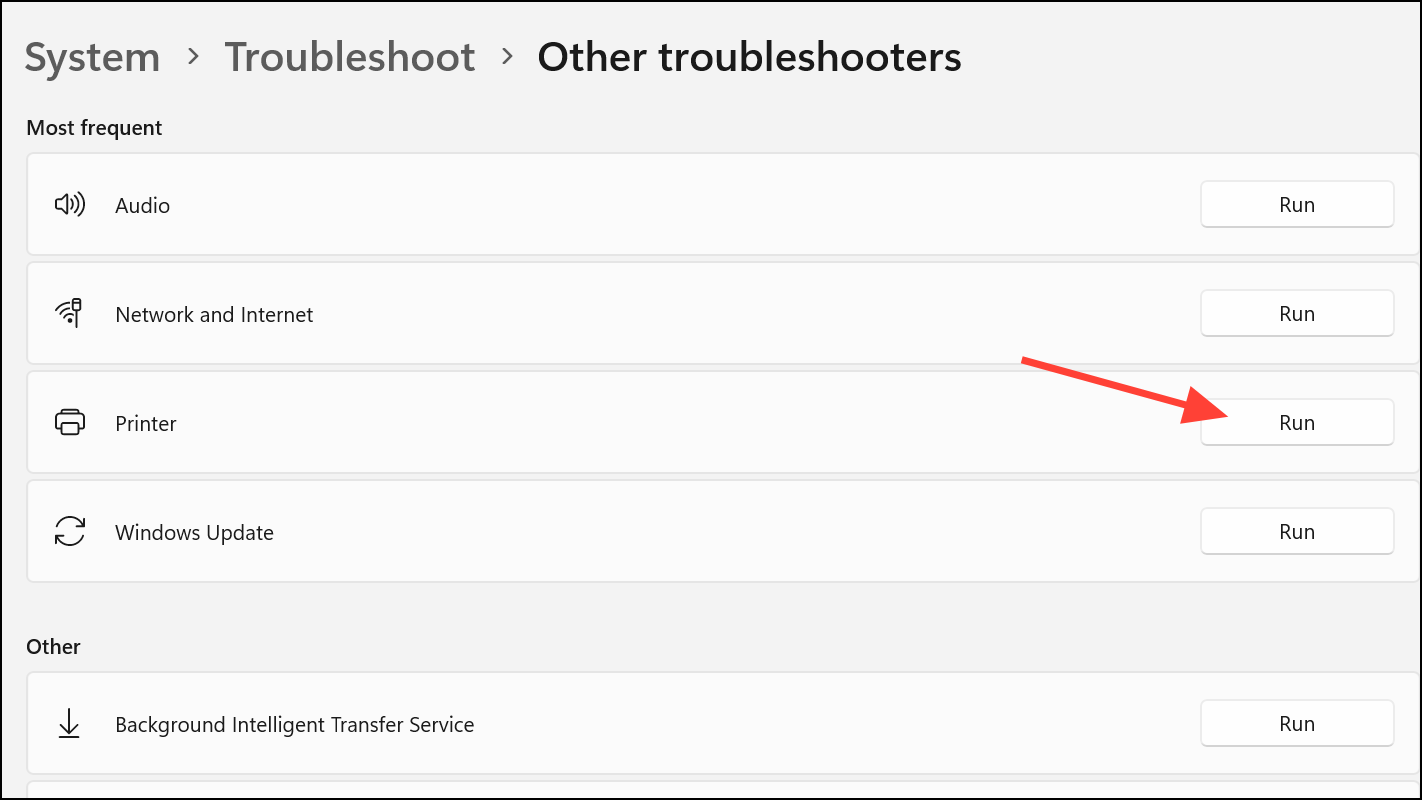
This tool can reset print queues, restart print services, or identify misconfigured settings that may be causing error 853.
Reinstall the Printer Driver
If error 853 persists after the previous steps, completely remove the printer driver and reinstall it to address any file corruption or incomplete installations.

Uninstall device. Confirm any prompts to remove the device and its associated drivers.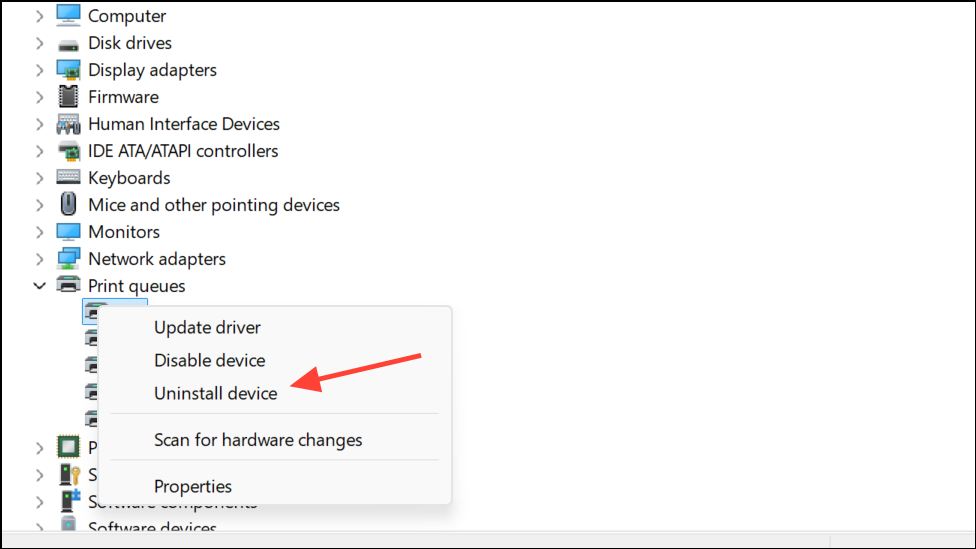
Settings > Bluetooth and Devices > Printers & scanners if needed.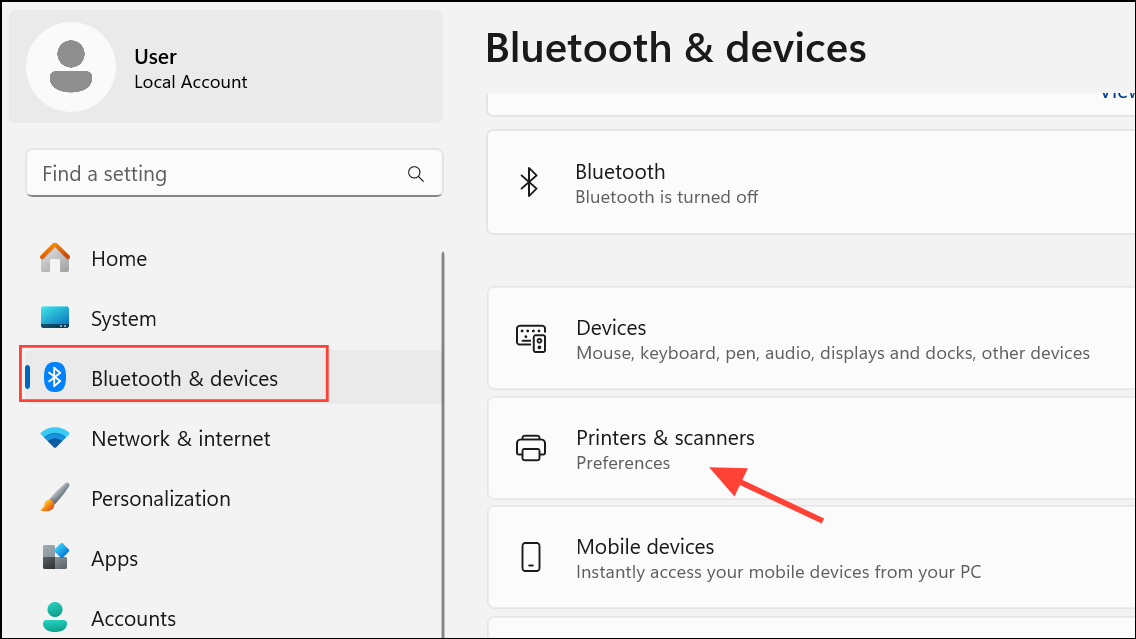
This process ensures a clean installation, resolving lingering conflicts or corrupted files that could trigger error 853.
Addressing Canon printer error 853 on Windows 11 by installing the correct driver, disabling Secure Print, and following troubleshooting steps restores stable printing and reduces daily disruptions. If these solutions do not resolve the issue, consider checking for firmware updates or contacting Canon support for further assistance.



