
Printing over a wireless connection streamlines workflow and eliminates cable clutter, but successful setup on a Windows 11 PC requires following precise steps to ensure your printer and computer communicate on the same network. Misconfigurations, missing drivers, or network mismatches can prevent your PC from recognizing or using the printer, causing delays and frustration. The instructions below detail multiple methods for connecting a wireless printer to Windows 11, starting with the most reliable approaches and covering manual alternatives for unique network environments.
Connect a Wireless Printer Using Windows 11 Settings
Start menu, then select Settings. Navigate to Bluetooth & devices and select Printers & scanners.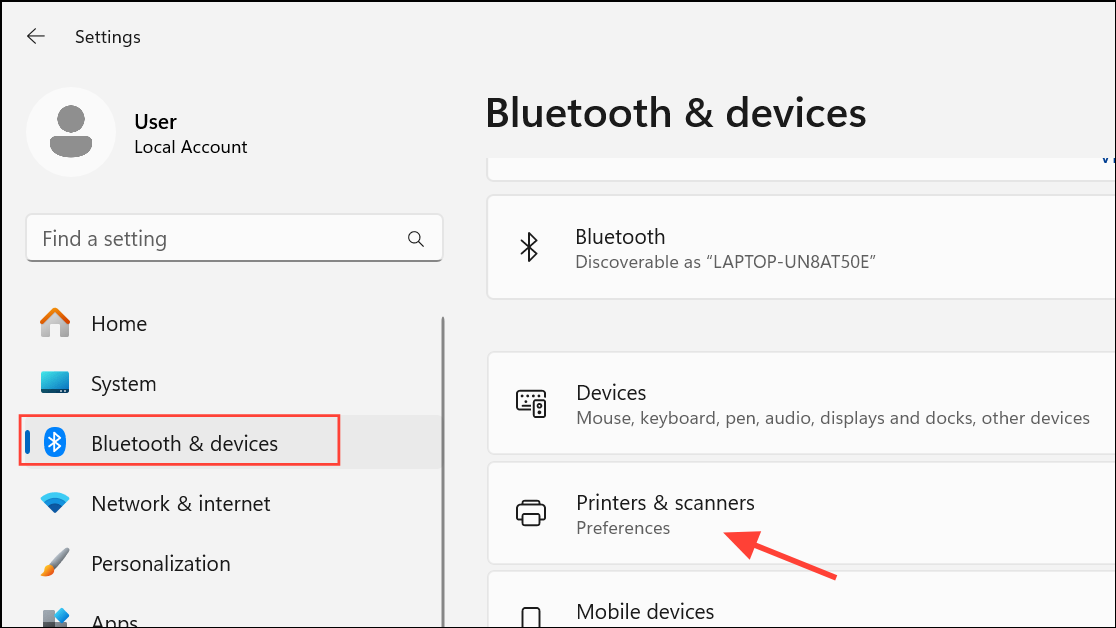
Add device near the top right. Windows will scan for available printers and display a list. This process may take several minutes, especially on busy networks.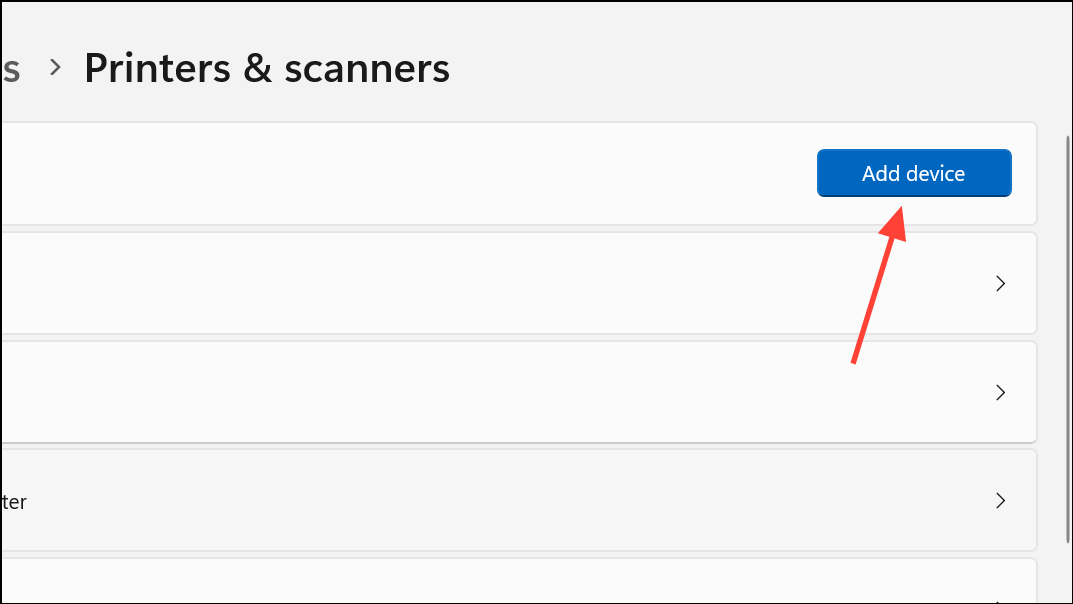
Add device next to its name. Windows will install the necessary drivers. If prompted, follow any on-screen instructions to complete driver installation.Settings, select Windows Update, and click Check for updates.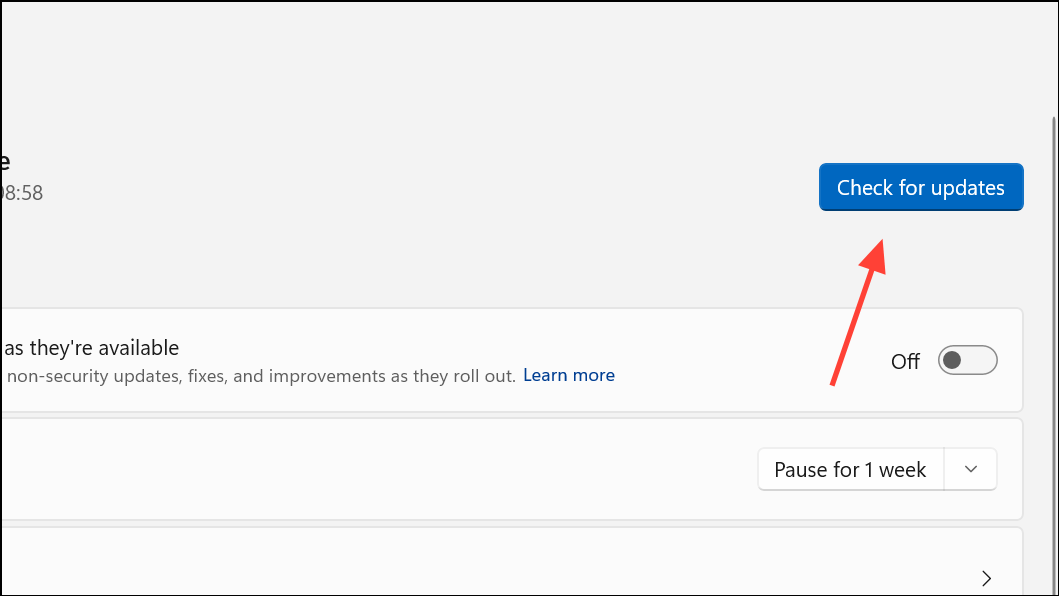
Printers & scanners, select your printer, and choose Print a test page.Manually Add a Wireless Printer Using IP Address or Hostname
Some printers or network setups may prevent automatic detection. In these cases, adding the printer manually using its IP address or hostname is often effective.
Settings > Bluetooth & devices > Printers & scanners and click Add device. Wait for the “Add manually” option to appear, then click it.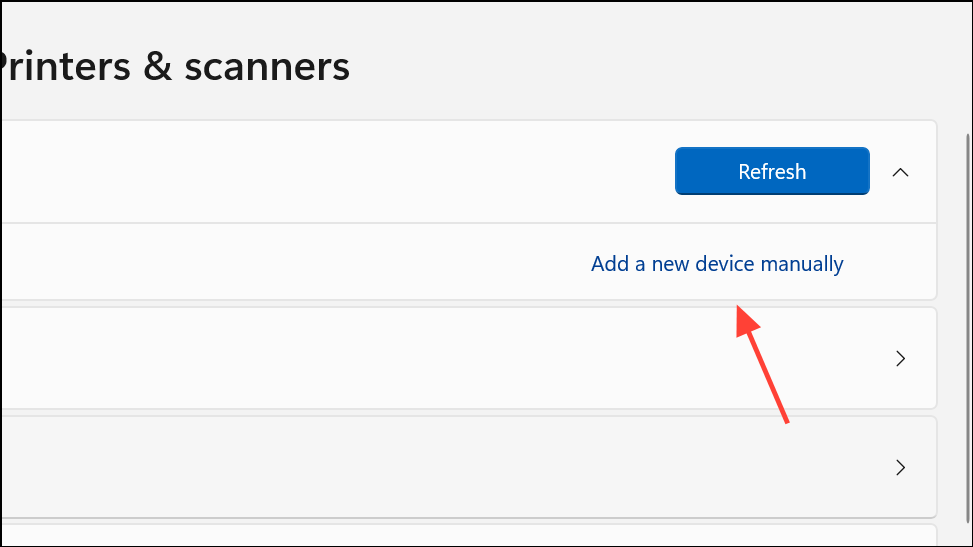
Add a printer using an IP address or hostname. Change the device type to TCP/IP Device, then enter the printer’s IP address or hostname in the field provided. Click Next.Do not share this printer if you don’t want network sharing. Click Next to finish installation.Install a Bluetooth Printer
Bluetooth printers require pairing before use. This method is suitable only for printers that support Bluetooth connectivity.
Settings > Bluetooth & devices and toggle Bluetooth on.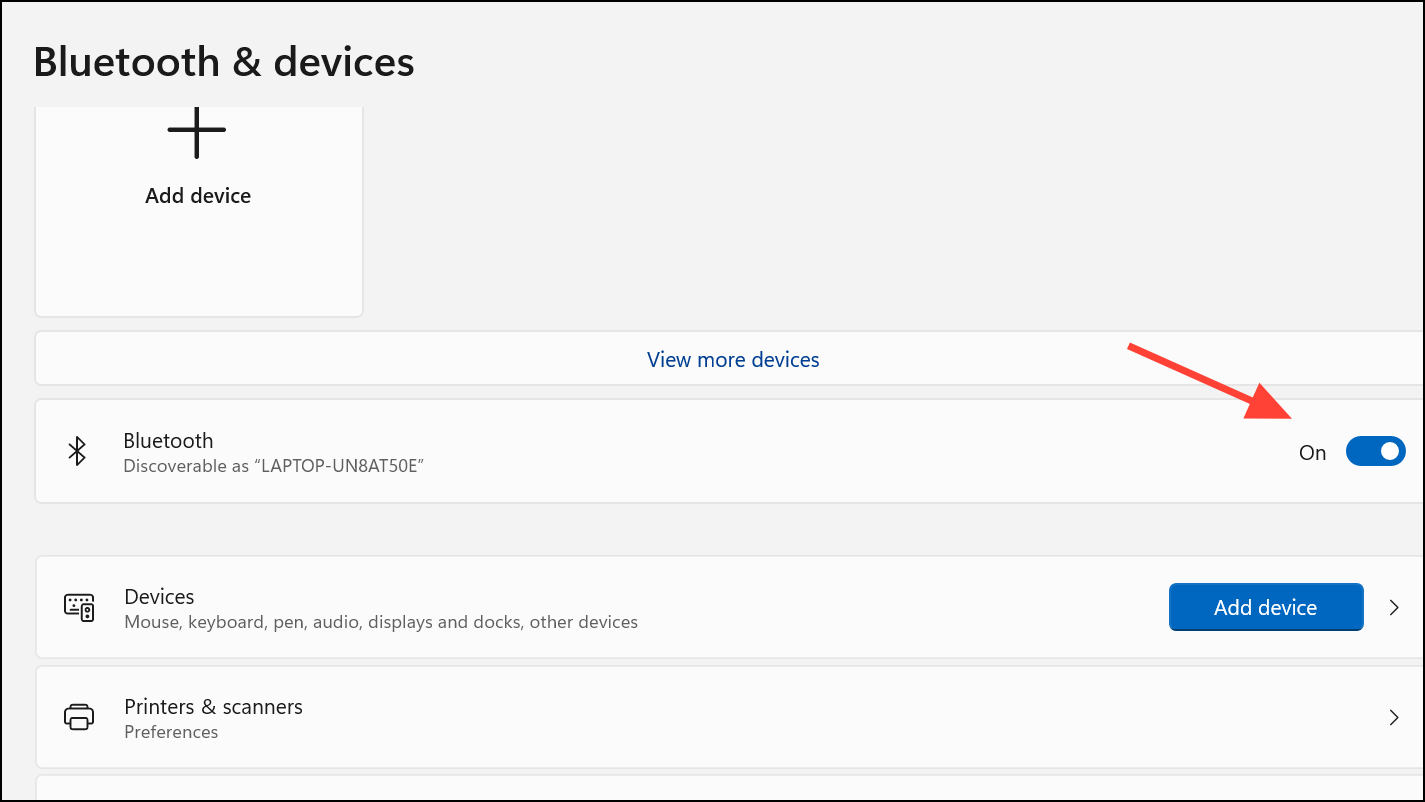
Bluetooth & devices, click Add device, then select Bluetooth. Choose your printer from the list of available devices and follow prompts to complete pairing and installation.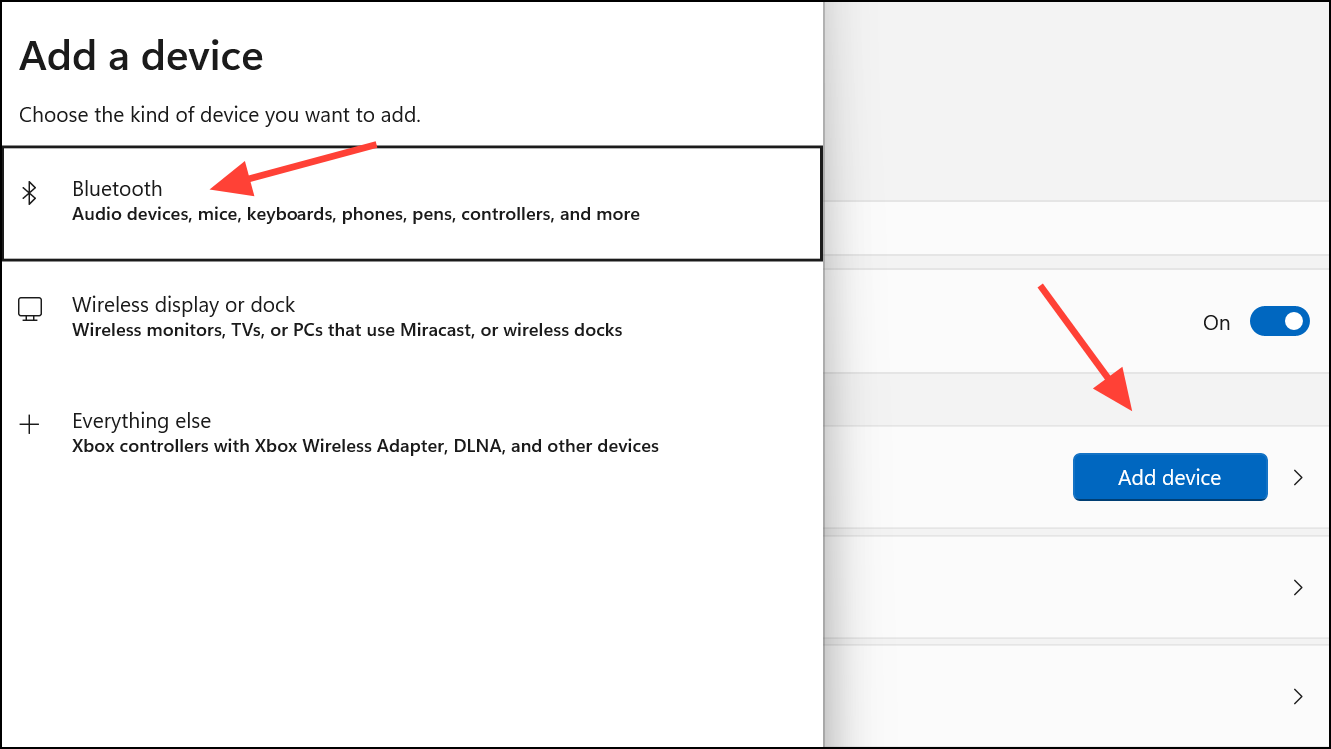
Troubleshoot Connection Issues and Driver Problems
Connection failures often result from mismatched Wi-Fi networks, outdated drivers, or Windows security settings. To resolve these obstacles:
- Ensure your printer and PC are on the same wireless network. Double-check SSID (network name) and security protocol compatibility (e.g., WPA2-Personal).
- Forget unused or conflicting Wi-Fi networks on your PC to prevent confusion during printer discovery. Go to
Settings>Network & internet>Wi-Fi>Manage known networksand remove outdated entries. - Run Windows Update to install the latest printer drivers. If your printer is not detected, visit the manufacturer’s website and download the newest Windows 11-compatible driver.
- On ARM-based PCs or Windows 11 S Mode, use only drivers and apps from the Microsoft Store or Windows Update, as third-party installers may be blocked.
- If prompted for network credentials when connecting to a shared printer, confirm the username and password for the host PC are correct. Network sharing requires the host PC to be powered on and connected.
Share a Printer Across Multiple Windows 11 PCs
Sharing a printer over your home or office network allows multiple devices to access a single printer. Begin by connecting the printer to a primary Windows 11 PC and ensuring it’s working locally.
Private for trusted sharing. Go to Settings > Network & internet, select your network, and confirm Private network is chosen.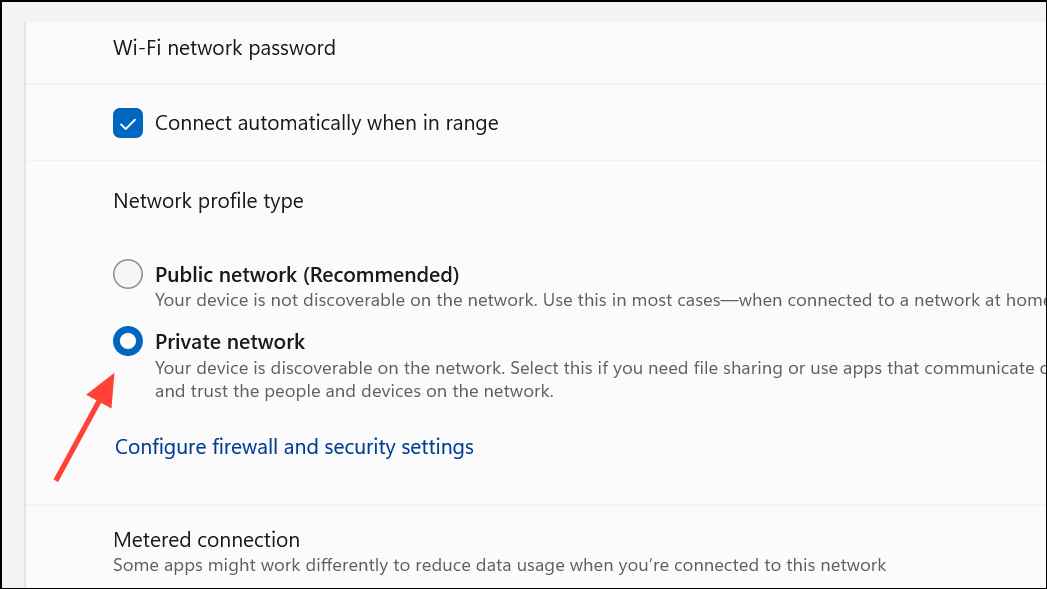
Settings > Network & internet > Advanced network settings > Advanced sharing settings, turn on both Network discovery and File and printer sharing for private networks.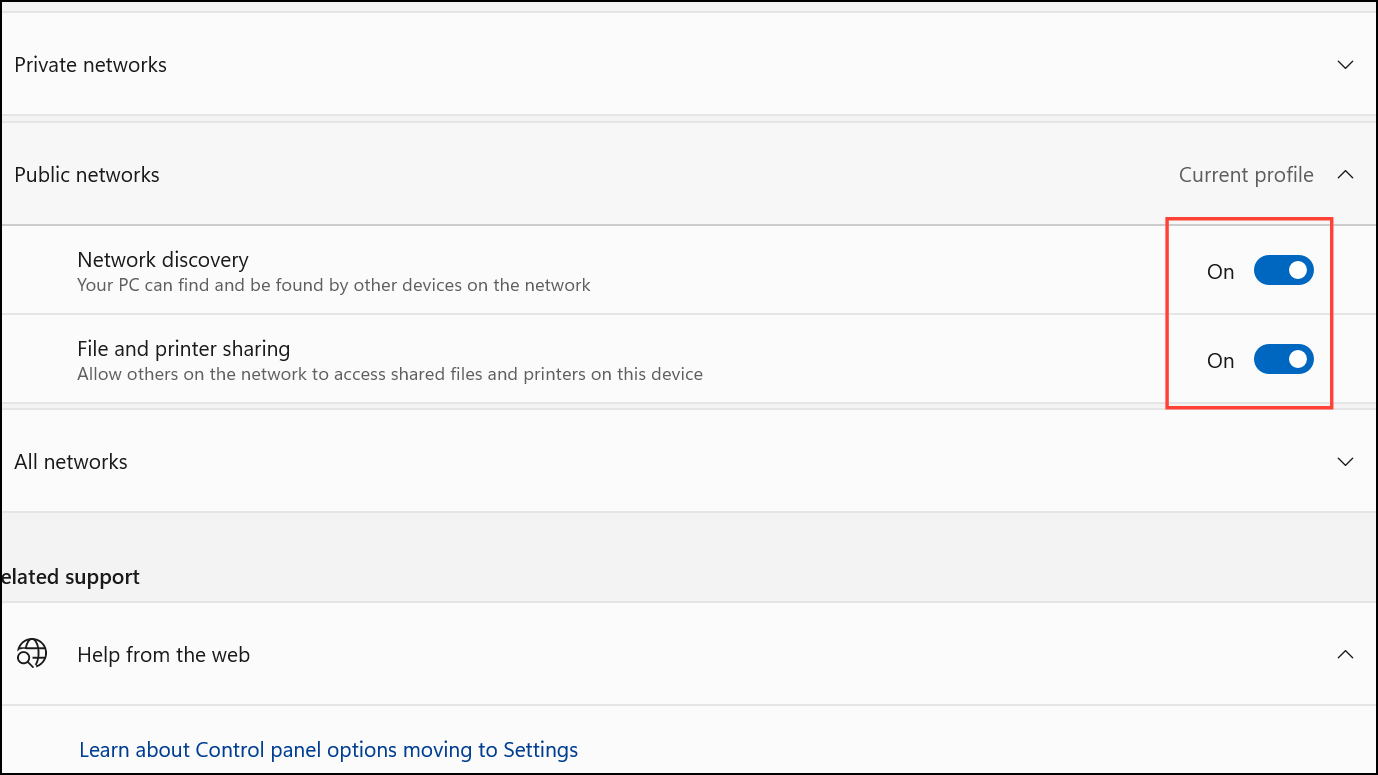
Printers & scanners, opening Printer properties, and enabling Share this printer in the Sharing tab. Note the share name for use on other PCs.Printers & scanners by clicking Add device. If the printer isn’t listed, select Add manually, choose Select a shared printer by name, and enter the path using one of these formats: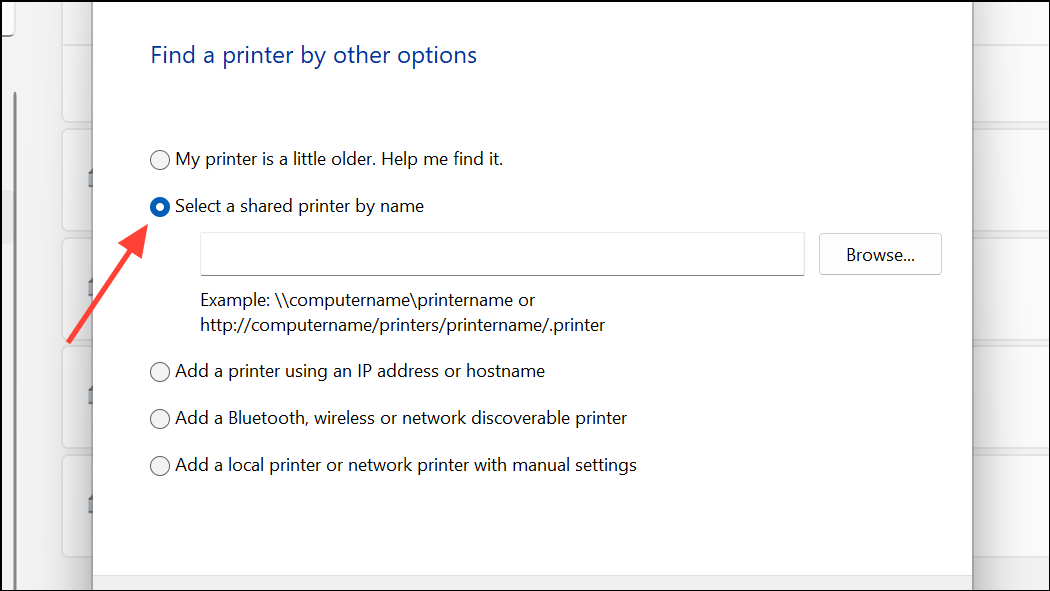
\\computer_name\printer_name\\ip_address\printer_name
Follow prompts to complete installation, entering credentials if required.
Wireless printing on Windows 11 delivers flexibility and efficiency once the printer and PC are correctly configured on the same network. If automatic setup fails, manual IP configuration or sharing options provide alternative paths to reliable printing.



