
Monitors that remain powered on while a PC is set to sleep or when display timeout settings are configured can lead to unnecessary energy use and, for OLED screens, risk of burn-in. Windows 11 users report that even with correct power settings, the display sometimes refuses to turn off as expected, especially when the timeout is set above a certain threshold or when specific hardware or software is involved.
Command-Line Solution Using Powercfg
Running a direct command with administrative privileges often resolves cases where Windows 11 ignores display timeout settings set via the graphical interface. This approach resets underlying configuration values that may have become stuck or corrupted.
cmd, right-click Command Prompt, and select Run as administrator to launch an elevated command window.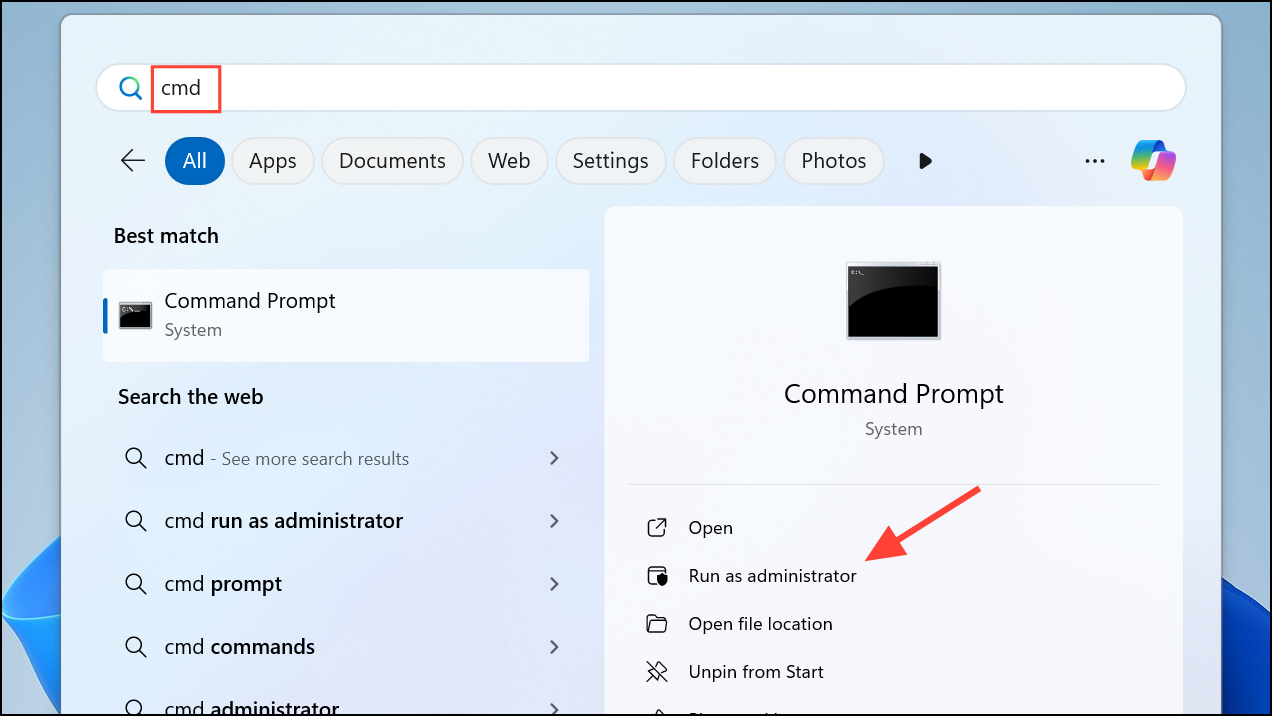
6 with your preferred number of minutes):C:\Windows\System32\powercfg.exe -change -monitor-timeout-ac 6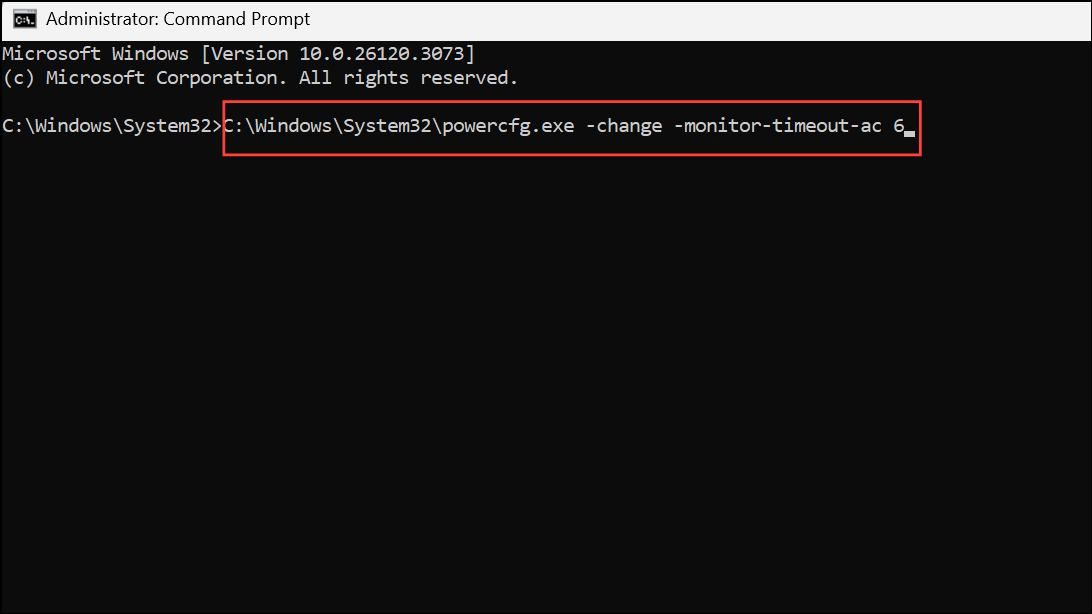
This command sets the display to turn off after 6 minutes when plugged in. Users have found that after running this command, Windows 11 starts honoring new or existing timeout settings, even if previously only values of 5 minutes or less worked. The effect persists after reboots and allows further changes via the Settings app or Control Panel.
C:\Windows\System32\powercfg.exe -change -monitor-timeout-dc 6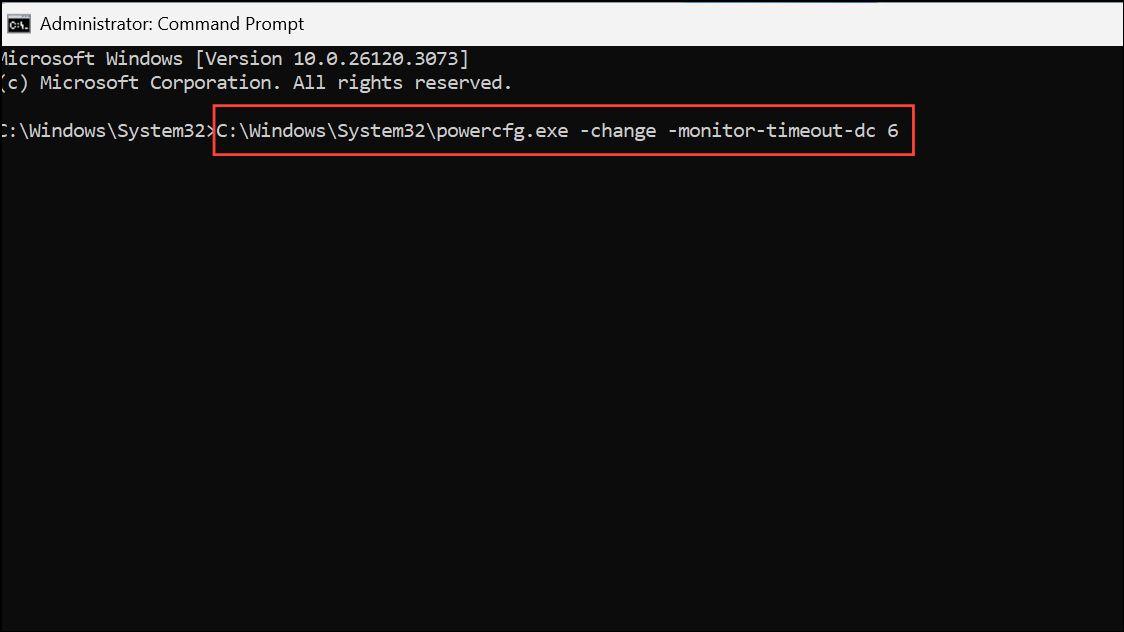
Update Graphics and Monitor Drivers
Outdated or mismatched drivers can interfere with power management. Ensuring both your GPU and monitor drivers are current can solve compatibility problems, especially with new hardware like OLED displays.
Disconnect or Troubleshoot USB Devices
Peripherals like USB hubs, joysticks, or other external devices may send signals that prevent the display from turning off or the PC from sleeping. Even if powercfg /requests shows no active blockers, hardware can still interfere at a lower level.
Some users have also resolved the issue by simply unplugging and reconnecting all USB cables, which can reset device states and resolve hidden communication faults.
Disable Problematic Background Applications
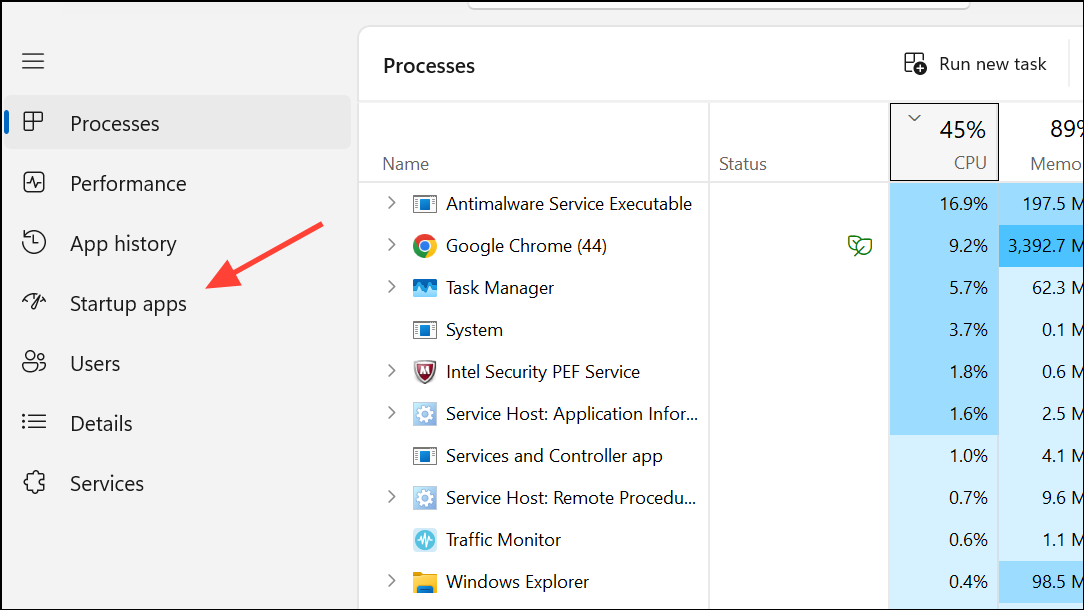
Software running in the background, such as security tools (e.g., Malwarebytes, CCleaner) or bundled monitor utilities, can block sleep or display-off events. This is especially true for utilities that interact with hardware or monitor status.
Reset Power Plans and BIOS/UEFI Settings
Corrupted or misconfigured power plans can cause persistent issues. Restoring default power schemes and checking BIOS/UEFI power management settings can clear hidden conflicts.
powercfg -restoredefaultschemes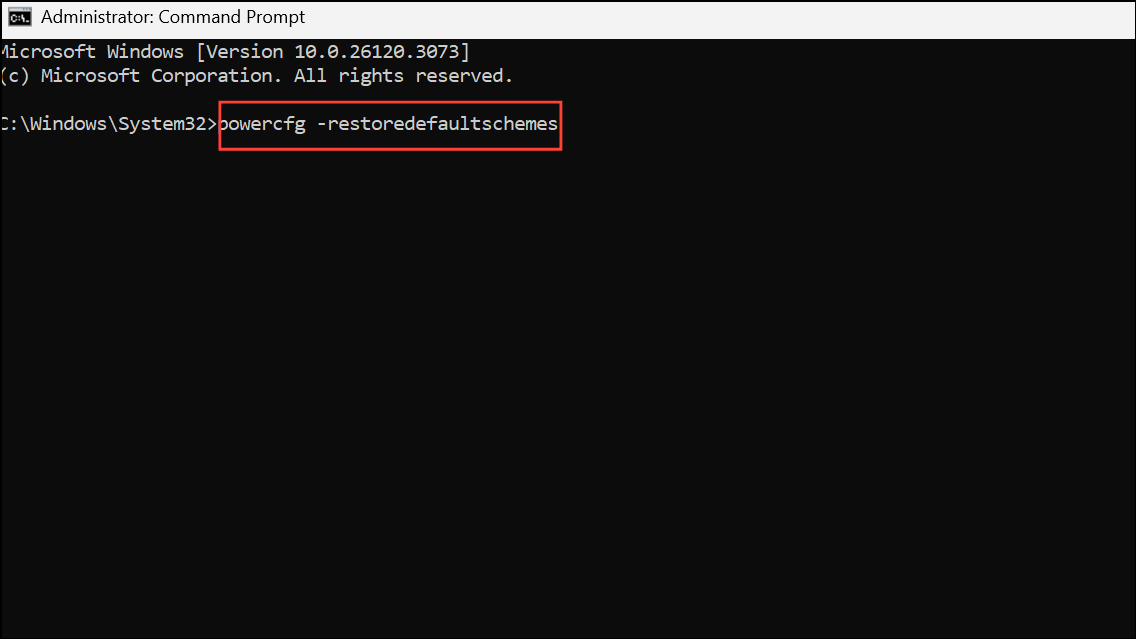
This resets all power settings to their Windows defaults.
Del or F2 at boot) and review power management options. Ensure nothing is set to override or prevent display sleep.Additional Notes and Workarounds
- If you set
Turn off displaytoNever, Windows 11 will not allow the PC to sleep automatically. Set both display-off and sleep timeouts to specific values to avoid this block. - Some users have succeeded by using context menu shortcuts or third-party utilities like nircmd to manually turn off the display, but these are workarounds rather than solutions to the underlying problem.
- Running
sfc /scannowandDism /Online /Cleanup-Image /RestoreHealthcan repair system files if you suspect corruption.
Applying these targeted fixes restores proper monitor sleep behavior and display timeout functionality in Windows 11, reducing unnecessary power use and preventing screen wear.



