
Roblox error codes 277 and 901 disrupt gameplay by disconnecting users from servers or blocking login attempts. Error 277 typically signals lost connection to the game server, while error 901 points to authentication problems. Both errors can result from unstable networks, corrupted application files, or account issues. Addressing these problems involves a mix of network troubleshooting, application maintenance, and sometimes account management.
Fixing Roblox Error 277: Lost Connection to Game Server
Unstable network connections, corrupted logs, or outdated application files are the most frequent causes of error 277 on Windows 11. Addressing these issues restores server connectivity and allows uninterrupted gameplay.
Reinstall Roblox Application
Control Panel. Select Programs, then Programs and Features. Locate Roblox in the list, right-click, and choose Uninstall. Follow the on-screen prompts to complete removal.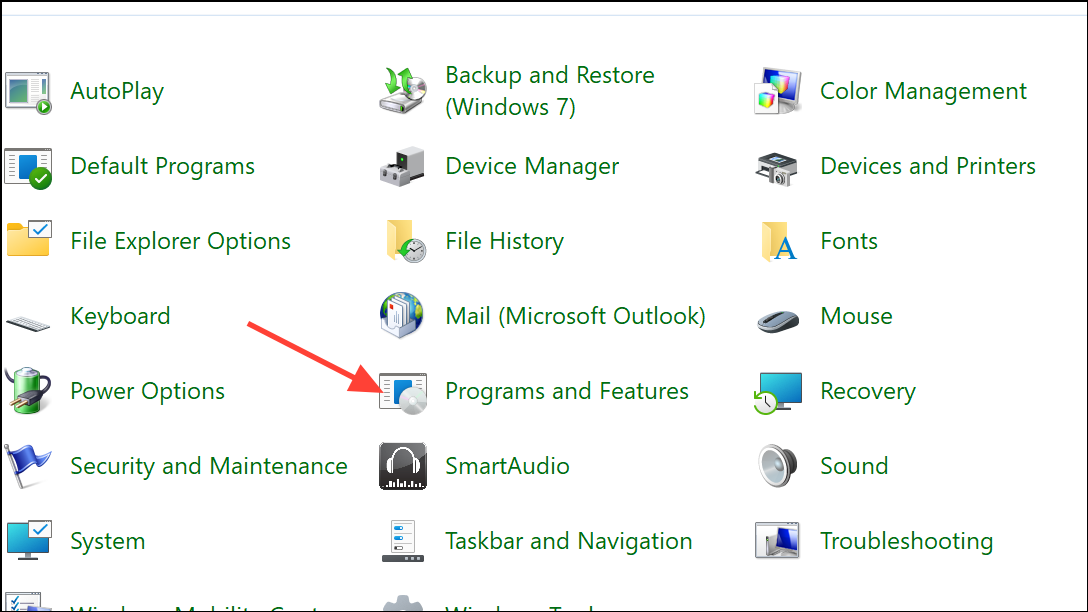
Clear Roblox Log and Configuration Files
Corrupted logs or configuration files can prevent Roblox from maintaining a stable server connection. Removing these files forces Roblox to generate new, error-free versions.
%LocalAppData%\Roblox into the address bar. Press Enter to navigate to the folder.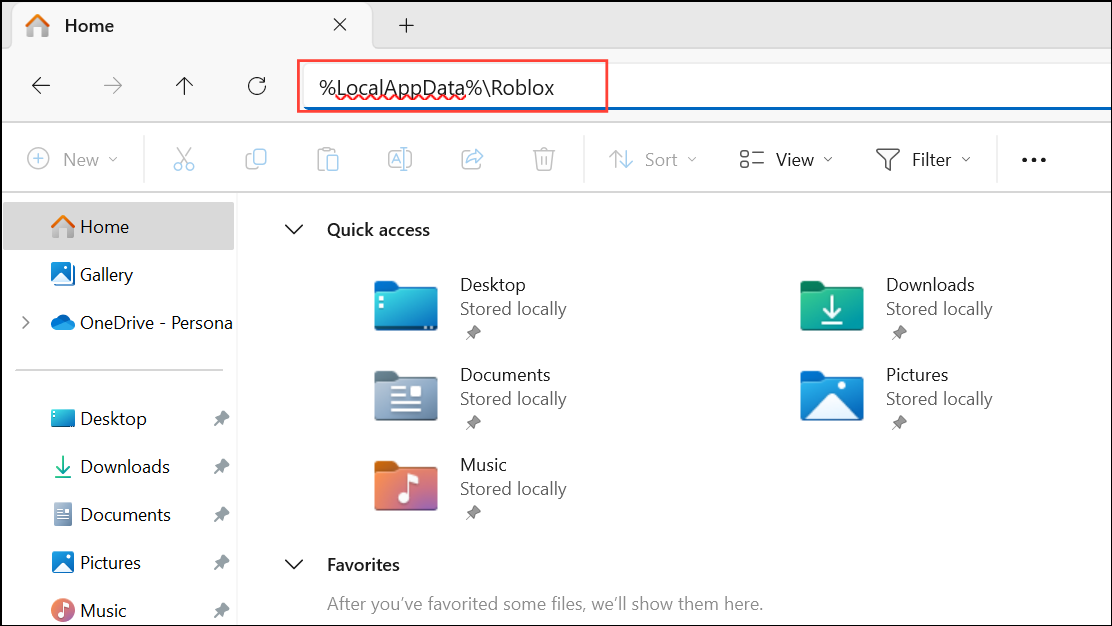
GlobalBasicSettings_13.xml (or just GlobalBasicSettings_13). Right-click and delete this file.Ctrl + A, then press Delete. Do not delete the folder itself, just its contents.Win + R), entering %USERPROFILE%\AppData\LocalLow\RbxLogs\, and deleting all files in that folder.Switch to a Different Network Connection
Network instability or restrictive router settings can disrupt Roblox’s ability to connect to its servers. Testing with another connection isolates whether your current network is the source of the problem.
Run Roblox in Compatibility Mode
Compatibility issues between Roblox and Windows 11 can cause connectivity problems. Running Roblox in compatibility mode can resolve these mismatches.
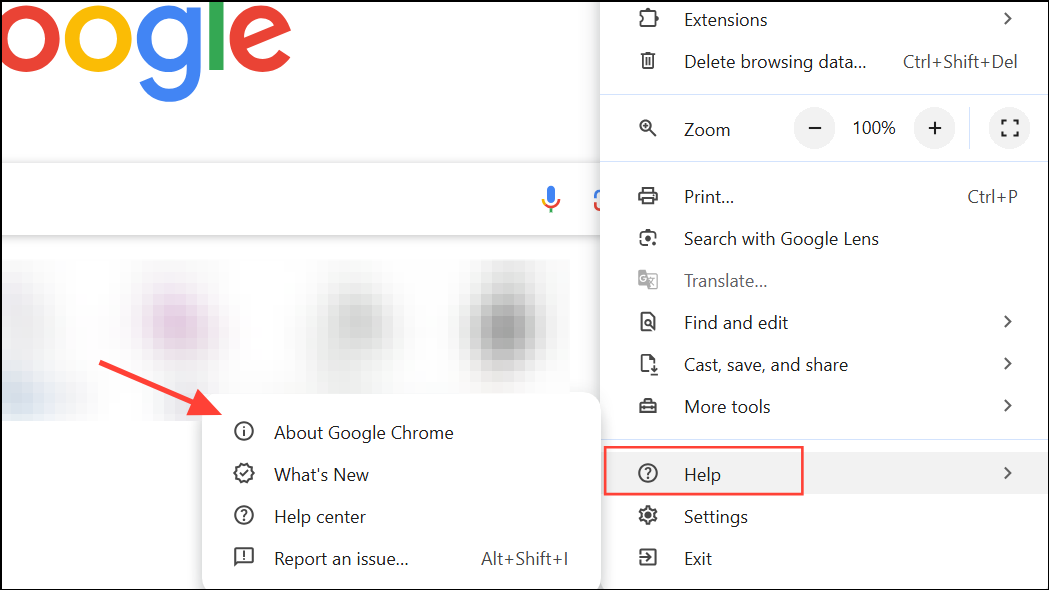
Update Web Browser and Disable Extensions
Outdated browsers or conflicting extensions can block Roblox’s web-based features. Keeping your browser current and disabling unnecessary add-ons reduces potential conflicts.
Reset Network Adapter and Flush DNS
Network adapter issues or a corrupted DNS cache can disrupt Roblox’s ability to connect to servers. Resetting these components often restores connectivity.
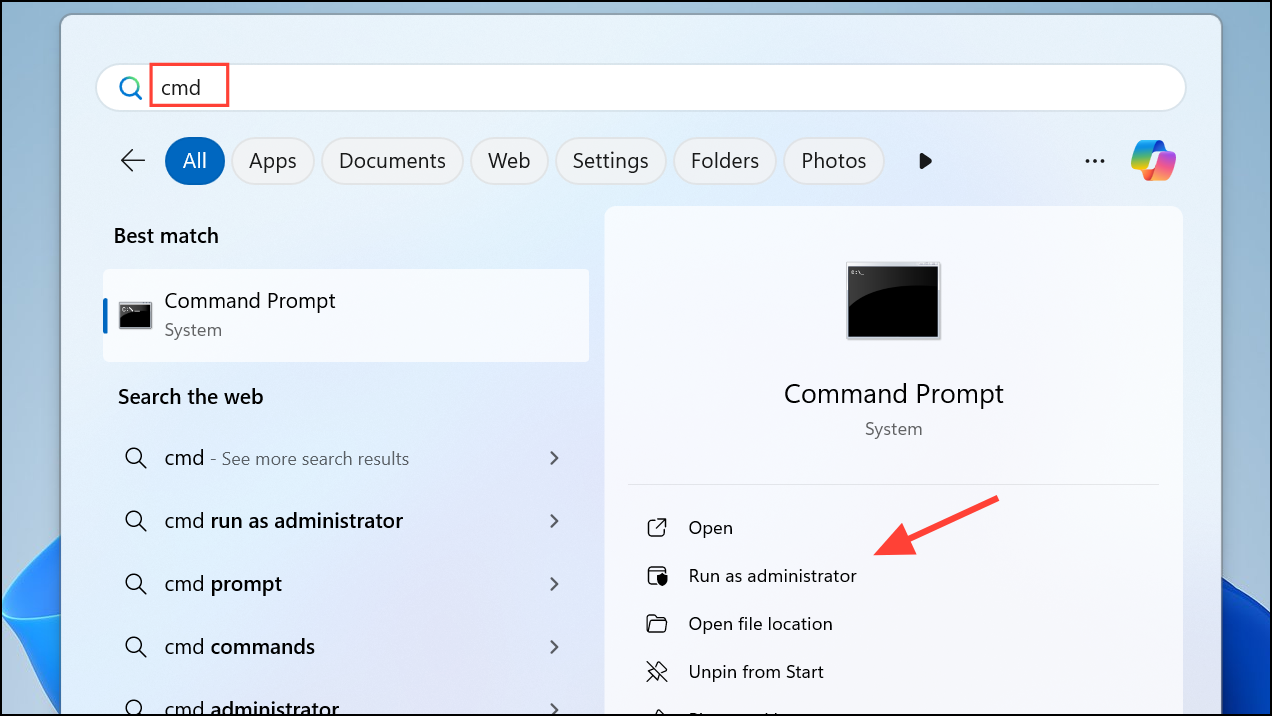
ipconfig /flushdns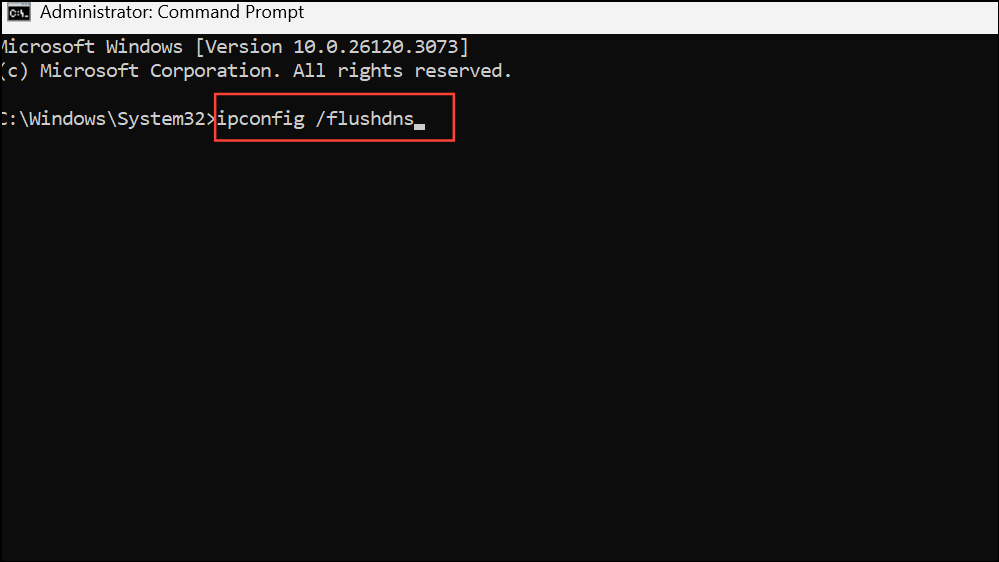
This command clears outdated or corrupted DNS records.
netsh int ip reset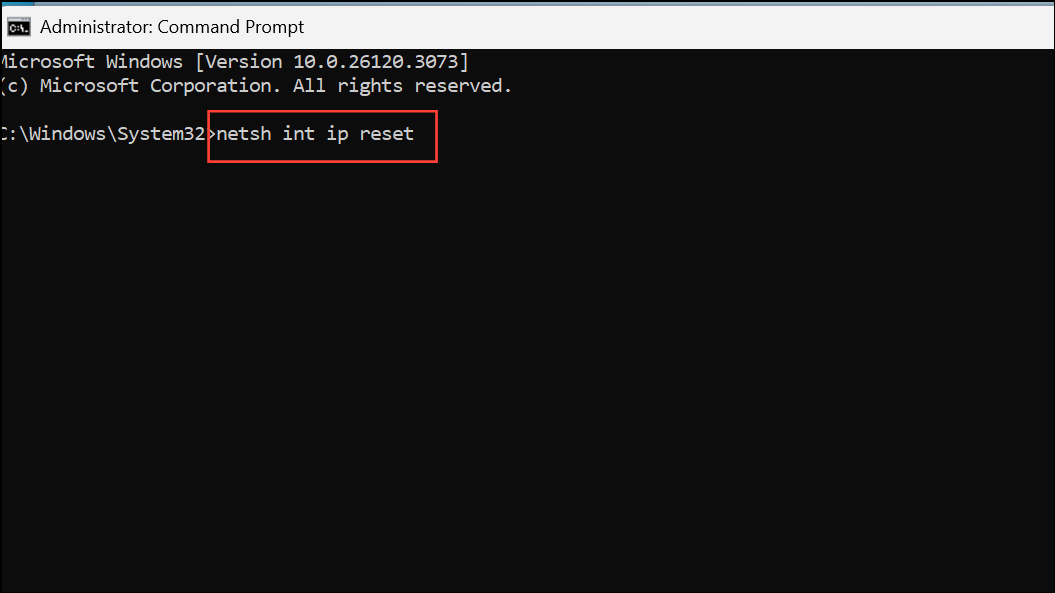
Restart your PC after running these commands, then test Roblox again.
Fixing Roblox Error 901: Authentication Error
Error 901 typically signals problems with account authentication or communication with Roblox servers. This error appears during login attempts and may be related to account bans, temporary glitches, or corrupted application data.
Check Account Status
Sign Out and Re-Authenticate
Temporary authentication glitches can be resolved by signing out and signing back in, which resets your session and clears cached credentials.
Reinstall Roblox Application
Corrupted or incomplete installations can cause persistent authentication errors. Reinstalling ensures a clean set of application files.
Try a Different Platform or Device
If the error persists on one device, but not another, the problem may be device-specific. Test your account on another PC, mobile device, or web browser to determine if the issue is isolated.
Contact Roblox Support
If none of the above methods resolve error 901, reach out to Roblox’s official support team. Provide detailed information about your account, device, and the error message to expedite assistance.
Addressing Roblox errors 277 and 901 on Windows 11 requires a combination of network troubleshooting, application maintenance, and account checks. Following these steps restores reliable access to Roblox and minimizes future disruptions.



