
Error 0x8004de2f blocks OneDrive, Outlook, Office activation, or even Windows activation when your system fails to connect to Microsoft servers or verify your credentials. This error frequently disrupts file syncing, email access, or license validation, and can stem from network issues, outdated security protocols, or corrupted cached credentials. Addressing these root causes restores seamless access to Microsoft services and prevents further interruptions.
Check Internet Connection and Network Settings
Settings > Network & Internet > Proxy and toggle off Automatically detect settings and Use a proxy server. If you use a VPN, disconnect it while troubleshooting. VPNs and proxies can block or reroute the secure connections Microsoft apps need, leading to authentication failures.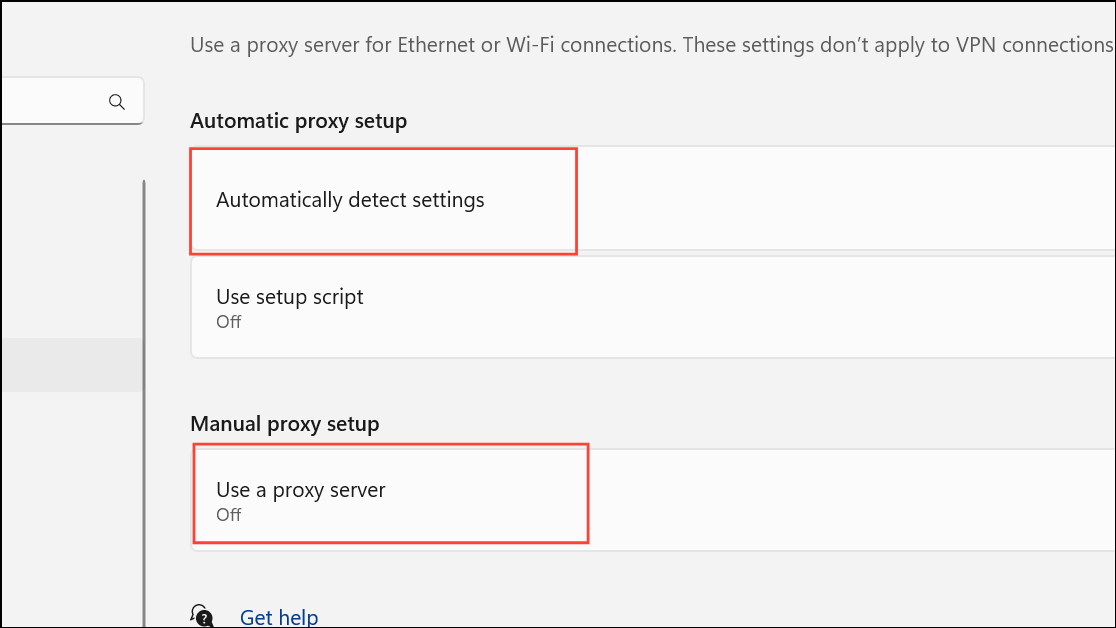
Troubleshoot in the Windows search bar, select Additional troubleshooters, then run the troubleshooter for Network and Internet. Apply any recommended fixes. This tool detects and repairs common network misconfigurations.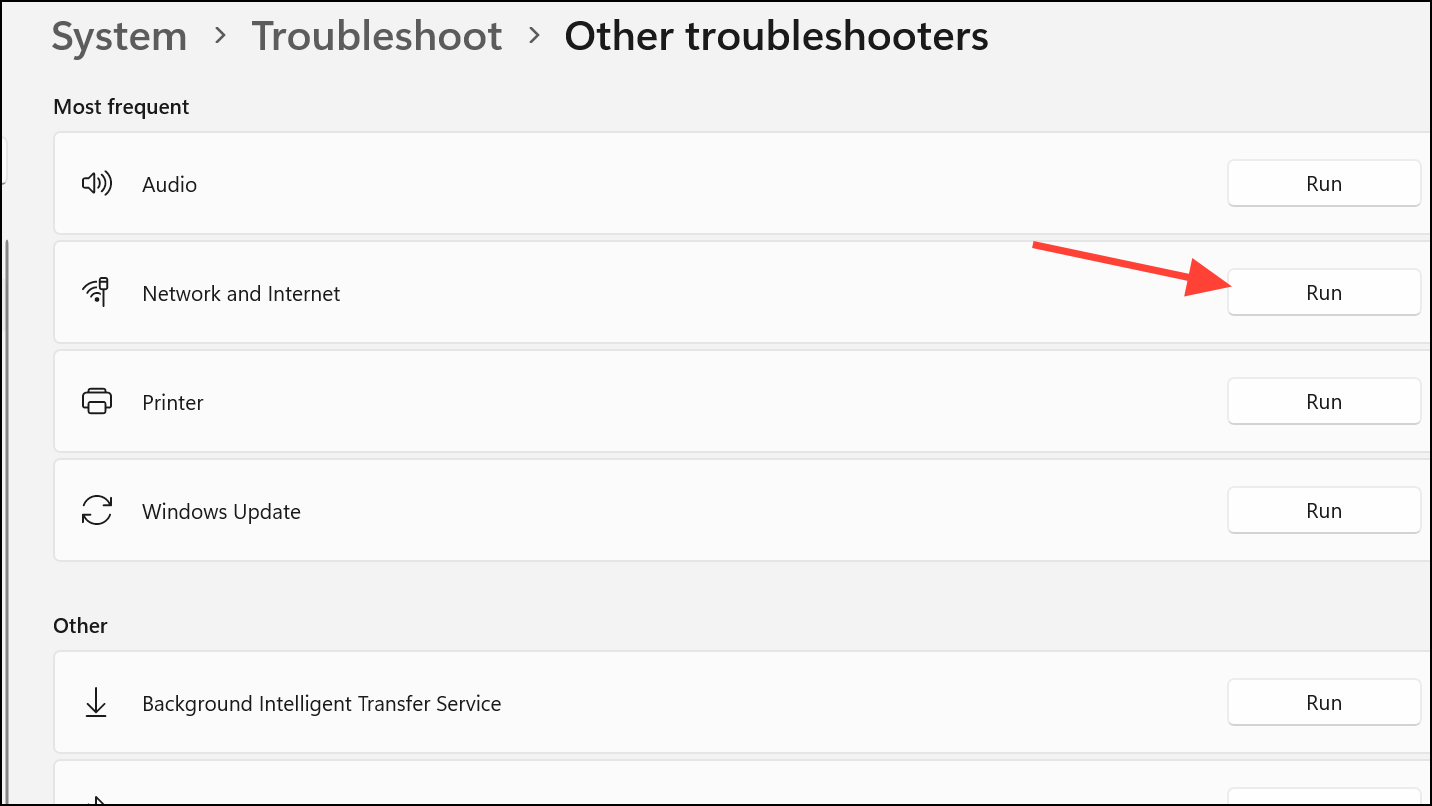
Enable Required TLS Security Protocols
Microsoft applications, especially OneDrive, require modern Transport Layer Security (TLS) protocols for secure communication. Outdated or disabled TLS settings can block authentication or syncing.
Windows Key + R, type inetcpl.cpl, and press Enter to launch Internet Properties.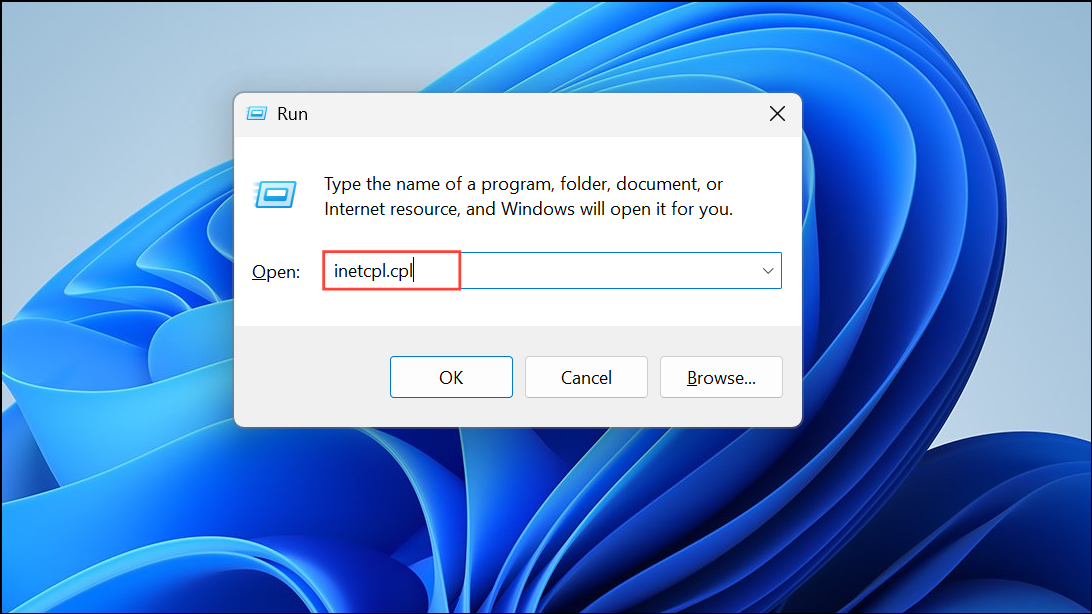
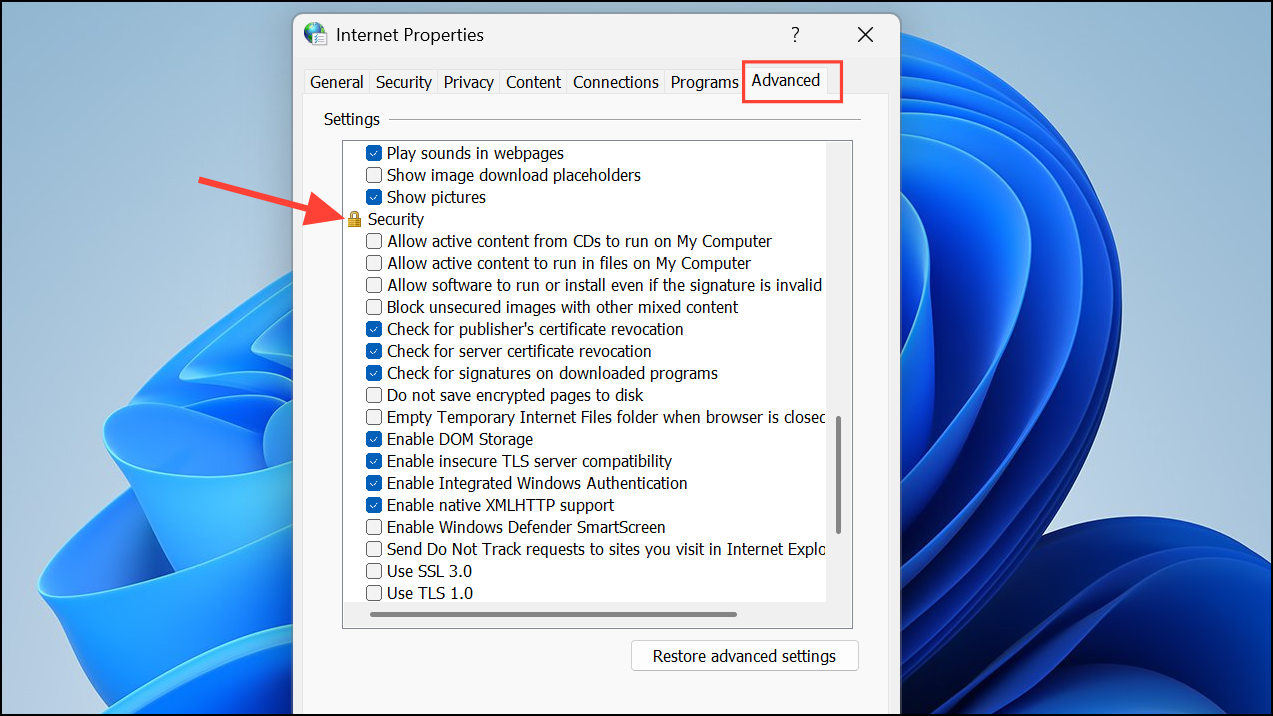
Use TLS 1.0, Use TLS 1.1, and Use TLS 1.2 are checked. For maximum security, also enable TLS 1.3 if available, and disable SSL 3.0 and earlier protocols.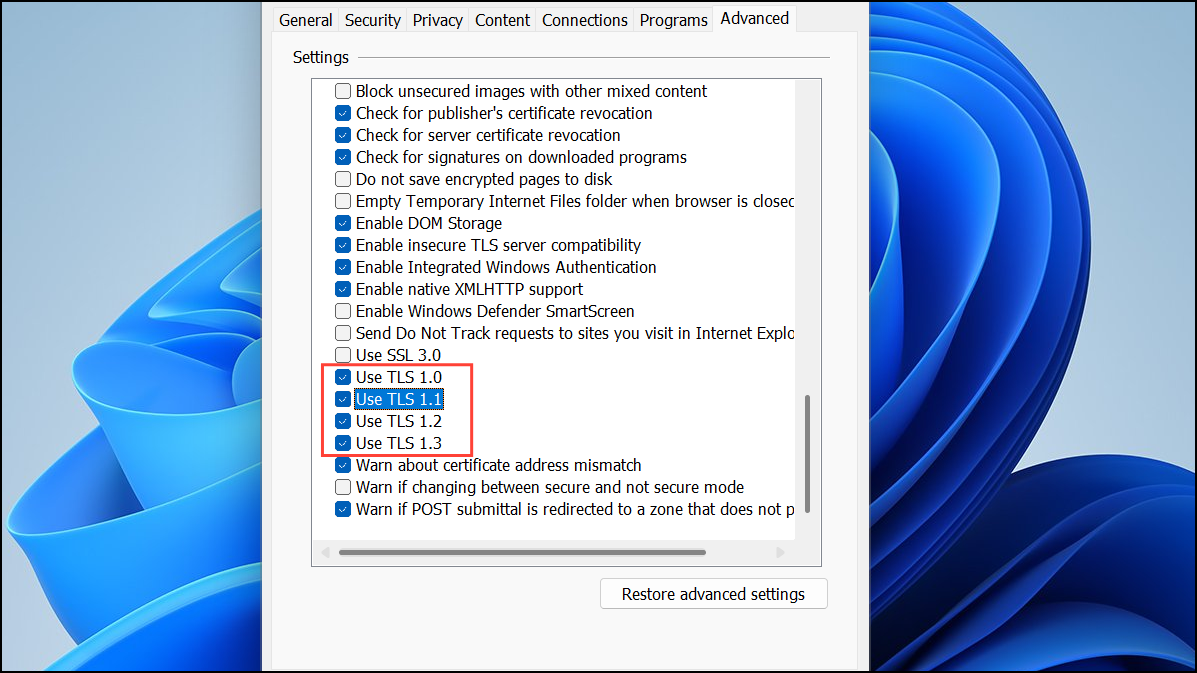
Apply then OK. Restart your computer to apply changes. This step ensures apps can establish secure sessions with Microsoft servers.Clear Cached Credentials and Reset Authentication
Corrupted or outdated cached credentials often prevent Microsoft apps from signing in, leading to error 0x8004de2f. Removing these credentials prompts the apps to request fresh authentication and can resolve persistent sign-in issues.
User Accounts > Credential Manager, and select Windows Credentials.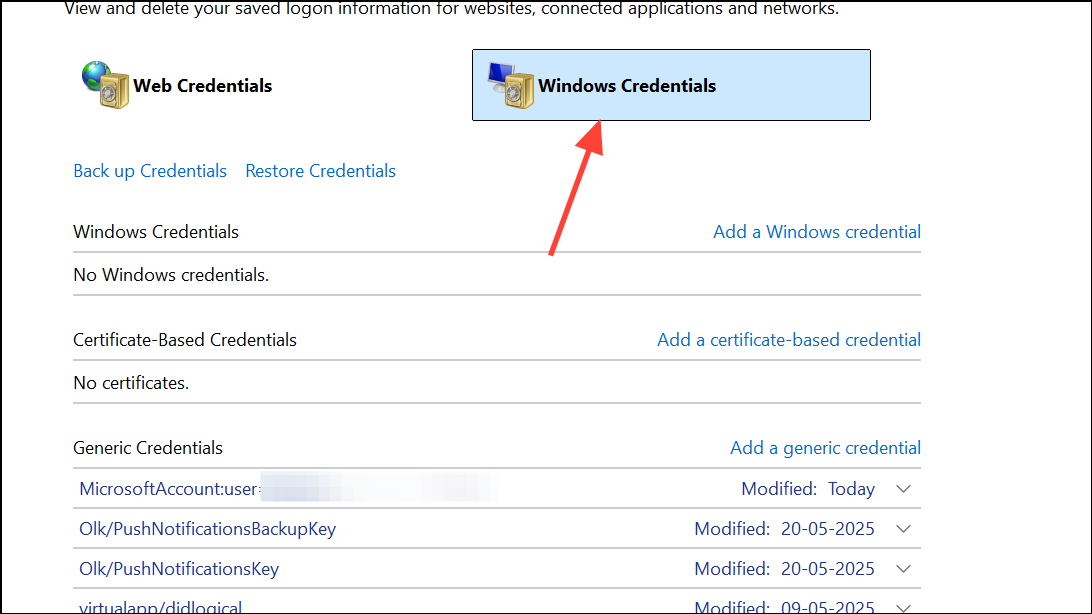
Remove. This deletes stored passwords and tokens that may be invalid or expired.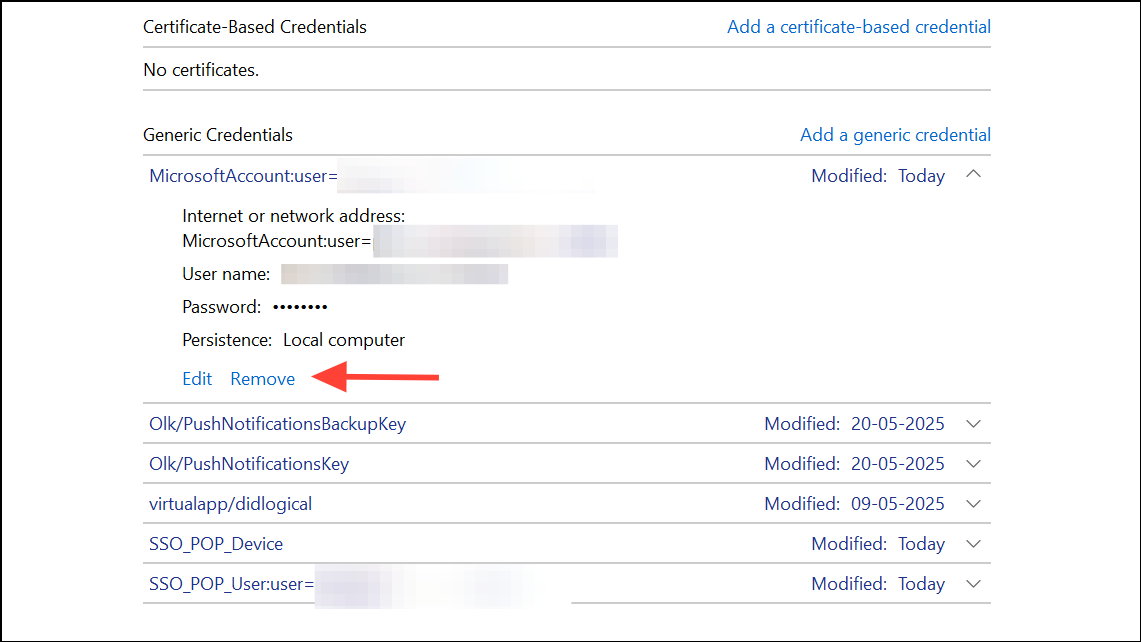
Windows Key + R, type regedit, and press Enter.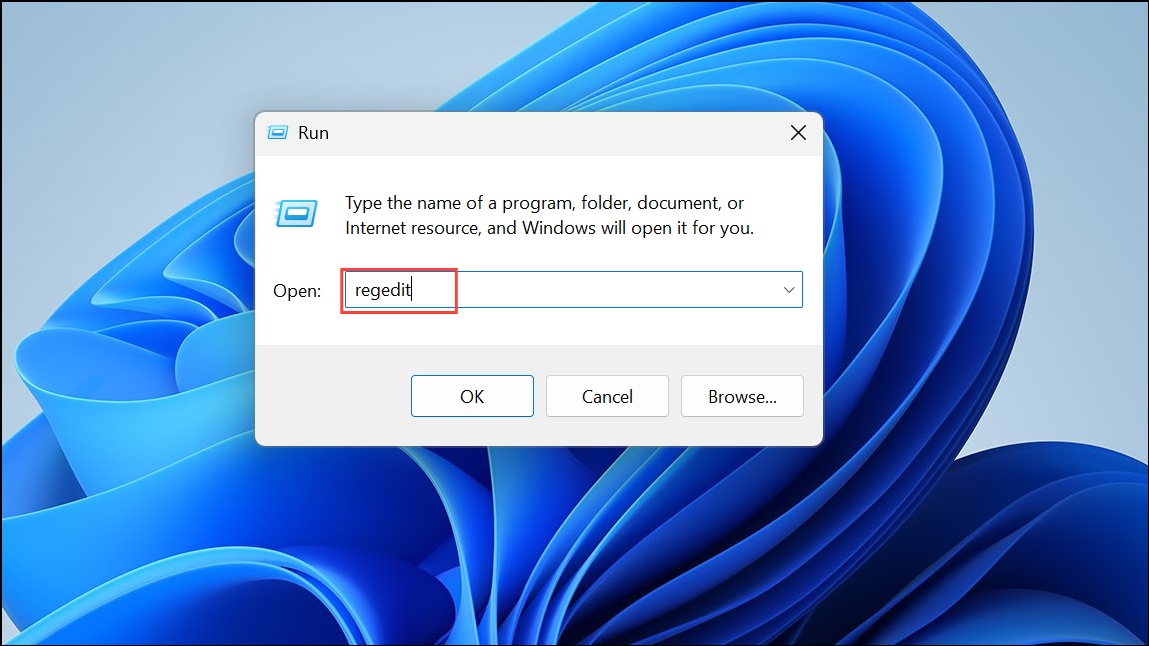
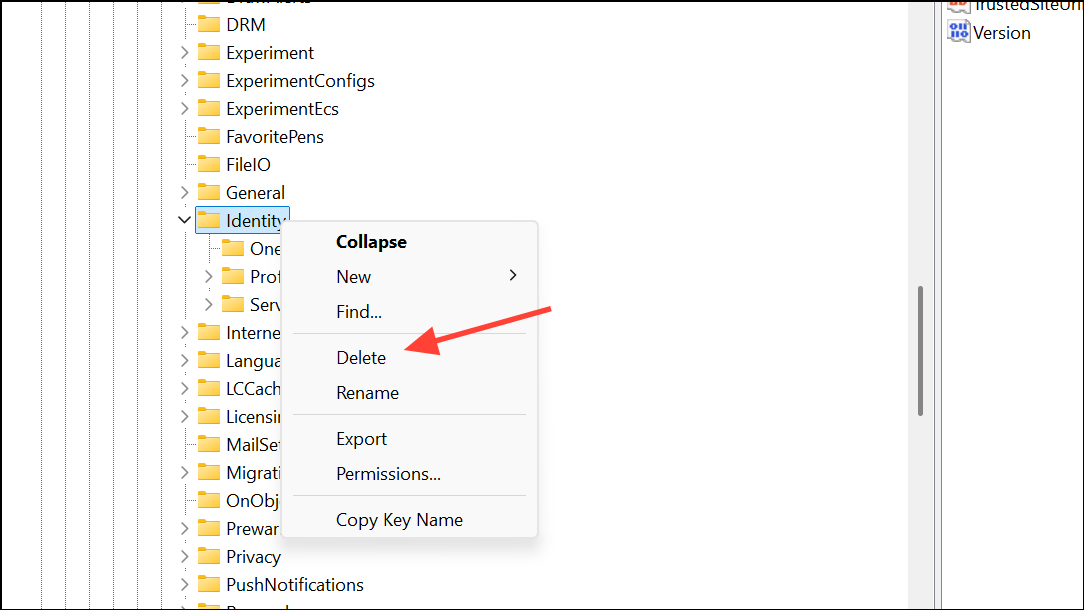
HKEY_CURRENT_USER\SOFTWARE\Microsoft\Office\16.0\Common\Identity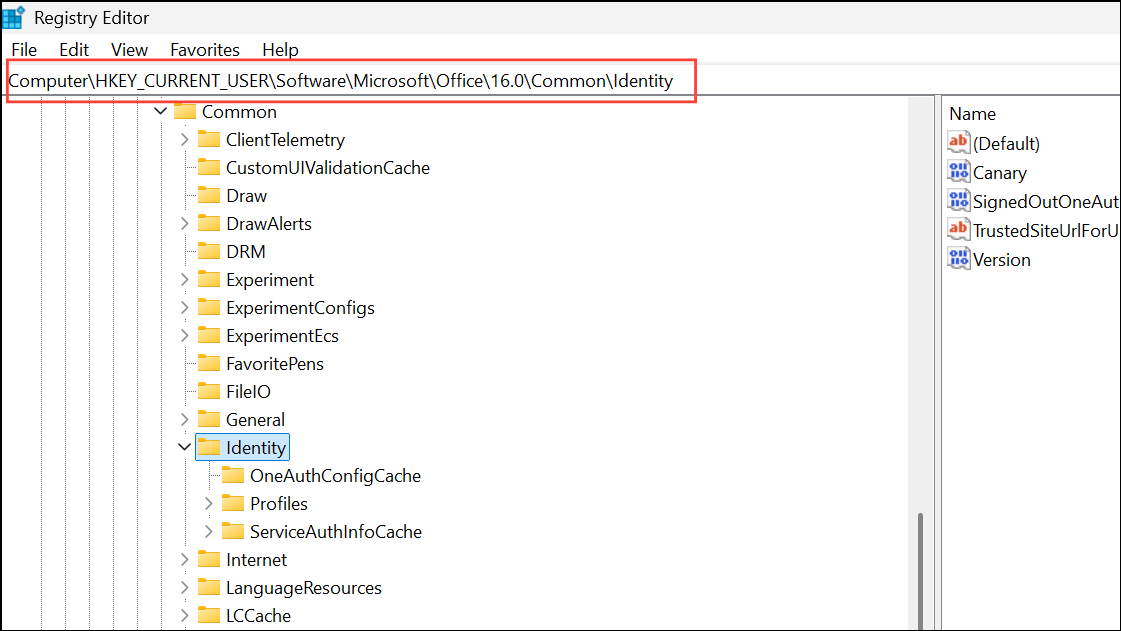
Reset OneDrive and Office Apps
Resetting OneDrive or Office can clear internal caches and repair application-level issues that block sign-in or syncing.
%localappdata%\Microsoft\OneDrive\onedrive.exe /reset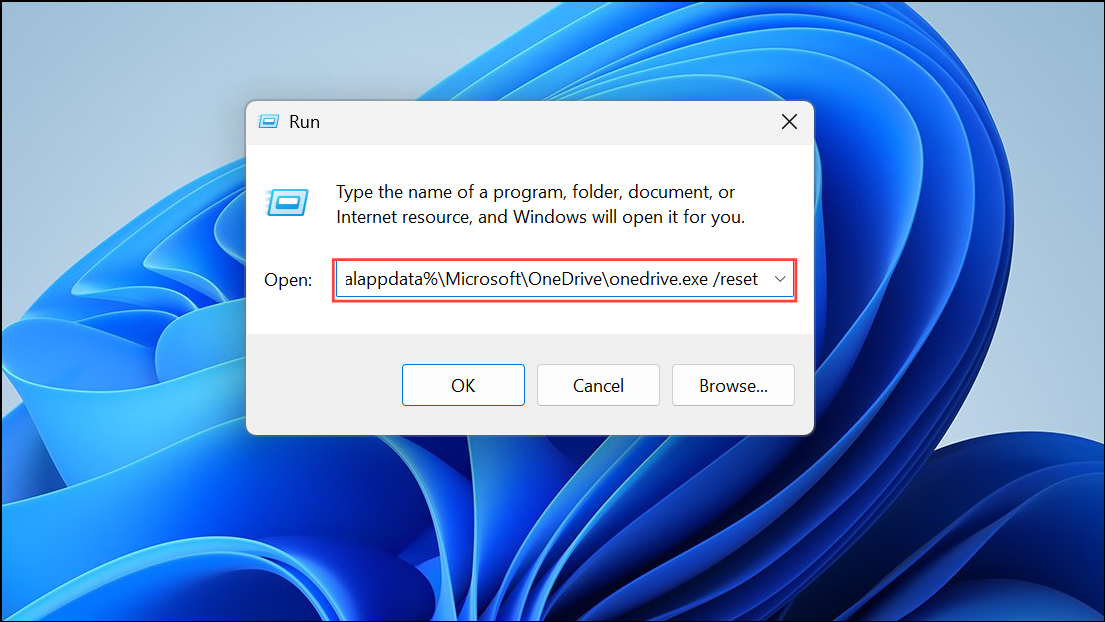
If OneDrive does not restart automatically, run:
%localappdata%\Microsoft\OneDrive\onedrive.exe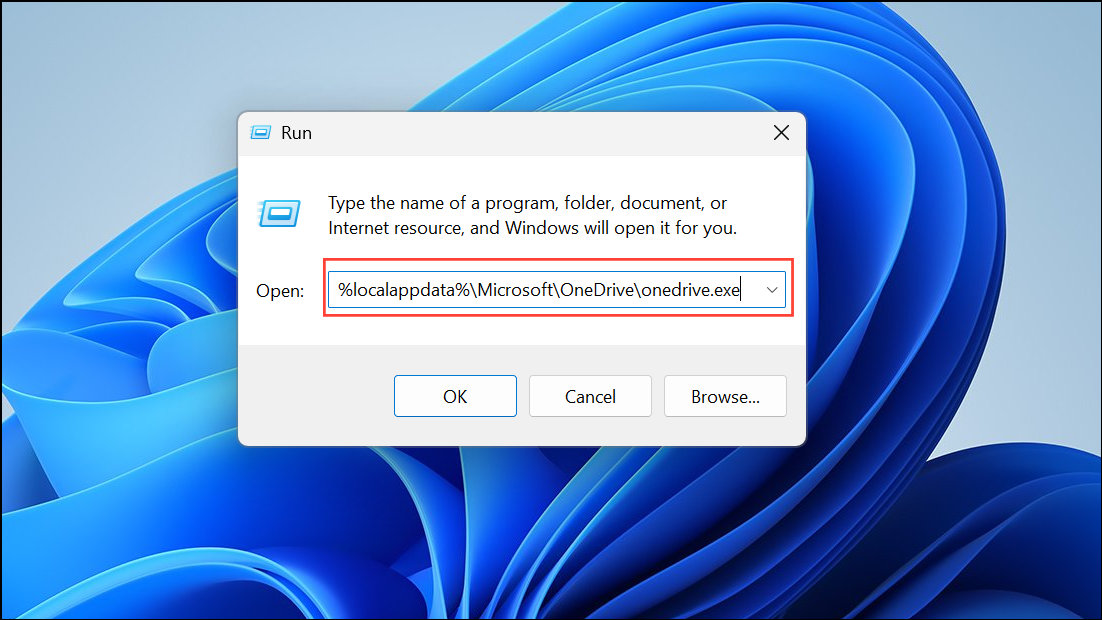
Alternatively, use the full file path if you receive a “Windows cannot find” message:
C:\Program Files\Microsoft OneDrive\onedrive.exe /reset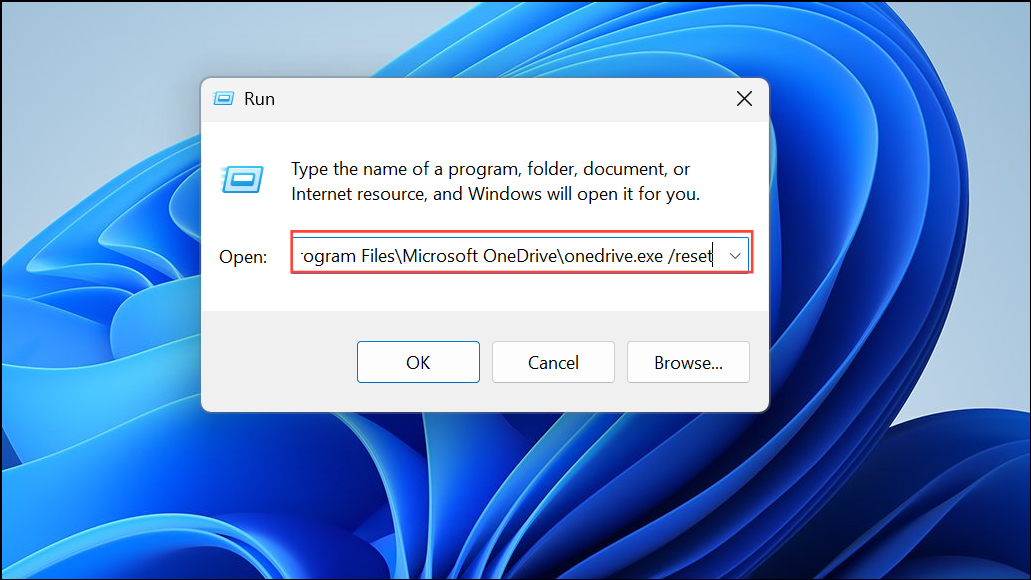
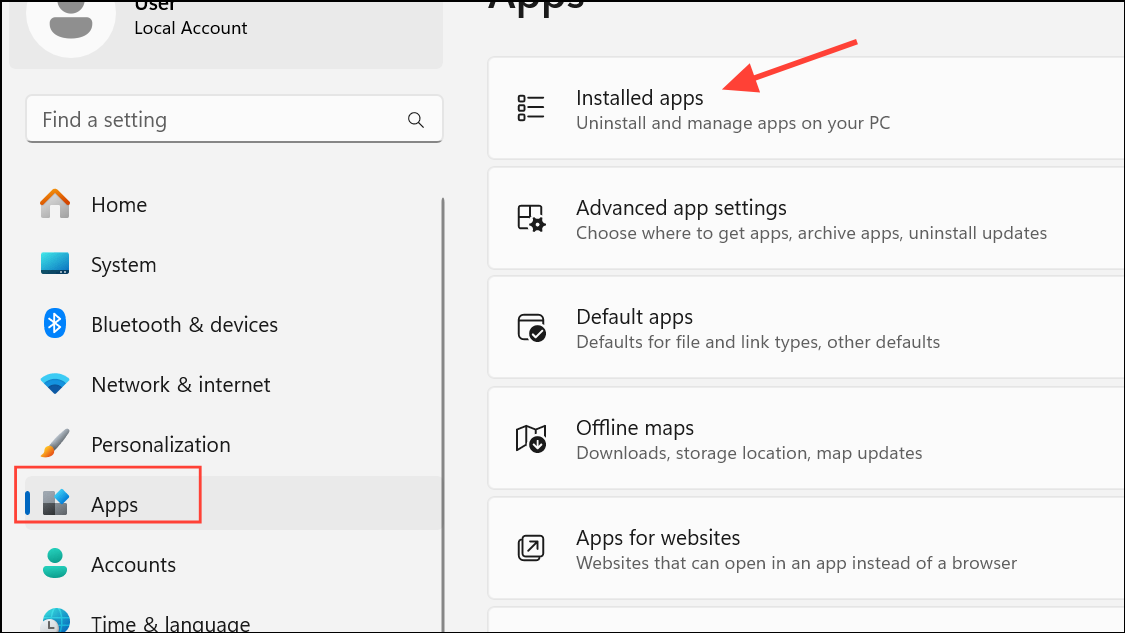
Microsoft Office, click Modify, and select Online Repair. This process reinstalls core Office files without affecting your documents.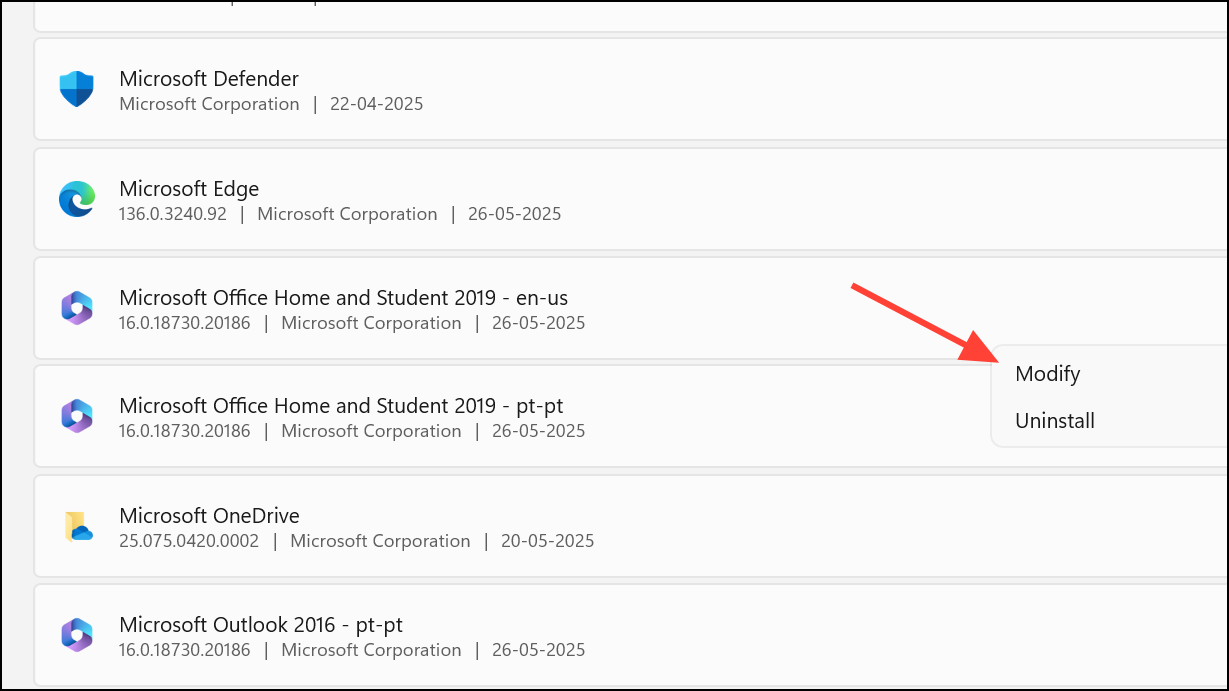
Update or Re-authenticate Accounts in Outlook and Office
Account mismatches or expired sessions can trigger error 0x8004de2f during activation or sign-in.
File > Account. Click Sign Out next to your account, then sign back in using your current Microsoft credentials. This refreshes your session and updates authentication tokens.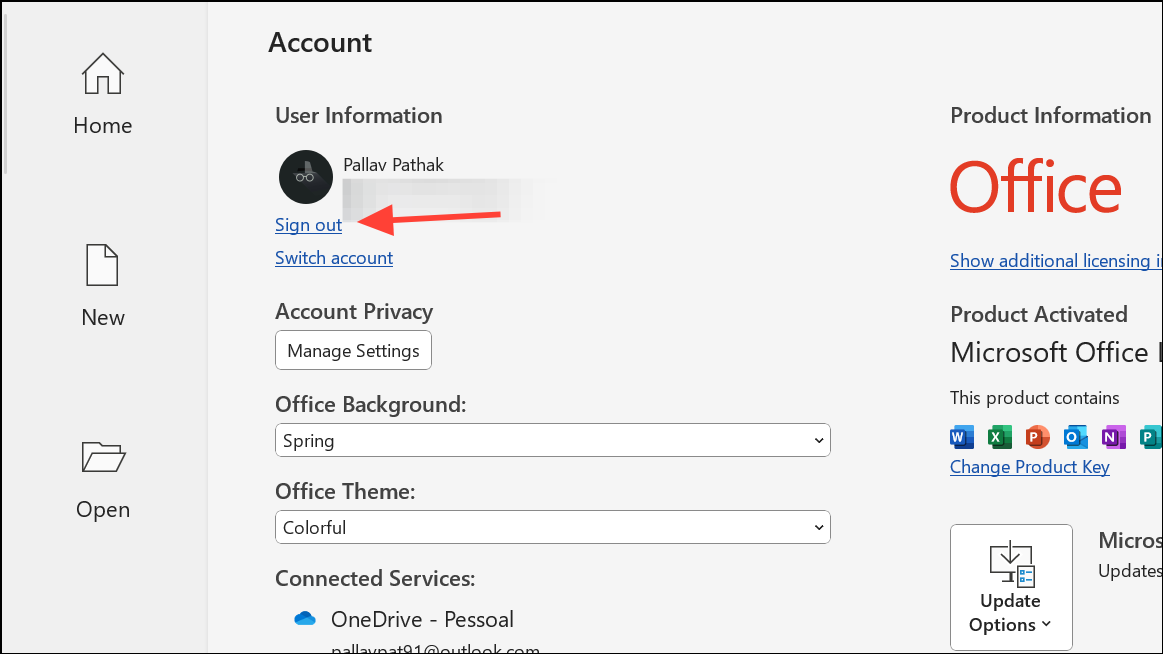
Accounts, select your account, and choose Remove. Restart Outlook and add the account again. This ensures Outlook connects with updated credentials and settings.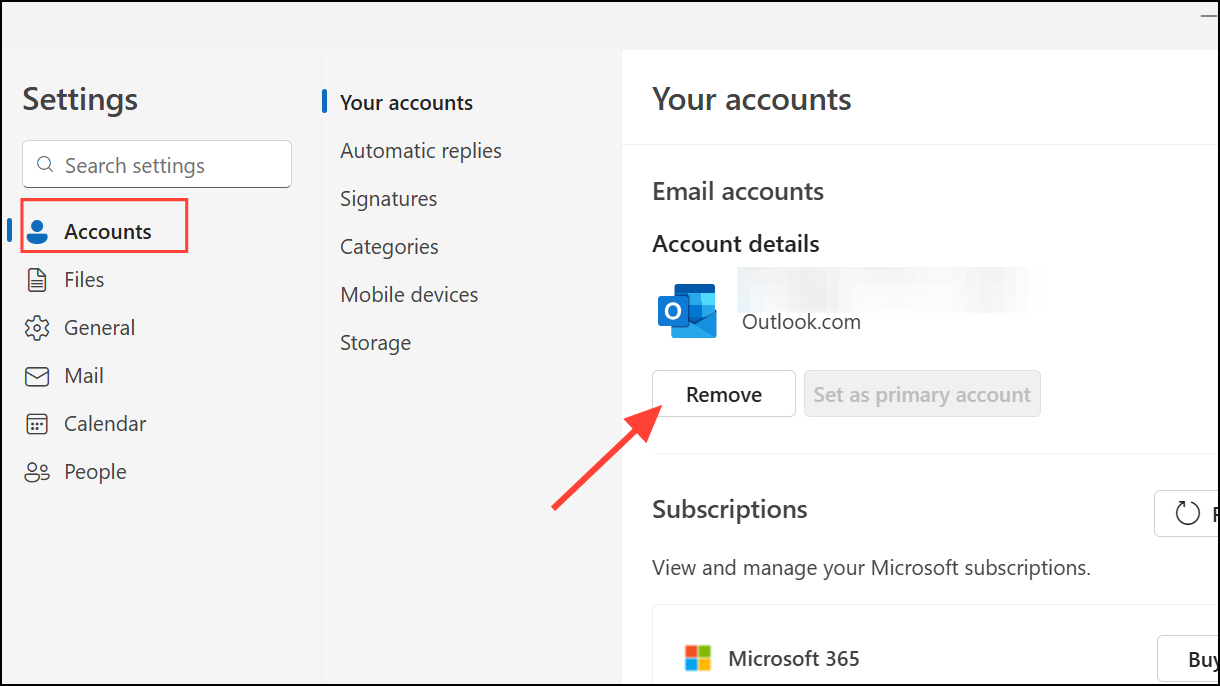
Temporarily Disable Antivirus or Firewall
Some third-party antivirus programs or firewalls can block Microsoft apps from accessing the internet, resulting in error 0x8004de2f. Temporarily disable your antivirus or create exceptions for OneDrive, Outlook, and Office. If disabling resolves the issue, adjust your security software settings to allow necessary connections before reenabling protection.
Check Microsoft Account License and Subscription Status
For OneDrive for Business or Office 365 users, a missing or expired license can cause persistent authentication errors. Administrators should verify that the affected user’s account has an active license assigned in the Microsoft 365 admin center. If multiple users are affected, check the organization’s subscription status under Billing > Your products. Assign or renew licenses as needed to restore access.
Resolving error 0x8004de2f on Windows 11 usually requires a combination of network troubleshooting, credential resets, and security protocol updates. Taking these steps restores connectivity, sync, and activation for Microsoft apps, keeping your workflow uninterrupted.



